
Bringing Photos to Life With AI 3D Picture Effects
Discover how to transform your static photos into dynamic videos with a stunning AI 3D picture effect. A practical guide to tools, tips, and techniques.
Veo3 AI · 18 min read · Dec 8, 2025
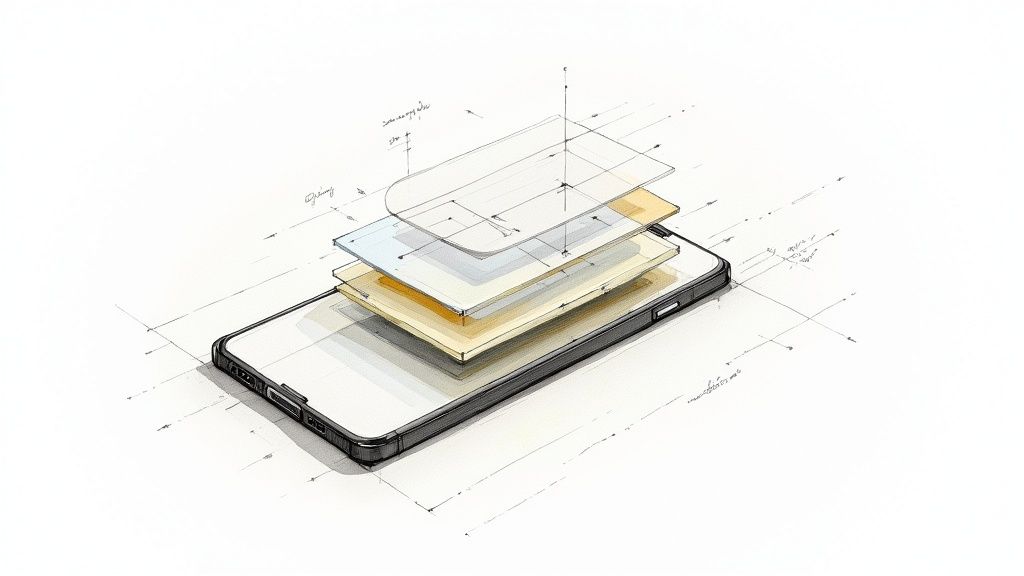
What we're talking about here isn't just a simple filter. A true 3D picture effect takes a flat, static photo and breathes life into it, creating a dynamic video with a genuine sense of depth and motion. The magic happens when AI analyzes your image, intelligently separates the foreground from the background, and then creates that classic parallax effect—where things closer to you seem to move faster than objects in the distance.
Quick Answer: 3 D Picture Effect is a rapidly growing area of AI-powered content creation in 2025. The best tools combine high output quality, intuitive workflows, and flexible pricing—making professional-grade results accessible to creators at every skill level.
How AI Pulls Off the 3D Picture Illusion
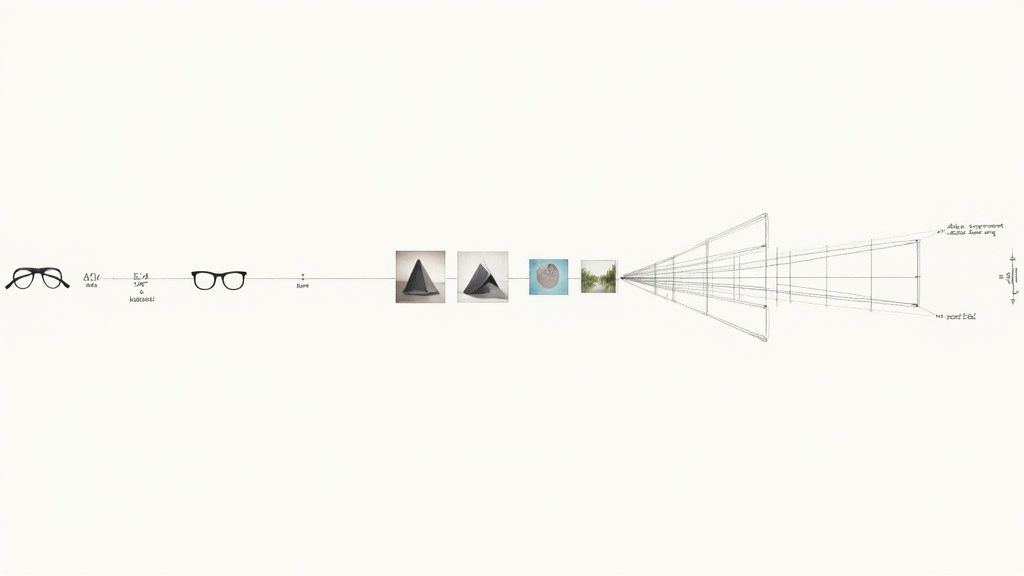
Ever wonder how a simple photograph can suddenly feel like it’s popping off the screen? It's a captivating visual trick, and its roots go way back, long before the AI tools we have today. A quick peek at this history really helps you appreciate the technology you're about to master.
The core idea isn’t new. It actually dates back to the mid-19th century with stereoscopic photography. The real breakthrough was the 1891 patent for the anaglyph method—the one that used red and blue lenses to create a sense of depth. This basic concept was mind-blowing for early film audiences and laid the foundation for modern 3D movies.
From Old-School Tricks to Modern AI
Today, AI does all the complex work for us. We no longer need special glasses or two separate images to create that feeling of depth. Instead, sophisticated algorithms can look at a single photo and generate a convincing 3D picture effect on their own.
Here's a breakdown of what the AI is actually doing behind the scenes:
- Subject Detection: First, it has to figure out what the main subject is. It intelligently isolates the key elements in your photo from everything else in the background.
- Depth Map Creation: Next, it builds a "depth map." Think of this as a grayscale blueprint where lighter shades represent parts of the image that are closer to the viewer, and darker shades are farther away.
- Camera Simulation: With that depth map as its guide, the AI simulates camera movements. It can pan, zoom, or dolly, creating the parallax motion that our brains naturally interpret as three-dimensional space.
At its heart, this entire process is about tricking our eyes into seeing depth in a 2D image. For a deeper dive into how this works on a technical level, some guides on AI Image to 3D Model Conversion are fascinating.
Once you grasp how the AI "sees" your image in layers, you'll start making much better choices about which photos to use and how to guide the AI. It turns what could be a technical chore into a fun, creative process.
The good news is that tools like Veo3 AI handle all this complex work for you, letting you stay focused on the creative side. This guide is all about showing you how to take control of these incredible video effects and bring your own photos to life.
Choosing and Preparing the Perfect Image
The secret to a jaw-dropping 3D picture effect isn’t buried in some obscure setting or a magic prompt. It all starts with the photo you choose. If you give the AI a great starting point, you’re already halfway to an incredible result.
Think of it this way: the AI is an artist, and your photo is the canvas. A messy, confusing canvas is going to lead to a muddy painting. A clean, well-defined one? That’s where the magic happens.
Your main goal is to find an image with a really clear separation between the subject in the foreground and whatever is going on in the background. The more distance the eye perceives between those elements, the more dramatic and believable your final 3D animation will feel. A photo where everything is equally sharp from front to back can actually trip up the AI, making it struggle to see the different layers.
What Makes an Image Ideal for a 3D Effect
You’ll want to hunt for photos that already have a natural sense of depth. A portrait with a nice, crisp subject against a soft, blurry background is a fantastic candidate. Landscapes also work beautifully, especially if you have something prominent up close—a person, a striking tree, a big rock—with a distant mountain range or a far-off horizon behind it.
Here are the key ingredients I always look for in a source image:
- A Clear Subject: There needs to be one obvious hero of the shot.
- Good Contrast: Strong differences between the light and dark areas of your subject and its surroundings help the AI see the edges clearly.
- Defined Edges: Try to avoid subjects with super fine, fuzzy details, like frizzy hair against a cluttered background. Those tiny details can be tough for the AI to isolate perfectly.
A couple of simple pre-edits can make a huge difference. Before you upload your image, spend 30 seconds in any photo editor to slightly bump up the contrast and sharpness. This quick tweak helps the AI see the boundaries between objects much more clearly, which translates into a cleaner, more precise 3D picture effect. For a deeper dive into this, check out our guide on how to make animation from photos.
Understanding the Importance of a Depth Map
The technical key to this entire process is something called a depth map. It’s basically a grayscale image that acts as a blueprint, telling the AI how near or far every single object is from the camera. Lighter shades mean "closer," while darker shades mean "farther away." This map is the AI's roadmap for creating realistic movement.
Without a good depth map, the AI is essentially flying blind. It has to guess where the layers are, often leading to strange warping or distorted animations. A clear source image helps the AI generate a much better map on its own.
The good news? You often don't have to create one yourself. Many modern smartphones, especially in Portrait Mode, automatically generate and embed this data right into the photo file.
Tools like Veo3 AI can read that embedded map directly. This is a massive shortcut. Honestly, using a Portrait Mode photo is often the single best thing you can do to get a high-quality 3D picture effect with almost no extra work.
Getting Your 3D Picture Effect in Veo3 AI
With your image prepped and ready to go, it’s time for the fun part: bringing it to life inside the Veo3 AI platform. This is where we shift from preparation to creation and turn that static photo into a video with a seriously convincing 3D picture effect. The interface is pretty straightforward, letting you focus on the creative side of things instead of getting bogged down in technical settings.
The first thing you’ll do is upload your prepared photo. Once it's loaded, you’re presented with the main creative controls. This is where your vision really starts to take shape. The two most critical elements you’ll be working with are the text prompt (for camera movement) and the animation style selector.
This whole process is about transforming a good photo into an asset the AI can understand, which hinges on generating an accurate depth map first.
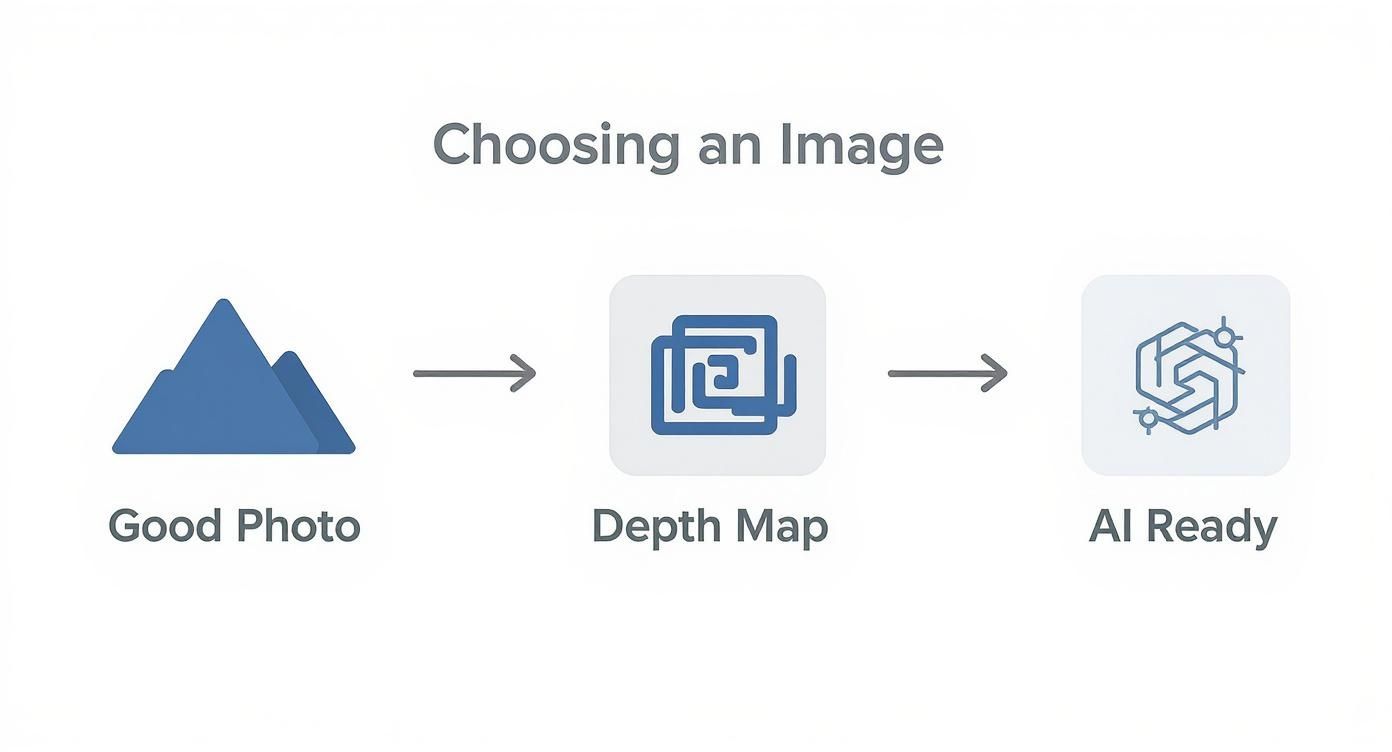
As the diagram shows, a great result is born from a quality starting image and a solid depth map. Get that right, and the AI has everything it needs to work its magic.
Crafting Text Prompts That Actually Work
You have to think like a film director here. Your text prompt is how you tell the AI exactly how the virtual "camera" should move. Getting this right is what separates a generic, wobbly animation from something that looks smooth and professional.
Don't just type "move" or "animate." That's way too vague. Instead, use descriptive language that spells out both the type and direction of the movement you're after.
- For zooms: Try prompts like "slow dolly zoom in on the subject" or "gentle zoom out to reveal the background." I've found that using the word "dolly" often gives you a much smoother, more cinematic motion than a basic "zoom."
- For pans: Be specific. "Subtle camera pan from left to right" or "slow vertical pan up" works wonders. Adding qualifiers like "subtle" or "gentle" is a great way to keep the effect from being too jarring.
- For more complex moves: You can combine motions, but I'd recommend starting simple. A prompt like "slight clockwise rotation while zooming in" can create a really dynamic result, but it’s best to master the basics first.
My Advice: Keep your first few prompts simple. Focus on one clear movement at a time. If you throw too many commands at the AI at once, you can get some pretty weird and unpredictable results. Nail one action, see how it looks, and then build on it.
This whole process is about iteration. Videos generate quickly, so don't be afraid to run a few different prompt variations to see what best captures the vibe you want. Mastering this skill is a huge step toward creating a truly custom 3D picture effect. You can get more detail on how the platform handles these inputs over on the main Veo3 AI image-to-video page.
Picking the Right Animation Style
Along with your text prompt, Veo3 AI gives you a few pre-set animation styles to choose from. These are powerful modifiers that completely change the mood and feel of the final video. Think of them as filters for the animation's physics and energy.
Choosing the right style is just as crucial as writing a good prompt. For example, the Cinematic style tends to produce slower, smoother, more dramatic camera moves—perfect for those sweeping landscapes or professional portraits. On the flip side, a style like Gentle or Subtle is what you want for a more understated effect where the motion feels organic and doesn't steal the show.
Honestly, experimenting with these is half the fun. A "slow dolly zoom" prompt feels completely different when you pair it with the Cinematic style versus something more energetic. It's this combination—a precise prompt and a well-matched style—that gives you total control over the final 3D picture effect.
Fine-Tuning and Exporting Your Animated Photo
https://www.youtube.com/embed/NqbkCSZsOJw
Getting that first animation to pop up is a huge thrill, but the real magic happens in the fine-tuning. Think of the initial video from Veo3 AI as your raw footage. It's a great starting point, but the settings panel is where you really start to craft the final look and feel. This is how you add that layer of polish that makes the 3D picture effect look deliberate and professional.
So many people just take the first result and run with it, but spending a few extra minutes tweaking the details can make a world of difference. This is where you’ll find the controls for the animation's core physics, letting you dial in the exact motion you're picturing in your head.
Think of it as your own mini post-production suite. You can adjust the camera's speed, crank up (or down) the parallax intensity, and smooth out any jitters. It’s all about making small, iterative changes until it feels just right.
Dialing In the Perfect Animation Settings
The two settings I always go to first are animation strength and duration. These work hand-in-hand to set the entire mood and pacing of your video.
- Animation Strength: This slider is your direct control over the parallax effect's intensity. A lower value gives you a subtle, gentle motion—perfect for a cinematic or natural feel. If you push it higher, you get a much more dramatic, high-energy effect that can be awesome for action shots but might look a bit over-the-top on a quiet landscape.
- Animation Duration: This sets the total time for the camera movement. For a smooth, elegant look, I'll often pair a longer duration, maybe 6-8 seconds, with a simple prompt like "slow dolly zoom." For punchy social media clips, a shorter 2-3 second duration is usually the way to go.
A little trick I use is to generate the first clip, then duplicate it. From there, I'll make one small adjustment at a time. I might bump the animation strength by 10% and see if it adds more impact without looking weirdly distorted. This methodical approach really helps you learn how each setting affects the final 3D picture effect.
Don't be afraid to push the settings to their limits just to see what they do. Sometimes, cranking the intensity to the max or creating an unusually slow animation can spark a creative idea you hadn't even considered.
Exporting for Maximum Impact on Social Media
Once you're happy with how the animation looks, the last step is getting it out into the world. Your export settings are critical for making sure your video is sharp and plays correctly on different platforms. A video that looks amazing on a widescreen YouTube display won't look right as a vertical Instagram Reel.
Every social platform has its own quirks and preferences for video specs. If you upload a file with the wrong aspect ratio or bitrate, you risk getting nasty black bars, blurry compression, or other visual artifacts. Getting this right from the start ensures all your hard work pays off.
To make things easier, here's a quick reference guide I keep handy for the most common platforms.
Recommended Export Settings for Social Media
This quick reference table will help you optimize your 3D picture effect video for popular social media platforms, ensuring the best possible quality and performance.
| Platform | Recommended Resolution | Aspect Ratio | Video Format |
|---|---|---|---|
| Instagram Reels | 1080 x 1920 pixels | 9:16 | MP4 |
| TikTok | 1080 x 1920 pixels | 9:16 | MP4 |
| YouTube Shorts | 1080 x 1920 pixels | 9:16 | MP4 |
| Facebook Feed | 1080 x 1080 pixels | 1:1 | MP4 |
Thankfully, Veo3 AI takes most of the guesswork out of this by offering built-in export presets. You can just pick "Instagram Reel" or "TikTok," and the tool will automatically handle the resolution and aspect ratio for you. This is a huge time-saver and ensures your final video is perfectly formatted to grab attention.
Pushing the Boundaries with Advanced Creative Techniques
Once you've got the basics down, it's time to start pushing the creative limits of the 3D picture effect. This is where you move past the automated results and start taking real control over how the AI interprets and animates your image. Think of it as shifting from being a user to being a visual effects artist.
One of the most effective ways to level up is by manually creating or tweaking the depth map. The AI-generated maps are a great starting point, but they can get confused by tricky scenes. By jumping into a photo editor like Photoshop, you can paint your own depth map. This gives you pixel-perfect control, ensuring every element sits exactly where you want it in 3D space.
Taking Cues from CGI and Filmmaking
The magic behind this effect has deep roots in the world of computer-generated imagery (CGI). The foundational techniques were developed by pioneers way back in the 1970s, laying the groundwork for everything that followed, including the first fully computer-animated movie, Toy Story, in 1995.
You can borrow directly from this world by thinking like a filmmaker when writing your prompts. Instead of a basic "pan left," try describing classic camera moves.
- Arc Shot: Prompt the AI with something like, "camera arcs around the subject from left to right."
- Crane Shot: Try a command such as, "camera starts low and moves high, looking down on the scene."
Using cinematic language like this produces far more dynamic and professional-looking animations than simple, flat movements. You're not just telling the AI what to do; you're directing it.
Expanding Your Toolkit
While Veo3 AI is a fantastic all-in-one solution, it's not the only tool out there. Smart creators know that different jobs require different tools, and sometimes the best results come from combining the strengths of a few different platforms.
I've found that becoming a versatile creator means understanding the landscape. Often, my best work comes from using two or three tools in combination, letting each one do what it does best.
Here’s a quick rundown of a few alternatives and where they shine:
| Tool | Key Strength | Best For |
|---|---|---|
| Veo3 AI | All-in-one platform with prompt-based control and style presets. | Fast, high-quality results with excellent creative direction. |
| LeiaPix | Specializes in depth map creation and offers manual editing tools. | Fine-tuning the parallax effect and depth map accuracy. |
| CapCut | Mobile video editor with a simple "3D Photo" effect. | Quick, on-the-go animations for social media content. |
Each of these can produce a compelling 3D picture effect, but their approach is different. For example, you could generate a super-detailed depth map in LeiaPix, export it, and then bring that into Veo3 AI to take advantage of its advanced camera controls.
This multi-tool workflow is a game-changer. If you're serious about creating truly sophisticated animations, I'd recommend looking for resources that help you enhance your image animation AI skills and move beyond the basics. It opens up a whole new level of creative freedom.
Common Questions About AI 3D Photo Animation
As you dive into creating these animations, you're bound to run into a few common questions. I've been there. Let's walk through some of the most frequent hurdles people face when trying to nail that perfect 3D picture effect.
Can I Use Any Photo for This Effect?
Technically, yes, but the results can vary wildly. The better your starting image, the better your final animation will be. It's a classic "garbage in, garbage out" situation.
For animations that look truly believable, always start with high-resolution photos. The most successful images have a distinct subject in the foreground that stands out clearly from the background. Think of a portrait where the person is sharp and the background is a soft blur—that's the sweet spot.
Interestingly, photos you've taken with your phone’s portrait mode are often fantastic for this. They sometimes have built-in depth data, which gives the AI a huge leg up in creating an accurate and convincing effect.
What Makes a Good AI Prompt?
The secret to a great prompt is being simple and descriptive. Think like a film director, not a programmer. Vague commands just won't cut it.
- Instead of "make it move," try "slow camera pan to the right."
- Instead of "zoom," try "gentle dolly zoom in on the subject."
My advice? Start with a single, clear instruction. If you try to cram too many different movements into one prompt, you'll likely confuse the AI and get a jittery, unpredictable mess. Get one movement looking great, then you can start experimenting with adding a second.
Here's a little mental trick that works wonders: describe the camera's path, not just the end result you want. This small shift in how you think about your prompt leads to animations that feel much more intentional and professional.
How Can I Fix a Distorted Animation?
If your animation looks warped, blurry, or just plain weird, it usually comes down to one of two culprits: a poor-quality source image or an inaccurate depth map. First things first, double-check that your original photo is sharp, clear, and has good lighting.
If your photo is solid, the animation itself might just be too aggressive. Jump back into your settings and dial down the animation strength or speed. A lower intensity often creates a smoother, more realistic 3D picture effect that’s much easier on the eyes.
Ready to turn your own photos into something amazing? With Veo3 AI, you can create a dynamic video from any static image in just a few minutes. Start creating for free at veo3ai.io and see what you can bring to life today.
Our Verdict
After reviewing the available options and capabilities for 3 d picture effect, we recommend taking a hands-on approach: start with a free trial of the leading platforms, test with your actual use cases, and upgrade to the plan that best matches your volume and quality requirements. The AI tools in this space are advancing rapidly, making now an excellent time to integrate them into your content creation workflow.
Related Articles
Continue with more blog posts in the same locale.
Gemini Omni Image to Video: The Complete Guide
Master Gemini Omni image to video workflows. Learn prompt templates, Veo 3.1 settings, resolution options, and practical tips for social and marketing videos.
Read article
Veo 3 Gratis: How to Access and Use Free AI Video
Learn how to access Veo 3 gratis and generate AI videos. This guide covers account setup, prompt strategies, rendering settings, and free tier limits.
Read article
10 Générateur De Vidéo Gratuit Tools Worth Trying
Compare 10 générateur de vidéo gratuit tools, including Veo3 AI, with features, free-tier limits, pros, cons, and picks for every use case.
Read article