
Make Animation from Photos with AI Your Complete Guide
Discover how to make animation from photos using powerful AI tools. This guide covers image prep, AI prompting, and exporting for social media.
Veo3 AI · 23 min read · Dec 6, 2025
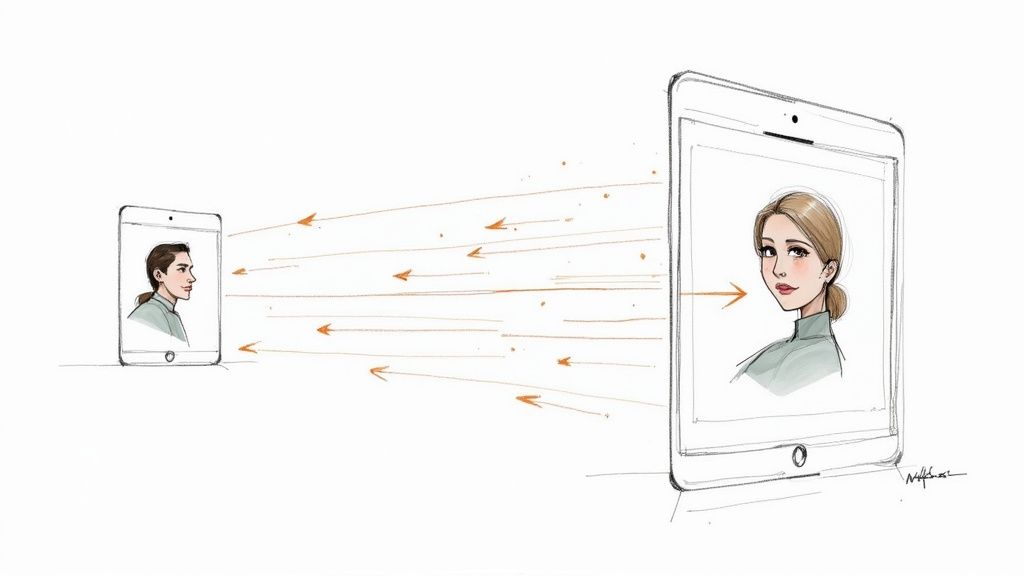
Ever wished a great photo could do more than just sit there? That a single, frozen moment could show the full story—a subtle breeze rustling the leaves, a gentle smile spreading across a face, or steam rising from a fresh cup of coffee.
Quick Answer: You can animate photos and illustrations using AI tools like Google Veo 3, Runway, Kling, or Pika—simply upload your image, describe the desired motion in a text prompt, and the AI generates a realistic animated video in seconds. No animation experience is required.
This guide is all about unlocking that hidden potential. I'll walk you through how modern AI tools can breathe life into your static images, turning them into captivating little videos. We're skipping the steep learning curve of traditional animation software and jumping straight into a practical workflow you can use today.
Bringing Your Still Photos to Life with AI
The idea is simple yet powerful: take a still image, give an AI like Veo3 a simple text command describing the movement you want, and watch it generate a short, dynamic video clip. This process completely sidesteps the need for complicated, old-school animation software.
Why Bother Animating Photos?
Let's face it, dynamic visuals are king right now. Whether it's on your social media feed, a website banner, or in an ad, moving images just grab and hold attention better than static ones. It’s a proven way to stand out.
By animating a photograph, you add a layer of narrative and emotional depth that used to be out of reach unless you were a pro with specialized skills. Now, anyone—marketers, artists, social media creators—can make their visuals pop. What once took hours of tedious work can now be done in just a few minutes.
Key Takeaway: Turning photos into animations is no longer a niche skill for professionals. It’s an incredibly accessible and powerful way for anyone to elevate their content and tell more compelling visual stories.
This isn't just a hunch; the numbers back it up. The animation software market is projected to explode from USD 576.7 million in 2025 to a whopping USD 1.53 billion by 2035. This growth is fueled by the huge demand for easy-to-use tools in marketing and entertainment.
What This Guide Covers
While our main focus here is on animating photos, it's part of a much bigger picture of general AI-powered content creation that's taking over all kinds of media.
In the next sections, I'll break down everything you need to know to get started with confidence. Here’s what we’ll get into:
- How to pick and prep the best images for AI animation.
- The secret to writing effective AI prompts that get the action just right.
- A step-by-step workflow to take you from a static photo to a final video.
- Tips for optimizing and sharing your creations for maximum impact.
If you’re specifically interested in breathing new life into older pictures, you should also check out our dedicated guide on how to animate old photos for more tailored techniques. By the time you're done here, you’ll be ready to start creating your own photo animations.
Picking and Prepping Your Photos for AI Animation
The quality of your finished animation hinges almost entirely on the photo you start with. It’s a classic case of garbage in, garbage out. If you feed the AI a low-quality, blurry, or cluttered image, you’re going to get a messy, incoherent video back.
Think of it like this: the AI needs a clean, well-defined canvas to work its magic. By taking just a few minutes upfront to select and prepare your image, you dramatically improve your odds of getting a stunning result. Honestly, this prep work is probably the most critical part of the process when you want to make animation from photos.
What Makes a Photo “AI-Friendly”?
Not all photos are created equal in the eyes of an AI. Certain images are just naturally easier for the algorithm to interpret and animate smoothly. The right source photo gives the AI a solid foundation, offering clear instructions on what to keep still and what to bring to life.
Here’s what I’ve found works best:
- A Clear Focal Point: The AI needs to know what the star of the show is. Photos with a distinct person, object, or landmark almost always perform better than overly busy scenes where the subject gets lost in the noise.
- Good Lighting and Contrast: High-contrast images with well-defined shadows and highlights are a huge help. They give the AI clear visual cues to distinguish between different elements. Flat, washed-out lighting, on the other hand, can really confuse the model.
- High Resolution: Always start with the highest-resolution photo you can get your hands on. More pixels mean more data for the AI, which translates directly into sharper, more detailed animation. A blurry input will always produce a blurry output.
My personal rule of thumb is to pick photos where the subject is sharp and the background is relatively simple. A portrait with a slightly out-of-focus background is perfect because the AI immediately understands what to focus on and what to treat as the environment.
Getting this initial selection right sets the stage for everything that follows. Before you even start thinking about prompts, find a photo that checks these boxes. It’ll save you a ton of frustration down the line.
Simple Edits That Make a Huge Difference
Once you’ve found a strong candidate, a few quick tweaks can take it from good to perfect. You don’t need to be a photo editing wizard, either. Simple adjustments in free tools like Canva or more advanced software like Adobe Lightroom can have a massive impact by clarifying your intentions for the AI.
I usually focus on these three things:
- Crop for Composition: This is huge. Crop your photo to frame the subject exactly how you want it. If you're aiming for a TikTok or Instagram Reel, crop it to a 9:16 aspect ratio right away. This ensures the key elements are centered and won't get cut off later.
- Boost the Contrast: A slight bump in contrast can make your subject pop from the background. This simple move helps the AI better separate the foreground, leading to much more precise animations where only the right parts move.
- Remove Distractions: See a stray object or distracting element in the background? Get rid of it. Use a simple spot removal or clone tool to clean up the scene. A cleaner canvas lets the AI generate motion without getting sidetracked by irrelevant details.
For example, if you have a great shot of a person on a beach but there’s a random, brightly colored towel in the corner, removing it will prevent the AI from trying to animate it nonsensically. These quick fixes are essential when you make animation from photos for a professional or polished look. They sharpen the AI's focus, helping you get a final clip that feels clean, intentional, and visually compelling.
Writing Prompts That Direct the Animation
Think of your text prompt as the director's notes for your animation. It’s your script, your storyboard, and your camera instructions all rolled into one powerful command. When you want to turn a static photo into a compelling video, the words you choose are everything. Just telling the AI to "make it move" will probably get you a wobbly, generic animation. The real magic happens when you get descriptive.
It’s a lot like giving instructions to a cinematographer on a film set. You wouldn't just say, "film the actor." You’d be specific: "Start with a tight close-up on her eyes, then slowly pull back to reveal she's standing on a mountain peak at sunrise." That's the level of detail that unlocks what the AI can really do.
And more people are getting into this than ever before. The global animation industry was valued at around USD 372 billion in 2024 and is expected to soar past USD 462 billion by 2025. This boom is largely thanks to accessible tools that put creative power in everyone's hands. If you're curious about the numbers, you can discover more insights about the animation industry's growth on MotionPlayStudio.com.
The Anatomy of a Powerful Prompt
A great prompt doesn't need to be a novel, but it does need structure. Through a lot of trial and error, I've found that a simple, layered approach works best. It ensures you’re covering all the bases without confusing the AI.
I always start with the fundamentals and build from there:
- Subject: First, pinpoint the star of your show. Is it the person in the foreground, the vintage car, or the dramatic clouds in the sky? Be clear about what should be moving.
- Action: Now, describe the how. Instead of a generic "move," try something more evocative like "drifting slowly," "whipping past," or "gently swaying in the breeze."
- Style: This sets the whole mood. Words like "cinematic," "dreamlike," "high-energy," or "serene" give the AI vital context for the visual aesthetic.
- Camera Direction: This is where you can really elevate your work. Tell the AI what you want the virtual camera to do. Think in terms of "slow dolly zoom," "pan left to right," or "dramatic low-angle shot."
By layering these elements, you’re essentially building a complete set of instructions that leaves very little to chance. Your prompt goes from a vague wish to a precise command.
Adding Atmosphere and Environmental Effects
Beyond the basic mechanics, the real artistry comes from adding details that create a tangible mood. This is what turns a flat animation into an immersive little world. These subtle cues make it feel like the scene exists beyond the edges of the frame.
Try weaving in elements like these:
- Lighting: Is it the "golden hour sunlight filtering through the trees" or the "harsh, sterile light of a fluorescent bulb"? The lighting choice changes everything.
- Weather: A simple phrase like "gentle rain falling on the pavement" or "thick fog rolling across the hills" can instantly transform the story of your image.
- Subtle Details: Don't forget the small stuff. Those tiny secondary motions add a huge dose of realism. Think "subtle steam rising from a coffee cup" or "glowing embers floating up from a campfire."
These little touches are often what separate a good animation from a truly great one. They make the scene feel alive.
Expert Tip: Don't be afraid to chain multiple commands together in a single prompt. Something like, "A woman's hair blows gently in the wind as the camera slowly pans right to reveal a stormy sea," is far more powerful than just "make her hair move."
Prompting for Impact: Vague vs. Specific AI Instructions
To really see how much prompts matter, let's look at a few side-by-side examples. The difference between a vague command and a specific one is often night and day. Crafting a solid prompt gives you predictable, high-quality results, which is exactly what you need when you make animation from photos for a specific project.
| Goal | Vague Prompt | Specific Prompt | Expected Outcome Difference |
|---|---|---|---|
| Animate a Cityscape | "Make the city move." | "A time-lapse of city traffic at night, with light trails from cars streaking across the streets. Slow zoom out." | The specific prompt produces a professional-looking time-lapse. The vague one will likely give you a shaky, random, and unusable motion. |
| Animate a Portrait | "Make the person smile." | "A subtle, slow smile spreads across the person's face, with a gentle blink. The background remains static." | Specificity here ensures a natural, realistic expression, avoiding the uncanny valley that a vague command might create. |
| Animate a Nature Scene | "Animate the forest." | "Sunlight filters through the dense canopy, with visible light rays shifting slowly. Leaves on the foreground trees rustle in a gentle breeze." | The vague prompt might warp the entire image unnaturally. The specific one creates a believable, serene scene by isolating subtle movements. |
As these examples show, precise language gives you direct creative control. The more you practice, the more you'll develop an intuition for which words and phrases get you the best results from the AI. And for those looking to see how this fits into the bigger picture, our guide on how to create AI videos covers the entire workflow from start to finish.
From a Static Image to a Moving Clip: The AI Workflow
Alright, this is where the magic happens. You’ve got your polished image and a carefully crafted prompt ready to go. Now it’s time to jump into an AI tool like Veo3 and actually bring your idea to life. I’ll walk you through a simple, repeatable process that takes you from upload to a finished, shareable video clip.
The days of needing multiple complex programs to make animation from photos are behind us. Modern AI platforms pack the entire workflow into one spot. You upload an image, describe what you want, adjust a few sliders, and hit "generate." It’s an addictive creative loop that really encourages you to play around.
Getting a Feel for the AI Generator
When you first open up an AI video generator, you'll usually find a pretty straightforward layout. You’ll see a place to upload your image, a box for your text prompt, and a panel with various settings. Don't get overwhelmed by all the options; we're just going to focus on the ones that really matter for animating a photo.
First things first, upload that high-res image you prepped earlier. Then, paste your detailed prompt into the text box. But before you get click-happy on the "Generate" button, let's talk about the key settings that put you in the director's chair.
Here’s a simple mental model I use for structuring my prompts. It’s all about giving the AI clear, separate instructions for the subject, the action, and the overall style.
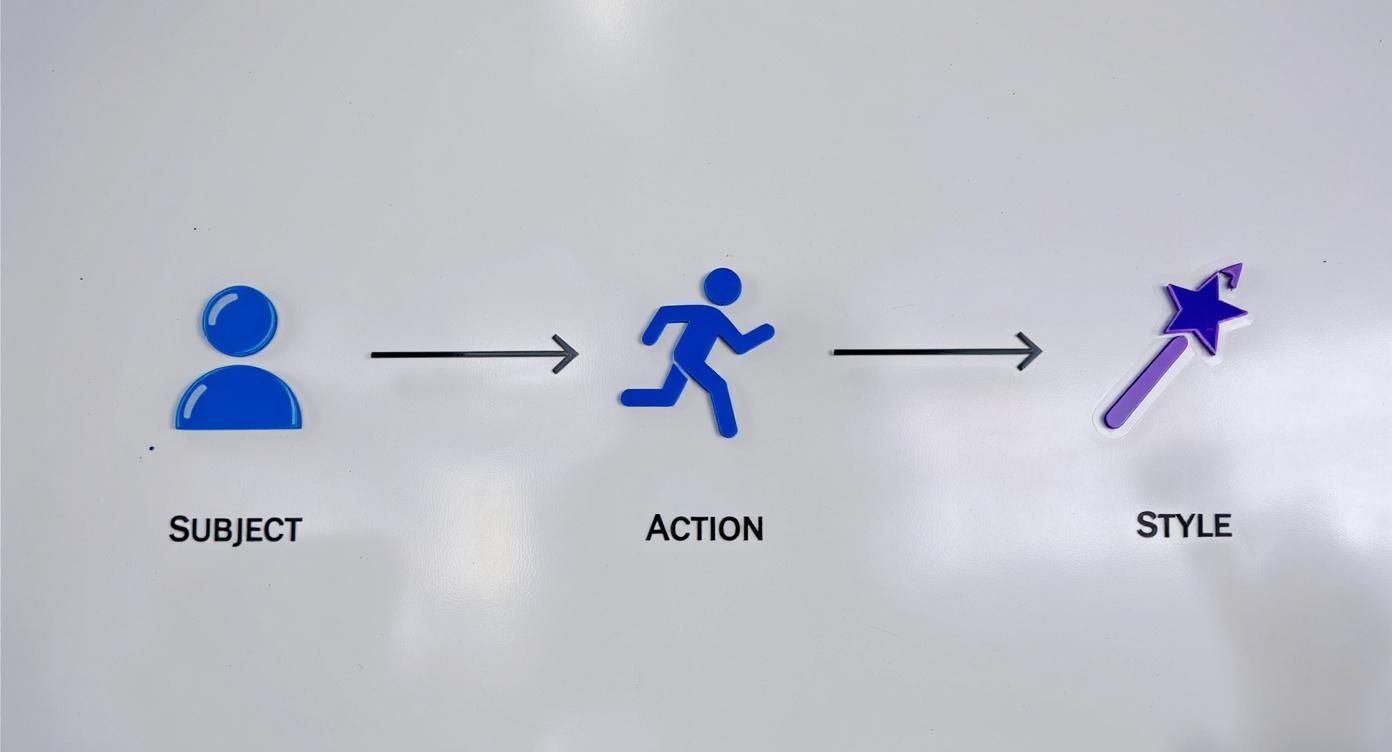
Thinking this way helps keep your instructions clean and direct, which is honestly the secret to getting the AI to do what you want.
Mastering the Key Animation Settings
While the interface might look a little different from tool to tool, they almost all share a few core parameters. Getting a handle on these sliders and menus is what elevates your work from a generic AI-generated clip to something that feels intentional and polished.
Here are the main controls you’ll be working with:
- Motion Intensity: This is your most important dial. A low setting creates a subtle, cinemagraph-like effect—think a gentle breeze rustling leaves. Cranking it up produces dramatic, energetic movement, which is great for action shots or dynamic camera pans.
- Duration: Most of these tools generate short clips, usually somewhere between three to eight seconds. Pick a length that makes sense for where you'll post it. A quick 3-second loop can be perfect for a website background, while a longer clip gives you more to work with for a social media edit.
- Style Consistency: This setting tells the AI how faithfully to stick to the look of your original photo. A high value ensures it preserves your image's aesthetic. Lowering it gives the AI more creative freedom, which can be fun but often leads to some unpredictable results.
My Personal Tip: I almost always start with the motion intensity set low, maybe around 20-30%, for the first attempt. It's way easier to add more energy in the next generation than to try and calm down an animation that’s already too chaotic. This little habit saves me a ton of time and generation credits.
Preview, Tweak, and Repeat
Your first attempt is rarely your final one. Working with AI is a bit of a dance—you lead with your instructions, and the model follows with its interpretation. The preview window is your best friend here. It’s where you’ll quickly see what worked and what needs to change.
Don't get frustrated if the first animation is a little off. Maybe the camera moved too fast, or the wrong part of the image came to life. That’s not a failure; it’s just feedback for your next try.
Here’s the simple refinement cycle I follow:
- Generate V1: Use your best prompt and keep the settings conservative.
- Analyze the Preview: Watch it a few times. Does the movement feel right? Does it capture the mood you were going for?
- Tweak One Thing: This is crucial—only adjust one setting at a time. If the motion is too weak, bump up the intensity a little. If the camera pan is wrong, refine that specific part of your prompt.
- Regenerate and Compare: Make the new version and look at it next to the old one. This methodical approach helps you learn exactly how each change impacts the final result.
This iterative loop is the heart of the creative process. The growing demand for these tools is fueling massive industry growth. In fact, the closely related 3D animation software market was valued at USD 27.23 billion in 2025 and is projected to skyrocket to USD 59.12 billion by 2032. This shows just how much people want accessible tools that can make animation from photos for everything from marketing to personal projects. You can read the full research on the 3D animation software market to see the trends pushing this tech forward.
Once you’re happy with a preview, it’s time to export. You’ll usually see options like MP4 or GIF. For most uses, MP4 is the way to go for high-quality video on social media or your website. GIFs are great for simple, looping animations in emails or places where video isn't supported. With that file downloaded, you're all set to share your animated photo with the world.
Sharing Your Animated Photos for Maximum Impact
<iframe width="100%" style="aspect-ratio: 16 / 9;" src="https://www.youtube.com/embed/n6HC__qvV9Q" frameborder="0" allow="autoplay; encrypted-media" allowfullscreen></iframe>
You’ve done the creative work and brought a static photo to life—that’s a huge win. But your job isn't quite done. Getting that animation in front of people, looking just as good as it did on your screen, is the final and most critical step. How you export and optimize your new video clip can be the difference between something that stops the scroll and something that gets lost in the noise.
When you’re ready to export, you’ll mainly see two options: MP4 and GIF. GIFs are simple and loop automatically, which is nice, but they have some serious downsides. They’re stuck with a limited color palette and often result in huge file sizes for pretty low-quality visuals.
Honestly, for almost any modern use, MP4 is the way to go. You get far better video quality at a much smaller file size, which is exactly what you need for quick-loading websites and social media feeds.
Choosing the Right Export Settings
Before you click that export button, take a moment to think about where this video is going to live. The technical needs for a TikTok video are completely different from those for a LinkedIn post or a website banner. If you tailor your settings to the destination, you’ll avoid weird cropping, pixelation, and other glitches that can make your hard work look unprofessional.
One of the most common mistakes I see is people exporting a single, massive file and trying to use it everywhere. That approach usually leads to slow-loading pages and a clunky experience for anyone on a phone. The smarter move is to create a few different versions for your most important platforms.
- For social media feeds like Instagram or TikTok: Always go with a vertical 9:16 aspect ratio. It fills the whole phone screen and is way more immersive.
- For website banners: A classic widescreen 16:9 aspect ratio usually works best here. The main priority should be keeping the file size small to ensure your site stays fast.
- For email campaigns: This is one of the rare cases where a small, lightweight GIF can be a good choice. Some email clients still struggle with embedded video, and a GIF is a safer bet.
Key Insight: Optimizing for file size isn't just a technical checkbox—it's about the user experience. People are far more likely to watch a video that loads instantly than one that buffers, especially if they're on a mobile network.
A Quick Guide to Social Media Video Specs
To take the guesswork out of it, here's a little cheat sheet I use with the best settings for the major social platforms. Nailing these specs from the start helps your content look polished and perform better, which is a key part of any solid short-form video marketing strategy.
Social Media Video Export Specifications
This table is a handy reference for getting the technical details right for the most popular platforms.
| Platform | Recommended Format | Optimal Resolution | Max Length |
|---|---|---|---|
| Instagram Reels | MP4 | 1080 x 1920 (9:16) | 90 seconds |
| TikTok | MP4 | 1080 x 1920 (9:16) | 10 minutes |
| LinkedIn Feed | MP4 | 1920 x 1080 (16:9) | 10 minutes |
| Website Header | MP4 | 1920 x 1080 (16:9) | 15-30 seconds |
Stick to these guidelines, and you’ll give your content the best chance to shine.
Creative Strategies for Your Animated Content
Okay, your video is exported and looks perfect. Now for the fun part: what do you do with it? Animated photos are incredibly versatile and can be used in some really creative ways that go way beyond a standard social post.
Here are a few ideas to get you started:
- Dynamic Website Headers: Swap out that static hero image on your homepage for a subtly animated photo. It adds an instant "wow" factor that grabs a visitor's attention right away.
- Eye-Catching Social Media Ads: In a packed feed, movement is everything. Use an animated clip to draw attention to a product detail or create a specific mood that a still image just can't capture.
- Engaging Email Newsletters: A well-placed animation in an email can make it feel more alive and modern, which can do wonders for your click-through rates.
- Unique Digital Art: For artists and creators, these animations are perfect for selling as NFTs or for making your online portfolio truly stand out from the crowd.
For a clever cross-promotional tactic, you could use some free anime avatar maker tools to turn a key frame from your animation into a cool new profile picture. This helps create a more cohesive and recognizable look across your different channels. At the end of the day, knowing how to make animation from photos adds a powerful and flexible new tool to your creative toolkit.
Got Questions About Animating Photos with AI?
If you're just getting started with AI photo animation, you probably have a few questions. It’s a pretty new space for most of us, and it helps to know what you’re getting into before you dive headfirst into a project. Let's clear up some of the most common ones I hear.
Most people immediately ask about control. How much influence do you actually have over the final animation? The short answer is: quite a lot, but it's not a remote control. Your biggest lever is the text prompt. A super-specific prompt that details camera pans, what the subject should do, and even the mood can give you a ton of directorial power. But remember, the AI always brings its own creative flair to the table, which is half the fun.
How Much Control Do I Really Have Over the Animation?
I like to think of it as collaborating with a brilliant but slightly quirky animator. You hand them the script (your prompt) and the star of the show (your photo), and the AI brings it to life. You can guide the performance with incredible detail, but you can't puppet every single pixel.
This is exactly why getting comfortable with tweaking and re-running your prompt is key. If the first animation isn't quite what you envisioned, you don't have to scrap it. Just adjust your prompt, maybe dial the motion intensity up or down, and guide the AI closer to your vision. It's a creative dialogue, not a command.
My Takeaway: You have a ton of creative control through good prompts and settings. The best results, though, come when you treat the AI as a creative partner. Your job is to guide, not dictate.
The whole process to make animation from photos is less about nailing it on the first try and more about discovering the final product through a few rounds of collaboration with the AI.
What Makes an Animation Take Longer to Generate?
Time is another big one. How long will you be sitting there waiting for your clip to render? It really depends, but a few key things will always affect the speed. Knowing them helps you manage your time, especially if you're up against a deadline.
The main things that slow it down are:
- Output Resolution: A crisp 1080p video is going to take longer to cook than a 720p clip. More pixels mean more work.
- Animation Duration: It's simple math. A longer video needs more frames, which directly translates to more processing time.
- How Busy the Servers Are: If everyone is trying to generate at once, things can get a little sluggish. Sometimes, running a job during off-peak hours can speed things up.
The good news is that most platforms today are surprisingly fast. You can often get a short clip back in just a minute or two, which makes it easy and fun to experiment without waiting around forever.
What Are the Biggest Mistakes People Make?
Alright, let's talk about the common traps. If you can avoid these few things, you'll save yourself a world of frustration and get to a great result so much faster. In my experience, most of the problems happen right at the beginning, not with the AI itself.
Here are the biggest mistakes I see over and over:
- Starting with a Bad Photo: This is, without a doubt, the number one issue. If your source image is blurry, dark, or just too busy, you're setting the AI up for failure. Garbage in, garbage out.
- Writing Lazy Prompts: Just typing "move" or "animate" is a recipe for disaster. The AI has no idea what you want, so you'll get something generic and probably weird.
- Giving Up After One Try: Hitting "generate," not liking it, and closing the tab is a huge missed opportunity. The magic happens when you refine your idea over two or three attempts.
Honestly, if you just start with a high-quality photo and a descriptive prompt, you’ll sidestep 90% of the usual headaches.
Ready to stop thinking about it and start creating? With Veo3 AI, you can turn your static images into eye-catching videos in no time. Give it a try for free and see what you can bring to life.
Our Verdict
After reviewing the available options and capabilities for make animation from photos, we recommend taking a hands-on approach: start with a free trial of the leading platforms, test with your actual use cases, and upgrade to the plan that best matches your volume and quality requirements. The AI tools in this space are advancing rapidly, making now an excellent time to integrate them into your content creation workflow.
Related Articles
Continue with more blog posts in the same locale.
Veo 3 Gratis: How to Access and Use Free AI Video
Learn how to access Veo 3 gratis and generate AI videos. This guide covers account setup, prompt strategies, rendering settings, and free tier limits.
Read article
10 Générateur De Vidéo Gratuit Tools Worth Trying
Compare 10 générateur de vidéo gratuit tools, including Veo3 AI, with features, free-tier limits, pros, cons, and picks for every use case.
Read article
Gemini Omni vs MiniMax H3: Which AI Video Model Wins?
Gemini Omni vs MiniMax H3: compare video quality, architecture, and costs. Find the best AI video model for your creative workflow.
Read article