
Google Omni Free Access and Video Limits
Is Google Omni free for video creators? We break down the real limits of free access, eligibility rules, and the best alternative workflows
Veo3 AI · 12 min read · Sep 27, 2026
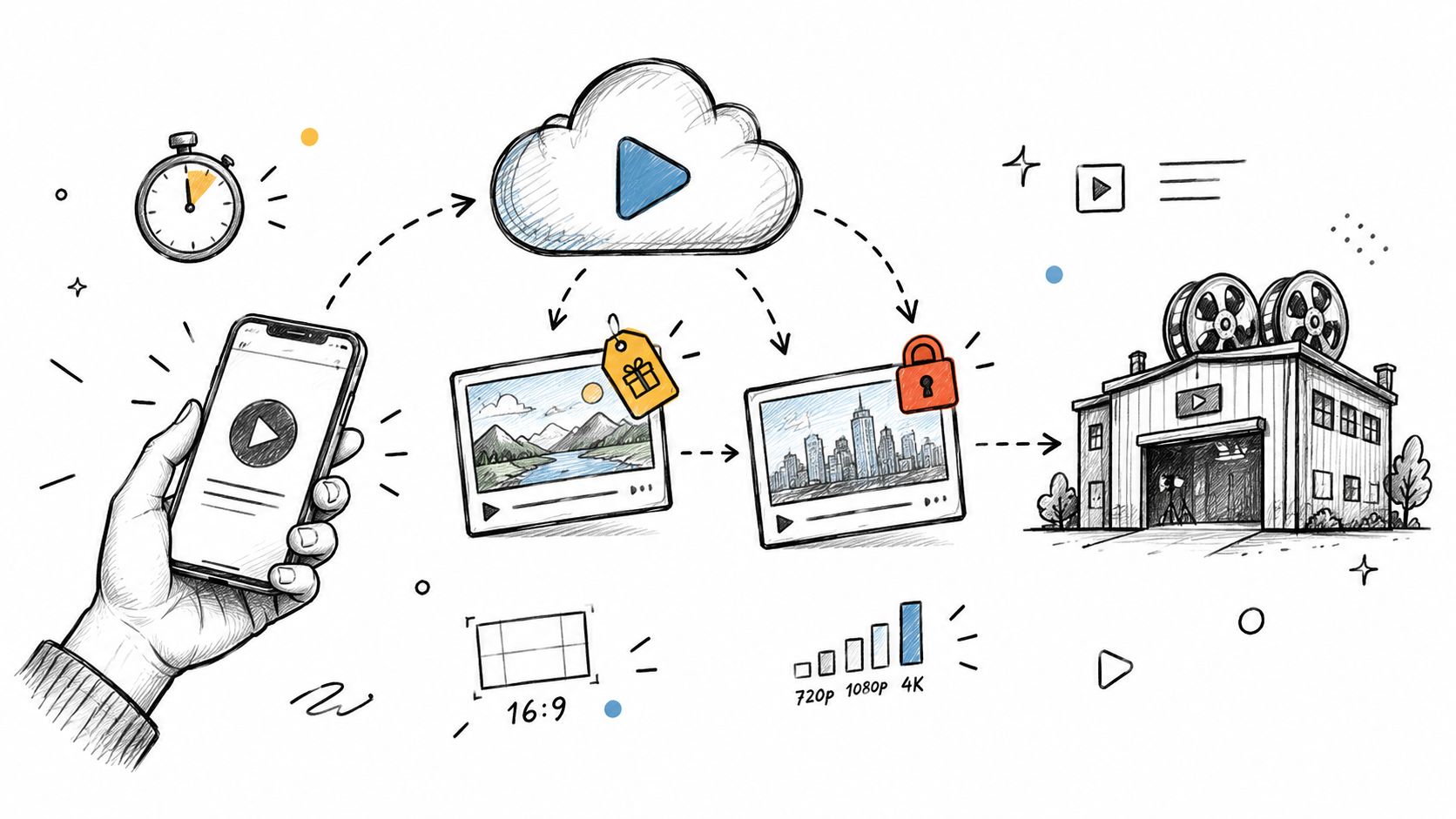
Google Omni free access is real, but it's split. Basic Gemini chat access is free, while high-quality Omni video generation is tied to specific Google Workspace surfaces like Google Vids and YouTube Shorts, not universally free across every Google product.
That fragmentation matters the moment you try to make something shippable. A creator can open Gemini, test ideas, and feel close to a finished clip, then hit a wall when the interface doesn't expose the video workflow they need for social output.
Table of Contents
- Why Free Access Feels Split
- Understanding Gemini Omni Flash Capabilities
- Where Free Access Exists
- Checking Eligibility and Accessing Google Vids
- Production Limits and Workflow Bottlenecks
- Building Reliable Workflows with Veo 3.1
- Choosing the Right Tool for Your Content Goals
<a id="why-free-access-feels-split"></a>
Why Free Access Feels Split
The first trap is assuming free means unlimited. In practice, people searching for google omni free often land in a chatbot interface, not a real video production surface, and that is where the confusion starts. Google's own Gemini page separates consumer chat access from video generation features, so the same brand can feel free in one tab and restricted in another.
<a id="chat-access-and-video-creation-are-not-the-same-thing"></a>
Chat access and video creation are not the same thing
If you only need text help, the free Gemini experience is useful. If you need a usable clip for a campaign, the workflow changes fast, because video generation lives inside product-specific environments and quota systems rather than one universal button. Google has described that split plainly enough that creators keep asking the same question, is Google Omni free, or only free in one product with separate limits? Google's Gemini page makes that difference clear.
A lot of creators waste time pushing the wrong interface to do the wrong job. A free chat app can help with ideas, but it is not a production editor unless the product explicitly exposes video generation.
Practical rule: if the interface does not explicitly say it can create video, treat it like research or ideation, not a production environment.
The better mental model is simple. Free Gemini access is for testing prompts, tightening directions, and checking concepts. Free Omni video access, when available, is for creating actual clips inside the product surfaces Google has opened up.
<a id="understanding-gemini-omni-flash-capabilities"></a>
Understanding Gemini Omni Flash Capabilities
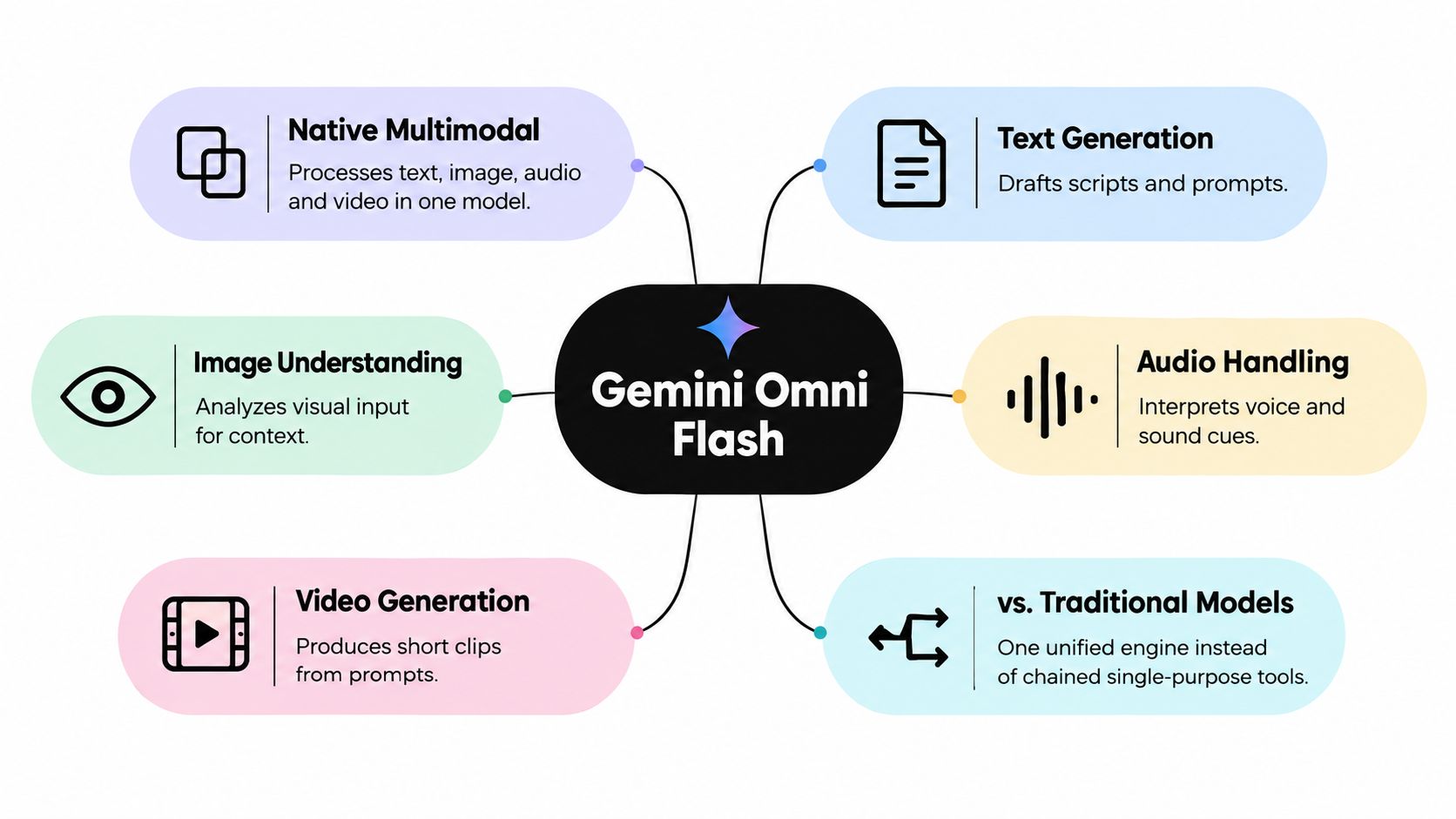
Gemini Omni Flash is a native multimodal video model, which means it can take text, images, audio, and video together as input and generate video with conversational editing controls as Google documents it. That matters because production work rarely starts from a blank prompt. In real campaigns, you're usually trying to match a reference frame, preserve a product shot, or keep a character's appearance stable across edits.
<a id="why-multimodal-input-changes-the-workflow"></a>
Why multimodal input changes the workflow
Older text-to-video pipelines often force you to chain tools together, first write a prompt, then feed stills, then patch the result with another editor. Omni's joint conditioning reduces that fragmentation because one model can read the relationship between the inputs instead of treating them as separate jobs. For a producer, that usually means less prompt drift and fewer mismatched shots.
The practical upside is not abstract. If you're generating a launch teaser, you can combine a visual reference with spoken direction and expect the system to interpret the whole setup as one creative brief. That is a very different experience from writing around a model that only sees text.
If you want a deeper product-level overview of the model family, the Gemini Omni Flash page on Veo3 AI is a useful companion reference. It's still the same basic production lesson, though: the model is only useful when the inputs match the kind of clip you want to ship.
<a id="what-the-model-does-well"></a>
What the model does well
- Script-to-scene translation: Good for short concepts, product intros, and social cutdowns.
- Reference-driven edits: Better when you already have a frame, image, or prior clip to guide output.
- Fast iteration: Useful when the goal is to test angles, not polish a final master on the first pass.
The model name gets attention, but the main advantage is control. If you're trying to preserve continuity across short scenes, a unified multimodal engine is easier to manage than a chain of single-purpose tools.
<a id="where-free-access-exists"></a>
Where Free Access Exists
Google does not sell one clean free video generator. Free access is split across product surfaces, and that split matters in practice. The consumer Gemini app, Google Vids, and the rollout into YouTube Shorts each serve a different creator workflow, so the same account can feel eligible in one place and limited in another.
<a id="what-the-free-tier-gives-you"></a>
What the free tier gives you
| Product Surface | Video Generation | Max Resolution |
|---|---|---|
| Gemini app | Limited, fragmented access | Not consistently exposed as a universal free video option |
| Google Vids | Yes, free for eligible Google or Google Workspace accounts | 1080p for free access in Vids |
| YouTube Shorts and YouTube Create App | Rollout access noted by Google | Not stated in the same way as the Vids workflow |
That table explains why so many users misread their access. Google's Vids announcement says anyone with a Google Account can create videos for free in Google Vids, and Google's rollout note says Gemini Omni Flash was also being rolled into the Gemini app, Google Flow, and YouTube Shorts. The practical takeaway is simple. Free access exists, but it is tied to the surface you open, not to a single universal button Google's Vids announcement.
For teams shipping newsletter clips or test assets from the same source material, the workflow matters as much as the tool. A practical companion is grow your Substack with AI writing tools, since it helps connect video tests to written distribution without forcing a separate content stack.
<a id="what-the-free-tier-gives-you-1"></a>
What the free tier gives you
In Google Vids, the free path centers on 1080p video creation and template-based assembly. In the Gemini app, free access is chat-first, with video generation handled as a separate feature set. That is why users often think they have been blocked, when they have opened the wrong surface for the job.
The key advantage is that Google has made one no-cost route available for video creation. The trade-off is fragmentation. You still need to choose the right workspace, device, and output target before you spend time prompting, especially if your end goal is social video that has to ship on a deadline.
<a id="checking-eligibility-and-accessing-google-vids"></a>
Checking Eligibility and Accessing Google Vids
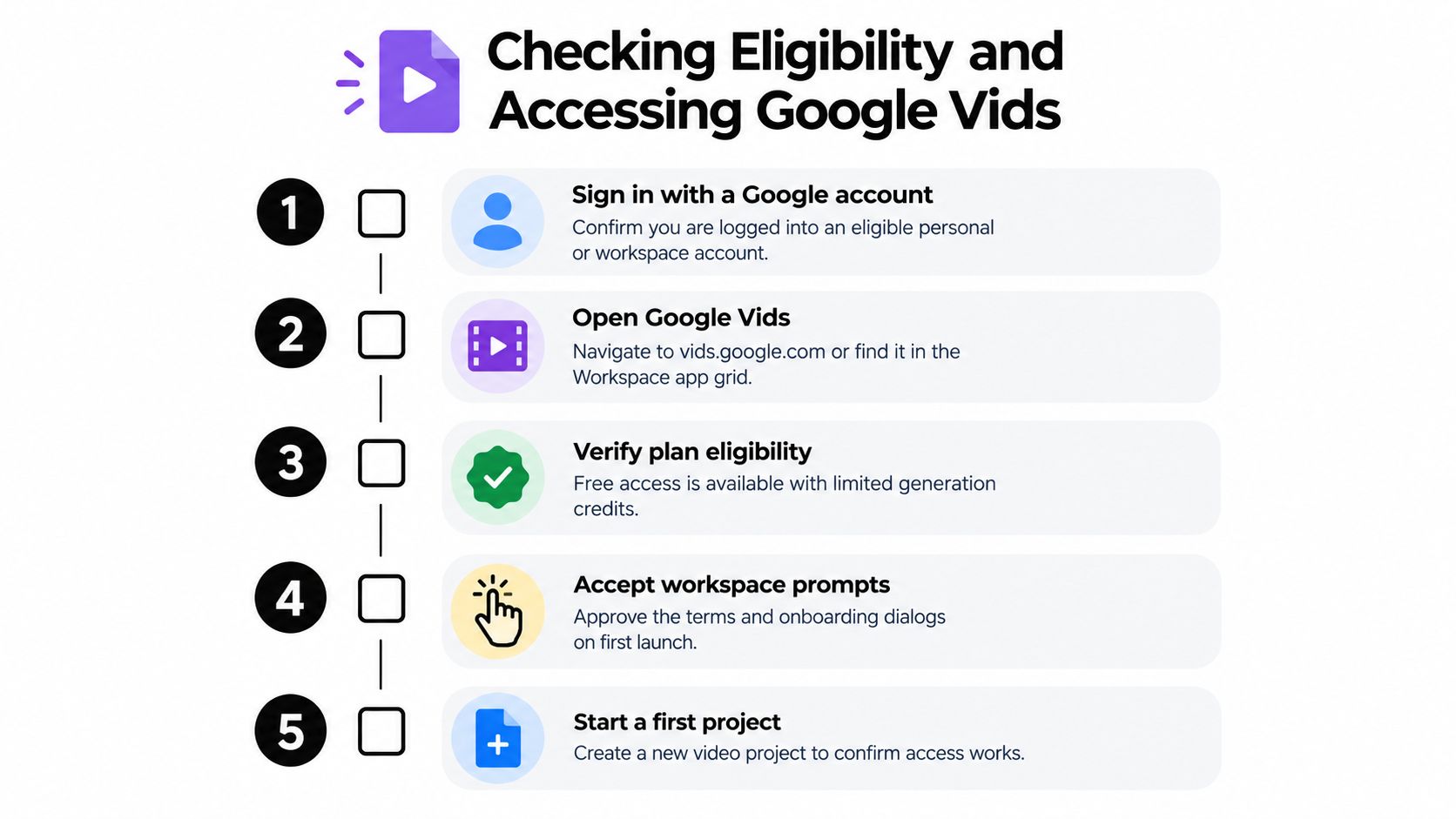
If you want the free route to work, start on desktop with the account you use for Google products. Google points users to vids.new from desktop, which makes the setup feel like a workspace feature, not a casual mobile toy Google Vids rollout details.
<iframe width="100%" style="aspect-ratio: 16 / 9;" src="https://www.youtube.com/embed/oKjDeMtBZ4g" frameborder="0" allow="autoplay; encrypted-media" allowfullscreen></iframe>
<a id="the-access-path-that-usually-works"></a>
The access path that usually works
- Sign in with a Google account. Personal and Workspace accounts can behave differently, so use the one tied to your normal Google access.
- Open Google Vids on desktop. Let the product load fully before you start clicking.
- Check for AI generation controls. If create-with-AI options appear, you are in the right surface.
- Accept the first-time prompts. Workspace tools often request terms or setup permissions on launch.
- Start a new project. If the editor opens and the generation tools remain available, access is active.
Google's documentation for Gemini Omni 1.1 Flash lists up to 3 input videos per prompt, 10 seconds maximum per clip, and output in 16:9 or 9:16 at 360p, 720p, 1080p, and 4K docs. Those are Omni Flash limits, separate from the Veo 3.1 limits covered later, and they frame the tool as a short social clip generator rather than a long-sequence editor.
<a id="what-to-do-when-access-gets-blocked"></a>
What to do when access gets blocked
A paywall does not always mean the feature is gone. The problem is often account type, workspace eligibility, or opening the wrong surface.
I test the same account in the desktop Vids flow before I blame the tool. That usually tells you whether you have a real access issue or just a setup mismatch.
Free access works when the path is clear. It gets frustrating when you have to find the right route by trial and error.
<a id="production-limits-and-workflow-bottlenecks"></a>
Production Limits and Workflow Bottlenecks
Free AI video access looks useful until you try to run a real production queue through it. Testing one idea is manageable. Keeping pace with batch output, regional consistency, and a stable mobile workflow is where the setup starts to fray.
<a id="why-the-workflow-breaks-in-real-use"></a>
Why the workflow breaks in real use
Google's Vids material says short-form production support is still rolling out across markets, and it lists mobile and non-English workflows as gaps in its Google Vids material. That matters because creators are not making videos in a vacuum. They are shipping clips for Shorts, Reels, TikTok, local campaigns, and community posts, often on deadline and often from a phone.
The access problem shows up in volume too. One test clip is fine. A week of social assets from the same interface is a different job entirely. Once you have a content calendar to fill, the bottleneck is whether the tool keeps working after the first few outputs.
<a id="the-limits-that-change-the-economics"></a>
The limits that change the economics
- Desktop-first access: If the workflow lives on desktop, mobile creators lose speed right away.
- Narrow generation windows: Short clips work for testing, but they do not support broader campaign pacing.
- Fragmented product behavior: The Gemini app, Google Vids, and YouTube Shorts do not behave like one editor.
- Quota uncertainty: Free access can be enough for a demo and not enough for a production run.
A fallback becomes necessary when those limits hit. Teams that need repeatable output usually move to a dedicated generator instead of waiting for the free path to line up with every campaign. The practical answer is to build a content creation workflow around the tool you have access to, then standardize prompts, formats, and exports around that path.
Producer's rule: if you cannot repeat the same prompt, output settings, and export path, you do not have a workflow yet.
<a id="building-reliable-workflows-with-veo-31"></a>
Building Reliable Workflows with Veo 3.1
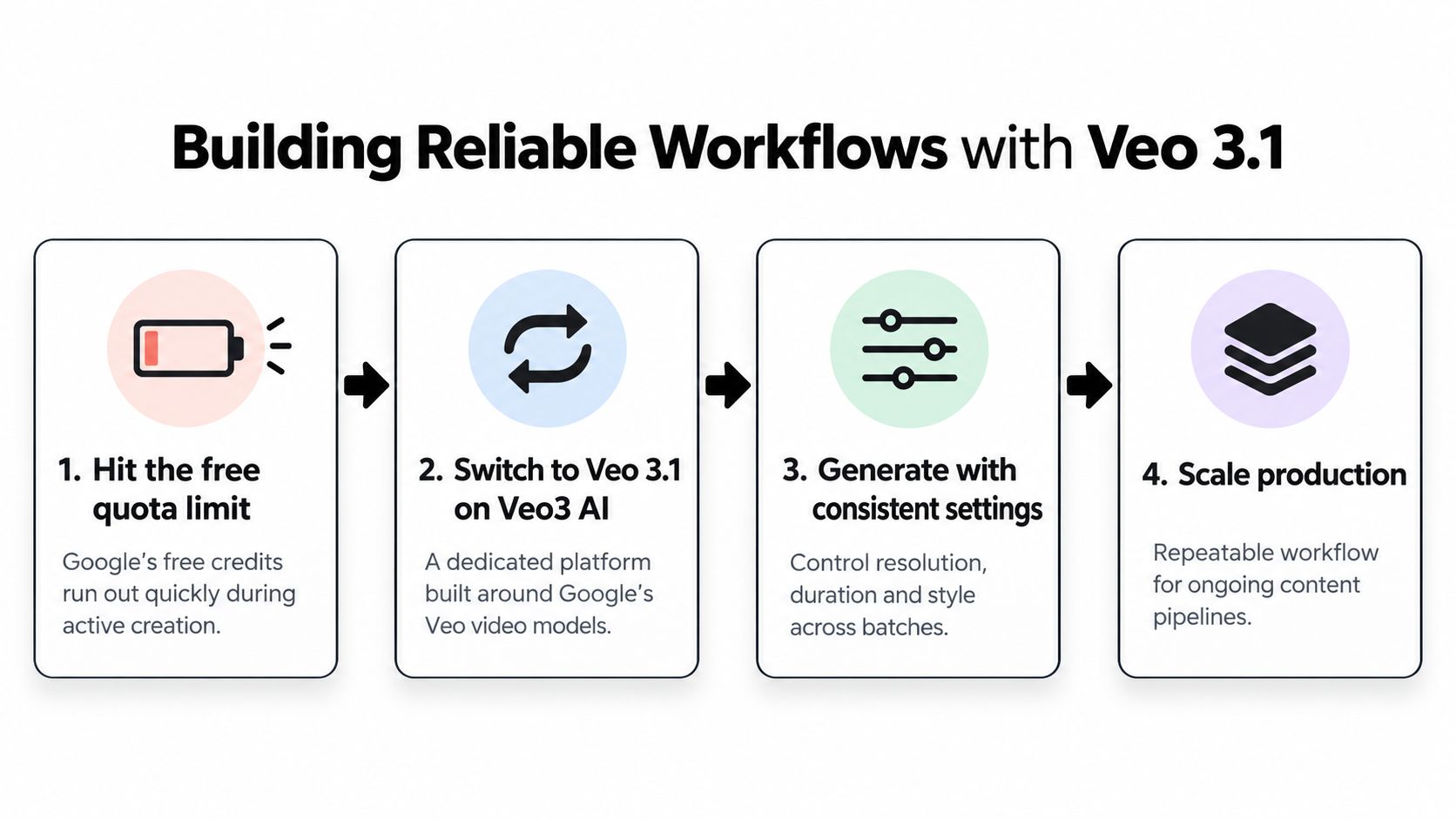
When free access starts to slow down, the practical move is to shift to a tool built for repeatable generation. Veo 3.1 supports 4, 6, or 8-second clips, up to 4 output videos per prompt, 9:16 and 16:9 aspect ratios, 720p/1080p input resolution, and output at 720p, 1080p, or 4K Google's model docs. For short-form production, those controls matter more than a polished interface.
<a id="the-difference-between-testing-and-shipping"></a>
The difference between testing and shipping
I treat Veo 3.1 differently from free Omni access. Free Google Vids is useful when I want to test a concept, check framing, or validate a visual idea quickly. Veo 3.1 is where I go when I need tighter control and I cannot afford to rebuild the same asset twice.
When I need to keep model testing and production output in one place, I use Veo3 AI, which wraps Gemini Omni-style and Veo-style generation into a single environment. That setup helps when the team is comparing tools before it commits to one path, because it reduces prompt drift and keeps the handoff cleaner.
<a id="what-a-stable-short-form-workflow-looks-like"></a>
What a stable short-form workflow looks like
- Use free access for concept tests. Keep the early experimentation lightweight.
- Move to Veo 3.1 for repeatable clips. Lock in duration and aspect ratio before you batch.
- Hold settings steady across variants. That is how you compare hooks, pacing, and framing cleanly.
- Scale only after the first export holds up. Do not build a campaign on output you have not checked.
If you need a broader framework for that process, build a content creation workflow before you start generating in volume. The tool should fit the pipeline, not the other way around.
<a id="choosing-the-right-tool-for-your-content-goals"></a>
Choosing the Right Tool for Your Content Goals
The cleanest decision is the simplest one. Use Google's free Omni access when you're exploring, and use a dedicated generator when you're shipping. Google announced that Gemini Omni Flash was rolling out into the Gemini app, Google Flow, and YouTube Shorts, and that it was available at no cost to users on YouTube Shorts and YouTube Create App during the rollout week Google's rollout note, which makes it a strong entry point for creators who just need to move fast.
If the job is one clip, one test, or one rough visual concept, the free path is enough. If the job is a brand channel, ad variations, localized output, or a weekly Shorts pipeline, you need tools that behave predictably under repeated use.
A practical rule I use is this. Free Gemini and Google Vids are for discovery, Veo 3.1-style workflows are for execution. That distinction keeps teams from confusing a useful demo with a production system.
If you're comparing google omni free access with a more reliable production stack, take a look at Veo3 AI. It gives you a clearer path for prompt-to-video workflows when you need repeatable clips, format control, and a setup that's built for shipping social content instead of just testing it.
Related Articles
Continue with more blog posts in the same locale.
Veo 3 Fast: Create Pro Videos in Minutes
Master Veo 3 Fast to generate high-quality AI videos quickly. Learn prompt strategies, speed trade-offs, and workflows for social ads and shorts.
Read article
Higgsfield vs Veo: Which AI Video Tool Wins in 2026
Higgsfield vs Veo compared side by side on quality, speed, pricing, and best use cases so you can pick the right AI video generator in 2026.
Read article
Veo Subscription Cost: Plans, Pricing, and Value
Understand veo subscription cost with a clear breakdown of free vs paid tiers, what each plan includes, and how to evaluate value before you pay.
Read article