
Veo 3 Gratis: How to Access and Use Free AI Video
Learn how to access Veo 3 gratis and generate AI videos. This guide covers account setup, prompt strategies, rendering settings, and free tier limits.
Veo3 AI · 11 min read · Oct 8, 2026

You've found a promising AI video model, opened a free access page, and discovered that the first render can consume more of your allowance than expected. The problem usually isn't the prompt alone. It's the assumption that “veo 3 gratis” means unlimited production rather than a constrained environment for testing ideas, checking motion, and refining instructions.
A useful free workflow treats every generation as an experiment. You define one shot, isolate one variable, inspect the result against strict quality gates, and save the strongest prompt before spending more allowance. That approach works whether you're testing Google's model directly or using a multi-model workspace such as the Veo 3 AI video generator.
Table of Contents
- Understanding the Reality of Free AI Video Access
- Setting Up Your Workspace and Generation Controls
- Engineering Prompts for Constrained Generation Experiments
- Evaluating Outputs and Managing Continuity Across Shots
- Navigating Commercial Rights and Copyright Realities
- Scaling Your Workflow Beyond the Free Tier
<a id="understanding-the-reality-of-free-ai-video-access"></a>
Understanding the Reality of Free AI Video Access
Google's model attracted exceptional early attention. The company stated in July 2025 that people worldwide had generated more than 70 million videos with Veo in roughly two months after its introduction, although that figure refers to generated videos rather than unique users or publicly released assets (Digital Applied's report). That level of experimentation helps explain why free access can feel tightly controlled. Demand is high, while every render requires substantial processing for visual frames, motion, and, in Veo's case, synchronized sound.
The word free covers several different arrangements. Consumer access may arrive through a trial, a subscription benefit, or a region-specific quota. A cloud promotion can use credits with eligibility conditions. A developer account may expose an API but still charge for each generated second. These routes aren't interchangeable, and a free consumer allowance shouldn't be treated as evidence that production API usage is free.
Google introduced Veo 3 at Google I/O on May 20, 2025, highlighting native generation of dialogue, sound effects, and ambient noise alongside video (Google's launch announcement). The commercial API preview began on July 17, 2025, with combined video and audio listed at $0.75 per second, so a 10-second clip represented $7.50 before applicable subscription benefits or platform limits (Google's developer announcement). That distinction matters: trial access can be useful for learning, but it isn't an unrestricted free API.
Practical rule: Treat free generations as a testing budget. Don't spend them on a complete narrative until the shot design and prompt have already survived smaller experiments.
A production mindset also changes how you plan automation. If you're connecting generation to editing, storage, approval, and publishing, study video automation architecture patterns before building a workflow around assumptions from a consumer interface. The best free workflow is usually a small storyboard-and-selection loop, not a single attempt to generate an entire campaign.
<a id="setting-up-your-workspace-and-generation-controls"></a>
Setting Up Your Workspace and Generation Controls
Start with the workspace that lets you compare the model and output settings without losing track of your inputs. Veo3 AI brings Veo3, Seedance, and Hailuo into one environment, so it can function as a practical comparison layer when you're evaluating which model handles a particular shot.
Choose the aspect ratio before writing the final prompt. Use 16:9 for horizontal video, presentations, and conventional video players. Choose 9:16 for Shorts, Reels, and TikTok, where the subject needs to occupy a vertical frame. Changing the format after generation can crop hands, faces, products, or important environmental details.
Upload a clean source image when the workflow supports image-to-video generation. Google's documented Veo limits include image inputs up to 20 MB, delivery in MP4, output at 720p or 1080p, up to four output videos per prompt, and 24 frames per second (Google's Veo generation documentation). A sharp image with a simple pose gives the model less ambiguity than a compressed image containing several people or overlapping objects.
Keep the first workspace configuration deliberately simple:
- Frame the subject: Put the main object or person where the intended crop won't remove key details.
- Select the destination format: Decide between horizontal and vertical before generating.
- Separate drafts from finals: Label prompt versions so you know which result is exploratory and which is suitable for editing.
- Reserve high-quality renders: Don't use the most demanding setting while you're still testing the basic action.
The interface can show more than one model, but the creative decision remains the same. Pick the model for the shot, set the canvas for its destination, and change one control at a time.
Here's a visual walkthrough of the type of generation workflow you're configuring:
<iframe width="100%" style="aspect-ratio: 16 / 9;" src="https://www.youtube.com/embed/IjF5Uun2jrM" frameborder="0" allow="autoplay; encrypted-media" allowfullscreen></iframe>
<a id="engineering-prompts-for-constrained-generation-experiments"></a>
Engineering Prompts for Constrained Generation Experiments
A strong Veo prompt reads more like a shot specification than a paragraph of creative writing. Give the model a clear subject, a single action, one camera movement, and one audio requirement. When a prompt asks for several actions, multiple transitions, and a complete story, you won't know which instruction caused the failure.
Use this structure:
- Subject identity: Describe the person, object, wardrobe, or defining visual features.
- Action order: State what happens first and what happens next, but keep the movement narrow.
- Camera path: Specify a locked shot, slow push-in, lateral track, or controlled pan.
- Framing and environment: Define the composition, location, lighting, and background complexity.
- Audio: Request dialogue, a sound effect, or ambient noise separately and briefly.
- Duration and format: Match the shot to the destination instead of asking for a complete sequence.
For example, a focused prompt might describe a ceramic cup on a wooden table, steam rising as a slow camera push-in reveals a window in the background, with quiet room ambience and one short spoken line. That prompt gives the model one subject and one principal action. A weaker version might ask the cup to rotate, spill coffee, transform into a flower, cut to a city street, and end with two characters speaking. It sounds imaginative, but it creates too many opportunities for temporal inconsistency.
Native audio is one of Veo's defining capabilities. It can generate dialogue, sound effects, and ambient noise together with the video, and Google reports that human participants evaluated 527 MovieGenBench prompts, preferring Veo outputs with audio over other models (Google DeepMind's Veo overview). That benchmark preference doesn't guarantee clean speech in every generation. Short sentences, explicit speaker descriptions, and minimal overlapping voices remain safer.
Change only one variable per attempt. If the motion works but the lighting fails, change the lighting and preserve the successful action and camera instructions.
Keep a small prompt log with the exact text, format, source image, audio request, and evaluation notes. If a revision changes lens, motion speed, lighting, and dialogue simultaneously, you lose the ability to diagnose the result. Controlled iteration is slower per prompt, but it wastes fewer generations overall.
<a id="evaluating-outputs-and-managing-continuity-across-shots"></a>
Evaluating Outputs and Managing Continuity Across Shots
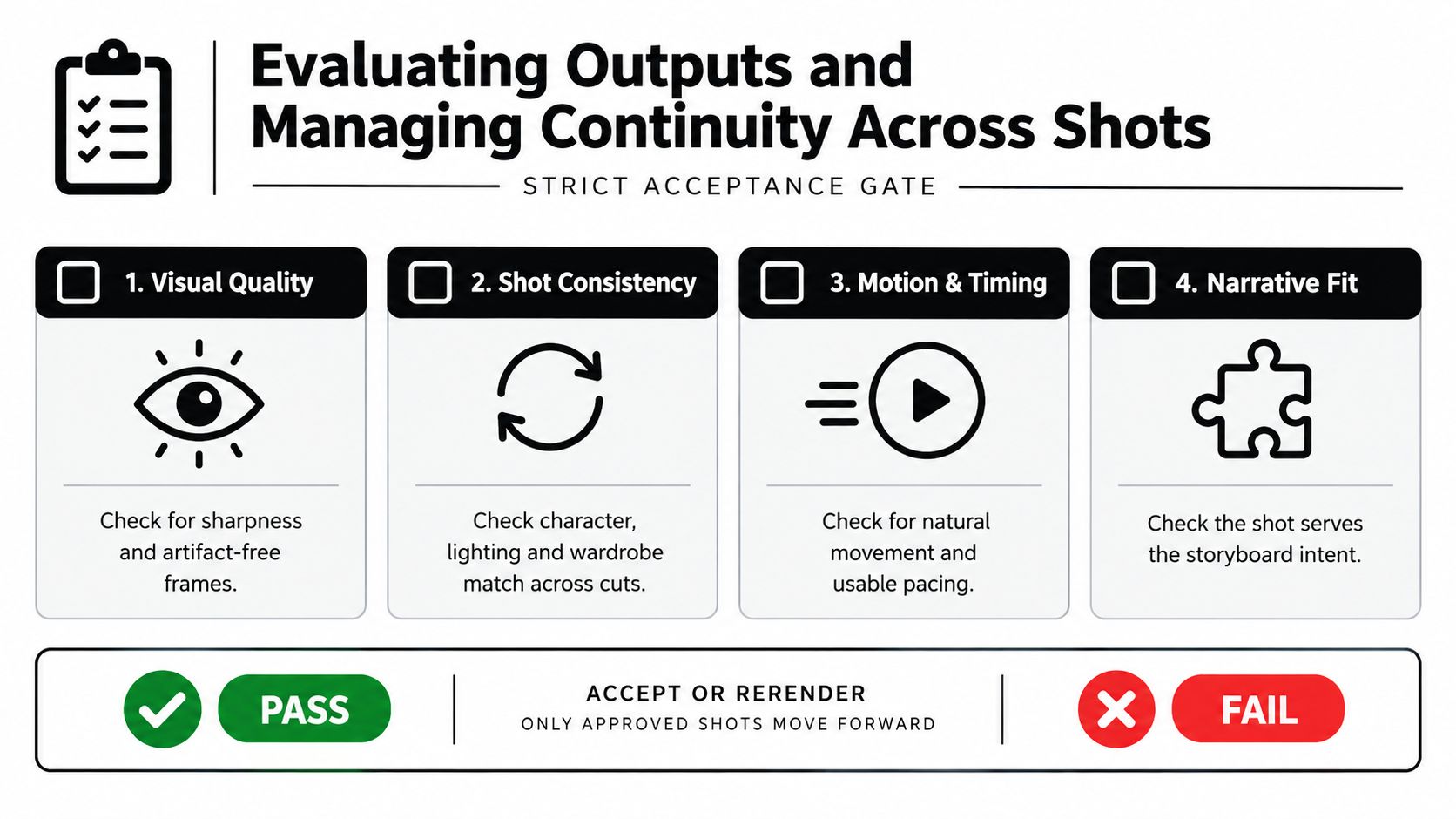
A render can look impressive in its first frame and still be unusable. Review the full clip, not just the thumbnail. The practical acceptance gate has four tests: prompt alignment, temporal consistency, motion smoothness, and audio synchronization.
Prompt alignment asks whether the clip contains the requested subject and action. Temporal consistency checks whether identity, wardrobe, geometry, and background remain stable. Motion smoothness catches unnatural acceleration, frozen limbs, drifting objects, and abrupt changes. Audio synchronization checks whether speech matches the mouth, effects occur at the right moment, and the track begins and ends naturally.
Use side-by-side comparison rather than judging each clip from memory. Keep the successful version open while reviewing the next attempt, then record the exact reason one passes and the other fails.
| Review area | Keep the clip when | Rerender when |
|---|---|---|
| Visual identity | The subject remains recognizable | Face, clothing, or object structure drifts |
| Temporal behavior | Movement follows a stable physical path | Objects flicker, disappear, or change shape |
| Camera control | Framing supports the intended edit | The camera accelerates or reframes without reason |
| Sound | Dialogue is readable and effects align | Words clip, voices overlap, or ambience jumps |
A free render is valuable only if it survives the edit. A beautiful frame with unstable motion is a reference, not a finished shot.
For longer sequences, plan independent shots with explicit continuity notes. The documented Veo 3 endpoint doesn't support video extension or reference images, so a continuous narrative shouldn't depend on one uninterrupted generation. Keep the same descriptions for wardrobe, lighting, location, and subject identity, then assemble the strongest shots in an editor.
The newer Veo 3.1 release added documented controls including video extension, references to up to three images, and first-frame and last-frame image inputs (Gemini API changelog). Those controls can improve continuity planning where they're available, but they don't remove the need to inspect every transition.
<a id="navigating-commercial-rights-and-copyright-realities"></a>
Navigating Commercial Rights and Copyright Realities
A downloadable file isn't automatically cleared for commercial publishing. You need to answer two separate questions: does the service agreement permit the intended use, and what legal protection applies to the generated material?
Check the terms for the specific account, route, and access offer you're using. A consumer trial, cloud credit, paid subscription, and developer API can carry different conditions. If the video includes an uploaded photograph, recognizable person, logo, music, or an imitation of someone's voice, those elements introduce additional rights questions that a generation interface won't resolve.
The U.S. Copyright Office states that generative-AI output can receive copyright protection only where a human author determines sufficient expressive elements (U.S. Copyright Office notice). In practical terms, contractual permission to publish a file doesn't necessarily mean every generated element receives strong copyright protection. Human composition, editing, selection, and transformation may matter, so preserve project files and document your contribution.
A useful pre-publication checklist includes:
- Source materials: Confirm you have permission for uploaded images, footage, voices, and brand assets.
- People and likenesses: Avoid using recognizable individuals without appropriate consent.
- Music and effects: Review licenses separately, and use properly cleared copyright free video and music for creators when the project needs external audio.
- Human contribution: Keep records of editing, compositing, sequencing, captions, and other expressive decisions.
- Client terms: State whether the client receives a license, project files, generated assets, or all of these.
- Provenance: Retain prompts and generation records, and label AI-assisted material where your platform or client policy requires it.
For a fuller commercial-use review, consult the Veo 3 commercial use guide alongside the current service terms. Don't publish an advertisement because the free workflow made the export convenient.
<a id="scaling-your-workflow-beyond-the-free-tier"></a>
Scaling Your Workflow Beyond the Free Tier
The free tier becomes useful when it creates a repeatable decision process. Begin with a shot list, not a blank prompt box. For each shot, record the intended subject, action, camera movement, format, audio, continuity notes, and acceptance result.
Then run the work in stages:
- Prototype: Test composition, action, and camera behavior with a short draft.
- Diagnose: Identify one failed component instead of rewriting everything.
- Select: Keep the strongest candidate and record why it passed.
- Assemble: Build the sequence from approved shots rather than forcing one long render.
- Publish carefully: Check terms, source rights, audio, and human editing before distribution.
Track allowance resets and failed attempts in a simple spreadsheet. The most important metric isn't the nominal number of credits. It's how many usable shots remain after experimentation, because a generous allowance can disappear quickly when every prompt contains several unresolved variables.
If your project needs repeatable automation, team review, or predictable throughput, compare the consumer route with a paid developer or platform workflow. Google's published API pricing lists Veo 3.1 Standard with audio at $0.40 per second for 720p or 1080p, $0.60 per second for 4K, Fast at $0.10 per second at 720p, $0.12 at 1080p, and $0.30 at 4K, while Lite is listed at $0.05 per second at 720p and $0.08 at 1080p. The same table marks these variants unavailable on the API free tier (Google Gemini API pricing). Check the current pricing page before choosing a route.
For broader comparison, you can browse AI clip generators for creators, then test only the models that match your format, audio, rights, and continuity requirements.

Use Veo3 AI to turn text prompts or still images into short videos while comparing Veo3, Seedance, and Hailuo in one workspace. Start with one controlled shot, save the prompt that passes your quality gate, and visit Veo3 AI to test the workflow before committing to a larger production plan.
Related Articles
Continue with more blog posts in the same locale.
10 Générateur De Vidéo Gratuit Tools Worth Trying
Compare 10 générateur de vidéo gratuit tools, including Veo3 AI, with features, free-tier limits, pros, cons, and picks for every use case.
Read article
Gemini Omni vs MiniMax H3: Which AI Video Model Wins?
Gemini Omni vs MiniMax H3: compare video quality, architecture, and costs. Find the best AI video model for your creative workflow.
Read article
How to Get Access to Veo 3: The Complete Guide
Learn how to get access to Veo 3 through Google subscriptions, APIs, or the Veo 3 AI video generator platform. Compare paths, limits, and setup steps.
Read article