
Veo 3 Image Reference Workflow: Consistent Characters & Products
Learn the Veo 3 image reference workflow for consistent characters, products, and scenes: input setup, prompt structure, retakes, and common failure fixes.
Emma Chen · 15 min read · May 1, 2026
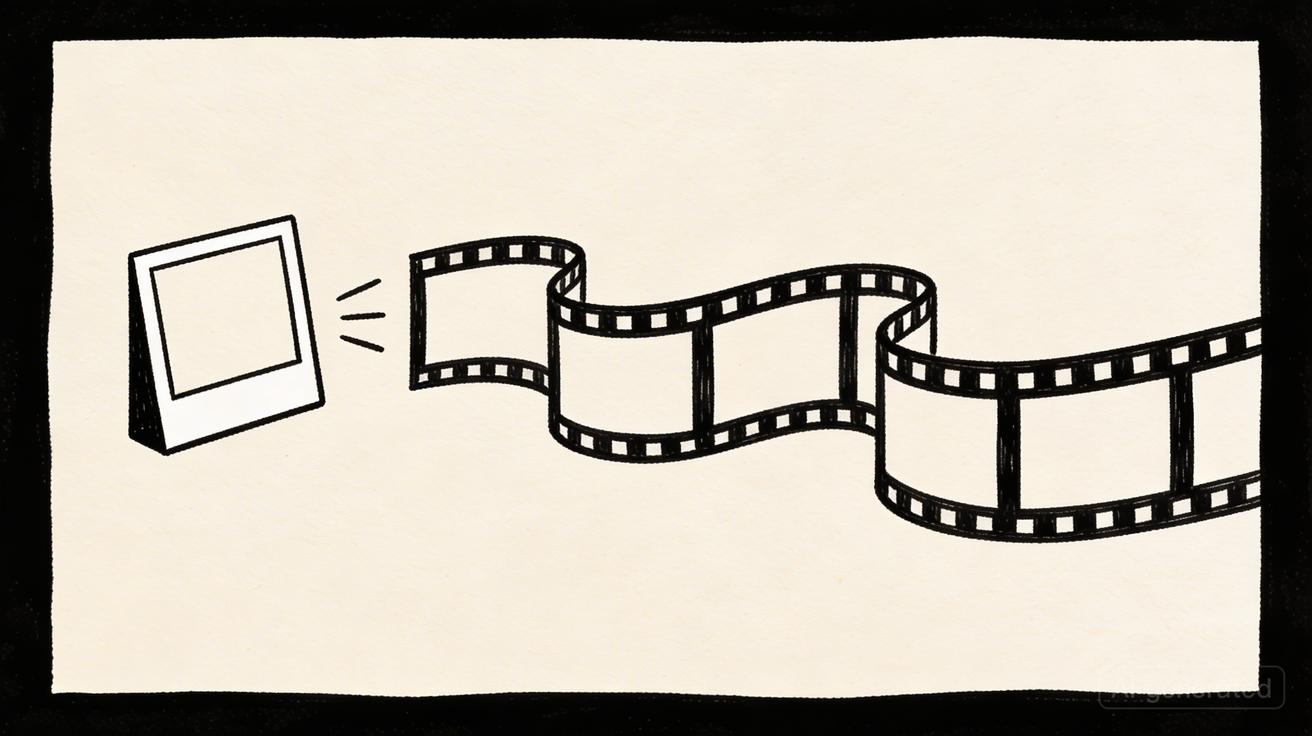
Image reference is one of the most useful workflows for Veo 3 because many video projects fail for a simple reason: the subject changes. A character looks different from shot to shot. A product label bends. A mascot loses its shape. A package changes color. A founder avatar becomes a different person. A location starts with one lighting direction and ends with another. The video may look impressive, but it is hard to use in a real campaign because the visual identity is unstable.
A Veo 3 image reference workflow solves this by treating the reference image as the anchor for the scene. Instead of asking the model to invent everything from text, you start with a character sheet, product photo, packaging mockup, storyboard frame, brand visual, or approved key image. Then the prompt tells Veo 3 what should move while protecting the identity of the subject. The goal is not only prettier video. The goal is usable continuity.
This guide focuses on practical consistency: how to prepare reference images, how to write prompts that preserve characters and products, how to plan shot sequences, how to evaluate outputs, and how to build a repeatable review process. It is written for marketers, ecommerce teams, creators, agencies, educators, game teams, and anyone building short videos where the subject must remain recognizable.
Use this workflow when text-to-video gives you the right scene but the wrong subject. Use it when a campaign needs the same hero product across multiple clips. Use it when a character has to appear in an opener, close-up, action shot, and CTA frame without becoming a different person. Use it when you need a visual system, not a single lucky generation.
Quick Answer: What Is a Veo 3 Image Reference Workflow?
A Veo 3 image reference workflow starts with a still image that defines the subject, then uses prompts to generate motion while preserving that subject. The reference image can be a product photo, character sheet, brand mascot, packaging design, app screen, location, or approved storyboard frame. The prompt should describe the motion, camera, lighting, and environment, but it should also tell Veo 3 to preserve the important identity markers.
A simple workflow looks like this:
- Choose one high-quality reference image.
- Identify the visual details that must not change.
- Write a motion prompt around those fixed details.
- Generate short controlled clips.
- Reject outputs where the subject identity drifts.
- Use the best clip as a building block for a sequence.
- Repeat with similar prompts for other shots.
For broader prompt fundamentals, read Veo 3 prompt examples. For free workflow context, see Google AI Studio Veo 3 limits. For comparison with other models, review Veo 3 vs Runway Gen-4.5.
Why Consistency Matters More Than One Beautiful Clip
AI video demos often reward the most surprising single shot. Production rewards repeatability. If you are making one experimental clip, a little subject drift may be acceptable. If you are making product ads, launch teasers, founder videos, game trailers, course intros, or brand social content, consistency becomes the difference between usable and unusable output.
A viewer may not consciously analyze every detail, but they notice when a product changes shape, when a character's face looks different, or when a brand color shifts between shots. That inconsistency weakens trust. In paid social, it can make an ad look less credible. In ecommerce, it can misrepresent the product. In storytelling, it breaks continuity. In education, it distracts from the lesson.
The value of image reference is control. It gives the model a visual target. It also gives your team a review standard. Instead of arguing whether a clip “looks good,” you can ask whether it preserves the approved reference. Does the logo remain readable? Does the character keep the same hair, clothing, and silhouette? Does the product still look like the actual SKU? Does the app screen retain the core layout? If the answer is no, reject the clip even if the motion is attractive.
Prepare the Reference Image
The reference image should be clean, well lit, and unambiguous. If the image contains too many subjects, the model may not know what to preserve. If the product is tiny, identity will drift. If the character is hidden by dramatic shadows, the generated video may invent missing details. A good reference image does not need to be fancy, but it needs to communicate the subject clearly.
Use this checklist before upload:
| Reference check | What to look for | Why it matters |
|---|---|---|
| Subject size | The main subject is large enough | Small subjects drift faster |
| Clean background | Background does not compete | Model can identify the subject |
| Readable features | Face, logo, package, or shape is visible | Identity markers are preserved |
| Stable lighting | No extreme shadows over key details | Fewer invented features |
| Correct aspect ratio | Matches the target video format | Less cropping risk |
| Brand-safe version | Approved product, colors, and design | Reduces review cycles |
For characters, use a clean portrait or character sheet. For products, use a front-facing product photo plus a second angle if your workflow allows it. For app screens, use a simplified screen that shows the core layout without tiny legal copy. For locations, use a wide image that clearly defines the environment.
Identify the Non-Negotiable Details
Before writing the prompt, list the details that must remain stable. This is the most important step because “make it consistent” is too vague. Veo 3 needs concrete preservation instructions.
For a character, non-negotiables might include hair color, jacket, age range, face shape, glasses, shoes, and overall silhouette. For a product, they might include package shape, label color, logo position, material, cap color, size, and hero angle. For a mascot, they might include proportions, eyes, texture, palette, and expression. For a location, they might include time of day, architecture, furniture, signage, and color temperature.
Turn those details into a prompt clause:
Preserve the exact product shape, white bottle body, blue cap, front label position, minimal logo mark, and clean studio lighting from the reference image.
or:
Keep the same character identity: short black hair, round glasses, green bomber jacket, slim silhouette, calm expression, and warm animated style.
This clause should appear before you describe motion. Preservation comes first because it defines the boundary for the shot.
Prompt Formula for Image Reference
Use this prompt formula:
Using the reference image as the identity anchor, create a [duration/style/format] video of [subject] doing [action]. Preserve [non-negotiable details]. Add [camera movement], [lighting], [environment], and [mood]. Do not change [logos/text/face/product shape]. Keep the subject recognizable throughout the clip.
Example for a product:
Using the reference image as the identity anchor, create a five-second vertical product video of the skincare bottle standing on a clean bathroom counter. Preserve the white bottle body, blue cap, front label placement, rounded shoulders, and minimal premium style. Add a slow push-in, soft morning light, gentle water reflection, and a clean spa mood. Do not change the logo, label, bottle shape, or cap color.
Example for a character:
Using the reference image as the identity anchor, create a six-second cinematic shot of the same character walking through a bright studio workspace. Preserve the short black hair, round glasses, green bomber jacket, face structure, and calm confident expression. Add a smooth tracking shot, soft daylight, shallow depth of field, and natural movement. Do not change the character's identity or clothing.
Example for an app screen:
Using the reference image as the visual anchor, create a four-second product demo shot of the same app dashboard on a tablet. Preserve the dashboard layout, primary blue buttons, chart cards, and clean white interface. Add a subtle camera tilt, soft reflection, and finger hover motion. Do not invent new UI text or change the layout.
Build a Sequence Without Losing Continuity
The hardest part is not generating one clip. It is generating several clips that look like they belong together. For a product sequence, start with one hero shot, then create close-up, usage, environment, and CTA shots. For a character sequence, start with a medium shot, then create reaction, action, detail, and ending shots. Keep the same reference and the same preservation clause in every prompt.
A product sequence might look like this:
- Hero product on clean background.
- Product lifted by soft hand motion.
- Close-up of texture or feature.
- Lifestyle environment with the same product.
- Final packshot with CTA.
A character sequence might look like this:
- Character enters the scene.
- Character looks at a screen.
- Character reacts to a result.
- Character walks through environment.
- Character appears in final title card.
Do not change too many variables between shots. If the first shot is warm studio light and the second shot is neon night light, continuity becomes harder. If the camera style changes from handheld documentary to glossy commercial, the sequence may feel stitched together. Keep a shared style bible: lighting, lens feel, color grade, movement, subject description, and environment.
Product Consistency Workflow
Product videos are unforgiving because the object represents something real. A generated product that looks almost right may still be wrong. Use reference images when you need packaging accuracy, color consistency, material continuity, or product scale.
Start with a clean packshot. If the product has a logo or text-heavy label, do not expect perfect text in every frame. Use the generated clip as motion material and overlay official text in editing when needed. For ecommerce ads, the product shape, color, and recognizability matter more than asking the model to reproduce every tiny label line.
Recommended product prompt clauses:
- “preserve exact silhouette and package proportions”
- “do not change the label layout”
- “logo area remains stable and front-facing”
- “product stays centered and recognizable”
- “no invented flavors, claims, badges, or extra labels”
- “camera movement is subtle enough to keep the package readable”
For product close-ups, ask for material motion rather than identity change. Examples: condensation on a can, soft shadow under a bottle, light reflecting on a metal edge, dust particles in a studio beam, product rotating slightly without changing shape.
Character Consistency Workflow
Characters need identity protection: face, body, hair, clothing, and style. If you are creating a creator avatar, brand mascot, game character, or educational host, start with a strong reference image. A character sheet with front and side views is better than a casual screenshot, but even one clean portrait is better than text-only prompting.
Use stable descriptions across prompts. Do not describe the character differently from shot to shot. If the character wears a green jacket in shot one, do not say “blue jacket” in shot two. If the style is 3D animated, do not switch to photorealistic unless you intentionally want a new version.
When reviewing outputs, compare side by side with the reference. Look at the face first, then silhouette, then clothing, then style. Reject clips where the subject becomes a similar but different person. A beautiful clip with the wrong character is not a good clip.
Reference Image Mistakes to Avoid
The first mistake is uploading a busy collage. The model may animate the wrong object. The second mistake is relying on tiny text. Small typography can change during generation. The third mistake is prompting a big transformation when you need consistency. If you say “turn this product into a futuristic version,” the model may obey and change the product. The fourth mistake is changing lighting and environment too aggressively between shots.
The fifth mistake is not documenting the winning prompt. When a clip works, save the prompt, reference image, seed or settings if available, duration, aspect ratio, and review notes. Consistency improves when the workflow becomes repeatable.
Review Checklist
Use this checklist before publishing:
- Subject still matches the reference image.
- Product shape, colors, and key details are stable.
- Character face, clothing, and silhouette remain recognizable.
- No fake claims, invented labels, or misleading product features appear.
- Camera motion improves the shot without hiding details.
- Clip matches the planned aspect ratio.
- Sequence shots share lighting, grade, and style.
- Final edit includes official captions or overlays where exact text matters.
FAQ
What is a Veo 3 image reference workflow?
It is a process where a still image anchors the identity of a character, product, location, or brand asset while Veo 3 generates motion around it.
Can image reference keep a product perfectly accurate?
It improves consistency, but you should still review product shape, label, logo, and claims carefully. Overlay exact legal or product text in editing when accuracy matters.
What images work best as references?
Clean, high-resolution images with one clear subject, stable lighting, and visible identity details work best. Avoid cluttered collages and tiny text.
How do I keep the same character across shots?
Reuse the same reference image and the same preservation clause in every prompt. Keep clothing, lighting, style, and camera language consistent.
Should I use text-to-video or image-to-video?
Use text-to-video for broad scene invention. Use image-to-video or image reference when subject identity, product accuracy, or brand continuity matters.
How many clips should I generate?
For important projects, generate at least three variations per shot and reject any output where the subject identity drifts.
Final Takeaway
Veo 3 image reference is not just a convenience feature. It is a production workflow for consistency. Start with a strong reference, define non-negotiable identity details, write preservation-first prompts, generate short controlled clips, and review outputs against the original image. That process helps you turn AI video from one-off experiments into usable character, product, and brand sequences.
Advanced Workflow: Build a Reference Pack
For important projects, do not rely on one casual image. Build a small reference pack before generating. A reference pack is a folder of approved visual anchors that define the subject from several useful angles. It might include a product front shot, side shot, lifestyle shot, color reference, packaging close-up, and final brand background. For characters, it might include front view, half-body view, expression reference, clothing reference, and one environment frame.
The reference pack does not need to be complicated. Its job is to reduce ambiguity. When the team agrees on the pack, the prompt writer knows which details are protected and the reviewer knows what to compare against. This is especially useful for agencies because it prevents client feedback like “the clip looks good, but it is not our product.” The approval standard exists before generation begins.
When using a reference pack, choose the primary image for each shot. Do not upload or reference every image if the tool only needs one anchor. Use the front product image for packshots, the lifestyle image for contextual scenes, and the close-up for feature shots. Keep file names descriptive: hero-product-front, hero-product-side, founder-avatar-green-jacket, mascot-approved-expression, or dashboard-clean-layout. This makes the workflow easier to repeat.
Shot Matrix for Consistent Campaigns
A shot matrix helps you plan a video set without losing continuity. Instead of generating random clips, define the purpose of each shot and the preservation rule for each one.
| Shot | Purpose | Reference priority | Motion idea | Review focus |
|---|---|---|---|---|
| Hero packshot | Establish the product | Product shape and label | Slow push-in | Label, color, silhouette |
| Lifestyle use | Show context | Product scale and color | Hand interaction | Product remains same SKU |
| Feature close-up | Explain benefit | Material and detail | Macro light sweep | No invented claims |
| Character reaction | Add emotion | Face and clothing | Medium tracking shot | Same person, same outfit |
| CTA frame | End clearly | Product + brand palette | Locked-off hold | Readable final frame |
This matrix is useful because it separates creative ambition from quality control. Each shot has a reason. Each shot also has a rejection rule. If the lifestyle shot looks beautiful but the product becomes the wrong color, it fails. If the hero shot is accurate but boring, generate a new motion variation. This makes production faster because feedback becomes specific.
Editing Tips After Generation
Even a strong Veo 3 clip usually needs editing. Use the generated output as a motion plate. Trim weak starts and endings. Stabilize the pacing with captions, product overlays, music, or voiceover. If exact product label text matters, overlay official text or show a verified product still after the generated motion. If character identity is important, cut away before the face begins to drift.
For multi-shot sequences, match color and contrast in editing. AI clips generated from the same reference can still vary in brightness, saturation, or lens feel. A simple grade can make the sequence feel more consistent. Add the same caption style and CTA treatment across all clips. Consistency is not only generated; it is also edited.
Measurement: What to Track
If you use image reference for marketing, track the practical outcomes. Measure how many generated clips were usable, how many were rejected for identity drift, which prompt clauses improved consistency, and which reference images worked best. Over time, this becomes a production dataset for your team.
Useful tracking fields include: reference image name, prompt version, subject type, aspect ratio, clip duration, accepted or rejected, rejection reason, final platform, and performance note. This turns AI video from a creative guessing game into a repeatable workflow. The goal is not only to make one better video; it is to learn which reference and prompt patterns reliably protect your brand assets.
Related Articles
Continue with more blog posts in the same locale.
How to Make Sports Highlight Videos with Veo 3 AI (2026)
Create stunning sports highlight videos with Veo 3 AI. Generate dynamic action shots, slow-motion sequences, and dramatic replays using AI prompts.
Read article
How to Make a Short Film with Veo 3 AI (2026 Guide)
Learn how to create professional short films using Veo 3 AI. Step-by-step guide with prompts, workflow tips, and cinematic techniques.
Read article
How to Make Documentary Videos with Veo 3 AI (2026 Guide)
Create compelling documentary videos with Veo 3 AI. Learn prompting techniques, narrative structure, realistic footage generation, and post-production tips.
Read article