
No API Key, Just Sign In
Add the server URL to your agent and sign in with your Veo3 AI account in the browser. There are no keys to create, copy or keep safe.
Connect your AI agent to Veo3 AI and have it make images, videos and music for you. Setup guide
Your agent sets up Veo3 AI for you
Approve the connection with your Veo3 AI account, then ask ChatGPT for images, videos, music or edits.
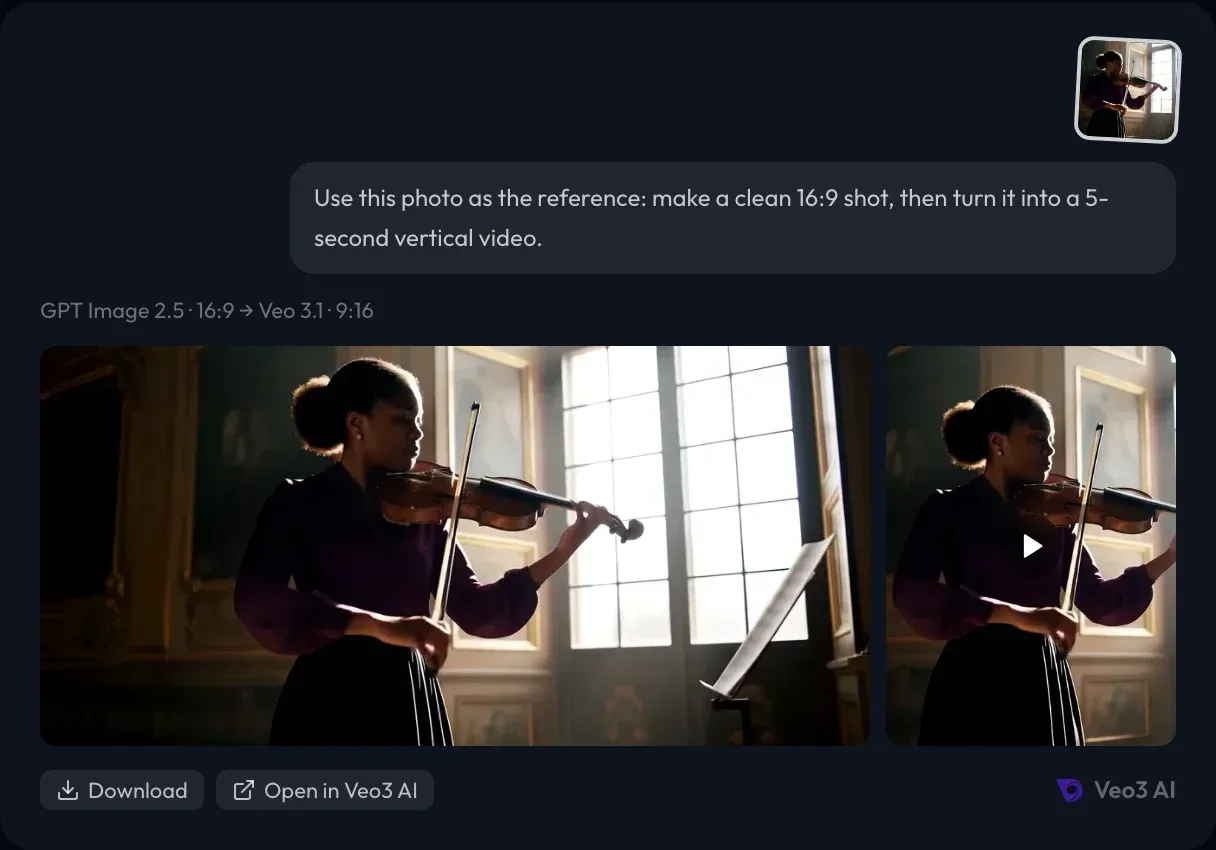
Bring in product shots, character photos or footage you already have. Your agent puts them on the canvas as references, so new images and videos keep the same face, product and look.
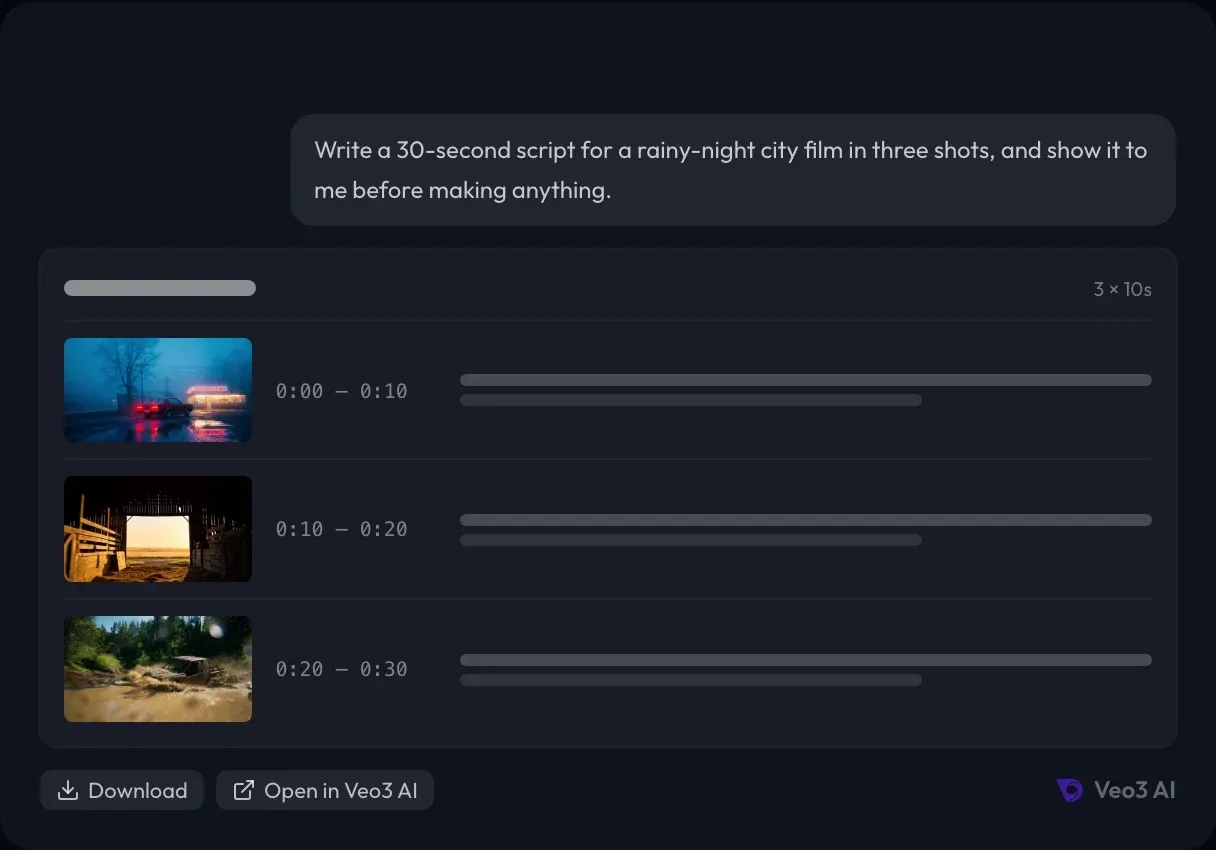
For anything longer than one clip, your agent writes a script with scenes and shots for you to read and confirm in the chat. Nothing is made, and nothing is spent, until you say go.
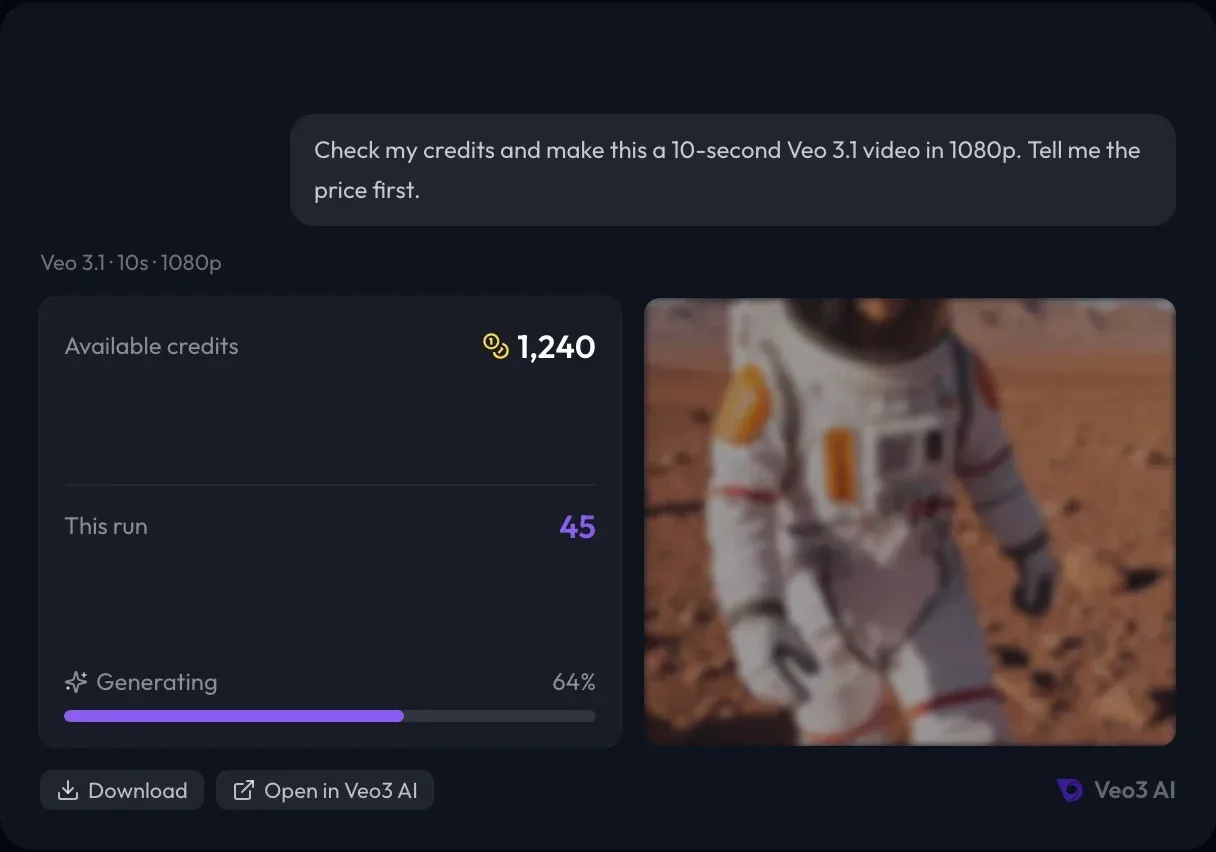
Describe the result instead of studying every model and setting. Your agent picks a fitting model or uses the one you name, checks your balance, tells you the price before it runs and follows the job until it's done.
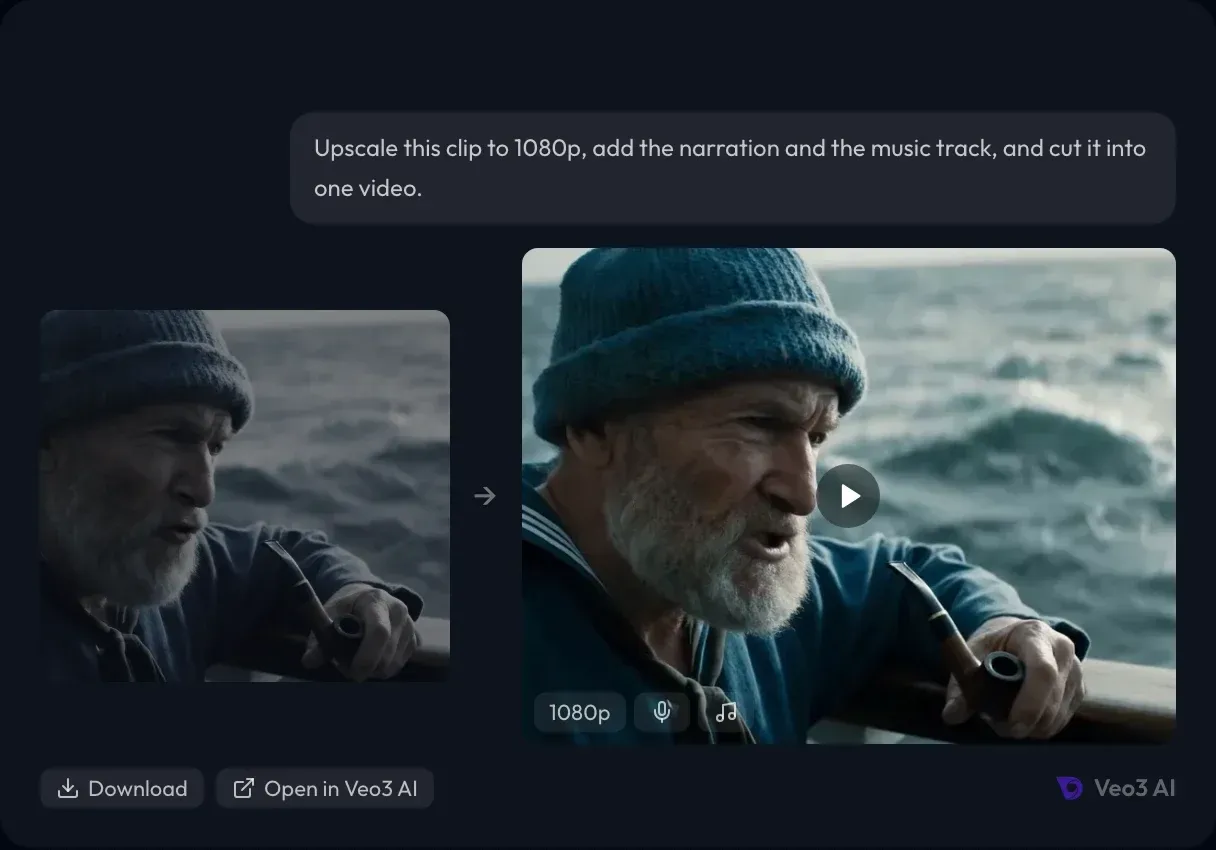
Keep improving results instead of starting over. Cut shots together with titles and music, upscale to a higher resolution or sync lips to a voice, all in the same conversation.
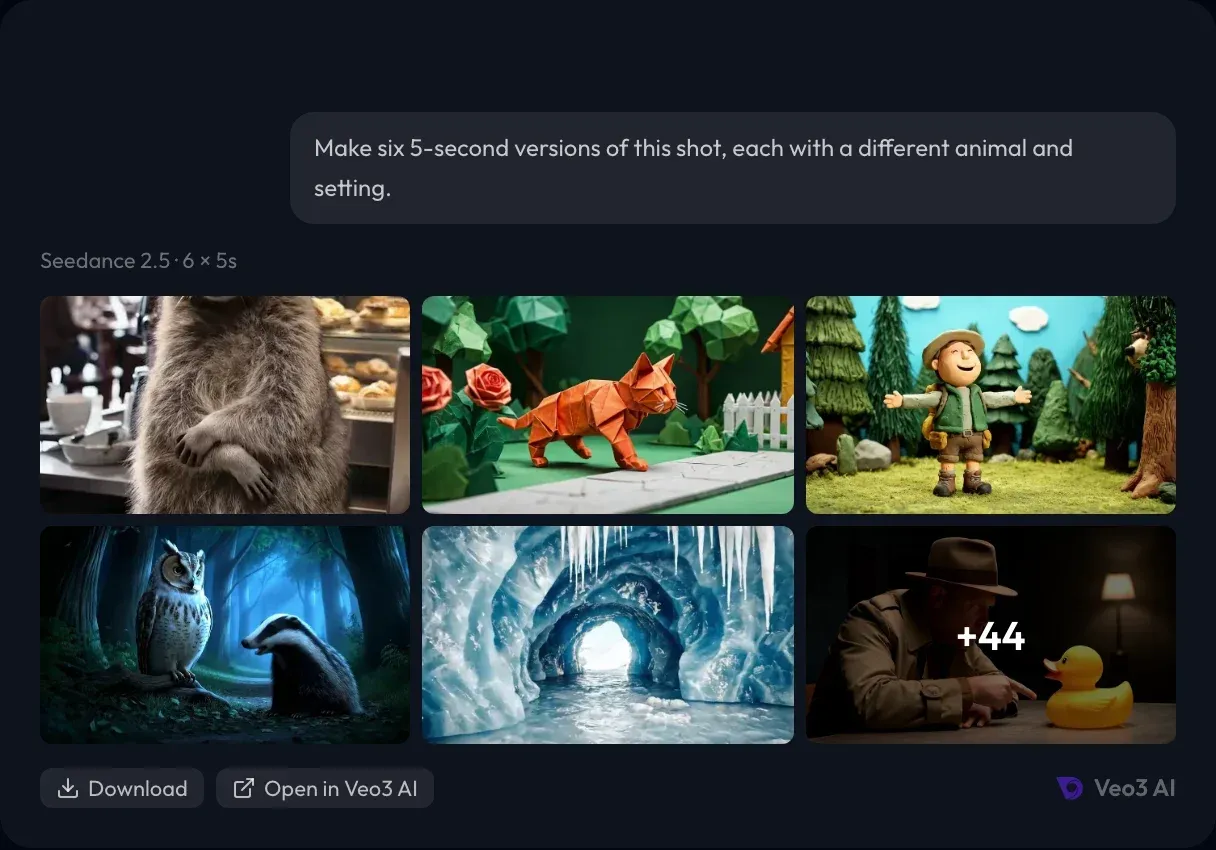
Ask for many versions in one go instead of repeating the same prompt. Your agent starts them together, then you compare the results and keep the best.
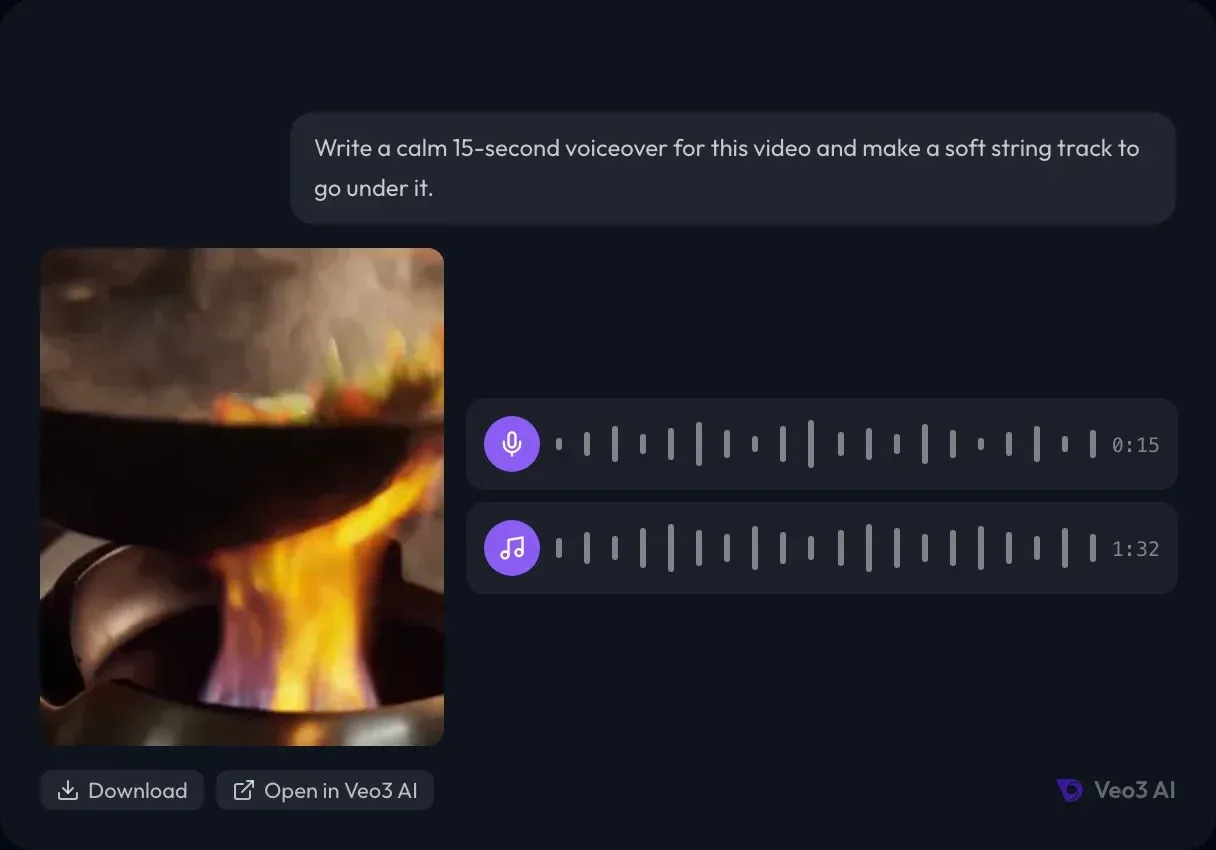
Turn a short brief into narration, dialogue or a music track, and lay it under your video without opening another tool.
Add the server URL to your agent and sign in with your Veo3 AI account in the browser. There are no keys to create, copy or keep safe.
Every image, video and track your agent makes is saved on a canvas in your account, so you can open it on Veo3 AI to keep editing, download or reuse it.
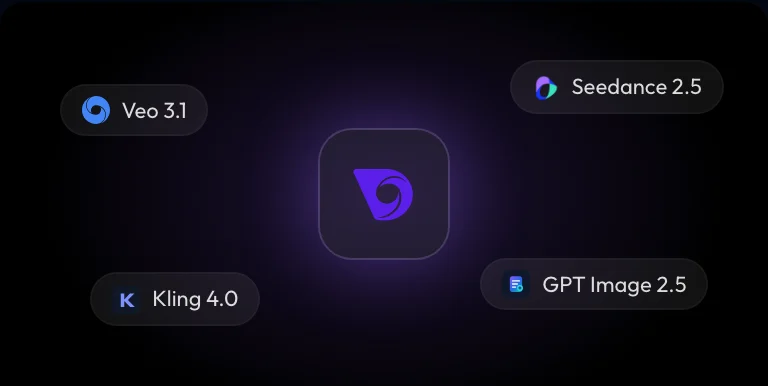
Use Veo 3.1, Seedance 2.5, Kling 4.0, GPT Image 2.5, Nano Banana and more through a single Veo3 AI connection.
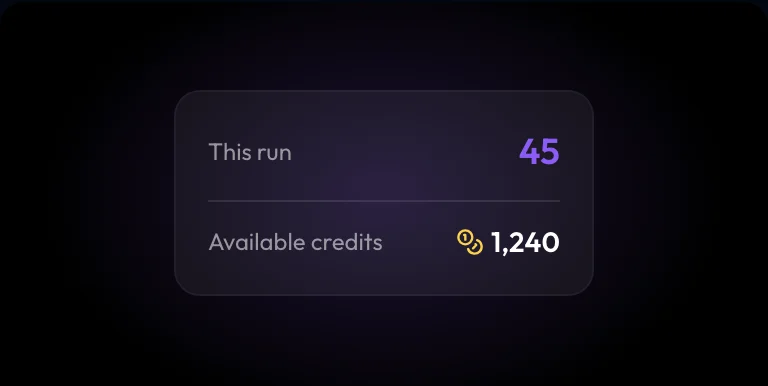
Your agent reads the price and your balance before it spends anything. Failed runs are refunded automatically, and if you're short, you get a top-up button right in the chat.
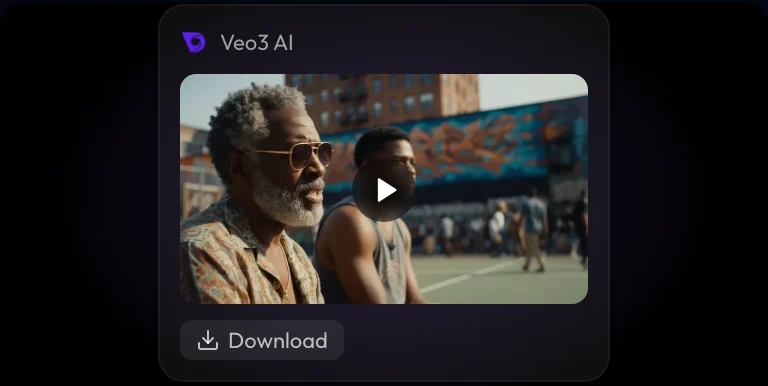
Finished images, videos and audio come back into the conversation, ready to play, download or use in the next step.
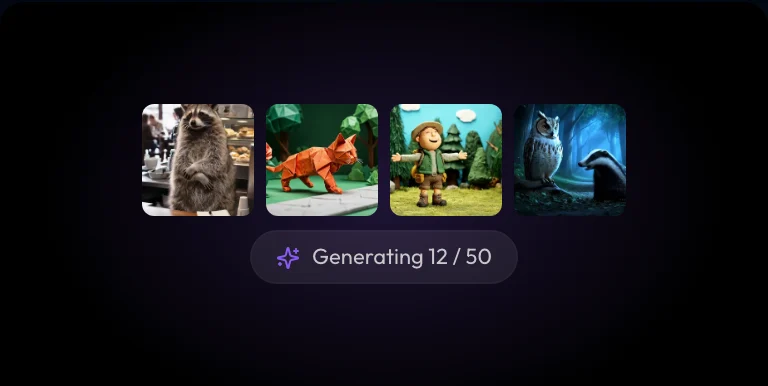
Start many images or videos in one go, compare them side by side and keep building on the best.
Through MCP (Model Context Protocol), the standard way AI agents use outside tools. You add the Veo3 AI MCP server at https://www.veo3ai.io/mcp to your agent and sign in once. After that you describe what you want in plain words, and your agent creates projects, uploads your files and runs image, video, music and edit jobs on your Veo3 AI canvas.
ChatGPT, Claude, Claude Code, Gemini, Grok, Cursor, OpenClaw and Hermes, each with its own steps at the top of this page. Any other agent that supports remote MCP servers with OAuth sign-in works too.
Images, videos, voiceovers, music and sound, plus edits: cutting shots together with titles and music, upscaling and lip sync. For longer videos your agent can write a script first, so you confirm the scenes before anything is made.
No. You add the server URL to your agent and sign in with your Veo3 AI account. Your agent never sees your password, and you can disconnect it any time in Connected apps.
Connecting is free. Generations use your Veo3 AI credits at the same prices as on the website. Your agent reads the price before every paid run and tells you, and failed paid runs are refunded automatically.
Your agent reads the price before every paid run, tells you the total and runs only what you asked for; how often it checks with you is up to your agent's settings. If your balance is short, nothing is charged and you get a top-up button in the chat. You can disconnect it any time in Connected apps.
Yes. In chat apps like ChatGPT and Claude your agent shows an upload card where you pick the files. Coding agents like Claude Code and Cursor can upload files from your computer, and any agent can bring in a file from a public link.
Yes. Name the model you want, such as Veo 3.1, Seedance 2.5 or Kling 4.0, or let your agent suggest one that fits your idea, format and budget.
Yes. Your agent can start up to 50 jobs in one go, for example several versions of the same shot, and show you all the results when they're done.
Everything is made on a canvas in your Veo3 AI account. Your agent shows the results in the chat, and you can open the canvas on the website to keep editing, download or reuse them.
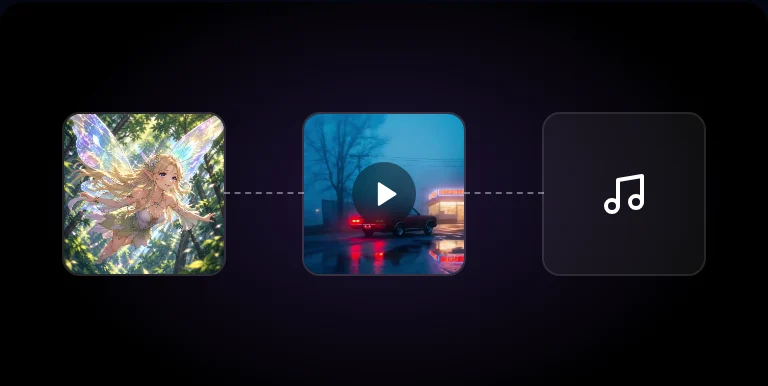
Yes. Your agent can write the script, make each shot, add voiceover and music and cut everything into one video on your canvas. You confirm the script and the price before it starts.
Yes, if it supports remote MCP servers over Streamable HTTP with OAuth sign-in. Add https://www.veo3ai.io/mcp as a remote server and sign in to Veo3 AI when asked.