
AI Video Extender Guide: When to Extend vs Regenerate
Learn what an AI video extender does, how it continues a clip, and when to extend footage or regenerate it with Veo 3.1.
Veo3 AI · 14 min read · Nov 5, 2026
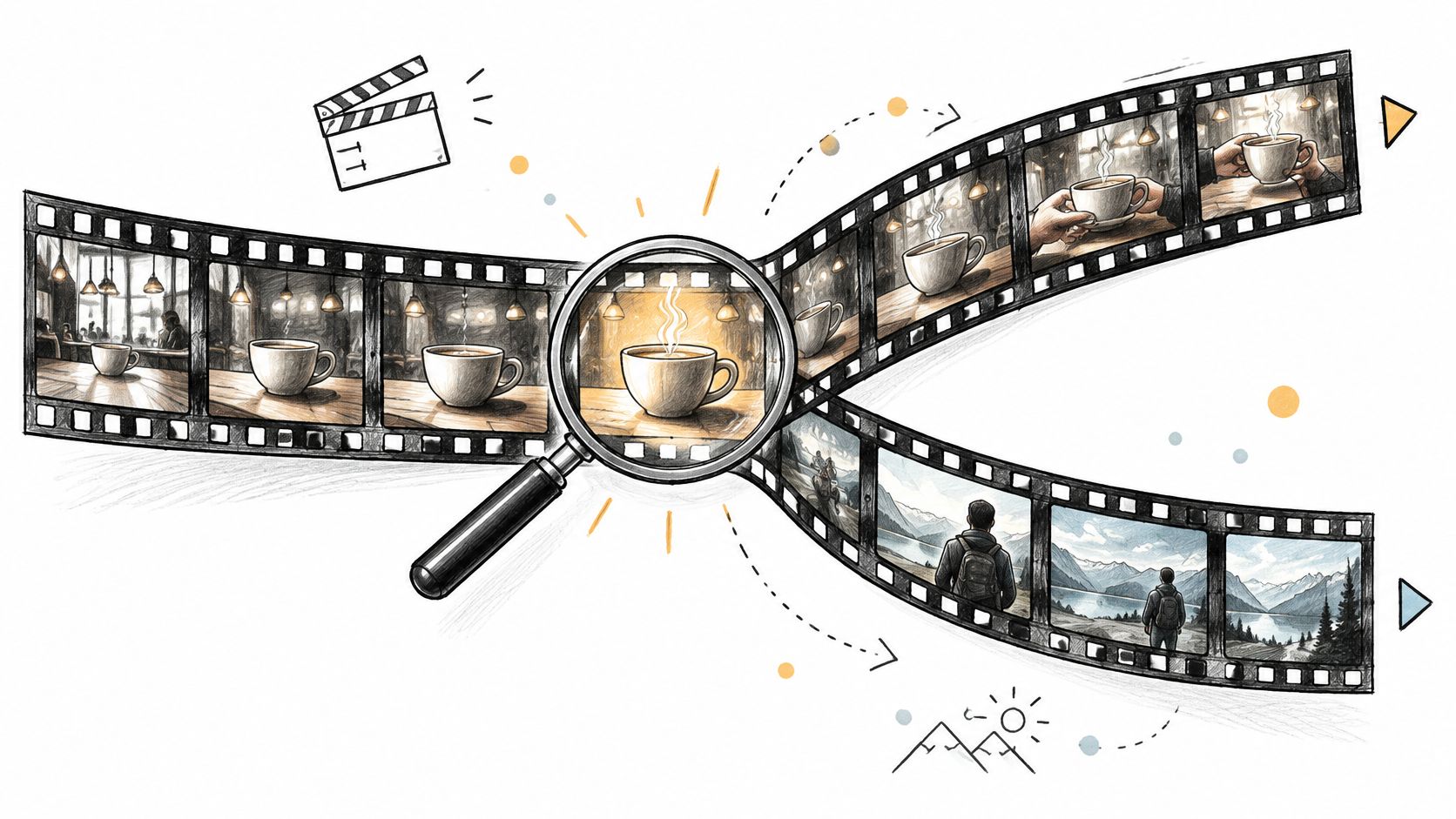
Your coffee-pouring clip looks right. The cup stays in focus, the light falls across the counter, and then the video ends before you have room for the closing message. You need a little more footage, not a different scene.
An AI video extender can help, but adding time also gives the model more opportunities to change the subject, lighting, or motion. The useful question isn't just how long you can make the clip. It's whether the next segment will still look like the shot you chose.
Table of Contents
- What an AI Video Extender Does
- Four Ways Creators Use an Extender
- Which Clips Can You Extend
- When Extending Drifts and When to Regenerate Instead
- Step-by-Step Extension in Veo 3.1
- Check Rights and Plan Your Next Extension
<a id="what-an-ai-video-extender-does"></a>
What an AI Video Extender Does
An AI video extender generates new seconds that continue an existing clip from its final frames, so the shot keeps moving instead of starting over from a text prompt. Think of a relay: the next runner takes the baton at full speed and must match the previous runner's direction and stride. A continuation has a similar job with movement, appearance, and camera position.
Say your source shows coffee flowing into a ceramic cup. The extender should continue the pour from the current height and angle, not introduce another cup or restart the action. You're asking for the next moment in an existing shot.
<a id="different-starting-points"></a>
Different starting points
The distinction becomes clearer when you compare the inputs:
- Text-to-video starts with a written description and no existing footage.
- Image-to-video starts with a still image that establishes appearance and composition.
- Video extension starts with motion already on screen, so the model must carry that motion forward.
If you're new to generation, Revid's explanation of turning prompts into video clips provides useful context for the first workflow. Extension adds another constraint: matching something the viewer has already seen.
A standard Veo 3.1 generation produces an eight-second video, according to Google's Veo documentation, which makes continuation relevant when a short shot ends before the action does. Google's Veo model documentation lists video extension as a built-in capability, rather than an editing workaround.
The basic handoff looks like this:
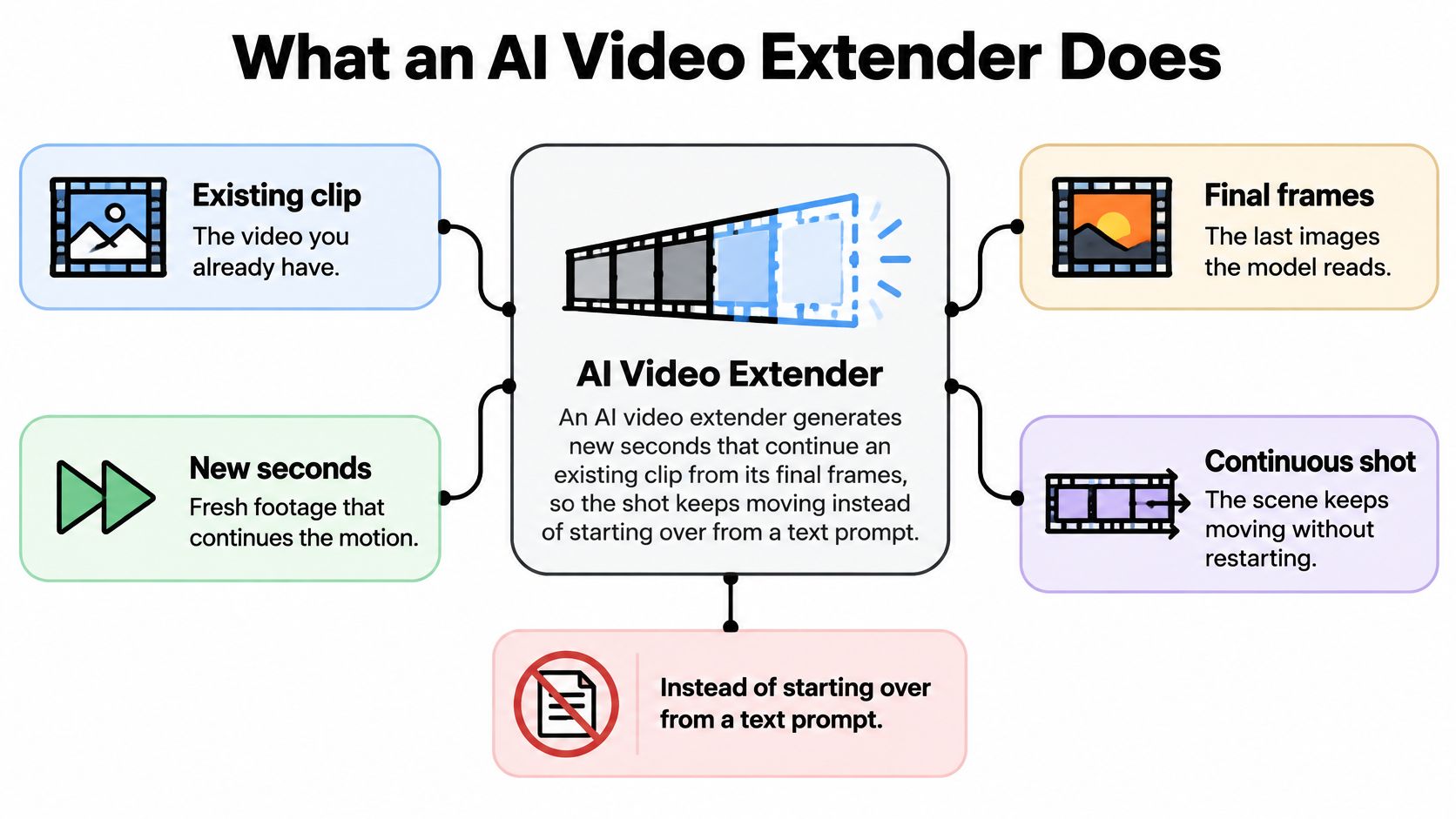
Source clip → final frames read → new segment generated → joined output.
Practical boundary: Extend a shot when you want the action to continue. A new character, location, or story beat usually calls for a new shot.
An extender isn't a general repair tool. It doesn't reliably turn a weak composition into a strong one, and changing the subject halfway through defeats the continuity you're trying to preserve.
<a id="four-ways-creators-use-an-extender"></a>
Four Ways Creators Use an Extender
Extender use cases, what they add and where they fail
| Use case | What the extender adds | Best input | Main risk |
|---|---|---|---|
| Stretching a short clip | New seconds that continue the last frames | Steady shot with one clear subject | Drift after one to two passes |
| Upscaling | Sharper, higher-resolution version of the same frames | Clean, well-lit, low-compression source | Inherited artifacts get amplified |
| Looping | An ending that returns to the opening frame | Static background, slow or repeating motion | Visible seam at the loop point |
| Filling gaps | Frames that bridge a start frame and an end frame | Matching first and last frames | Motion or lighting mismatch at the join |
These jobs often appear together in video tools, but only temporal extension necessarily adds new action after the ending. Upscaling changes image resolution. Looping and gap filling need their own controls, so don't assume an extension button handles every row.
<a id="match-the-operation-to-the-footage"></a>
Match the operation to the footage
Stretching a short clip suits a steady camera and a clear subject, such as a bottle standing on a counter while the camera slowly moves closer. As a hypothetical test, you might try taking a five-second clip toward eight to twelve seconds. That's a target for your footage, not a promise about supported duration or usable results.
Upscaling prepares existing frames for higher-resolution delivery. It works best when edges and textures are already reasonably clean. A sharper-looking result isn't proof that the model recovered authentic detail, especially on packaging text, faces, or fine patterns.
Looping needs the ending to connect with the beginning in both position and motion. A slowly turning product against a static background is a better candidate than a person walking out of frame. Matching the opening image isn't enough if the object suddenly reverses direction at the seam.
Filling gaps asks the model to connect visual endpoints. It suits a gentle camera move between compatible compositions, but becomes less predictable when the endpoints imply different lighting, object positions, or movement speeds.
Choose the operation before you generate. A longer timeline, a sharper image, and a seamless loop are different production goals.
Before committing, describe what your clip lacks in plain language: more time, more resolution, a repeatable ending, or a bridge. Then choose the matching controls instead of treating every problem as a request for more seconds.
<a id="which-clips-can-you-extend"></a>
Which Clips Can You Extend
Start with source eligibility. The documented Gemini extension workflow covers Veo-created videos. Treat phone footage, stock clips, and exports from other generators as unsupported for that workflow unless the current interface and documentation explicitly accept them.
A tool offering image-to-video doesn't necessarily accept arbitrary video for continuation. Likewise, uploading a frame from your clip creates an image-led generation, not automatically a motion-aware extension.
<a id="check-the-delivery-requirements"></a>
Check the delivery requirements
- Length: Separate the duration of the new segment from the finished timeline. Check whether the control describes added footage or total output before submitting the job.
- Resolution: Choose the delivery size before generating. Veo supports high-resolution output, but model variants and available controls differ, and higher-resolution generation takes longer. Don't assume every extension mode exposes every output size.
- Audio: Include the required ambient sound, sound effects, or dialogue in the prompt when using native audio generation. Check the returned soundtrack rather than assuming it will preserve your original recording.
- Input quality: Use the cleanest eligible source, with stable exposure and a clearly visible subject. Exporting an already compressed clip again won't restore its missing detail.
Before uploading: Confirm the source type, generation mode, output settings, and audio behavior together. A model's general feature list isn't a guarantee that every feature works in every mode.
Keep the creative request narrow, too. A continuation can preserve a useful shot, but it can't reliably repair a weak source or replace the subject without making the change visible. If you need a different scene, prepare a new generation rather than forcing it through the extension workflow.
<a id="when-extending-drifts-and-when-to-regenerate-instead"></a>
When Extending Drifts and When to Regenerate Instead
Repeated extension has a hidden cost: you inherit the previous generation's mistakes. Independent technical commentary from Vidle describes continuations conditioned on the previous generated segment and warns that after three or four passes, changes in color, motion energy, and subject identity can make joins visibly obvious. That's a practical warning, not a universal failure threshold.
A slightly altered face can become the reference for the next pass. A small exposure change can become the new lighting baseline. By the time you reach the desired duration, you may have a longer clip that no longer resembles the original closely enough.
<a id="inspect-the-handoff-not-just-the-thumbnail"></a>
Inspect the handoff, not just the thumbnail
Compare the last source frame with the first generated frame at the same zoom level, then play through the boundary. A convincing still image can hide a sudden acceleration or a change in camera direction.
Use this inspection list:
- Face identity: Compare facial proportions, hairline, expression, and distinctive features.
- Wardrobe: Watch seams, collars, jewelry, logos, and fabric texture.
- Camera movement: Check direction, height, speed, and perspective through the join.
- Lighting: Compare shadows, reflections, skin tone, brightness, and color balance.
- Frame rate: Confirm the editor interprets both segments consistently so export settings don't introduce judder.
- Audio sync: Listen for shifted dialogue, interrupted ambience, or sound effects that no longer match the action.
Low resolution, compression artifacts, and poor contrast deserve attention before generation. The model may carry those weaknesses into the continuation or make them more conspicuous.
If the visuals pass but the soundtrack has a simple timing offset, Mimic's guide to correct delayed audio step by step can help with the editing repair. Moving the audio track won't fix newly generated mouth movements that don't correspond to the spoken words.
<a id="choose-the-route-before-spending-another-pass"></a>
Choose the route before spending another pass
Extending versus regenerating side by side
| Criterion | Extend the clip | Regenerate from scratch |
|---|---|---|
| Continuity with the original shot | Strong on the first pass when the source is suitable | Weak unless you reuse the same reference image |
| Length gained | Adds seconds to an existing clip | A fresh standalone segment, bounded by the selected generation mode |
| Inherited footage problems | Yes, flaws can carry into the new seconds | A fresh source avoids carrying over those exact artifacts, though new errors remain possible |
| Safe number of passes | Use one or two as a conservative stopping rule, not a guarantee | Each generation stands alone |
| Best when | You need more of the same shot | The shot is wrong or the source is weak |
Extend when the shot is right and you need more of it. Regenerate when the composition, lighting, performance, or source quality is wrong. A shared reference image can help keep a replacement visually related, but it doesn't guarantee an exact match.
Consider a steady product shot that needs another four seconds for a closing message. That's a reasonable extension test because the subject and camera behavior can remain simple.
A talking-head clip with a distracting lighting flaw calls for a different decision. Generating from a clean reference gives you a chance to establish better lighting instead of asking the extender to preserve a flawed setup.
For a repeating background, use endpoint control to guide the ending toward the opening. An unconstrained forward continuation may keep moving away from the frame you need for the loop.
A longer video isn't automatically a better edit. One convincing extension followed by a clean cut often works better than a chain of increasingly unstable continuations.
Generate a continuation, inspect the join at full size, and judge it for the actual delivery. A subtle texture change behind a caption may be acceptable; a changed face in a paid advertisement may not be. If continuity fails, cut to a separate shot instead of treating another extension as the default fix.
<a id="step-by-step-extension-in-veo-31"></a>
Step-by-Step Extension in Veo 3.1
The tool reads the source's final frames, generates new frames conditioned on that context, and joins the result at the boundary. Your job is to give it a clear continuation and reject outputs that don't preserve the shot.
The handoff is simple to describe, even though matching appearance and motion is technically demanding:
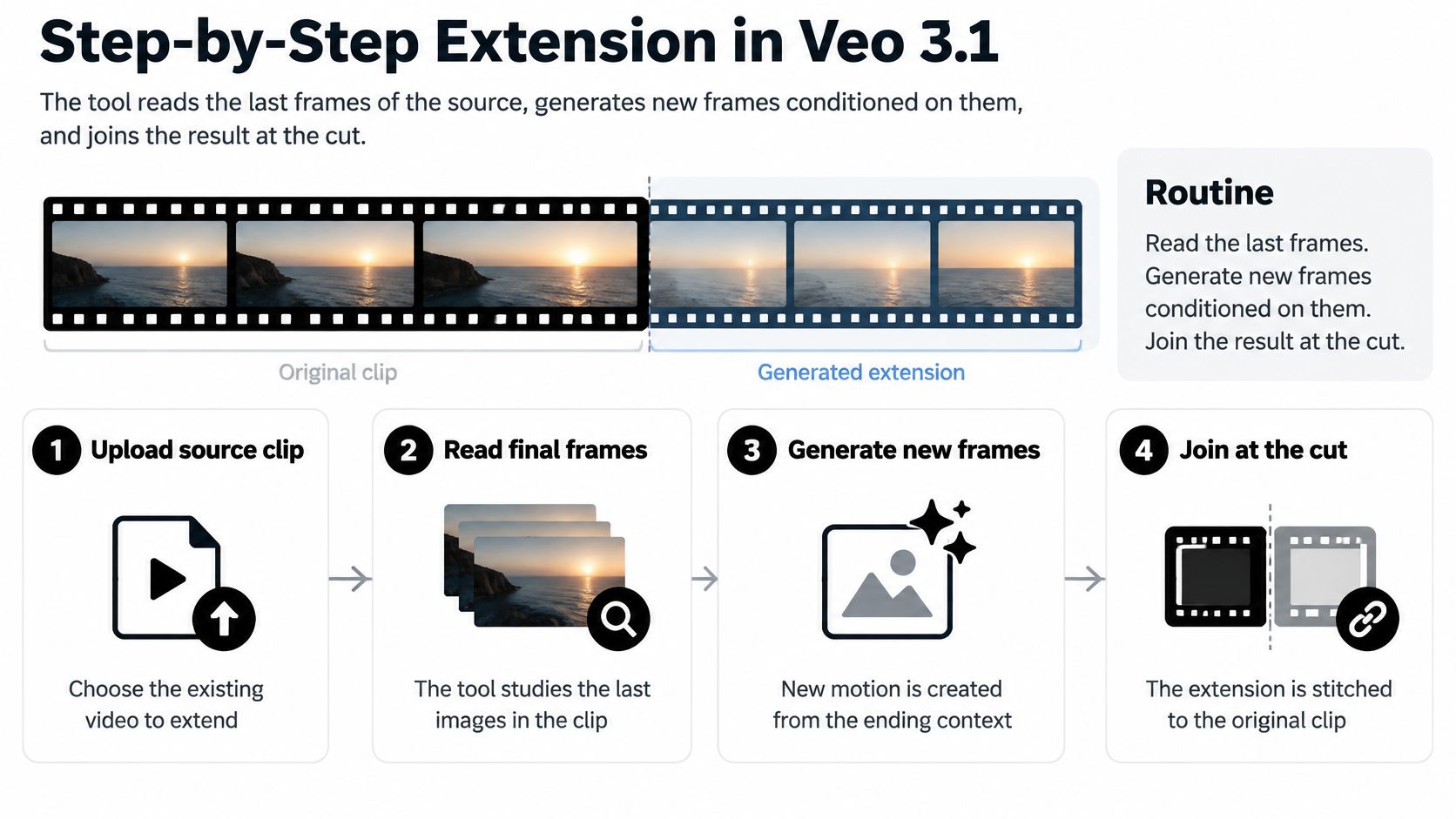
Adobe Research's reference-guided video work explains why nearby source frames matter: using them during decoding and super-resolution helps preserve appearance, while brightness and contrast normalization reduces boundary mismatches. This describes a continuity technique, not a claim that Veo exposes Adobe's implementation.
<a id="a-repeatable-extension-routine"></a>
A repeatable extension routine
-
Prepare the eligible source. Keep its original resolution and frame rate when preparing an editing copy, and retain the original generated asset if the workflow requires it. Don't assume a re-exported file will qualify wherever the original Veo output does.
-
Record what must stay unchanged. Examine the final frame and note the subject, light direction, camera position, and movement. Where reference controls are available, use the final source frame to reinforce appearance rather than relying on a long description alone.
-
Write what happens next. Describe the continuing action and camera behavior without rebuilding the scene from scratch. Keep identity cues brief and consistent, and don't introduce a replacement subject or unrelated setting.
-
Check the duration supported by the selected mode. The Gemini API release notes list extending Veo-created videos, using up to three reference images, and supplying first and last frames; they also list four-, six-, and eight-second options for Veo 3 generation. Those generation choices shouldn't be treated as proof that an extension endpoint accepts the same durations.
-
Generate alternatives and compare the boundaries. As a working routine, try two or three variants rather than accepting the first attractive thumbnail. Review object identity, lighting, camera trajectory, and color at the cut, then watch the whole continuation for later changes.
-
Join and export deliberately. Assemble the approved result in your editor, preserving the intended playback settings. If the returned file already includes the source, don't append it again and accidentally repeat the original action.
<a id="a-coffee-pouring-example"></a>
A coffee-pouring example
Start with a coffee-pouring shot on a wooden counter. Instead of repeating the full original scene description, give the continuation a narrow task:
The camera continues pulling back gently to reveal more of the café counter. The same cup remains in place, steam rises naturally, and the existing warm light stays unchanged.
Check the steam's movement, the cup's position, and the direction of the highlights. Watch whether the camera pulls back at the established speed rather than suddenly switching to a wider composition.
The common mistake is adding a new subject to the continuation prompt, such as asking a barista to replace the cup with a different product. That's a scene change disguised as an extension request.
For a visual demonstration, watch the workflow alongside your own boundary checks:
<iframe width="100%" style="aspect-ratio: 16 / 9;" src="https://www.youtube.com/embed/gyZPvgamuU8" frameborder="0" allow="autoplay; encrypted-media" allowfullscreen></iframe>
For a transition, use the last frame of the outgoing clip and the first frame of the incoming clip as endpoints in the supported endpoint-generation mode. For a loop, guide the last frame back toward the first, then inspect movement through the repeat point.
These are related generation workflows, not interchangeable settings. Whatever the mode, the production standard is the same: the join should be invisible at normal playback speed.
<a id="check-rights-and-plan-your-next-extension"></a>
Check Rights and Plan Your Next Extension
A clean-looking extension can still carry rights and disclosure risks. Permission to use the original footage doesn't automatically settle permission to generate new actions involving a recognizable person, branded product, or licensed performance.
Slash Digital's rights and provenance guidance explains that a prompt alone doesn't establish copyrightable authorship in the United States, and that human creative contribution matters. It also distinguishes provenance from truth: C2PA and SynthID can provide origin information, but metadata can be stripped. Keep records of your selection, arrangement, prompts, and edits rather than relying only on embedded labels.
<a id="before-publishing"></a>
Before publishing
- Model terms: Confirm the intended commercial use is permitted.
- Permissions: Review stock licenses, performer releases, and permissions concerning recognizable people or locations.
- Client warranties: Document what you've promised about ownership, originality, and synthetic content.
- Disclosure: Prepare a clear note identifying generated portions where required or appropriate.
- Provenance: Retain source files, prompts, edit logs, and available credentials, and deliver relevant metadata with the final file.
For editorial teams, Humantext.pro's video verification guidance for publishers provides context for reviewing synthetic footage. Detection tools shouldn't replace source records or editorial verification.
<a id="plan-a-bounded-test"></a>
Plan a bounded test
Before generating, set a length target, a pass limit, and a clear acceptance test for the boundary. Preserve an untouched source so you can compare alternatives without mistaking a later continuation for the original.
For that workflow, our Veo 3 AI video generator offers Veo 3 with native synchronized audio and clips up to eight seconds on all plans, alongside Veo 3.1 with up to 4K output and first and last frame control. Confirm current limits and entitlements on the pricing page before quoting deliverables to a client.
Use our Veo commercial-use guide when preparing the handoff. Commercial permission, copyright protection, and authenticity are separate questions, so document each rather than treating a usable export as complete clearance.
Veo3 AI offers text-to-video, image-to-video, and reference-led tools for creating source shots and alternatives when a continuation isn't the right choice. Visit Veo3 AI, prepare a clean source, and test a narrowly defined continuation before committing to a longer sequence.
Related Articles
Continue with more blog posts in the same locale.

Is GPT Image 2.6 Free? Every Way to Try GPT 2.6
Is GPT Image 2.6 free? See how GPT 2.6 access works in ChatGPT, the API and third-party sites, what it costs per image, and what no subscription really means.
Read article
GPT Image 2.6 Flare vs Sunburst: Which Should You Use?
GPT Image 2.6 Flare vs Sunburst compared: speed, cost, quality, complexity and API model names, plus a simple way to choose for drafts and final images.
Read article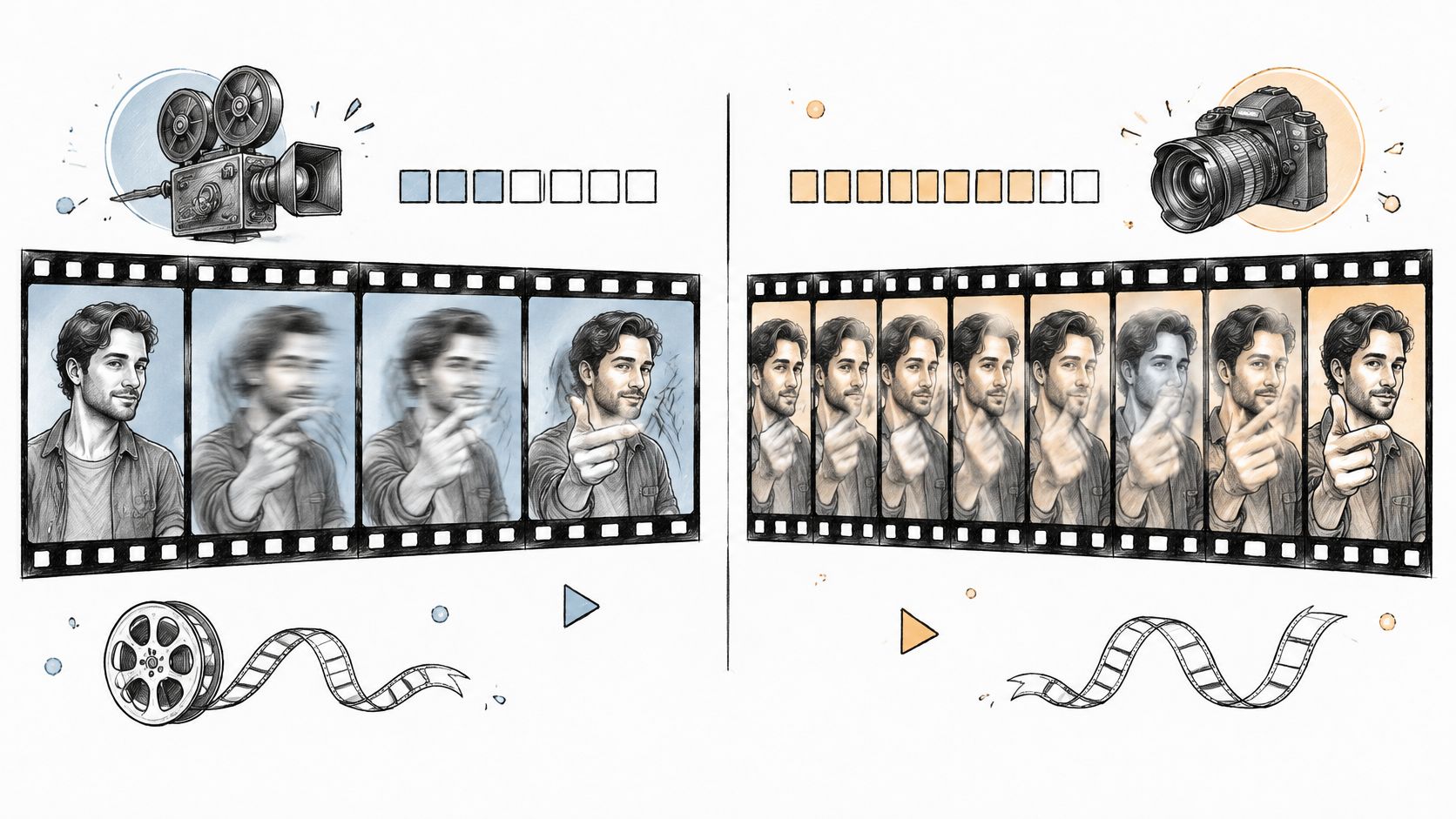
24 Frames Per Second vs 30: Which Frame Rate to Use
24 Frames Per Second vs 30 explained: motion blur, file size, platform delivery and which rate fits cinema, social video and AI-generated clips.
Read article