
Gemini Omni Flash 1.1 Explained
Master Gemini Omni Flash 1.1 with our guide to its 10-second scene extension, 4K upscaling, and multilingual limits. Learn how to integrate it into your
Veo3 AI · 12 min read · Sep 28, 2026
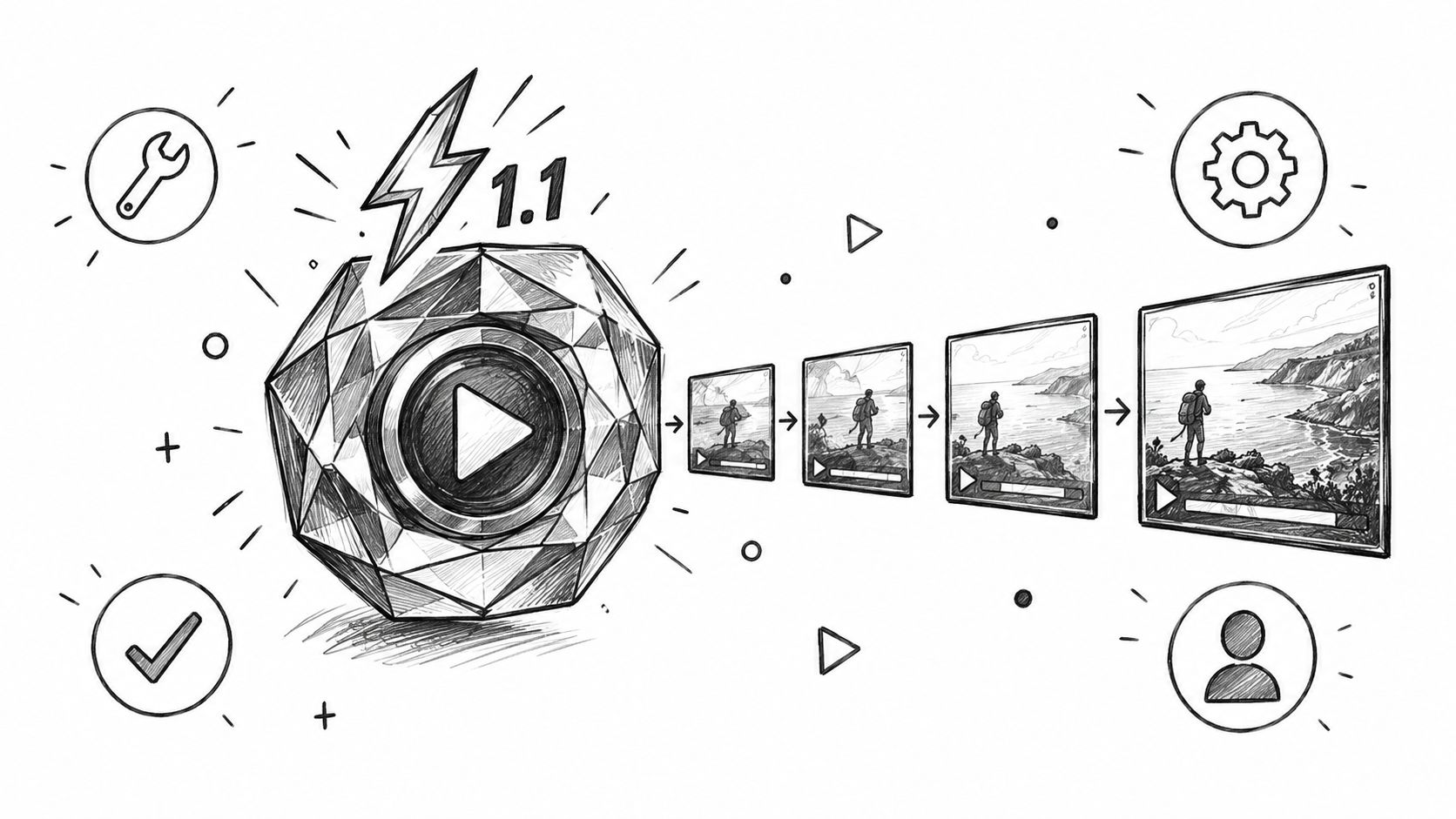
You probably have a clip that was 80 percent there, then one bad cut ruined the whole thing. The lighting shifted, a face drifted, or the background detail vanished between shots, and suddenly the edit no longer feels like the same scene. Gemini Omni Flash 1.1 is interesting because it tackles that exact production pain point, not with cinematic mystique, but with stronger continuity, faster iteration, and a workflow that feels closer to real editing than random generation.
If you're comparing AI video tools right now, the important question isn't whether a model can make something flashy once. It's whether it can hold onto a character, a camera move, and a visual idea long enough for you to ship it.
Table of Contents
- The Shift to Production-Ready Video Generation
- Technical Leaps in Scene Extension and Resolution
- Accessing the Model and Integration Requirements
- Navigating Multilingual Prompts and Typography Limits
- Real-World Applications for Short-Form and Ad Creatives
- Choosing the Right Tool for Your Video Workflow
<a id="the-shift-to-production-ready-video-generation"></a>
The Shift to Production-Ready Video Generation
A production-ready video model matters because teams need a process they can repeat, review, and refine without restarting from zero each time. Google released Gemini Omni 1.1 Flash as a general-availability model on August 27, 2026, and positioned it for developers through Google AI Studio, the Gemini Enterprise Agent Platform, Google Flow, and global access for Google AI Plus, Pro, and Ultra subscribers Google's launch post.
That release marks the point where the model moves out of preview territory and into a workflow teams can plan around. Google describes it as a fast, conversational video generation and editing system, which matters because value is not a one-off clip, it is whether the model can stay usable through review notes, revisions, and approval passes.
Practical rule: treat the model like an editorial assistant, not a magic wand. Short, controlled iterations usually produce cleaner results than trying to finish everything in one prompt.
Google's launch materials also name scene extension, start and end frame specification, and 4K output as core controls. That set of tools gives producers something concrete to work with: build a rough cut, hold the visual idea steady, then tighten the frame-level details before shipping. It is a better fit for social assets, product explainers, and ad variants than a generator that gives you one impressive first pass and little else.
The practical loop is straightforward. Draft at a lower resolution, check continuity across shots, fix the weak transition or motion beat, then push to the final version once the edit holds together. For teams testing gemini omni flash 1.1, that marks a genuine shift: a model that supports production habits instead of fighting them.
<a id="technical-leaps-in-scene-extension-and-resolution"></a>
Technical Leaps in Scene Extension and Resolution
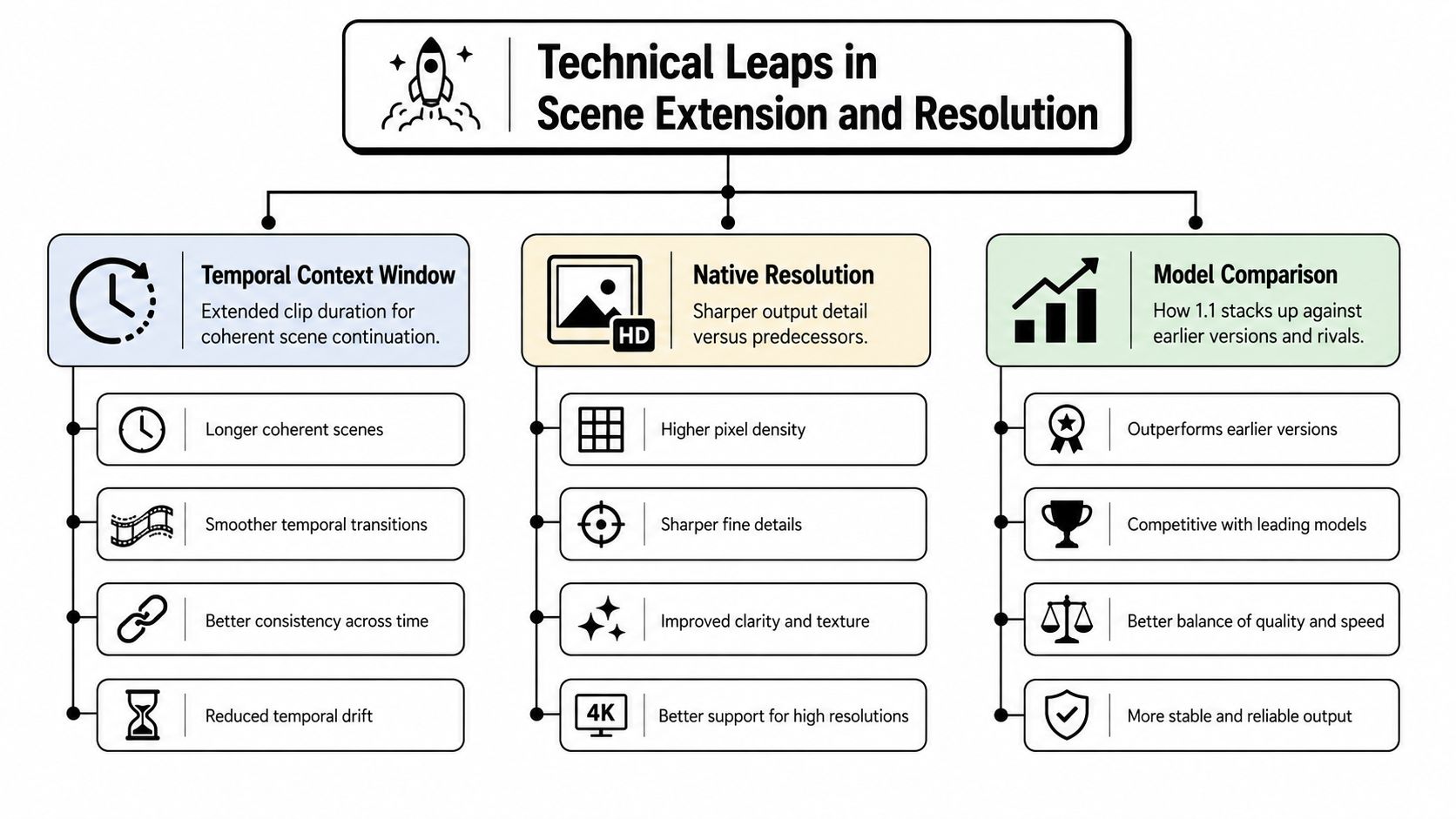
The main technical jump is the 10-second context window for scene extension. Google said the model can extend scenes using 10 seconds of context from the source clip, a sharp increase from Veo's 1 second of context Google AI on X. In editing terms, that extra memory matters. It gives the model enough history to carry a movement, a pose, or a cutaway without losing the thread.
<a id="why-the-extra-context-matters"></a>
Why the extra context matters
A longer temporal window helps hold character identity, lighting continuity, and narrative state across shot boundaries. If a subject turns mid-sentence or a jacket shifts under changing light, the model has more of the prior action to preserve when it continues the scene. That is where earlier systems often broke down, especially on transition shots that needed the edit to feel continuous rather than reset.
Google's documentation says Omni Flash supports video extension, resolution upscaling, and advanced interpolation, and it is built for fast, conversational video generation and editing Gemini API docs. Google's launch materials also describe short clip generation in the 3-to-10-second range, native audio, extension up to 40 seconds, and output options including 360p, 720p, 1080p, and 4K. Those are the figures that shape the practical working envelope for producers.
<a id="what-the-quality-ladder-changes"></a>
What the quality ladder changes
The quality ladder matters because it separates exploration from delivery. The model's docs also list video inputs up to 10 seconds for editing and extension, along with a 1,048,576-token context window Gemini Omni Flash model docs. In practice, that means text, image, and video inputs can all feed the same shot decision instead of being handled as isolated assets.
I work with that setup by drafting fast, then tightening the motion once the scene behaves correctly. Start at lower resolution if needed. Lock the continuity first, check the start and end of the move, then raise quality only after the edit holds together. That is the practical value of gemini omni flash 1.1, it fits a production loop that cares about consistency as much as speed.
Producer's note: continuity issues usually surface at the joins, not in the middle of a clean shot. Test the transition first, then inspect the texture and detail.
<a id="accessing-the-model-and-integration-requirements"></a>
Accessing the Model and Integration Requirements
Access depends on how you plan to use the model. Developers can work through the Gemini API and Google AI Studio, while enterprise teams can use the Gemini Enterprise Agent Platform Google's launch post. Google also offers subscriber access inside Flow and the Gemini app for Plus, Pro, and Ultra users, with scene extension available globally.
<a id="integration-pathways-and-requirements"></a>
Integration pathways and requirements
| Access Method | Context / Input Limits | Best For |
|---|---|---|
| Gemini API in Google AI Studio | 1,048,576-token model context, video inputs up to 10 seconds for editing and extension | Custom apps, internal tools, production pipelines |
| Gemini Enterprise Agent Platform | Same model family controls through enterprise workflows | Team deployment, controlled business use |
| Google Flow and Gemini app subscriber access | Scene extension available globally for Plus, Pro, and Ultra users | Creators who want native app features without API work |
The simplest setup rule is to keep inputs disciplined. The model supports text, image, and video inputs, so a prompt should carry only the detail the shot needs Gemini Omni Flash model docs. In practice, a tighter input set makes it easier to preserve shot intent across extension passes, especially when editorial continuity matters more than exploring every possible variation.
For teams building around discovery as well as output, content strategy for AI discovery is a useful adjacent read. It is about visibility planning rather than video setup, but the same discipline helps when a model-generated clip has to support search, social, and product messaging at once.
<a id="what-to-configure-before-you-start"></a>
What to configure before you start
The practical setup work is mostly about avoiding waste. Keep reference clips short, label the intended motion clearly, and match the output plan to the render stage you are in. Drafts at lower resolution are useful for quick iteration, while final delivery belongs in higher resolution after the shot is approved.
I treat the API path like a controlled motion lab. It works best when the team already knows what the shot needs to hold, and it is strongest in a production loop that values continuity as much as speed.
<a id="navigating-multilingual-prompts-and-typography-limits"></a>
Navigating Multilingual Prompts and Typography Limits
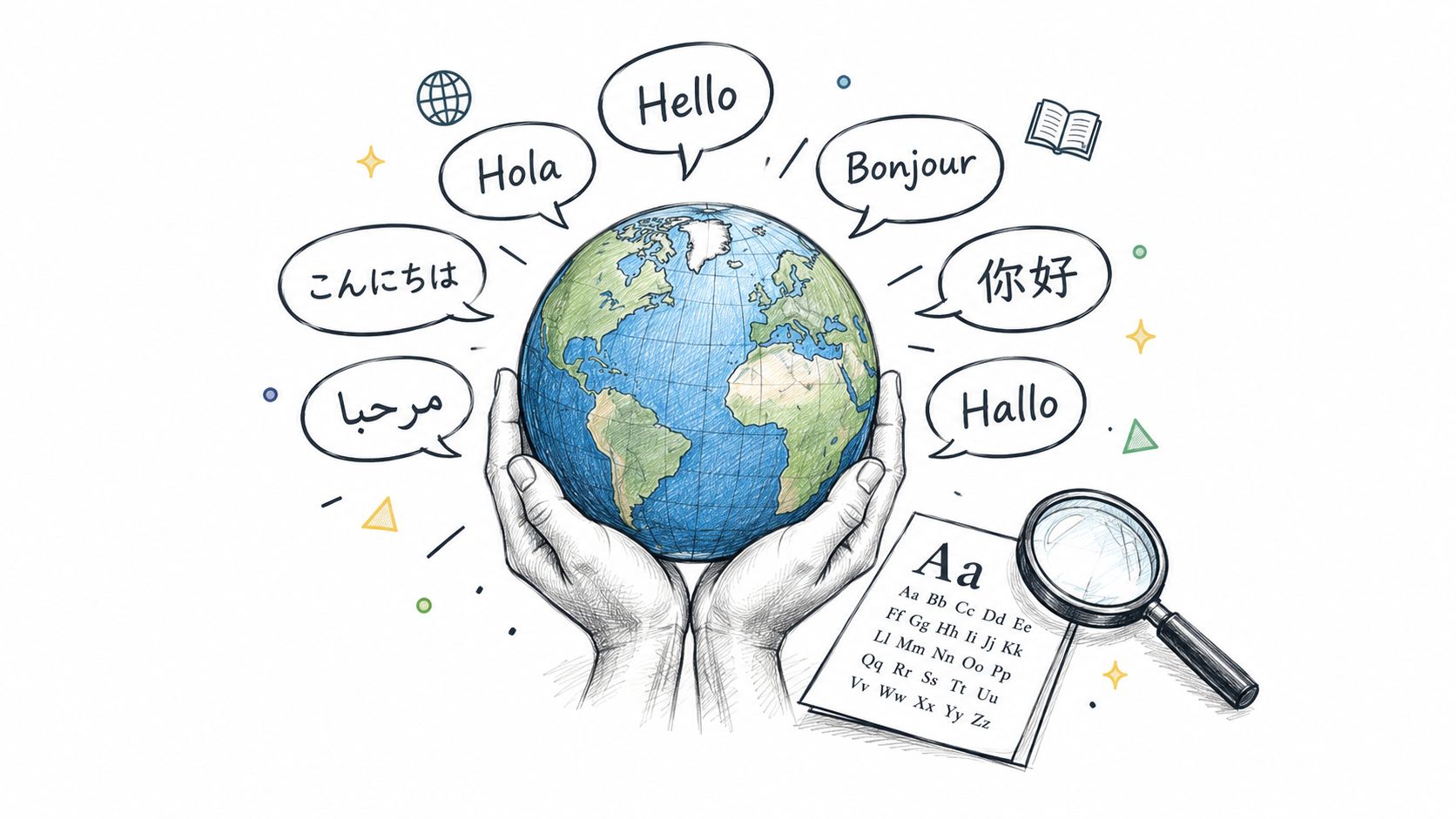
A multilingual prompt can make the model look fluent right up until the frame has to carry readable text. That is where the weak spot shows up. In my testing, the image and motion often hold together well, but subtitles, signage, product labels, and mixed-language typography can fall apart fast. For Japanese and Korean creators, that difference decides whether a clip is usable on the first pass or needs a full cleanup in post.
<a id="where-the-model-is-strong-and-where-it-isnt"></a>
Where the model is strong, and where it isn't
Prompting in Japanese or Korean can still guide scene intent, but on-screen text is less reliable than the surrounding visual composition. The model usually handles motion, framing, and general mood better than it handles small typographic details. It is more dependable for dialogue in the edit than for a logo lockup, subtitle strip, or any layout that depends on exact character placement.
The practical workaround is to split the job. Use the model for the shot, movement, and visual tone, then add localized typography in post. If text is part of the action, keep it minimal during generation and plan to replace it later. For teams that need to preserve readability without fighting the model frame after frame, text rendering prompts for AI video is a useful reference.
Rule of thumb: if the text has to be read perfectly, do not ask the model to render it perfectly.
<a id="prompting-strategy-that-saves-time"></a>
Prompting strategy that saves time
English prompts often give more predictable camera direction, even when the final audience is not English-speaking. That does not mean the finished clip has to stay in English. It means the model may follow motion instructions more cleanly in English, while the visible language is handled later in post-production. The useful split is scene control on one side and final text delivery on the other.
For Japanese and Korean teams, the most reliable workflow is to generate the visual first, keep embedded text to a minimum, and treat captions, product titles, and signage as finishing work. That keeps the scene focused and avoids spending renders on typography the model is likely to mangle anyway.
<a id="real-world-applications-for-short-form-and-ad-creatives"></a>
Real-World Applications for Short-Form and Ad Creatives
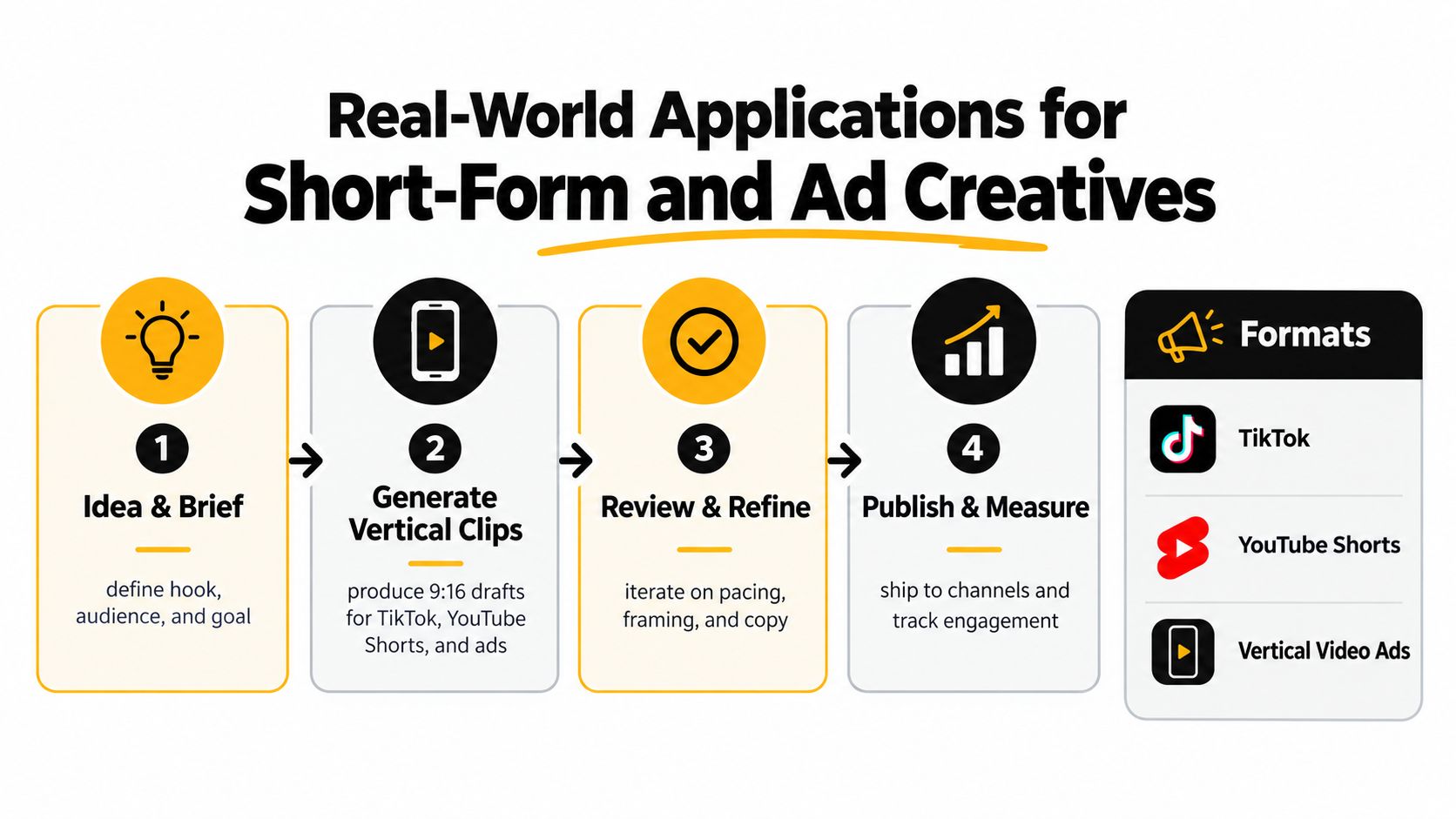
Short-form work gets the most value from this model when the brief is narrow and the edit plan is clear. Start with a hook, build a vertical draft, and keep the same visual idea alive across variations. For a useful outside reference on that kind of creative structure, see hooks and workflows for short clips, especially if one concept has to become several platform-native edits.
<a id="a-practical-campaign-flow"></a>
A practical campaign flow
Start with one campaign brief that answers three questions, what is the hook, who is it for, and what action should follow. Then generate 9:16 drafts for TikTok, YouTube Shorts, and vertical video ads, because that is where quick-turn creative usually has to perform.
What works best: one idea, one motion pattern, one variable at a time. If everything changes at once, there is no clear read on what improved the clip.
Use first and last frame control when the transition needs to feel deliberate rather than accidental. It helps with product reveals, room-to-room moves, and camera push-ins that need the feel of a planned edit. Google's launch post also points to video references for preserving visual context and character consistency, which is useful when a campaign has to keep the same face, outfit, or mood across multiple outputs.
For ad teams, the gain is in the test plan. Build two or three hook variants for the same brief, compare them before widening the concept, and keep the edit language constant so the results are readable. A 360p draft is enough for that early pass, while a 4K re-render only makes sense when the clip is headed for paid placement, client review, or a cut that is already approved and needs final polish.
<a id="where-the-model-pays-off"></a>
Where the model pays off
The strongest use case is continuity across small edits, not a sprawling story in one pass. Extended outputs of up to 40 seconds can work for short ad storytelling if each segment connects cleanly, but the value is still in how well the model holds the thread from shot to shot.
<iframe width="100%" style="aspect-ratio: 16 / 9;" src="https://www.youtube.com/embed/rbF4rEEApfM" frameborder="0" allow="autoplay; encrypted-media" allowfullscreen></iframe>
For social testing, do not start with the most elaborate scene. Build one clean transition, check whether the frame holds, then spin that into the variant set. That is slower at the beginning, but it avoids wasting renders on hooks that never had a chance to work.
<a id="choosing-the-right-tool-for-your-video-workflow"></a>
Choosing the Right Tool for Your Video Workflow
The right choice depends on how much control you want over the pipeline. If you need API-level control, model-specific routing, and custom editing logic, Gemini Omni Flash 1.1 is a serious option. If you'd rather work inside a unified interface that already combines Veo 3.1, Seedance, and Hailuo, then a platform like the Veo 3 AI video generator can make the workflow simpler by reducing tool-juggling.
That trade-off matters because some teams want to direct every step, while others want to move quickly from prompt to export. A dedicated platform can be attractive when the goal is rapid rendering, built-in customization, and a clean interface for different generations of video models. Google's approach is more modular, which is great when you need precision, but it also means you're responsible for more of the workflow design yourself.
For a broader comparison of tools and creator workflows, the guide to AI video tools for creators is useful context. It helps frame the choice between raw capability and convenience, which is usually the actual decision behind model selection.
<a id="how-to-decide"></a>
How to decide
If your work depends on continuity, frame control, and custom integration, the Google stack makes sense. If your priority is speed from idea to output, with fewer moving parts, a unified platform will usually feel easier to live with. Neither path is universally better, but they solve different production problems.
For me, the strongest signal in this release is that gemini omni flash 1.1 feels built for real iteration, not just showcase clips. It's fast enough for quick draft work, disciplined enough for continuity-sensitive edits, and honest enough to expose its weak point, multilingual typography, so teams can plan around it instead of discovering it too late.
If you want a simpler way to test AI video workflows without stitching together separate tools, Veo3 AI gives you a single place to work with prompt-based and image-based generation. It's a practical next step for comparing creative options, especially if you're deciding how much control you really need before you commit to a production pipeline.
Related Articles
Continue with more blog posts in the same locale.
Google Omni Free Access and Video Limits
Is Google Omni free for video creators? We break down the real limits of free access, eligibility rules, and the best alternative workflows
Read article
Veo 3 Fast: Create Pro Videos in Minutes
Master Veo 3 Fast to generate high-quality AI videos quickly. Learn prompt strategies, speed trade-offs, and workflows for social ads and shorts.
Read article
Higgsfield vs Veo: Which AI Video Tool Wins in 2026
Higgsfield vs Veo compared side by side on quality, speed, pricing, and best use cases so you can pick the right AI video generator in 2026.
Read article