
Gemini Omni Text Prompts: Make AI Video Text Readable
Use Gemini Omni text prompts for readable AI video text: wording templates, layout constraints, retry tips, and when to switch to post-editing.
Emma Chen · 16 min read · May 21, 2026
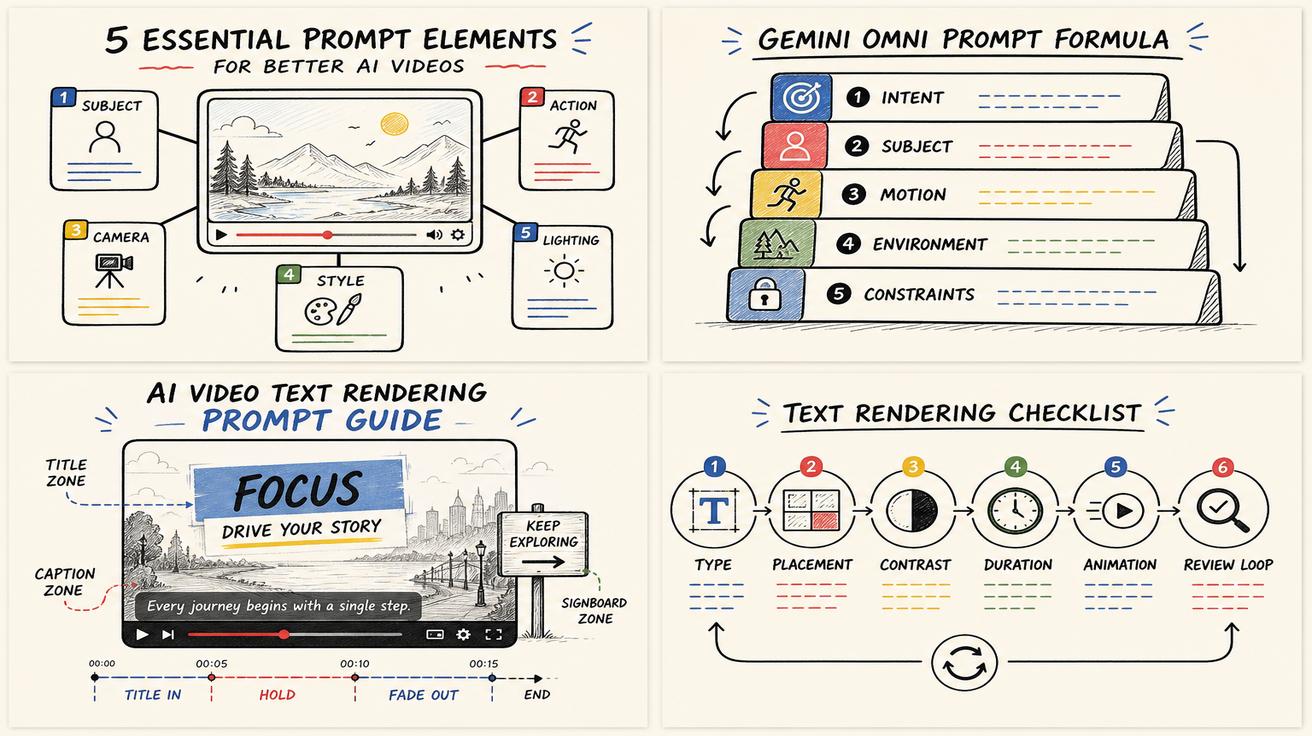
Readable text is one of the hardest things to get right in AI video. A model can create a cinematic street, a smooth product spin, or a convincing camera move, then fail on the one detail a viewer actually has to read: the words on a sign, screen, label, lower third, or product card. Gemini Omni changes the workflow because Google’s prompt guidance emphasizes higher-level intent, visual context, placement, animation, and text exposure instead of only frame-by-frame instructions.
This guide turns that idea into practical prompt patterns you can reuse. It is based on Google DeepMind’s official Gemini Omni prompt guide, but the examples, templates, and production checks below are original for veo3ai.io readers. If you are new to the model, start with our Gemini Omni hub. If you are comparing the broader Google video stack, read Gemini Omni vs Veo 3.1 and our explainer on what happened to Veo inside the Gemini app.
The key lesson: do not ask the model to “add text” as a last-minute decoration. Treat text as a physical object in the scene, with a material, location, lighting condition, timing, and reason to exist.
Why AI video text fails
Most bad AI video text has the same root problem: the prompt describes the meaning but not the visual job of the text. “Show a sale banner that says 30% off” sounds clear to a human, yet it leaves the model to guess font weight, contrast, size, duration, angle, occlusion, language, and whether the banner should move with the camera. In a still image, a small error may be acceptable. In video, a small error becomes worse because motion blur, compression, perspective shifts, and fast cuts all reduce readability.
Gemini Omni’s official prompt guide calls attention to controls such as shot framing, camera motion, style, lighting, location, action, reference inputs, and text rendering. For text, the important variables are type, placement, animation, and exposure. In plain terms: what kind of text is it, where does it live, how does it appear, and how long is it visible?
For more general prompt structure, pair this article with our Gemini Omni prompt guide essential elements. This article goes deeper on text only.
The five-part text rendering prompt formula
Use this formula whenever the text must be readable:
Scene + text object + exact copy + readability constraints + timing.
A weak prompt says:
Create a coffee shop video with a sign that says Morning Roast.
A stronger Gemini Omni text prompt says:
Create a 6-second cinematic shot inside a warm neighborhood coffee shop. A matte black menu board above the counter displays the exact words “MORNING ROAST” in large cream-colored block letters. Keep the text centered, flat to camera, high contrast, and fully readable for at least three seconds. Slow push-in camera move, shallow depth of field, no other readable words.
The second prompt does five things. It defines the scene, turns the text into a physical object, gives exact copy, protects readability, and controls exposure time. This is the difference between hoping the model understands “text” and giving it a production brief.
Template 1: static sign text
Use static sign prompts for storefronts, posters, wall art, museum labels, conference banners, and product booths.
Reusable template
Create a [duration] video of [scene]. The main text appears on [physical surface] as the exact words “[TEXT]”. Use [font style], [color], and [background color/material] for strong contrast. Place the text [position] and keep it [camera relationship: front-facing / slightly angled / centered]. Hold the text readable from [time] to [time]. Avoid extra letters, misspellings, or additional readable text.
Example: retail window
Create a 7-second video of a boutique skincare store at golden hour. The window decal shows the exact words “CLEAN GLOW” in large white sans-serif capitals. The glass is front-facing, with minimal reflection, and the letters occupy the center third of the frame. Hold the text readable from second 2 to second 6. Slow sideways slider movement, soft sunlight, no other readable text.
This works because the prompt limits the model’s freedom. It says what surface carries the words and how the camera sees it. If you need a text-to-video workflow, this is the safest starting pattern because the text is part of the generated scene from the first frame.
Template 2: product label text
Product labels are harder than signs because the object may rotate, reflect light, or move through depth of field. Your prompt should make the label large, front-facing, and stable.
Reusable template
Generate a [duration] product video. The product is a [object] with a front label that reads exactly “[TEXT]”. Keep the label facing the camera, sharply focused, and occupying at least [percentage] of the frame when shown. Use clean lighting and avoid glare across the letters. If the product rotates, pause with the label fully readable for [seconds].
Example: supplement bottle
Generate an 8-second product hero video for a matte white supplement bottle on a stone counter. The front label reads exactly “CALM FOCUS” in navy uppercase letters. The bottle slowly rotates 20 degrees, then stops with the label facing the camera. Keep the label sharp, centered, and readable for the final four seconds. Use soft studio lighting, no reflections over the letters, no extra label claims.
Notice the conservative wording: “no extra label claims.” This is useful for regulated categories, but it also helps any brand avoid unwanted text inventions. If you are starting from an existing product photo, use an image-to-video workflow and ask Gemini Omni to preserve the existing label rather than regenerate new wording.
Template 3: on-screen UI text
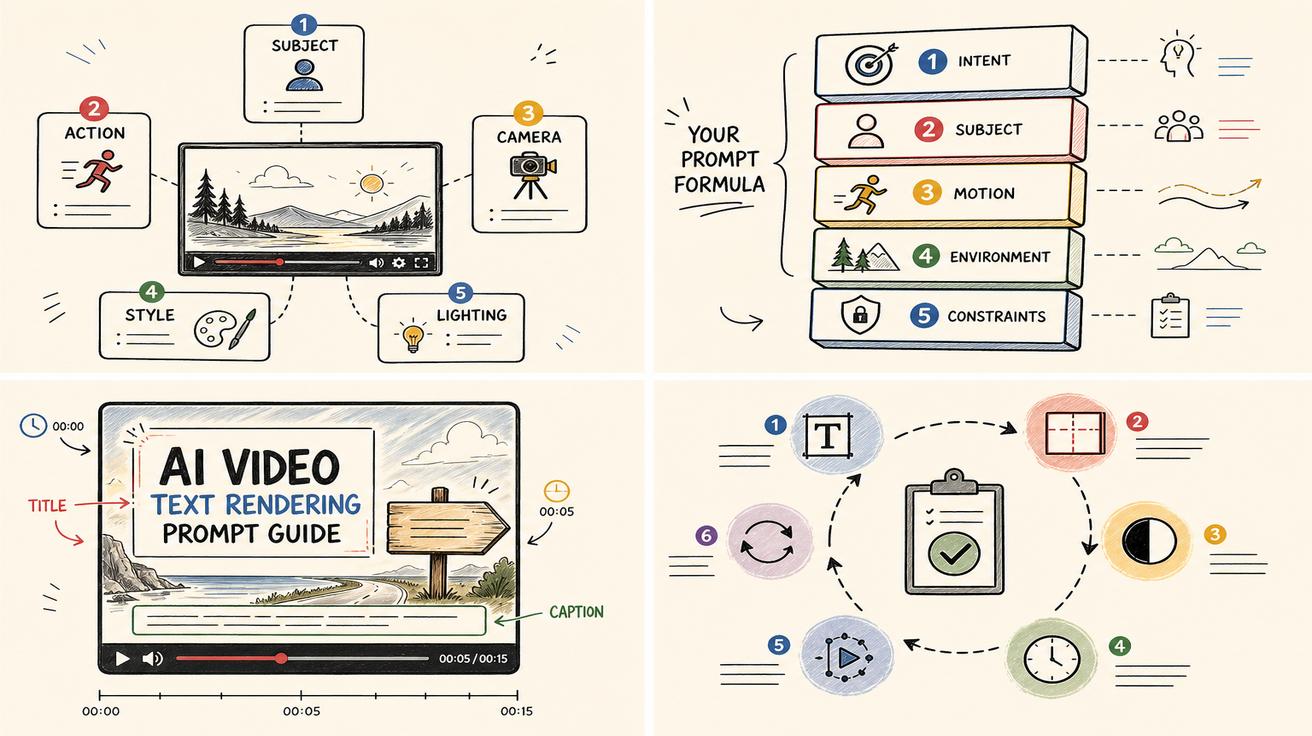
UI text is common in app demos, SaaS launches, onboarding clips, and tutorial videos. It needs even tighter control because small interface words become unreadable quickly.
Reusable template
Create a clean screen-recording-style video of [app/interface]. Show one main UI panel with the headline “[TEXT]”. Use large interface typography, high contrast, and minimal surrounding UI. Keep the screen perpendicular to the camera. Do not distort the letters during zooms or transitions. Show the headline clearly for [seconds].
Example: SaaS dashboard
Create a 6-second screen-recording-style video of a modern analytics dashboard. The main card headline reads exactly “Revenue Forecast” with a smaller button that reads “Create Report”. Use crisp dark text on a white interface, minimal surrounding controls, and no other readable labels. The camera performs a subtle digital zoom, but the two text strings stay sharp and readable for the full clip.
For UI demos, fewer words usually win. Instead of asking for ten menu labels, ask for one headline and one button. The model has less to invent, and the viewer has a clearer focal point.
Template 4: animated title card
Title cards can work well because the background is controlled and the text does not have to obey product geometry. The risk is over-animation: letters fly, smear, or morph into unreadable shapes.
Reusable template
Create a [duration] animated title card. The only readable text is “[TEXT]”. Use [font style] on [background]. Animate the text with [simple animation] and keep the final resting state readable for [seconds]. Avoid morphing letters, decorative glyphs, or extra words.
Example: creator intro
Create a 5-second animated title card for a travel vlog. The only readable text is “TOKYO NIGHT WALK”. Use bold white condensed lettering on a deep blue city-light background. The words fade in from slight blur, then lock into a sharp centered title. Keep the final title readable for three seconds. No extra captions, no subtitles, no random street signs.
This pattern is useful when the video’s main value is mood rather than factual detail. It also gives you a reliable intro card before a more complex scene.
Template 5: subtitles and lower thirds
Subtitles are difficult because they require timing, exact language, and consistent placement. If the model supports caption-like text in your surface, keep it short and describe it as an overlay, not as an object inside the scene.
Reusable template
Create a [duration] video with a clean subtitle overlay. Display the exact subtitle “[TEXT]” at the bottom center from [time] to [time]. Use white text with a subtle black shadow, large enough for mobile viewing. Keep the subtitle stable and do not generate any other captions.
Example: founder clip
Create an 8-second founder-style video in a bright office. A clean lower-third subtitle appears at the bottom center from second 2 to second 6 and reads exactly “Build the first draft in minutes.” Use white text with a soft black shadow, large mobile-safe typography, and no additional captions or watermarks.
If you need long subtitles, consider adding them in an editor after generation. AI video models are improving, but professional captioning still benefits from deterministic tools where every character is controllable.
A prompt checklist for readable text
Before you generate, run your prompt through this checklist:
- Exact copy: Did you put the desired words in quotation marks?
- One primary text object: Did you avoid asking for five different readable areas?
- Surface: Is the text on a sign, label, screen, card, or overlay?
- Contrast: Did you specify text color and background tone?
- Size: Does the text occupy enough of the frame?
- Camera relationship: Is the text flat or nearly flat to camera when readability matters?
- Timing: Did you tell the model how long to hold the text?
- Negative constraints: Did you forbid extra readable words if they would distract?
- Motion blur: Did you slow the camera or pause the object while text is visible?
- Fallback plan: If exact text is mission-critical, will you verify and possibly add final typography in post?
How reference inputs change the text workflow
Google’s guide points to Gemini Omni’s ability to use references such as images, video, and audio together. For text rendering, references can help in three ways.
First, a brand reference can define typography. If you upload a product photo or brand card, ask the model to preserve the logo style while generating motion around it. Second, a video reference can define camera behavior. If the reference has a slow dolly and stable sign framing, ask for that motion pattern while changing the scene. Third, an audio reference or voiceover can define timing. If a narrator says “three simple steps,” the title card or lower third can appear when that phrase lands.
A good reference-based prompt looks like this:
Use the uploaded product image as the exact label reference. Create a 7-second countertop product video with gentle morning light. Preserve the visible label text exactly as shown in the reference image. Do not invent new product claims. Add only one overlay at the end: “Ready in 30 seconds”. Keep both the original label and final overlay clear, stable, and readable.
When text accuracy matters, reference preservation is usually safer than asking the model to invent a label from scratch.
When to avoid AI-rendered text
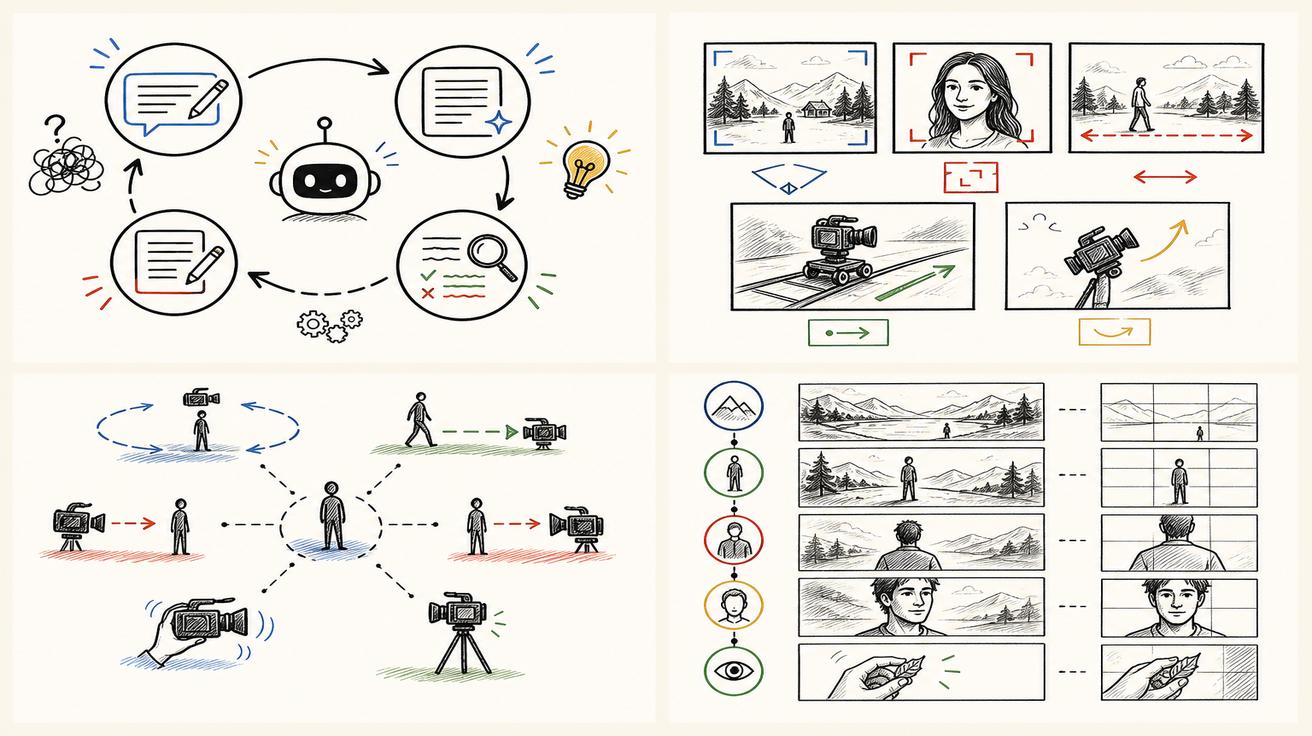
Not every text task belongs inside the generation prompt. If the copy is legal, medical, financial, multilingual, or brand-critical, generate a clean video plate first and add the text in a design or editing tool. This is especially true for disclaimers, pricing tables, coupon codes, QR codes, URLs, phone numbers, and subtitles longer than one short sentence.
A practical hybrid workflow is:
- Generate the scene with blank space reserved for text.
- Ask for no readable text in the generated background.
- Export the clean video.
- Add final typography in an editor.
- Verify every character before publishing.
Prompt example:
Create a 6-second product background video with a clean empty card area on the right side. Do not include any readable text, numbers, logos, or fake labels. Keep the empty area stable, evenly lit, and unobstructed so final marketing copy can be added later.
This is not a failure of Gemini Omni. It is a production choice. Use AI-rendered text when it improves realism or creative speed; use deterministic overlays when exact compliance matters.
Gemini Omni, Veo wording, access, and expectations
Because this topic sits inside the broader Google video transition, wording matters. Google has said Gemini Omni replaces the Veo label in the Gemini app, while Veo references may still appear in broader Google tools, documentation, and developer discussions. Do not assume every Veo workflow has vanished. If you need that context, read Gemini Omni vs Veo 3.1 and best Gemini Omni alternatives.
Access and pricing should also be treated conservatively. Google’s own guidance notes that a Google AI subscription may be required and that feature availability can vary by tier and geography. If you are evaluating production usage, check the current Google product page, account eligibility, and API documentation before promising availability to your team or customers. For related access questions, see our Gemini Omni API availability guide, Gemini Omni price guide, and is Gemini Omni free?.
A complete prompt pack you can copy
Use these as starting points, then adjust the copy, duration, and surface.
1. Mobile-safe announcement card
Create a 5-second vertical video title card. The only readable text is “NEW DROP FRIDAY”. Use bold white uppercase text on a dark navy background with soft animated light streaks. Keep the title centered in the safe area, readable on a phone screen, and static for the final three seconds.
2. App feature reveal
Create a 7-second clean app demo video. Show one central dashboard card with the exact headline “Smart Schedule” and one button reading “Plan Week”. Use crisp dark text on white UI, no extra readable labels, and a gentle zoom that does not warp the letters.
3. Restaurant menu board
Create an 8-second cozy restaurant interior. A chalkboard menu on the back wall reads exactly “TODAY: RAMEN NIGHT”. Use large hand-drawn white letters, keep the board front-facing, avoid glare, and hold the text readable from second 2 through second 7.
4. Product label preservation
Use the uploaded product image as the label reference. Generate a slow 6-second product turntable video, but stop with the label facing camera for four seconds. Preserve the visible label text exactly. Do not invent new ingredients, claims, warnings, or decorative words.
Final takeaway
Gemini Omni text rendering prompts work best when you describe text as a designed video element, not a vague instruction. Give the model exact copy, a surface, contrast, camera relationship, duration, and limits on extra words. Use references when you need brand consistency. Use post-production overlays when legal or character-perfect accuracy matters.
For broader workflows, explore the Gemini Omni hub, test a text-to-video prompt, or start from a reference image with image-to-video. The fastest improvement is simple: ask for less text, make it bigger, hold it longer, and tell the model exactly where it lives.
FAQ
Can Gemini Omni render exact text in AI video?
Gemini Omni can be prompted to render readable text, especially when the prompt defines the exact words, placement, contrast, and timing. For mission-critical copy, always verify the output and consider adding final text in post-production.
What is the best prompt structure for readable AI video text?
Use this structure: scene, text object, exact copy, readability constraints, and timing. For example, specify the surface, quote the exact words, request high contrast, keep the text front-facing, and hold it readable for several seconds.
Should I use generated text or add text later in an editor?
Use generated text when it belongs naturally in the scene, such as a sign, screen, or product label. Add text later when you need legal accuracy, exact subtitles, coupon codes, URLs, prices, QR codes, or multilingual copy.
Does Gemini Omni replace Veo for all video workflows?
No. The careful wording is that Gemini Omni replaces the Veo label inside the Gemini app. Veo references may still appear in broader Google tools, documentation, and developer contexts, so check the exact product surface you use.
Is Gemini Omni free for text rendering prompts?
Availability can depend on Google AI subscription tier, account type, region, and rollout status. Check Google’s current product pages and API documentation before assuming free access, API access, or a specific price.
<script type="application/ld+json"> { "@context": "https://schema.org", "@type": "Article", "headline": "Gemini Omni Text Rendering Prompts: How to Make AI Video Text Work", "description": "A practical guide to Gemini Omni text rendering prompts, with reusable templates for readable AI video signs, labels, UI text, title cards, subtitles, and clean post-production workflows.", "author": { "@type": "Person", "name": "Emma Chen" }, "publisher": { "@type": "Organization", "name": "Veo3AI" }, "mainEntityOfPage": { "@type": "WebPage", "@id": "https://veo3ai.io/blog/gemini-omni-text-rendering-prompts-ai-video-text" }, "datePublished": "2026-05-21", "dateModified": "2026-05-21", "image": "https://veo3ai.io/og/gemini-omni-text-rendering-prompts-ai-video-text.jpg" } </script>
<script type="application/ld+json"> { "@context": "https://schema.org", "@type": "FAQPage", "mainEntity": [ { "@type": "Question", "name": "Can Gemini Omni render exact text in AI video?", "acceptedAnswer": { "@type": "Answer", "text": "Gemini Omni can be prompted to render readable text, especially when the prompt defines the exact words, placement, contrast, and timing. For mission-critical copy, always verify the output and consider adding final text in post-production." } }, { "@type": "Question", "name": "What is the best prompt structure for readable AI video text?", "acceptedAnswer": { "@type": "Answer", "text": "Use this structure: scene, text object, exact copy, readability constraints, and timing. Specify the surface, quote the exact words, request high contrast, keep the text front-facing, and hold it readable for several seconds." } }, { "@type": "Question", "name": "Should I use generated text or add text later in an editor?", "acceptedAnswer": { "@type": "Answer", "text": "Use generated text when it belongs naturally in the scene, such as a sign, screen, or product label. Add text later when you need legal accuracy, exact subtitles, coupon codes, URLs, prices, QR codes, or multilingual copy." } }, { "@type": "Question", "name": "Does Gemini Omni replace Veo for all video workflows?", "acceptedAnswer": { "@type": "Answer", "text": "No. The careful wording is that Gemini Omni replaces the Veo label inside the Gemini app. Veo references may still appear in broader Google tools, documentation, and developer contexts, so check the exact product surface you use." } }, { "@type": "Question", "name": "Is Gemini Omni free for text rendering prompts?", "acceptedAnswer": { "@type": "Answer", "text": "Availability can depend on Google AI subscription tier, account type, region, and rollout status. Check Google’s current product pages and API documentation before assuming free access, API access, or a specific price." } } ] } </script>
Related Articles
Continue with more blog posts in the same locale.

How to Make Sports Highlight Videos with Veo 3 AI (2026)
Create stunning sports highlight videos with Veo 3 AI. Generate dynamic action shots, slow-motion sequences, and dramatic replays using AI prompts.
Read article
How to Make a Short Film with Veo 3 AI (2026 Guide)
Learn how to create professional short films using Veo 3 AI. Step-by-step guide with prompts, workflow tips, and cinematic techniques.
Read article
How to Make Documentary Videos with Veo 3 AI (2026 Guide)
Create compelling documentary videos with Veo 3 AI. Learn prompting techniques, narrative structure, realistic footage generation, and post-production tips.
Read article