
Gemini Omni vs Veo Prompting: Why Omni Prompts Can Be Less Prescriptive
Learn why Gemini Omni prompting can be less prescriptive than Veo prompting, with practical prompt examples, workflow tips, and safe wording about the Veo transition.
Emma Chen · 16 min read · May 21, 2026
Meta description: Learn why Gemini Omni prompting can be less prescriptive than Veo prompting, with practical prompt examples, workflow tips, and safe wording about the Veo transition.
Google's new Gemini Omni prompt guidance gives creators an important clue about how video prompting is changing. The shift is not simply that prompts should become shorter. The deeper change is that Gemini Omni is being positioned as a model that can reason more from intent, context, references, and real-world knowledge. In practical terms, that means a creator can often describe the desired outcome instead of specifying every camera detail, background object, and frame-by-frame action.
That does not mean structure no longer matters. A vague prompt can still produce a vague video. The useful takeaway is more precise: Omni prompts can often be less prescriptive than classic Veo prompts because the model is designed to infer more scene logic. You still need to tell the model what matters, but you may not need to micromanage every visual decision.
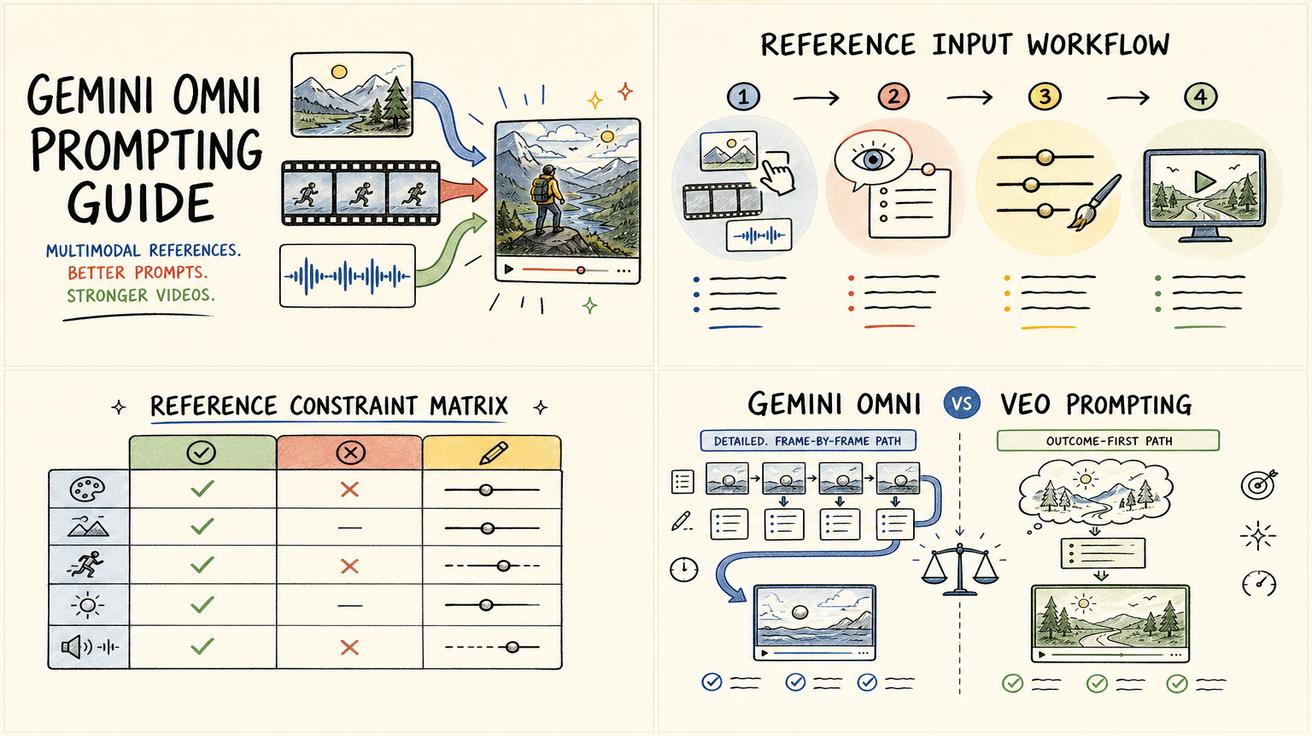
This guide explains how to adapt your prompt style for text-to-video, image-to-video, and reference-based editing workflows. It also uses careful wording about the product transition: Gemini Omni replaces the Veo label inside the Gemini app, but Veo references may continue in Google Flow, API, documentation, and developer contexts. For the product overview, start with our Gemini Omni hub, then compare the model transition in Gemini Omni vs Veo 3.1 and What Happened to Veo?.
Official source: Google DeepMind's Gemini Omni prompt guide at https://deepmind.google/models/gemini-omni/prompt-guide/.
The short version
Gemini Omni prompting is less about writing a production manual and more about giving the model a creative brief. With Veo-style prompting, users often learned to describe the shot like a crew instruction: camera angle, movement, lighting, pacing, subject position, action sequence, texture, and style. That approach still works when you need tight control.
Omni adds a different option. You can describe the outcome and let the model fill in more of the visual reasoning. For example, instead of listing every step of a science explainer animation, you might ask for a clear editorial-style video explaining the difference between regular computing and quantum computing for a general audience. The model can infer that the video needs contrast, visual metaphors, pacing, labels, transitions, and a logical progression.
The best Omni prompts usually sit between two extremes. They are not lazy one-line wishes. They are also not overloaded with dozens of brittle instructions. They define the intent, subject, audience, style, important constraints, and any references. Then they give the model room to solve the creative execution.
Why Veo prompts often became highly specific
Veo became known as a powerful video generation model, and users naturally developed a prompt culture around control. If the model can generate realistic motion, cinematic lighting, native audio, and complex scenes, the next challenge is consistency. Creators want the subject to stay on screen, the action to unfold in the right order, and the style to match a campaign or story.
That is why many Veo prompts look like shot lists. A typical prompt may specify a close-up, slow dolly-in, warm sunset lighting, shallow depth of field, a subject walking from left to right, realistic cloth movement, a 7-second duration, ambient city sound, and a final product reveal. This is not wrong. It is often the right technique for production work.
But highly prescriptive prompting has a cost. The more instructions you add, the more likely some instructions compete with each other. A prompt can become a fragile stack of constraints instead of a clear creative direction. For a text-to-video workflow, this can slow exploration. For an image-to-video workflow, over-specification can fight the reference image; the prompt should explain what should change and what must remain stable.
What changes with Gemini Omni prompting
The official Gemini Omni prompt guide highlights familiar controls: shot framing, camera motion, style, lighting, location, and action. Those ingredients still matter. The change is how much connective tissue you need to spell out.
Google DeepMind describes Gemini Omni as a model with stronger world understanding compared with a more instruction-heavy Veo prompting style. The practical meaning is that Omni can often interpret a higher-level creative goal and generate reasonable supporting details, from polished product lighting to readable educational metaphors.
This matters most in three areas.
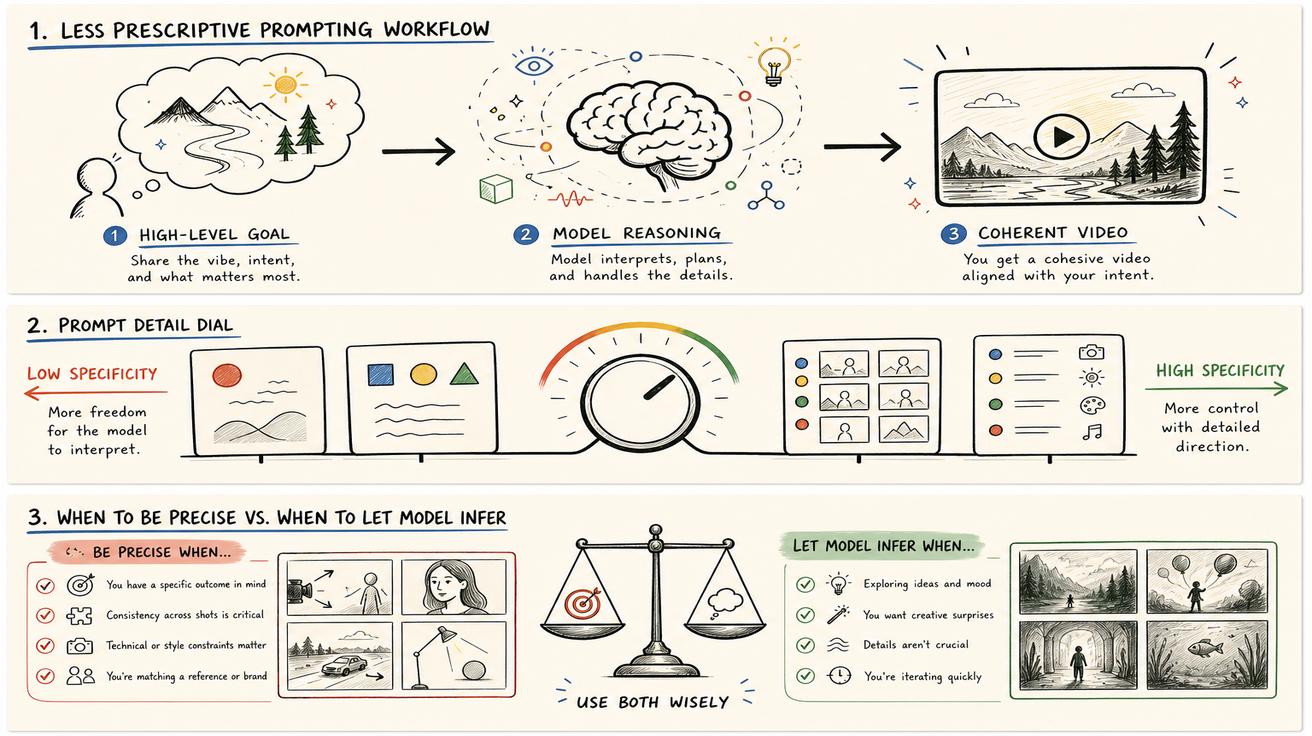
First, Omni is better suited to intent-led prompts: who the video is for, what it should communicate, and what feeling it should create. Second, Omni is built for multimodal reference workflows, so the text prompt should clarify the transformation rather than repeat what the reference already shows. Third, Omni is designed for complex actions. If the model understands the action concept, you may not need to describe it across every frame.
Less prescriptive does not mean less intentional
A common mistake is to hear "less prescriptive" and write prompts that are too thin. A prompt like "make a cinematic AI video" gives the model almost no useful direction. The goal is not minimalism; it is removing unnecessary micromanagement while preserving the creative decision.
A strong Omni prompt usually answers five questions:
- What is the video trying to achieve?
- Who or what is the main subject?
- What style or mood should guide the output?
- What action or transformation should happen?
- What details must be preserved or avoided?
Those questions create a flexible brief. For example:
"Create a 10-second cinematic product teaser for a matte black smart speaker on a wooden desk. The mood should feel premium, calm, and warm. Start with a quiet close view of the product, then reveal soft morning light entering the room. Keep the speaker design unchanged and avoid adding logos or extra text."
This prompt is not frame-by-frame. It does not specify every lens or every object in the room. But it gives the model enough intent to make coherent choices. If you need more control, you can add constraints later: closer framing, less camera movement, a brighter final shot, or a different background.
Prompt pattern: Veo-style control vs Omni-style intent
Here is a useful way to think about the difference.
A Veo-style prompt often says: "Here is exactly what should happen."
An Omni-style prompt can say: "Here is what the video should communicate; use the scene logic to make it work."
Consider a travel ad prompt.
Highly prescriptive version:
"Wide aerial shot of a coastal road at sunrise, camera gliding forward at slow speed, ocean on the left, cliffs on the right, warm orange light, a white car driving from bottom center to upper right, 6 seconds, cinematic color grade, no people, soft wind sound."
Intent-led Omni version:
"Create a cinematic 6-second travel ad that makes a coastal road trip feel calm, premium, and aspirational. Show a white car moving through a dramatic seaside landscape at sunrise. Keep the composition clean, avoid crowds, and make the final moment feel like an invitation to explore."
The second prompt is less prescriptive, but it is not weaker. It tells Omni the emotional purpose and commercial shape of the clip. If the first output is close but not perfect, the next instruction can be simple: "Make the road more visible and slow down the camera movement."
When you should still be specific
Less prescriptive prompting is powerful, but there are moments when precision is necessary. You should be specific when the video has hard requirements.
Be specific about brand assets. If a product color, logo placement, packaging shape, or character appearance must remain unchanged, say so clearly. Reference images help, but the prompt should also state what cannot change.
Be specific about text. Gemini Omni's prompt guide discusses text rendering as a controllable area: type, placement, animation, and exposure all matter. If your video needs a title card, caption, slogan, or word-by-word reveal, specify the exact words and where they should appear. Do not assume the model will choose business-safe typography on its own.
Be specific about sequence order. If the clip must follow a story in a fixed order, list the beats. Campaign videos, tutorials, and product demos often need predictable structure.
Be specific about exclusions. If you do not want people, fake UI, incorrect labels, distorted hands, extra logos, or unrealistic product changes, write those constraints.
Be specific when using the output downstream. If the video must work as a hero section, vertical short, product listing ad, or presentation intro, include aspect ratio, safe space, text-free zones, or pacing needs. Omni removes unnecessary detail, not essential detail.
How to prompt text in Gemini Omni
Text rendering is one of the areas where creators should not be too casual. If the video needs readable words, write them exactly. Also define the role of the text. Is it a headline? A label? A kinetic typography effect? A subtitle? A product callout?
A weak prompt says:
"Add some cool text about faster editing."
A better Omni prompt says:
"Create a clean 8-second product video for an AI editing tool. Show the exact headline 'Edit faster with AI' in the final two seconds. Place the text centered above the product UI, use crisp white sans-serif type, and keep it fully readable. Avoid extra words."
The difference is not only clarity. It also protects the output from hallucinated copy. Marketing teams often need exact claims, approved language, and legal-safe wording.
For word-by-word or rhythm-based text, explain pacing rather than every single frame. For example:
"Animate the words 'Plan, shoot, edit, publish' one at a time in sync with an upbeat rhythm. Each word should appear in a different motion style, but the design should stay clean and modern."
That prompt defines the exact text and creative rule while leaving Omni room to choose the animation details.
How references change the prompt
Reference inputs are where Omni-style prompting becomes especially useful. When you provide an image, video, or audio reference, the prompt no longer needs to describe everything from scratch. Your text prompt should explain the intended edit.
For an image-to-video workflow, a good prompt may say:
"Use the uploaded product image as the exact product reference. Create a 7-second launch video where the product sits on a clean studio pedestal, with soft rotating camera movement and a premium technology mood. Preserve the product shape, color, and front-facing details."
For a video-to-video edit, the prompt may be even more concise:
"Keep the original person, outfit, and camera angle. Replace the background with a futuristic studio, add subtle blue rim lighting, and make the motion feel smoother and more cinematic."
For an audio-led prompt, the text can define how the visuals should respond:
"Use the uploaded music track as the pacing reference. Create abstract neon visuals that build with the beat, then resolve into a clean product reveal during the final two seconds."
These prompts are less prescriptive because the references already provide context. The prompt's job is to identify the transformation, not duplicate the input.
A practical Omni prompt template
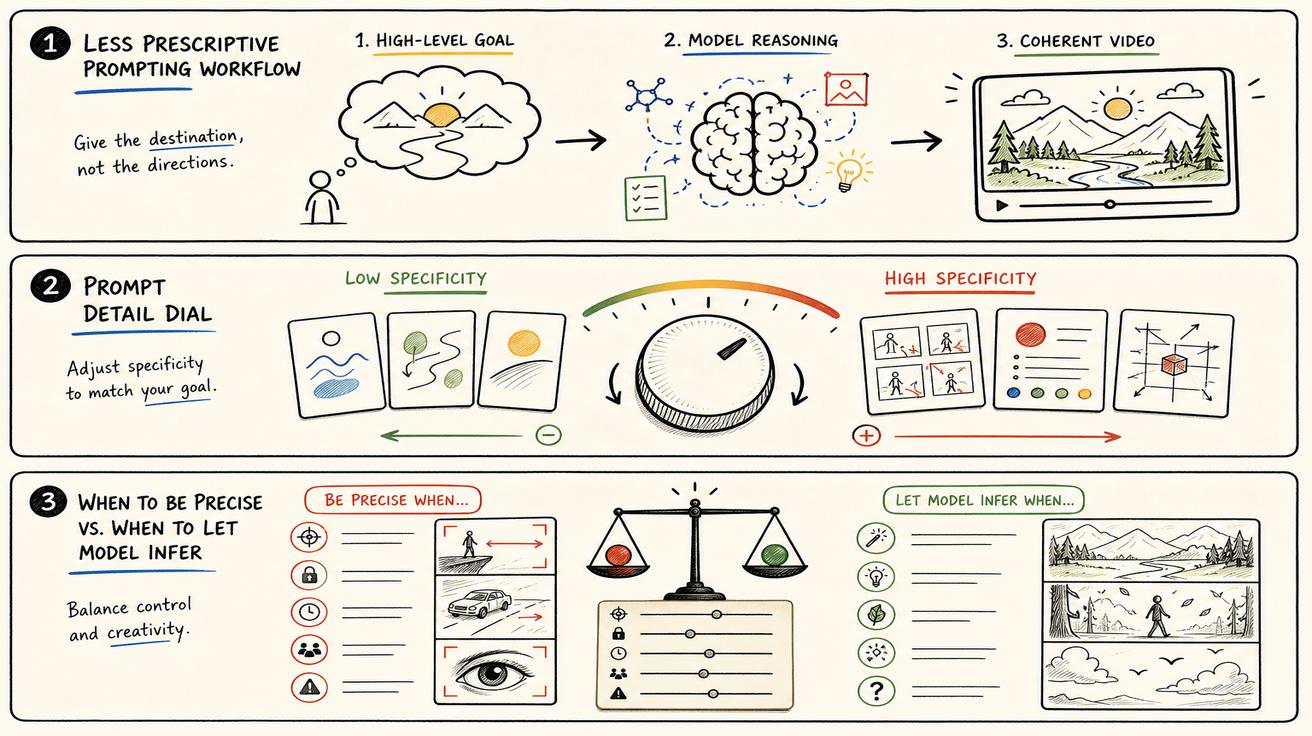
Use this template when you want a balanced prompt that gives Gemini Omni room to reason while still protecting the outcome.
Goal: What should the video communicate or achieve?
Subject: Who or what is the focus?
Context: Where is the scene or what reference input should guide it?
Style: What mood, genre, or visual language should shape the output?
Action: What changes during the clip?
Constraints: What must stay accurate, readable, absent, or unchanged?
Output use: Where will the video be used: ad, social short, hero section, tutorial, or presentation?
Example:
"Goal: create a short social ad that makes an AI video tool feel fast and approachable. Subject: a creator turning a rough product photo into a polished promo clip. Context: use the uploaded image as the starting product reference. Style: clean, modern, bright, with friendly motion design. Action: show the image becoming a dynamic video scene with simple camera movement and a final callout. Constraints: keep the product shape unchanged, do not invent brand logos, and show only the exact text 'From image to video'. Output use: vertical short for social media."
This template separates intent from constraints. It tells the model what success looks like without forcing every frame into a rigid script.
How to iterate after the first output
Treat the first output as a draft. With Omni, iteration can be more conversational. Instead of rewriting the full prompt, make targeted adjustments.
Good follow-up instructions include:
- "Keep the same composition, but make the lighting warmer."
- "Preserve the product exactly and only change the background."
- "Make the text appear later and stay on screen longer."
- "Reduce the camera motion; the current version feels too fast."
- "Make the style more realistic and less animated."
- "Use the same idea, but make it suitable for a website hero banner."
These follow-ups are short because the model already has context. You can refine the creative direction instead of rebuilding the entire prompt every time.
Safe wording: Omni, Veo, and the product transition
Because many users are searching for "Gemini Omni vs Veo," it is tempting to write dramatic claims. Avoid them. The accurate wording is narrower and more useful.
Gemini Omni replaces the Veo label inside the Gemini app experience. That is a meaningful change for users who create video in Gemini. However, it does not prove that Veo has disappeared globally. Veo references may continue in Google Flow, API materials, model documentation, developer discussions, or existing workflows. If you rely on a specific Veo route, check that product surface directly before changing your process.
This matters for prompting too. A Gemini app creator may need Omni's more intent-led style, while a developer using a documented video API may still need to follow the current model's guidance until official migration details are published. For the product-level transition, read Gemini Omni vs Veo 3.1. For the naming question, see What Happened to Veo?.
Best practices for creators and marketers
Start with intent, then add constraints. A rigid camera checklist can limit the model before it has a chance to solve the creative problem. Use references whenever accuracy matters; in a modern image-to-video workflow, the reference often does more than a long descriptive paragraph.
Separate style from subject. If you ask for a futuristic product ad, specify whether the product itself should change. Control text explicitly, including exact wording, placement, and duration. Iterate in small steps so you know which change improved the output. Finally, keep a prompt log with the original prompt, reference inputs, follow-up instructions, and output notes.
Conclusion
Gemini Omni does not make prompt engineering disappear. It changes the center of gravity. Instead of treating every prompt as a technical instruction sheet, creators can write a clear creative brief and let the model reason through more details.
The best results still come from intentional prompting: define the goal, subject, style, action, constraints, and output use. Be concise where the model can infer. Be specific where accuracy matters. Use references when visual consistency matters. Keep the Veo transition language precise: Omni is replacing Veo inside the Gemini app, while Veo may remain relevant elsewhere.
If you are building a workflow now, explore the Gemini Omni hub, test both text-to-video and image-to-video prompts, and use comparison pages to decide which model surface fits your production needs.
FAQ
Is Gemini Omni prompting easier than Veo prompting?
It can be easier for intent-led creative tasks because Gemini Omni can infer more from the goal, references, and scene context. You still need clear instructions for brand assets, exact text, sequence order, and constraints.
Does less prescriptive prompting mean shorter prompts are always better?
No. A short prompt can be weak if it lacks intent. The goal is not to write the fewest words. The goal is to remove unnecessary micromanagement while keeping the goal, subject, style, action, and constraints clear.
Should I stop using Veo prompt techniques?
No. Veo-style precision is still useful when you need exact camera control, strict scene order, or production consistency. Gemini Omni gives you another option: start with a higher-level brief, then refine through follow-up instructions.
Did Gemini Omni replace Veo everywhere?
No. The careful wording is that Gemini Omni replaces the Veo label inside the Gemini app. Veo references may continue in broader Google tools, Flow, API documentation, model pages, and developer workflows. Always check the specific product surface you use.
What is the best Gemini Omni prompt structure?
Use a compact brief: goal, subject, context or reference, style, action, constraints, and output use. This gives Gemini Omni direction while protecting the details that matter.
<script type="application/ld+json"> { "@context": "https://schema.org", "@type": "Article", "headline": "Gemini Omni vs Veo Prompting: Why Omni Prompts Can Be Less Prescriptive", "description": "Learn why Gemini Omni prompting can be less prescriptive than Veo prompting, with practical prompt examples, workflow tips, and safe wording about the Veo transition.", "author": { "@type": "Person", "name": "Emma Chen" }, "publisher": { "@type": "Organization", "name": "Veo3AI", "url": "https://veo3ai.io" }, "mainEntityOfPage": { "@type": "WebPage", "@id": "https://veo3ai.io/blog/gemini-omni-vs-veo-prompting-less-prescriptive" }, "datePublished": "2026-05-21", "dateModified": "2026-05-21" } </script>
<script type="application/ld+json"> { "@context": "https://schema.org", "@type": "FAQPage", "mainEntity": [ { "@type": "Question", "name": "Is Gemini Omni prompting easier than Veo prompting?", "acceptedAnswer": { "@type": "Answer", "text": "It can be easier for intent-led creative tasks because Gemini Omni can infer more from the goal, references, and scene context. However, you still need clear instructions for brand assets, exact text, sequence order, and constraints." } }, { "@type": "Question", "name": "Does less prescriptive prompting mean shorter prompts are always better?", "acceptedAnswer": { "@type": "Answer", "text": "No. A short prompt can be weak if it lacks intent. The goal is not to write the fewest words. The goal is to remove unnecessary micromanagement while keeping the goal, subject, style, action, and constraints clear." } }, { "@type": "Question", "name": "Should I stop using Veo prompt techniques?", "acceptedAnswer": { "@type": "Answer", "text": "No. Veo-style precision is still useful when you need exact camera control, strict scene order, or production consistency. Gemini Omni gives you another option: start with a higher-level brief, then refine through follow-up instructions." } }, { "@type": "Question", "name": "Did Gemini Omni replace Veo everywhere?", "acceptedAnswer": { "@type": "Answer", "text": "No. The careful wording is that Gemini Omni replaces the Veo label inside the Gemini app. Veo references may continue in broader Google tools, Flow, API documentation, model pages, and developer workflows. Always check the specific product surface you use." } }, { "@type": "Question", "name": "What is the best Gemini Omni prompt structure?", "acceptedAnswer": { "@type": "Answer", "text": "Use a compact brief: goal, subject, context or reference, style, action, constraints, and output use. This gives Gemini Omni enough direction to reason creatively while protecting the details that matter." } } ] } </script>
Related Articles
Continue with more blog posts in the same locale.

How to Make Sports Highlight Videos with Veo 3 AI (2026)
Create stunning sports highlight videos with Veo 3 AI. Generate dynamic action shots, slow-motion sequences, and dramatic replays using AI prompts.
Read article
How to Make a Short Film with Veo 3 AI (2026 Guide)
Learn how to create professional short films using Veo 3 AI. Step-by-step guide with prompts, workflow tips, and cinematic techniques.
Read article
How to Make Documentary Videos with Veo 3 AI (2026 Guide)
Create compelling documentary videos with Veo 3 AI. Learn prompting techniques, narrative structure, realistic footage generation, and post-production tips.
Read article