
Gemini Omni Reference Image, Video, and Audio Prompting Guide
Gemini Omni is interesting because it pushes video prompting beyond a single text box. A text prompt still matters, but the strongest results often come from a clear creative brief
Emma Chen · 11 min read · May 21, 2026
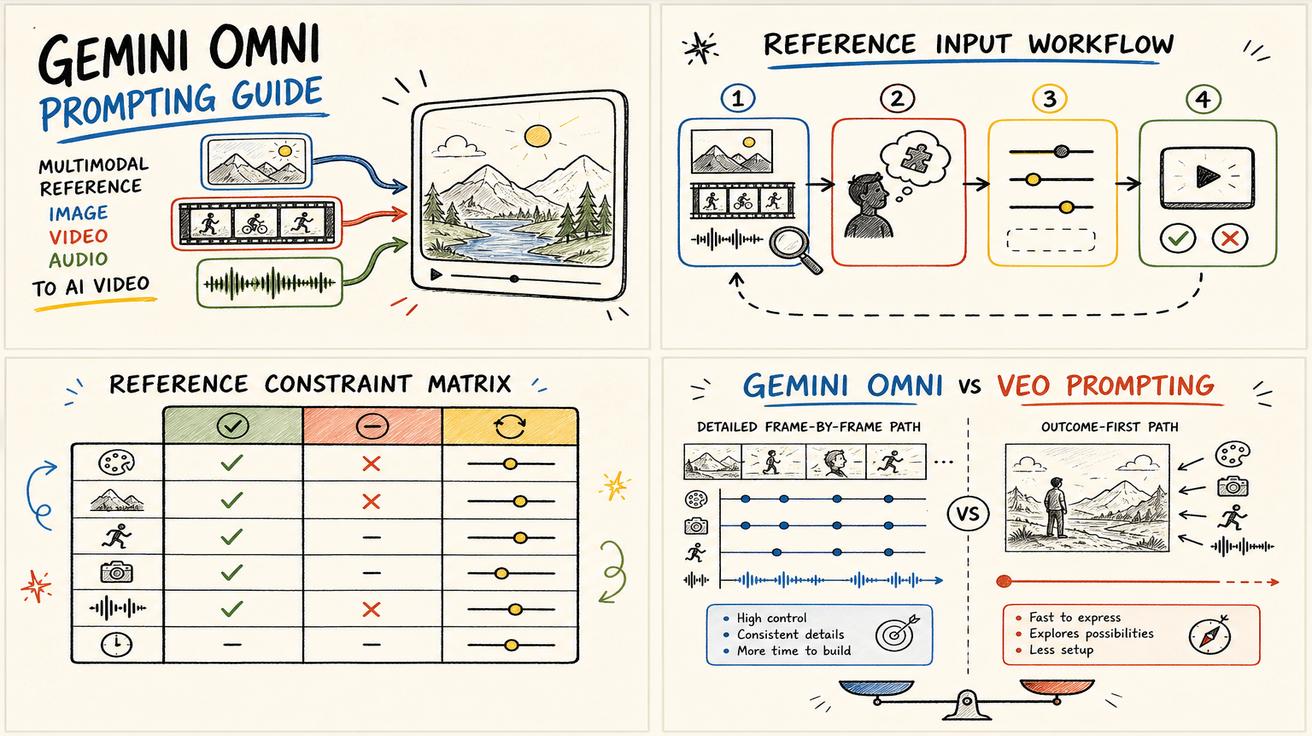
Gemini Omni is interesting because it pushes video prompting beyond a single text box. A text prompt still matters, but the strongest results often come from a clear creative brief plus reference inputs: an image for visual identity, a short video for motion language, and audio for rhythm, pacing, or spoken direction. If you treat those references as random attachments, the model has to guess what to preserve. If you label them with intent, you get a more controllable workflow.
This guide explains how to build reference-based prompts for Gemini Omni without copying the official examples. It is based on Google's official Gemini Omni prompt guide from Google DeepMind, which discusses controls such as shot framing, motion, style, lighting, location, action, text rendering, and reference media. You can read the official source here: https://deepmind.google/models/gemini-omni/prompt-guide/.
Two important caveats before we start. First, feature availability may vary by Google AI plan, product surface, and geography. Do not assume that every reference workflow is available to every user in every country. Second, Gemini Omni has replaced the Veo label inside parts of the Gemini app experience, but that does not mean every Veo product, model page, developer route, or enterprise discussion has globally disappeared. For access details, see our separate guide to Gemini Omni API availability, pricing, and developer access.
If you are new to the product category, start with the Gemini Omni hub. If you only need a basic generation workflow, compare text-to-video AI tools and image-to-video AI tools first. This article is for creators who want a repeatable multimodal prompting system.
The core idea: references need jobs
The most common mistake with reference prompting is attaching files and saying, "make a video like this." That sounds efficient, but it is ambiguous. Does "like this" mean the same character? The same camera move? The same room? The same color palette? The same beat timing? The same lens distortion? The model may infer something reasonable, but reasonable is not always what your campaign needs.
A better approach is to assign each reference a job. A reference image can define the subject, costume, product design, color palette, or poster composition. A reference video can define movement, editing tempo, camera behavior, or transition style. A reference audio file can define mood, speech cadence, musical rhythm, or the timing of on-screen action. Your text prompt then becomes a director's note that tells Gemini Omni which parts to borrow and which parts to ignore.
Think of the prompt as a production brief with three layers: outcome, reference map, and scene direction. Gemini Omni can understand higher-level intent, but brand consistency still depends on removing ambiguity.
A practical reference prompt formula
Use this formula when you attach image, video, or audio references:
Create [format and duration] for [audience/use case]. Use Reference Image A for [visual identity], Reference Video B for [motion/camera/editing], and Reference Audio C for [timing/mood/dialogue]. The scene is [location]. The subject does [action]. Camera: [framing and movement]. Lighting: [lighting]. Style: [visual style]. Text: [what text appears, where, and how]. Preserve [must keep]. Avoid [must not include].
Here is the same formula as a reusable template:
Create a [duration] [aspect ratio] video for [platform or campaign].
Goal: [single-sentence communication objective].
Reference Image A: use only for [character/product/wardrobe/palette/composition].
Reference Video B: use only for [camera motion/action timing/edit rhythm/transition style].
Reference Audio C: use only for [music energy/speech cadence/beat markers/ambient mood].
Scene: [location, time of day, environment details].
Action: [main subject action in chronological order].
Camera: [shot size, lens feeling, movement, perspective].
Lighting and style: [mood, color, realism level, texture].
Text rendering: [exact words, placement, animation, duration, legibility].
Constraints: preserve [specific elements]; avoid [specific errors or unwanted elements].
The key phrase is "use only for." It prevents your references from bleeding into the wrong part of the output. For example, if the audio reference is only for pacing, say that. If the reference video is only for a dolly-in camera move, say not to copy the people, location, or brand marks in that video.
When to use a reference image
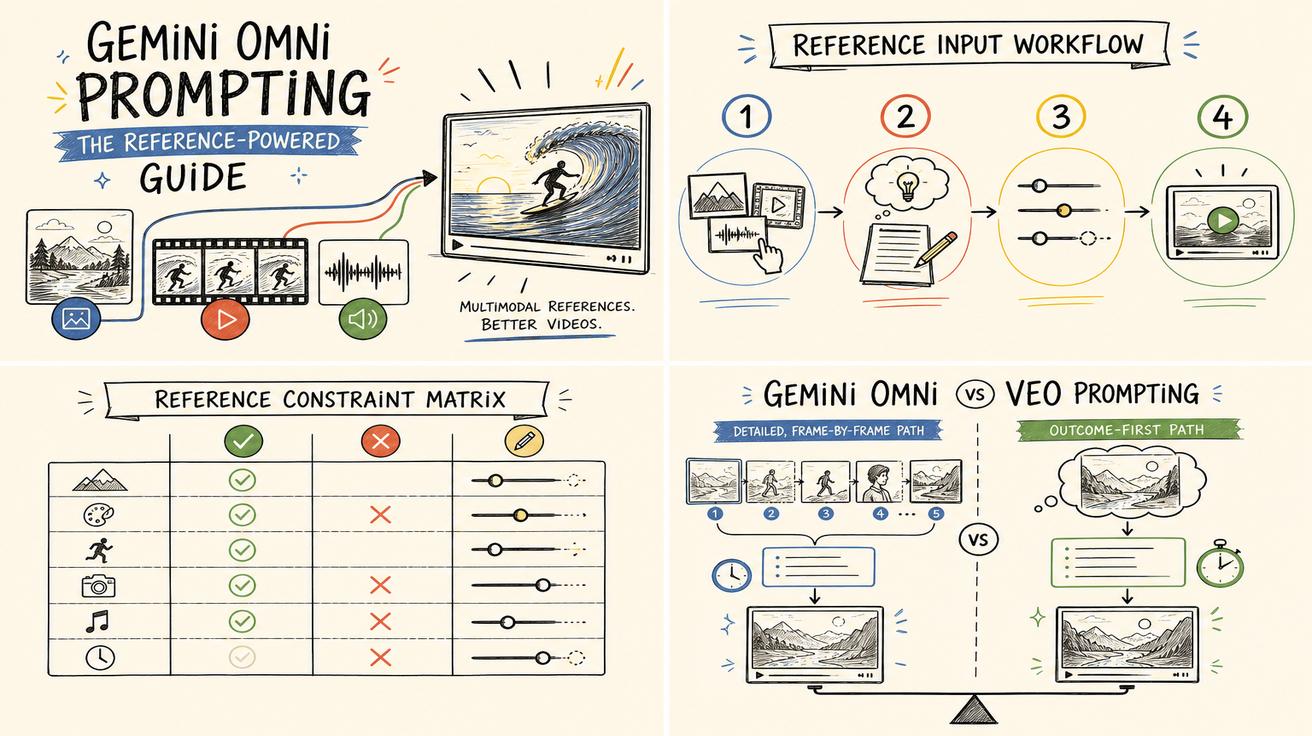
A reference image is usually the best anchor for visual consistency. Use it when the video must preserve a product shape, character design, outfit, room layout, color palette, packaging design, illustration style, or poster composition. It is especially useful for image-to-video workflows, where the first frame or visual identity matters more than broad text description.
Good image-reference instructions are specific. Instead of writing, "use this image," write: "Use Reference Image A for the hero product shape, matte black finish, orange accent button, and centered three-quarter angle. Do not copy the background or the handwritten note visible in the image." This tells Gemini Omni which signals matter.
For character consistency, describe safe visual traits such as wardrobe, silhouette, hairstyle, expression, and role. For branded work, use your own assets and state what must remain accurate.
Image reference prompt example
Create an 8-second vertical product reveal for a mobile landing page.
Goal: make the viewer understand that the device is compact, premium, and easy to carry.
Reference Image A: use only for the product shape, soft silver material, rounded corners, and small blue status light. Do not copy the desk, hands, or background from the image.
Scene: the product rests on a clean travel tray beside a passport and wireless earbuds.
Action: the camera begins close on the blue status light, pulls back to show the full device, then the device gently rotates 20 degrees as the tray slides into a backpack.
Camera: macro close-up into smooth pullback, shallow depth of field, premium tech ad framing.
Lighting and style: soft airport lounge light, realistic reflections, warm neutral palette.
Text rendering: show "Ready before boarding" in small white text at the lower left for the final two seconds.
Constraints: preserve the product proportions and blue light; avoid extra ports, extra buttons, or incorrect logos.
Notice that the prompt does not ask the model to invent everything from scratch. It uses the image as a controlled source for the product while still giving the scene enough direction to become a finished ad.
When to use a reference video
A reference video is strongest when motion matters more than appearance. Use it for camera choreography, subject movement, editing rhythm, gesture timing, object interaction, or transition language. A fashion brand may use a reference video for runway pacing. A SaaS company may use a screen recording for cursor movement. A food brand may use a clip to show the speed and angle of a sauce pour.
Do not assume the model knows which part of a video you care about. A reference video contains many signals: people, location, color, camera shake, noise, lighting, composition, and timing. If you only want the camera move, say so. If you only want the action rhythm, say so. If you want the output to avoid copying the setting, say that too.
Video reference prompt example
Create a 10-second horizontal launch teaser for a productivity app.
Goal: communicate that a messy project becomes organized in one motion.
Reference Video B: use only for the camera movement: a slow overhead push-in followed by a quick snap zoom at the end. Do not copy the room, person, objects, color palette, or brand elements from the reference.
Scene: a clean desk with sticky notes, a laptop, and a tablet showing abstract task cards.
Action: scattered paper notes slide into neat columns on the tablet screen, then transform into a simple dashboard.
Camera: overhead push-in for seven seconds, then snap zoom to the finished dashboard.
Lighting and style: bright studio daylight, crisp commercial realism, soft shadows.
Text rendering: animate "From chaos to clarity" across the top edge, tracking with the final zoom.
Constraints: keep the dashboard abstract and do not show readable private data.
Text explains the goal; the video reference demonstrates the physical feel.
When to use audio references
Audio references are useful when timing, emotion, speech cadence, or sound design controls the edit. They can help you indicate where a product should appear, where a title should land, how fast the scene should breathe, or what emotional texture the clip should have. Audio can be music, voice, ambient sound, or a rough timing track, depending on the product surface and available features.
Because audio workflows can vary by plan and geography, write conservatively. Treat the audio reference as a direction source, not a guarantee of exact reproduction. If you need licensed music, cleared voice talent, or exact brand sound assets, check rights and platform rules before production.
Audio reference prompt example
Create a 12-second square social video for a travel planning tool.
Goal: make the app feel calm, fast, and trustworthy.
Reference Audio C: use only for pacing and mood. Match the gentle rise at the beginning, the stronger beat at second five, and the soft ending. Do not reproduce the melody exactly.
Scene: a traveler sits by a window at sunrise while a phone interface builds a weekend itinerary.
Action: at the first beat, the destination card appears; at second five, three activity cards arrange themselves; at the final beat, the itinerary becomes a clean shareable plan.
Camera: slow handheld close-up with subtle parallax between the phone, coffee cup, and window.
Lighting and style: warm sunrise, realistic travel lifestyle, minimal UI overlays.
Text rendering: show "Plan the weekend in minutes" centered above the phone from seconds six to ten.
Constraints: keep the UI generic, avoid airline logos, and keep all text legible.
The timing markers matter. If you want on-screen text to arrive with a beat, say where. If you want a calmer edit, say the clip should breathe between actions instead of cutting rapidly.
How to combine image, video, and audio references in one prompt
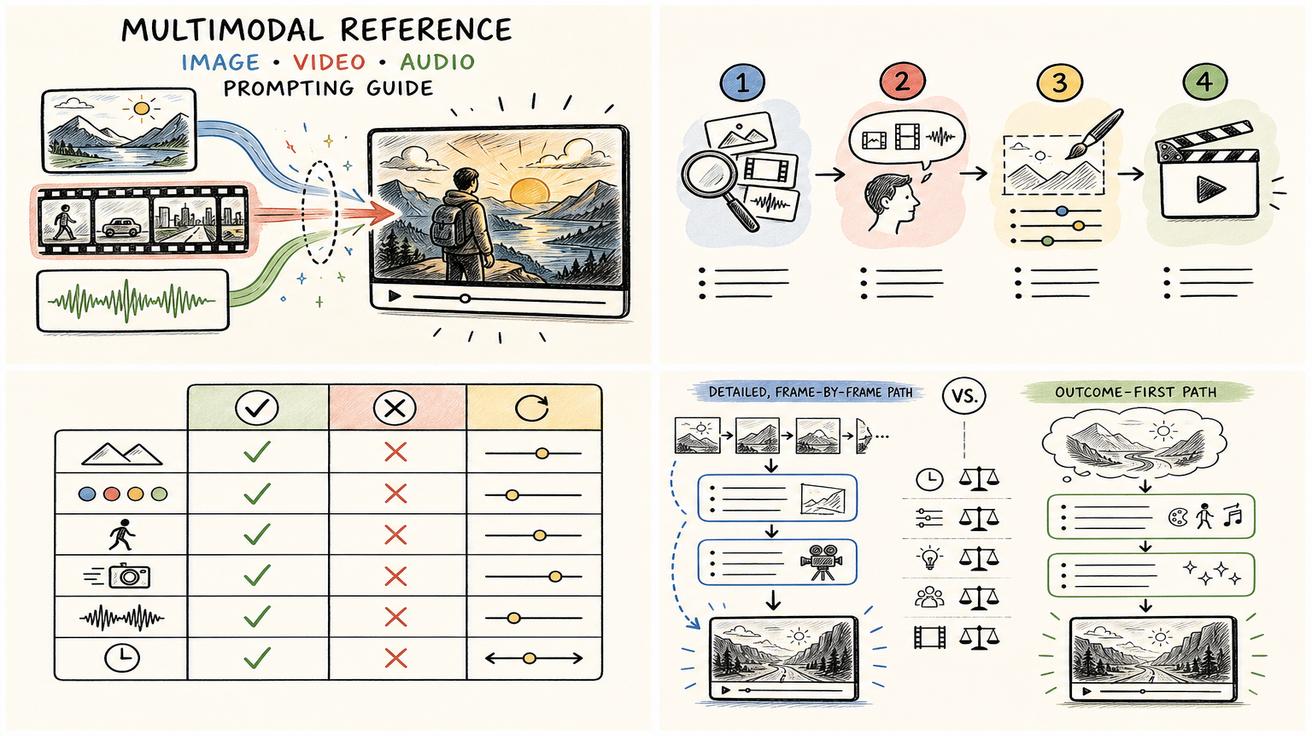
The most powerful workflow is a triad: image for identity, video for motion, audio for rhythm. This is also the easiest workflow to overload. The solution is to write a reference map before you write the scene.
Use this checklist:
| Reference | Best use | What to specify | What to exclude |
|---|---|---|---|
| Image | product, character, palette, composition | exact visual elements to preserve | background, unrelated objects, accidental text |
| Video | camera, movement, edit rhythm, gesture | the motion pattern and timing | people, setting, logos, noise |
| Audio | mood, beat, cadence, transition timing | beat markers and emotional tone | exact melody, uncleared voice, unwanted lyrics |
Here is a complete multimodal prompt:
Create a 15-second vertical video for a new AI study assistant.
Goal: show that a student can turn a long lecture into a clear study plan.
Reference Image A: use only for the app interface style: rounded cards, dark navy background, mint green highlights, and friendly icon shapes. Do not copy the sample text in the image.
Reference Video B: use only for motion language: smooth side-to-side phone movement, gentle card stacking animation, and a final close-up on the main action button. Do not copy the classroom, people, or brand marks.
Reference Audio C: use only for pacing: a quiet intro, a stronger beat around second six, and a resolved ending. Do not reproduce the melody exactly.
Scene: a student works at a small desk in the evening with a laptop, notebook, and phone.
Action: seconds 0-4 show lecture notes as a messy scroll; seconds 4-8 show the app grouping the notes into topics; seconds 8-12 show a three-day study plan; seconds 12-15 show the student smiling and tapping "Start review."
Camera: close lifestyle framing, slow push-in, then a clean phone close-up for the final tap.
Lighting and style: warm desk lamp, realistic modern student lifestyle, polished but not glossy.
Text rendering: show "From lecture to study plan" at the top from seconds 8-13, with high contrast and no spelling changes.
Constraints: preserve the app color system from Reference Image A; avoid unreadable tiny text, extra fingers, distorted phone edges, or real university logos.
This prompt gives every asset a job, then describes the final clip in chronological order. That is the workflow to repeat.
Text rendering: be exact about words, placement, and exposure
The official guide highlights text rendering as a controllable part of prompting, and this is where many creators still under-prompt. If text matters, provide the exact words. Also specify where the text appears, how long it stays visible, whether it moves, and what should happen behind it.
Weak: "Add a title about saving time."
Strong: "Show the exact text 'Save 5 hours this week' in bold white type, centered in the top third, visible from seconds 3-7, with no other text on screen. Keep the background darker behind the title for legibility."
For ad creative, text is not decoration. It is often the conversion message. Treat it like a separate production element.
Prompt expansion: use AI help, but keep editorial control
Gemini can help expand a simple prompt into a fuller production brief, especially for camera language, lighting, location details, and continuity. Still, review the result before generating. Remove invented facts, brand claims, private information, unsupported technical promises, and unnecessary complexity. Then add exact text-rendering and timing instructions. For a deeper breakdown of prompt ingredients, read Gemini Omni Prompt Guide: Essential Elements.
Troubleshooting reference prompts
If the output ignores your reference image, replace vague style language with exact elements to preserve. If it copies the wrong background from a video, say the video is only for motion. If it drifts off beat, add timing markers. If text is misspelled or tiny, reduce the copy and specify placement, contrast, and exposure time.
When a prompt gets too long, cut it into priorities: must preserve, should influence, and must avoid. The model still benefits from clean creative hierarchy.
FAQ
1. What is a reference prompt in Gemini Omni?
A reference prompt is a video prompt that uses attached media as creative direction. An image can define appearance, a video can define motion, and audio can define pacing or mood. The text prompt explains how each reference should influence the final clip.
2. Can I use image, video, and audio references together?
Depending on product availability, plan, and geography, multimodal reference workflows may be available in some Gemini Omni surfaces. When you use multiple references, assign each one a clear job so the model knows what to preserve and what to ignore.
3. Is Gemini Omni the same as Veo?
No. Google has introduced Gemini Omni in parts of the Gemini app experience, and official pages discuss the relationship between Gemini Omni and Veo. However, you should not assume that every Veo reference across Google products, docs, or developer workflows has globally ended.
4. How do I stop Gemini Omni from copying the wrong part of a reference?
Use exclusion language. For example: "Use Reference Video B only for camera motion; do not copy the room, people, colors, or logos." The more clearly you separate the reference's job from unwanted details, the easier it is to control the output.
5. What is the best prompt structure for reference-based videos?
Use a production-brief structure: goal, reference map, scene, action, camera, lighting, style, text rendering, constraints, and avoid list. This makes your intent clearer than a single loose sentence.
Final takeaway
Reference prompting is not about adding more files. It is about giving Gemini Omni a cleaner creative hierarchy. Use an image for identity, a video for motion, audio for rhythm, and text for the final direction. Then state what to preserve, what to ignore, and how the finished clip should communicate the idea.
If you want to keep learning, start at the Gemini Omni hub, then compare practical generation routes with text-to-video and image-to-video workflows.
<script type="application/ld+json"> { "@context": "https://schema.org", "@type": "Article", "headline": "Gemini Omni Reference Image, Video, and Audio Prompting Guide", "description": "A practical guide to Gemini Omni reference prompting with images, videos, and audio, including prompt templates, examples, troubleshooting, and FAQ.", "author": { "@type": "Person", "name": "Emma Chen" }, "publisher": { "@type": "Organization", "name": "veo3ai.io" }, "mainEntityOfPage": { "@type": "WebPage", "@id": "https://veo3ai.io/blog/gemini-omni-reference-image-video-audio-prompting-guide" }, "datePublished": "2026-05-21", "dateModified": "2026-05-21" } </script>
<script type="application/ld+json"> { "@context": "https://schema.org", "@type": "FAQPage", "mainEntity": [ { "@type": "Question", "name": "What is a reference prompt in Gemini Omni?", "acceptedAnswer": { "@type": "Answer", "text": "A reference prompt is a video prompt that uses attached media as creative direction. An image can define appearance, a video can define motion, and audio can define pacing or mood. The text prompt explains how each reference should influence the final clip." } }, { "@type": "Question", "name": "Can I use image, video, and audio references together?", "acceptedAnswer": { "@type": "Answer", "text": "Depending on product availability, plan, and geography, multimodal reference workflows may be available in some Gemini Omni surfaces. When you use multiple references, assign each one a clear job so the model knows what to preserve and what to ignore." } }, { "@type": "Question", "name": "Is Gemini Omni the same as Veo?", "acceptedAnswer": { "@type": "Answer", "text": "No. Google has introduced Gemini Omni in parts of the Gemini app experience, and official pages discuss the relationship between Gemini Omni and Veo. However, you should not assume that every Veo reference across Google products, docs, or developer workflows has globally ended." } }, { "@type": "Question", "name": "How do I stop Gemini Omni from copying the wrong part of a reference?", "acceptedAnswer": { "@type": "Answer", "text": "Use exclusion language. For example, tell the model to use a reference video only for camera motion and not to copy the room, people, colors, or logos. Separating the reference job from unwanted details improves control." } }, { "@type": "Question", "name": "What is the best prompt structure for reference-based videos?", "acceptedAnswer": { "@type": "Answer", "text": "Use a production-brief structure: goal, reference map, scene, action, camera, lighting, style, text rendering, constraints, and avoid list. This is clearer than a single loose sentence." } } ] } </script>
Related Articles
Continue with more blog posts in the same locale.

How to Make Sports Highlight Videos with Veo 3 AI (2026)
Create stunning sports highlight videos with Veo 3 AI. Generate dynamic action shots, slow-motion sequences, and dramatic replays using AI prompts.
Read article
How to Make a Short Film with Veo 3 AI (2026 Guide)
Learn how to create professional short films using Veo 3 AI. Step-by-step guide with prompts, workflow tips, and cinematic techniques.
Read article
How to Make Documentary Videos with Veo 3 AI (2026 Guide)
Create compelling documentary videos with Veo 3 AI. Learn prompting techniques, narrative structure, realistic footage generation, and post-production tips.
Read article