
Gemini Omni Prompt Guide: 5 Essential Prompt Elements
Learn the 5 essential Gemini Omni prompt elements for better AI videos, with reusable templates for camera, motion, style, text, and references.
Emma Chen · 14 min read · May 21, 2026
Meta description: Learn the 5 essential Gemini Omni prompt elements for better AI videos, with reusable templates for camera, motion, style, text, and references.
Tags: Gemini Omni, AI video prompts, text to video, image to video, prompt engineering
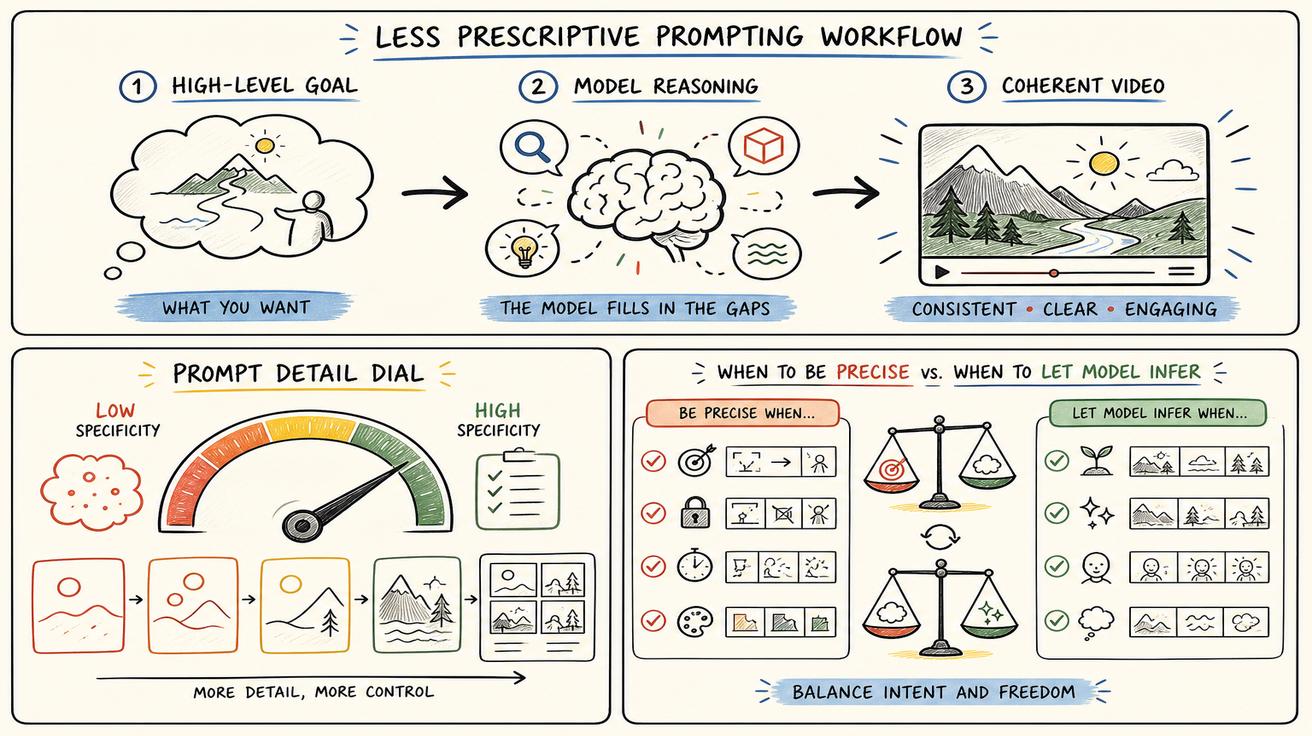
Gemini Omni changes how creators should think about AI video prompting. Older workflows often rewarded long, rigid prompts that tried to specify every visual detail. Gemini Omni still benefits from detail, but Google's official guidance points toward a more natural workflow: describe the outcome, give the right creative constraints, and let the model's world understanding do part of the work.
This guide turns the official Google DeepMind Gemini Omni prompt guide into a practical framework for marketers, YouTube creators, and product teams. It explains the five prompt elements that matter most, why each element changes the output, and how to combine them into reusable templates.
If you are mapping the new Google video ecosystem, start with our Gemini Omni hub. For context, read what happened to Veo in the Gemini app and our Gemini Omni vs Veo 3.1 comparison. The careful wording matters: Gemini Omni replaces the Veo label inside the Gemini app, while Veo may continue to appear in broader Google tools, docs, developer discussions, and existing workflows.
The short version: what makes a Gemini Omni prompt work?
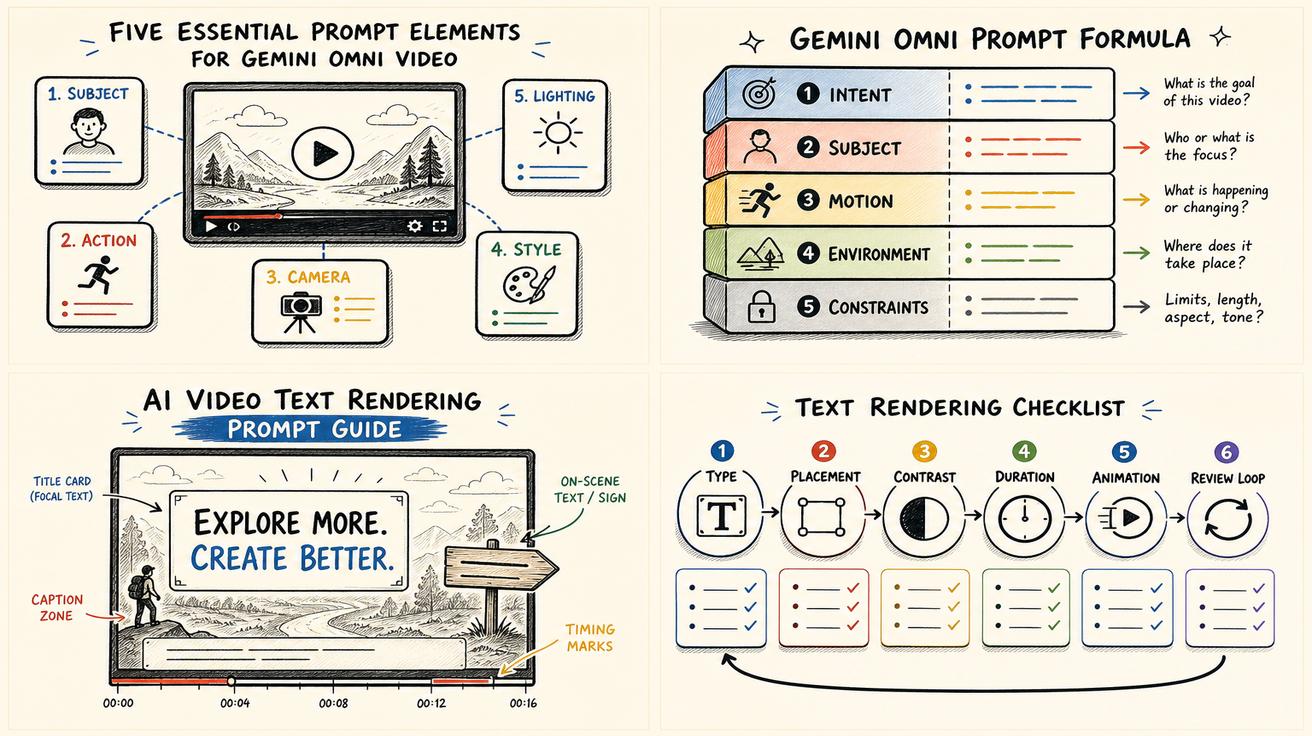
A strong Gemini Omni video prompt should answer five questions:
- What outcome should the viewer feel or understand?
- Who or what is the subject, and what action is happening?
- Where does the scene take place, and what visual style should it use?
- How should the camera, framing, lighting, and motion guide attention?
- What text, audio, reference inputs, or negative constraints must be respected?
You can write these as one paragraph, a structured brief, or a prompt card. Format matters less than information density. Gemini Omni can infer more than earlier workflows, but it still needs priorities. If you give it ten unrelated visual ideas, it may choose the wrong one. If you give it a clear outcome plus strong constraints, the video has a better chance of feeling intentional.
A simple master template looks like this:
Create a [duration/style] video for [audience/use case]. Make viewers feel [emotion] and understand [message]. Show [subject] doing [action] in [location]. Use [visual style], [lighting], and [color palette]. Frame it with [camera/framing/motion]. Include [text/audio/reference details]. Avoid [unwanted elements].
The rest of this article breaks that template into five prompt elements for text-to-video, image-to-video, product demos, ads, educational clips, and concept shots.
Element 1: Start with viewer intent, not just visual description
Many weak prompts begin with a list of objects: “a laptop, a coffee cup, a person, a city skyline.” That can produce a nice-looking clip, but it rarely produces a useful clip. Gemini Omni prompts become stronger when the first sentence explains the purpose of the video.
Intent tells the model what to optimize for. A product ad, explainer, mood board, and cinematic teaser can contain the same objects but need different pacing, shots, and emotional signals. The official guidance emphasizes stronger world understanding, so you can often describe the intended outcome instead of micromanaging every frame.
Useful intent phrases include “make the product feel premium but approachable,” “show the before-and-after transformation clearly,” or “explain the feature visually without relying on narration.”
Intent template
Create a 10-second video for [platform/use case]. The viewer should feel [emotion] and understand [single message]. The video should be useful for [ad, landing page hero, tutorial, launch teaser, social reel].
Example prompt
Create a 10-second product teaser for a landing page hero. The viewer should feel that the app is fast, modern, and easy to use. Show a designer turning a rough storyboard into a polished AI video preview, with the transformation happening smoothly and clearly.
Notice that this prompt does not specify lens type, room layout, or every UI detail. It gives the model a success condition. Later elements can add style and camera control. Starting with intent also helps when you ask Gemini to expand your prompt because added details are more likely to support the message.
Element 2: Define the subject and action as one continuous moment
The subject is what the viewer tracks. The action is what gives the clip momentum. A prompt that names a subject but not an action often produces a static shot. A prompt with too many actions can feel rushed. For short AI videos, the best action is one clear transformation, gesture, reveal, or movement.
Think in verbs:
- A chef plates a dessert.
- A sneaker rotates under studio light.
- A teacher sketches a diagram on glass.
- A startup founder walks through a prototype.
- A travel backpack unfolds into organized compartments.
Gemini Omni can understand higher-level actions, but you should still make the core action visible. Instead of asking for “a futuristic workspace,” ask for “a product manager dragging sticky-note ideas into a launch timeline.” The second version gives the model a story.
Subject-action template
The main subject is [person/object/character]. Show them [single primary action] from beginning to end. The action should communicate [meaning], with no unrelated side events.
Example prompt
The main subject is a compact AI video editing dashboard on a laptop. Show a user importing a still product photo, selecting an image-to-video mode, and watching the photo become a short rotating product shot. The action should communicate speed and creative control without showing extra menus.
This structure works especially well for conversion pages such as image-to-video, where users need to see the input-to-output transformation. It also helps social clips. A TikTok or Shorts viewer decides within seconds whether the video has a clear point. A prompt with a strong subject-action pair gives the output a visual hook.
Element 3: Specify location, style, lighting, and brand mood together
Style is not just an aesthetic label. It affects texture, pacing, lighting, composition, and sometimes the perceived audience. “Cinematic” alone is too broad. “Clean SaaS launch film with soft studio lighting, glassmorphism UI elements, and a white-blue palette” is more actionable.
The official prompt guidance calls out style, lighting, and location as important controls. Write them together because they influence each other. A neon alley, a daylight kitchen, and a warm editorial studio all imply different shadows, colors, camera behavior, and emotional tone.
Use this four-part style stack: location, visual style, lighting, and brand mood.
Style template
Set the scene in [location]. Use a [visual style] look with [lighting] and a [color palette]. The mood should feel [brand adjectives], not [wrong mood].
Example prompt
Set the scene in a modern creator studio with a large monitor, plants, and acoustic panels. Use a polished documentary style with soft daylight from the left and a blue-white interface glow. The mood should feel focused, practical, and trustworthy, not futuristic in a dark sci-fi way.
The “not” clause is useful because AI video models often over-index on popular aesthetics. If you ask for AI, futuristic, or cinematic, you may get holograms, dark rooms, or lens flares when you need a clean tutorial. Negative mood constraints keep the output closer to the intended use.
For broader workflow planning, see our best Gemini Omni alternatives if you need a different style, API route, or regional access.
Element 4: Direct camera, framing, and motion like an editor
Camera language is one of the fastest ways to improve a Gemini Omni prompt. You do not need to write a full shot list, but you should tell the model how attention should move. Shot framing and motion are specifically named in Google's prompt guidance, and they matter because video is time-based. The same subject can feel premium, chaotic, intimate, or cheap depending on camera behavior.
Use three levels of camera control: framing, camera motion, and scene motion. For short commercial clips, choose one main move. A slow push-in can build importance. A gentle orbit can make a product feel dimensional. A locked-off shot can make an explainer feel stable. Too many moves in one 8-second clip can feel like a montage instead of one coherent scene.
Camera template
Frame the subject as [shot type]. Use [one camera move] to guide attention from [starting focus] to [ending focus]. Keep motion [smooth/energetic/subtle] and avoid [unwanted camera behavior].
Example prompt
Frame the laptop screen in a medium close-up from over the user's shoulder. Use a slow push-in as the rough storyboard transforms into a finished video timeline. Keep the movement smooth and professional, avoiding shaky handheld motion or rapid cuts.
Camera wording also helps landing-page assets. A hero video needs stable composition so UI overlays remain readable. A social ad may tolerate more movement, but it still needs one focal point. If you are generating a clip for a text-to-video page, ask for a clean beginning, middle, and end so the result can loop or be trimmed easily.
Element 5: Add text, audio, references, and constraints only after the scene is clear
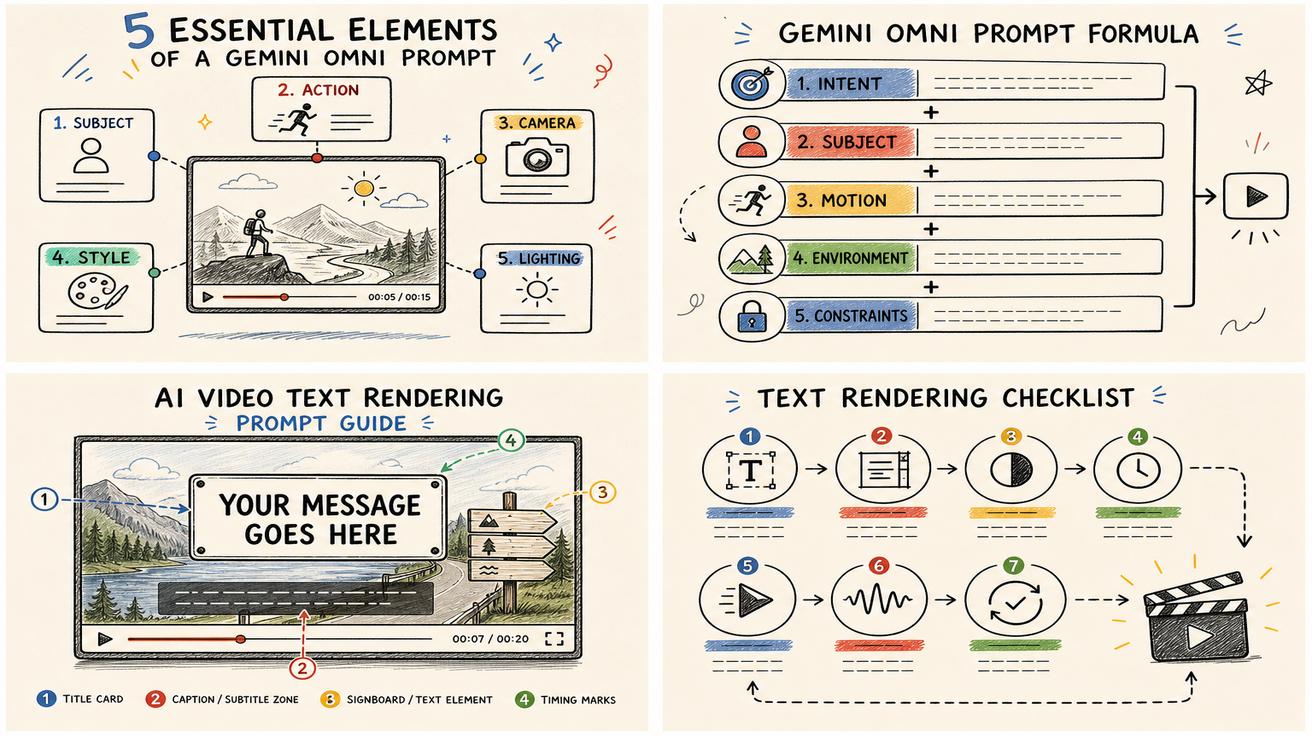
Gemini Omni's prompt guide highlights text rendering, placement, animation, and reference inputs such as image, video, and audio. These controls work best after the core scene is clear. If your first sentence asks for animated text, music, a logo, three references, and a complex plot, the model may miss the main action.
Separate production constraints into a final block:
- Text: exact words, placement, timing, style, and whether the text should animate.
- Audio: tone of music, ambient sound, voice style, or whether the video should stay silent.
- References: image, video, audio, product photo, brand palette, motion reference.
- Safety and accuracy: avoid fake claims, distorted logos, unreadable text, extra fingers, or brand misuse.
- Availability caveat: Google AI subscription, tier, geography, and rollout status may affect what you can access.
Text is especially important. AI video text can fail if wording is too long or placement is vague. Use short phrases and specify exposure time: “Place ‘From photo to video’ in the lower third for the first three seconds, then fade it out before the product reveal.”
Text and reference template
Add the text “[exact text]” in [placement] from [time] to [time], using [font/style]. Use the attached [image/video/audio] as a reference for [character/product/motion/mood]. Keep [must-preserve details] consistent. Avoid [specific failures].
Example prompt
Add the text “From one image to a full product shot” in the lower third during the first three seconds, using a clean white sans-serif style. Use the attached product photo as the exact product reference, preserving its shape, color, and logo position. Avoid extra text, distorted labels, or changing the product into a different object.
This is where Gemini Omni's multimodal workflow becomes useful. Use a product image, prior clip, or audio reference to anchor the output. For prompt expansion, ask Gemini to preserve your constraints while improving the cinematic description.
A complete Gemini Omni prompt card
Here is a reusable prompt card you can adapt:
Create a 12-second video for a SaaS landing page. The viewer should feel that the product makes AI video creation simple and controllable. The main subject is a creator using a web dashboard to turn a product photo into a short video ad. Show one continuous action: the creator uploads the image, selects a motion style, and watches the product rotate on a clean studio background. Set the scene in a bright modern workspace with soft daylight, white surfaces, and subtle blue UI glow. The mood should feel premium, practical, and calm, not noisy or sci-fi. Frame the laptop in a medium close-up from over the shoulder. Use a slow push-in from the upload moment to the finished preview. Add the text “Image to video in seconds” in the lower third for the first three seconds, then fade it out. Use the attached product image as the exact product reference. Preserve the product color and shape. Avoid distorted text, extra logos, shaky camera motion, or unrelated interface elements.
Modify this card by swapping the use case: tutorials need slower action and clearer labels; paid ads need a stronger first two seconds; product pages need stable composition; educational clips should prioritize readable diagrams over cinematic movement.
Common mistakes to avoid
The most common Gemini Omni prompt mistake is overloading the model with competing priorities. A prompt can be detailed and still be focused. It becomes weak when every phrase asks for a different video.
Avoid too many styles, too many actions, vague text instructions, missing audience context, and unclear reference purpose. If you attach an image, say whether it defines the product, character, mood, color palette, or composition. A good review checklist is simple: can a human director understand the video in one read? If not, simplify before generating.
When should you use Gemini Omni prompts versus another workflow?
Use Gemini Omni when you want a conversational, multimodal video workflow inside supported Google surfaces and your account has access. It is especially promising for creators who want to combine text, images, video references, and iterative editing. Check plan and region availability before building a deadline around it; Google AI subscription requirements and feature access can vary.
Use a dedicated AI video generator if you need immediate API access, batch production, specific aspect-ratio tooling, watermark control, or a workflow outside Gemini. If you are comparing options, read our Gemini Omni price and plan guide and Gemini Omni free access guide. Either way, save the prompts that worked so your team builds a repeatable library.
FAQ
What is the best prompt structure for Gemini Omni?
Use a five-part structure: intent, subject and action, location and style, camera and motion, then text/audio/reference constraints. This gives Gemini Omni a clear creative goal before you add production details.
Do Gemini Omni prompts need to be longer than Veo prompts?
Not necessarily. Gemini Omni may require less frame-by-frame instruction because Google emphasizes stronger world understanding. The better goal is not a longer prompt; it is a clearer prompt with fewer competing ideas.
Can Gemini Omni render text inside videos?
Google's prompt guide discusses text type, placement, animation, and exposure. For best results, keep text short, provide exact wording, specify where it appears, and define how long it stays visible.
Should I say Gemini Omni replaced Veo?
Use precise wording. Gemini Omni replaces the Veo label inside the Gemini app according to Google's Gemini product messaging. That does not mean Veo has disappeared globally from every Google tool, document, API discussion, or developer workflow.
Can I use image, video, or audio references in Gemini Omni prompts?
The official guidance discusses reference inputs across modalities, including image, video, and audio examples. When using references, tell the model exactly what each file controls: product appearance, motion, character consistency, lighting, music mood, or pacing.
Conclusion
The best Gemini Omni prompts are not just descriptive; they are directional. They tell the model what the viewer should understand, what action carries the message, what visual world the clip belongs to, how the camera should guide attention, and which text or references must stay consistent.
Start with the five elements in this guide, then build your own prompt library. If your goal is fast creation from a written idea, explore text-to-video. If your goal is turning a product image or character reference into motion, start with image-to-video. For the broader Google video shift, continue with the Gemini Omni hub and our comparison of Gemini Omni vs Veo 3.1.
<script type="application/ld+json"> { "@context": "https://schema.org", "@type": "Article", "headline": "Gemini Omni Prompt Guide: 5 Essential Prompt Elements", "author": {"@type": "Person", "name": "Emma Chen"}, "mainEntityOfPage": "https://veo3ai.io/blog/gemini-omni-prompt-guide-essential-elements", "datePublished": "2026-05-21", "dateModified": "2026-05-21", "citation": "https://deepmind.google/models/gemini-omni/prompt-guide/" } </script>
<script type="application/ld+json"> { "@context": "https://schema.org", "@type": "FAQPage", "mainEntity": [ {"@type": "Question", "name": "What is the best prompt structure for Gemini Omni?", "acceptedAnswer": {"@type": "Answer", "text": "Use intent, action, style, camera, and constraints."}}, {"@type": "Question", "name": "Do Gemini Omni prompts need to be longer than Veo prompts?", "acceptedAnswer": {"@type": "Answer", "text": "No. Clear priorities matter more than length."}}, {"@type": "Question", "name": "Can Gemini Omni render text inside videos?", "acceptedAnswer": {"@type": "Answer", "text": "Yes. Keep text short and specify placement and timing."}}, {"@type": "Question", "name": "Should I say Gemini Omni replaced Veo?", "acceptedAnswer": {"@type": "Answer", "text": "Say it replaces the Veo label inside the Gemini app."}}, {"@type": "Question", "name": "Can I use image, video, or audio references in Gemini Omni prompts?", "acceptedAnswer": {"@type": "Answer", "text": "Yes. State exactly what each reference should control."}} ] } </script>
Related Articles
Continue with more blog posts in the same locale.

How to Make Sports Highlight Videos with Veo 3 AI (2026)
Create stunning sports highlight videos with Veo 3 AI. Generate dynamic action shots, slow-motion sequences, and dramatic replays using AI prompts.
Read article
How to Make a Short Film with Veo 3 AI (2026 Guide)
Learn how to create professional short films using Veo 3 AI. Step-by-step guide with prompts, workflow tips, and cinematic techniques.
Read article
How to Make Documentary Videos with Veo 3 AI (2026 Guide)
Create compelling documentary videos with Veo 3 AI. Learn prompting techniques, narrative structure, realistic footage generation, and post-production tips.
Read article