
Text to Video Generator Compared: Models, Quality, Costs
Compare any text to video generator on quality tests, clip length, languages, credit costs and licensing, with a quick pick for each creator type.
Veo3 AI · 14 min read · Oct 26, 2026
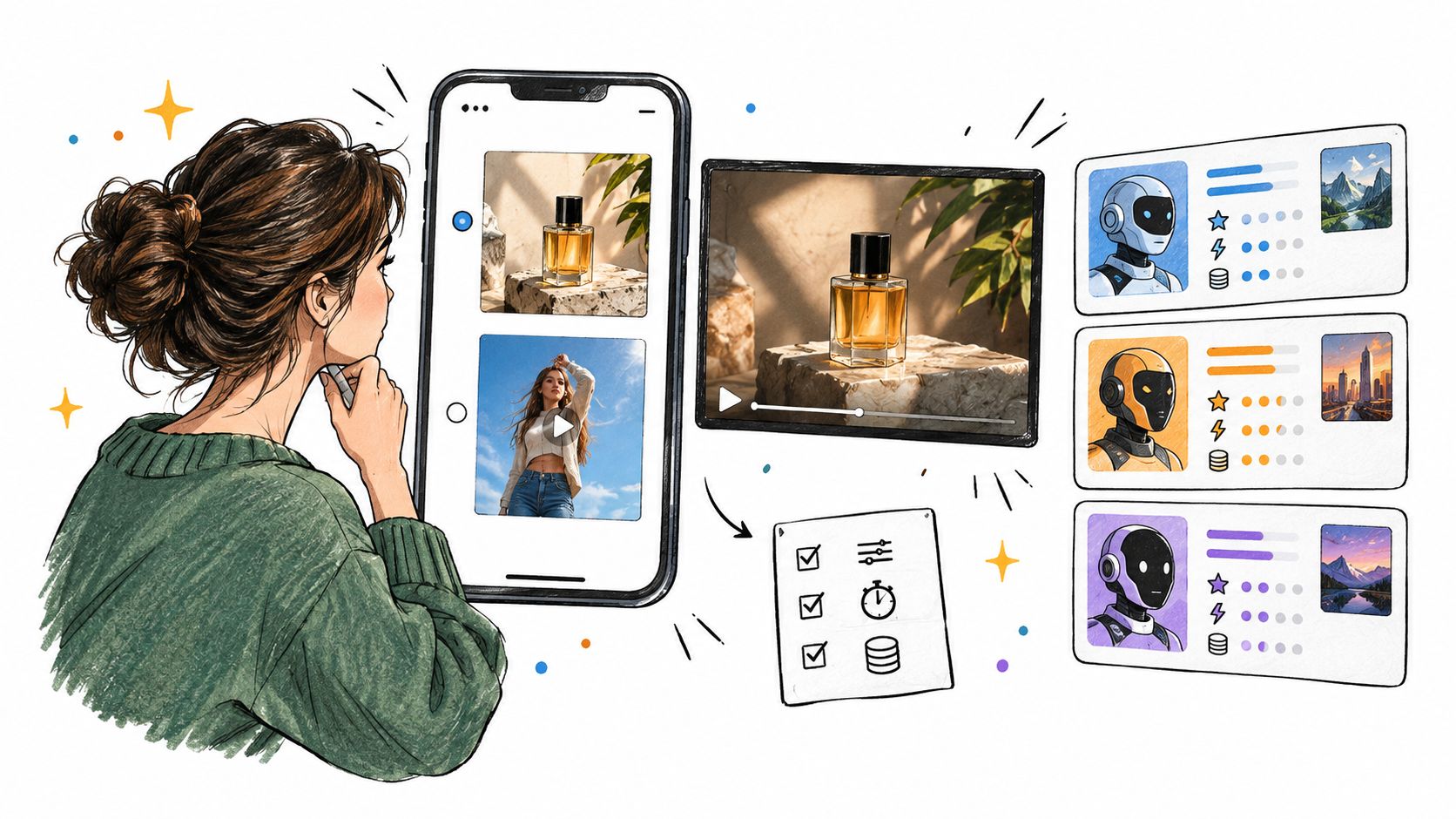
If the prettiest demo is the clip you cannot publish, what did that render really cost you? A text to video generator turns a written prompt, or a prompt plus a still, into a short clip with motion, camera movement, and sometimes sound. Judge it by usable clips per budget, then add language, rights, and disclosure to the same scorecard. A cinematic failure that burns the same credits as a keeper is the expensive one.
Table of Contents
- Quick Picks for Each Type of Creator
- Model Specs Side by Side
- Testing Output Quality Beyond the Demo Reel
- Clip Length, Render Speed and Creative Control
- Languages and Native Audio Quality
- Pricing Models, Credits and Licensing Terms
- Disclosing AI-Generated Ads Without Losing Trust
- How to Make a Publishable Short-Form or Ad Clip
- Choose Your Generator and Run a Five-Clip Test
<a id="quick-picks-for-each-type-of-creator"></a>
Quick Picks for Each Type of Creator
No single model wins every job. Match the starting model to the work, then spend credits only after one check.
| Creator need | Start with | Why it fits | Verify first |
|---|---|---|---|
| Short-form clips for TikTok, Shorts or Reels | Veo 3.1 or Veo 3 in 9:16 | 9:16 output with native audio in one pass | Faces and on-screen text across the full clip |
| Product ads and logo-led marketing | Veo 3.1 with up to three reference images | Reference images help hold product shape across shots | Logo and packaging stability at each cut |
| Animating a still photo | Image-to-video mode in your shortlisted model | The source frame anchors the motion | Face and hair drift during movement |
| Dialogue in Japanese or Korean | Veo 3.1 or Veo 3 with native audio, tested against one other model | Speech and lip sync decide whether the clip works | Pronunciation and lip sync on identical prompts |
| Tight budget | Model with the lowest cost per usable clip | Failed renders cost the same as good ones | Usable share and credit model before buying |
Read the row closest to the work you ship this week. Those rows are starting points, not rankings. A short-form creator and a product advertiser can shortlist different models and both be right.
Move from that row into the spec sheet, then into the test protocol. Check every model claim against current vendor documentation before you lock a shortlist. Specs move, and a stale limit will waste a credit pack.
<a id="model-specs-side-by-side"></a>
Model Specs Side by Side
Rule models in or out from hard limits, not from a sizzle reel.
| Model | Max clip length | Resolutions | Aspect ratios | Native audio |
|---|---|---|---|---|
| Veo 3.1 | 8 seconds | 720p, 1080p, 4K | 16:9, 9:16 | Yes |
| Veo 3 | 4, 6 or 8 seconds | 720p, 1080p | 9:16, 16:9 | Yes |
Veo 3.1 is the 8-second, native-audio row, with 720p, 1080p, and 4K in landscape or portrait. Veo 3 is the shorter ladder: 4, 6, or 8 seconds, 720p or 1080p, still in 9:16 and 16:9, still with native audio. Per Google Cloud's Veo 3 generation docs, Veo 3 supports text-to-video and image-to-video, up to four videos per prompt, image inputs up to 20 MB, and MP4 at 24 frames per second.
<a id="reading-specs-across-model-families"></a>
Reading specs across model families
The Seedance, Hailuo, Kling, MiniMax, and Omni families each publish their own clip length, resolution, ratio, and audio limits, and those numbers shift between model versions. Pull the current figures from each vendor's spec page before you commit a credit pack. Treat similarly named listings, such as Omni Flash and other Omni-branded models, as separate products until you confirm the exact model ID.
Veo3 AI puts several of those families, including Veo 3, Seedance, MiniMax, Kling, and Omni Flash, behind one account, so a side-by-side run does not require five separate sign-ups. Two practical cautions apply to every row above. First, generation results vary between runs and no vendor guarantees a usable render, so a spec sheet only sets the ceiling. Second, how often a model reaches that ceiling is a yield question, and yield is what decides your real cost per usable clip.
<a id="testing-output-quality-beyond-the-demo-reel"></a>
Testing Output Quality Beyond the Demo Reel
One overall quality score hides the failure that kills an ad. The academic VBench benchmark splits performance into 16 dimensions, including subject identity consistency, motion smoothness, temporal flickering, spatial relationships, and text–video alignment, with about 100 prompts per dimension. Diagnose each dimension on its own. A pretty frame with a drifting logo is a reject.
| Criterion | Test to run | Failure to watch for |
|---|---|---|
| Prompt adherence | Three named objects, a specific camera move and a time of day | Missing object or wrong camera move |
| Subject identity | Same character across two shots or prompts | Face or outfit changes between frames |
| Motion smoothness | Fast motion such as running or a thrown object | Warping limbs, jitter or morphing |
| Temporal flicker | Static scene held for the full clip | Background shimmer or flicker |
| Spatial relations | Two objects placed left and right or above and below | Objects swap sides or merge |
| Text legibility | Product label or sign in frame | Garbled letters or shifting words |
| Product and logo stability | Image-to-video from a product photo | Logo drift or shape change |
| Scene continuity | Camera transition in 9:16 framing | Abrupt cut or identity jump |
<a id="how-to-score-a-shortlist"></a>
How to score a shortlist
Run every row against every shortlisted model, one criterion at a time. For motion and identity, run the same prompt five times and count usable outputs. Results vary, and no vendor owes you a given outcome. Ours don't either: generation results may vary and are not guaranteed, and the service is provided "as is" and "as available" without a warranty of uninterrupted or error-free operation.
Averages hide the one bad frame a viewer pauses on. Pair every automated score with a full-clip watch, because a similarity score can reward a clip that barely moves.
Product and text rows matter most for ads. A logo that slides across a cut is a publishing failure even when the lighting looks expensive. IAB's 2025 digital-video research found that 86% of video-ad buyers were using or planning to use generative AI for video ad creative, so this is a production test, not a hobby score. Choose the model with the highest usable share on your own prompts, not the best single demo.
<a id="clip-length-render-speed-and-creative-control"></a>
Clip Length, Render Speed and Creative Control
An 8-second ceiling writes the shot list before anyone types a prompt. A 30-second ad needs at least four clips joined with continuity. Plan the cuts, then write prompts that can actually meet at those cuts.
Google's AI Studio Veo docs describe Veo 3.1 as 8-second clips with natively generated audio, at 720p, 1080p, and 4K. Documented controls include widescreen 16:9, portrait 9:16, video extension for outputs previously created with Veo, first and last frame selection, and image direction with up to three reference images.
<a id="which-control-solves-which-problem"></a>
Which control solves which problem
- Use extension for a continuing action, such as a walk that should not restart.
- Use first and last frame for a hard cut between two locations, so shot A ends where shot B begins.
- Use reference images when the product or character must look identical across shots.
Write 16:9 and 9:16 as separate prompts. Framing changes what stays in view, and a widescreen prompt cropped later will lose the product.
Queue time shifts with hour and load. Time ten renders at different times of day, from submit to a file you would publish. Ignore the flattering first render.
Extension can compound small drift. Check the last shot against the first before you lock the sequence.
<a id="languages-and-native-audio-quality"></a>
Languages and Native Audio Quality
Native audio changes the edit. You are not dropping sound onto a silent file after the fact.
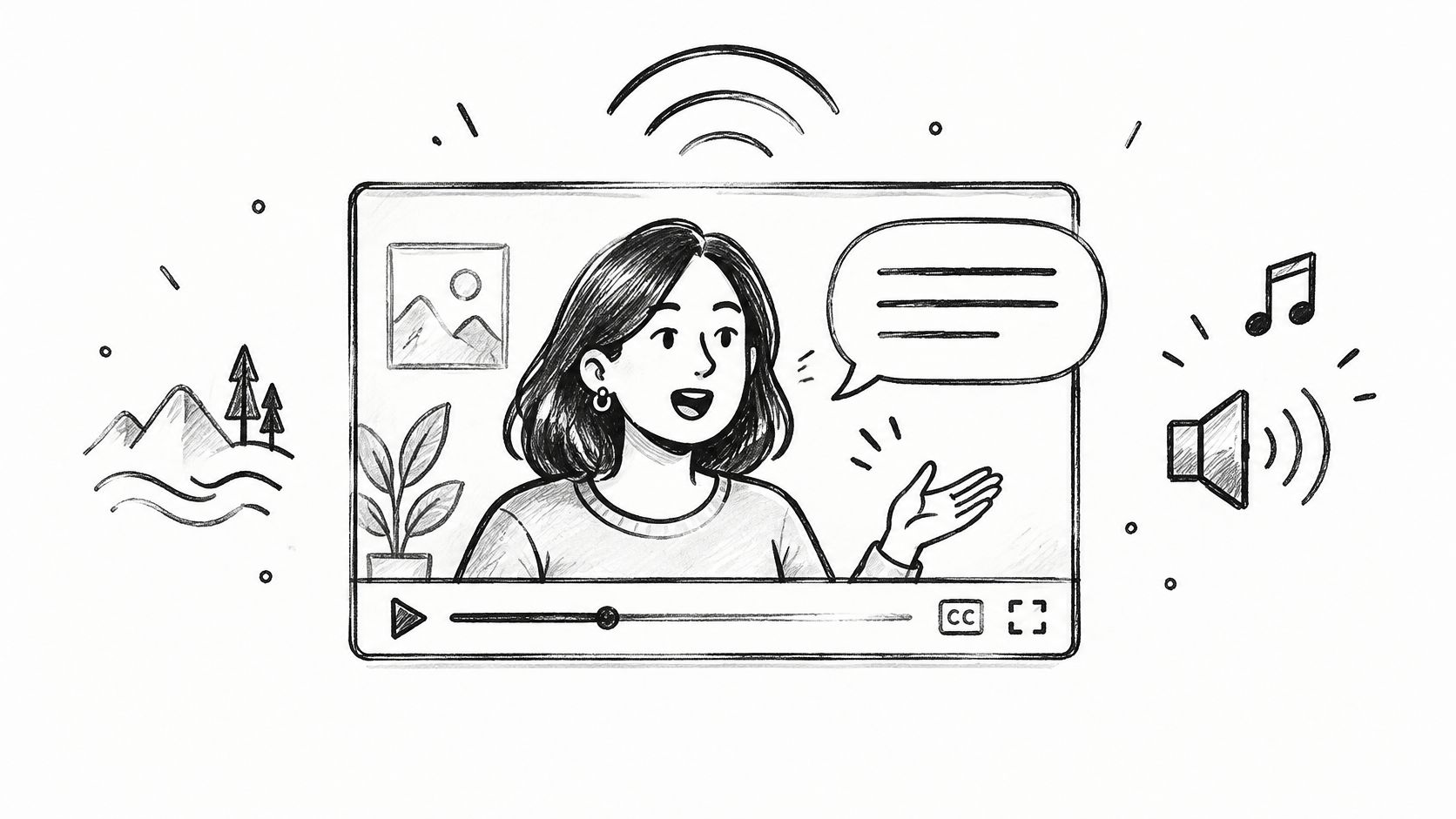
Google's developer post on Veo 3 describes dialogue, sound effects, ambient noise, and background music generated with the visuals in a single pass. The same design aims at real-world motion: natural character movement, flowing water, and shadows that stay attached to objects and characters. Footsteps and water should match what you see. If the shadow slides off the body, the clip fails even when the line is clear.
<a id="one-scene-three-languages"></a>
One scene, three languages
Write one scene in English, Japanese, and Korean. Say a barista in a Seoul cafe speaks a short Korean line while steam rises and soft jazz plays. Keep the line short enough to finish inside an 8-second clip.
Check four things:
- Lip sync: the mouth matches the syllables, not a generic talking shape.
- Pronunciation: the spoken line is the language you wrote.
- On-screen text: any sign or subtitle matches the spoken line.
- Music level: background music does not bury the dialogue.
A model can draw Korean characters correctly and still mispronounce the line. Confirm language support in each model's documentation. Do not assume a strong English demo transfers.
If you record voiceover separately, judge the model on visuals alone. If the clip must speak, shortlist only models that pass this test.
<iframe width="100%" style="aspect-ratio: 16 / 9;" src="https://www.youtube.com/embed/gH6NWdmXyW0" frameborder="0" allow="autoplay; encrypted-media" allowfullscreen></iframe>
<a id="pricing-models-credits-and-licensing-terms"></a>
Pricing Models, Credits and Licensing Terms
The number that matters is cost per usable clip: total spend divided by clips you can publish.
Say one model charges 10 credits a render and 5 of 20 renders are usable. That is 200 credits spent and 40 credits per usable clip. Another charges 20 credits a render and 1 of 10 is usable. That is 200 credits per usable clip. The cheaper render is the more expensive clip. Treat this as arithmetic for your own log, not as a published rate card.
<a id="billing-shapes-you-will-meet"></a>
Billing shapes you will meet
- Monthly allowances: a subscription hands you a credit pot that resets.
- Per-generation credits: each render, including a bad one, draws from the pot.
- Per-second metering: direct API access often bills by output length.
Failed and unusable renders consume credits too. Log rejects, or the invoice will look cheaper than the campaign.
<a id="access-and-the-rights-checklist"></a>
Access and the rights checklist
Google Cloud's Veo 3.1 docs list general availability for model ID veo-3.1-generate-001, release date November 17, 2025, launch stage GA, and a listed United States region, us-central1. Direct API access and a third-party workspace can differ in regions and terms. Do not assume every public demo is deployable where you work.
Before you publish, confirm:
- Commercial use is allowed on your plan.
- Output ownership is stated in the terms you accepted.
- Watermarks are absent, or you have a plan that removes them.
- Likeness rules cover any real person in the frame.
- Records of prompts and source assets are stored with the file.
Current platform rates live on the Veo3 AI pricing page. Do not budget from figures copied out of articles.
<a id="disclosing-ai-generated-ads-without-losing-trust"></a>
Disclosing AI-Generated Ads Without Losing Trust
Labels do not produce one predictable reaction, so a single house rule for every ad is a guess. In a 2025 Journal of Interactive Advertising study with 304 participants, disclosure increased viewers' knowledge and persuasion awareness, which can erode trust, while also opening a positive trust pathway in some cases. Other 2025 research has found that revealing AI involvement can lower perceived advertising value and purchase intention, with credibility playing a mediating role.
The practical read: disclosure carries a cost, but the size of that cost depends on the clip, the claim, and the audience. Decide per ad, and treat the label test the way you treat render variants, as a cheap experiment run before the budget goes live.
<a id="a-per-ad-procedure"></a>
A per-ad procedure
- Flag likely misleading clips. Mark the clip if it shows a realistic person, a real place, or a product claim a viewer could check.
- Read the live rules. Check each platform's current AI-content label rules and the rules in each market where the ad runs, since both change.
- Place a required label early. Put it on screen before the claim plays. A caption-only label arrives after the impression lands.
- Test an optional label. Run the clip with and without disclosure on a small audience and compare watch time, click-through, and comment tone.
- Log the call. Record the decision, the wording, and the test result alongside the clip's prompt and asset records.
Keep this procedure separate from the rights checklist. A label does not transfer ownership, and it does not permit use of a real person's likeness.
<a id="how-to-make-a-publishable-short-form-or-ad-clip"></a>
How to Make a Publishable Short-Form or Ad Clip
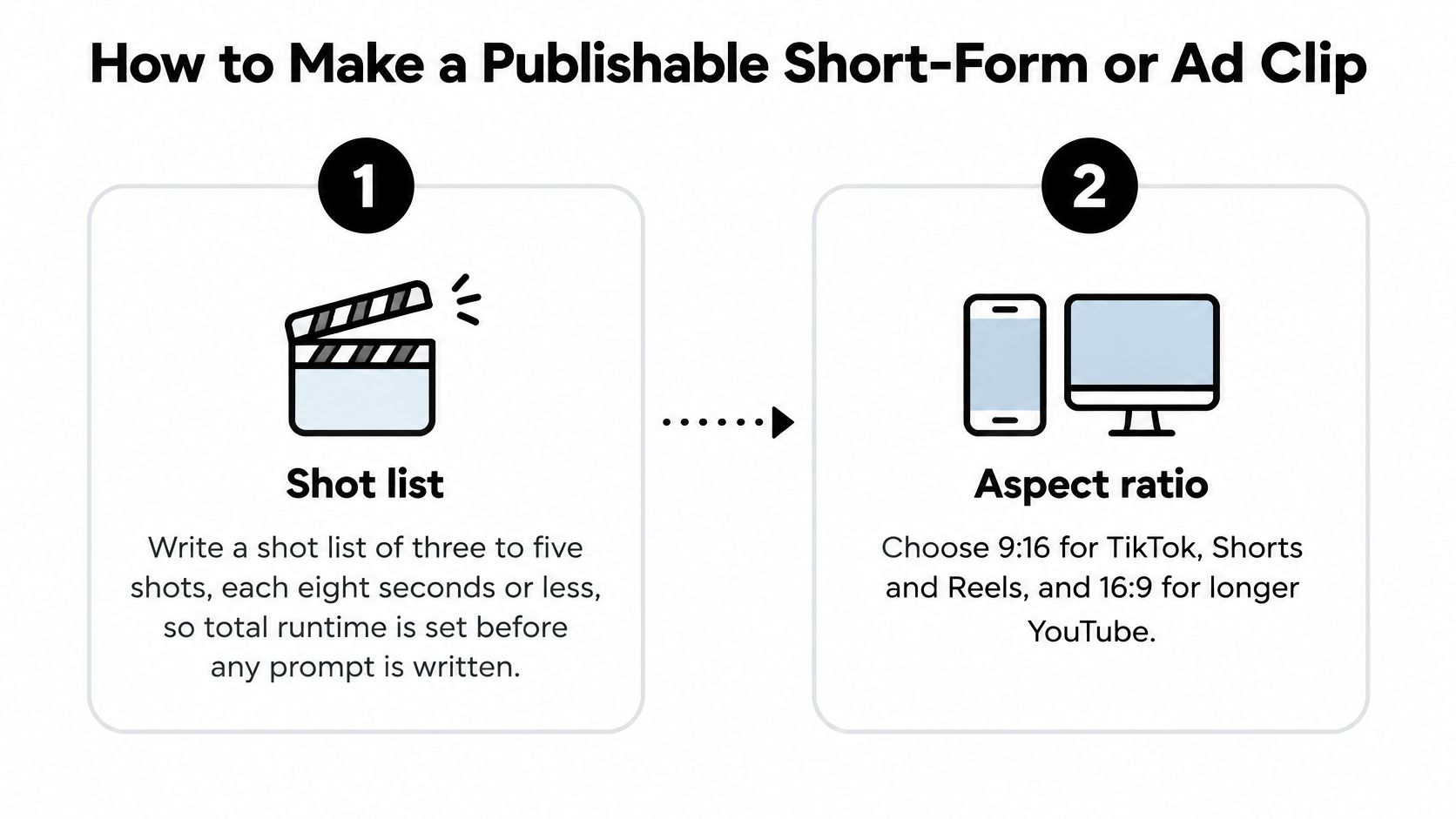
- Write the shot list first. Plan three to five shots, each eight seconds or less, so total runtime exists before any prompt.
- Pick the frame. Use 9:16 for TikTok, Shorts, and Reels, and 16:9 for longer YouTube videos. For export and posting specifics, TikTok export settings and posting tips from MonetizedProfiles cover the delivery side once the file exists.
- Build the prompt in parts. Subject, action, camera, lighting, sound. Example: Vertical 9:16, a woman in a yellow raincoat walks through a neon alley in Tokyo, camera tracks behind her, light rain and footsteps.
- Generate five variants of each shot from that same prompt. One lucky take is not a yield.
- Score against the quality table. Prompt adherence, identity, text, motion, and continuity. Drop anything you would not ship.
- Extend or join the keepers. Use first and last frame control where a cut needs continuity.
- Finish type in an editor. Add captions, music, and the logo there. Do not trust the model to render a logo.
- Log and label. Store prompt, model, source assets, and approvals, then apply the disclosure decision for that clip. For paid creative patterns, see our notes on an AI advertising video generator.
<a id="one-product-prompt-one-changed-line"></a>
One product prompt, one changed line
For a product ad, try: a slow dolly-in on a matte black water bottle on wet slate, soft morning light, the label legible. Then change only the angle, mood, or setting in one line for a second ad from the same brief. Identical briefs keep the model comparison fair.
<a id="choose-your-generator-and-run-a-five-clip-test"></a>
Choose Your Generator and Run a Five-Clip Test
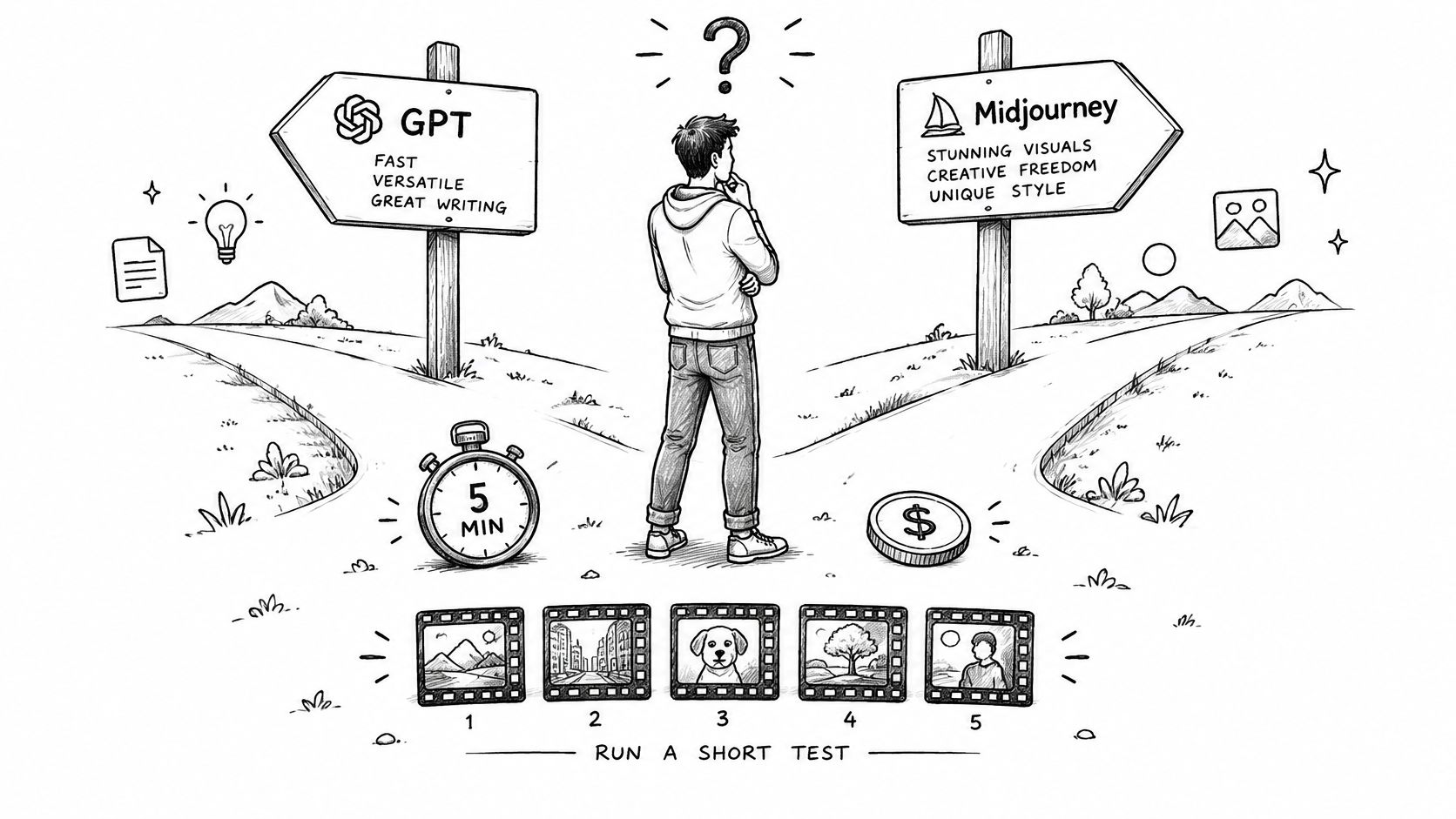
A short-form creator on a tight budget should shortlist two models from the spec sheet and compare cost per usable clip, not cost per render. AI video settings for Reels and Shorts from PostSyncer are a useful companion once you know which vertical file you will post.
A marketer should put text legibility, logo stability, and reference-image control first. If those three fail, cinematic lighting does not save the ad.
A Japanese or Korean creator should run the language test before any other score. A model that looks strong in English can fail on speech, and speech is the clip.
Someone trying Seedance 2.0, Kling 3.0, or MiniMax H3 should run identical prompts five times each against the strongest model already shortlisted. Keep the one with the higher usable share.
Next step: run a five-clip test on two models. Record usable share, seconds to a usable file, language results, and cost per usable clip, then choose. The Veo 3 AI video generator produces Veo 3 clips of up to 8 seconds with native synchronized audio, and you can change angle, mood, or setting in one plain-language line. That 8-second cap holds on all plans. Read current rates on the pricing page instead of quoting stale numbers.
Veo3 AI turns a text prompt or a still into a short clip you can test the same way you would any other text to video generator, with native audio on Veo 3 and room to swap angle, mood, or setting in a single line. Run the five-clip test on two models, keep the higher usable share, and only then spend a full credit pack. Start at Veo3 AI and put your own prompts through that test before you commit.
Related Articles
Continue with more blog posts in the same locale.
MiniMax H3 Pricing: Rates, Credits and Clip Costs
MiniMax H3 pricing explained: per-second rates, credit packs, cost-per-clip examples and ways to lower your AI video budget.
Read article
How to Remove the Google Flow Watermark (2026 Guide)
Why Google Flow videos carry a Veo watermark, which plans skip it, how to fix an Ultra account that still shows it, what editing can and can't remove, and how to get a clean video.
Read article
MiniMax H3 使い方: How to Set Up and Make Your First Video
Learn MiniMax H3 使い方 step by step: specs, first clip setup, prompts, multi-shot workflows, cost per clip and fixes for common errors.
Read article