
Veo 3 15-Second Video Prompts 2026: Short Clips with Audio and Camera Moves
A practical Veo 3 guide for building 15-second short clips with audio, camera moves, timing beats, and copy-ready prompt templates.
Emma Chen · 15 min read · May 4, 2026
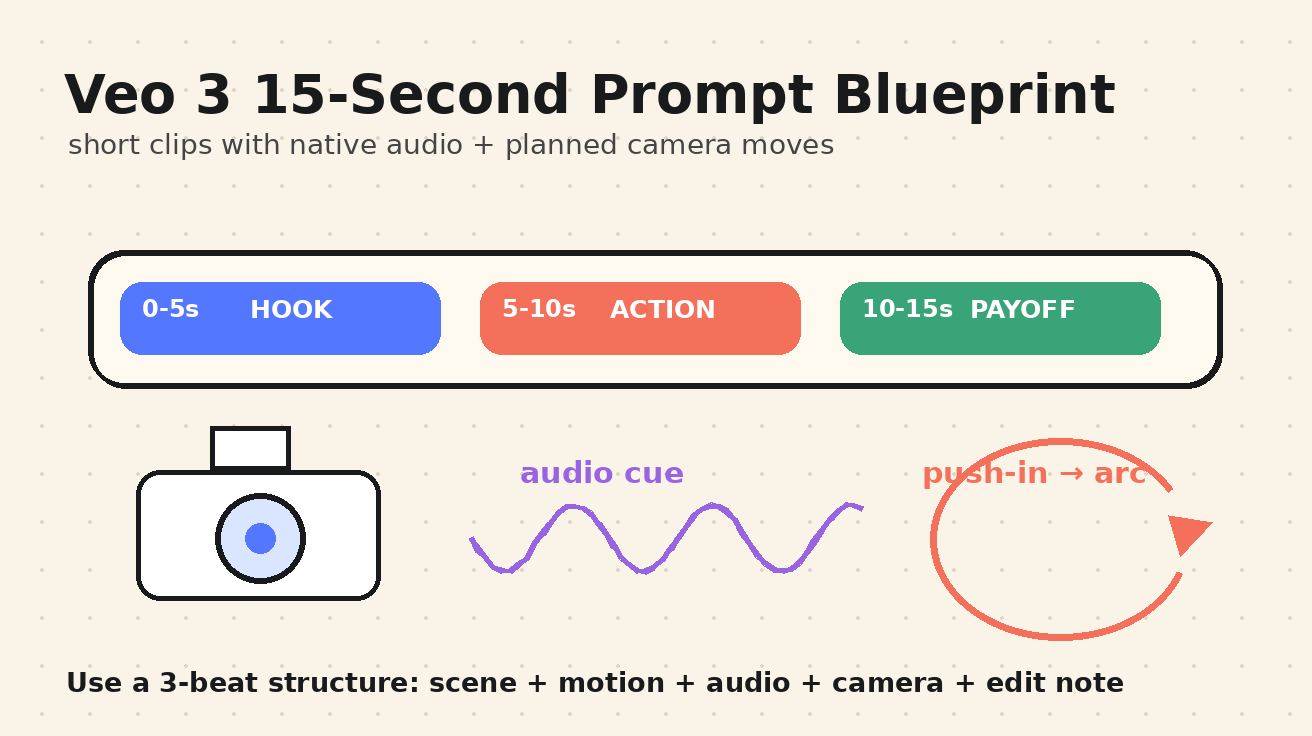
A strong short-form video prompt is not a long wish list. It is a miniature shot plan. The best Veo 3 15-second video prompts tell the model exactly what happens in the first beat, how the camera moves, what sound should be heard, and where the clip should land emotionally before it ends. That matters because modern short-video feeds reward clarity in the first second, motion that feels intentional, and audio that does more than fill silence.
There is one important production note before we get practical: in many Veo workflows, a "15-second" result is built as a short sequence rather than one unlimited continuous generation. Google materials for Veo 3 and Veo 3.1 emphasize short clips, native audio, dialogue, sound effects, camera framing, and specific shot direction. Depending on the interface you use, you may generate one 8-second shot, two connected shots, or a 15-second edit assembled from multiple clips. The prompt strategy is the same: plan the piece as a tight three-beat scene, then generate only the shots that the final edit actually needs.
This guide gives you reusable structures for Veo 3 short clips with audio, prompt templates for camera moves, 15-second storyboard patterns, and examples you can copy into a Veo 3 short video generator workflow. Use it when you need Reels, TikTok drafts, Shorts, product teasers, cinematic B-roll, micro ads, app demos, or creator-style clips where every second has a job.
Quick answer: the best structure for a 15-second Veo 3 clip
Use this sequence:
| Time beat | What to prompt | Why it works |
|---|---|---|
| 0-3 seconds | Hook: subject, setting, visible action, first sound | The viewer understands the clip immediately. |
| 3-10 seconds | Motion: one primary camera move and one subject action | The clip feels directed instead of random. |
| 10-15 seconds | Payoff: reveal, line of dialogue, product moment, or visual transformation | The ending gives the short clip a reason to exist. |
A practical master prompt looks like this:
Create a 15-second vertical short video built from two connected Veo 3 shots. Scene: [specific subject] in [specific location]. Beat 1, 0-4s: [hook action]. Camera: [one camera move]. Audio: [ambient sound plus optional dialogue]. Beat 2, 4-11s: [main action or transformation]. Camera: [second simple move or continued move]. Audio: [sound effect timed to action]. Beat 3, 11-15s: [payoff or final frame]. Style: [cinematic / documentary / product demo / handheld creator]. Lighting: [specific lighting]. Avoid: text overlays, distorted hands, logos, extra people, unreadable captions.
If your Veo interface supports only shorter generations, split the same prompt into Shot A and Shot B. Generate Shot A for the hook and build-up, then Shot B for the payoff. The important part is not the exact button label. The important part is that your prompt carries timing, camera direction, sound direction, and an ending.
Why 15 seconds is a sweet spot for Veo 3 short videos
Fifteen seconds is long enough to tell a complete micro-story but short enough to stay disciplined. Eight seconds can capture a single beautiful moment; thirty seconds often invites filler. A 15-second plan forces you to choose one subject, one action, one camera idea, and one memorable sound cue.
For SEO and social distribution, this format also maps to how people search and create. Users are not just looking for "AI video prompts". They are looking for working templates: "Veo 3 camera moves prompts", "short clips with audio", "TikTok product video prompt", "cinematic push-in prompt", "dialogue prompt for Veo 3", and "15 second video ideas". A good short prompt solves all of those jobs at once.
Veo 3 is especially interesting for this because it can respond to visual and audio instructions in the same prompt. You can describe dialogue, sound effects, ambient noise, music direction, camera framing, lighting, and subject motion. That gives you a more complete creative brief than a silent image-to-video prompt. But it also means vague prompts fail harder. "Make a cool coffee video" gives the model too many choices. "A 15-second macro product short where condensation slides down a cold brew bottle as the camera performs a slow push-in, with ice cracking, a soft cafe hum, and a final hero frame on the label" gives it a shot to execute.
The prompt anatomy: scene, action, camera, audio, edit note
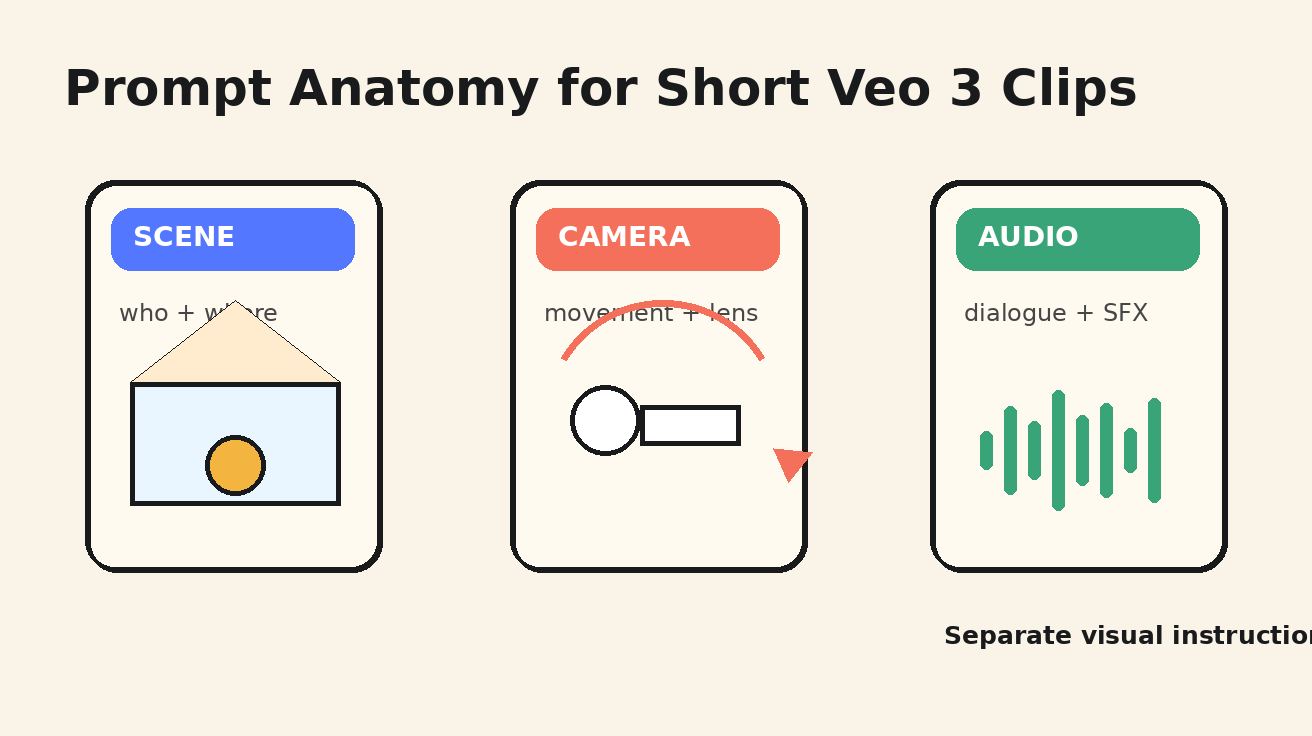
For short videos, use five prompt blocks. Keep each block specific and avoid asking for five different styles in one generation.
1. Scene
The scene block tells Veo where we are and what visual world to build. Include the subject, environment, wardrobe or object details, lighting, and aspect ratio. A weak scene is "a woman in a city". A stronger scene is "a young founder in a cream linen jacket standing outside a neon-lit convenience store after rain, reflections on the pavement, vertical 9:16 frame".
2. Action
The action block describes what changes during the clip. Short videos need change. The subject enters frame, turns, pours, opens, reveals, reacts, lifts, assembles, or transforms. If nothing changes, the viewer has no reason to keep watching.
3. Camera
Camera direction is the difference between a moving picture and a directed shot. Use one primary move per shot: slow push-in, lateral tracking, handheld follow, top-down tilt, 180-degree arc, crane up, whip pan, rack focus, or static locked-off product shot. The more you combine, the more likely the motion becomes messy.
4. Audio
Audio should be planned, not appended. Describe ambient sound, dialogue, sound effects, and music separately. For example: "Audio: quiet rain on glass, soft sneaker squeak on wet pavement, one line of dialogue whispered: 'We launch tonight,' no background music." If you want realism, tell the model what not to include: no subtitles, no announcer voice, no random crowd speech.
5. Edit note
The edit note tells Veo how the short clip should feel as a final asset. Use phrases like "designed for a TikTok hook", "clean product demo", "cinematic B-roll", "documentary handheld", "loopable ending", or "final frame holds for one second". For 15-second prompts, the edit note is where you define the payoff.
Camera moves that work well in 15-second Veo 3 prompts
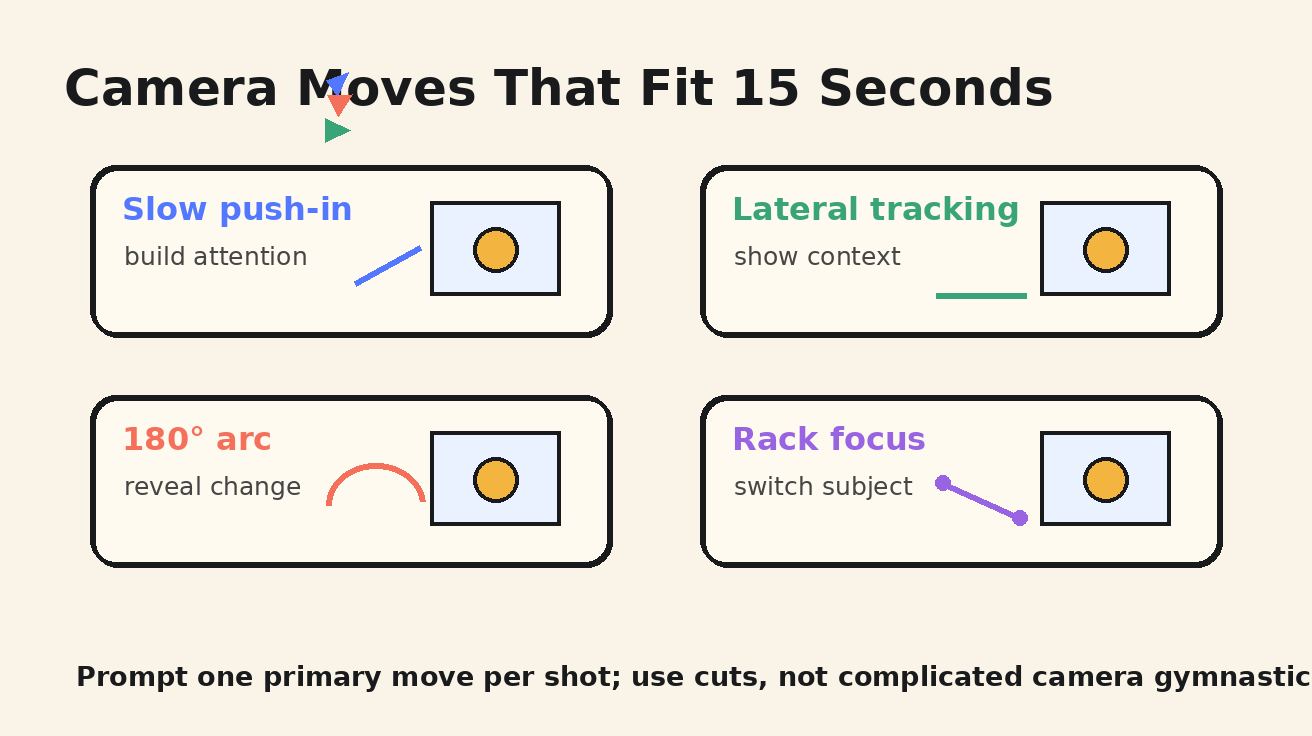
The safest rule: one primary camera move per generated shot. If you need more than one, make it a sequence of shots. Here are camera moves that are practical for short clips.
Slow push-in
Use it for emotional hooks, product reveals, food shots, founder lines, and cinematic portraits. It creates attention without chaos.
Camera: slow push-in from medium shot to close-up, smooth gimbal movement, subject remains centered, shallow depth of field.
Lateral tracking
Use it when the subject moves through space: walking through a market, sliding a product across a desk, following a cyclist, or showing a workspace.
Camera: lateral tracking shot moving left to right at the same pace as the subject, stable handheld feel, foreground passes close to lens.
180-degree arc
Use it for reveals, before-and-after transformations, or emotional changes. Keep the subject simple because arcs can introduce background complexity.
Camera: smooth 180-degree arc around the subject, starting from profile and ending front-facing, consistent eye line, no sudden zoom.
Rack focus
Use it when the story moves from one object to another: hands to product, screen to face, background sign to person, ingredient to finished dish.
Camera: static close-up with rack focus from the foreground object to the subject's face, soft background blur, no camera shake.
Top-down tilt
Use it for recipes, craft demos, app interface mockups, packing orders, and desk setups.
Camera: top-down shot tilting slightly toward the hero object, hands enter frame from the bottom, clean workspace, controlled motion.
Handheld follow
Use it for creator-style clips, street scenes, event recaps, and authentic documentary moments. Ask for controlled handheld, not chaotic shake.
Camera: handheld follow shot from behind the subject, natural micro-shake, camera keeps the subject in the center third, realistic walking pace.
12 ready-to-use Veo 3 15-second video prompts
Below are practical templates. Replace the bracketed details with your brand, scene, or product. Each prompt is designed to be specific enough for Veo 3 while staying flexible.
1. Product teaser with audio hit
Create a 15-second vertical product teaser built from two connected shots. Scene: a matte black wireless speaker on a walnut desk beside a rainy window at night. Beat 1, 0-4s: a finger taps the speaker power button and the LED ring wakes up. Camera: macro slow push-in from the button to the glowing ring. Audio: soft rain on glass, tiny plastic button click, low warm startup chime. Beat 2, 4-12s: the camera tracks around the speaker as subtle bass vibrations ripple a glass of water nearby. Audio: deep bass pulse, no voiceover. Beat 3, 12-15s: final hero frame with the speaker centered, LED ring glowing, rain reflections behind it. Style: premium cinematic product ad, shallow depth of field, no readable brand logos, no text overlay.
2. Coffee shop micro-story
Create a 15-second vertical short video. Scene: a small independent coffee shop at sunrise, warm amber light, steam rising from an espresso machine. Beat 1: a barista slides a cappuccino across the counter toward a tired designer opening a laptop. Camera: lateral tracking shot following the cup. Audio: espresso hiss, ceramic cup slide, quiet morning cafe ambience. Beat 2: the designer takes a sip and smiles as sunlight hits the keyboard. Camera: slow push-in to the face and cup. Dialogue: the designer quietly says, "Okay, one more draft." Beat 3: final frame holds on the latte art beside the glowing laptop screen. Style: cozy documentary realism, natural skin tones, no subtitles.
3. Fitness transformation hook
Create a 15-second vertical fitness short. Scene: a minimal gym with black rubber floor and morning side light. Beat 1, 0-3s: close-up of chalked hands tightening a kettlebell grip. Camera: rack focus from chalk dust to the handle. Audio: chalk rub, deep inhale, distant gym ambience. Beat 2, 3-10s: the athlete performs one controlled kettlebell clean, not too fast, perfect form. Camera: low-angle handheld follow, stable and powerful. Audio: kettlebell whoosh, shoe grip, no music. Beat 3, 10-15s: athlete holds the kettlebell at rack position and exhales, confident. Style: realistic sports commercial, dramatic side light, no exaggerated muscles, no text.
4. Travel reveal for Shorts
Create a 15-second vertical travel reveal. Scene: a narrow stone alley in Kyoto after light rain, lanterns reflecting on the ground, early evening blue hour. Beat 1: camera follows behind a traveler holding a small umbrella. Audio: soft rain taps, footsteps on wet stone. Beat 2: the traveler turns a corner and the alley opens to a quiet temple gate glowing with warm lantern light. Camera: handheld follow shot transitions into a slow crane-up reveal. Beat 3: final frame holds on the temple gate and umbrella silhouette. Style: cinematic travel B-roll, gentle movement, no crowds, no captions, realistic atmosphere.
5. App demo without fake UI text
Create a 15-second vertical app demo concept. Scene: a clean desk with a phone, notebook, and soft daylight. Beat 1: a hand unlocks the phone and opens a generic productivity app interface with simple shapes, no readable text. Camera: top-down tilt toward the phone. Audio: soft tap, subtle room tone. Beat 2: colorful task cards animate into a neat timeline while the person's hand checks one item. Camera: slow push-in, screen remains legible as simple UI shapes only. Audio: gentle confirmation chime. Beat 3: final frame shows the phone beside a completed notebook checklist. Style: polished SaaS product demo, no real logos, no distorted fingers, no text overlays.
6. Restaurant dish reveal
Create a 15-second vertical restaurant short. Scene: a ceramic plate on a dark stone counter in a modern bistro kitchen. Beat 1: chef places a seared salmon fillet on the plate. Camera: close-up static shot with shallow depth of field. Audio: gentle plate tap, kitchen ambience. Beat 2: chef spoons glossy citrus sauce around the fish and adds herbs. Camera: slow 180-degree arc around the plate. Audio: sauce spoon, faint sizzle from background pan. Beat 3: final hero frame with steam rising and sauce catching light. Style: premium food cinematography, natural colors, no hands covering the dish, no text.
7. Founder announcement with one line of dialogue
Create a 15-second vertical founder announcement. Scene: a founder standing in a small design studio, prototypes on the wall, soft afternoon light. Beat 1: founder looks at a messy whiteboard, then turns to camera. Camera: medium shot, slow push-in. Audio: quiet studio ambience, marker cap click. Dialogue: founder says clearly, "We built this because teams were tired of waiting." Beat 2: founder places a prototype on the table and smiles. Camera: rack focus from prototype to face. Beat 3: final frame holds on the prototype under warm light. Style: authentic startup documentary, no dramatic music, no subtitles.
8. Beauty product texture shot
Create a 15-second vertical beauty product clip. Scene: a translucent serum bottle on a cream bathroom counter with morning light and soft shadows. Beat 1: macro close-up of a dropper releasing one clear drop onto glass. Camera: extreme close-up, slow push-in. Audio: tiny glass clink, single liquid drop. Beat 2: camera tracks to the bottle as light passes through the liquid. Audio: quiet bathroom ambience, no voice. Beat 3: final frame shows the bottle, dropper, and reflected light pattern. Style: elegant skincare commercial, clean composition, no fake brand text, no hands with distorted fingers.
9. Mini sci-fi scene with sound design
Create a 15-second cinematic sci-fi short. Scene: a lone courier in a silver raincoat stands in a neon train station at midnight. Beat 1: the courier opens a small glowing case. Camera: low-angle close-up from the case toward the face. Audio: distant train hum, rain, electrical pulse from the case. Beat 2: blue light reflects across the courier's eyes as a train rushes past in the background. Camera: smooth 180-degree arc, controlled motion blur. Audio: train rush, rising synth tone. Beat 3: final frame freezes emotionally as the courier whispers, "It's still alive." Style: grounded sci-fi, no readable signs, no extra characters.
10. Real estate walkthrough hook
Create a 15-second vertical real estate short. Scene: a sunlit compact apartment with wood floors, plants, and a city view. Beat 1: camera starts at the doorway as the door opens. Camera: smooth gimbal push-in. Audio: door latch click, soft city ambience. Beat 2: camera glides past the kitchen island toward the living room window. Audio: subtle footsteps, no music. Beat 3: final frame reveals the balcony and skyline in warm light. Style: clean architectural walkthrough, straight vertical lines, no warped furniture, no text overlay.
11. Education explainer visual hook
Create a 15-second vertical educational hook. Scene: a teacher at a desk with paper cutouts showing a tiny rocket, a planet, and arrows. Beat 1: hand places the rocket cutout on the desk. Camera: top-down shot. Audio: paper slide, pencil tap. Beat 2: the rocket moves along a curved arrow toward the planet while the teacher's hand points. Camera: slow lateral track across the desk. Dialogue: teacher says, "Gravity is not a pull you see; it is a path you follow." Beat 3: final frame holds on the rocket orbiting the planet cutout. Style: charming handmade explainer, no digital text, no subtitles.
12. Loopable fashion clip
Create a 15-second vertical fashion short designed to loop. Scene: a model in a cobalt jacket stands in a white studio with a rotating fan moving fabric gently. Beat 1: close-up of the jacket sleeve catching light. Camera: rack focus from fabric texture to model profile. Audio: soft fabric rustle, studio fan. Beat 2: model turns once toward camera as the jacket moves. Camera: slow 180-degree arc in the opposite direction. Beat 3: final frame returns to a close-up of the sleeve, matching the opening composition for a seamless loop. Style: minimalist fashion editorial, no logos, no text, natural movement.
How to adapt prompts for different short-video formats
A Veo 3 short prompt should change based on the platform and aspect ratio. For TikTok and Reels, ask for vertical 9:16, a strong opening action, and a final frame that can become a thumbnail. For YouTube Shorts, the same structure works, but you may want a clearer spoken line or educational hook. For website hero videos, use less dialogue and more loopable motion. For product pages, specify clean backgrounds, no fake UI text, and a final hero frame that holds.
If you are using image-to-video, start with a clean first frame. A good first frame is the strongest control you can give the model: product centered, subject visible, background simple, lighting already close to final. Then prompt the motion around that frame. For a product ad, you might ask for condensation to move, the camera to push in, and a short chime to play. For a founder clip, you might use a portrait image and prompt one spoken line plus a slow camera move.
If you are using text-to-video, spend more words on the setting and visual constraints. Text-to-video has to invent everything, so it needs guardrails: number of people, clothing, distance from camera, time of day, lens style, and what should not appear. Internal pages such as a broader Veo 3 prompt guide or workflow notes for Google AI Studio Veo 3 limits are useful when you need a deeper setup before writing prompts.
Audio prompting rules for Veo 3 short clips
Audio is where many otherwise good prompts become noisy. Treat sound like a shot list.
First, separate the categories. Ambient sound is the world: rain, cafe hum, street traffic, room tone, ocean waves. Sound effects are timed events: button click, glass clink, footsteps, page turn, engine start. Dialogue is human speech. Music is optional and should be described only if you really need it.
Second, keep dialogue short. In a 15-second clip, one sentence is usually enough. If you ask for a full paragraph, the model may rush, cut off words, or create unnatural pacing. A good line is eight to twelve words and tied to the moment: "We launch tonight," "One more draft," "This is the quiet version," or "I found it under the floorboards."
Third, say when you do not want audio elements. If you want a natural product shot, use "no voiceover, no subtitles, no background music". If you want dialogue, use quotation marks around the exact line and add "clear natural speech". If you want a creator-style video, include room tone and realistic microphone distance.
Fourth, avoid asking for licensed music, famous voices, recognizable brands, or copyrighted characters. Use mood-based music notes instead: "soft ambient synth pad", "light acoustic pulse", "subtle documentary percussion", or "no music, only location sound".
Common mistakes in Veo 3 camera moves prompts
The first mistake is stacking too many camera moves. A prompt that asks for a drone shot, dolly zoom, handheld chase, macro lens, and 360-degree spin in 15 seconds will probably look unstable. Pick one movement for the shot and one edit point for the sequence.
The second mistake is giving the model contradictory style signals. "Photorealistic anime documentary claymation" is not a style; it is a conflict. Choose one visual language: cinematic realism, playful stop-motion, clean product commercial, handheld documentary, or surreal editorial.
The third mistake is forgetting the final frame. A short video needs a landing point. Tell Veo what the last second should show: product centered, character looking into camera, door opening, skyline revealed, dish completed, or object transformed. The final frame often decides whether the clip feels usable.
The fourth mistake is relying on text inside the generated video. AI video models can still struggle with readable typography. If you need captions, UI labels, legal disclaimers, pricing, or CTA text, add them in your editor after generation. In the prompt, say "no text overlays" or "generic UI shapes only".
The fifth mistake is using a prompt made for a silent model. Veo 3 short clips with audio need sound direction. Even if the final ad will use separate music, prompt natural production sound because it can make the generated movement feel more grounded.
A reusable 15-second storyboard worksheet
Use this worksheet before you generate:
Goal: What should the viewer understand after 15 seconds?
Platform: TikTok / Reels / Shorts / website hero / ad test
Aspect ratio: 9:16 / 16:9 / 1:1
Subject: Who or what is the hero?
Location: Where are we, specifically?
Opening frame: What appears in the first second?
Action: What changes during the clip?
Camera move: What is the one primary move?
Audio: Ambient sound, SFX, dialogue, music or no music
Payoff: What is the final frame?
Avoid: logos, text, extra fingers, extra people, warped UI, unreadable signs
Here is the same worksheet filled in for a real use case:
Goal: Make a cold brew bottle feel premium and refreshing.
Platform: Reels ad test.
Aspect ratio: 9:16.
Subject: Unbranded amber cold brew bottle.
Location: marble counter beside rainy window.
Opening frame: macro condensation on bottle glass.
Action: hand places ice nearby; condensation slides; bottle rotates slightly.
Camera move: slow macro push-in.
Audio: rain, ice crack, glass tap, no voiceover.
Payoff: hero frame of bottle centered with cold mist.
Avoid: readable label text, fake logos, hands blocking bottle, music.
That level of planning is usually enough to create a usable first generation. Then iterate one variable at a time: camera distance, audio detail, lighting, or final frame. Do not rewrite the whole prompt after every attempt, or you will not know what improved the result.
When to use two clips instead of one
Use two clips when the idea has a clear before-and-after, a reveal, a location change, or more than one camera move. For example, a restaurant dish prompt can be Shot A for plating and Shot B for the final hero reveal. A travel prompt can be Shot A for the alley and Shot B for the temple gate. A product prompt can be Shot A for the macro detail and Shot B for the lifestyle use case.
Use one clip when the action is continuous: a slow product push-in, a founder speaking one line, a hand assembling an object, a model turning, or a camera tracking alongside a walking subject. The more continuous the action, the more likely one generation will feel coherent.
A practical editing workflow is:
- Generate the hook shot first.
- Generate the payoff shot second with the same style, lighting, and subject description.
- Trim both clips tightly.
- Add captions, brand text, or CTA outside the generated video.
- Test the first two seconds with the sound on and off.
This is also why a 15-second plan is useful even when the tool outputs shorter clips. You are not asking the model to solve the whole ad by itself. You are directing a sequence.
FAQ
Can Veo 3 create a 15-second video in one prompt?
It depends on the product interface and model version available in your workflow. Many Veo workflows are optimized for shorter generated clips, so a 15-second result is often created by generating two or more shots and editing them together. The prompt method in this guide works either way because it plans the result as a three-beat short video.
What should I include in Veo 3 15-second video prompts?
Include the scene, subject, action, camera movement, lighting, audio cues, dialogue if needed, final frame, aspect ratio, and avoid list. The most important details are the opening action, one primary camera move, and the final payoff.
How do I write Veo 3 short clips with audio?
Write audio as separate instructions: ambient sound, timed sound effects, dialogue, and music. Keep dialogue short and use quotation marks for exact lines. If you do not want music, subtitles, or voiceover, say that clearly.
What camera moves work best for Veo 3 short videos?
Slow push-in, lateral tracking, rack focus, controlled handheld follow, top-down tilt, and 180-degree arc shots are usually reliable. Avoid stacking too many moves in one shot. Use cuts between shots when you need multiple camera ideas.
Are these prompts different from podcast clip prompts?
Yes. Podcast repurposing prompts focus on speakers, interview moments, captions, and episode context. This guide is broader: it covers general short-form clips, product shots, travel reveals, food videos, app demos, fitness hooks, education clips, and cinematic B-roll with audio and camera direction.
Final takeaway
The best Veo 3 15-second video prompts are not longer; they are better organized. Start with a hook, direct one clear camera move, add realistic audio, and define the final frame. If the idea needs more than one movement or location, split it into two generated shots and edit them into a 15-second result. That gives you more control, cleaner motion, and short clips that feel intentionally directed rather than randomly generated.
<script type="application/ld+json"> { "@context": "https://schema.org", "@type": "FAQPage", "mainEntity": [ { "@type": "Question", "name": "Can Veo 3 create a 15-second video in one prompt?", "acceptedAnswer": { "@type": "Answer", "text": "It depends on the product interface and model version available in your workflow. Many Veo workflows are optimized for shorter generated clips, so a 15-second result is often created by generating two or more shots and editing them together." } }, { "@type": "Question", "name": "What should I include in Veo 3 15-second video prompts?", "acceptedAnswer": { "@type": "Answer", "text": "Include the scene, subject, action, camera movement, lighting, audio cues, dialogue if needed, final frame, aspect ratio, and avoid list. The most important details are the opening action, one primary camera move, and the final payoff." } }, { "@type": "Question", "name": "How do I write Veo 3 short clips with audio?", "acceptedAnswer": { "@type": "Answer", "text": "Write audio as separate instructions: ambient sound, timed sound effects, dialogue, and music. Keep dialogue short and use quotation marks for exact lines. If you do not want music, subtitles, or voiceover, say that clearly." } }, { "@type": "Question", "name": "What camera moves work best for Veo 3 short videos?", "acceptedAnswer": { "@type": "Answer", "text": "Slow push-in, lateral tracking, rack focus, controlled handheld follow, top-down tilt, and 180-degree arc shots are usually reliable. Avoid stacking too many moves in one shot." } } ] } </script>
Related Articles
Continue with more blog posts in the same locale.

How to Make Sports Highlight Videos with Veo 3 AI (2026)
Create stunning sports highlight videos with Veo 3 AI. Generate dynamic action shots, slow-motion sequences, and dramatic replays using AI prompts.
Read article
How to Make a Short Film with Veo 3 AI (2026 Guide)
Learn how to create professional short films using Veo 3 AI. Step-by-step guide with prompts, workflow tips, and cinematic techniques.
Read article
How to Make Documentary Videos with Veo 3 AI (2026 Guide)
Create compelling documentary videos with Veo 3 AI. Learn prompting techniques, narrative structure, realistic footage generation, and post-production tips.
Read article