
Veo 3 for Airbnb Host Videos 2026: Create Guest-Ready Listing Clips
Use Veo 3 for Airbnb host videos: turn property photos into accurate arrival, room-flow, amenity, and guest-guide clips for short-term rentals.
Emma Chen · 14 min read · May 7, 2026
Airbnb guests make booking decisions with a mix of logic and imagination. They compare price, location, bed count, cleaning reputation, and cancellation policy, but they also ask a quieter question: can I picture myself arriving there and feeling comfortable? Photos answer part of that question. A strong listing gallery can show the bedroom, living room, kitchen, bathroom, and balcony. But photos often fail to explain flow. Guests may still wonder how the entry connects to the living area, whether the workspace feels usable, how bright the bedroom is, or whether the outdoor seating is as private as the copy suggests.
Veo 3 can help Airbnb hosts and short-term rental managers turn existing property photos into short, realistic video clips that make a stay easier to understand. The right workflow is not about inventing a fantasy villa or making a small studio look like a resort suite. It is about using AI video generation to add controlled motion to current listing assets: a slow arrival shot, a gentle room reveal, a close amenity proof clip, a practical check-in guide, or a short social video for direct bookings.
This guide explains how to use Veo 3 for Airbnb host videos in 2026 without overpromising. It covers source-photo selection, prompt strategy, verification rules, platform formats, editing structure, and a practical production system for hosts, property managers, and hospitality marketers. If you are exploring Veo 3 workflows more broadly, pair this guide with your core text-to-video, image-to-video, and AI video generation pages so each clip has a clear role in the funnel.
Why Airbnb video needs accuracy before aesthetics
Hospitality video is different from product advertising. A product ad can lean into style, emotion, and benefit language. A rental listing video must protect trust. If a clip makes the room look larger, changes the window view, adds a hot tub, upgrades the furniture, hides a staircase, or implies an amenity that is not included, it can generate clicks and still hurt the host. The guest experience begins with expectations. A misleading AI video may create refund requests, lower review scores, or platform risk.
That is why Veo 3 prompts for Airbnb should begin with preservation. The model should preserve room layout, furniture placement, bed size, appliance type, doors, windows, stairs, balcony railings, visible view, and important amenities. Motion should support clarity. A slow push into the bedroom can help guests understand scale. A gentle pan across the kitchen can show counter space and appliances. A small tilt from the welcome guide to the smart lock can make check-in feel easier. These are useful movements because they clarify reality instead of replacing it.
The best Airbnb host video is often calm rather than spectacular. It tells the guest, "This is what you will see, this is how the space works, and this host pays attention to details." Veo 3 is valuable when it turns a static property gallery into a more confident guest story.
Best Veo 3 use cases for Airbnb hosts
1. Arrival and self-check-in clips
The arrival moment creates anxiety for many guests. They want to know where to go, what the entrance looks like, and whether check-in will be simple. Use an exterior, door, lobby, hallway, driveway, or lockbox photo as the source image. Prompt Veo 3 for a stable, realistic approach that preserves the exact entrance and surrounding details. Do not add people, cars, new signage, or different weather.
This clip can sit in three places: the listing video, a pre-arrival message, and a guest guide. Even if it is not glamorous, it can reduce confusion and improve reviews.
2. Room-flow clips from listing photos
Room-flow clips help guests understand how the stay feels. A living room photo can become a slow pan from the sofa toward the dining table. A bedroom photo can become a gentle push toward the bed and window. A kitchen photo can become a controlled movement across the counter, sink, and appliances. The key is to generate one clip from one photo. Do not ask Veo 3 to walk through an entire apartment from a single still image. That forces the model to invent spaces.
For most listings, five to eight room-flow clips are enough: arrival, living room, bedroom, kitchen, bathroom detail, workspace, outdoor area, and strongest amenity. Edit them into a logical sequence that mirrors the guest journey.
3. Amenity proof clips
Amenities convert when guests can see them clearly. Coffee station, washer and dryer, desk, parking spot, balcony seating, crib, blackout curtains, luggage rack, guidebook, thermostat, and kitchen tools can all become short proof clips. Use close-up source photos and keep motion subtle.
Amenity proof clips are especially useful for direct booking sites and social posts. They also help hosts answer repetitive questions. A short video showing the workspace, coffee setup, and parking guide can communicate more than a long bullet list.
4. Seasonal and mood refresh clips
Hosts often need fresh marketing without reshooting the entire property. Veo 3 can create subtle seasonal mood from current photos: soft morning light, cozy evening lamp glow, rainy window atmosphere, summer patio brightness, or winter reading-corner warmth. Use this carefully. Seasonal styling is safe when it reflects the guest experience for that booking period. It is risky when it adds decorations, views, or amenities that guests will not actually see.
Seasonal clips work best for social media and email, not as replacements for core listing photos.
5. Guest guide and house-rule clips
A practical guest guide video can be more valuable than a pretty montage. Use still photos of the smart lock, parking spot, towel shelf, trash area, thermostat, Wi-Fi card, or checkout instructions. Veo 3 can add small motion so the guide feels more polished, then you can add text overlays in editing.
This is a strong workflow for property managers with frequent guest questions. It improves operations, not just marketing.
Veo 3 Airbnb production table
| Video asset | Source photo | Prompt motion | Main goal | Risk to avoid |
|---|---|---|---|---|
| Arrival clip | Exterior, door, lobby, driveway | Slow approach | Reduce check-in anxiety | Changed entrance or fake signage |
| Hero room clip | Best wide interior photo | Gentle push-in | Show first impression | Enlarged room or added decor |
| Bedroom clip | Bed, window, lighting | Slow pan or push | Communicate sleep comfort | Changed bed size or fake view |
| Kitchen clip | Counter and appliances | Small pan | Show usability | Invented appliances |
| Workspace clip | Desk or table | Close push-in | Prove laptop-friendly setup | Oversized office look |
| Outdoor clip | Patio, balcony, garden | Stable reveal | Show light and privacy | Fake scenery |
| Guest guide clip | Lock, parking, towels, manual | Minimal motion | Explain operations | Changed labels or details |
Step-by-step workflow for hosts and property managers
Step 1: Build a guest-question shot list
Start by listing the questions guests ask before booking and before arrival. Where is the entrance? How bright is the bedroom? Is the kitchen functional? Is there a real workspace? What does the balcony overlook? Where do I park? How do I check in? Which amenities are actually included?
Turn those questions into a shot list. A one-bedroom city apartment might need seven clips. A large vacation home might need twelve. A property manager may create a standard template for every unit: arrival, living room, bedroom, kitchen, bathroom, workspace, outdoor, best amenity, neighborhood context, and guest-guide detail.
Step 2: Select current, high-resolution photos
Veo 3 output quality depends on source quality. Choose photos that are current, well lit, and representative. Avoid outdated staging, old furniture, temporary decorations, and photos that hide important room constraints. If the property has mirrors, reflective appliances, windows, or small text, check the generated motion carefully because these details can distort.
Do not use AI to cover weak or misleading photography. If the listing photos are inaccurate, update the photos first. Veo 3 should add motion to truthful assets.
Step 3: Write preservation-first prompts
A preservation-first prompt tells Veo 3 which details must not change. For Airbnb, those constraints are part of the creative direction. A strong prompt does not simply say "cinematic rental video." It says the source photo is the exact reference and asks the model to preserve layout, furniture, wall art, bed size, windows, appliances, view, colors, and object positions.
Use words like realistic, stable, accurate, guest-ready, current listing, preserve, no new objects, no people, no layout changes, no fake view, and no exaggerated room size. This vocabulary keeps the output closer to the host's real promise.
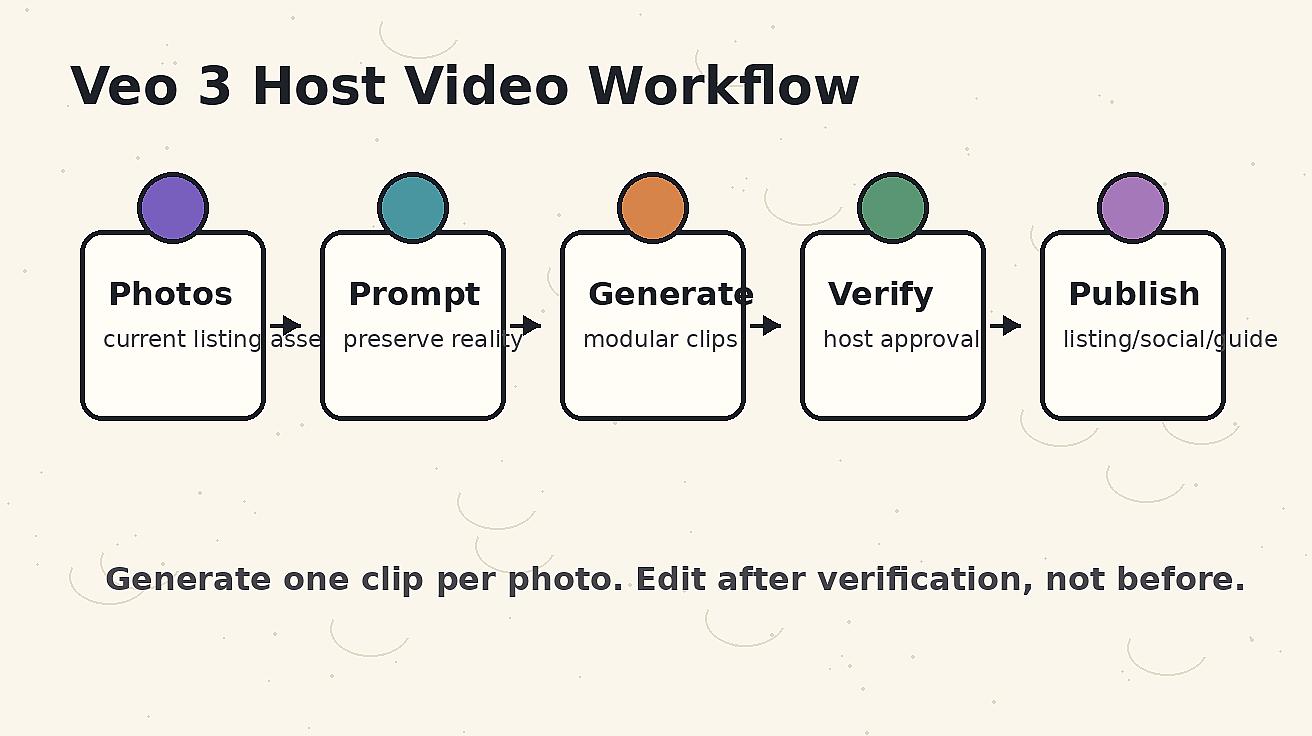
Step 4: Generate modular clips
Create short clips one at a time. Each clip should answer one guest question or show one space. For most channels, a five-to-eight-second clip is enough. After generating the clips, edit them together in the correct order. Modular clips are easier to verify, reuse, and replace when the property changes.
For social media, create a vertical version with a strong opening caption. For a direct booking page, create a horizontal or responsive version with a calmer pace. For pre-arrival communication, create practical clips with simple labels.
Step 5: Verify before publishing
Verification is the most important step. Compare each clip to the current property. Look for changed doors, extra windows, distorted mirrors, added furniture, fake appliances, impossible views, altered bed size, missing stairs, changed bathroom fixtures, and misleading room scale. If a guest could reasonably complain that the video promised something different, regenerate the clip or cut it.
Ask the host or onsite manager to approve final clips if the editor has not visited the property. For agencies, make verification a required handoff step.
Prompt templates for Veo 3 Airbnb videos
Listing hero prompt
Use the provided photo of [room name] as the exact reference for a realistic Airbnb listing video. Create a slow, stable camera push-in that preserves the real layout, furniture, bed/sofa/table size, windows, wall art, flooring, colors, and visible amenities. Make the space feel clean, calm, and guest-ready. No people, no pets, no new furniture, no changed view, no added luxury objects, no exaggerated room size, no text overlay.
Arrival prompt
Use the provided exterior or entry photo as the exact reference. Create a calm arrival clip for a short-term rental guest, moving slowly toward the real entrance. Preserve the door, path, building shape, signage, plants, lighting, and surrounding objects. No new cars, no people, no weather change, no altered address, no fake landscaping, no changed signage.
Amenity proof prompt
Use the provided amenity photo as the exact reference. Create a short close-detail clip that clearly shows [coffee station / workspace / laundry / balcony seating / parking guide / towel shelf]. Preserve every real object, label, color, quantity, and position. Use subtle motion only. No invented appliances, no extra products, no hands, no people, no changed text.
Guest guide prompt
Use the provided practical detail photo as the exact reference. Create a simple instructional clip for confirmed guests showing [smart lock / parking space / Wi-Fi card / thermostat / checkout basket]. Keep the camera stable and make the detail easy to understand. Preserve all labels and real objects. No added objects, no changed text, no people, no dramatic motion.
Editing structure for a booking-friendly video
A good Airbnb video should follow the guest journey. Start with arrival or the strongest hero room. Then show sleeping area, living space, kitchen, bathroom cleanliness, workspace or key amenity, outdoor area, and a final booking or direct-site call to action. This order makes the video feel useful rather than random.
For a thirty-second listing overview, use six or seven clips with short factual captions. Examples: "easy self check-in," "bright queen bedroom," "fully equipped kitchen," "real laptop workspace," "private balcony," and "guest guide included." Avoid broad claims like "best stay in the city" or "luxury hotel quality" unless the property can truly support them.
For a fifteen-second Reel or Short, open with the transformation: "Listing photos → guest-ready video tour with Veo 3." Then show three or four clips. Social content can be more emotional, but it should remain accurate.
For a guest guide, remove the sales language. Use clear labels: "front door," "lock code panel," "parking bay," "extra towels," "trash room," and "checkout basket." The purpose is confidence and fewer messages.
Accuracy checklist before publishing
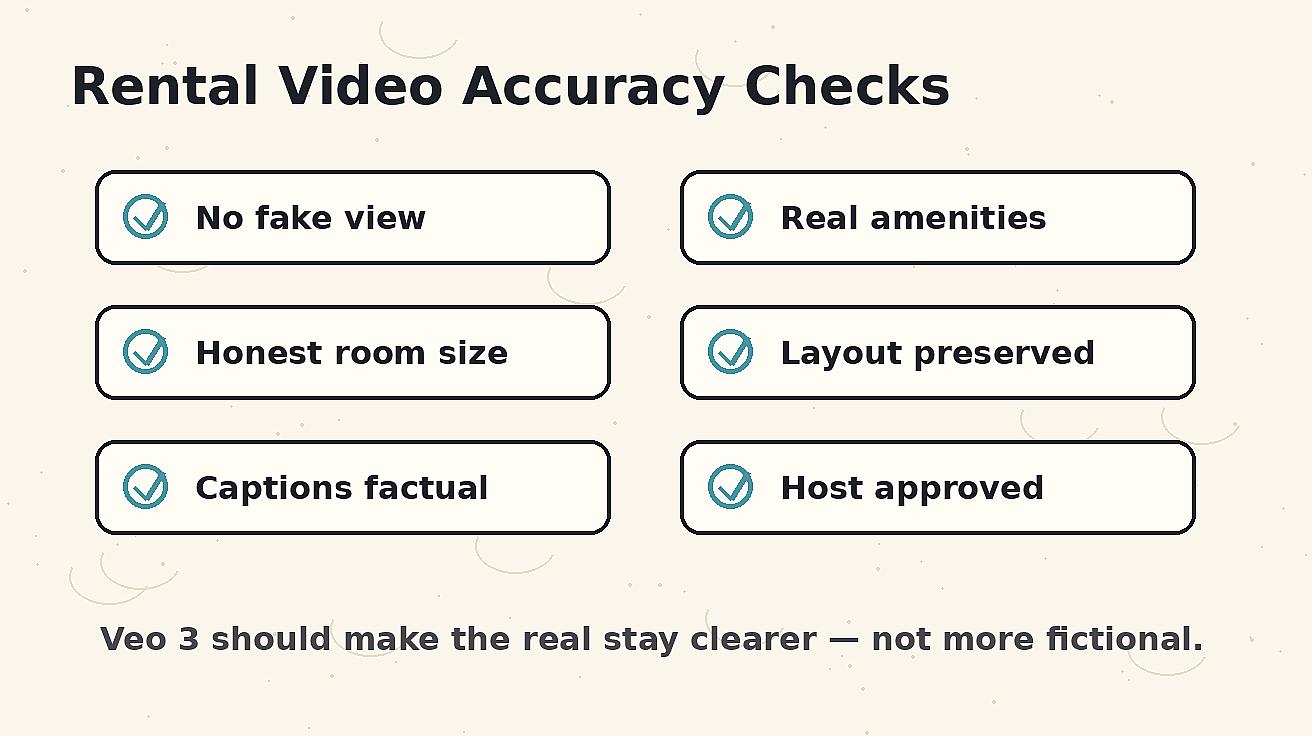
Use this checklist before any Veo 3 Airbnb clip goes live:
- The layout still matches the real property.
- Room size does not look materially larger.
- Bed size, furniture, windows, doors, stairs, and railings are unchanged.
- Appliances and amenities shown are actually available to guests.
- The outdoor view is not upgraded or replaced.
- Safety details are not hidden or removed.
- Captions are factual and specific.
- No sensitive address or access-code information is exposed.
- The host or property manager has approved the final clip.
- The video will be updated if the property changes.
This checklist protects performance and guest trust. A video that gets clicks but creates disappointment is not a win for a host.
Platform formats: Airbnb, direct booking, social, and pre-arrival
Airbnb and OTA listing use
Use calm, accurate clips that support the listing photos. Keep the video short and informative. The goal is confidence. Do not rely on fast cuts that hide room scale. If the platform limits video placement, use the clips on your direct booking page or in guest communication.
Direct booking website use
A direct booking page can use a longer video near the hero section or room section. Add the video close to the decision point, not buried at the bottom. Pair it with accurate amenity copy and updated photos. The video should make the page easier to evaluate.
Instagram Reels, TikTok, and YouTube Shorts
Use vertical format, stronger hooks, and faster pacing. Keep claims factual. Show the transformation from photo to video, then show the real guest benefits: arrival clarity, cozy bedroom, workspace, balcony, or local mood.
Pre-arrival guest messages
Use practical guide clips after booking. These clips do not need to be polished like ads. They need to be clear. A simple Veo 3 clip showing the lockbox, parking spot, or towel shelf can reduce guest questions.
Common mistakes to avoid
The first mistake is asking for one full walkthrough from one photo. That usually causes hallucinated rooms. Build a tour from separate verified clips instead.
The second mistake is using vague luxury prompts. Words like "ultra-luxury," "dream resort," or "cinematic mansion" can push the output away from the real listing. Use realistic hospitality language.
The third mistake is ignoring small visual changes. A different window view, extra appliance, changed bed size, or enlarged room may look harmless, but it changes the guest promise.
The fourth mistake is using the same clip across similar units. Unless the units are truly identical, each property needs its own verified clips.
The fifth mistake is failing to refresh the video after updates. If furniture, bedding, décor, amenities, or access instructions change, regenerate the affected clips.
Recommended Veo 3 system for property teams
For one property, create a library of ten approved clips and keep the prompts with the source photos. For a portfolio, create a simple database with property name, room, source image, prompt, output file, approval status, usage rights, and last update date. Mark each clip as approved for listing, social, direct booking, pre-arrival, or internal use.
This system prevents accidental misuse. It also lets the team refresh clips quickly when a property changes. The operational value matters: Veo 3 is not only a creative tool; it can become part of listing maintenance and guest communication.
Final recommendation
Use Veo 3 for Airbnb host videos when you have accurate photos and a clear guest question to answer. Start with arrival, room flow, amenity proof, and guest guide clips. Keep prompts preservation-first. Verify every result against the real property. Then edit clips into platform-specific versions for listings, direct booking, social, and pre-arrival messages.
The highest-performing short-term rental video is not the one that makes the property look unreal. It is the one that makes the real stay easier to trust.
FAQ: Veo 3 Airbnb host videos
Can Veo 3 create Airbnb videos from listing photos?
Yes. Veo 3 can turn current listing photos into short video clips for room flow, arrival, amenities, and guest guides. Use one source photo per clip and verify the output against the real property before publishing.
What should hosts avoid in AI-generated rental videos?
Avoid fake views, invented amenities, larger-looking rooms, changed furniture, altered bed sizes, and any caption that overpromises. Accuracy is more important than cinematic drama for short-term rentals.
How long should a Veo 3 Airbnb listing video be?
A social version can be fifteen to thirty seconds. A direct booking overview can be longer, but it should still be built from short verified clips in a logical guest-journey order.
Can Veo 3 help with guest guide videos after booking?
Yes. It is useful for practical clips showing check-in, parking, smart locks, towels, thermostats, trash areas, or checkout steps. These clips can reduce guest confusion and repeated messages.
Do I need to shoot new video footage first?
No. Current, high-resolution listing photos are enough for many Veo 3 image-to-video clips. However, the photos must be accurate and up to date.
How do I verify a Veo 3 Airbnb video?
Compare every clip to the current property and check layout, room size, view, amenities, furniture, labels, and safety details. Reject or regenerate any clip that changes a meaningful guest expectation.
Related Articles
Continue with more blog posts in the same locale.

How to Make Sports Highlight Videos with Veo 3 AI (2026)
Create stunning sports highlight videos with Veo 3 AI. Generate dynamic action shots, slow-motion sequences, and dramatic replays using AI prompts.
Read article
How to Make a Short Film with Veo 3 AI (2026 Guide)
Learn how to create professional short films using Veo 3 AI. Step-by-step guide with prompts, workflow tips, and cinematic techniques.
Read article
How to Make Documentary Videos with Veo 3 AI (2026 Guide)
Create compelling documentary videos with Veo 3 AI. Learn prompting techniques, narrative structure, realistic footage generation, and post-production tips.
Read article