
Veo 3 Fast: Create Pro Videos in Minutes
Master Veo 3 Fast to generate high-quality AI videos quickly. Learn prompt strategies, speed trade-offs, and workflows for social ads and shorts.
Veo3 AI · 14 min read · Sep 26, 2026
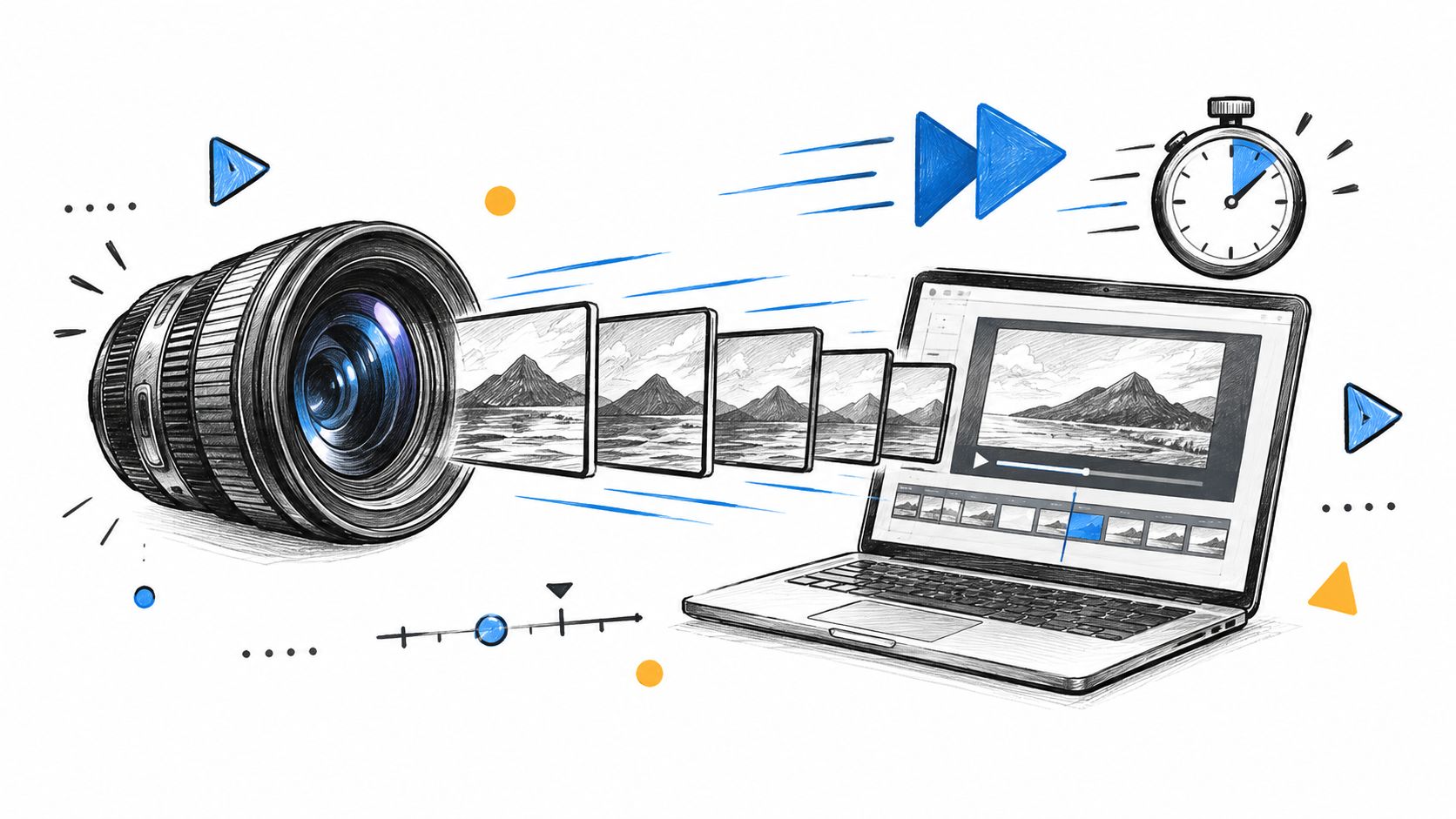
You're staring at a campaign brief that needs three vertical variants by tomorrow morning, and the edit queue is already full. The old choice was always the same, spend hours polishing a single cut, or ship something rough and hope the client only notices the deadline you hit. Veo 3 Fast exists for the moments when speed matters more than perfection, especially when the task is to test hooks, formats, and offers before you spend time on a final hero render.
The practical appeal is simple. Veo 3 Fast was introduced by Google as a speed-optimized version of Veo 3 in late July 2025, then made generally available on Vertex AI for all users on July 29, 2025. Google described it as built for speed and rapid iteration, and it supports both text-to-video and image-to-video generation with native audio, which makes it useful for short-form ads, social cutdowns, and early concept work. The same short-clip format is exactly why it fits campaign production so well, because you can test more ideas before the calendar moves on.
Table of Contents
- Getting Started with Rapid AI Video Generation
- Preparing Prompts and Images for Quick Renders
- Understanding Output Constraints and Formats
- Evaluating Speed and Quality Trade-Offs
- Templates for Social Ads and Short-Form Content
- Advanced Workflows and Troubleshooting Tips
<a id="getting-started-with-rapid-ai-video-generation"></a>
Getting Started with Rapid AI Video Generation
The fastest way to waste time with AI video is to treat it like a magic button. The better approach is to use it like a production assistant that responds to clear direction, tight constraints, and a realistic output target. If you need a quick social asset, a product teaser, or a concept clip for approval, Veo 3 Fast is built for that kind of short-cycle work.
<a id="start-with-the-job-not-the-novelty"></a>
Start with the job, not the novelty
Use the model when the task is iteration. That usually means a hook test, a paid social variant, a local-market adaptation, or a rough storyboard that needs motion and sound before the rest of the team signs off. Google's positioning makes this clear, because the model was framed around rapid iteration rather than long-form cinematic polish.
For creators who want one place to test multiple video paths, the Veo 3 AI video generator fits the same workflow mindset, turning prompts or static images into short clips without forcing you to juggle separate tools. It's also why teams often pair a fast generator with a broader editing stack, then decide later which draft deserves extra time.
Practical rule: use the fast model when the cost of another attempt is lower than the cost of overthinking the first draft.
The advantage is process speed. A short render that lands “good enough” in the first few tries keeps a campaign moving, while a perfect-looking clip that arrives too late is just a nice file sitting in a folder.
<a id="preparing-prompts-and-images-for-quick-renders"></a>
Preparing Prompts and Images for Quick Renders
Speed doesn't rescue vague inputs. If the prompt is messy, the model will still spend its effort interpreting your intent instead of executing it, and that usually means more retries. The cleanest fast renders usually come from prompts that separate subject, action, camera, light, and tone into plainly described pieces.
<a id="write-prompts-the-way-a-director-briefs-a-crew"></a>
Write prompts the way a director briefs a crew
Start with the subject and the main action. Then add camera behavior, such as a push-in, orbit, locked-off shot, or handheld motion. Finish with light and mood, because those details help the scene feel intentional rather than generic.
A useful structure looks like this, even if you don't follow it word for word.
- Subject first: name the product, person, or setting before anything else.
- Action second: state what changes on screen, such as reveal, turn, pour, walk, or zoom.
- Camera third: describe the movement in plain language, not jargon.
- Lighting and finish: add the look you want, like soft daylight, neon reflections, or studio contrast.
- Audio cues: mention dialogue, ambience, or SFX only when they matter to the shot.
If you're animating a still asset, image prep matters just as much. Use a clean source image with clear edges, avoid cluttered backgrounds that fight the subject, and keep the composition simple enough for motion to read quickly. The model's image-to-video mode was added to both Veo 3 and Veo 3 Fast in paid preview, so a still image can become a practical starting point instead of a dead end.
For a deeper look at source image choices, your guide to Flux rendering is a useful companion read because the same discipline around composition and clarity carries over well when you prepare frames for animation.
A prompt that names the subject, the motion, and the framing will usually outperform a poetic prompt that doesn't say what the camera should do.
Here's the short version. The more work you do before the render, the fewer credits you burn on false starts.
When you're moving quickly, that matters more than theoretical elegance.
The image below is a good reminder that the best fast renders often start with a messy desk, a clear brief, and a very specific idea of what the final frame should do.

After the prompt is written, keep the target narrow. A fast model is not the place for a four-act scene with multiple characters, long dialogue, and elaborate camera choreography.
<iframe width="100%" style="aspect-ratio: 16 / 9;" src="https://www.youtube.com/embed/FMdIIBByNZo" frameborder="0" allow="autoplay; encrypted-media" allowfullscreen></iframe>
<a id="understanding-output-constraints-and-formats"></a>
Understanding Output Constraints and Formats
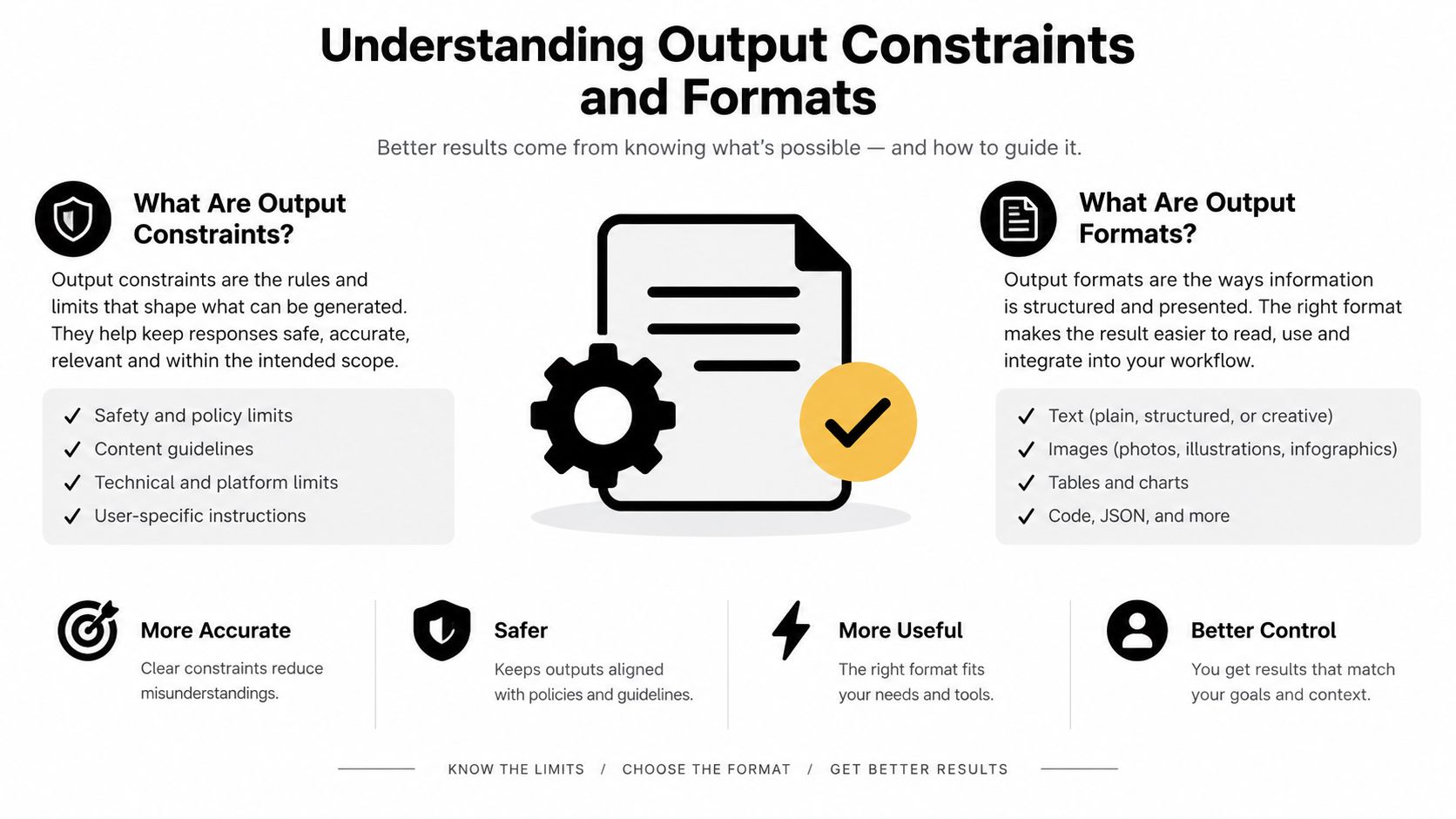
The most useful thing you can know about a speed model is what it won't do. That sounds limiting, but it's how you protect timelines, because you can design the edit around the output instead of trying to fight the model after the fact. Google's documentation for Veo Fast listed 720p and 1080p output, 24 fps, and 8-second clips, and noted that 8 seconds was the only supported duration at that time. Google also described native audio generation, which is one of the reasons short clips feel more finished than silent drafts.
<a id="plan-the-edit-around-the-clip-length"></a>
Plan the edit around the clip length
A fixed duration changes how you storyboard. Instead of trying to squeeze a full narrative into one render, use one clip for one visual beat, then cut between beats in the edit. That works especially well for product reveals, founder intros, app demos, and social teasers where the goal is pace, not plot.
The output constraints also make format choices easier. 720p can be enough for rough testing and internal approvals, while 1080p is the safer target when you expect the clip to survive a little more post work. Because the model's duration is short, you don't need to overcomplicate the timeline, you just need a clean opening frame and a clear ending beat.
Practical takeaway: think in clips, not scenes. If your edit depends on one render doing everything, the workflow is already too heavy.
<a id="use-audio-as-part-of-the-shot-not-decoration"></a>
Use audio as part of the shot, not decoration
Native audio matters because it lets the model handle ambience and timing inside the same generation pass. That's a major advantage when you're producing social content quickly, since you don't need to source a scratch track just to understand whether the visual beat works.
Google later expanded image-to-video across Veo 3 and Veo 3 Fast in paid preview, which means the model moved from prompt-only output toward still-image animation without changing the short-form structure. That's useful when a team already has approved photography or product frames and wants motion without rebuilding the asset library.
If you're comparing model families, Veo 3.1 later added its own structured workflow advantages, including video extension and frame-specific generation through the generateContent API, which makes it more flexible for longer editing chains. For fast renders, though, the point is simpler. Build around the clip you get, not the one you wish the model would give you.
<a id="evaluating-speed-and-quality-trade-offs"></a>
Evaluating Speed and Quality Trade-Offs
In this scenario, many teams make the wrong decision. They ask whether the fast model is “as good” as the standard one, when the key question is whether the speed trade-off helps the campaign move faster without weakening the message. Google's official update said Veo 3 Fast is $0.15 per second, down from $0.40, while video-only generation is $0.10 per second. That price shift matters because a short clip adds up quickly when you're producing multiple variations for testing.
<a id="choose-by-use-case-not-by-ego"></a>
Choose by use case, not by ego
Use the fast tier when the clip is for exploration, iteration, or volume. Use the slower, more polished path when the file is intended to be a final asset, a client-facing hero cut, or a piece of content that needs maximum fidelity. The lowest-friction workflow is often to generate ideas fast, then promote only the strongest one into final polish.
The comparison is easiest when you map project type to output expectation.
| Project Type | Recommended Variant | Primary Benefit |
|---|---|---|
| Hook test for paid social | Veo 3 Fast | Fast iteration and easy variation |
| Internal storyboard draft | Veo 3 Fast | Quick approval loops |
| Product teaser for Reels or Shorts | Veo 3 Fast | Short-form format fits the channel |
| Final brand film asset | Standard generation | More room for refinement |
| Dialogue-heavy scene | Veo 3.1 | Better workflow fit for structured audio and scene control |
If you want a companion discussion of the choice between speed and fidelity, the internal note at Veo 3 Fast vs Quality is worth keeping nearby while you plan production rounds. And when you're comparing budgets, don't guess, check the current pricing page before you commit to a batch of renders.
<a id="put-the-fast-tier-where-retries-are-cheap"></a>
Put the fast tier where retries are cheap
Savings show up when one team member can generate ten variations in the time another team would spend polishing one draft. That doesn't mean the output is disposable, it means the workflow is designed for experimentation. For TikTok, Reels, and Shorts, that's often the right trade.
If you're choosing between versions, the safer rule is simple. Use Veo 3 Fast where speed and coverage matter most, and move to a more controlled render only when the concept has already proven itself.
<a id="templates-for-social-ads-and-short-form-content"></a>
Templates for Social Ads and Short-Form Content
Short-form content usually fails for one of two reasons. Either the prompt is too vague to produce a clear shot, or the concept is too broad to fit the format. The easiest fix is to build templates that match the channel, then reuse the structure whenever a new product or offer comes in.
<a id="product-reveal-and-launch-teasers"></a>
Product reveal and launch teasers
For a clean reveal, keep the prompt focused on one object and one motion. A useful pattern is: “studio tabletop shot of [product], slow orbit camera, softbox lighting, realistic reflections, clean background, subtle motion reveal.” That's enough detail to create a simple ad cut without asking the model to solve a whole storyboard at once.
This is also where a catalog-to-video workflow can save time, because existing product assets are often better starting points than new conceptual images. The AdManage.ai catalog to video feature is a useful reference if your team already works from a SKU library and wants to turn product pages into motion faster.
<a id="dialogue-and-talking-head-variations"></a>
Dialogue and talking-head variations
For speaking clips, keep the line short, the environment plain, and the camera stable. Google's later Veo 3.1 release added paid preview access across the Gemini API, Google AI Studio, Vertex AI, the Gemini app, and Flow, and its docs make audio generation and structured workflows explicit, so it's the model family to think about when you need tighter scene control. For a talking-head ad, a prompt like “locked-off medium shot, founder in a daylight office, natural gestures, clear spoken line, soft background ambience” is usually more effective than trying to direct a full performance.
<a id="b-roll-and-background-loops"></a>
B-roll and background loops
B-roll prompts work best when the visual action is simple enough to loop mentally. Think product surfaces, hands at work, screens glowing, or environment shots with a small amount of motion. If the clip is meant to sit behind text or a voiceover, the model doesn't need to carry the whole story, it just needs to look polished and stay out of the way.
A good habit is to write one prompt for the visual, one for the mood, and one for the intended use. That keeps the output aligned to the channel instead of drifting into generic motion footage.
If you need a library of repeatable variations, build templates once and keep refining them. That's how teams turn a single model into a usable content pipeline instead of a novelty generator.
<a id="advanced-workflows-and-troubleshooting-tips"></a>
Advanced Workflows and Troubleshooting Tips
Fast generation gets more valuable when you stop treating each clip as a final answer. The actual production gain comes from chaining short outputs, salvaging useful frames, and extending only the sequences that already have a strong visual direction. Google's video-generation docs for Veo 3.1 support video extension, frame-specific generation, and image-based direction through generateContent, which is exactly the kind of structure you need when one good shot becomes the start of a longer cut.
<a id="build-from-the-strongest-frame"></a>
Build from the strongest frame
If a render is close but not perfect, don't throw it out immediately. Pull the strongest frame, use it as a directional input, and narrow the next prompt so the model has less room to reinterpret the shot. That works especially well for product footage, portrait scenes, and motion shots where the composition is already on target.
Audio issues usually come from overloading the prompt with too many timing cues. Keep dialogue short, reduce competing sound instructions, and avoid stacking several actions on top of one another in the same beat. When the visual is simple and the audio direction is clean, the result is usually easier to use.
<a id="troubleshoot-with-a-short-recovery-loop"></a>
Troubleshoot with a short recovery loop
- Reduce the shot count: one shot, one action, one mood.
- Anchor the subject: repeat the main object or person early in the prompt.
- Simplify movement: replace complex choreography with one camera move.
- Test the audio separately: if dialogue is critical, isolate it from other motion.
- Promote only the keeper: keep the clip that can be extended, not the one that looks busiest.
Google's later documentation also shows a separate Veo 3.1 Fast variant, veo-3.1-fast-generate-001, listed as GA on November 17, 2025 alongside the standard veo-3.1-generate-001. That's a useful signal that fast generation isn't a temporary workaround, it's becoming part of the production stack.
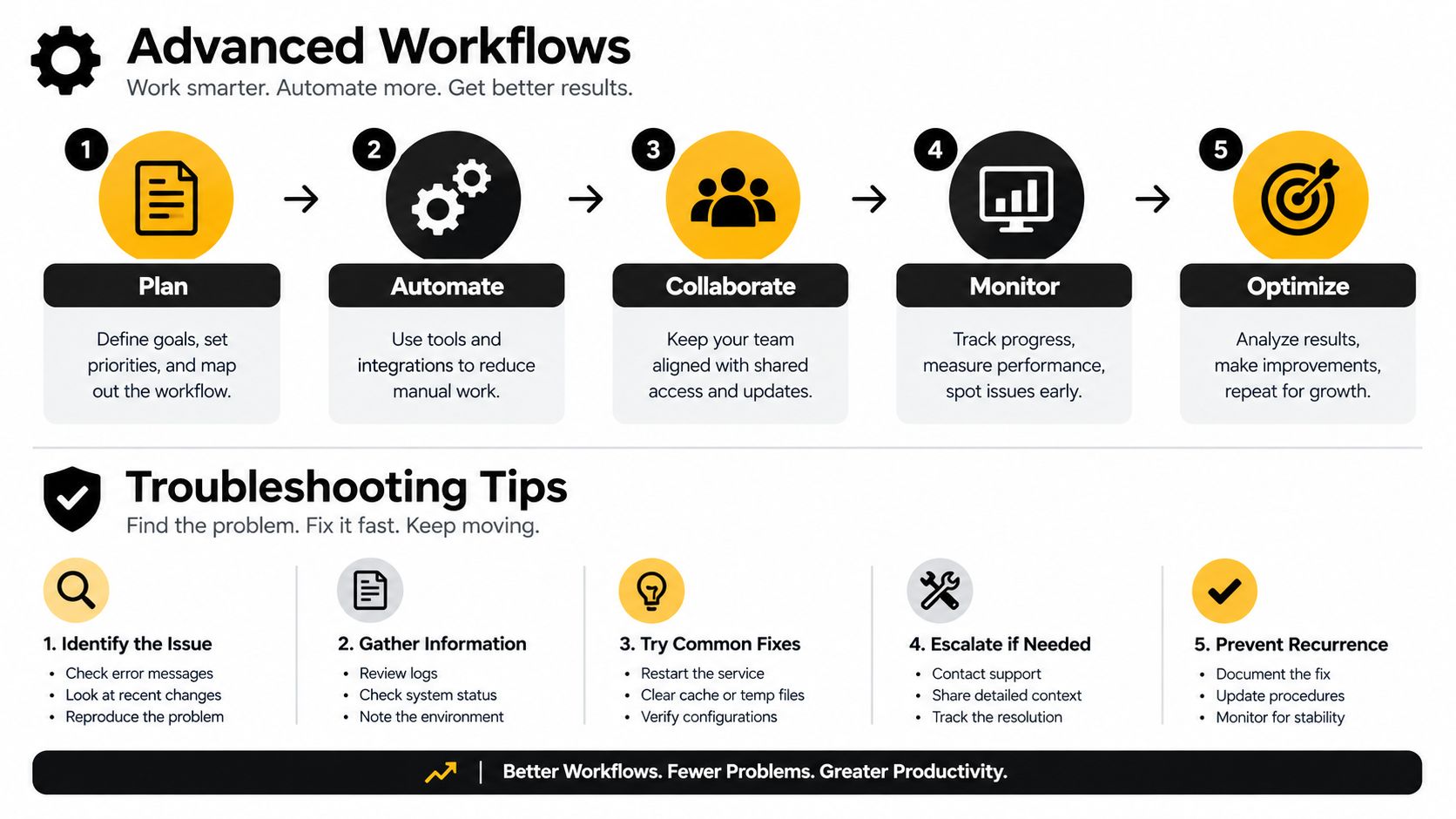
The strongest habit in this workflow is restraint. The fewer things you ask the model to solve in one pass, the easier it is to salvage good results and move them into edit.
Veo3 AI gives you a practical place to turn prompts and static images into short video drafts when you need to move quickly. If you're testing social hooks, ad variations, or concept clips, visit Veo3 AI and use it to build a faster iteration loop around your next campaign.
Related Articles
Continue with more blog posts in the same locale.
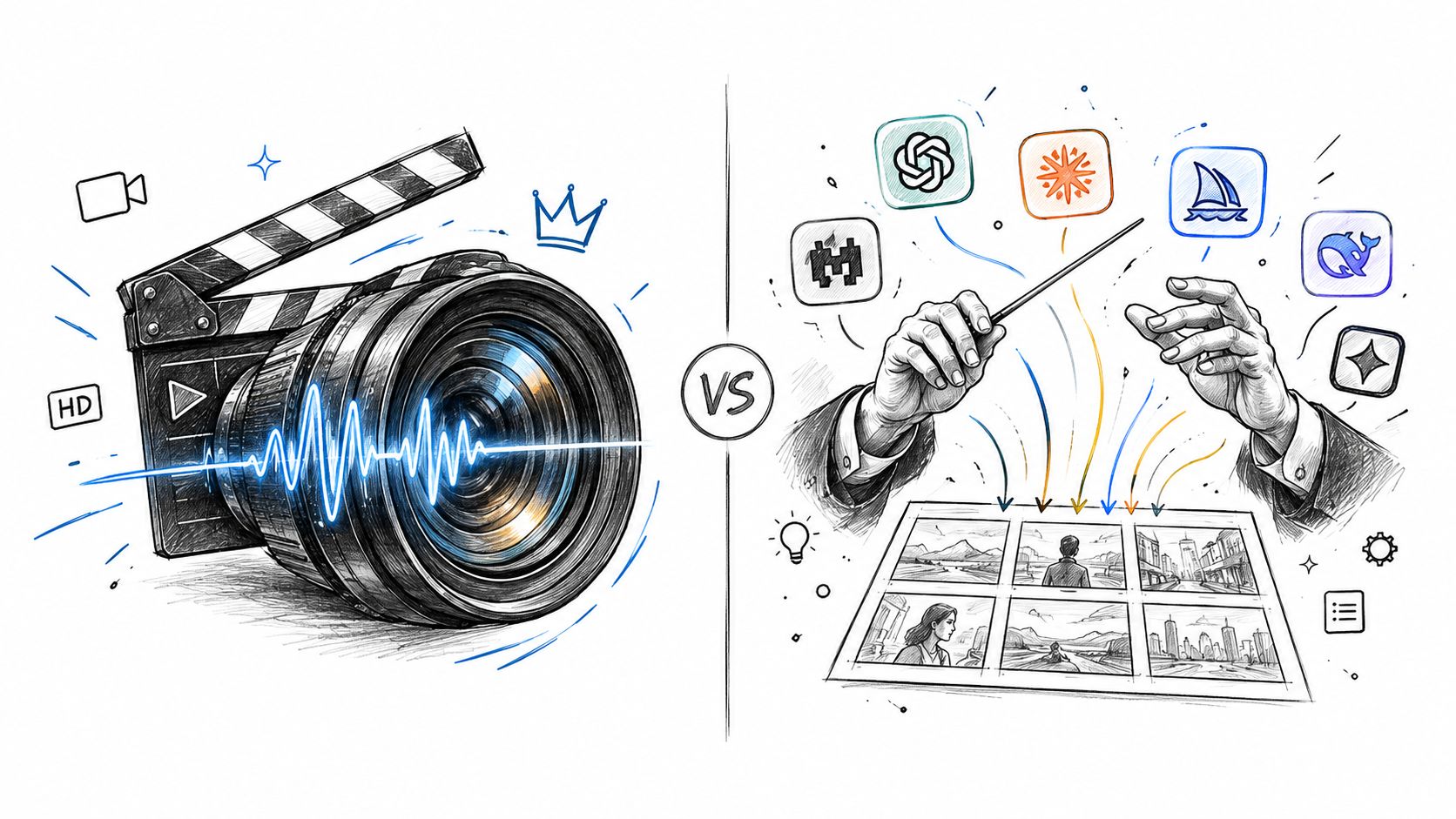
Higgsfield vs Veo: Which AI Video Tool Wins in 2026
Higgsfield vs Veo compared side by side on quality, speed, pricing, and best use cases so you can pick the right AI video generator in 2026.
Read article
Veo Subscription Cost: Plans, Pricing, and Value
Understand veo subscription cost with a clear breakdown of free vs paid tiers, what each plan includes, and how to evaluate value before you pay.
Read article
Tribute Video Maker Guide: Plan, Create, and Share
Learn how a tribute video maker works and follow a clear process to plan, build, and share heartfelt tribute videos for memorials, birthdays, and milestones.
Read article