
Veo 3 Podcast Video Generator 2026: Turn Episodes into Short Clips
A practical Veo 3 podcast video generator workflow for turning long episodes into short social clips, B-roll scenes, captions, and QA-ready videos.
Emma Chen · 14 min read · May 3, 2026
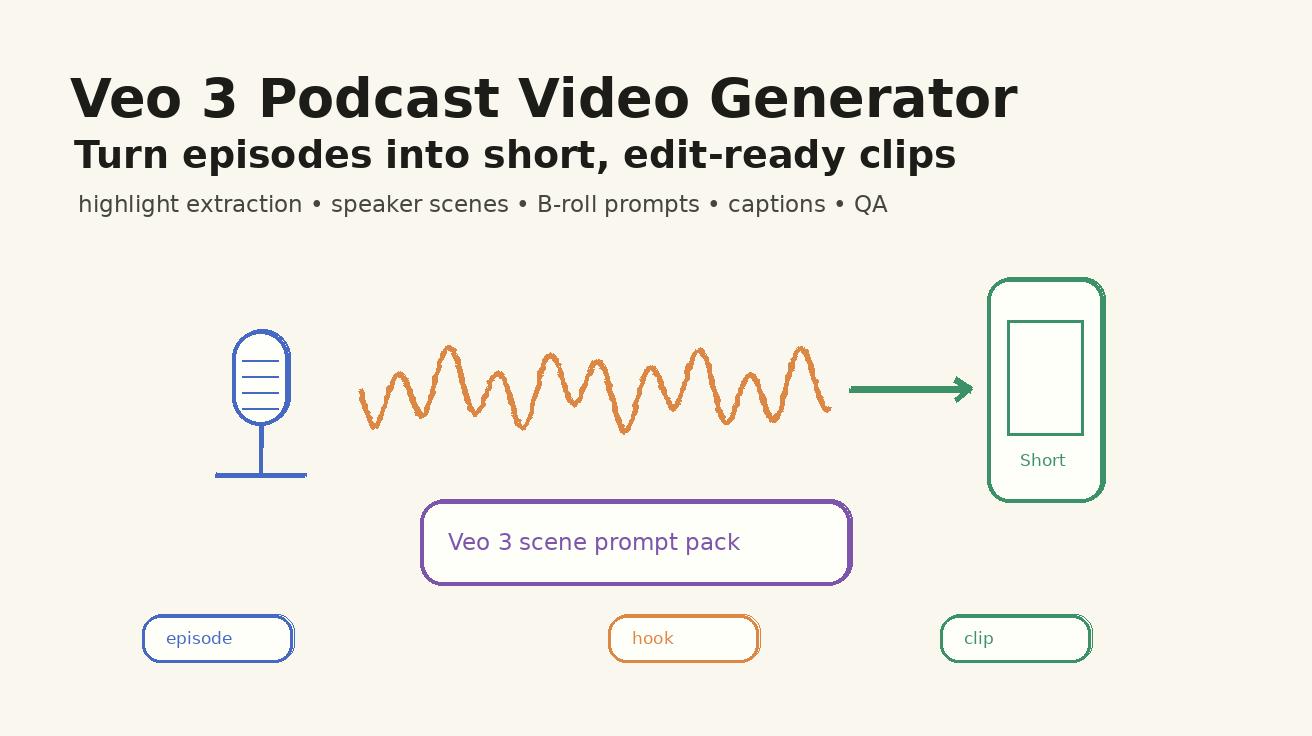
A strong podcast episode already contains the raw material for dozens of short videos: a surprising answer, a founder story, a tactical lesson, a strong disagreement, a customer insight, a product anecdote, or a memorable quote. The problem is that most teams do not have enough time to turn long audio into a consistent stream of visual clips. A Veo 3 podcast video generator workflow solves that production gap by using Veo 3 for scenes, B-roll, visual metaphors, opening hooks, and social clip structure while keeping the actual quote, captions, and brand review in the editor.
This guide is not about pretending that an AI-generated speaker is the real guest. It is about using Veo 3 safely and practically: extract one real moment from the episode, decide what the viewer should understand, create a visual scene that supports that point, and then add captions and exact wording in post-production. That makes the final asset more accurate, easier to approve, and more useful for YouTube Shorts, TikTok, LinkedIn, Instagram Reels, X, newsletters, and landing pages.
Veo 3 is especially useful when your podcast clip needs a visual world but the original recording is only audio or a static webcam. Instead of publishing a plain waveform every time, you can create a short cinematic scene, a product metaphor, an educational visual, a host-introduction frame, or a branded transition. For adjacent workflows, connect this with your existing Veo 3 image-to-video, Veo 3 text-to-video, and Veo 3 prompt process.
Quick answer: the safest Veo 3 podcast clip workflow
The safest workflow is highlight first, prompt second, edit last. Start by selecting a real episode moment. Do not ask Veo 3 to summarize a whole hour of audio in one generation. Choose one claim, one story, one lesson, or one counterintuitive answer. Then write a prompt that turns that moment into a visual scene. Finally, use editing software for captions, exact quotes, host names, guest names, brand lower-thirds, waveform overlays, and platform-specific cuts.
A useful prompt formula looks like this: Create a short vertical video scene for a podcast clip about [episode moment]. Show [visual metaphor or B-roll scene]. Camera [movement]. Tone [style]. Leave clean space for captions. Do not show fake readable quotes, fake metrics, or a realistic likeness of the guest unless approved. Final frame [CTA or loop]. This keeps Veo 3 focused on visuals and keeps factual information in the parts of the workflow you can control precisely.
Why podcast teams need a different AI video workflow
Podcast content is high-context. A sentence that makes sense inside a forty-minute conversation may be confusing as a fifteen-second clip. A generated visual can help, but only when it clarifies the point. If the episode is about customer retention, the visual should support retention: a dashboard, a team workshop, a customer success scene, a product handoff, or a metaphor about leaky buckets. If the episode is about founder burnout, the visual should show workload, decision fatigue, calendar pressure, or recovery. Random cinematic B-roll will make the clip feel expensive but empty.
The second challenge is trust. Podcast clips often include identifiable people, claims, personal stories, and business advice. If a generated clip appears to put words in a guest's mouth, the content becomes risky. For that reason, the Veo 3 role should be visual support, not factual authority. The transcript, captions, titles, and claims should come from the actual episode and be checked by a human editor.
Veo 3 podcast clip decision table
| Podcast moment | Best Veo 3 visual | What to avoid | Review rule |
|---|---|---|---|
| Founder story | Stylized workspace, product scene, or timeline visual | Fake recreation of the founder making claims | Captions match the actual quote |
| Tactical lesson | Screen-free metaphor, checklist, workshop board, or process scene | Generated readable text as the main explanation | Editor adds exact bullets later |
| Interview insight | Host/guest-style abstract layout, microphone scene, or B-roll | Unapproved realistic likeness of the guest | No identity confusion |
| Product explanation | Demo-like visual, device scene, or customer workflow | Invented UI or unsupported feature | Real UI appears only if approved |
| Hot take | Bold visual contrast, split scene, or debate metaphor | Misleading quote framing | Hook remains accurate |
| Case study | Generic business scene, chart metaphor, or before-after visual | Fake numbers, logos, or customer names | All metrics come from source material |
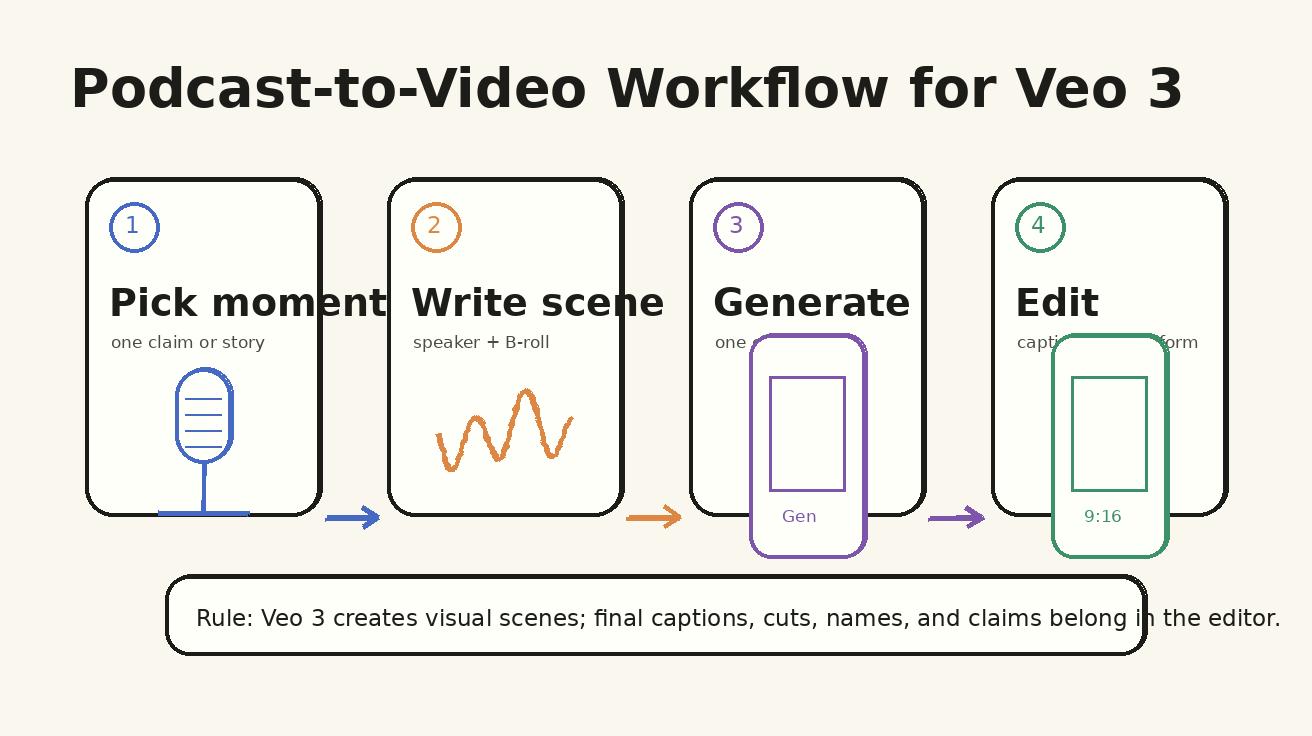
Step 1: extract one clip-worthy moment
Before opening Veo 3, mark the exact source moment. A good podcast highlight has one of five shapes: a surprising answer, a practical how-to, a specific story, a strong opinion, or a useful framework. If the moment needs three minutes of context, it is not ready for a short clip yet. Rewrite the clip thesis in one sentence first: 'This clip explains why product demos fail when the CTA is unclear.' That sentence becomes the prompt anchor.
Do not choose a moment only because it sounds dramatic. Choose a moment because it can stand alone. The best podcast clips work even when the viewer has never heard of the show, host, or guest. Veo 3 can make the visual more attractive, but it cannot fix a highlight that has no clear point.
Step 2: choose a visual type
There are four practical visual types for Veo 3 podcast clips. Speaker-support visuals show a stylized microphone, studio, desk, or interview environment. Metaphor visuals translate the idea into a scene, such as a leaking bucket for churn or a cluttered calendar for burnout. Process visuals show a workflow, board, checklist, or team review. Product-context visuals show the type of user, device, or work environment related to the topic.
Choose the simplest visual type that makes the point clearer. If the clip is about three steps, use a process visual. If it is about a personal experience, use a speaker-support visual. If it is about an abstract concept, use a metaphor visual. If it is about a tool or app, use product-context visuals and real screenshots where accuracy matters.
Step 3: write a Veo 3 prompt that leaves room for captions
Most podcast clips are watched muted first. Captions are not optional. Since generated readable text can be unreliable, your prompt should ask Veo 3 to leave clean space for captions instead of generating the final caption itself. Use phrases such as clean upper third for captions, empty left side for quote overlay, simple background, no generated readable text, and stable final frame for CTA.
This is also where aspect ratio matters. For TikTok, Reels, and Shorts, request vertical 9:16 framing. For LinkedIn, you may prepare 1:1 or 4:5. For YouTube and website embeds, keep a 16:9 version. The same episode highlight can become three edits, but the source scene should be planned with safe zones so the subject is not cropped awkwardly.
Step 4: use one prompt per clip, not one prompt per episode
A podcast episode may contain ten strong moments. Treat each moment as its own Veo 3 generation brief. One prompt should not cover the full episode arc, multiple quotes, guest biography, sponsor message, and CTA. That creates clutter. Instead, create a clip queue: moment, hook, visual type, caption plan, platform, and CTA. Then generate the visuals one at a time.
This discipline also makes performance testing easier. If a clip works, you can identify why: the hook, topic, visual metaphor, platform crop, or CTA. If all variables change across every clip, you cannot learn. A repeatable Veo 3 podcast video workflow should produce both content and production intelligence.
Veo 3 podcast prompt templates
Template 1:
Create a vertical 9:16 video scene for a podcast clip about [specific lesson]. Show a clean podcast desk with microphone, notebook, and simple product metaphor in the background. Slow push-in camera, warm studio light, no readable fake text, leave top third empty for captions, final frame stable for CTA.
Template 2:
Create a short B-roll scene for a podcast quote about [business problem]. Show [visual metaphor], realistic motion, minimal background, cinematic but not dramatic, no logos, no invented numbers, clean negative space for captions.
Template 3:
Create a social clip opening for an interview insight: [one-sentence thesis]. Show two abstract speaker silhouettes represented by microphones and waveform graphics, modern studio style, gentle camera move, no realistic likeness, final frame holds for quote overlay.
Template 4:
Create a process explainer scene for a podcast moment about [framework]. Show a team reviewing a simple workflow board with three blank cards, camera moves from left to right, no readable generated text, editor will add labels later.
Template 5:
Create a product-context podcast clip for [audience] learning [topic]. Show a realistic workspace with laptop, headphones, and a clean device screen with no readable UI, calm camera push, final frame leaves right side blank for captions.
Template 6:
Create a loopable podcast clip background for [platform]. Show a microphone, waveform, and subtle animated timeline cards, hand-drawn premium studio style, stable composition, no fake quote text, seamless final frame.
The templates are intentionally specific about what Veo 3 should not do. Negative instructions matter because podcast clips carry reputational risk. Avoid fake quotes, fake captions, fake guest likenesses, fake statistics, and invented product claims. Use generated visuals for atmosphere and explanation, then use editing tools for facts.
Example workflow: one episode becomes five clips
Imagine a forty-five-minute interview with a SaaS founder. The team finds five moments: the opening mistake, the customer insight, the pricing lesson, the hiring story, and the final advice. Each moment gets a one-sentence thesis. Then each thesis gets a different Veo 3 visual type. The pricing lesson uses a simple dashboard metaphor. The hiring story uses a calendar and team table. The customer insight uses a customer success scene. The final advice uses a clean microphone and notebook scene.
The editor then adds exact captions from the transcript, branded lower-thirds, audio waveform, show logo, guest name, and CTA. The final package includes one YouTube Shorts cut, one LinkedIn square cut, and one website embed. Veo 3 accelerates the visual layer, but the editorial layer remains grounded in the actual episode.
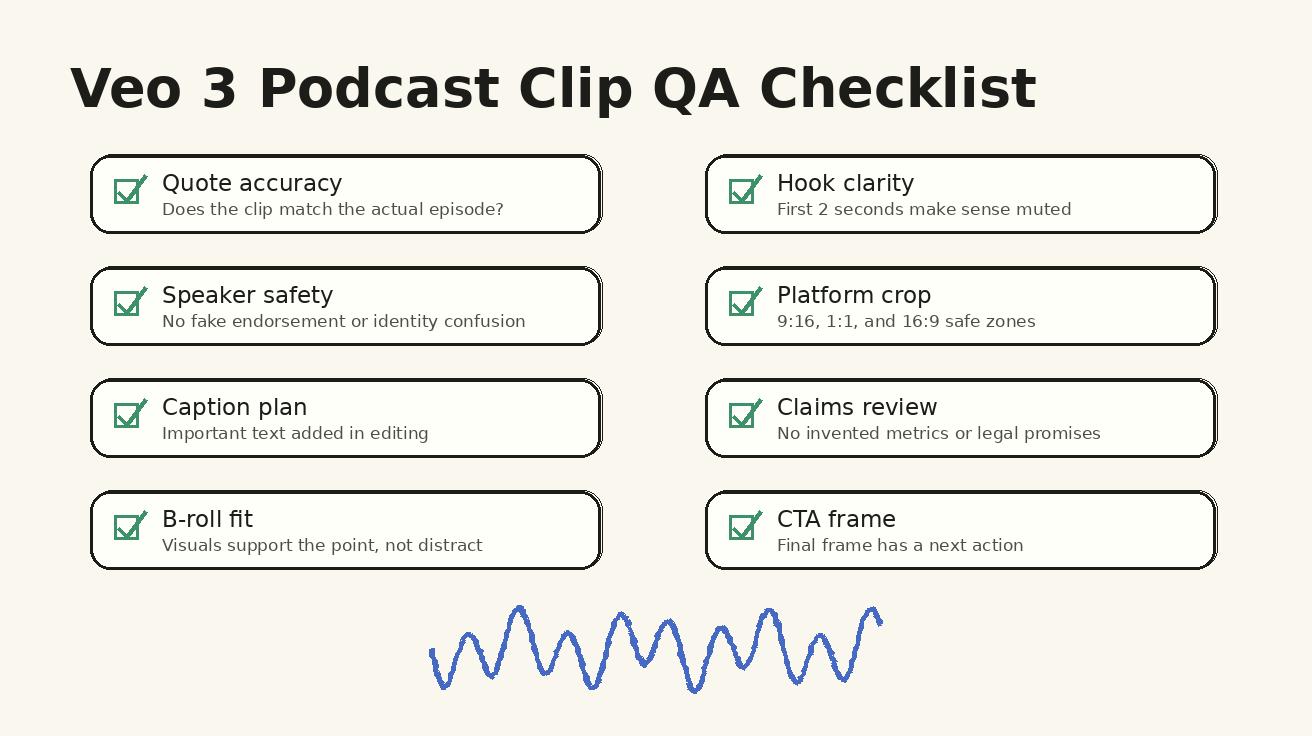
QA checklist before publishing
- The clip thesis matches the actual episode moment.
- Captions and quote text are added in editing, not trusted to generated video text.
- No realistic guest likeness is used unless explicitly approved.
- No fake endorsement, fake logo, fake customer, fake metric, or unsupported claim appears.
- The first two seconds make sense with sound off.
- The aspect ratio works for the target platform without cutting off the subject.
- The final frame supports a CTA, loop, or next clip.
- The visual adds meaning; it is not just decorative B-roll.
How to create clips for different platforms
For YouTube Shorts and TikTok, lead with the punchline. The first frame should visually tell the viewer that this is a podcast insight, not a random stock video. Use a strong caption hook and keep the visual motion simple. For LinkedIn, the same clip can be slightly slower and more professional. A workshop board, founder desk, or B2B product metaphor often performs better than chaotic motion. For newsletters and landing pages, use a 16:9 or 4:5 version that feels like a polished excerpt rather than a feed-native meme.
Do not publish the same export everywhere. Use Veo 3 to create a clean visual base, then cut platform versions. Change the opening caption, CTA, crop, and length. A podcast clip that performs on Shorts may be too abrupt for LinkedIn. A LinkedIn clip may be too slow for TikTok. The production system should be reusable, but the final edit should respect platform behavior.
Common mistakes
Mistake 1: generating a fake version of the guest
This is the fastest way to create trust problems. If the guest's likeness is not approved and controlled, avoid it. Use microphones, hands, studio objects, abstract silhouettes, or visual metaphors instead.
Mistake 2: putting exact quotes inside the Veo 3 generation
Generated text can be wrong. Exact quotes belong in captions, title cards, subtitles, and editor-controlled overlays. Ask Veo 3 for clean space, not final typography.
Mistake 3: making every clip look the same
A consistent brand style is useful, but every clip should still match the moment. A tactical framework, emotional story, and product lesson should not all use the same microphone closeup.
Mistake 4: ignoring audio context
If the clip uses real episode audio, the visual should support the speaker's rhythm. Do not create high-motion scenes under a calm reflective answer. Do not create slow meditative scenes under a high-energy rant.
Final production template
Use this template for each clip in your queue:
Episode: [show name and episode]
Source moment: [timestamp and transcript excerpt]
Clip thesis: [one sentence]
Target platform: [TikTok / Shorts / LinkedIn / website]
Veo 3 visual type: [speaker-support / metaphor / process / product-context]
Prompt: [one camera move, one visual scene, clean caption space, no fake text]
Editor tasks: add exact captions, guest name, waveform, logo, CTA, crop, and compliance review.
FAQ
Can Veo 3 turn a podcast episode into short video clips?
Veo 3 can help create visual scenes, B-roll, hooks, and social video concepts from podcast moments. The safest workflow is to select real episode highlights first, then use Veo 3 to generate supporting visuals and edit captions separately.
Should I upload a full podcast transcript into one Veo 3 prompt?
No. Break the episode into one claim, story, question, or lesson per clip. Smaller prompts are easier to control and easier to review for accuracy.
What is the best length for podcast clips made with Veo 3?
For most social platforms, plan 15 to 45 seconds. The first two seconds should communicate the hook even when the viewer is watching muted.
Can Veo 3 recreate podcast guests or hosts?
Avoid generating a realistic person in a way that could confuse viewers or imply a fake endorsement. Use approved likenesses, stylized scenes, object-based B-roll, or clearly edited layouts when identity matters.
Do I still need video editing software after Veo 3?
Yes. Use the editor for captions, waveform overlays, exact quotes, guest names, branding, trimming, and compliance checks. Generated text inside AI video should not carry critical information.
What should a Veo 3 podcast clip prompt include?
Include the episode moment, target viewer, visual metaphor or scene, camera style, aspect ratio, caption plan, forbidden claims, and the final frame for a CTA or next clip.
Final recommendation
Use Veo 3 as the visual engine for podcast repurposing, not as the source of factual truth. The best workflow starts with real episode highlights, creates one focused prompt per clip, uses generated visuals to support the point, and keeps captions, names, claims, and brand review in the editor. That gives podcast teams more short-form output without sacrificing accuracy or trust.
<script type="application/ld+json">{"@context": "https://schema.org", "@type": "FAQPage", "mainEntity": [{"@type": "Question", "name": "Can Veo 3 turn a podcast episode into short video clips?", "acceptedAnswer": {"@type": "Answer", "text": "Veo 3 can help create visual scenes, B-roll, hooks, and social video concepts from podcast moments. The safest workflow is to select real episode highlights first, then use Veo 3 to generate supporting visuals and edit captions separately."}}, {"@type": "Question", "name": "Should I upload a full podcast transcript into one Veo 3 prompt?", "acceptedAnswer": {"@type": "Answer", "text": "No. Break the episode into one claim, story, question, or lesson per clip. Smaller prompts are easier to control and easier to review for accuracy."}}, {"@type": "Question", "name": "What is the best length for podcast clips made with Veo 3?", "acceptedAnswer": {"@type": "Answer", "text": "For most social platforms, plan 15 to 45 seconds. The first two seconds should communicate the hook even when the viewer is watching muted."}}, {"@type": "Question", "name": "Can Veo 3 recreate podcast guests or hosts?", "acceptedAnswer": {"@type": "Answer", "text": "Avoid generating a realistic person in a way that could confuse viewers or imply a fake endorsement. Use approved likenesses, stylized scenes, object-based B-roll, or clearly edited layouts when identity matters."}}, {"@type": "Question", "name": "Do I still need video editing software after Veo 3?", "acceptedAnswer": {"@type": "Answer", "text": "Yes. Use the editor for captions, waveform overlays, exact quotes, guest names, branding, trimming, and compliance checks. Generated text inside AI video should not carry critical information."}}, {"@type": "Question", "name": "What should a Veo 3 podcast clip prompt include?", "acceptedAnswer": {"@type": "Answer", "text": "Include the episode moment, target viewer, visual metaphor or scene, camera style, aspect ratio, caption plan, forbidden claims, and the final frame for a CTA or next clip."}}]}</script>
Related Articles
Continue with more blog posts in the same locale.

How to Make Sports Highlight Videos with Veo 3 AI (2026)
Create stunning sports highlight videos with Veo 3 AI. Generate dynamic action shots, slow-motion sequences, and dramatic replays using AI prompts.
Read article
How to Make a Short Film with Veo 3 AI (2026 Guide)
Learn how to create professional short films using Veo 3 AI. Step-by-step guide with prompts, workflow tips, and cinematic techniques.
Read article
How to Make Documentary Videos with Veo 3 AI (2026 Guide)
Create compelling documentary videos with Veo 3 AI. Learn prompting techniques, narrative structure, realistic footage generation, and post-production tips.
Read article