
How to Make Seamless Looping Videos with Veo 3 (2026 Guide)
Build seamless looping videos with Veo 3: the start-equals-end frame workflow, prompt-only looping, the overlap-and-blend trick, and 10 copy-paste loop prompts.
Emma Chen · 15 min read · Jun 28, 2026
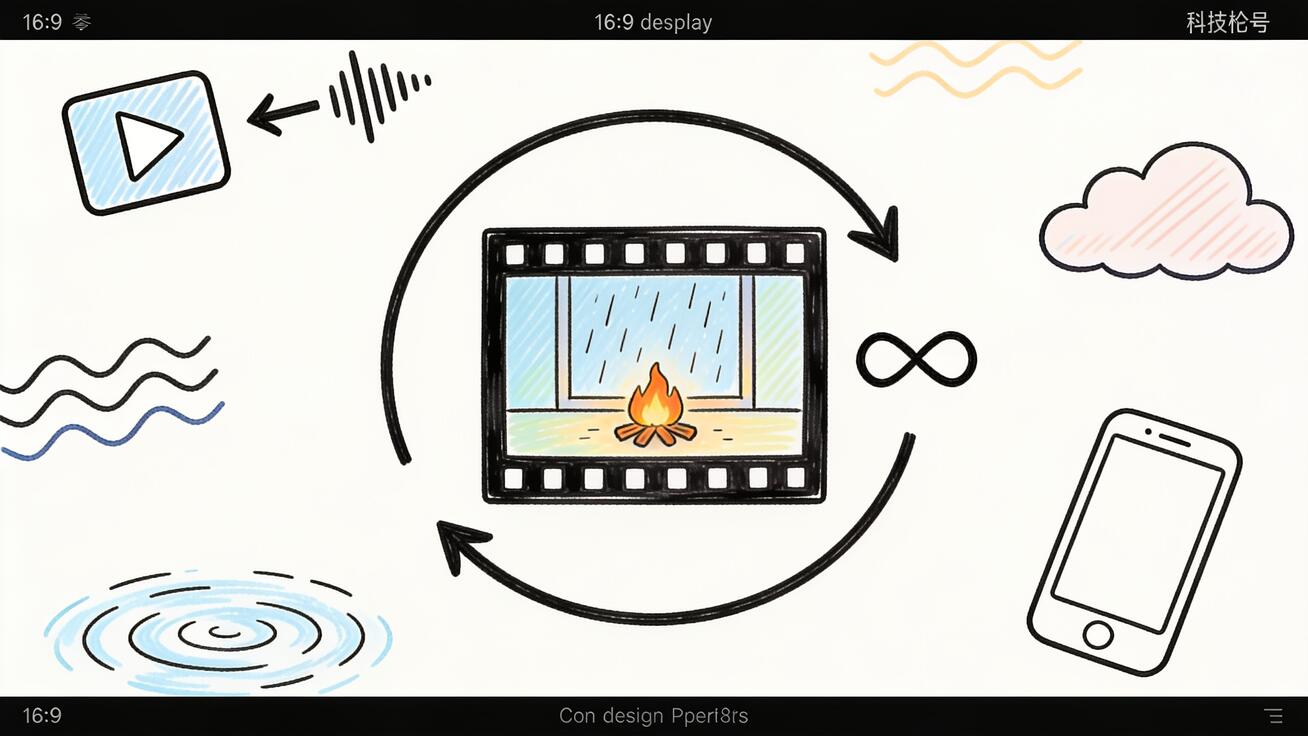
A perfect loop is one of the most useful formats you can build with AI video. It plays forever with no visible "jump," so a single 8-second Veo 3 clip can become a live wallpaper, a website hero background, a lofi study stream backdrop, digital signage, an ambient ASMR scene, or a scroll-stopping social post that quietly replays until the viewer can't look away.
But "make it loop" is also one of the most common things people get wrong with Veo 3. Scroll the r/VEO3 subreddit and you'll find the same question over and over — "How do I get Veo 3 to actually loop?" — followed by clips that almost work but snap at the seam, drift in color, or end with the camera in a completely different place than it started. Veo 3 has no single "export as loop" button, so a seamless loop is something you engineer, not something you click.
This guide walks through exactly how to do it: what makes a loop seamless, the three reliable methods for building one with Veo 3, ten copy-paste loop prompts across the most popular genres, the motions that loop cleanly versus the ones that never will, and how to fix the drift, flicker, and jump-cut problems that ruin most attempts.
What "seamless" actually means
A loop is seamless when the last frame matches the first frame closely enough that the playback "wrap" is invisible. When the video restarts, the eye sees continuous motion instead of a cut.
Three things have to line up at the wrap point:
- Position — every moving object is back where it started (or somewhere that flows naturally into the start).
- Lighting and color — exposure, white balance, and shadow direction are identical. Even a small brightness shift reads as a flicker on every loop.
- Camera — if the camera moved, it has returned to its exact opening framing. A drifting camera is the single most common reason loops fail.
If any one of those three drifts between the first and last frame, you get a visible "pop." Everything below is about controlling those three variables.
Does Veo 3 loop natively? An honest answer
Not with one click — and it's worth being clear about that before you waste credits. Veo 3 generates an 8-second clip with native, synchronized audio, but it does not have a dedicated "make this a perfect loop" toggle the way some looping-GIF tools do.
What Veo 3 does give you are the building blocks to construct a loop deliberately:
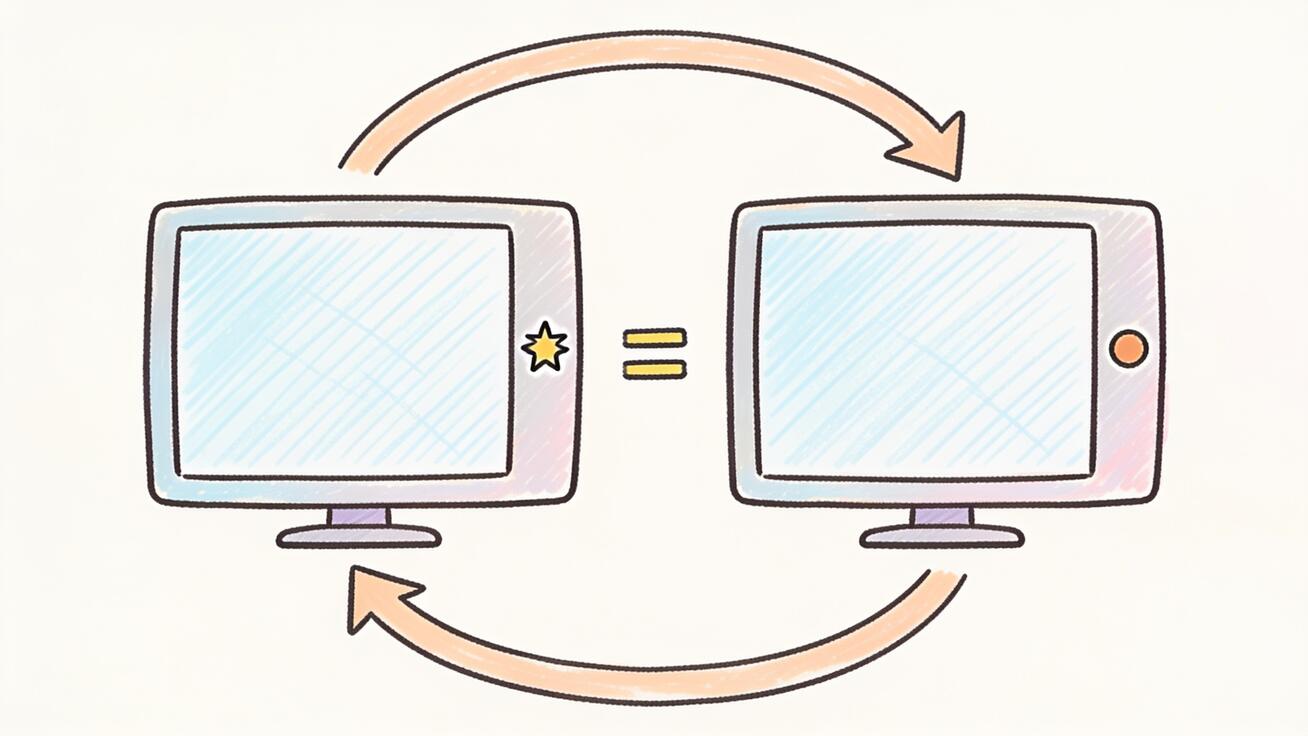
- A start frame and an end frame. In Google Flow, Veo 3's "Frames to Video" workflow lets you supply both the first and last frame of a clip. Set them to the same image and the model is strongly biased toward returning the scene to its starting state — the foundation of a clean loop.
- Strong prompt adherence for cyclical motion. Veo 3 understands motion described as continuous, rhythmic, or repeating, which lets you steer it toward loop-friendly action.
- A consistent 8-second length that's long enough to feel like a scene and short enough to keep file sizes small for wallpapers and backgrounds.
So the realistic workflow is: pick a loop-friendly subject, use one of the three methods below to lock the start and end together, then do a few seconds of trimming or cross-blending to perfect the seam. Let's break those methods down.
Method 1: The first-and-last-frame (start = end) workflow
This is the most reliable way to get a seamless loop out of Veo 3, and it's the method I reach for first.
- Generate or choose a single still image that represents your scene — your opening frame. You can make this in any image model or pull a frame from a previous Veo clip.
- In Flow, open Frames to Video and set that same image as both the first frame and the last frame.
- Write a prompt that describes a motion that departs from and returns to that pose — for example, a flag that unfurls and settles, a wave that rises and recedes, a character that leans in and leans back, smoke that swirls up and curls back down.
- Generate, then review the seam. Because both endpoints are pinned to the same still, the wrap is already very close. A short cross-dissolve in any editor finishes it.
The key prompt move is to ask for motion that is cyclical rather than one-directional. "The camera slowly pushes in" will never loop, because the end state (pushed in) is different from the start (wide). "The camera drifts forward then eases back to its starting position" can.
Prompt template for this method:
Seamless loop. [Scene description]. [Subject] performs [cyclical motion] and returns exactly to its starting position. Camera holds the identical framing at the start and end. Consistent lighting, exposure, and color throughout. No cuts, no fade to black, no text.
Method 2: Prompt-only looping (no end frame)
If you don't want to manage start/end frames, you can push Veo 3 toward a loop using the prompt alone. It's less bulletproof than Method 1, but for ambient scenes with naturally repeating motion it often gets you 90% of the way.
The trick is to describe the scene in a steady state with continuous, self-repeating motion — nothing that builds to a climax or moves the composition somewhere new. Think of a state the world can stay in forever: rain falling, a fire flickering, clouds drifting, neon flickering, water rippling.
Add explicit loop language and "blockers" that stop the model from introducing a beginning, middle, and end:
Seamless looping background. A cozy rain-streaked window at night, warm lamp glow inside, droplets sliding down the glass continuously. The motion is steady and self-repeating with no beginning or end. Static locked-off camera, no camera movement. Constant lighting and exposure. No people entering or leaving, no cuts, no text, no fade.
Notice the negatives: no camera movement, no people entering or leaving, no fade. Every one of those is a thing that would break the loop, so you forbid it explicitly. Steady, locked-off camera work is your friend here — a moving camera almost guarantees a mismatched seam.
Method 3: The overlap-and-blend trick
This is the editor's safety net, and it rescues clips that are close but not perfect. It works with any 8-second Veo 3 clip, even one you didn't plan as a loop.
- Drop the clip on your timeline twice, back to back.
- Overlap the two copies by roughly 8–15 frames (about a third to half a second).
- Apply a cross-dissolve across the overlap.
- Trim the combined clip so the in-point and out-point fall inside the dissolved region.
The dissolve smears the transition across several frames so the eye never catches a hard cut. It won't fix a clip where the camera has wandered far or the lighting has changed dramatically — but for ambient, low-motion scenes it turns "almost" into "seamless" in under a minute. Some creators do this blend right inside Flow by extending and overlapping; others use a basic editor like CapCut, Premiere, or DaVinci Resolve.
10 copy-paste loop prompts by genre
Paste any of these into Veo 3, then refine. They're written to favor cyclical, locked-off motion. (Prompt examples are kept in English because that's what the model parses best.)
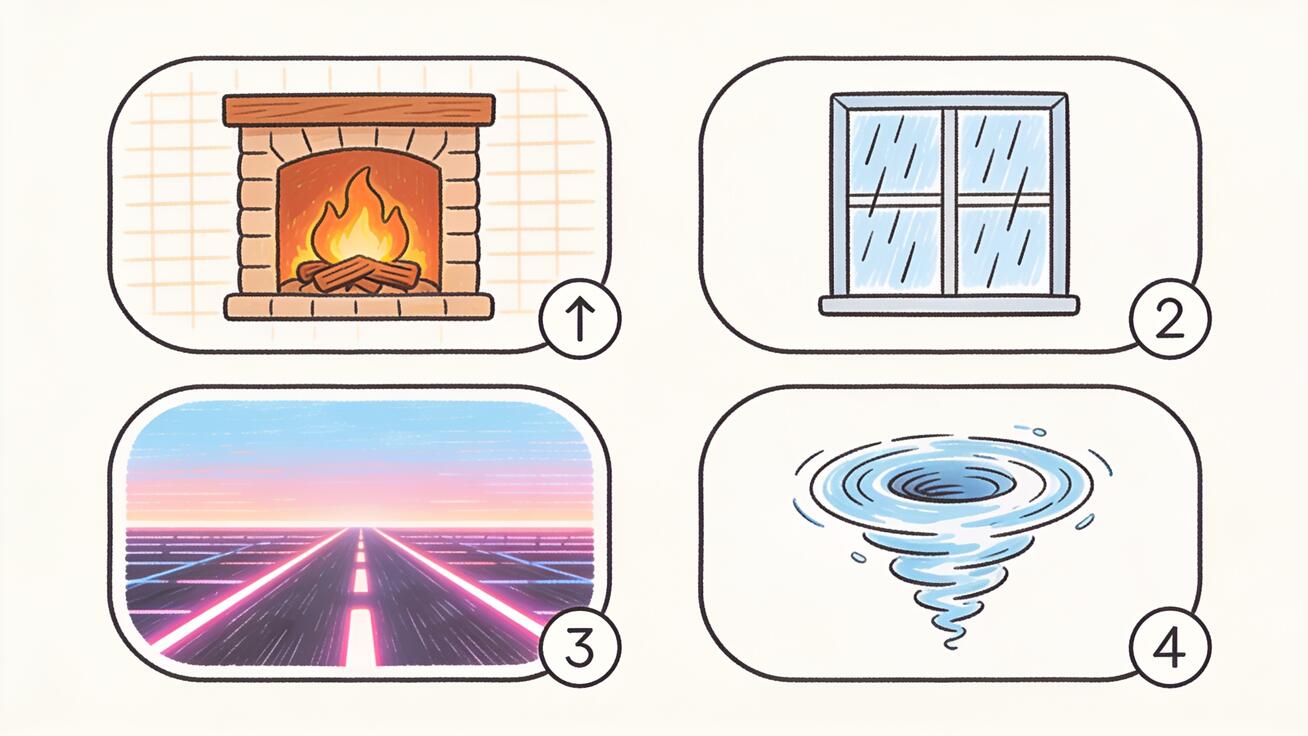
1. Cozy rain window (lofi / study stream)
Seamless looping background, rain-streaked window of a warm cabin at night, soft amber lamp light inside, raindrops sliding down the glass continuously, gentle steady rhythm, locked-off static camera, constant warm lighting, no people, no cuts, no text.
2. Crackling fireplace
Seamless loop, close-up of a crackling fireplace with glowing embers, flames flickering in a steady continuous rhythm, warm orange light, static camera, identical brightness throughout, cozy ambient mood, no cuts, no fade.
3. Synthwave night drive
Seamless loop, first-person view driving down an endless neon highway toward a distant retro city skyline that never grows closer, magenta and cyan grid horizon, stars twinkling, steady forward motion that repeats, locked camera, constant exposure, no text.
4. Abstract liquid swirl (satisfying / ASMR visual)
Seamless loop, macro shot of glossy iridescent liquid swirling in a slow continuous vortex, soft studio lighting, colors shifting smoothly and returning to the start state, static overhead camera, no cuts, no text.
5. Drifting clouds timelapse
Seamless looping sky, soft pastel clouds drifting slowly and evenly across a gradient dawn sky, gentle continuous movement, locked wide camera, constant color grade, no sun position change, no cuts, no text.
6. Underwater light rays
Seamless loop, sunbeams filtering through clear blue ocean water, tiny particles drifting upward continuously, gentle caustic light patterns rippling, slow steady motion, static camera, constant lighting, no cuts, no text.
7. Floating particles / dust (hero background)
Seamless looping background, soft golden dust particles floating gently against a dark blurred backdrop, slow continuous drift with no start or end, shallow depth of field, locked camera, constant exposure, no text, negative space on the right for a headline.
8. Product turntable (ecommerce)
Seamless loop, a sleek pair of wireless headphones rotating smoothly 360 degrees on a clean studio pedestal, soft even lighting, the rotation completes exactly one full turn and lines up with the start frame, static camera, no shadows shifting, no text.
9. Forest stream
Seamless loop, a clear forest stream flowing gently over smooth rocks, dappled sunlight, leaves trembling slightly in a steady breeze, continuous water motion, locked-off camera, constant lighting, peaceful ambient mood, no cuts, no text.
10. Neon sign flicker (urban signage)
Seamless loop, a glowing neon "open" sign style light buzzing and flickering in a steady repeating pattern against a dark brick wall at night, reflections shimmering, static camera, constant overall brightness, no cuts, no text.
What loops well — and what never will
The single biggest predictor of loop success is the type of motion you ask for. Some motion is cyclical by nature and loops almost for free; other motion has a clear arc with a different beginning and end, and no prompt will save it.
Loops cleanly (cyclical or steady-state):
- Falling rain, snow, drifting dust and particles
- Flickering fire, candles, neon
- Rippling or flowing water, ocean light
- Slow rotating objects that complete a full turn
- Drifting clouds and smoke
- Subtle ambient sway — leaves, fabric, grass in a steady breeze
- Looping abstract animations and liquid
Almost never loops (one-directional arc):
- A camera push-in, pull-out, or pan that ends somewhere new
- A character walking across the frame and exiting
- Anything with a clear "reveal" or climax
- A sunrise or sunset where the light changes permanently
- A scene where objects are consumed or added (a melting object, a filling glass)
- Fast, chaotic action where no two frames repeat
If your idea is in the second list, redesign it before you generate. A sunset can become "clouds drifting under steady golden light." A walking character can become "a character swaying gently in place." Lock the world into a state it can stay in forever.
Looping the audio too
One of Veo 3's signatures is native, synchronized audio, and a looping video deserves a looping soundbed. The same rule applies: ask for ambient, continuous, non-narrative sound that has no obvious start or finish.
Add a short audio line to your prompt — "ambient sound of steady rain and distant thunder," "soft crackling fire," "gentle ocean waves," "low ambient synth hum." Avoid anything with a recognizable beginning or musical phrase, because a melody will expose the loop point the moment it restarts. If the audio seam is still audible, mute the Veo audio and lay a dedicated looping ambient track underneath in your editor — that's standard practice for wallpapers and signage.
Export settings by platform
Match the aspect ratio to where the loop will live so it fills the frame without cropping:
- Phone live wallpaper / lock screen: vertical 9:16
- Website hero / desktop background: widescreen 16:9
- Digital signage / kiosks: often 16:9 or a custom portrait ratio
- Social feed loops (Reels, TikTok, Shorts): vertical 9:16
- Square displays / older signage: 1:1
Prompt for the aspect ratio explicitly, and for wallpaper-style loops keep some calm negative space so foreground icons or text remain readable. Export at a high bitrate, then loop-test the file in your player by watching the wrap point three or four times in a row — if you can't spot the seam, neither can your audience.
Common loop problems and how to fix them
The seam "pops" or jump-cuts. The first and last frames don't match. Use Method 1 (start = end frame) or rescue it with the Method 3 overlap-and-blend dissolve.
The video gets brighter or shifts color near the end. Lighting drift. Add "constant lighting, exposure, and color throughout" to the prompt and avoid any time-of-day or sunrise language. If it persists, shorten the usable section to the most stable middle portion.
The camera ends in a different place. You asked for camera movement, even implicitly. Switch to "static locked-off camera, no camera movement," or specify that the camera "returns to its exact starting framing."
Objects appear, disappear, or change count. Veo introduced or dropped elements mid-clip. Add blockers: "no people entering or leaving, no new objects appearing, consistent scene throughout."
The motion is too dramatic to repeat. The action has a clear arc. Redesign it as steady-state motion (see the list above) — calmer, continuous movement loops far more reliably than big dynamic action.
Audio clicks at the loop point. Mute Veo's audio and replace it with a dedicated looping ambient track, or apply a short audio cross-fade across the wrap in your editor.
Frequently asked questions
Can Veo 3 make a perfect loop in one click? No. There's no single "export as loop" button. You build a seamless loop by pinning the start and end frames together (Method 1), prompting for steady-state motion (Method 2), or blending the wrap in an editor (Method 3) — usually some combination of these.
What's the easiest reliable method? The first-and-last-frame workflow in Flow: use the same still image as both the first and last frame, and prompt for cyclical motion that returns to the start. It does most of the work for you.
How long can a Veo 3 loop be? A single clip is around 8 seconds. For longer loops, generate one clean 8-second loop and repeat it in your editor — a well-made seamless loop can play indefinitely without anyone noticing the join.
Do I need video editing software? For ambient scenes, often no — Method 1 can produce a usable loop straight out of Veo. For a perfect seam, a few seconds in a free editor like CapCut or DaVinci Resolve (overlap + cross-dissolve) guarantees it.
What subjects loop best? Anything with naturally repeating motion: rain, fire, water, drifting particles, clouds, a slowly rotating product, gentle ambient sway. Avoid walking characters, camera moves, and anything with a clear beginning and end.
A quick-start loop checklist
Before you spend credits, run your idea through this short checklist — it catches most of the reasons loops fail:
- Is the motion cyclical or steady-state? If it has a clear beginning and end, redesign it into continuous, repeating motion first.
- Is the camera locked off? Default to a static camera. If you must move it, demand that it returns to the exact opening framing.
- Did you forbid the loop-breakers? Spell out "no camera movement, no people entering or leaving, no new objects, constant lighting and exposure, no cuts, no fade, no text."
- Did you pin the endpoints? For the cleanest result, use Frames to Video with the same still as both the first and last frame.
- Did you plan the seam fix? Keep an editor ready for a quick overlap-and-blend dissolve in case the wrap isn't perfect out of the box.
- Is the audio ambient? Use continuous, non-melodic sound, or replace it with a dedicated looping track so the soundbed doesn't expose the wrap.
Tick all six and your odds of a flawless loop on the first or second generation go way up, instead of burning credits on clips that snap at the seam.
The takeaway
Veo 3 doesn't hand you a one-click loop button, but it gives you everything you need to build one deliberately. Pick a subject with cyclical, steady-state motion, pin the start and end together with the Frames to Video workflow, forbid the things that break loops — camera drift, lighting shifts, objects coming and going — and finish the seam with a quick overlap dissolve if it needs it. Do that, and a single 8-second generation becomes a living wallpaper, an ambient backdrop, or a hypnotic social loop that plays forever. Start with one of the ten prompts above, watch the wrap point a few times, and refine from there.
Related Articles
Continue with more blog posts in the same locale.
Veo 3 Fast: Create Pro Videos in Minutes
Master Veo 3 Fast to generate high-quality AI videos quickly. Learn prompt strategies, speed trade-offs, and workflows for social ads and shorts.
Read article
Higgsfield vs Veo: Which AI Video Tool Wins in 2026
Higgsfield vs Veo compared side by side on quality, speed, pricing, and best use cases so you can pick the right AI video generator in 2026.
Read article
Veo Subscription Cost: Plans, Pricing, and Value
Understand veo subscription cost with a clear breakdown of free vs paid tiers, what each plan includes, and how to evaluate value before you pay.
Read article