
Veo 3 vs CapCut AI: Generator vs Editor (2026 Guide)
Veo 3 vs CapCut AI compared: Veo 3 generates original video from a prompt, CapCut edits and packages clips. Which to use, and how to use both together.
Emma Chen · 14 min read · Jun 24, 2026
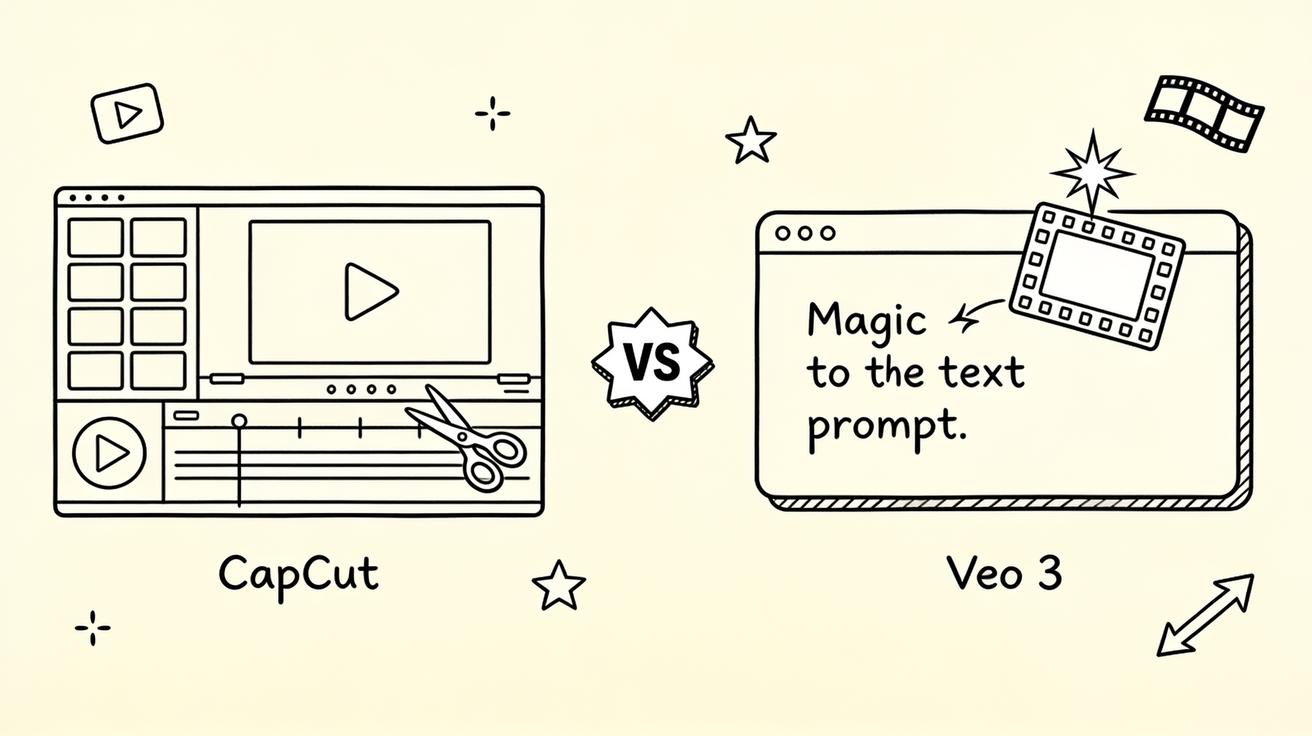
If you are comparing Veo 3 vs CapCut AI, you are really comparing two different jobs. Veo 3 is Google DeepMind's text-to-video generation model: you type a prompt and it creates brand-new footage, often with native audio baked in. CapCut is ByteDance's video editor — a timeline, templates, and a growing stack of AI features built to help you assemble and polish clips you already have. One creates shots from nothing. The other edits and packages shots into a finished video.
That difference decides almost everything about which tool fits your workflow. This guide breaks down Veo 3 vs CapCut AI honestly: where each one wins, where each one struggles, and why most serious creators end up using both — Veo 3 to generate, CapCut to cut. By the end you should know exactly which tool to open first for your next project.
Quick Answer: Veo 3 Generates, CapCut Edits
Here is the short version before the details.
- Choose Veo 3 when you need to create footage that doesn't exist yet — a cinematic shot, a talking character, a product hero clip, a scene you could never film. Veo 3's strength is native generation: prompt in, new video (and sound) out.
- Choose CapCut when you already have clips — phone footage, stock, screen recordings, or AI-generated shots — and you need to trim, caption, add music, apply templates, and export for TikTok or Reels fast.
- Use both for most real projects: generate establishing shots, B-roll, or impossible scenes in Veo 3, then drop them into CapCut to edit, caption, and finish.
They are not really competitors fighting for the same slot in your toolbox. They sit at different stages of the pipeline. Treating "Veo 3 vs CapCut AI" as an either/or is the most common mistake — the honest answer is that they solve different halves of the same problem.
What Veo 3 Actually Is
Veo 3 is a generative video model from Google DeepMind. You give it a text prompt (or an image to animate), and it synthesizes a short clip frame by frame. The headline capability is native audio: Veo 3 can generate dialogue, ambient sound, and sound effects timed to the action in the same pass as the visuals, instead of leaving you to add audio later. That is a meaningful difference from many earlier models that produced silent footage.
What that means in practice:
- You can describe a scene that never happened — "a golden retriever in a tiny chef's hat flipping pancakes in a sunlit kitchen, warm morning light, shallow depth of field" — and get usable footage without a camera, set, or actor.
- You can write camera direction into the prompt — push-in, slow pan, tracking shot — and steer the look. (For the full vocabulary, see our Veo 3 camera control prompts guide.)
- You can get spoken lines and synced sound, which makes Veo 3 strong for dialogue-driven and ASMR-style clips. Our Veo 3 native audio prompt guide covers how to control dialogue, SFX, and lip-sync.
Veo 3's limits are just as real. Clips are short, so longer videos require generating multiple shots and stitching them. Prompt adherence is good but not perfect — you often generate two or three versions and pick the best. Text rendering inside frames can be unreliable, and the model applies safety filters that affect real faces, logos, and certain content. It is a generator, not an editor: it has no timeline, no caption tool, no music library.
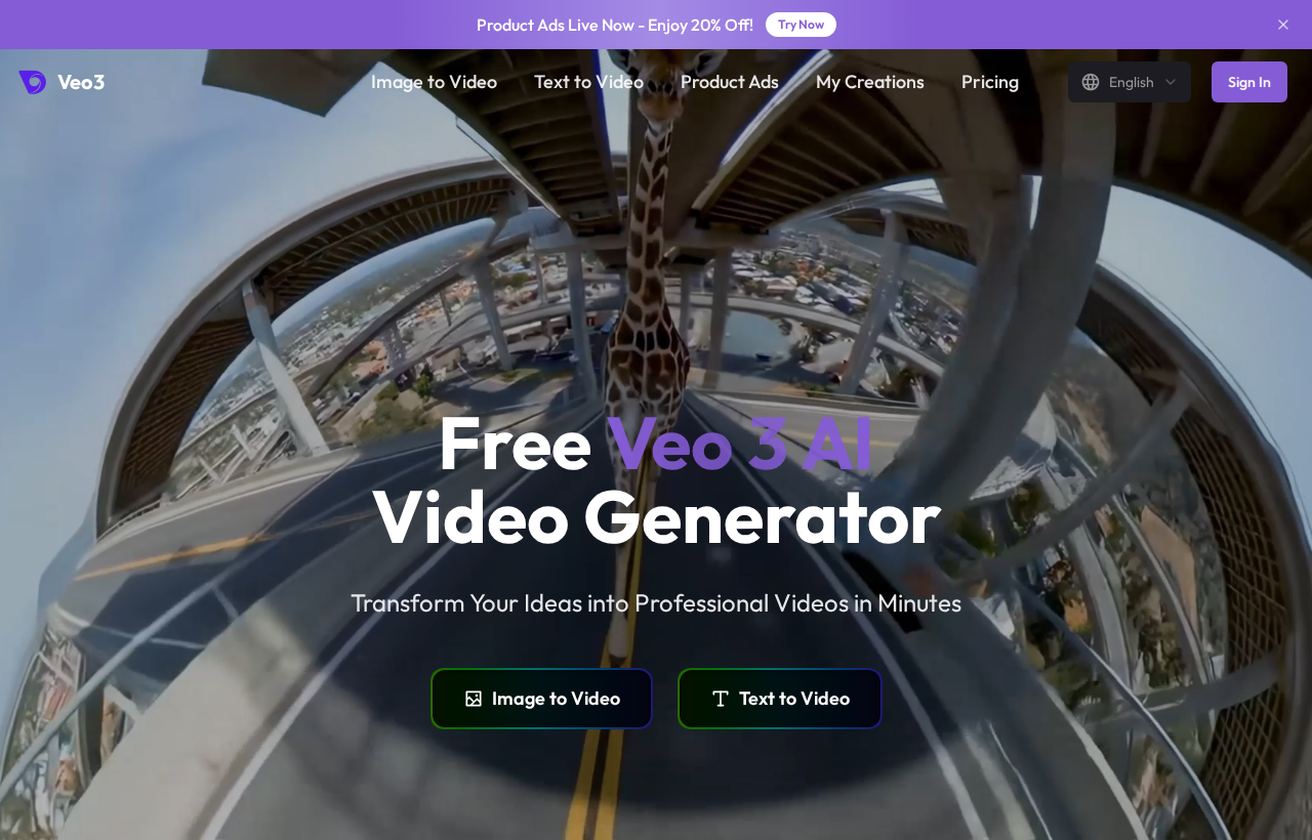
On veo3ai.io the workflow is deliberately simple: pick Text to Video or Image to Video, write your prompt, generate, and download the clip. That is the entire job — produce a new shot. Everything after that (cutting, sequencing, captions) is somebody else's tool. Often that tool is CapCut.
What CapCut AI Actually Is
CapCut is a video editor made by ByteDance, the company behind TikTok. It started as a mobile-first editing app and grew into a cross-platform editor with web, desktop, and phone versions. Its core is the thing Veo 3 doesn't have: a timeline where you arrange clips, trim, layer text, add transitions, drop in music, and export in the right aspect ratio for each platform.
CapCut's own public pages describe it plainly. Its online editor page is literally titled "Free Online Video Editor" and pitches "free templates and smart tools to make videos" for "social media reels, promo videos, slideshows, and more." That positioning is the key to the whole comparison: CapCut is built around editing and templates, with AI features layered on top of an editor — not around generating original footage from a prompt.

The AI features CapCut has added over time include things like auto-captions and subtitle generation, background removal, AI-assisted effects and filters, text-based editing, and template-driven auto-edits. ByteDance has also been adding generative capabilities to its editing suite. The important honest point for this comparison: CapCut's center of gravity is assembling and enhancing existing footage, and it is extremely good at that part. Where it is weaker — relative to a dedicated generation model like Veo 3 — is producing fully original, cinematic, audio-complete shots from a single text prompt. Different tools, different jobs.
Because CapCut specifics (exact feature names, version numbers, and pricing tiers) change frequently, treat any single description as a snapshot and check capcut.com for the current state before you rely on a specific feature. What is stable is the category: CapCut is an editor with AI helpers, and that is how it markets itself.
Veo 3 vs CapCut AI: Side-by-Side
| Dimension | Veo 3 | CapCut AI |
|---|---|---|
| Primary job | Generate new video from text/image | Edit and assemble existing clips |
| Core interface | Prompt box | Timeline + templates |
| Native audio | Yes — dialogue, SFX, ambience generated with the video | Adds/edits audio; you supply or library music |
| Original footage from a prompt | Strong | Editor-first; not its core strength |
| Captions / subtitles | No | Yes — a core feature |
| Templates for social | No | Yes — a core strength |
| Best for | Cinematic shots, B-roll, impossible scenes, dialogue clips | TikTok/Reels editing, captions, fast social packaging |
| Clip length | Short clips, stitch for longer | Full-length timeline editing |
| Learning curve | Write a good prompt | Learn a timeline editor |
Read this table as a division of labor, not a scoreboard. Veo 3 fills the "I need a shot that doesn't exist" column. CapCut fills the "I need to turn shots into a finished, captioned, platform-ready video" column.
When to Use Veo 3
Reach for Veo 3 first when the footage you need cannot simply be filmed or pulled from a library:
- Cinematic establishing shots. A drone-style sweep over a city that you don't have footage of, a slow push into a product, an aerial over a landscape. Prompt it instead of sourcing it.
- Impossible or expensive scenes. A dragon over cliffs, a product floating in zero gravity, a historical street scene — things a real shoot can't deliver on your budget.
- Talking characters and dialogue clips. Because Veo 3 generates synced audio, it is strong for short spoken scenes and character moments. See our Veo 3 ASMR and audio-driven prompt ideas for how to direct voice and sound.
- App and product demo B-roll. Generate stylized supporting footage to cut around your real screen recordings. Our Veo 3 app preview video generator guide walks through this exact use case.
- Short, punchy social hooks. Need a three-second attention-grabbing visual? Generate it. Our Veo 3 15-second video prompts are built for short-form openers.
In all of these, the pattern is the same: you are originating footage. That is Veo 3's lane.
When to Use CapCut
Reach for CapCut when the creative footage already exists and the job is to finish the video:
- Cutting and sequencing. Arranging clips on a timeline, trimming dead air, setting pacing.
- Captions and subtitles. Auto-generated, styled captions are a core CapCut strength and a hard requirement for most social video.
- Templates and trends. CapCut's template library lets you drop clips into a trending format and export quickly — useful for high-volume TikTok and Reels output.
- Music, transitions, and effects. Adding a soundtrack, beat-synced cuts, transitions, and filters to polish a rough edit.
- Aspect ratio and export. Reframing to 9:16, 1:1, or 16:9 and exporting platform-ready files.
None of these require generating new footage — they require an editor. CapCut is purpose-built for them.
The Real Workflow: Use Veo 3 and CapCut Together
For most creators in 2026, the honest answer to "Veo 3 vs CapCut AI" is "yes, both." The two tools chain together cleanly:
- Plan your shots. Decide which scenes you can film or screen-record and which you need to generate. Anything cinematic, impossible, or expensive goes to Veo 3.
- Generate in Veo 3. On veo3ai.io, write prompts for each missing shot. Generate two or three versions per shot and keep the best. Lean on prompt control for camera moves and audio.
- Download the clips. Export your Veo 3 shots.
- Edit in CapCut. Import the Veo 3 footage alongside your real clips. Sequence on the timeline, add auto-captions, drop in music, apply transitions, and reframe to 9:16.
- Export and publish. Render the finished, captioned, platform-ready video from CapCut.
Veo 3 handles the part that used to require a camera crew or a stock budget. CapCut handles the part that used to require an edit suite. Together they cover the whole pipeline, and neither one tries to do the other's job badly.
A concrete example
Say you are making a 30-second TikTok ad for a fitness app. You screen-record the app UI yourself. You generate two cinematic lifestyle shots in Veo 3 — "a runner cresting a hill at sunrise, breath visible in cold air, slow tracking shot" and "close-up of trainers hitting a wet city street, splashes, shallow focus" — because filming those would cost real time and money. Then you pull everything into CapCut, cut to the beat, auto-caption the voiceover, add a trending sound, and export 9:16. Veo 3 made the shots impossible to film cheaply; CapCut made them into an ad.
Who Each Tool Is For
The "Veo 3 vs CapCut AI" decision also depends on who you are and what you ship.
- Social media managers and short-form creators lean on CapCut day to day, because their output is high-volume edited clips with captions and trending audio. They reach for Veo 3 occasionally, when a post needs an original hero shot that templates can't deliver.
- Marketers and small businesses making ads and product videos often start in Veo 3 — generating clean product and lifestyle shots they can't film cheaply — then finish in CapCut. Our Veo 3 app preview video generator guide is built for this group.
- Filmmakers, storytellers, and concept artists care most about Veo 3's generation quality, camera control, and native audio, because their bottleneck is creating shots, not editing them. They may barely touch CapCut, or hand the edit to someone else.
- Educators and explainer-video makers usually live in CapCut — screen recordings, captions, simple cuts — and dip into Veo 3 for the occasional illustrative scene.
If your work is mostly editing, CapCut is your home base and Veo 3 is an occasional source of shots. If your work is mostly creating footage, Veo 3 is your home base and CapCut is the finishing room. Most teams contain both kinds of work, which is why both tools tend to end up installed.
Cost and Access: An Honest Note
Pricing for both tools shifts often, so verify current terms rather than trusting any number you read in an article.
- CapCut has a free tier with substantial editing capability and a paid subscription that unlocks more. Many editing tasks are doable for free.
- Veo 3 access comes through Google's products and a range of third-party sites. Generation is more compute-intensive than editing, so it is typically metered by credits or generations rather than offered as unlimited free editing. Sites like veo3ai.io provide a free entry point to try Veo 3 generation.
The structural reason they price differently is worth understanding: editing existing footage is cheap to run, while generating new footage frame by frame is expensive to run. That economic fact is baked into how each tool is offered, and it reinforces the division of labor — generate selectively with Veo 3, edit freely in CapCut.
Quality and Limitations: Both Sides Honestly
Veo 3's limits. Clips are short. Prompt adherence is strong but not guaranteed, so you regenerate and pick. Fine text inside frames can be unreliable. Safety filters restrict some content involving real faces and logos. There is no editing, captioning, or sequencing — it ends at the clip. For a deeper comparison of how Veo 3 stacks up against other generators, see Veo 3 vs Krea AI.
CapCut's limits (for this comparison). As an editor, CapCut depends on you bringing footage. Its AI generative features are improving but are not a substitute for a dedicated, audio-native generation model when you need original cinematic shots from a prompt. Template-heavy output can also look generic if you lean on trends without original footage — which is exactly where Veo 3-generated shots help you stand out.
Neither limitation is a dealbreaker. They are the predictable trade-offs of a generator versus an editor. Knowing them lets you route each task to the right tool instead of forcing one tool to do everything.
QA Checklist Before You Publish
Whichever combination you use, run this quick check before exporting:
- Shot origin: Did you generate the shots that genuinely needed generating, instead of settling for generic stock or templates?
- Veo 3 selection: Did you generate multiple versions and keep the best, checking for subject consistency and motion artifacts?
- Audio: Is the audio (Veo 3 native or CapCut-added) clean and synced?
- Captions: Are CapCut captions accurate and readable on mobile?
- Aspect ratio: Is the final export framed correctly for the target platform (9:16, 1:1, 16:9)?
- Brand safety: Do any generated shots include real faces, logos, or claims you can't back up?
FAQ
Is Veo 3 better than CapCut AI? Neither is "better" — they do different jobs. Veo 3 is better at generating original footage from a prompt. CapCut is better at editing and packaging footage into a finished social video. For most projects you use Veo 3 to create shots and CapCut to edit them together.
Can CapCut generate video like Veo 3? CapCut is primarily an editor and has added AI features over time, but its core strength is editing and template-driven assembly, not audio-native cinematic generation from a single prompt. For that, a dedicated model like Veo 3 is the stronger choice. Check capcut.com for its current generative features.
Can I edit Veo 3 videos in CapCut? Yes. Download your Veo 3 clips and import them into CapCut like any other footage. This is the most common real-world workflow: generate in Veo 3, edit in CapCut.
Does Veo 3 include sound? Yes — native audio is one of Veo 3's defining features. It can generate dialogue, sound effects, and ambience timed to the visuals. See our Veo 3 native audio prompt guide.
Which should a beginner start with? If you have footage and need a finished social video, start with CapCut. If you need a shot that doesn't exist, start with Veo 3 on veo3ai.io. Most creators end up learning both.
Conclusion
The Veo 3 vs CapCut AI question has a clean answer once you see the two tools for what they are: Veo 3 is a text-to-video generation model that creates original, audio-complete footage from a prompt, and CapCut is a template-driven editor that turns footage into finished, captioned, platform-ready video. They sit at opposite ends of the same pipeline, which is why the smartest workflow is to use them together — generate the impossible or expensive shots with Veo 3, then cut, caption, and publish in CapCut.
If your current bottleneck is footage you can't film, that is the part Veo 3 solves, and it is the place to start. Try Veo 3 free with Text to Video on veo3ai.io, generate the shots your edit is missing, and bring them into your editor to finish the video.
Related Articles
Continue with more blog posts in the same locale.
Veo 3 vs HeyGen 2026: AI Video Generation vs AI Avatar Studio
Veo 3 vs HeyGen 2026: compare AI video generation and AI avatar studio workflows, see where each excels, and decide which belongs in your video production stack.
Read article
Veo 3 vs InVideo AI: Which Should You Use in 2026?
Veo 3 vs InVideo AI: understand the core difference between AI video generation and AI-assisted production, see how each excels, and decide which fits your workflow in 2026.
Read article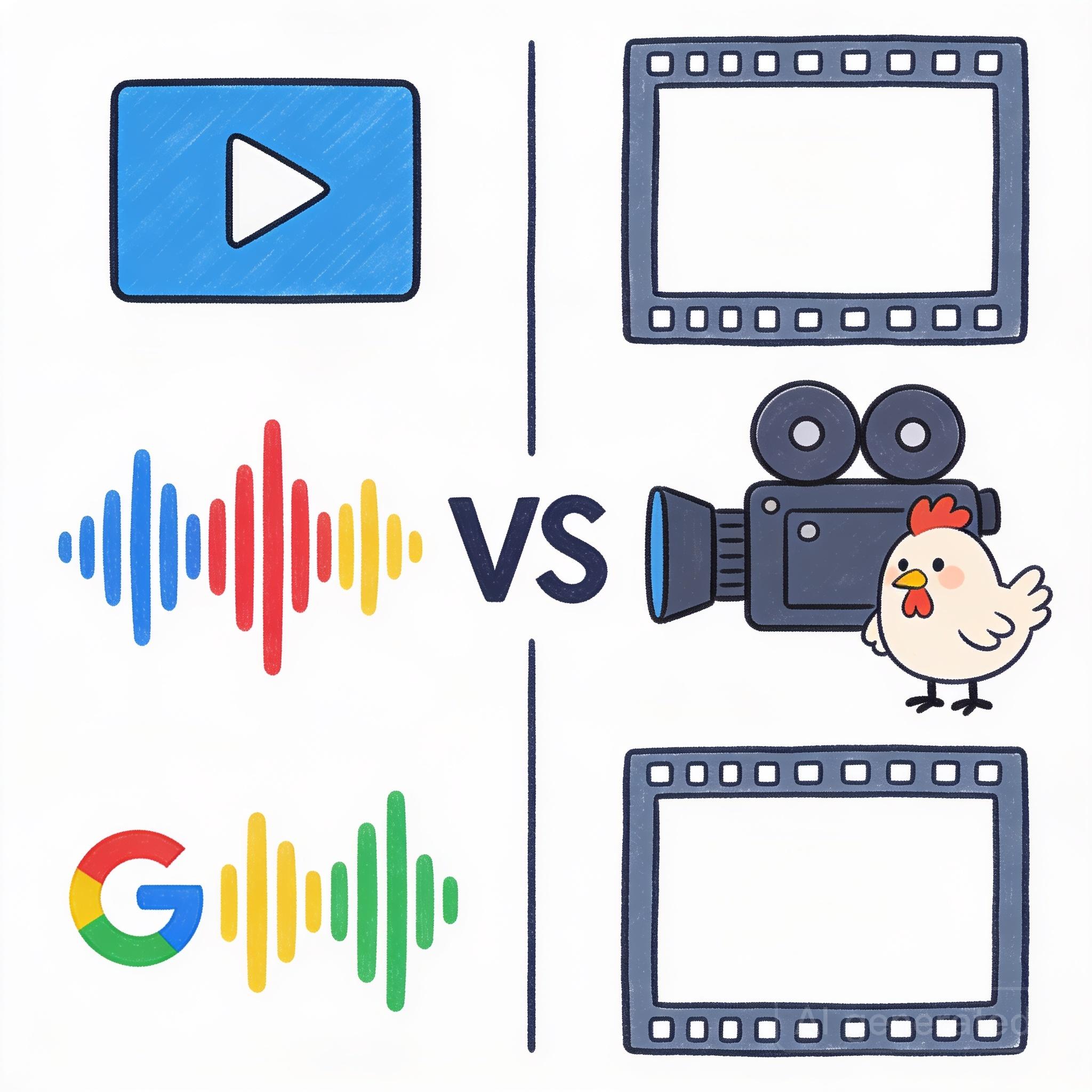
Veo 3 vs Pollo AI: Which AI Video Generator Should You Choose in 2026?
Compare Veo 3 and Pollo AI across video quality, native audio generation, pricing, and use cases. Find out which AI video generator is right for your workflow in 2026.
Read article