
Veo 3 Webinar Promo Videos 2026: Create Event Teasers, Speaker Intros, and Replay Clips
Use Veo 3 to create webinar promo videos from slides, speaker cards, product screenshots, event pages, reminders, and replay assets.
Emma Chen · 18 min read · May 8, 2026
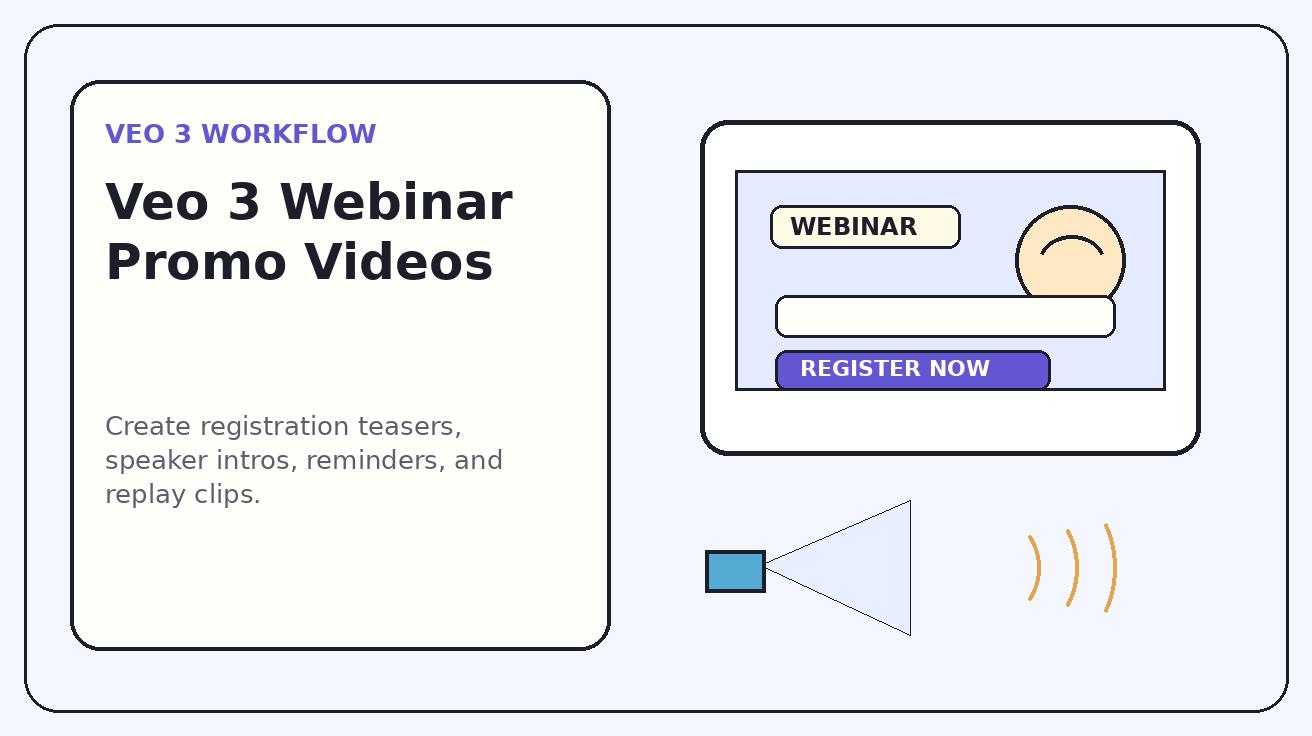
Webinars are one of the most useful demand-generation assets, but they often look less valuable than they are. A landing page may have a good topic, a credible speaker, and a practical agenda, yet the promotion still depends on a static banner, a long email, and a few social posts that repeat the same copy. For a busy prospect, that is usually not enough. They need to understand the promise quickly: what problem the session solves, who is teaching it, whether the demo will be practical, and why it deserves a place on their calendar.
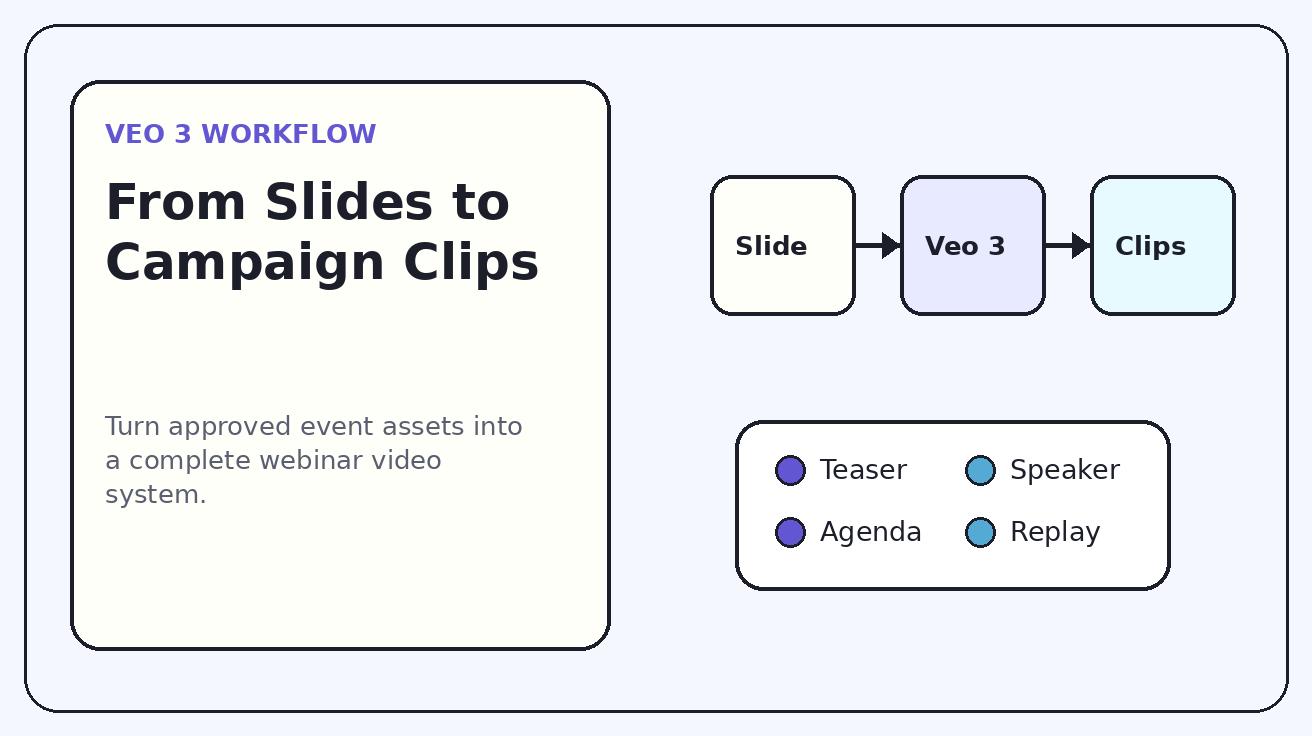
Veo 3 can help marketing teams turn static event assets into short promotional videos for registration, reminder, and replay campaigns. A title slide can become an event teaser. A speaker card can become a polished introduction. A product screenshot can become a demo-preview clip. An agenda slide can become a short learning-outcome sequence. A replay card can become a post-event lead magnet. The point is not to fake a recorded webinar before it happens. The point is to make the real value of the webinar visible faster.
This guide explains a practical Veo 3 workflow for webinar promo videos in 2026. It is written for SaaS marketers, B2B content teams, product marketers, founder-led growth teams, online educators, and agencies that need better event creative without waiting for a full motion-design sprint. It covers planning, asset selection, prompt structure, channel versions, accuracy checks, replay promotion, and measurement. For adjacent workflows, you can also compare AI video approaches on Veo3AI, explore video generation use cases in the blog, and connect webinar clips with product-demo, social, and landing-page campaigns.
Why webinar promo videos need a different AI workflow
A normal brand video can be broad. A webinar promo video has a narrower job: persuade the right viewer to register for a specific session. That means the creative has to communicate topic, audience, speaker credibility, agenda, and CTA in a few seconds. If the video looks cinematic but does not explain the event, it will not help the campaign.
Veo 3 is useful here because it can add motion to assets that already exist inside most webinar workflows. Marketers usually have a title slide, speaker headshot, agenda bullets, product screenshot, brand background, and registration URL. These are enough to create a complete video package if the creative direction is disciplined. Instead of asking for a generic AI commercial, the team can ask Veo 3 for controlled motion around approved details.
The key word is controlled. Webinar promotion contains operational details that must be correct: date, time zone, speaker title, company name, product interface, claims, and CTA. Generated video should not be trusted to invent or rewrite those details. Use Veo 3 for motion, scene structure, and visual energy, then lock critical text in an editor if readability matters. This is especially important for paid social, partner promotion, and enterprise webinars where a small mistake can create review friction.
Best use cases for Veo 3 webinar promo videos
1. Registration teaser videos
The registration teaser is the first clip most prospects see. It should open with the audience problem or the promised outcome, then reveal the event title and CTA. Veo 3 can animate a static event hero slide with a slow push-in, subtle parallax, product-themed background motion, or a clean reveal of the core promise. The strongest teasers are not overloaded. They show one reason to register, not the entire landing page.
For example, a SaaS team might turn a webinar titled "How to Launch Product Videos Faster" into a fifteen-second teaser that opens with "Your launch assets are late again," then shows a few motion beats: slide deck, product screen, short video clips, and registration CTA. Veo 3 provides the visual energy, while the marketer keeps the claim specific.
2. Speaker intro videos
A strong speaker can drive registration, but a static headshot can feel like a directory card. Veo 3 can create a speaker intro clip from an approved photo, name, title, and topic card. The safest version uses subtle camera movement, background depth, and transitions; it does not make the speaker talk, blink unnaturally, or appear to say words they did not approve.
This clip is valuable because speakers and partners can share it from their own channels. Give every speaker a short version that clearly states the topic and their role. If the speaker is a customer, partner, analyst, or external creator, keep the wording aligned with approved bios. Do not invent authority signals just because the video would feel more persuasive.
3. Agenda explainer clips
Many webinar pages bury the useful learning outcomes below several blocks of copy. A Veo 3 agenda explainer can turn three to five bullets into a visual sequence. Each beat should show what the attendee will learn: how to evaluate a workflow, how to build a template, how to avoid a common mistake, how to measure performance, or how to apply a framework.
Agenda clips perform well because they reduce uncertainty. The prospect can see that the session is not just a vague thought-leadership panel. It has a shape. It has takeaways. It has a reason to attend live or watch the replay.
4. Product demo preview clips
If the webinar includes a demo, Veo 3 can turn sanitized product screenshots into preview motion. Use real screenshots with private data removed. Prompt for a soft zoom, panel focus, UI reveal, or workflow highlight. Do not ask the model to create features that do not exist, change pricing, alter UI labels, or show an impossible flow. The generated clip should feel like a preview, not a fake screen recording.
Demo previews are especially useful for technical audiences. They answer an important question: is this session practical or just conceptual? A ten-second preview can show that the webinar includes real workflow content.
5. Reminder clips
Reminder clips protect attendance. They should be shorter and more direct than the first teaser. Veo 3 can reuse the approved event visual system and generate variations for "tomorrow," "today," "starting soon," and "live Q&A available." These clips work for email, Slack communities, LinkedIn posts, and retargeting.
The main risk is false urgency. If replay access will remain open, do not claim that it is the final chance unless the live component truly matters. It is better to say "join live for Q&A" than to imply scarcity that is not real.
6. Replay promotion clips
The webinar should not stop creating value after the live session. A replay clip can drive on-demand leads, support sales follow-up, and feed an evergreen content cluster. Veo 3 can create a recap-style asset from approved recording frames, quote cards, timestamp cards, and product screenshots. Label the asset clearly as a replay. Do not imply that a live event is still upcoming if it is not.
Replay promotion is where many teams leave money on the table. They spend weeks preparing a webinar, then send one replay email. A Veo 3 replay package can create several short assets from the same event: recap, quote, demo highlight, checklist download, and sales follow-up clip.
Veo 3 webinar video planning table
| Clip type | Best source asset | Recommended motion | Primary channel | Main guardrail |
|---|---|---|---|---|
| Registration teaser | Event hero slide | Slow push-in, title reveal, outcome hook | LinkedIn, X, paid social, landing page | Use real event title and CTA |
| Speaker intro | Approved headshot and topic card | Gentle parallax, name/title reveal | Speaker social, partner promotion | Do not create fake speech |
| Agenda explainer | Approved bullet slide | Sequential card motion | Landing page, email, retargeting | Match registration page agenda |
| Demo preview | Sanitized product screenshot | UI zoom, panel focus, workflow beat | Product newsletter, sales email | No invented features |
| Reminder | Event card and date | Date highlight, short CTA beat | Email, community, social | No false scarcity |
| Replay | Recording frame or recap card | Quote reveal, timestamp motion | Follow-up email, blog, YouTube Shorts | Label as on-demand replay |
Step-by-step workflow for Veo 3 webinar promotion
Step 1: Define the registration promise
Before generating any video, write one sentence that explains why the target viewer should register. Weak promises sound like "Join our AI webinar." Strong promises sound like "Learn how to turn product screenshots and launch slides into short video assets for LinkedIn, email, and landing pages." The second version gives Veo 3 a clearer creative direction and gives the viewer a concrete reason to click.
The registration promise should connect to the audience's current pain. Are they struggling to promote launches? Do they need more product demo assets? Are they trying to convert webinar content into pipeline? Are they teaching a workflow that is easier to show than describe? This strategic sentence becomes the anchor for every video variation.
Step 2: Prepare approved assets
Collect the event title, date, time zone, speaker card, agenda bullets, product screenshots, brand colors, logo, CTA, partner marks, and any legal disclaimers. If the webinar includes a customer, partner, or external expert, confirm which credentials and quotes are approved. If the clip uses product screenshots, remove private data before generating.
Do not overload Veo 3 with a full slide deck and hope it finds the story. Choose a small number of clean source frames. A practical first package can be built from six assets: title card, speaker card, agenda card, demo screenshot, reminder card, and replay card.
Step 3: Plan deliverables before prompting
Decide the exact video package before generation. A simple campaign might need one twenty-second registration teaser, one twelve-second speaker intro, one twenty-five-second agenda explainer, one ten-second reminder, one fifteen-second replay clip, and vertical crops for short-form channels. Planning prevents the team from generating many beautiful clips that do not map to campaign needs.
For each deliverable, define the channel and CTA. A registration teaser says "register now." A reminder says "join live tomorrow." A replay clip says "watch on demand." The visuals can share a design language, but the CTA must match the stage.
Step 4: Generate focused clips one at a time
Use one source asset or simple sequence per Veo 3 generation. Keep motion restrained: slow push-in, clean reveal, light parallax, UI focus, or a simple transition. Webinar creative should feel credible. Too much movement can make the event look less professional, especially for B2B audiences.
If generated text becomes unstable, do not force it. Use the generated motion as a background and add final text in your editor. Dates, times, speaker names, company names, and CTAs should remain editable until final export.
Step 5: Edit for platform context
A 16:9 version can support landing pages and YouTube. A square version can fit LinkedIn feeds. A vertical version can support Shorts, Reels, and TikTok. Each version should open with a clear hook in the first three seconds. Do not start with a slow logo animation unless the audience already knows the brand and the placement is retargeting.
For vertical formats, reduce text per frame. Use one hook, one visual proof point, and one CTA. For landing pages, the video can be calmer and more informative because the viewer is already considering registration.
Step 6: Run the final accuracy pass
Compare every final export against the registration page. Confirm title, date, time zone, speaker name, speaker role, agenda, CTA, product screenshot, and replay language. Check that partner logos are used correctly. Confirm that the clip does not imply a guarantee, certification, discount, or feature that the webinar does not provide.
This step is simple, but it matters. AI video makes production faster, which means errors can also spread faster. A disciplined review pass protects trust.
Prompt templates for Veo 3 webinar promo videos
Registration teaser prompt
Use the provided webinar hero slide as the exact reference. Create a clean B2B webinar promo video with subtle camera push-in, polished parallax, and a clear visual reveal of the event promise. Preserve the real title, brand colors, logo area, date area, and CTA space. Make it suitable for LinkedIn, email, and an event landing page. No fake attendee numbers, no invented speaker names, no extra claims, no distorted text.
Speaker intro prompt
Use the approved speaker card and headshot as exact references. Create a professional speaker introduction clip with gentle motion, clean lighting, and a transition from the webinar topic to the speaker name and role. Preserve the real face, name, title, company, and brand layout. Do not animate the speaker as if speaking. No mouth movement, no voice imitation, no invented credentials.
Agenda explainer prompt
Create a short agenda explainer video from the provided approved bullet card. Use smooth sequential motion to highlight each learning outcome. Keep all wording accurate and readable. The tone should be practical, modern, and registration-focused. No new agenda items, no exaggerated promises, no distorted text, no extra logos.
Demo preview prompt
Use the provided product screenshot as the exact reference. Create a controlled demo-preview motion with a soft zoom into the relevant UI area and a clean transition to the webinar CTA. Preserve the actual interface, labels, layout, and anonymized data. No invented features, no fake buttons, no changed pricing, no private information, no unsupported workflow steps.
Replay prompt
Use the provided replay card or approved recording frame as the exact reference. Create a polished on-demand webinar replay promo with a short recap feel, a clear CTA to watch the replay, and subtle motion around the key takeaway. Preserve all approved wording, speaker names, and product visuals. Do not imply the live event is still upcoming unless another live session is scheduled.
Channel-specific guidance
LinkedIn viewers often scan quickly between meetings. Open with a pain point or outcome, not a vague event label. A strong first frame might say "Turn launch slides into product video assets" or "Stop promoting webinars with static banners only." Then show the speaker card, agenda beat, and CTA. Keep the clip understandable without sound.
For organic LinkedIn, give speakers and partners their own share-ready version. For paid LinkedIn, test different hooks while keeping the same event promise. Do not test entirely different claims unless the landing page also supports them.
Email video should help the reader click, not replace the copy. Use a lightweight hero animation, thumbnail, or linked preview. If your email tool does not support video reliably, export an animated preview or still frame linked to the registration page. Veo 3 can create the motion source, while final email formatting should remain simple.
Reminder emails need clarity over novelty. The viewer may already know the topic. Use the clip to reinforce the reason to attend live: Q&A, demo walkthrough, checklist, template, or expert discussion.
Landing pages
On a webinar landing page, the video should reinforce the form. Place it near the hero or agenda, keep autoplay silent if used, and avoid motion that distracts from registration. The landing-page version can be slightly longer because the visitor is already evaluating the session.
A Veo 3 landing-page video works especially well when the webinar is visual: product demos, AI video workflows, design operations, launch marketing, creative systems, or education. It helps the visitor understand format before reading the full page.
Paid social
Paid social needs tight creative discipline. Build variants from the same source assets: pain-point hook, speaker hook, demo hook, agenda hook, and replay hook. Measure which hook drives qualified registrations rather than only cheap clicks. If a hook performs well, reuse that insight in email subject lines and landing-page headings.
Be conservative with claims. Paid distribution reaches cold audiences and increases review risk. Use practical language: "learn the workflow," "see the demo," "get the checklist," "watch the replay," or "compare the options." Avoid outcome guarantees unless they are approved and provable.
A practical campaign calendar
Seven days before the webinar, publish the first registration teaser. Five days before, share the speaker intro and give the speaker a version to post. Three days before, publish the agenda explainer. One day before, send the reminder clip in email and social. On the day of the event, use a short last-call version focused on live Q&A or demo access. After the webinar, publish the replay clip and a shorter sales-follow-up version.
This calendar works because each video has a job. The teaser creates awareness. The speaker intro builds trust. The agenda explainer clarifies value. The reminder protects attendance. The replay clip extends shelf life. Veo 3 makes the package easier to ship because the same approved assets can become multiple channel-ready videos.
Quality checklist before publishing
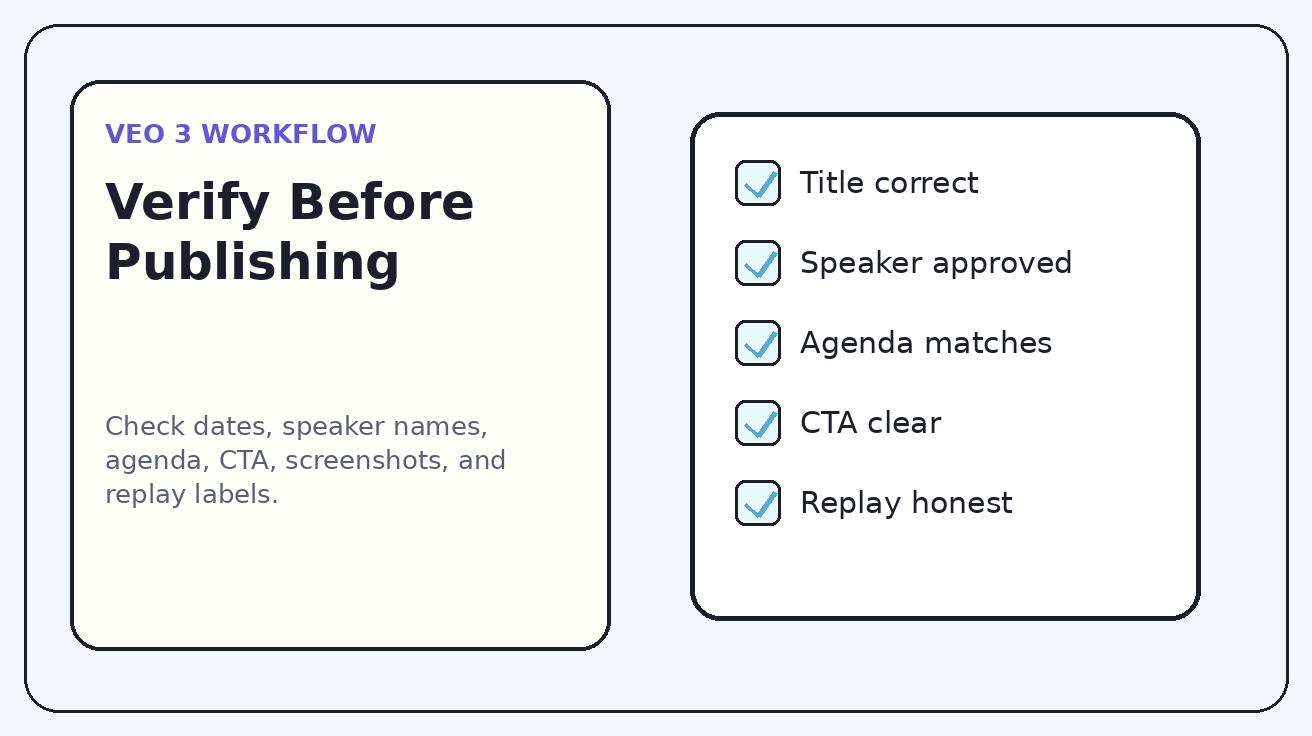
Use this checklist before any Veo 3 webinar clip goes live:
- Event title matches the registration page.
- Date, time, and time zone are correct.
- Speaker names, roles, and companies are approved.
- Agenda points match the landing page.
- Product screenshots are sanitized.
- Partner logos follow brand rules.
- Critical text is added in the editor if generated text is unstable.
- CTA matches the campaign stage.
- Replay clips are clearly labeled as replay or on-demand.
- The clip does not imply fake attendance, fake scarcity, or fake endorsements.
- First three seconds communicate value without sound.
- Final export uses the right aspect ratio for the channel.
Common mistakes to avoid
The first mistake is generating a fake webinar recording before the event. This can confuse the audience and create trust problems. Before the event, use promo language. After the event, use replay language.
The second mistake is relying on generated text for critical details. If the date or speaker name matters, add it as an editable layer in your video editor. Veo 3 can create the motion; the editor should lock the information.
The third mistake is making one clip do every job. A registration teaser, speaker intro, reminder, and replay asset need different pacing. Reuse source assets, but adjust hook and CTA.
The fourth mistake is ending the campaign when the webinar ends. The replay phase can create long-tail leads and sales enablement assets. Plan replay creative from the beginning.
FAQ
Can Veo 3 create webinar promo videos from slides?
Yes. Veo 3 can turn approved webinar slides, speaker cards, product screenshots, and agenda frames into short promotional clips when the prompt asks for controlled motion and accurate details.
What is the safest Veo 3 workflow for speaker intro clips?
Use an approved speaker headshot or card with subtle motion. Do not generate synthetic mouth movement, fake speech, or unapproved credentials unless the speaker and legal team explicitly approve that use case.
How long should a Veo 3 webinar promo clip be?
Most registration teasers and reminders should be 15 to 20 seconds. Agenda explainers can run 20 to 30 seconds when each beat is clear and the CTA remains visible.
Can Veo 3 help promote webinar replays?
Yes. Use approved recording frames, recap cards, quote cards, or product-demo screenshots to create replay clips, and label them clearly as on-demand content.
What should not be included in AI webinar promotion?
Avoid fake attendee counts, fake scarcity, invented speaker quotes, synthetic endorsements, distorted dates, unapproved product claims, and generated text for critical details if it is not readable.
Which assets should I prepare before using Veo 3?
Prepare the event title, date, time zone, speaker card, agenda bullets, brand rules, product screenshots, CTA, and replay plan before generating video variations.
Conclusion: Veo 3 turns webinar assets into a reusable video campaign
A webinar is not just a live session. It is a campaign asset that can support registration, attendance, replay demand, sales follow-up, and long-tail education. Veo 3 helps teams turn the static assets around that webinar into a system of short videos: teaser, speaker intro, agenda explainer, demo preview, reminder, and replay clip.
The best workflow is disciplined. Start with a clear registration promise. Use approved assets. Generate focused clips one at a time. Keep critical details editable. Verify accuracy before publishing. Then use the replay phase to extend the value of the event. Done this way, Veo 3 does not replace event strategy; it makes the strategy easier to see, share, and reuse.
<script type="application/ld+json"> { "@context": "https://schema.org", "@type": "FAQPage", "mainEntity": [ { "@type": "Question", "name": "Can Veo 3 create webinar promo videos from slides?", "acceptedAnswer": { "@type": "Answer", "text": "Yes. Veo 3 can turn approved webinar slides, speaker cards, product screenshots, and agenda frames into short promotional clips when the prompt asks for controlled motion and accurate details." } }, { "@type": "Question", "name": "What is the safest Veo 3 workflow for speaker intro clips?", "acceptedAnswer": { "@type": "Answer", "text": "Use an approved speaker headshot or card with subtle motion. Do not generate synthetic mouth movement, fake speech, or unapproved credentials unless the speaker and legal team explicitly approve that use case." } }, { "@type": "Question", "name": "How long should a Veo 3 webinar promo clip be?", "acceptedAnswer": { "@type": "Answer", "text": "Most registration teasers and reminders should be 15 to 20 seconds. Agenda explainers can run 20 to 30 seconds when each beat is clear and the CTA remains visible." } }, { "@type": "Question", "name": "Can Veo 3 help promote webinar replays?", "acceptedAnswer": { "@type": "Answer", "text": "Yes. Use approved recording frames, recap cards, quote cards, or product-demo screenshots to create replay clips, and label them clearly as on-demand content." } }, { "@type": "Question", "name": "What should not be included in AI webinar promotion?", "acceptedAnswer": { "@type": "Answer", "text": "Avoid fake attendee counts, fake scarcity, invented speaker quotes, synthetic endorsements, distorted dates, unapproved product claims, and generated text for critical details if it is not readable." } }, { "@type": "Question", "name": "Which assets should I prepare before using Veo 3?", "acceptedAnswer": { "@type": "Answer", "text": "Prepare the event title, date, time zone, speaker card, agenda bullets, brand rules, product screenshots, CTA, and replay plan before generating video variations." } } ] } </script>
Related Articles
Continue with more blog posts in the same locale.

How to Make Sports Highlight Videos with Veo 3 AI (2026)
Create stunning sports highlight videos with Veo 3 AI. Generate dynamic action shots, slow-motion sequences, and dramatic replays using AI prompts.
Read article
How to Make a Short Film with Veo 3 AI (2026 Guide)
Learn how to create professional short films using Veo 3 AI. Step-by-step guide with prompts, workflow tips, and cinematic techniques.
Read article
How to Make Documentary Videos with Veo 3 AI (2026 Guide)
Create compelling documentary videos with Veo 3 AI. Learn prompting techniques, narrative structure, realistic footage generation, and post-production tips.
Read article