
10 Video Prompt Ideas for Cinematic AI Videos
Explore 10 practical video prompt ideas for Veo 3 AI, with templates, examples, and tested tips for cinematic results.
Veo3 AI · 20 min read · Oct 20, 2026
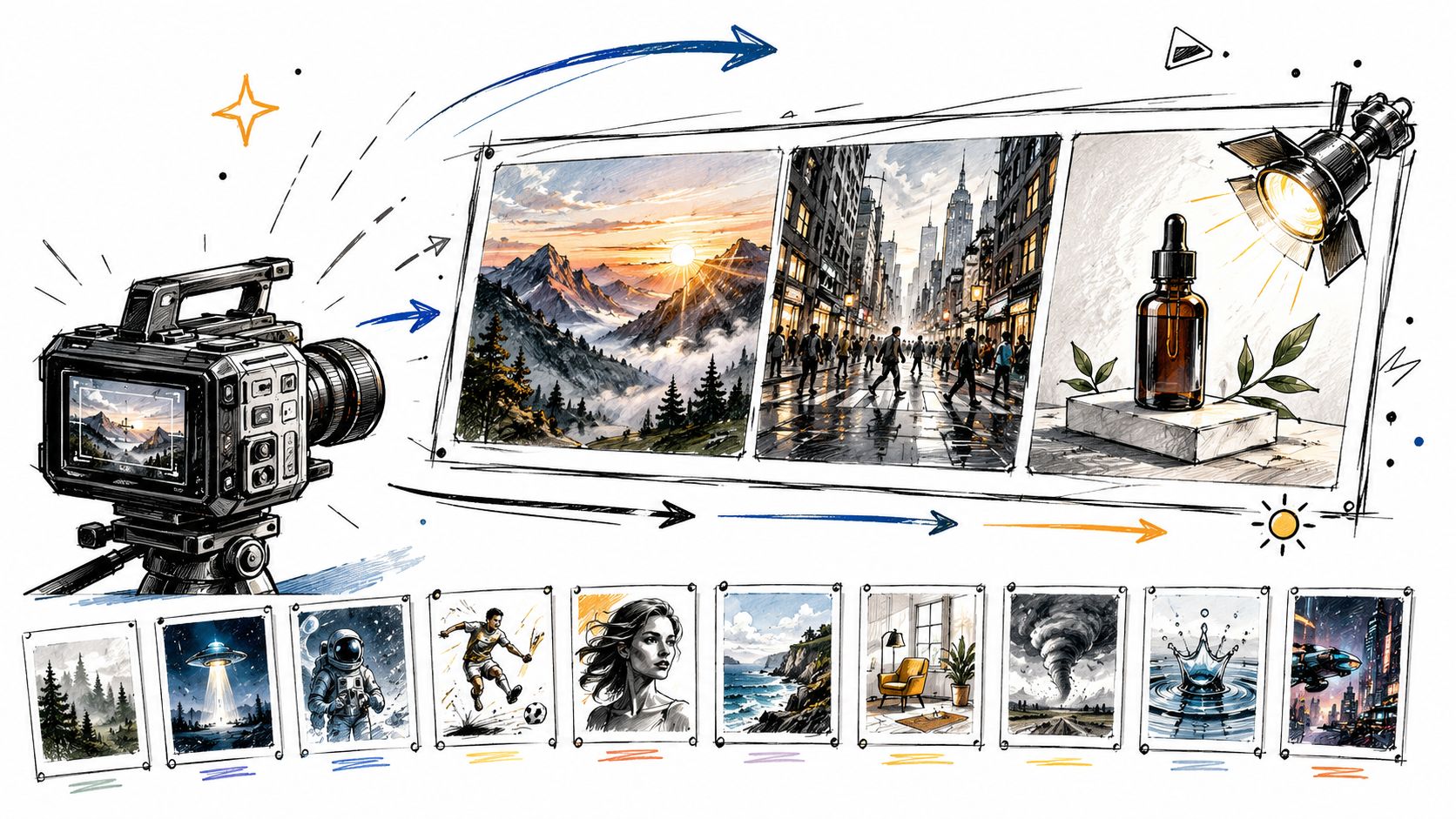
The strongest AI video prompts do more than name a subject and add cinematic adjectives. They define the motion, camera, lighting, setting, timing, and intended use so the generator has a coherent scene to interpret. That structure matters even more as text-to-video models move from short visual experiments toward longer, more coherent sequences, where continuity and scene direction become part of the prompt itself. A review of text-to-video generation traces key developments from the Video Diffusion Model in 2022 to NUWA-XL, which generated videos lasting up to 11 minutes, and OpenAI's Sora in 2024.
Short-form work has a strong practical case, too. HubSpot's 2025 marketing data found that 29.18% of marketers used short-form video, making it the most commonly used video format in the survey, while 21% identified it as the video format delivering the greatest ROI (HubSpot's video marketing data). A good prompt should therefore account for the clip's job, not just its look.
These ten video prompt ideas focus on production variables you can control, from camera movement and source images to sound, format, character continuity, and model choice. Each includes an adaptable example, practical trade-offs, and a way to test or refine the result for ads, social clips, explainers, narratives, and visual experiments.
Table of Contents
- 1. Cinematic Camera Movement Prompts
- 2. Product Hero Shot for Ads
- 3. Image-to-Video Photo Animation
- 4. Stop-Motion and Claymation Style
- 5. Time-Lapse and Day-to-Night Transitions
- 6. Vertical Short-Form Hook for TikTok, Reels, and Shorts
- 7. Dialogue and Sound-Driven Scenes
- 8. Animated Explainer and Infographic Motion
- 9. Anime and Japanese Animation Aesthetic
- 10. Cross-Model Prompt Comparison Test
- 10 Video Prompt Ideas Compared
- Turn One Prompt into a Reusable Creative System
<a id="1-cinematic-camera-movement-prompts"></a>
1. Cinematic Camera Movement Prompts
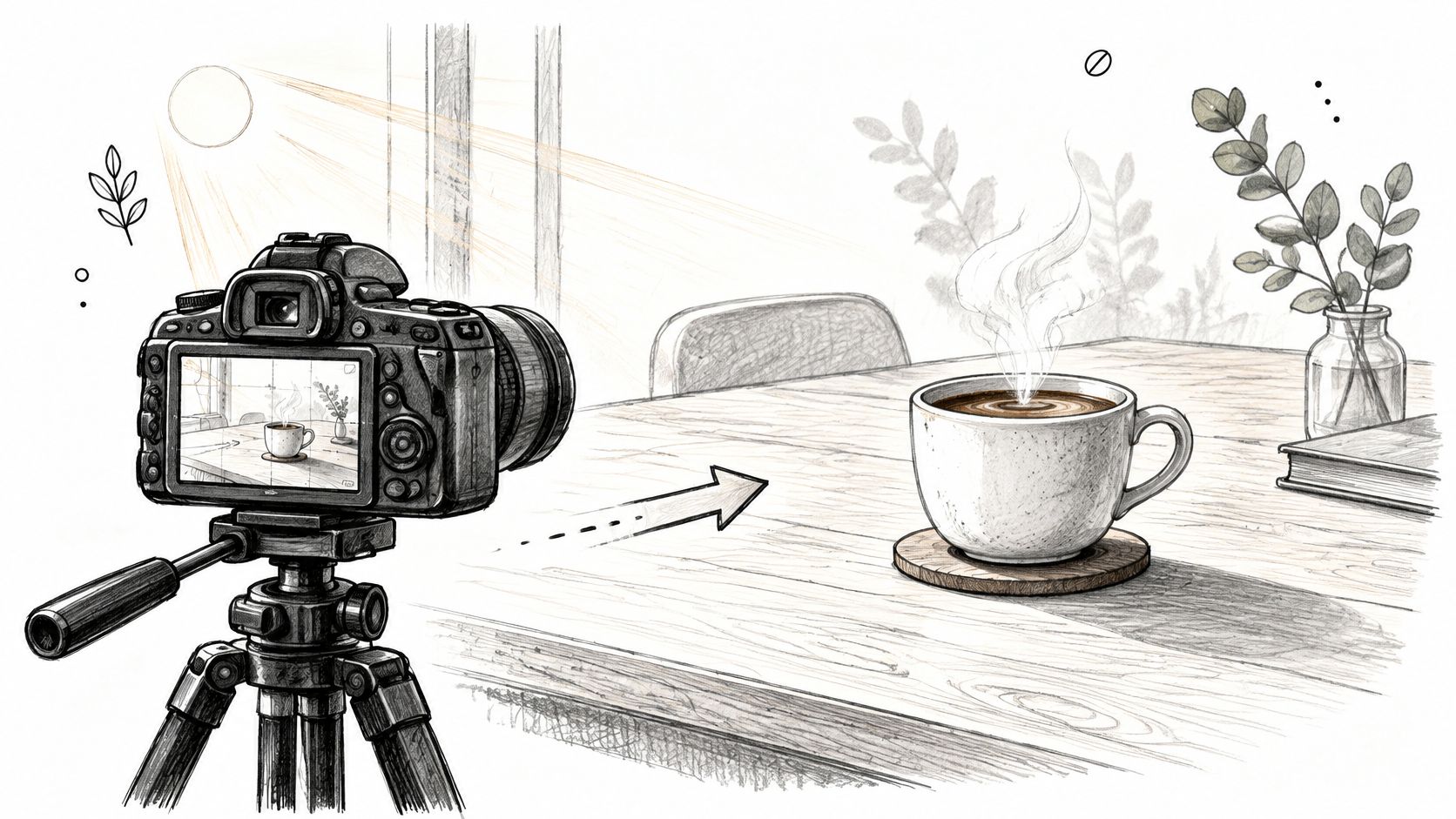
A named camera move gives the generator a specific motion to interpret. “Make it cinematic” describes a mood, but it doesn't tell the camera where to go. Start with one subject, one primary move, and lighting that supports the shot.
Adaptable prompts:
- “Slow dolly-in on a ceramic coffee cup on a wooden table, morning window light, shallow depth of field.”
- “Low-angle tracking shot following a runner through a rainy city street at dusk, steady camera, reflections on wet pavement.”
The first example suits a café social post or a quiet product introduction. The second has more kinetic energy, but it also asks the model to manage a moving subject, camera tracking, rain, and reflections. If the runner's movement becomes erratic, simplify the scene before adding more visual detail.
Practical rule: Give the clip one primary camera move. State its direction and pace, then anchor the look with a lens or lighting detail.
Test a slow dolly-in against a steady side track by changing only the movement phrase. Keep the subject, setting, and lighting fixed so you can see what the camera instruction changes. For more ways to shape a clip's look, explore these video effects. A cinematic video tool for founders can also fit teams turning a visual concept into a polished pitch or campaign asset.
Start a movement test with the Veo 3 AI video generator. Veo 3.1 is one option for testing camera-directed prompts. Compare the footage for deliberate motion, subject stability, and whether the camera move helps tell the story rather than distracting from it.
<a id="2-product-hero-shot-for-ads"></a>
2. Product Hero Shot for Ads
A product hero shot works best when the object stays visually dominant. Describe the product's material, color, surface, and lighting, then give it a simple action. A clean background usually helps more than adding several decorative elements that compete for attention.
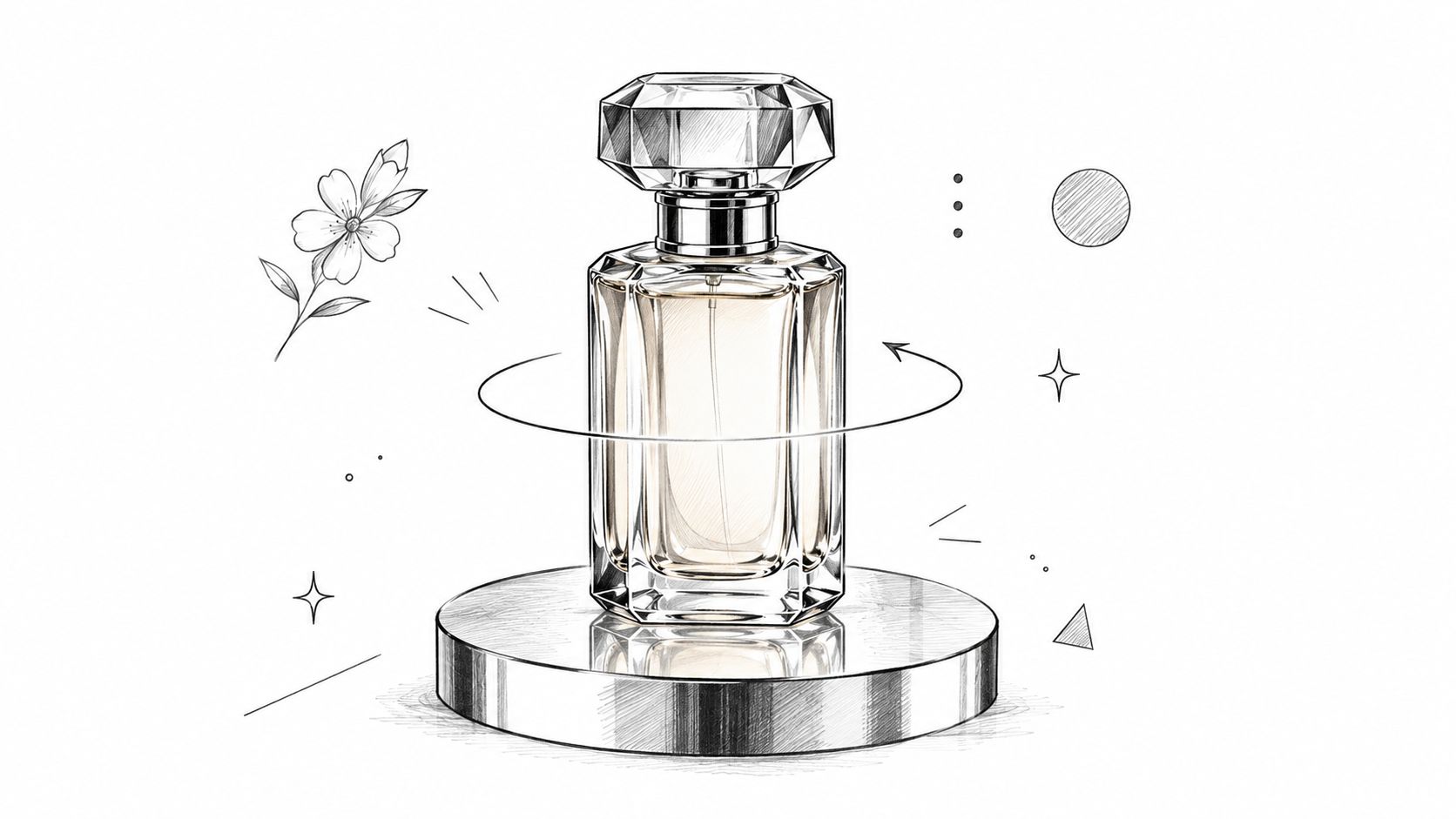
Prompt example: “A clear glass perfume bottle with a pale amber liquid rotates slowly on a black reflective surface, soft rim lighting outlines the bottle, dark studio background, fixed camera, refined luxury-ad mood.”
For a footwear concept, shift the subject and action: “A white leather sneaker rises from a controlled splash of water in slow motion against a teal backdrop, crisp studio light, centered product, no extra objects.” These are useful as ad concepts or creative tests, not as proof of a product's actual performance or features.
<a id="keep-the-product-faithful"></a>
Keep the product faithful
If your video tool supports image-to-video, use a clean reference image to guide the object's appearance. Google describes Veo as supporting reference images that guide a scene, character, or object, along with controls for defining an object's movement path (Google's Veo overview). In the prompt, separate what must remain fixed, such as shape and color, from what may move, such as the bottle's rotation or a reflection.
Review logos, packaging, and any rendered text frame by frame before publication. AI-generated details can shift or become unreadable, so add accurate labels in an editor rather than relying on generated lettering. A simple composition may look less dramatic than a complicated one, but it's usually easier to evaluate and edit.
<a id="3-image-to-video-photo-animation"></a>
3. Image-to-Video Photo Animation
A still image already provides a composition, subject, and visual style. The prompt's job is to introduce controlled motion, not to describe every detail that's already visible. This makes photo animation a natural fit for archival images, illustrations, portraits, and product photography.

Prompt examples:
- “Animate this vintage family portrait subtly. The subjects blink naturally, while leaves in the background move in a gentle breeze. Keep faces, clothing, and framing unchanged.”
- “Turn this flat product photo of a mug into a quiet loop. Steam rises slowly from the mug; the camera and composition remain fixed.”
A small motion usually preserves the source image better than asking for “everything to move.” Pick one or two actions that support the image, such as drifting clouds, candlelight flicker, a slight head turn, or rising steam. If the model changes the face or product shape, remove other motion instructions and state more clearly what must remain unchanged.
Use a sharp, well-lit source image with the main subject easy to distinguish from the background. Generate several short versions and choose the one with the most natural movement, rather than assuming the first result will be the best. The trade-off is control: subtle animation can feel convincing, but large movements can expose inconsistencies in the source image or cause unwanted changes. For practical inspiration on animating photographs, consult this photo-to-video guide.
<a id="4-stop-motion-and-claymation-style"></a>
4. Stop-Motion and Claymation Style
Handmade texture gives a clip a distinct visual identity. Put the material and animation approach near the beginning of the prompt, then describe a simple action that could plausibly happen on a miniature set. Clay, felt, paper cutouts, and cardboard each suggest a different surface and shape.
Prompt examples:
- “A clay character waters a tiny green plant on a miniature wooden desk, handmade stop-motion animation, visible frame changes, warm practical lighting.”
- “A felt-textured city of cardboard buildings, a small paper bus moves along the street, handcrafted miniature set, gentle stop-motion camera jitter.”
These concepts suit a short educational story, a playful brand mascot, or a social clip where texture can make a simple action memorable. They're less effective when the prompt piles on complex choreography. A character walking, waving, picking something up, and speaking in the same shot gives the model several movements to coordinate, while the handmade look depends on controlled motion.
<a id="preserve-the-craft-from-shot-to-shot"></a>
Preserve the craft from shot to shot
For a multi-shot sequence, repeat the character's description and material language each time. Keep the miniature scale, lighting direction, and palette consistent, then change the shot's action or camera position. If one clip suddenly looks like smooth digital animation, strengthen the physical cues, such as clay fingerprints, felt fibers, paper edges, and deliberate frame-by-frame movement.
Test one character in one small set before building a more elaborate scene. The style can look charming, but intentionally uneven motion may also become distracting if the camera shake is too strong. Specify gentle jitter rather than leaving the intensity open-ended, and inspect the result to see whether the texture holds through the action.
<a id="5-time-lapse-and-day-to-night-transitions"></a>
5. Time-Lapse and Day-to-Night Transitions
In a time-lapse, the transition is the story. Tell the model where the scene begins, where it ends, and what changes between those points. If you don't define that progression, the result may contain attractive scenery without a readable transformation.
Prompt example: “Locked-off view of a coastal village moving from golden hour to blue hour. The sky darkens gradually, warm lights appear in the windows, and the sea stays calm. Smooth time-lapse transition, fixed composition.”
A second concept could follow a seed sprouting and blooming, with the plant's growth as the only major movement. For that kind of shot, state the starting condition, the stages of change, and the final image. Don't ask for a camera orbit as well unless it serves a specific purpose. Compounding a camera move with a fast environmental transition can make it harder to judge whether either instruction worked.
State the opening and closing conditions as plainly as the action in between.
Keep the camera locked off for a wide or architectural transition, or use one slow camera move if the scene needs added depth. A time-lapse can suggest a long process, but it won't necessarily show every stage accurately or continuously. For a product or educational video where a particular change must be correct, treat the generated clip as a visual concept and verify important details separately.
<a id="6-vertical-short-form-hook-for-tiktok-reels-and-shorts"></a>
6. Vertical Short-Form Hook for TikTok, Reels, and Shorts
Vertical wins or dies in the first second. Put the payoff image up front, deliver one readable action, and leave a clean closing frame for a loop or CTA.
Prompt examples:
- "9:16 vertical video for TikTok, close-up of a hand dropping a paint-filled balloon; it bursts into a vivid color reveal against a clean background, subject centered with clear space for captions."
- "9:16 vertical video for Instagram Reels, a character steps through a doorway into a surreal scene in one continuous camera move, striking opening frame, clean ending composition."
Start with an unexpected object, a sudden reveal, or a visible state change. The hook should serve the idea; a startling image that has nothing to do with the payoff leaves viewers confused rather than curious. Keep the subject centered with headroom for captions. Add text in an editor so it stays readable and editable after export.
Short-form rewards volume and fast testing. For a repeatable workflow, build a master prompt and change one controlled variable at a time, such as the opening shot or call to action, so each test isolates one decision.
I run vertical tests in batches of three. Same subject, same background, different first frame. Then I keep the winner and test the payoff. That keeps iteration tight and avoids reshooting the whole concept when only the hook failed.
Here's an example of a vertical clip in action:
<iframe width="100%" style="aspect-ratio: 16 / 9;" src="https://www.youtube.com/embed/2byPP_9F0-Q" frameborder="0" allow="autoplay; encrypted-media" allowfullscreen></iframe>
<a id="7-dialogue-and-sound-driven-scenes"></a>
7. Dialogue and Sound-Driven Scenes
A sound-driven prompt describes what the viewer hears as carefully as what appears on screen. Google describes Veo as capable of natively generating audio, including sound effects, ambient noise, and dialogue. That allows a scene to include both a visual action and its sound environment, though generated audio still needs review before it's ready to publish.
Prompt examples:
- “A quiet café close-up as an espresso machine hisses and cups clink softly. A barista looks up and says, ‘Just one more minute.’ Warm indoor ambience, natural conversational voice.”
- “A rainy street at night, footsteps approach through puddles, distant thunder rolls, a person whispers a short line. Outdoor wind and rain remain audible beneath the dialogue.”
Identify who speaks, what they say, and how they sound. For clearer delivery, keep the line short and give it a tone, such as calm, amused, or hurried. Also describe the environment: a quiet room with slight echo sounds different from a busy café or an exposed street.
<a id="treat-the-audio-as-a-draft"></a>
Treat the audio as a draft
Generated dialogue may be inaccurate, unclear, or poorly synchronized with a character's mouth. That's a real trade-off when speed and immersion matter more than exact wording. If the line must be exact, record or replace it in post-production. Check pronunciation, timing, and language suitability before publishing, especially for localized versions. You can also prompt for ambience without speech when a soundscape is enough to carry the scene.
<a id="8-animated-explainer-and-infographic-motion"></a>
8. Animated Explainer and Infographic Motion
Explainer visuals work when each clip communicates a single step. A clear vector style, a consistent palette, and a simple sequence make an idea easier to follow than a busy scene trying to explain several concepts at once.
Prompt examples:
- “Flat-design conveyor belt with a simple cart moving from left to right. Unmarked packages drop into color-coded boxes, one action at a time, clean vector shapes, blue and warm yellow palette.”
- “Minimal icon-based timeline, each milestone lights up in sequence from left to right, steady camera, uncluttered educational design, consistent colors and spacing.”
For a SaaS explainer, you could show a file moving through a basic workflow: input, processing, result. Use visual symbols for those stages, and add the exact labels in an editor. Generated text may be misspelled or distorted, so it's safer to prompt for empty cards, simple icons, or shapes and apply typography in post.
Describe the motion in order. “A diagram assembles itself” is a starting point, but naming the pieces and their sequence makes the action easier to control. Keep each shot focused on one idea or step, then connect separate clips during editing if the explanation needs more depth. A restrained visual system can feel less cinematic than a highly detailed scene, but it tends to be easier to read and align with brand colors.
<a id="9-anime-and-japanese-animation-aesthetic"></a>
9. Anime and Japanese Animation Aesthetic
“Anime style” leaves many choices open. Specify the visual language you want, such as cel-shaded characters, expressive faces, painterly backgrounds, speed lines, or a particular era's animation feel. Describe original characters and design traits rather than relying on protected characters or recognizable franchise names.
Prompt examples:
- “Original anime-style character on a school rooftop at sunset, hand-painted sky, cel-shaded figure gazing upward as cherry blossoms drift across the frame, quiet reflective mood.”
- “Original round brand mascot bounces into a clean product reveal, cel-shaded design, dynamic speed lines, bright sparkles, simple background, playful pacing.”
The rooftop concept is suited to a reflective narrative beat, while the mascot prompt is built around a faster reveal. Keep character traits stable across related prompts: hairstyle, clothing, silhouette, colors, and expression. Then vary the action or composition without rewriting the identity each time.
Style can drift between generations, especially when prompts mix conflicting visual cues. If the output becomes too realistic or too glossy, remove competing style terms and reinforce the intended treatment through materials, outlines, shading, and background description. A familiar aesthetic can make a clip immediately legible, but originality still matters. For a campaign, develop a distinct mascot or scene rather than asking the model to reproduce an existing character.
<a id="10-cross-model-prompt-comparison-test"></a>
10. Cross-Model Prompt Comparison Test
Different video models may interpret the same prompt differently. A controlled comparison helps you judge which output best fits a particular job, whether that's keeping a product recognizable, sustaining handmade texture, or following a camera instruction.
Comparison prompt: “A clear glass perfume bottle rotates slowly on a black reflective surface, soft rim lighting, fixed camera, dark studio background, centered product, no added labels.”
Run the same wording, aspect ratio, and duration across the models you're considering. Compare the results for prompt adherence, motion smoothness, product stability, and visual quality. Avoid changing the prompt to rescue one model during the initial comparison, because then you're testing different instructions as well as different models.
<a id="score-the-work-not-the-first-impression"></a>
Score the work, not the first impression
A simple checklist is more useful than a general feeling that one clip “looks better.” Note whether the bottle stays the same shape, the movement remains steady, the background stays clean, and the lighting matches the prompt. If you compare models such as Veo 3.1, Seedance 2.0, and Kling 3.0, treat the names as candidates to test, not as a guarantee that one will win every style or task.
Use the Veo 3 AI video generator to work across multiple models in one environment. Repeat the same test where possible, save prompts that produce useful results, and check the pricing page for current plan details before committing to a workflow.
<a id="10-video-prompt-ideas-compared"></a>
10 Video Prompt Ideas Compared
| Prompt Type | 🔄 Implementation Complexity | ⚡ Resource Requirements | 📊 Expected Outcome | Ideal Use Cases | ⭐ Key Advantage |
|---|---|---|---|---|---|
| Cinematic Camera Movement Prompts | Low–Medium; specify one move, speed, lens, and lighting | Low; one subject and a video-generation model | More intentional, polished camera motion | Establishing shots, product reveals, mood pieces | Camera direction is easy to iterate and reuse |
| Product Hero Shot for Ads | Low; define product, materials, lighting, and simple motion | Low–Medium; reference image recommended for product accuracy | Clean, studio-style product concepts | Ad testing, product launches, colorway variations | Quickly creates multiple ad concepts without a studio shoot |
| Image-to-Video Photo Animation | Low; prompt only the desired subtle motion | Low; requires a suitable, preferably high-resolution image | Animated still with composition and palette largely preserved | Social posts, archival photos, existing product assets | Reuses source visuals for consistent results |
| Stop-Motion and Claymation Style | Medium; specify materials, handmade set, and frame-stutter feel | Medium; repeated generations may help maintain character continuity | Tactile, handcrafted-looking animation | Short-form storytelling, children's content, explainers | Distinctive style can make minor imperfections feel intentional |
| Time-Lapse and Day-to-Night Transitions | Medium; define start, end, pace, and camera position | Low–Medium; a simple scene and stable framing help | Compressed change over time, often with lighting shifts | Travel, real estate, seasonal marketing, growth sequences | Creates a strong visual transition with little subject complexity |
| Vertical Short-Form Hook | Low; define 9:16 framing, opening action, and payoff | Low; short clip with one clear idea | Mobile-first clip designed to capture attention quickly | TikTok, Reels, YouTube Shorts | Repeatable structure supports rapid hook testing |
| Dialogue and Sound-Driven Scenes | Medium–High; coordinate visuals, audio, tone, and short dialogue | Medium; audio-capable model and quality review needed | Immersive scene with generated sound and potentially speech | Narrative clips, character moments, ad prototypes | Combines visuals and audio in one generation workflow |
| Animated Explainer and Infographic Motion | Medium; plan one idea or step, style, palette, and motion sequence | Low–Medium; simple visuals work best | Clear, step-by-step visual explanation | Education, SaaS demos, social explainers | Communicates concepts with less production effort than traditional motion graphics |
| Anime and Japanese Animation Aesthetic | Medium; specify sub-style, character traits, and background treatment | Medium; repeated prompts may be needed for consistency | Stylized, expressive animation with anime-inspired visuals | Fan content, original mascots, emotional short scenes | Recognizable visual style supports expressive storytelling |
| Cross-Model Prompt Comparison Test | High; standardize prompts and score outputs across models | High; multiple models, generations, and evaluation time | Evidence-based view of model fit for specific tasks | Tool selection, campaign planning, prompt library development | Helps identify suitable models and reduce wasted spend |
<a id="turn-one-prompt-into-a-reusable-creative-system"></a>
Turn One Prompt into a Reusable Creative System
A prompt becomes more useful when it's part of a repeatable production method. Start with the idea that matches the clip's job: a product hero shot for an ad concept, a photo animation for a still image, or a vertical hook for a social post. Then define one dominant motion and the visual details that materially affect the result. That gives the model direction without asking it to solve too many competing problems at once.
For a first draft, keep the scene compact. Name the subject and action, establish the setting and lighting, and specify camera movement, format, and sound if they matter. With Veo 3.1, Google documents video durations of 4, 6, or 8 seconds, with reference-image-to-video limited to 8 seconds. The documentation also lists 9:16 portrait and 16:9 landscape, a fixed 24-frame-per-second frame rate, and MP4 delivery. Match the prompt to the available output controls rather than assuming every requested duration or orientation is supported.
For each iteration, keep what worked and change one variable. If the camera move feels wrong, adjust the movement instruction without rewriting the character, palette, and setting at the same time. If an object changes shape, clarify what must remain fixed or try a reference image where available. If sound matters, specify the environment and speaker separately, then review the generated audio for clarity and accuracy.
This workflow also helps diagnose controllability failures. In an AI-video market survey, 60% of respondents said outputs still looked obviously AI-generated, while 52% found details difficult to edit or fix (survey findings on AI video). Those issues are a reason to focus on constraints and repairable details, not adding length for its own sake. Define what must stay consistent, what can change, and which details you will fix in an editor rather than regenerating the entire scene.
For recurring campaigns, save a master prompt with reusable fields for subject, action, environment, visual style, audience, aspect ratio, duration, sound, and constraints. Build variations by changing only a product benefit, opening shot, language, or call to action, then compare them under the same conditions. Generative video is becoming part of a wider advertising workflow: the Interactive Advertising Bureau reports that 86% of digital-video buyers were using or planning to use generative AI for ad creative (IAB coverage of GenAI creative use). That makes a clear test structure more valuable than a folder of unrelated prompt experiments.
Before publishing, review every frame for product and brand accuracy, and check dialogue, captions, and visual continuity. Don't rely on a generated logo, testimonial, or product claim as factual. Save the successful prompt and the reason it worked, then revise the template when a new result reveals a more reliable approach. Your library should capture production decisions, not just attractive descriptions.
Try a camera move, product shot, or photo animation with one clear variable to control, then compare the result with a deliberate test. Veo3 AI brings multiple video generation models together and supports workflows built around text prompts and static images. Explore it as you develop reusable prompts for ads, social clips, explainers, and creative experiments.
Related Articles
Continue with more blog posts in the same locale.
MiniMax H3 vs Kling 3.0: A Practical 2026 Guide
MiniMax H3 vs Kling 3.0 compared on quality, speed, cost, audio, and real workflows, so you can pick the right model for your next video in 2026.
Read article
7 AI Funny Video Tools for Hilarious Shorts
Discover 7 AI funny video tools for memes, avatars, surreal clips, and short-form content, plus practical ways to make viewers laugh.
Read article
MiniMax H3 Prompt Guide for Better AI Video
MiniMax H3 prompt guide with practical templates, parameter tips, and workflow fixes for creators using Veo 3.1 and other top AI video models in 2026.
Read article