
Add a Moustache to a Photo the Right Way
Add a moustache to a photo with AI, a phone app, or layers. Match the method to the face, blend the hair, and export a still worth sharing.
Veo3 AI · 14 min read · Oct 28, 2026
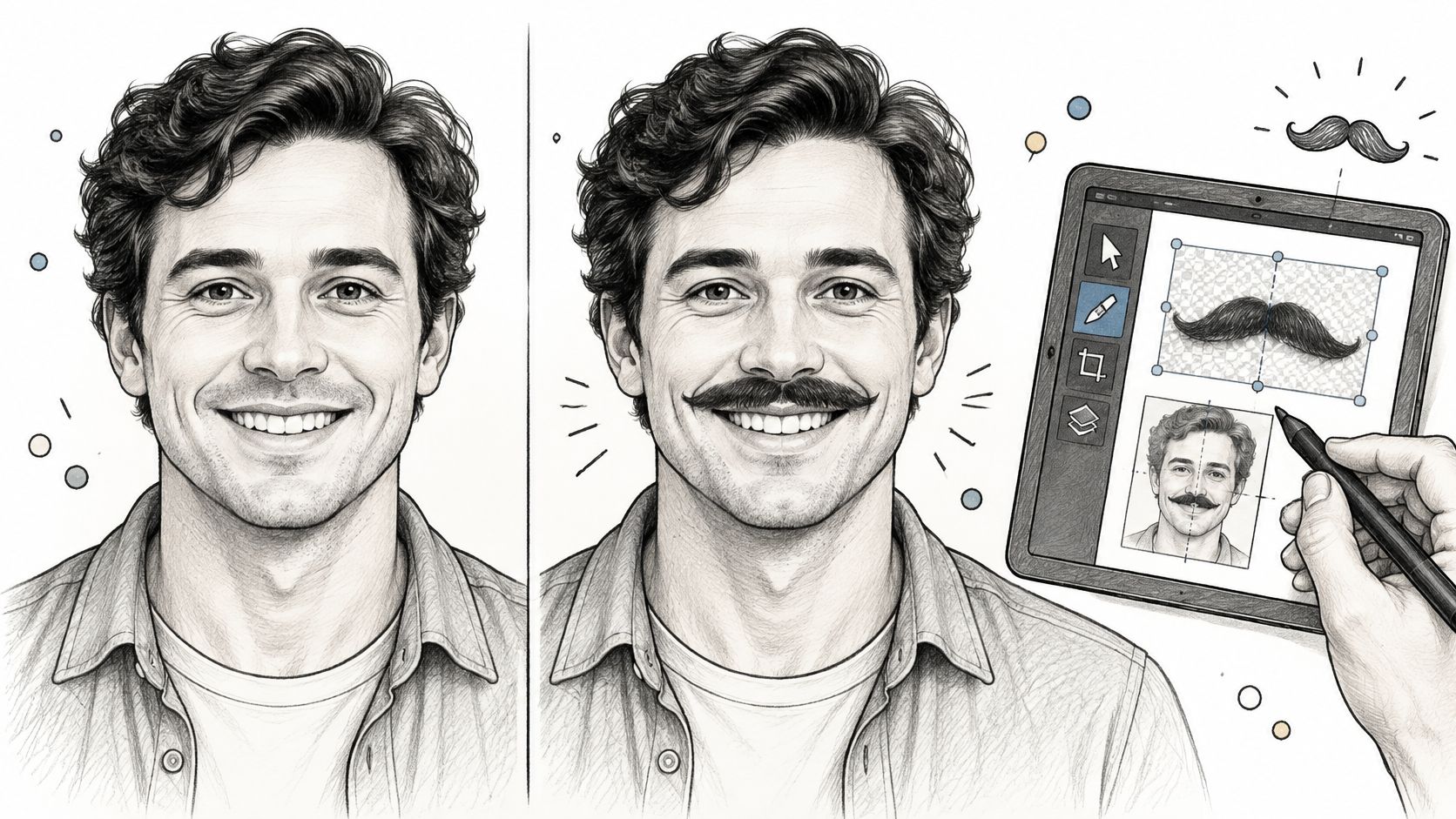
A friend sends a birthday group photo and asks for a joke moustache before the group chat goes quiet. The edit sounds simple, until the moustache floats above the lip, turns pure black, or covers the person's glasses. The fix starts before you open an app: choose a method that matches the face and how closely people will inspect the result.
Table of Contents
- Choose a Method Before You Edit
- Add a Moustache with an AI Editor
- Drop a Moustache on a Phone Photo
- Build a Photoreal Moustache in Layers
- Fix Light, Occlusion and Odd Angles
- Export the Still or Animate It
<a id="choose-a-method-before-you-edit"></a>
Choose a Method Before You Edit
| Method | Best photo | Time | Control | Main failure |
|---|---|---|---|---|
| AI image editor | Clear mouth, want several styles | 1-3 minutes | Medium | Identity drift or plastic hair |
| Phone sticker or filter | Frontal party selfie | Under 1 minute | Low | Hard edge and pure black |
| Layered composite | Print, profile, glasses, ads | 15-40 minutes | High | Cutout halo or wrong rotation |
| Painted hair brush | No matching source moustache | 20-45 minutes | Highest | Flat opacity and black-only color |
Run a quick face test before choosing. If the photo is evenly lit and the mouth faces the camera, any row may work. If the head is turned, frames cross the lip, stubble fills the area, or the file is small and soft, skip stickers: they're least forgiving where the face isn't a clean, frontal surface.
An AI image editor is the easiest starting point when the philtrum, upper lip, and both mouth corners are visible. It can try a pencil, handlebar, or compact 1930s crop without requiring you to build layers. A phone filter suits a one-off selfie in even light, but it offers little control over hair direction and edge detail.
Choose a layered composite for a profile picture, print, glasses, or any image someone might scrutinize. You can reposition and recolor the moustache without permanently changing the original. Painted hair is the fallback when you can't find a source moustache that matches the face's light, texture, and angle. It takes patience, but a brush lets you build individual strands rather than settle for a cutout.
Moustaches also carry more meaning than a funny decoration. An account of photo manipulation describes a 19th-century portrait of Rabbi Hirsch altered by cutting and pasting facial hair onto the image, about a century before Photoshop and similar software existed. The alteration was visible in comparison with the original, and the proposed motive was that facial hair could make the rabbi seem more authoritative and the portrait more commercially appealing, as described in EBSCO's history of photo manipulation. That's a useful reminder: a moustache changes how a face reads, so the style should fit the person and the image's purpose.
Pick one look and one method. A thin pencil reads differently from a sweeping handlebar or a compact 1930s crop. Follow only the matching steps for your chosen method; stacking three different edits on one face won't make the result more convincing.
<a id="add-a-moustache-with-an-ai-editor"></a>
Add a Moustache with an AI Editor
An AI editor can draft a moustache quickly, but it needs clear boundaries. The key is to tell it what may change and check the actual face, not just whether the new hair looks stylish.
<a id="seven-actions-for-a-controlled-edit"></a>
Seven actions for a controlled edit
-
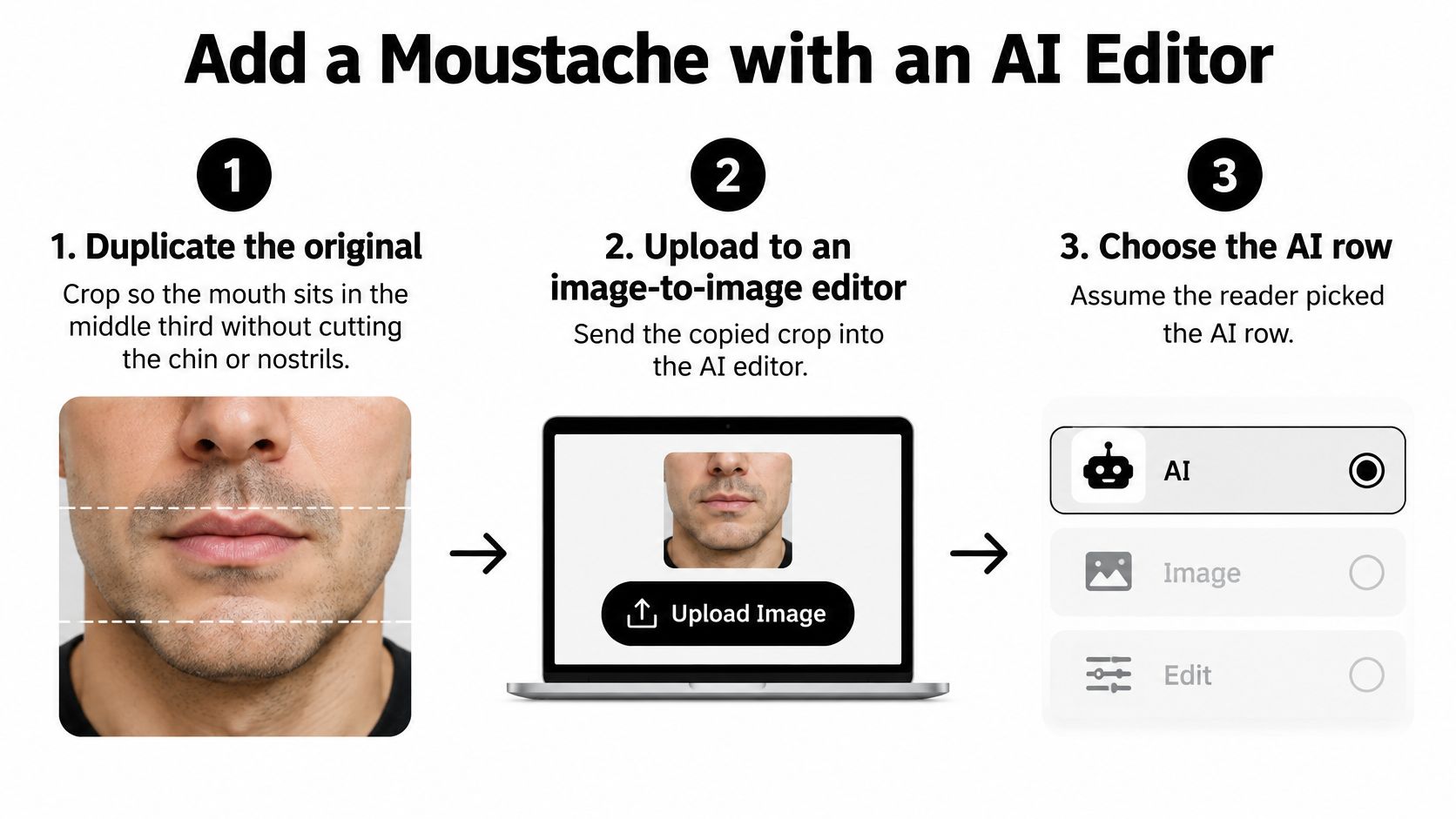
Duplicate the original. Work on a copy, then crop so the mouth sits in the middle third of the frame. Keep both the chin and nostrils visible. Those landmarks help you judge whether the new hair sits in the right place.
-
Upload the copy to an image-to-image editor. Use the original image file or a clean crop, not a screenshot that's already been softened or compressed. For a starting point, the Veo3 AI image-to-image tool transforms, restyles, or enhances an image with AI editing.
-
Write a locked prompt. For a pencil style, try: “Add a short, dark pencil moustache following the philtrum, with separate hairs and the same light as the portrait. Do not change the eyes, skin, teeth, glasses, or background.” Swap “pencil moustache” for “handlebar” or “short 1930s crop” when that's the look you want.
-
Generate three or four variations. Compare the moustache position against the philtrum and mouth corners. Reject any result that obscures the nostrils, sits on the pink lip surface, shifts the jaw, or invents a second shadow.
-
Use a mask if the editor provides one. Restrict the edit to a narrow band above the lip so the rest of the face can't drift. A mask is especially useful when the person's features must stay recognizable.
-
Check the hair's edge and tone. Good results have thinner hairs near the edges, a brown-black close to the eyebrows or stubble, and no pale halo. Pure black and a perfectly smooth outline tend to look pasted on.
-
Download the chosen result at the source pixel size. Keep the original unchanged. If the face is in three-quarter view, say which cheek is nearer the camera and ask the editor to shorten the far end. For glasses, specify that the frames stay in front of the hair.
Don't judge only the style name. A handlebar can look plausible in a prompt preview and still sit too low or run across the lip. Leave tricky blending and difficult source photos for hands-on correction rather than asking the editor to fix every problem at once.
<a id="drop-a-moustache-on-a-phone-photo"></a>
Drop a Moustache on a Phone Photo
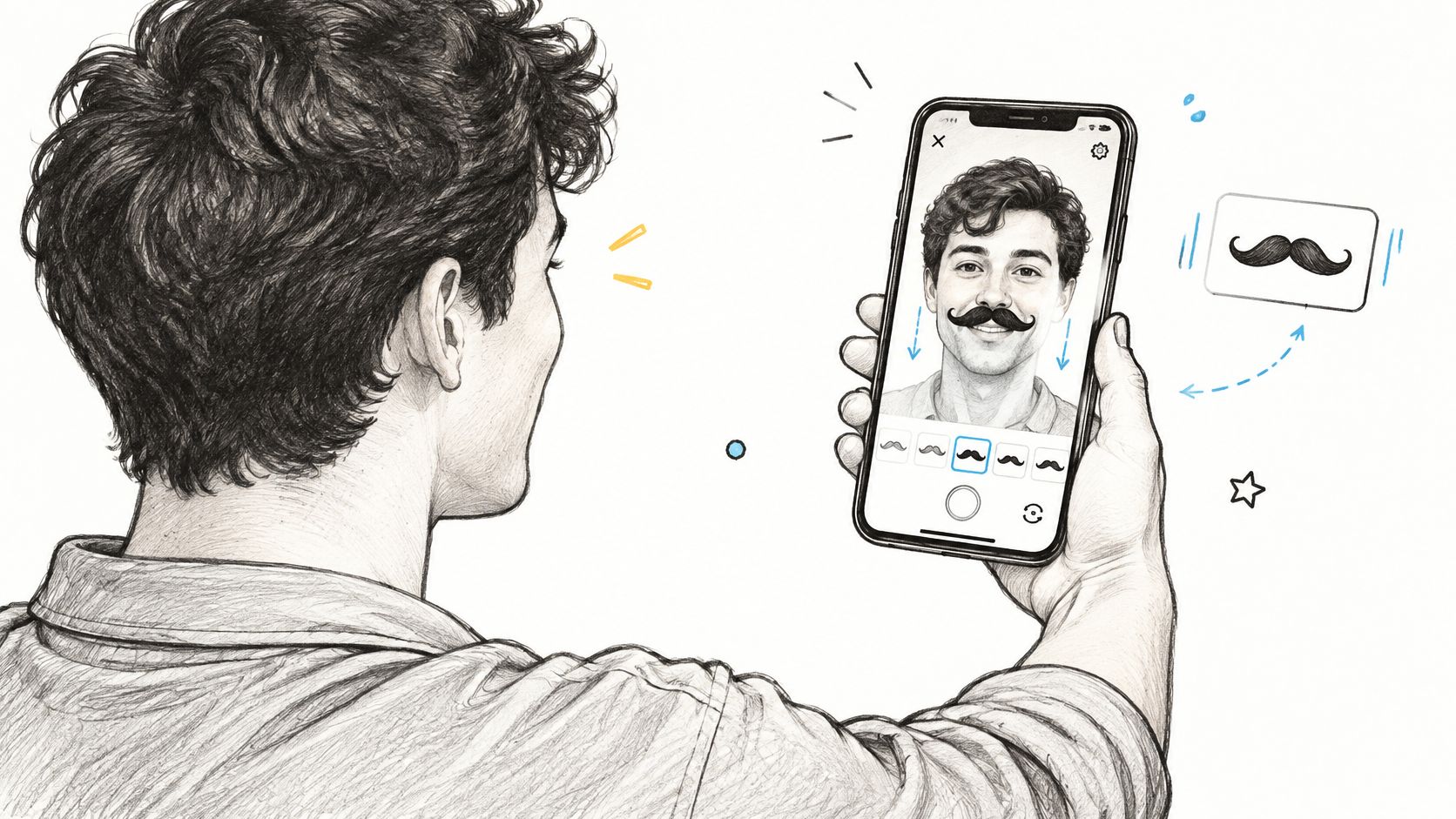
A phone sticker is for the easy case: a front-facing selfie, even light, and a clear upper lip. It's quick, but the result can look like a decal if the sticker doesn't follow the face's landmarks.
-
Start with the camera original. Turn off heavy beauty filters and avoid a screenshot of a screenshot. Extra smoothing can hide the edge problems you need to see.
-
Open a face-filter or sticker app. Search for a moustache by itself rather than a full costume, so you can size and place the facial hair independently.
-
Set its center on the philtrum. Scale the ends until they stop near the mouth corners. If they reach onto the cheeks, the sticker is probably too wide.
-
Adjust color and opacity if available. Aim for roughly 80 to 90 percent opacity and choose a brown closer to the eyebrows than pure black. The moustache should sit within the photo's tones, not overpower them.
-
Export a copy. Keep the untouched photo in the camera roll for anyone who doesn't want the joke.
Phone filters are one of many simple uses of mobile devices. If you want a broader look at the hardware and apps behind everyday phone creativity, mobile technology for gadget enthusiasts offers related reading.
Take a birthday table with several friends: only one person opts in to the moustache joke. Duplicate the group shot, edit that copy, and don't overwrite the camera-roll original. If the subject is in profile, already has a dense beard over the lip, or is photographed in a dim room, stop rather than piling on another filter. A floating shape won't become convincing just because you add more effects.
A watermark or compressed social export may be fine for a private story, but it's a poor source for print or an advertisement. Those uses need a cleaner file and more control over how the moustache follows the face.
A short demonstration can help you spot where a phone overlay tends to drift on a selfie.
<iframe width="100%" style="aspect-ratio: 16 / 9;" src="https://www.youtube.com/embed/g5KHO45lV1g" frameborder="0" allow="autoplay; encrypted-media" allowfullscreen></iframe>
<a id="build-a-photoreal-moustache-in-layers"></a>
Build a Photoreal Moustache in Layers
For a portrait someone may inspect closely, keep the edit reversible. A separate moustache layer lets you move, reshape, recolor, and thin the hair without damaging the face beneath it.
<a id="mask-first-then-align"></a>
Mask first, then align
Duplicate the photo and place the source moustache on its own layer. Isolate it with a layer mask or Select and Mask rather than erasing pixels. If you need to change the placement later, a mask preserves the material you removed from view.
Line up the moustache's center with the philtrum, then position its ends in relation to the mouth corners. Scale and rotate it to fit. If the face is angled, use warp or perspective adjustments so the far end follows the cheek rather than projecting sideways. A documented Photoshop workflow recommends refining the composite at approximately 400%, using a brush around 8 px where hair meets skin and a finer 4 px brush for outer-edge cleanup, as detailed in this layered moustache-compositing workflow.
Once the shape fits, correct its tone. Clip Levels or Curves to the moustache layer so you don't alter the skin. Sample a brown-black from nearby facial hair or shadows, and lower opacity if the source moustache has stronger contrast than the portrait. Check that the edge doesn't carry leftover skin from the source image.
<a id="paint-hair-when-a-source-doesnt-fit"></a>
Paint hair when a source doesn't fit
When no source moustache matches the face's angle, color, or lighting, paint a new one on a separate layer. Make a soft selection over the upper-lip hair region, stopping short of the nostrils and the pink lip border. Use a fine hair brush with varied size, angle, roundness, scattering, and opacity; follow the direction of the face's existing hair growth.
Build the shape with strands instead of filling the whole area with a uniform dark patch. Add a few irregular edge hairs, then use localized dodge and burn to bring the hair into the portrait's light. Spot Healing or Clone Stamp can remove distracting stray hairs without flattening the rest of the texture.
Retouching rule: If you need to repaint the edge more than once, keep the mask and layer intact. Reversibility is faster than rebuilding a moustache you erased too aggressively.
The recurring failures are a hard cutout edge, visible source skin, incorrect rotation, and mismatched luminance. Leave the moustache layer unmerged if you may animate the still later, so the hair doesn't become inseparable from stray background pixels.
<a id="fix-light-occlusion-and-odd-angles"></a>
Fix Light, Occlusion and Odd Angles
| Portrait problem | What breaks | First fix |
|---|---|---|
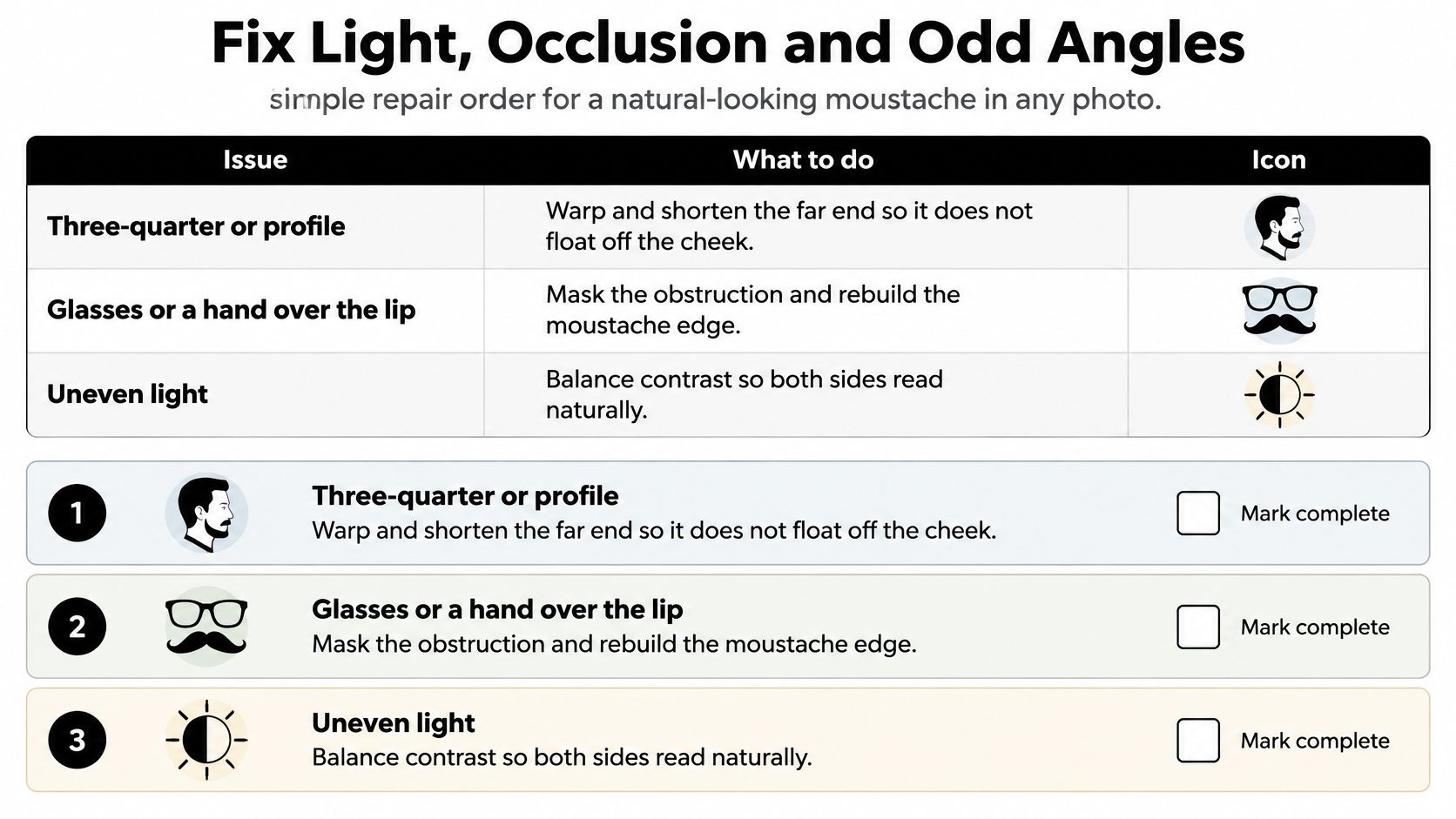
| Three-quarter or profile | Far end floats off the cheek | Warp and shorten the far side |
| Glasses or a hand over the lip | Hair paints over the occluder | Mask hair behind the frame |
| Stubble or a beard already there | A second moustache appears | Match color and lower density |
| Dark skin or a hard shadow | Grey or black patch | Sample the local shadow color |
| Low resolution | Sticker edge on soft skin | Upscale, then soften the mask |
| Motion blur | Sharp hairs fight the blur | Simplify the shape to the blur |
Use the table as a repair order: fix the face's geometry first, then anything that passes in front of the lip, then texture and light. A three-quarter or profile view needs perspective-aware shaping. Shorten the far side so it follows the face instead of floating beyond the cheek.
For glasses or a hand crossing the upper lip, mask the moustache behind the obstruction and rebuild only the hair edge that should remain visible. If stubble or a beard already covers the area, lower the added moustache's density and sample its color from the existing hair. Otherwise, the edit can read as two layers of facial hair competing for the same space.
Dark skin and strong shadows need careful color matching, not a default black fill. Sample from the nearby shadow or facial hair and compare both sides of the moustache with the portrait's light direction. If the file is low-resolution, upscale before refining the mask, then soften the edge so it doesn't look sharper than the skin. For motion blur, simplify the hair shape until its softness matches the rest of the image.
The hardest portraits are often where a sticker-only tutorial stops being useful. A guide to adding a moustache with an AI editor identifies side profiles, glasses, existing facial hair, shadows, darker skin tones, low resolution, motion blur, and partially covered lips as cases that need targeted fixes, not promises of universal realism. It also flags a video-specific problem: a still that looks acceptable can flicker or change shape once animated. The troubleshooting guide for non-ideal moustache portraits offers useful context for why these conditions deserve individual checks.
<a id="check-four-signs-of-a-believable-result"></a>
Check four signs of a believable result
Before exporting, check that the hair follows the lip shape, respects anything in front of the mouth, shares the portrait's light direction, and breaks into individual hairs at its edge. Then choose a style that suits the face. A large handlebar reads as period or theatrical; a smaller, neater 1930s crop can read more like a grooming choice.
Moustaches have long been used as recognizable styles in portraits, not just as comic props. The Poughkeepsie photographic collection includes late-19th- and early-20th-century examples such as handlebar, horseshoe, and walrus styles, while a separate historical account describes moustaches becoming smaller and more closely cropped in the 1930s. Photographer Philippe Halsman and Salvador Dalí explored moustaches through visual transformations in their 1954 project Dali's Mustache, as documented by the Poughkeepsie Public Library District's historical collection. Style changes the character of the image, so pick the shape with that effect in mind.
If the portrait will move, preview an open mouth and a small head turn. A frontal still can hide gaps that appear when the lips separate or the face rotates.
<a id="export-the-still-or-animate-it"></a>
Export the Still or Animate It
Save the portrait as a PNG or high-quality JPEG at its original pixel dimensions. Keep the layered file too, with the moustache on its own layer, so you can adjust its edges without repainting the face. Before sharing, get the subject's agreement and clarify how the edited image will be used. Veo3 AI allows an image of a real person only if it is a photo of you or you have that person's express written authorization.
Consent matters even for a playful edit. A moustache added to a coworker's photo, a child's portrait, a public figure's image, or a customer testimonial may be read differently once it is shared. Ipsos reports that 48% of people trust companies using AI to keep their data safe and 79% agree that companies should disclose AI use, according to its AI Monitor 2025 findings. Keep the original, and label promotional imagery if the moustache does not represent real grooming.
For a moving version, start with a simple prompt, such as a slight head turn or a gentle change in expression. Veo3 AI can create a video from an original image using a prompt. Google's Veo documentation describes Veo 3.1 clips of 8 seconds at 720p, 1080p, or 4K, with native audio. Google's Veo 3.1 update also describes native 9:16 vertical output for Shorts.
Upload the consented, edited still to the Veo 3 AI video generator and prompt restrained movement. Review the result frame by frame: facial hair can drift when the face turns, the lip moves, or glasses cross the moustache. Veo3 AI's image-to-video tool animates images from a prompt. Check the Veo3 AI pricing page for current costs.
Use Veo3 AI to animate a carefully edited, consented moustache portrait. Keep the motion subtle, then check that the hair stays aligned with the face throughout the clip. Visit Veo3 AI to animate your finished photo.
Related Articles
Continue with more blog posts in the same locale.
Crane Shot Film Explained: What It Is and How It Works
Crane shot film explained: how camera cranes work, their payload limits, famous examples, and how to recreate a crane move with AI video tools.
Read article
Text to Video Generator Compared: Models, Quality, Costs
Compare any text to video generator on quality tests, clip length, languages, credit costs and licensing, with a quick pick for each creator type.
Read article
MiniMax H3 Pricing: Rates, Credits and Clip Costs
MiniMax H3 pricing explained: per-second rates, credit packs, cost-per-clip examples and ways to lower your AI video budget.
Read article