
AI UGC Video Generator: How It Works and What to Check
Learn what an AI UGC video generator makes, how the pipeline works, where Veo 3.1 fits, and what to disclose and record before you publish.
Veo3 AI · 16 min read · Nov 12, 2026
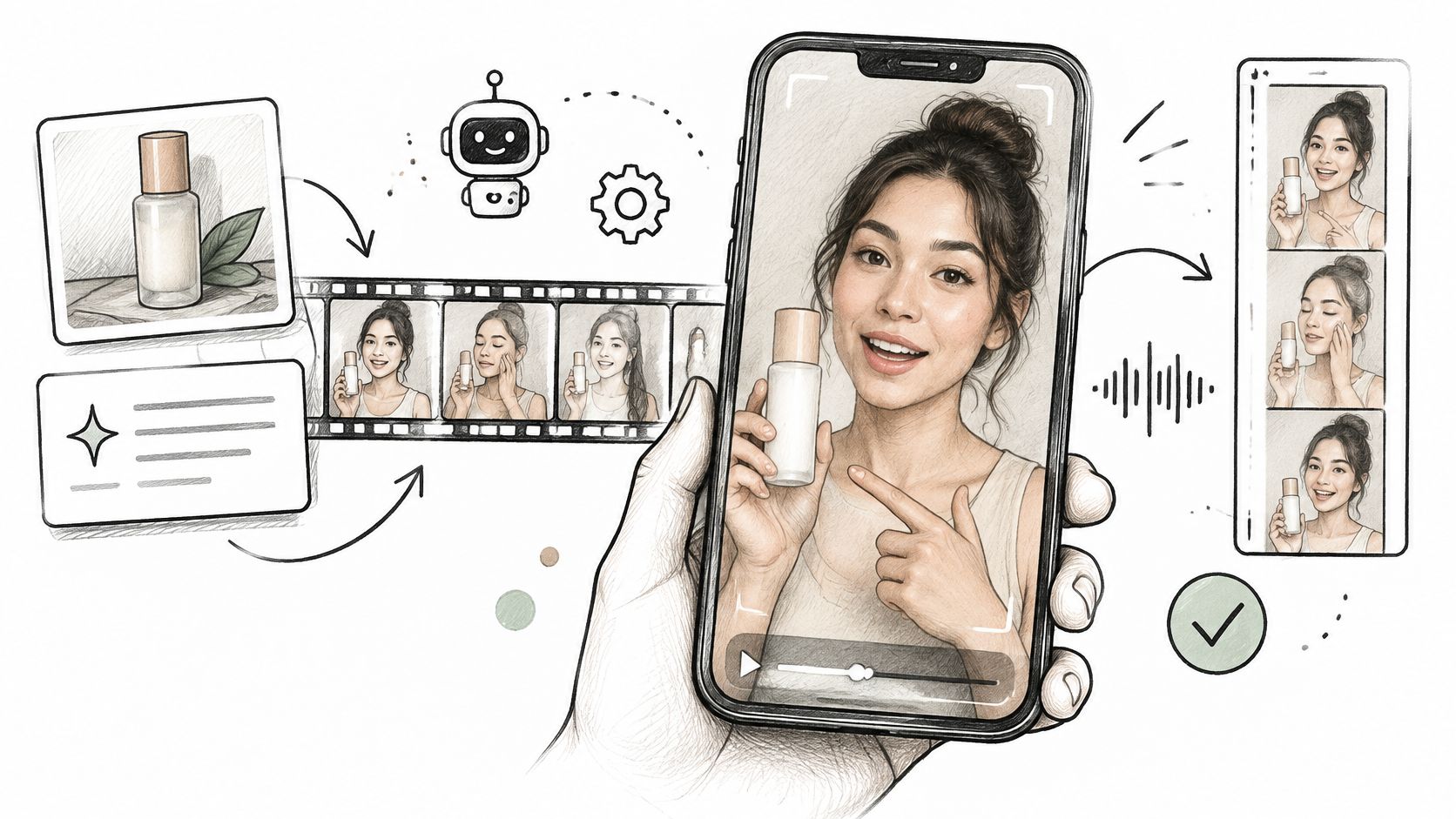
Can an AI-generated product video look convincing and still be the wrong clip to publish? Yes, if the presenter implies a customer experience that never happened, the product changes shape during the shot, or nobody can document permission to use the reference image.
Choosing an AI UGC video generator means checking more than realism. You need to understand what it produces, how to review the moving image and sound, and what disclosure and rights records belong with the finished ad.
Table of Contents
- What an AI UGC Video Generator Actually Makes
- What Happens Between Your Prompt and the Final Clip
- Choosing Between Video Models by Audio-Visual Quality
- Where Veo 3.1 Fits a UGC Production Workflow
- Disclosing AI-Made UGC Without Losing Trust
- Rights and Provenance Records to Keep Before Publishing
- Confirm Disclosure and Rights Before You Publish
<a id="what-an-ai-ugc-video-generator-actually-makes"></a>
What an AI UGC Video Generator Actually Makes
An AI UGC video generator takes a text prompt, product photo, or reference image and produces a short clip styled like a creator's phone video. Depending on the tool, that clip may include a presenter, a voice, and on-screen captions.
The label can mislead beginners. UGC means user-generated content, yet a synthetic presenter is not automatically a real customer. Here the term usually describes the informal visual style rather than confirming that someone bought or used the product.
<a id="match-the-input-to-the-job"></a>
Match the input to the job
Different inputs give the system different starting points.
- Text prompts describe the presenter, setting, action, and script for a creator-style product explanation.
- Product photos supply visual reference for packaging, color, and shape when building product ads.
- Reference images guide a face, room, or visual identity across variations, though you still need to inspect consistency.
The generator works like a film crew shooting one scene several ways. You supply the direction, then judge which take communicates the message clearly.
Output formats by placement
| Placement | Aspect ratio | Why it fits |
|---|---|---|
| TikTok, Instagram Reels, YouTube Shorts | 9:16 vertical | Fills the full phone screen |
| YouTube and web video ads | 16:9 landscape | Suits desktop and connected TV viewing |
| Square feed placements | 1:1 | Stays balanced in mixed feeds |
Choose the placement before generating. Cropping a wide composition into a vertical frame later can remove the product or the presenter's hands.
Treat the output as raw footage rather than a finished edit. A separate pass usually handles a tighter hook, corrected captions, and a call to action. When you compare tools, you can browse ranked AI UGC platforms to build a shortlist, then score each option by the inputs it accepts, the formats it exports, and whether it lets you keep a record of the prompt and source images behind each clip.
AI-assisted production is already part of brand workflows. Wistia's State of Video Report, reported by MarTech, found that 41% of brands used AI for video creation in 2025, up from 18% in 2024. Expect several usable variations from a session, then select the take that survives review.
<a id="what-happens-between-your-prompt-and-the-final-clip"></a>
What Happens Between Your Prompt and the Final Clip
A generator doesn't retrieve a finished commercial that matches your request. It synthesizes a scene from your instructions and references, which means apparently simple actions can still need revision.
<a id="follow-the-production-chain"></a>
Follow the production chain
-
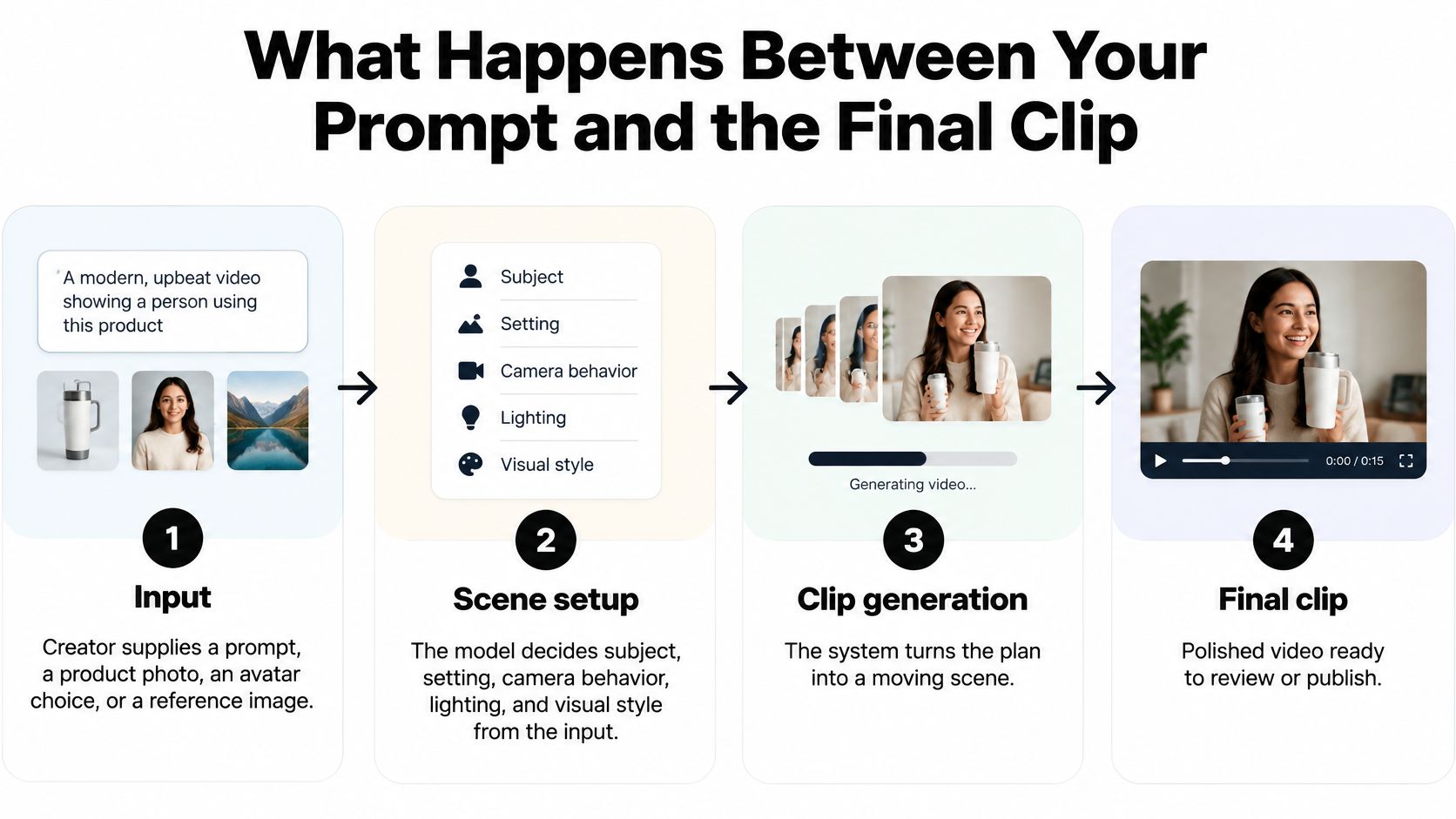
Input. You supply a prompt, product photo, avatar choice, or reference image. Check that the instruction describes an observable action, such as holding a bottle toward the camera, rather than an abstract request like making the product feel trustworthy.
-
Scene setup. The model interprets the subject, setting, camera behavior, lighting, and visual style. Review whether those choices support the message: a handheld bathroom demonstration and a glossy studio shot communicate different things.
-
Motion synthesis. The system generates frames that must agree about the subject's identity, background, and movement. Research on temporal consistency and motion-field diagnostics distinguishes attractive individual images from coherent video, highlighting subject consistency, background consistency, and motion smoothness as separate checks.
-
Audio. Some newer models synthesize sound alongside the moving picture, rather than requiring you to add every sound afterward. Listen for pronunciation and timing, then check whether the visible action matches what you hear.
-
Review and export. Watch the entire clip at normal speed, then inspect suspicious moments frame by frame. Confirm identity stability, product detail, and lip sync before exporting for the intended placement.
The visual below groups motion and audio into clip generation, giving a simpler overview of the same production chain.
<a id="judge-movement-not-just-the-thumbnail"></a>
Judge movement, not just the thumbnail
A polished opening frame can hide problems that appear when the presenter turns or reaches for the product. A bottle edge might wobble, lettering might change, or a hand might merge with the packaging.
These aren't merely cosmetic defects. If the viewer needs to recognize the package, instability interrupts the demonstration. Simplify the action before adding more descriptive language: a steady hold may work better than opening, rotating, and applying a product in the same shot.
Practical rule: Approve the moving scene, not the best still image extracted from it.
A healthy first render has a subject that holds its shape, a recognizable product, and speech that lines up with the mouth. It doesn't need elaborate camera movement to be useful.
<a id="choosing-between-video-models-by-audio-visual-quality"></a>
Choosing Between Video Models by Audio-Visual Quality
| Model | Audio-visual composite score |
|---|---|
| Seedance 2.0 Pro | 3.86 |
| Veo 3.1 | 3.51 |
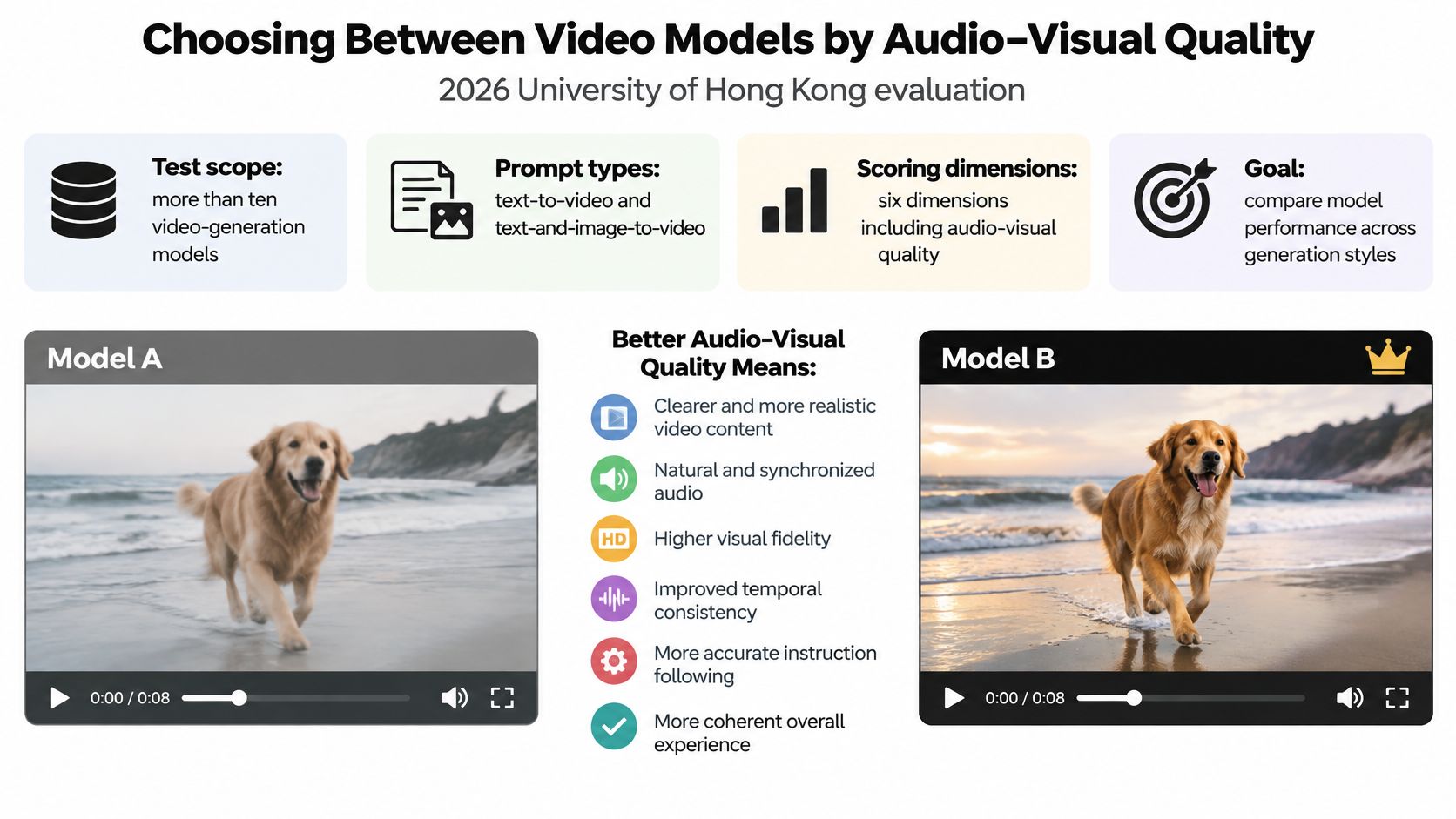
These scores come from an independent 2026 University of Hong Kong evaluation of more than ten video-generation models, using text-to-video and text-and-image-to-video tests across six dimensions: visual continuity, physical plausibility, aesthetic quality, instruction alignment, audio quality, and audio-visual matching.
The distinction matters because a model's visual appeal alone doesn't tell you whether it can deliver a convincing spoken product explanation. Including sound can change the comparison.
<a id="choose-for-the-part-viewers-must-believe"></a>
Choose for the part viewers must believe
For a product-focused ad, prioritize visual continuity and faithful packaging. An attractive room won't compensate for an altered bottle label.
For a talking-head testimonial-style presentation, prioritize intelligible speech, natural pauses, and mouth synchronization. Write the presenter as a spokesperson, not as a fictional customer claiming personal results.
For a product-in-hand demonstration, inspect motion stability and physical interaction. The fingers, grip, and package should remain plausible as the presenter moves.
Don't assume a model wins every category because it has a higher composite score. A combined measure summarizes performance, while your ad may depend heavily on one difficult action.
<a id="run-a-controlled-comparison"></a>
Run a controlled comparison
Generate the same script and product photo in competing models. Keep the setting, action, framing, and intended duration comparable so you're evaluating the models rather than different creative concepts.
Use a review sheet:
- Product stability: Does the package retain its shape and identifying details?
- Hands and face: Do gestures and expressions remain believable throughout?
- Speech timing: Are words complete, understandable, and synchronized?
- Pacing: Can viewers follow the explanation without rushed delivery?
- Disclosure treatment: Which synthetic elements need clear labeling?
Record whether each clip is usable, repairable, or unsuitable. That distinction is more actionable than declaring one output prettier.
Choose the model that produces the most usable version of your actual scene, not the one with the most impressive unrelated demo.
A study uses a particular prompt set and evaluation method. Treat its scores as a starting point, then let your side-by-side test determine the production choice.
<a id="where-veo-31-fits-a-ugc-production-workflow"></a>
Where Veo 3.1 Fits a UGC Production Workflow
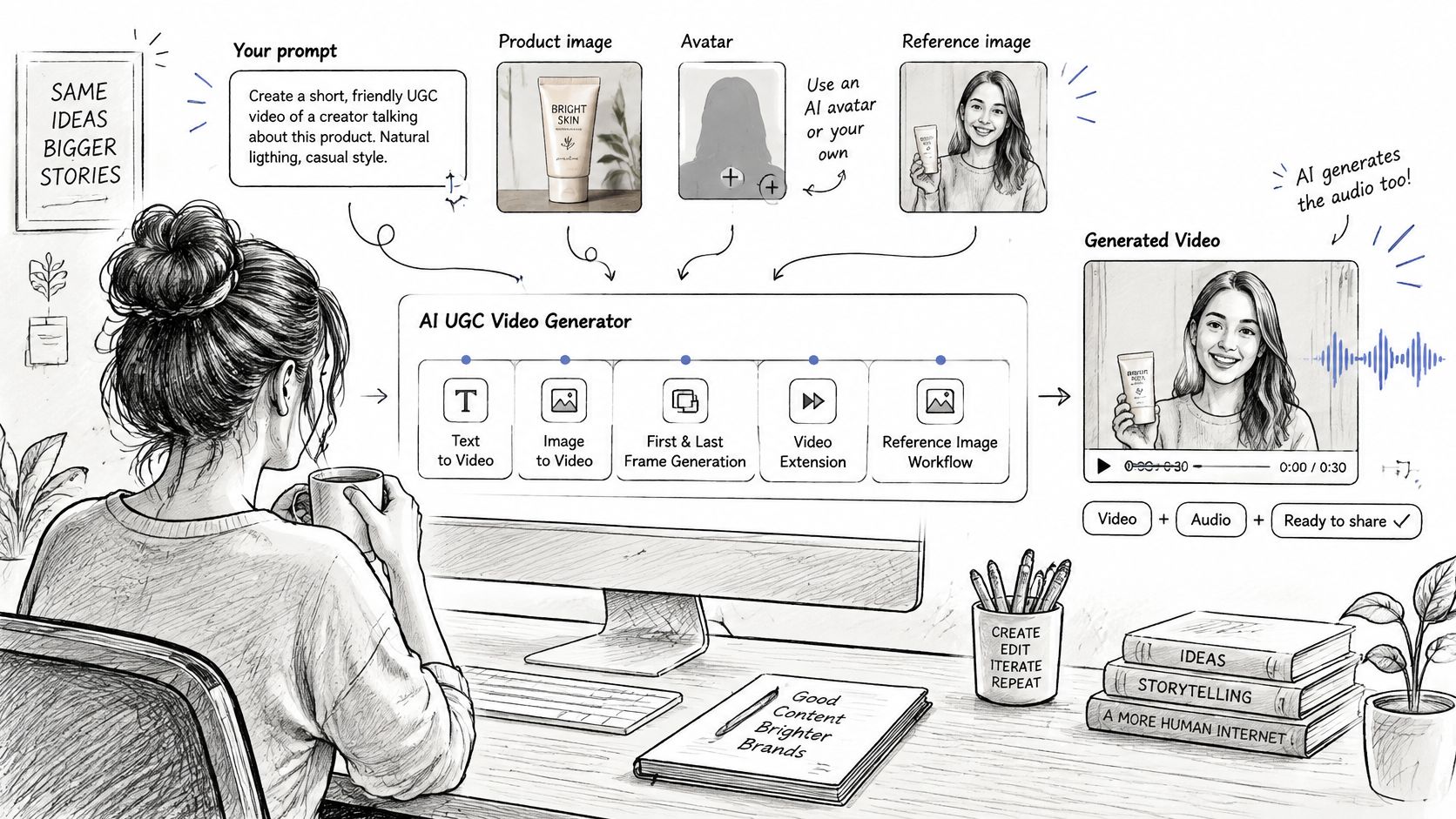
Veo 3.1 supports several ways to direct a scene, rather than relying on text alone. According to Google's model documentation, it supports text-to-video, image-to-video, first-and-last-frame generation, video extension, and reference-image workflows, alongside sound generation and Content Credentials based on C2PA; ordinary generation supports 4-, 6-, or 8-second clips, while the reference-image workflow produces 8-second outputs.
The illustration shows the creator-facing side of that process: providing direction, inspecting output, and deciding what needs another pass.
<a id="match-the-control-to-the-scene"></a>
Match the control to the scene
Use text-to-video when the scene can be described without preserving a particular source image. Use image-to-video when an existing composition should anchor the shot, and reference images when a supplied visual identity matters.
First-and-last-frame control helps when you know where an action should begin and end. Video extension is relevant when a scene needs to continue, though the resulting transition still needs inspection.
Google's Veo audio documentation describes native synchronized audio, including dialogue, sound effects, ambient noise, and music, while noting that natural, consistent spoken audio, especially short speech segments, remains an active development area. Don't approve dialogue just because sound was generated successfully.
<a id="a-skincare-example"></a>
A skincare example
Say a skincare brand supplies a product photo and drafts a short, eight-second presenter script. Keep it factual: describe the packaging or explain the product's intended use without inventing personal experience or unsupported results.
A useful production order is:
- Prepare the reference: Use a clear product image with an unobstructed label.
- Constrain the action: Ask for a steady presentation rather than a complicated application sequence.
- Review the voice: Listen for missing words, odd emphasis, and unclear pronunciation.
- Inspect the bottle: Check the label during movement, not only when the shot begins.
- Finish for Reels: Frame the final edit vertically and keep captions away from interface overlays.
This video offers another visual reference for exploring the workflow.
<iframe width="100%" style="aspect-ratio: 16 / 9;" src="https://www.youtube.com/embed/FMdIIBByNZo" frameborder="0" allow="autoplay; encrypted-media" allowfullscreen></iframe>
Before generating, prepare the assets you'll need afterward, including caption copy, disclosure wording, and an end card. Genpire's guide to anticipating design needs with AI is a useful companion for planning those connected creative tasks.
You can start through the Veo 3 AI video generator. Keep the underlying model's capabilities separate from the controls available in a particular interface, and save the generation settings with the selected take.
<a id="disclosing-ai-made-ugc-without-losing-trust"></a>
Disclosing AI-Made UGC Without Losing Trust
Advertisers shouldn't assume viewers share their enthusiasm for synthetic ads. The Interactive Advertising Bureau's AI Gap reporting found that 82% of advertising executives believed Gen Z and Millennial consumers felt positively about AI-generated ads, compared with 45% of those consumers, while more than half of surveyed consumers wanted disclosure for entirely AI-generated ads or ads using AI video or imagery.
A film crew credits a stunt double so the audience understands the scene; an AI UGC clip needs the same kind of visible credit. The practical response is to explain the synthetic elements clearly, without making viewers decode vague wording.
<a id="label-what-actually-changed"></a>
Label what actually changed
- Fully synthetic presenter: Identify the person as AI-generated. Don't imply that the character is an independently verified customer.
- AI voice: Explain that the narration is synthetic, particularly when a recognizable real person appears on screen.
- Real person edited with AI: Distinguish routine visual cleanup from changes to speech, actions, or apparent endorsement. Review consent for the actual alteration.
- Image-to-video transformation: Disclose synthetic animation when the result could be mistaken for footage of an event or real product use.
Disclosure cannot rescue a misleading claim. A synthetic spokesperson can explain a product without pretending to have experienced a result.
<a id="make-the-disclosure-easy-to-encounter"></a>
Make the disclosure easy to encounter
Put an AI-generated presenter label within the first three seconds, where viewers can read it without opening the caption. Use readable contrast and keep the label clear of platform controls.
A caption can say: Video made with an AI voice and an AI-generated presenter. In the export metadata, name the tools used and identify which elements they generated. Treat these as sample disclosure texts and still check the requirements that apply to you.
Use the platform's AI-generated content toggle or disclosure control on TikTok, Shorts, and Reels where available and applicable. For paid ads, check each platform's current advertising rules before launch, not just its organic-posting guidance. Build the same approval discipline into your AI video ads workflow.
When a campaign pairs synthetic clips with paid creator posts, keep the disclosure decision for each asset separate. For the creator-coordination side of that mix, Instagram API influencer marketing insights is a useful adjacent reference.
When comparing generators, weigh disclosure support and exportable metadata alongside visual quality. Consumer transparency and legal compliance are separate checks, so confirm the treatment for every country where the ad runs, because requirements differ and continue to change.
Disclosure works as a trust signal. In the IAB survey, 73% of Gen Z and Millennial respondents said clear disclosure would increase or have no effect on their likelihood of purchasing.
<a id="rights-and-provenance-records-to-keep-before-publishing"></a>
Rights and Provenance Records to Keep Before Publishing
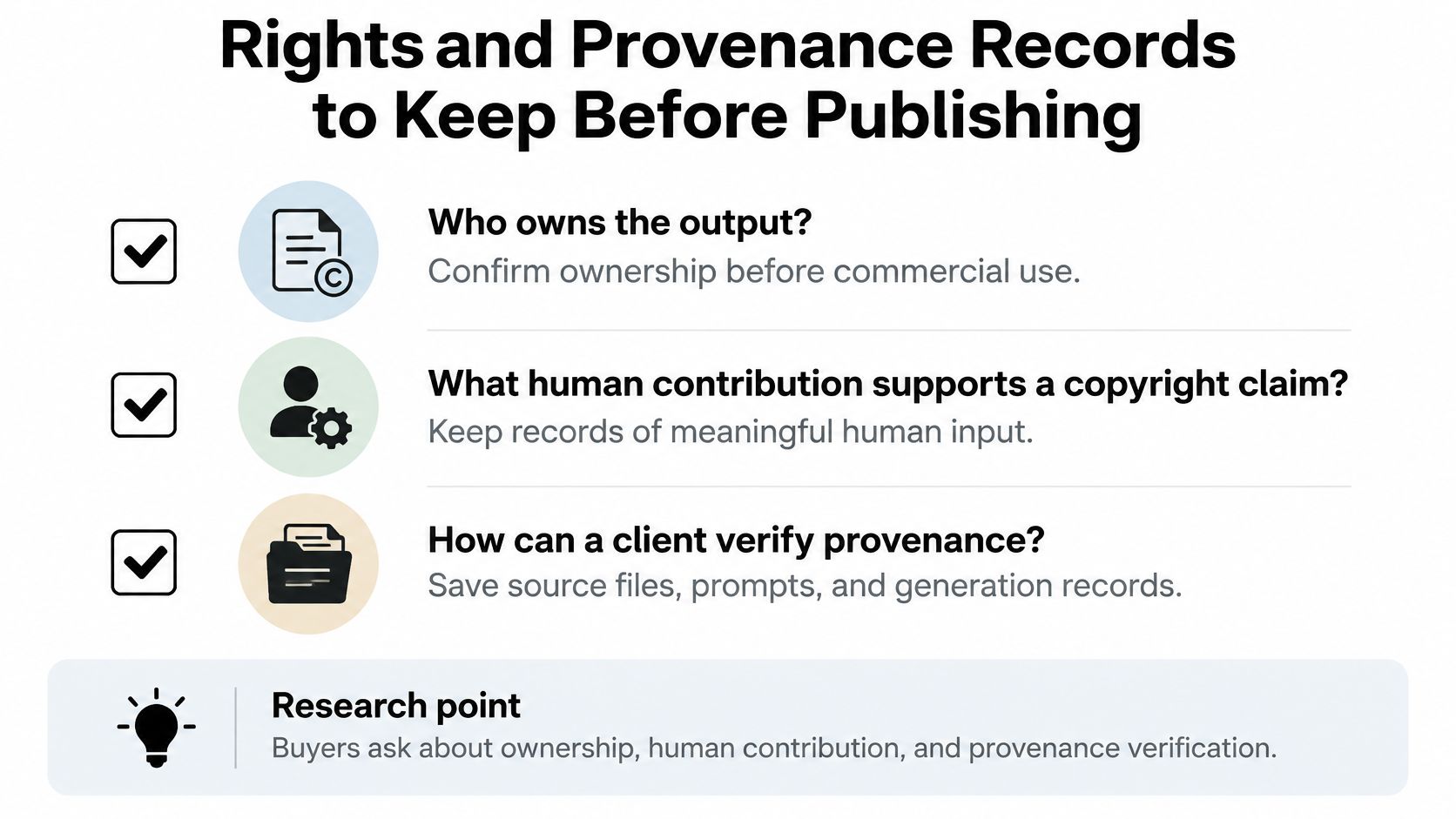
Rights documentation starts when you choose a generator, not when you upload the finished clip. Commercial buyers need answers to three separate questions: Who owns the output? What human contribution supports a copyright claim? How can a client verify provenance?
A statement that commercial use is allowed answers none of them completely. Permission under a service's terms, copyright protection, asset licensing, and consent to use someone's likeness are different matters, and each needs its own record.
<a id="build-a-rights-file-for-each-approved-clip"></a>
Build a rights file for each approved clip
AI-assisted work may qualify for copyright protection when a human contributes sufficient expressive choices, while AI output alone generally does not, so keep records that show those contributions, and confirm any machine-readable marking duties that apply in your distribution market.
The rights file works like a film crew's production log. A crew that shoots one scene many ways keeps the takes, the shot list, and the signed release forms together, because no single document tells the whole story. Your generated clip needs the same bundle of evidence.
Keep the following records together:
- Saved prompts: Preserve the instructions and revisions associated with the chosen output.
- Source images: Retain original files and evidence showing where they came from.
- Editing timelines: Save project files that document human selection, arrangement, rewriting, and other expressive decisions.
- Model and version information: Record the generation tool, model identifier, and relevant settings.
- Asset licenses: Keep permissions for music, stock footage, graphics, and other incorporated material.
- Consent records: Document authorization for recognizable people and the intended synthetic use.
- Final export metadata: Retain the delivered file and any associated credentials or provenance records.
Use this checklist when handing work to a client or another publishing team.
<a id="test-provenance-after-editing"></a>
Test provenance after editing
Provenance means information about origin and production history. Watermarks and credentials can help establish that history, but they do not independently establish copyright ownership or permission to use a person's likeness. Beginners often conflate the two, so treat them as separate checks.
The VideoMarkBench benchmark evaluates watermark strength under transformations and attacks, which is why detection should be tested beyond the original render. In a publishing workflow, check what remains after recompression, cropping, platform resizing, and temporal edits. The file a platform serves to viewers is rarely identical to the file you exported.
Preserve the original export even when the distribution copy loses metadata. Deliver the rights file separately rather than assuming every platform will retain embedded records.
A provenance signal can help explain where a clip came from. A permission record explains why you're entitled to use its ingredients.
<a id="confirm-disclosure-and-rights-before-you-publish"></a>
Confirm Disclosure and Rights Before You Publish
Run the approval process in order. Fixing the destination, creative choice, and documentation before upload is easier than rebuilding a campaign after someone questions the finished ad.
<a id="use-a-repeatable-release-check"></a>
Use a repeatable release check
-
Choose the placement before rendering. Match the composition to TikTok, Reels, Shorts, horizontal advertising, or a square feed slot using the output-format table. Reserve room for captions, interface controls, and any visible disclosure.
-
Generate for the clip's hardest requirement. Choose the model based on the action viewers must understand, not the background's attractiveness. When speech, hands, or packaging carry the message, run the same script and product photo through competing models and save your selection notes.
-
Review the entire selected take. Confirm a stable face, readable product label, synchronized speech, and consistent movement. Re-render only the failing segments where the workflow permits, then inspect the joins and review the assembled export again.
-
Approve disclosure element by element. Identify the synthetic presenter, AI voice, altered real person, and animated source imagery separately. Add the appropriate on-screen text, caption, and platform disclosure setting, then check the paid-ad treatment for the destination market.
-
Save the release folder before upload. Include prompts, source images, editing timelines, model version, asset licenses, consent records, and final metadata. Give the approved export a clear filename so nobody accidentally publishes an unlabeled draft.
<a id="keep-generation-and-approval-separate"></a>
Keep generation and approval separate
Our Veo3 AI product ad generator turns a single product photo into a polished product ad video and can add an AI avatar for a UGC-style testimonial presentation, without requiring video editing or design skills. That makes it possible to build the creative without a traditional editing background, but it doesn't remove your responsibility to check the claims and presentation.
Results may vary and aren't guaranteed. Our service is provided as is and as available, without a warranty of uninterrupted or error-free operation, so the full-clip review remains mandatory.
Compare plans on the pricing page, then complete one clip from source image through disclosure, rights documentation, and final upload before scaling to a batch.
Veo3 AI offers image- and prompt-based video creation, including product ads with optional AI presenters. Visit Veo3 AI with a product photo and a factual script, then create a test clip you can review, label, and document before publishing.
Related Articles
Continue with more blog posts in the same locale.

Kling 4.0 vs Veo 3.1: Length, Resolution, Audio and Price Compared (2026)
Kling 4.0 makes one take of up to 30 seconds; Veo 3.1 makes 8-second clips up to 4K for far fewer credits. Compare length, resolution, audio, control and price, and see which fits your shot.
Read article
Video to Video AI Generator: How It Works and How to Choose
Learn how a video to video AI generator transforms existing footage, which features matter, and how to avoid flicker and rights problems.
Read article
AI Shorts Generator: How Prompts Become Vertical Video
Learn how an AI shorts generator turns text prompts or images into short-form video, which features matter, and how Veo 3.1 fits in.
Read article