
Gemini Omni Camera Motion and Shot Framing Guide
Google's official Gemini Omni prompt guide makes one thing clear: camera language matters. The model can reason about action, location, style, lighting, shot framing and motion, bu
Emma Chen · 17 min read · May 21, 2026
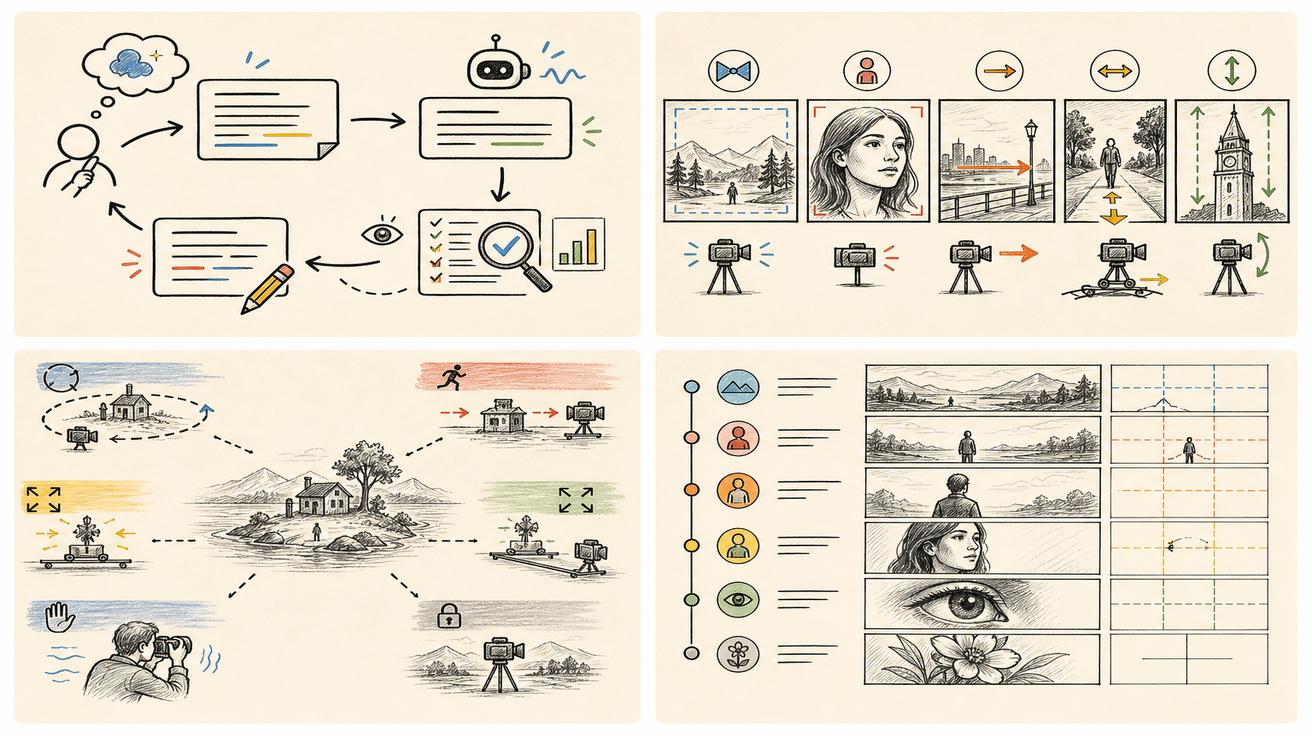
Google's official Gemini Omni prompt guide makes one thing clear: camera language matters. The model can reason about action, location, style, lighting, shot framing and motion, but a stronger prompt still gives it a production plan. This guide turns that idea into a practical camera system for creators using Gemini Omni, text-to-video and image-to-video.
The goal is not to rewrite Google's guide. The official source is here: Google DeepMind Gemini Omni prompt guide. This article builds original frameworks, shot examples and camera templates for veo3ai.io readers who want controllable results.
One wording note: Gemini Omni has replaced the Veo label inside the Gemini app, but that does not mean every Veo reference has disappeared from Google's broader ecosystem. For that transition, read our Gemini Omni vs Veo 3.1 comparison. For broader prompt structure, pair this with our Gemini Omni prompt guide to essential elements.
Quick answer: what should a camera prompt include?
A useful Gemini Omni camera prompt should describe six things in one clean sentence or paragraph:
| Element | What to specify | Example phrase |
|---|---|---|
| Shot size | How close the subject appears | "medium close-up of a chef's hands" |
| Angle | Where the camera is placed | "low angle from countertop height" |
| Movement | How the camera travels | "slow dolly push-in" |
| Subject action | What happens during the shot | "she dusts flour across the dough" |
| Visual priority | What must stay readable | "keep the product label sharp and centered" |
| Mood and pacing | How the shot should feel | "calm, premium, deliberate" |
A weak prompt says: "Show a coffee cup in a cafe." A stronger camera prompt says: "Medium close-up of a ceramic coffee cup on a sunlit cafe table, camera starts at table height and slowly pushes in as steam rises, shallow depth of field, warm morning light, keep the cup centered and readable."
The second version gives Gemini Omni a shot plan instead of only a scene description.
The CRAFT framework for Gemini Omni camera prompts
Use CRAFT when you need a fast, repeatable structure:
- C — Composition: subject, shot size, frame position and background.
- R — Route: camera movement path from start to finish.
- A — Action: what the subject does while the camera moves.
- F — Focus: what must remain sharp, stable or readable.
- T — Tone: mood, lighting, speed and visual style.
Template:
[Shot size] of [subject] in [location]. The camera [movement route] while [subject action]. Keep [focus priority] clear. Use [tone, lighting, pacing and style].
Example:
Wide establishing shot of a solo runner on an empty coastal road at sunrise. The camera begins behind the runner, then performs a smooth tracking move alongside her as the ocean appears on the left. Keep the runner sharp and centered, with soft golden light, quiet athletic energy and natural motion blur.
This framework works because it separates camera behavior from scene content. Gemini Omni may understand a high-level goal, but the model still benefits when you define the frame, motion path and visual hierarchy.
Shot framing: choose the viewer's distance first
Shot size is the easiest way to control emotion. Before asking for a camera move, decide how close the viewer should feel to the subject.
Extreme wide shot
Use this when scale, location or isolation matters. It is useful for landscapes, city skylines, architecture, travel openings and fantasy environments.
Prompt pattern:
Extreme wide shot of a tiny hiker crossing a snowfield below enormous dark mountains, camera locked off, minimal movement, cold blue dawn light, emphasize scale and solitude.
Wide shot
A wide shot shows the full subject and enough environment to explain the scene. Use it for product lifestyle scenes, action blocking, fashion, sports or group movement.
Prompt pattern:
Wide shot of two cyclists riding through a narrow old-town street, camera tracks backward ahead of them, buildings passing on both sides, lively morning market atmosphere.
Medium shot
Medium shots are the workhorse of marketing videos. They keep the person or product readable while still showing context. Use them for explainers, founder videos, tutorials and social ads.
Prompt pattern:
Medium shot of a designer standing beside a wall of sketches, camera gently pushes in as she points to a new product concept, soft studio lighting, confident but approachable tone.
Close-up
Close-ups create attention. They work well for faces, hands, textures, tools, food, jewelry, buttons, screens and product details. Be specific about what should stay sharp.
Prompt pattern:
Close-up of a hand pressing a matte black camera shutter button, shallow depth of field, camera holds steady, crisp focus on the fingertip and button texture.
Extreme close-up
Extreme close-ups are best for sensory detail: water droplets, fabric weave, eyelashes, glowing pixels, engraved logos or mechanical parts. Use them sparingly because they can become abstract.
Prompt pattern:
Extreme close-up of condensation beads sliding down a cold glass bottle, macro lens feel, slow vertical camera drift, label edge slightly visible but droplets remain the focus.
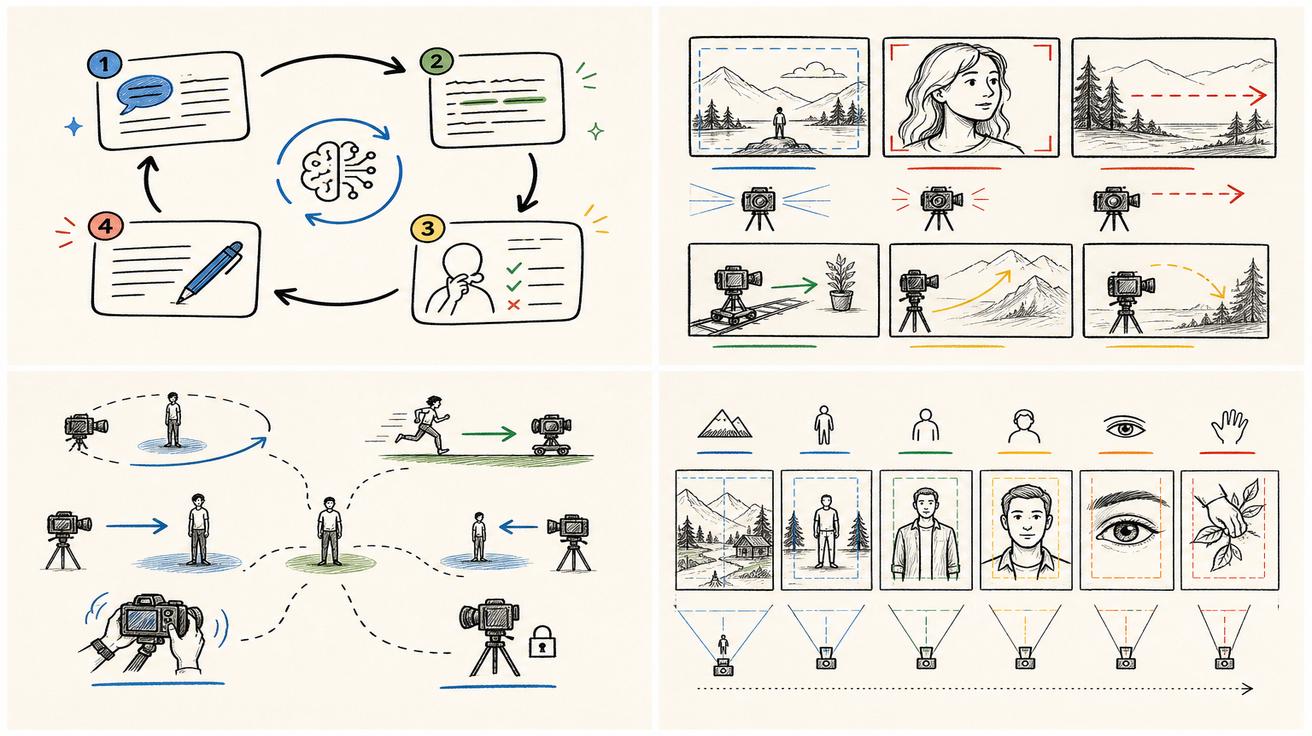
Camera angles: define power, intimacy and clarity
Angle changes the meaning of the same scene.
A low angle makes the subject feel larger, heroic or dominant. Use it for athletes, products with a premium feel, vehicles or dramatic entrances.
A high angle makes the subject feel small, organized or observable. Use it for desks, flat lays, cooking, maps, logistics, crowds or planning scenes.
An eye-level angle feels natural and trustworthy. Use it for tutorials, interviews, lifestyle ads and realistic scenes.
An over-the-shoulder angle creates participation. It is helpful for app demos, workstation scenes, gaming, design, drawing and conversations.
A top-down angle is excellent for clarity. Use it when the viewer must understand layout: recipe steps, unboxing, notebooks, tools, ingredients or UI planning.
Instead of writing "cinematic angle," name the angle and reason:
Eye-level medium close-up of a small business owner packing orders at her desk, camera slowly slides left, keep her hands and branded boxes visible, warm practical lighting, documentary realism.
The phrase "eye-level" tells the model to avoid an overly dramatic view. The phrase "hands and branded boxes visible" tells it what the frame must protect.
Movement grammar: what different camera moves mean
Camera motion is not decoration. Each move communicates a different idea.
Push-in
A push-in moves the camera closer. It increases importance, emotion or reveal. Use it when the audience should notice a key detail or feel a decision becoming serious.
Example:
Medium shot of a founder looking at a prototype on a table, slow dolly push-in as the device lights up, focus shifts from her expression to the glowing interface.
Pull-back
A pull-back reveals context. It starts intimate and then shows the larger world. Use it for transformations, surprises and before-after moments.
Example:
Close-up of a single app notification on a phone, camera slowly pulls back to reveal a busy creative studio using the same dashboard on multiple screens.
Tracking shot
A tracking shot follows a subject. It creates momentum and continuity. Use it for walking, running, vehicles, factory lines, travel, retail shelves or process videos.
Example:
Side tracking shot of a delivery robot moving along a sidewalk, camera keeps pace at wheel height, city lights reflecting on wet pavement, smooth evening motion.
Orbit
An orbit circles around the subject. It feels premium, dramatic or product-focused. Use it for hero shots, fashion reveals, cars, gadgets and character moments.
Example:
Slow 180-degree orbit around a transparent smart speaker on a pedestal, internal lights pulsing softly, glossy reflections, clean futuristic showroom.
Pan
A pan rotates the camera from left to right or right to left. It reveals a scene without moving through space. Use it for landscapes, room reveals, comparison layouts and event setups.
Example:
Slow left-to-right pan across a creator's desk setup, passing a camera, microphone, sketchbook and laptop timeline, soft afternoon light.
Tilt
A tilt moves the camera up or down. It reveals height, scale or vertical information. Use it for buildings, outfits, product towers, trees, robots or stage entrances.
Example:
Low angle tilt up from polished shoes to a tailored jacket as a speaker steps onto a conference stage, bright spotlight, confident launch-event energy.
Handheld motion
Handheld motion feels immediate, imperfect and human. Use it for documentary realism, behind-the-scenes footage, street scenes and tense moments. Do not use it for luxury product shots unless you want a raw feeling.
Example:
Handheld close follow shot of a chef moving through a crowded kitchen, slight natural shake, steam and motion, urgent but controlled dinner-service atmosphere.
Locked-off shot
A locked-off shot has no camera movement. It feels composed, observational or clinical. Use it when motion inside the frame is already enough.
Example:
Locked-off wide shot of sunlight moving across an empty minimalist bedroom, curtains shifting gently, quiet morning mood.
The start-to-finish motion rule
Many prompts mention movement but do not say where the camera begins or ends. That creates ambiguity. A better motion prompt includes a start frame, movement path and end frame.
Weak:
Camera moves around a car.
Better:
Camera starts in a low front three-quarter view of the electric car, then performs a slow clockwise orbit to the rear badge, ending on a close-up of the taillight design.
The better version gives Gemini Omni an edit map. It also prevents the camera from wandering away from the most important detail.
Use this formula:
Start at [initial framing]. Move [direction and speed]. End on [final framing or reveal].
Example for image-to-video:
Using the uploaded product image as the design reference, start with a close-up on the logo, pull back into a medium product shot, then end with a slight orbit that shows the side profile. Preserve the product shape, color and label placement.
That last sentence is important for commercial work. When a logo, screen, garment or package matters, tell the model to preserve it.
Lens language without overcomplicating the prompt
You do not need a film-school paragraph. A few lens-style phrases can guide the look: wide lens feel for environment, telephoto compression for fashion or sports, macro lens feel for detail, shallow depth of field for premium focus and deep focus when foreground and background both matter.
Prompt example:
Medium close-up of a ceramic watch on a dark stone surface, macro lens feel, shallow depth of field, camera slowly slides right, keep the engraved dial sharp and readable.
Avoid stacking too many technical terms. One clear shot plan is usually stronger than a crowded list of camera jargon.
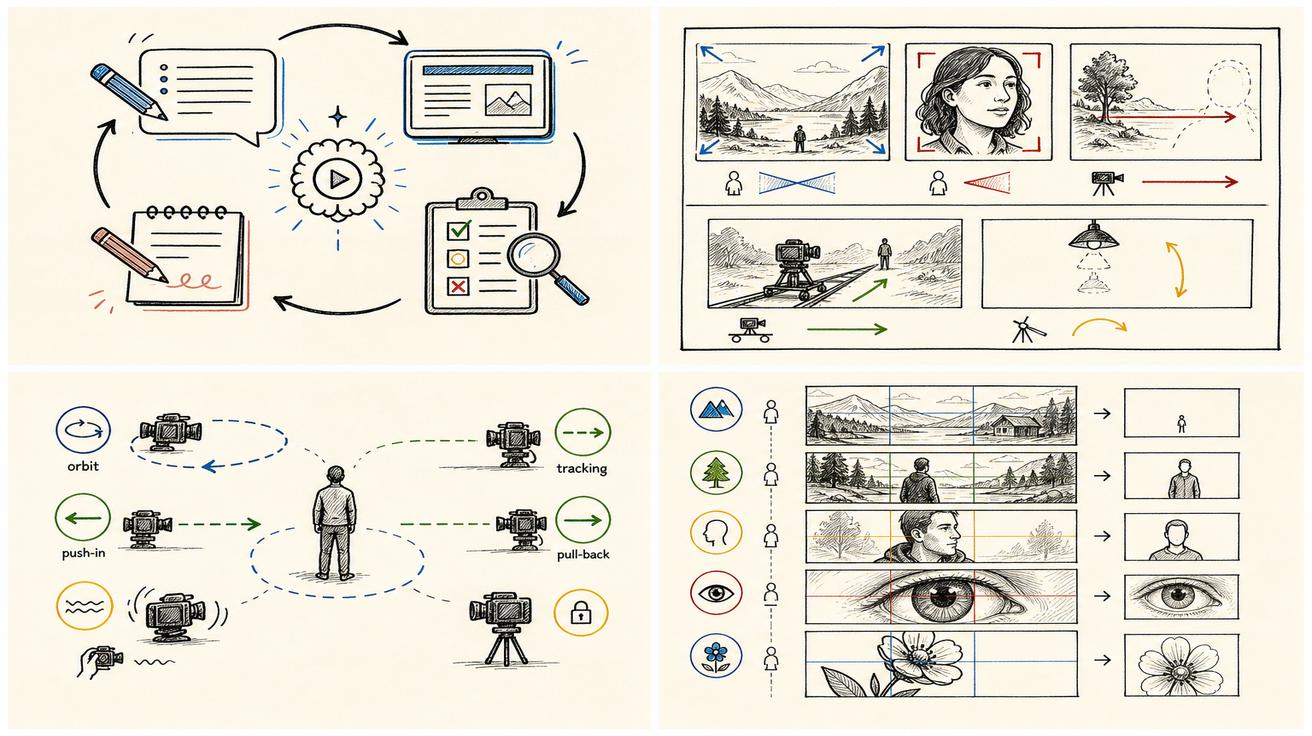
Camera prompting for text-to-video vs image-to-video
For text-to-video, your prompt must create the scene and direct the camera. Include subject, setting, style, action, framing and motion.
Text-to-video example:
Wide shot of a compact AI video studio inside a glass office at night. A creator reviews clips on a large monitor while city lights glow outside. Camera begins behind the creator, slowly pushes toward the screen, then ends on the timeline interface. Clean modern lighting, calm professional mood.
For image-to-video, the image already defines part of the world. Your camera prompt should protect the reference while adding motion.
Image-to-video example:
Animate the uploaded product photo into a premium hero shot. Keep the product design, logo, color and proportions consistent. Start with a close-up on the front label, pull back to reveal the full product on a reflective surface, then add a subtle clockwise orbit. Soft studio highlights, no extra text.
The difference is priority. Text-to-video needs world building. Image-to-video needs preservation plus motion.
Three complete Gemini Omni camera prompt templates
1. Product hero template
Close-up of [product] on [surface/environment]. Camera starts at [detail], then [movement] to reveal [final hero angle]. Keep [logo/screen/shape] sharp and accurate. Use [lighting], [background style] and [brand mood].
Example:
Close-up of a silver wireless microphone on a matte graphite desk. Camera starts on the mesh grille, then slowly pulls back and orbits 90 degrees to reveal the full body and glowing power light. Keep the brand mark sharp and centered. Use soft studio lighting, dark premium background and precise commercial pacing.
2. Human story template
[Shot size] of [person] doing [action] in [location]. Camera [movement] from [start position] to [end position]. Emphasize [emotion or story beat]. Keep [important object or face] clear. Use [lighting and style].
Example:
Medium shot of a student editing a short film in a quiet dorm room. Camera starts over her shoulder on the laptop timeline, then slowly pushes in as she smiles at the final cut. Emphasize relief and creative focus. Keep her face and the screen readable. Use warm desk-lamp lighting and realistic documentary style.
3. Scene reveal template
Start with [close detail]. Camera [pull-back/pan/tilt] to reveal [larger scene]. The reveal should show [key contrast or surprise]. Maintain [mood], [pacing] and [visual priority].
Example:
Start with a close-up of raindrops on a train window. Camera pulls back to reveal a futuristic station full of glowing signs and travelers with transparent umbrellas. The reveal should feel quiet and cinematic, with cool reflections, slow pacing and the window texture still visible in the foreground.
Common camera prompt mistakes
Do not rely on "cinematic" alone. Add shot size, angle and movement: "low-angle wide shot, slow push-in, golden backlight, subject centered." Do not combine conflicting moves such as drone, macro, fast handheld and locked-off in one shot. Pick one dominant behavior.
Also give the subject something to do. "Camera orbits a desk" is weaker than "camera orbits as the designer places the finished prototype onto the desk." If product text, UI, labels or logos matter, say so and request no extra text. Finally, avoid over-directing every frame. Give Gemini Omni clear shot grammar, then let it fill natural details.
A practical editing workflow
Start with one clean master prompt, not ten variations. Generate a first result, then evaluate three questions:
- Is the subject readable?
- Does the camera move in the intended direction?
- Does the ending frame land on the right detail?
If the answer is no, revise the camera instruction rather than rewriting the whole scene. For example:
Keep the same scene and lighting, but change the camera movement. Start wider, push in more slowly, and end on the product label instead of the background.
This style of revision fits Gemini Omni's conversational editing direction. It also helps teams keep a consistent creative concept while improving only the camera behavior.
Final checklist before you generate
Before running the prompt, check for one primary shot size, one camera angle, one dominant movement, a clear subject action, a start frame, an end frame, a focus priority, mood, lighting and any preservation notes for image-to-video references. If your prompt has those pieces, it is usually ready.
Bottom line
Gemini Omni can understand broader creative goals, but camera prompts still decide whether a video feels random or directed. Think like a director: choose the viewer's distance, place the camera, define the movement, protect the important detail and describe the mood. For most creators, the CRAFT framework is enough: Composition, Route, Action, Focus and Tone.
Use the official Google DeepMind guide as the source of truth for Gemini Omni capabilities, then use the original templates in this article to make camera motion and shot framing more repeatable. If you are still mapping the wider product change, start with our Gemini Omni hub, then compare the transition in Gemini Omni vs Veo 3.1.
FAQ
What is the best camera movement for Gemini Omni prompts?
The best movement depends on the goal. Use a push-in for importance, a pull-back for reveal, tracking for motion, orbit for product drama, pan for environment and locked-off framing for calm observation. Pick one dominant movement per shot.
Should I use technical lens terms in Gemini Omni prompts?
Use simple lens-style language only when it helps. Phrases such as "macro lens feel," "shallow depth of field" or "wide lens feel" are useful. Long lists of film terms can make the prompt less clear.
How do I stop Gemini Omni from changing a product in image-to-video?
Tell it exactly what to preserve: product shape, color, logo, label placement, screen layout or material. Add a sentence such as "Preserve the uploaded product design and keep the logo readable; do not add extra text."
Is Gemini Omni better than Veo for camera control?
Gemini Omni is presented as a Gemini-native video creation and editing experience with strong prompt understanding. Veo 3.1 remains an official Google DeepMind model reference. The practical answer depends on which product surface, plan, region and workflow you can access.
Can I ask Gemini Omni to fix camera motion after generation?
Yes, if the interface supports iterative editing, you can revise the camera instruction without changing the whole concept. Ask it to keep the same scene, lighting and subject, then change the start frame, movement speed or final framing.
<script type="application/ld+json"> { "@context": "https://schema.org", "@type": "Article", "headline": "Gemini Omni Camera Motion and Shot Framing Guide", "description": "A practical Gemini Omni camera prompt guide with shot framing, movement grammar, product video templates and FAQ for text-to-video and image-to-video creators.", "author": { "@type": "Person", "name": "Emma Chen" }, "publisher": { "@type": "Organization", "name": "Veo3AI", "url": "https://www.veo3ai.io" }, "mainEntityOfPage": { "@type": "WebPage", "@id": "https://www.veo3ai.io/blog/gemini-omni-camera-motion-shot-framing-guide" }, "datePublished": "2026-05-21", "dateModified": "2026-05-21" } </script>
<script type="application/ld+json"> { "@context": "https://schema.org", "@type": "FAQPage", "mainEntity": [ { "@type": "Question", "name": "What is the best camera movement for Gemini Omni prompts?", "acceptedAnswer": { "@type": "Answer", "text": "The best movement depends on the goal. Use a push-in for importance, a pull-back for reveal, tracking for motion, orbit for product drama, pan for environment and locked-off framing for calm observation. Pick one dominant movement per shot." } }, { "@type": "Question", "name": "Should I use technical lens terms in Gemini Omni prompts?", "acceptedAnswer": { "@type": "Answer", "text": "Use simple lens-style language only when it helps. Phrases such as macro lens feel, shallow depth of field or wide lens feel are useful. Long lists of film terms can make the prompt less clear." } }, { "@type": "Question", "name": "How do I stop Gemini Omni from changing a product in image-to-video?", "acceptedAnswer": { "@type": "Answer", "text": "Tell it exactly what to preserve: product shape, color, logo, label placement, screen layout or material. Add a sentence such as: Preserve the uploaded product design and keep the logo readable; do not add extra text." } }, { "@type": "Question", "name": "Is Gemini Omni better than Veo for camera control?", "acceptedAnswer": { "@type": "Answer", "text": "Gemini Omni is presented as a Gemini-native video creation and editing experience with strong prompt understanding. Veo 3.1 remains an official Google DeepMind model reference. The practical answer depends on which product surface, plan, region and workflow you can access." } }, { "@type": "Question", "name": "Can I ask Gemini Omni to fix camera motion after generation?", "acceptedAnswer": { "@type": "Answer", "text": "Yes, if the interface supports iterative editing, you can revise the camera instruction without changing the whole concept. Ask it to keep the same scene, lighting and subject, then change the start frame, movement speed or final framing." } } ] } </script>
Related Articles
Continue with more blog posts in the same locale.

How to Make Sports Highlight Videos with Veo 3 AI (2026)
Create stunning sports highlight videos with Veo 3 AI. Generate dynamic action shots, slow-motion sequences, and dramatic replays using AI prompts.
Read article
How to Make a Short Film with Veo 3 AI (2026 Guide)
Learn how to create professional short films using Veo 3 AI. Step-by-step guide with prompts, workflow tips, and cinematic techniques.
Read article
How to Make Documentary Videos with Veo 3 AI (2026 Guide)
Create compelling documentary videos with Veo 3 AI. Learn prompting techniques, narrative structure, realistic footage generation, and post-production tips.
Read article