
Gemini Omni Gratis: Free Access Routes That Work
Find every working gemini omni gratis route in 2026, from YouTube Shorts Remix to free-tier trials, with setup tips and limits explained.
Veo3 AI · 11 min read · Oct 13, 2026

You can use Gemini Omni for free only through YouTube Shorts Remix and YouTube Create. The Gemini app itself is paywalled for Omni Flash, so if you open the app expecting a free all-purpose tier, you'll waste time.
If you're trying to turn one prompt into a usable short-form clip without paying yet, that's the right starting point. The catch is that gemini omni gratis isn't one thing, it's three very different access paths with different quotas, regions, and outputs.
Table of Contents
- What Gemini Omni Means in 2026
- The Four Real Access Routes at a Glance
- Setting Up YouTube Shorts Remix and YouTube Create
- Trying the Gemini Developer Free Tier
- Quotas, Watermarks, and Regional Reality Checks
- When Free Routes Stop Being Enough
- A 30-Day Free-Tier Testing Plan
<a id="what-gemini-omni-means-in-2026"></a>
What Gemini Omni Means in 2026
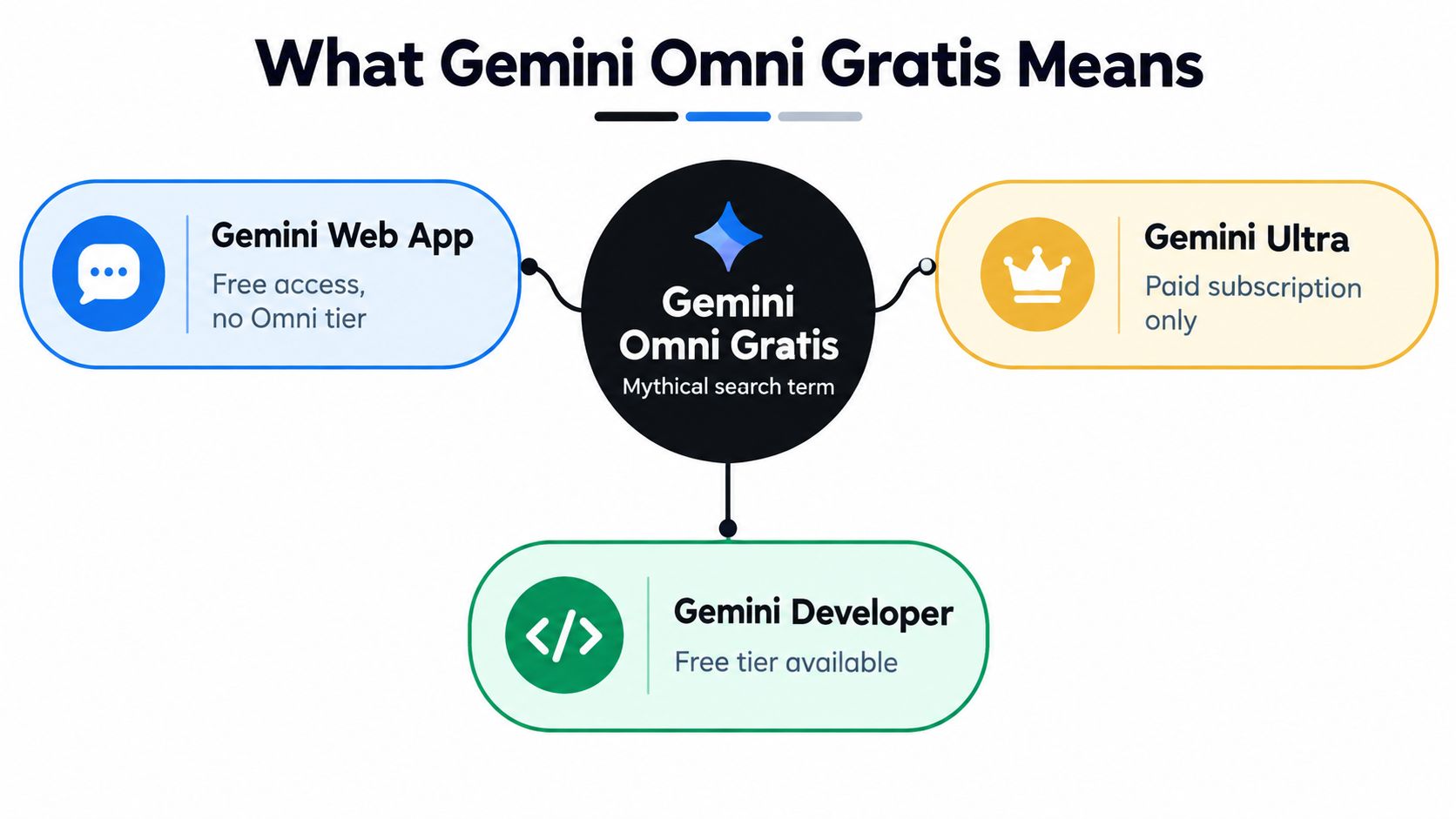
The biggest mistake is assuming Gemini Omni means “free in the Gemini app.” Google's rollout says Gemini Omni Flash initially reached paid Google AI Plus, Pro, and Ultra subscribers in the Gemini app and Flow, while no-cost access was announced for YouTube Shorts and YouTube Create Google's Gemini Omni rollout.
<a id="the-phrase-is-useful-but-the-access-model-is-split"></a>
The phrase is useful, but the access model is split
People type gemini omni gratis because they want a no-cost way to test Google's multimodal video workflow. That intent is real. The access model is channel-specific, not universal, so you are dealing with one route for paid subscribers, one route for free creators inside YouTube surfaces, and one route for developers who want an API-style workflow.
The user base matters too. Google reported that the Gemini app had passed more than 450 million monthly active users in Q2 2025, up from more than 400 million in May 2025 TechCrunch on Gemini usage. That scale is one reason Google partitions access by surface and account type.
Practical rule: don't ask whether Gemini Omni is free. Ask where you're trying to use it, because that determines whether you're looking at a free route, a paid route, or a dead end.
For Italian, Japanese, and Korean creators, that distinction matters even more because region handling, surface availability, and language workflow do not line up cleanly across every product. Stop searching for a single “free tier” and map the channel instead.
<a id="the-four-real-access-routes-at-a-glance"></a>
The Four Real Access Routes at a Glance
There are four routes worth comparing before you touch a prompt. Two cost nothing for creators, one is a developer-style free tier, and one is a paid subscriber path that people often mistake for free because Gemini branding shows up in the app.
| Channel | Cost | Age / Region | Output Destination | Best For |
|---|---|---|---|---|
| Gemini app | Paid for Omni Flash | Google AI subscribers, 18 and over, region-dependent Google's Gemini app rollout | Gemini app / Flow | Iterative editing, account-based workflows |
| YouTube Shorts Remix | No cost | YouTube account access, feature availability varies by region | Shorts workflow | Fast vertical tests, hooks, remixing |
| YouTube Create | No cost | YouTube Create app access | Mobile creation workflow | Mobile-first short-form clips |
| Gemini API free tier | Free tier with limits | Developer account context, quota-managed | API output / integration | Testing, automation, app prototypes |
The Gemini app is the cleanest option if you already pay for Google AI, but it is not the free answer. Use it when you want conversational refinement and can live with account gating.
YouTube Shorts Remix is the smartest no-cost starting point for social video. It is built for short-form output, and it works as a quick creative lab rather than a final production suite.
YouTube Create is the better free route when you want a mobile-first workflow and do not want to bounce between tools. It is practical, not flashy.
The developer free tier suits people who prefer testing through an API instead of a tap-based app. For multilingual or repeatable production, it often gives the clearest signal of whether the tool fits the workflow.
Free access works well when you are validating a format. It stops being useful when you need predictable volume, consistent output, or a clean production handoff.
<a id="setting-up-youtube-shorts-remix-and-youtube-create"></a>
Setting Up YouTube Shorts Remix and YouTube Create
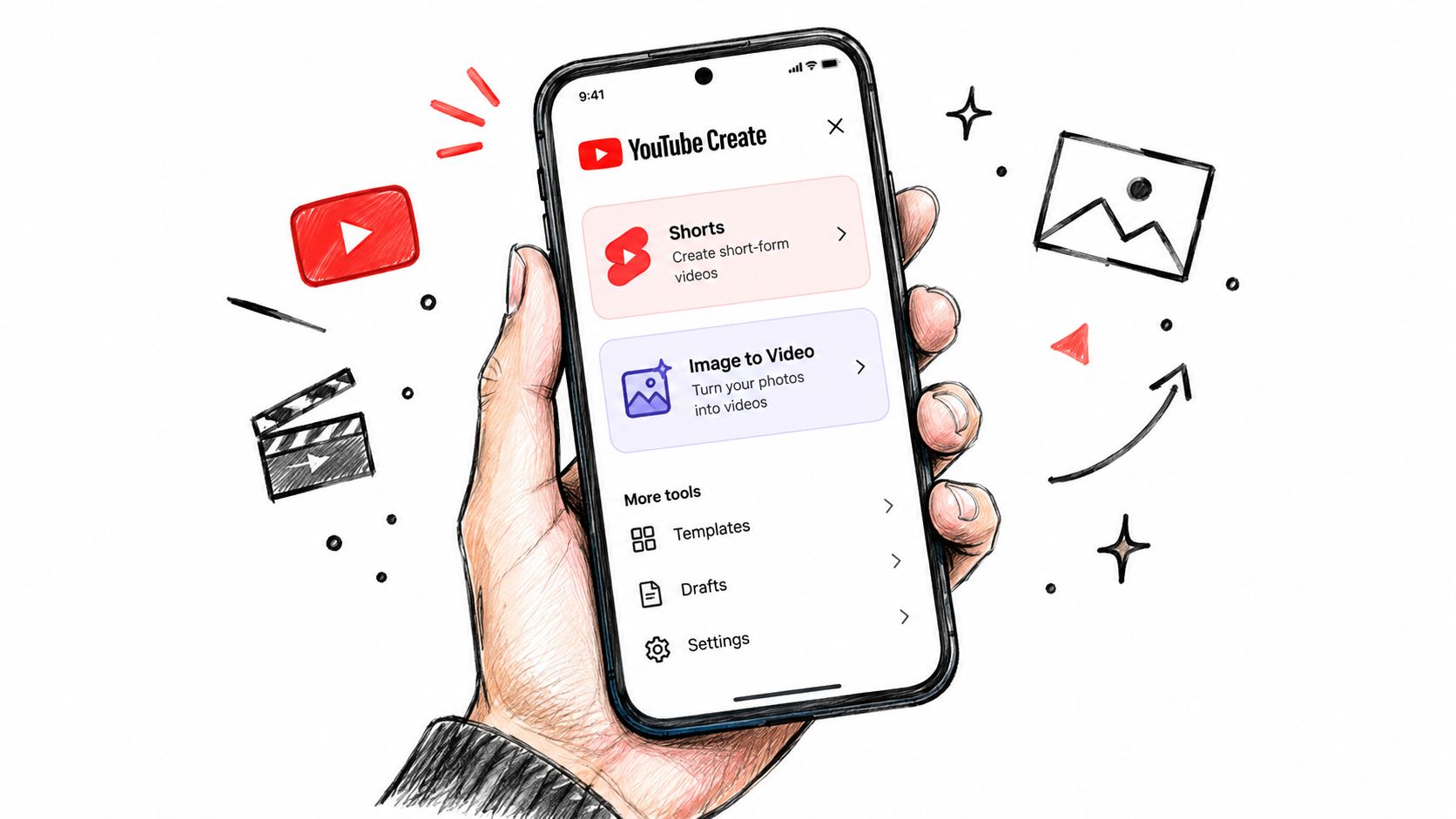
Start in the YouTube mobile app if you want the simplest free route. Sign in, open the creation area, and look for the create or remix tools tied to short-form video. The goal is to confirm that Omni Flash appears in the creation menu before you spend time prompting.
<a id="what-to-tap-first"></a>
What to tap first
In YouTube Shorts Remix, keep the first test simple. Use a still image or a short text prompt, then watch for whether the app routes you into a video creation flow instead of a generic edit tool. If you see export limits, duration caps, or a prompt that asks you to refine rather than rebuild, you're in the right place.
In YouTube Create, open a new project on Android, pick the Omni option from the effects or creation area, and name the project something specific like “hook test 01.” That sounds basic, but it saves time when you revisit multiple variants later.
Google's developer release information says Omni can produce 3 to 10 second videos at 720p from text or still images, followed by conversational refinement Google I/O 2026 announcements. That's the expectation you should carry into both free routes. Don't treat them like full-length editors.
For creators managing a short-form pipeline, a scheduling layer helps more than more prompting. A useful reference point is Social Media Scheduler for video teams, especially if you're trying to turn a handful of tests into a repeatable posting cadence.
<a id="how-to-keep-the-test-clean"></a>
How to keep the test clean
Use one prompt, then one refinement. Don't stuff the first attempt with too many camera moves, voice cues, or scene changes. You're trying to learn how the free route behaves, not prove you can write a screenplay in one shot.
If the clip is good but the account flow feels clumsy, the tool may still be usable. If the flow is smooth but the output is cramped, it's a testing tool, not a production one.
The most useful habit is chaining outputs. A few short clips stitched into a vertical sequence will tell you more about fit than one isolated success.
<a id="trying-the-gemini-developer-free-tier"></a>
Trying the Gemini Developer Free Tier
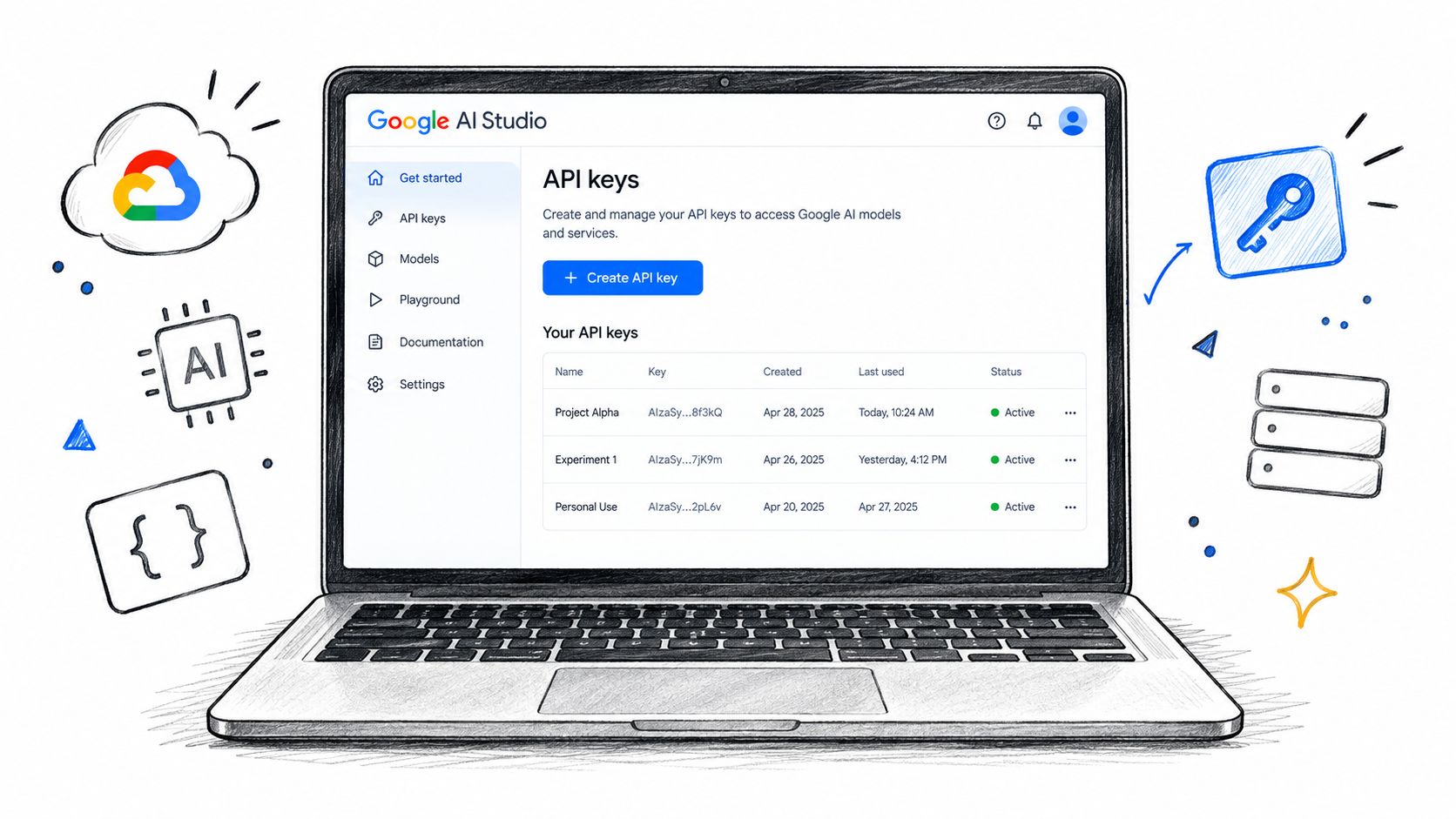
If you want code instead of a mobile app, use the developer path. Create a Google AI Studio account, generate an API key, and choose the Omni-capable model from the model picker. Then run the smallest possible text-to-video test so you can see whether the model matches your workload before you build around it.
<a id="a-minimal-first-test"></a>
A minimal first test
Use one short prompt. Keep it plain, like a product shot, a simple motion beat, or a single scene change. If you want to push harder, add one image reference later, not on the first run.
The Gemini API documentation draws a hard line between analysis and generation. On the free tier, YouTube-video analysis is capped at 8 hours per day, while paid usage has no limit based solely on video length, and Gemini 2.5 and later models can accept up to 10 videos in one request Gemini API video understanding. That matters because people often confuse “free tier” with “unlimited everything,” which it isn't.
Treat the developer route like a controlled experiment. If a single request works cleanly, repeat it with a second asset and a slightly different prompt structure. If it starts to fray, the issue may be quota, context length, or prompt complexity, not your idea.
My rule: the free tier is for proving workflow fit, not for pretending you found a production substitute.
The developer path is also the easiest way to compare Gemini-based generation with other tools later. If you're serious about repeatability, log the prompt, the model, and the output behavior every time.
<a id="quotas-watermarks-and-regional-reality-checks"></a>
Quotas, Watermarks, and Regional Reality Checks
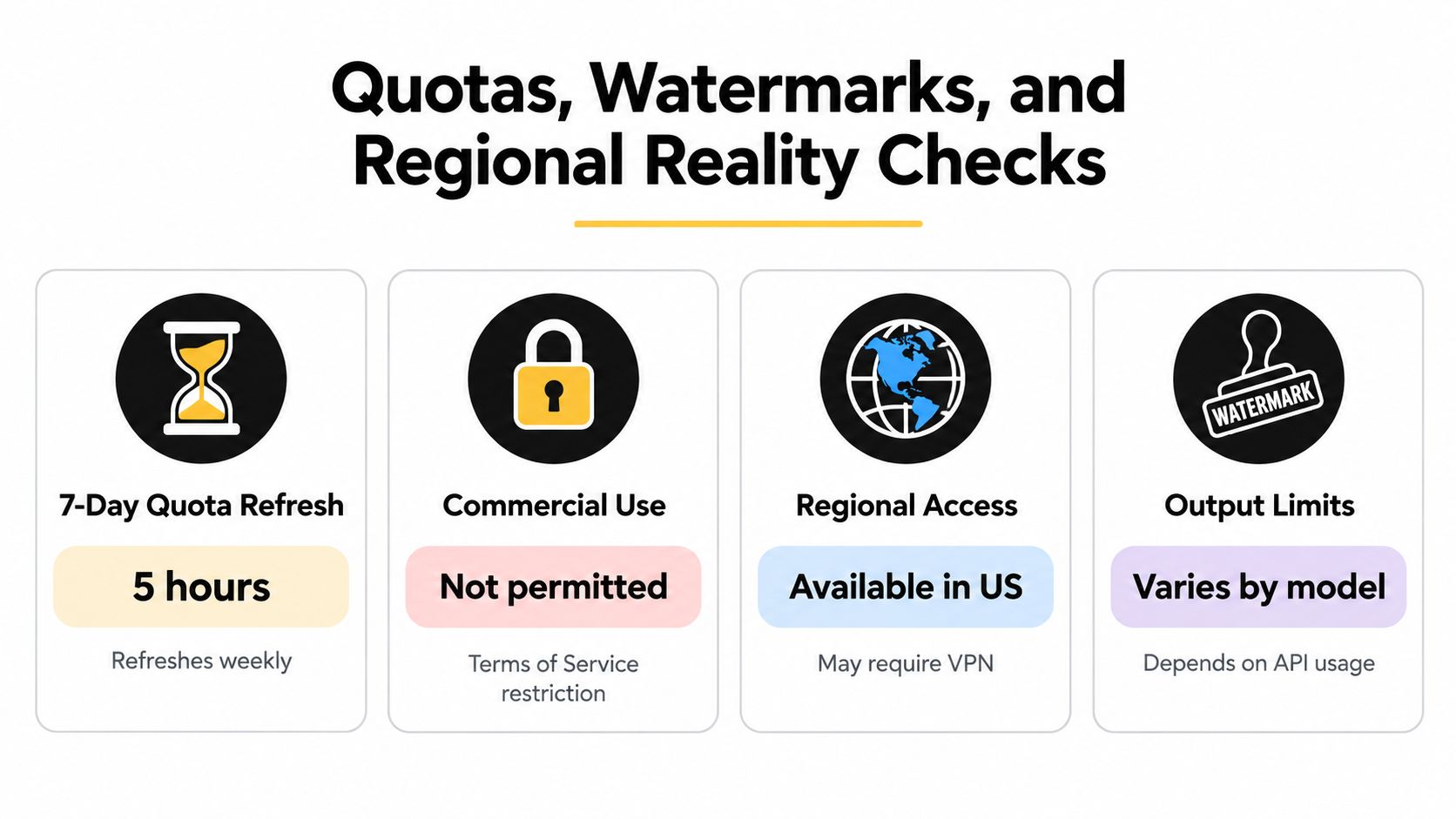
A free route looks simple until the limits show up. Google says Gemini Apps limits refresh every five hours until a weekly cap is reached, and Workspace monthly quotas for Google Vids reset at 12:00 a.m. Pacific Time on the first day of each month without rolling over Google Gemini help on limits.
<a id="what-that-means-in-practice"></a>
What that means in practice
The quota model follows compute, so prompt complexity, selected features, and conversation length all affect how fast you hit the ceiling. A long back-and-forth burns capacity faster than a short, tightly written prompt. Short, explicit instructions win here.
Google's Veo 3.1 announcement points to provenance signals, including Content Credentials based on C2PA Veo 3.1 announcement. In practice, expect outputs to carry authenticity metadata in supported workflows instead of assuming every clip is free of traceability.
If your publishing process includes cleanup, keep the policy lens on. A workflow reference like rewrite AI text to remove watermarks belongs in the conversation only as a reminder that provenance and output controls are part of the product reality, not a side issue.
For a fuller walkthrough of no-cost access paths, see our guide to Google Omni free options.
<a id="regional-access-is-not-uniform"></a>
Regional access is not uniform
Google says the Gemini app rollout is for Google AI subscribers aged 18 and over, with availability that varies by region Google Gemini help on limits. Access checks are not just about having an account. Geography, age gating, and the surface you use all matter.
If a region-restricted path fails, stop grinding the same route. Move to the next option in the matrix. The fastest fix is often switching surfaces, not chasing the same dead end.
<a id="when-free-routes-stop-being-enough"></a>
When Free Routes Stop Being Enough
Free routes are strong for testing, weak for production. They're good at hooks, quick prototypes, and short vertical experiments. They're not what I'd use for a campaign that needs predictable volume, shot continuity, or consistent high-resolution delivery.
Google's Veo 3.1 adds vertical-video generation, upscaling to 1080p or 4K, Ingredients to Video, portrait mode, and integration into YouTube Shorts and the YouTube Create app Veo 3.1 announcement. That's the point where the free route stops feeling like enough for serious marketing work.
<a id="use-the-free-route-if"></a>
Use the free route if
- You're testing a hook: short clips are enough to see whether the concept lands.
- You're learning prompt structure: a free route gives you cheap feedback.
- You're making organic Shorts: quick iteration matters more than perfect polish.
<a id="move-up-if"></a>
Move up if
- You need repeatable volume: free quotas and refresh windows will slow you down.
- You need continuity across shots: short clips and iterative edits don't replace a proper sequence workflow.
- You need higher-res output: the 720p, short-form ceiling is fine for trials, not for every client brief.
I'd keep the free routes for idea validation and early-stage social content. Once a concept starts getting traction, switch to a tool that handles higher-resolution output and more controlled generation paths. For one option in that category, Veo 3 AI video generator gives you another place to compare text-to-video workflows without pretending free experiments are the same as production.
<a id="a-30-day-free-tier-testing-plan"></a>
A 30-Day Free-Tier Testing Plan
Week one, map your available routes. Check whether the Gemini app, Shorts Remix, YouTube Create, or the developer path appears in your region and account type. Write that down before you generate anything.
Week two, run five standardized prompts across the free routes: text-to-video, image-to-video, video transformation, audio-plus-video input, and an iterative edit. Use the same prompt structure each time so you can compare the outputs consistently. Log what changes, what breaks, and where the account limits appear.
Week three, test multilingual prompting in Japanese and Korean, then compare vertical and portrait outputs. If the clip works in one language but not the other, that's useful data, not failure. It tells you whether the route fits your audience.
Week four, decide. Keep the free routes for experimental work if they're fast enough and consistent enough. Move on if you're spending more time fighting the quota, the region gate, or the output ceiling than you are publishing.
Free access is a scouting tool. It's valuable when it tells you exactly where the paid route is worth it.
If you want a cleaner video workflow after the free tests, visit Veo3 AI and compare how it handles prompt-to-video generation, image-to-video, and short-form output. That gives you a practical next step when Gemini Omni Gratis stops being enough for the work you need to ship.
Related Articles
Continue with more blog posts in the same locale.
Gemini Omni Video Length Limit: How to Work Around It
Learn the Gemini Omni video length limit and how to extend it using Veo 3 AI, Veo 3.1, and proven workflows for continuous AI-generated video.
Read article
Google Veo 無料
Google veo 無料. Find out if Google Veo is really free, what limits apply, and how to start using it today. A clear guide for creators comparing free options.
Read article
Veo 3 Kostenlos: Your Free Video Generation Guide
Learn how to use Veo 3 AI video generator for free. Step-by-step guide to creating videos with Veo 3 kostenlos, including tips and limitations of the free plan.
Read article