
Veo 3 Kostenlos: Your Free Video Generation Guide
Learn how to use Veo 3 AI video generator for free. Step-by-step guide to creating videos with Veo 3 kostenlos, including tips and limitations of the free plan.
Veo3 AI · 14 min read · Oct 10, 2026
There is no true unlimited free tier for Veo 3. Google's API launched at $0.75 per second for video with audio, later falling to $0.40 per second for standard Veo 3 and $0.15 per second for Veo 3 Fast, so “veo 3 kostenlos” depends entirely on the Google interface, your plan, region, and available credits. Google AI Studio, Gemini, and Flow can expose trials or limited quotas, but none turns Veo 3 into an unrestricted free production pipeline.
The popular advice is to “just use Veo 3 for free.” That advice skips the part that matters. A free generation that fails on identity, motion, dialogue, or audio still consumes time and may consume scarce credits. The practical question isn't whether you can open a Veo interface without paying. It's whether that interface can produce enough usable footage for your actual goal.
Table of Contents
- The Reality Behind Free Access
- Setting Up Your Free Workflow
- Prompt Engineering for Limited Credits
- Choosing Models and Output Settings
- Navigating Free Tier Limitations
- Ownership Rights and Commercial Use
<a id="the-reality-behind-free-access"></a>
The Reality Behind Free Access
Veo 3 isn't a single free website with one universal allowance. Google distributes access across Google AI Studio, the Gemini app, and Flow, and each surface can apply different eligibility rules, quotas, model versions, and regional restrictions. Google's announcement gave Google AI Pro subscribers limited Veo 3 access in Flow and a 10-pack of trial video generations in the Gemini app, while Google AI Ultra offered the highest access level and was available in 73 countries at the time of that announcement. That's trial access, not unlimited generation. Google's announcement makes the distinction clear.
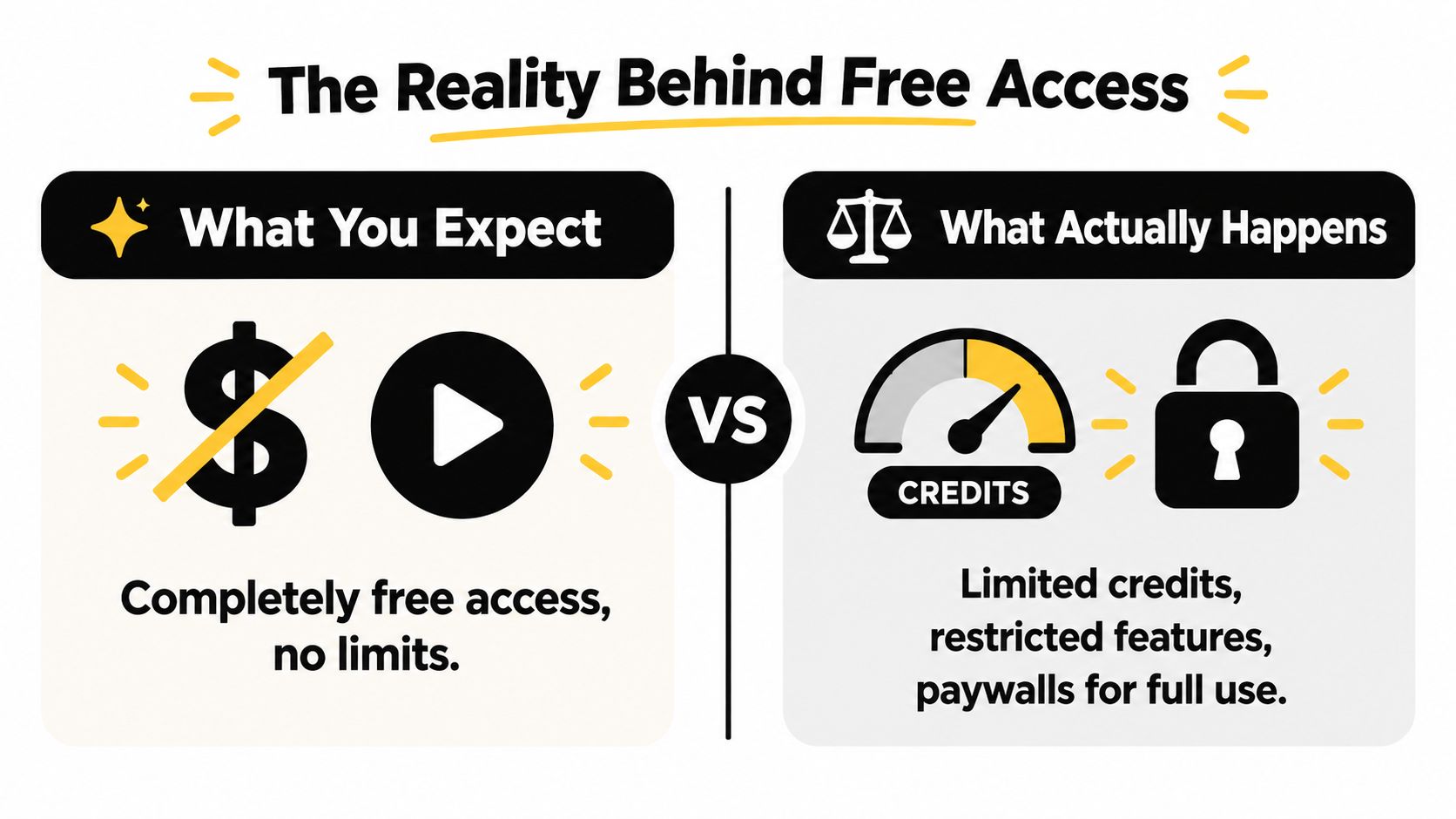
Google AI Studio is the most relevant route for developers and technically minded creators, but it isn't a magic free plan. Google first introduced Veo 3 to developers through the Gemini API and AI Studio at $0.75 per second for video-and-audio output. A later update reported standard Veo 3 at $0.40 per second and Veo 3 Fast at $0.15 per second. The API remained usage-based rather than universally free, as documented in this Veo 3 access and pricing overview.
<a id="what-the-keyword-hides"></a>
What the keyword hides
The phrase “veo 3 kostenlos” collapses several different questions into one:
- Which interface: Gemini, Flow, AI Studio, Vertex AI, or a third-party platform?
- Which account: Google AI Pro, Google AI Ultra, developer account, or a trial account?
- Which country: Google's availability and eligibility can differ by region.
- Which output: a short experiment, a usable social clip, or repeated commercial production?
- Which model: Veo 3, Veo 3 Fast, or Veo 3.1?
That last distinction matters because a “free generation” isn't the same as a free finished asset. If you need multiple attempts to correct a face, product logo, camera move, or line of dialogue, your effective allowance shrinks quickly. For broader comparisons across no-cost creative software, a curated directory of free AI tools can help you compare alternatives instead of assuming every free label means the same thing.
Practical rule: Treat free access as an audition. Choose a paid workflow only after you know how many attempts your concept normally needs.
<a id="setting-up-your-free-workflow"></a>
Setting Up Your Free Workflow
Start by identifying the product surface before writing a prompt. The Veo 3 AI video generator can help you understand the broader tool ecosystem, but official Google generation happens inside Google's own products. Don't assume that an account which can view a Veo feature can also access the same model, duration, resolution, or quota through another interface.
For a developer-oriented workflow, sign in to Google AI Studio with a Google account and inspect the available model and usage panel before generating. Confirm the active model, region eligibility, output settings, and whether the request is using a trial allowance or paid API billing. This check prevents the most expensive beginner mistake, generating several tests before realizing that the account is connected to usage-based billing.
<a id="verify-the-route-before-spending-credits"></a>
Verify the route before spending credits
Use this sequence:
- Open the correct Google product. Gemini, Flow, and AI Studio don't present identical controls.
- Check eligibility and plan status. A trial pack, Pro access, Ultra access, and API access are separate conditions.
- Confirm the model name. Don't assume the interface is using the version you intended.
- Review the credit or usage indicator. Record the starting balance and whether unused credits expire.
- Run a controlled test. Use one simple shot before attempting a full ad or multi-scene sequence.
- Save the output and prompt. A successful prompt is an asset, especially when your next attempt may consume another credit.
If you need to connect generation with research or automation, keep the surrounding workflow separate from the video model itself. For example, a web scraping API can collect product or competitor information for a campaign brief, but it won't make Veo generation free or remove Google's usage conditions.
A short orientation video can be useful before you experiment:
<iframe width="100%" style="aspect-ratio: 16 / 9;" src="https://www.youtube.com/embed/wTEUJSANaV8" frameborder="0" allow="autoplay; encrypted-media" allowfullscreen></iframe>
The correct setup is the one that matches your objective. Casual users should favor the simplest eligible consumer interface. Developers should inspect API terms and billing. Agencies should verify commercial and client-delivery conditions before producing anything that will leave the test environment.
<a id="prompt-engineering-for-limited-credits"></a>
Prompt Engineering for Limited Credits
Free access changes the math. Every weak prompt costs time, burns a credit, and often gives you a clip that looks polished but fails at the one job you needed it to do. Treat each prompt like a tight production spec, not a creative brainstorm.
The best way to protect limited generations is to separate the shot into controllable layers: subject and appearance, action, setting, camera movement, visual style, lighting, and audio. That structure forces you to decide what matters before you click generate.
A practical prompt skeleton looks like this:
- Subject: a red ceramic coffee mug with a matte finish
- Action: rotates slowly on a wooden table
- Setting: quiet café interior with a softly blurred window
- Camera: locked-off medium close-up with a gradual push-in
- Style: premium product commercial, restrained and realistic
- Lighting: warm side light with a controlled highlight on the rim
- Audio: low café ambience, ceramic movement, no music
This format makes revision cheaper. If the mug is right but the motion is wrong, change the camera or action line only. Do not rewrite the whole prompt and introduce new variables. Google's official Veo prompt guide also recommends spelling out audio clearly and separating dialogue, ambience, sound effects, and timing into distinct sentences.
<a id="use-one-primary-action-per-clip"></a>
Use one primary action per clip
Free marketing claims collide with actual output here. If you only have a few tries, one clip should do one thing well. Build a short shot list, then assign a single dominant action to each generation: a product rotating, a hand opening a package, a person walking toward camera.
Do not ask one short clip to establish a character, change wardrobe, move through a room, reveal text, deliver dialogue, and show a product payoff. That is how free credits disappear.
Google's documentation for Veo 3.1 notes limits around consistency in realistic, dynamic, and intricate scenes with complex motion. The practical takeaway is simple. Simplicity saves credits better than extra prompt detail.
Generate a few close variants of the same shot, keep the best take, and cut the sequence together in your editor. Check identity continuity, hands, text, lip-sync, object position, and audio relevance before you approve anything. Audio needs its own pass, because a visually usable clip still fails if ambience is missing or speech does not match the action.
Use this decision rule: if your goal is product clarity, reduce motion. If your goal is cinematic motion, reduce scene complexity. Limited credits reward narrow prompts and punish ambition packed into a single generation.
<a id="choosing-models-and-output-settings"></a>
Choosing Models and Output Settings
Pick the model and settings based on the clip you need to publish, not the highest spec listed on a product page. Veo 3.1 is documented as an 8-second video-generation model available through the Gemini API, with support for text-to-video, image-to-video, native audio, video extension, first-and-last-frame generation, and reference-image guidance. Google also documents output options of 720p, 1080p, or 4K, with 4K depending on how the API is configured.
That matters because "free" access becomes expensive fast if you choose the wrong surface for the job.
For TikTok, Reels, and Shorts, start with 9:16 portrait. For YouTube presentations, website banners, and standard ad placements, start with 16:9 horizontal. Veo 3.1 supports both documented aspect ratios, so decide the frame before you generate. Cropping a horizontal clip into vertical usually wastes the shot, especially if the subject, text, or action was composed for a wide frame.
<a id="a-practical-settings-comparison"></a>
A practical settings comparison
| Production goal | Recommended starting point | Reason |
|---|---|---|
| Vertical social clip | 9:16, one clear action | Matches common mobile framing and reduces composition conflicts |
| Website or presentation visual | 16:9, restrained camera movement | Leaves space for overlays and copy |
| Product animation | Image-to-video with a source image | Gives the model a concrete visual starting point |
| Character or brand continuity | Up to three reference images | Helps direct recurring visual elements |
| Longer sequence | Short clips plus video extension | Lets you build continuity in manageable units |
Use that table as a decision matrix, not a tutorial checklist. If your goal is product accuracy, image-to-video usually beats pure text prompting. If your goal is recurring character or brand consistency, use reference images first and keep the scene simple enough for them to matter. If your goal is a longer sequence, generate short usable units and extend only the shots worth keeping.
First-and-last-frame generation is useful when you already know the visual start and end state and need the transition between them. Google Cloud also documents object addition and removal while preserving the original scene composition, which makes iterative edits more practical than rewriting the whole shot.
Language settings need the same discipline. English is fully supported in the cited documentation. Google notes that other languages have not been evaluated and may produce variable results, so non-English campaigns should rely more on visual direction and test dialogue as a separate task.
Google's published evaluation context also helps explain why expectations get inflated. It reports tests on 1,003 video prompts, 527 video-plus-audio prompts, and 355 image-and-text pairs in VBench image-to-video testing, with comparisons involving Meta MovieGen, Kling 2.0, MiniMax, and Sora Turbo. Treat that as evaluation scope, not a promise that your free clip will be usable on the first attempt.
<a id="navigating-free-tier-limitations"></a>
Navigating Free Tier Limitations
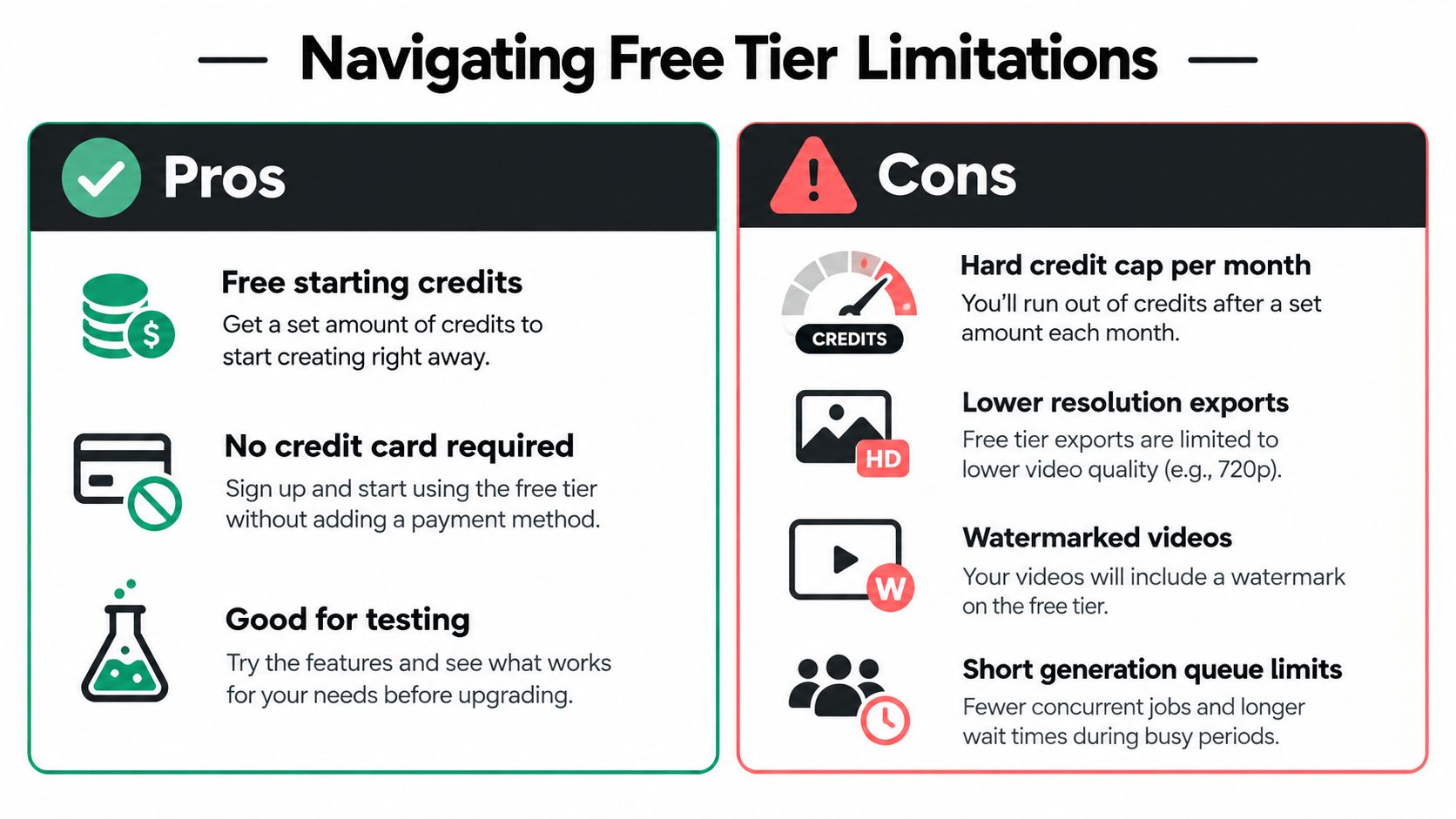
Free access to Veo only works if you judge it by finished clips, not dashboard promises. The main constraint is usable output. A generation can spend an attempt and still fail on face consistency, hands, motion, product shape, framing, or audio. That gap is where "free" stops being useful for production.
Credit numbers also vary across guides, and that matters because people often quote one figure as if it applies everywhere. One guide describes 500 monthly credits, roughly 400 seconds in Lite mode or 80 seconds in Quality mode in that setup, while our detailed Veo 3 free credits guide describes 200 monthly credits and notes that unused credits do not roll over. Treat both as interface-specific claims, not universal rules. Check the exact Google product surface, account type, country, model tier, and current terms before you promise output volume to yourself or a client.
<a id="calculate-finished-output-not-advertised-access"></a>
Calculate finished output, not advertised access
An eight-second idea is never just an eight-second job. The useful question is how many attempts it takes to get one clip that survives continuity checks, motion review, audio review, framing review, and legal review. If you need repeatable social output, free-tier math gets harsh fast.
Use this decision matrix:
| Goal | Free access is reasonable when | Choose another route when |
|---|---|---|
| Casual testing | You need a few experiments and can tolerate failed takes | You need dependable daily output |
| Commercial prototype | You only need an internal concept and will verify terms first | A client expects delivery-ready footage |
| Recurring social content | You can reuse successful clips and edit around them | Every post needs multiple fresh variations |
| API workflow | You're validating a technical concept | You need predictable volume and billing |
Here is the practical rule. Use the free tier for concept proof, look development, and occasional wins. Do not use it as your main production engine if your calendar depends on consistent output.
Google also embeds SynthID in generated videos. That provenance marker identifies the asset as AI-generated even when no visible watermark appears, so do not sell a clip as completely provenance-free.
Distribution discipline still matters. If you do get a few strong clips, schedule them carefully instead of burning them the same week. A comparison like best free social media schedulers helps on the publishing side, even though it does nothing to fix generation limits.
The smartest free workflow is selective. Test simple shots first, keep the prompts that work, spend higher-quality settings only on concepts that already proved they can survive review, and switch tools early when the output target is recurring content rather than experimentation.
<a id="ownership-rights-and-commercial-use"></a>
Ownership Rights and Commercial Use
Google-related material indicates that Veo outputs may be used commercially, but commercial permission isn't the same as copyright ownership. In some jurisdictions, AI-generated material may not receive ordinary copyright protection. A client might receive permission to publish an output without receiving exclusive ownership, registration rights, indemnification, or protection from claims involving material inside the prompt or reference asset.
That distinction becomes more important when a video includes recognizable people, brands, logos, copyrighted characters, or distinctive voices. A consumer trial, API account, and enterprise arrangement may carry different terms. Read the terms active on the generation date, and preserve them with the project record.
<a id="use-a-pre-publication-checklist"></a>
Use a pre-publication checklist
- Document the creation: Save prompts, source images, generation dates, model details, and export files.
- Clear identifiable people: Obtain appropriate releases for people shown in uploaded or generated reference material.
- Avoid protected brand elements: Don't add third-party logos, characters, or voices unless you have permission.
- Check client scope: Confirm whether the client receives a license, ownership claim, or only permission to publish.
- Disclose synthetic media where required: Legal and platform rules may require disclosure even when the video has no visible mark.
- Retain provenance information: SynthID and C2PA Content Credentials can identify AI origin, so don't promise their removal.
- Review the current terms: Free, consumer, developer, and enterprise access shouldn't be treated as interchangeable.
A video can be commercially usable and still carry legal uncertainty. The safe recommendation is to use free access for concepts, internal tests, and low-risk personal work until the rights position is documented. For paid advertising, client deliverables, and recognizable source assets, obtain approval before publication rather than assuming the word “free” settles ownership.
Veo3 AI offers a separate environment for turning text prompts or static images into videos while bringing models such as Veo3, Seedance, and Hailuo into one workflow. If you want to compare that kind of interface with Google's fragmented free access, visit Veo3 AI and test the workflow against your actual short-form production needs.
Related Articles
Continue with more blog posts in the same locale.
Gemini Omni Image to Video: The Complete Guide
Master Gemini Omni image to video workflows. Learn prompt templates, Veo 3.1 settings, resolution options, and practical tips for social and marketing videos.
Read article
Veo 3 Gratis: How to Access and Use Free AI Video
Learn how to access Veo 3 gratis and generate AI videos. This guide covers account setup, prompt strategies, rendering settings, and free tier limits.
Read article
10 Générateur De Vidéo Gratuit Tools Worth Trying
Compare 10 générateur de vidéo gratuit tools, including Veo3 AI, with features, free-tier limits, pros, cons, and picks for every use case.
Read article