
Gemini Omni Video Length Limit: How to Work Around It
Learn the Gemini Omni video length limit and how to extend it using Veo 3 AI, Veo 3.1, and proven workflows for continuous AI-generated video.
Veo3 AI · 10 min read · Oct 12, 2026
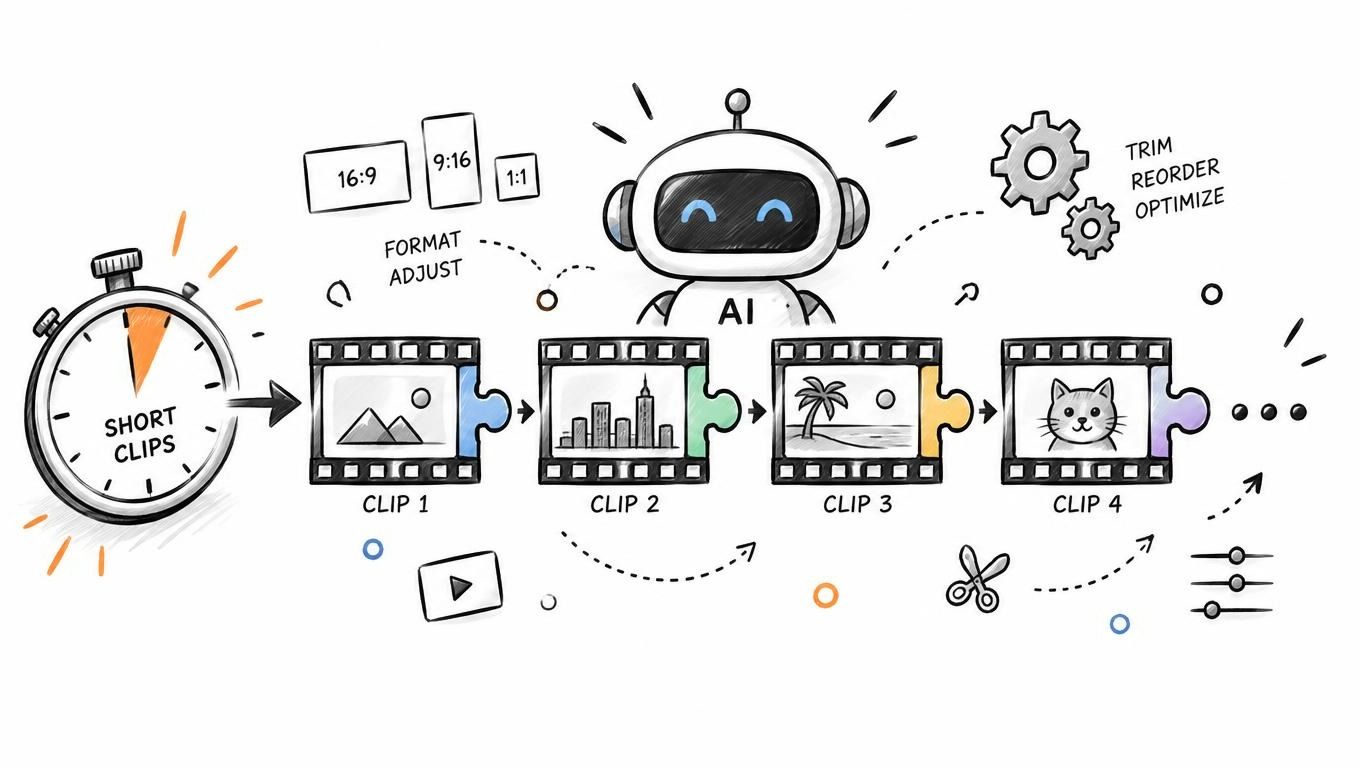
The Gemini Omni video length limit is 10 seconds for a single generated clip, and you can push a finished sequence to 40 seconds through iterative extension. That's the baseline to plan around when a client asks for a 30-second spot and the model gives you a much shorter result.
A lot of creators hit that wall on the first pass. The prompt looks right, the concept is clear, and the output is still a short shot, not a finished ad. That's normal behavior for this generation workflow, not a bug in your prompt.
Table of Contents
- The Reality of Short Clips in Gemini Omni
- Technical Limits and Extension Rules
- How to Generate Videos Longer Than 10 Seconds
- Managing Continuity and Drift in Extended Clips
- Integrating Veo 3 AI for Consistent Workflows
- Final Production Workflow and Best Practices
<a id="the-reality-of-short-clips-in-gemini-omni"></a>
The Reality of Short Clips in Gemini Omni
A creator sits down to make a 30-second product ad, writes a clean cinematic prompt, and expects a complete clip. Instead, Gemini Omni returns a short segment that feels like the opening shot of a scene, not the whole scene itself. That mismatch is the most common frustration because the tool is designed around short-form generation first.
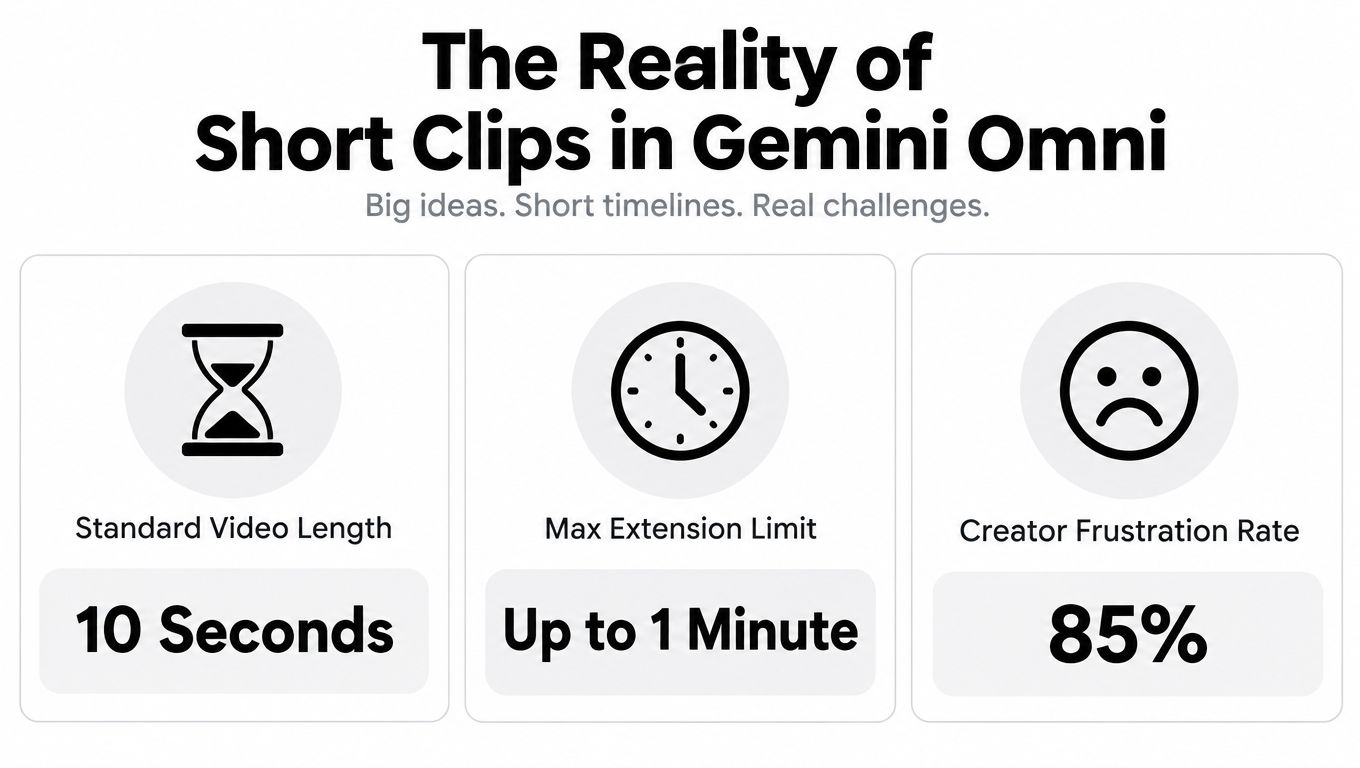
The core constraint is simple, 10 seconds is the primary maximum for a single generated Omni clip in the Gemini experience, according to Google's published video-generation documentation. In practice, that means you're not asking for “one long video,” you're asking for a short building block that you can later sequence or extend. Google's YouTube Create documentation also frames Gemini Omni as producing vertical clips up to 10 seconds, which makes the limit especially relevant for mobile-first creators working on Shorts, Reels, and TikTok.
<a id="why-the-limit-exists-in-practice"></a>
Why the limit exists in practice
Video generation gets harder as duration grows. The model has to keep subject identity, camera motion, scene composition, and timing aligned across every frame, and that gets less stable the longer a single uninterrupted generation runs. Short clips reduce that drift, which is why Gemini Omni behaves like a shot generator rather than a traditional editor.
That distinction matters because the platform can still understand much longer video inputs. Google documents video-understanding models with 1-million-token context that can analyze uploaded videos up to 3 hours at low media resolution or 1 hour at high resolution. So the gemini omni video length limit is about generation output, not about the platform's ability to process video overall.
Practical rule: treat a Gemini Omni result like raw footage from a fast shoot, not a finished commercial.
The production mindset changes everything. If you need a long-form asset, you don't keep pushing the same prompt harder. You plan a sequence, break the story into shots, and decide where one generated clip should hand off to the next.
<a id="technical-limits-and-extension-rules"></a>
Technical Limits and Extension Rules
The difference between “short clip” and “longer sequence” comes down to how Google handles extension. The Gemini API documentation says generated videos can be extended by 10 seconds at a time, up to a total of 40 seconds, while the Veo 3 model supports exactly 4-, 6-, or 8-second outputs. Google's API guidance for Veo also requires 8 seconds for extension requests, reference-image workflows, and 1080p or 4K output, which makes the longer or higher-fidelity paths more structured than they first appear.
<iframe width="100%" style="aspect-ratio: 16 / 9;" src="https://www.youtube.com/embed/y_HoKPFIn9o" frameborder="0" allow="autoplay; encrypted-media" allowfullscreen></iframe>
<a id="what-the-numbers-mean-on-a-real-timeline"></a>
What the numbers mean on a real timeline
If you need a 20-second social ad, the workflow is not “generate 20 seconds.” It's usually “generate a shot, extend it, and accept that the handoff may need cleanup.” That's why a production timeline for Gemini Omni should include review time between segments, not just generation time.
The extension ceiling also changes how teams should budget creative risk. Each new 10-second segment can introduce drift in motion, lighting, object placement, and continuity. The longer the chain, the more likely you are to see seams that need cuts, overlays, or a reset.
The earlier section covered the hard ceiling on a single clip. What matters here is that the extension workflow gives you room to build beyond it without pretending the tool is open-ended.
Start each segment with a clear visual goal. A clip that tries to do too much is the one that usually breaks first.
For a deeper production comparison around the Gemini Omni release cycle, this breakdown of Gemini Omni Flash 1.1 is worth reading alongside your own tests. It helps frame the difference between a short generation setting and a chained workflow.
<a id="how-to-generate-videos-longer-than-10-seconds"></a>
How to Generate Videos Longer Than 10 Seconds

The cleanest way past the initial limit is to treat each result as a shot and extend only where the final frame gives you a natural continuation point. Google describes extension as a continuation workflow, not a freeform long-video generator, and that matters because the handoff frame becomes the anchor for the next segment.
<a id="a-practical-extension-sequence"></a>
A practical extension sequence
- Generate the strongest base shot first. Keep the prompt narrow, with one action, one camera movement, and one scene.
- Inspect the ending frame. If the final frame is visually clean, that's a good continuation point.
- Extend in controlled increments. Google's API docs allow extensions in 10-second steps, and the Veo path requires the 8-second setting when using extension requests.
- Keep the prompt consistent. Reuse the same subject, lighting, and style language instead of rewriting the scene from scratch.
- Edit the sequence after export. Assemble the segments in an editor, then smooth the seam with cuts, grading, or sound.
That workflow is the same reason teams often use video generation workloads on Beam when they need to orchestrate repeated generation jobs. Once you move beyond a single clip, the central task is throughput and consistency, not just prompt writing.
<a id="where-reference-images-help"></a>
Where reference images help
Reference images are useful when the scene has a product, character, or branded object that must stay recognizable across clips. Google's Veo guidance makes the 8-second setting mandatory for reference-image workflows, which tells you how much the system prioritizes consistency over flexibility in those cases.
The key is to avoid using reference material as a crutch for a weak shot plan. A strong reference image helps continuity, but it won't rescue a clip that's trying to show too many beats at once.
<a id="managing-continuity-and-drift-in-extended-clips"></a>
Managing Continuity and Drift in Extended Clips
Short generation keeps things clean. Extension introduces risk. The more times you ask the model to continue a scene, the more chances you give it to shift a face, drift a camera path, change a prop, or alter the lighting in a way that breaks the illusion.
<a id="short-chain-versus-long-chain"></a>
Short chain versus long chain
A short chain is easier to control because each segment has fewer moving parts. A longer chain gives you more runtime, but it also multiplies the number of seams you have to manage. That's the trade-off producers need to accept early.
A good reference setup can help, but it doesn't eliminate drift. The safest workflow is to reserve extension for moments where the scene still looks structurally stable, then cut away before the model has to invent too much new motion.
If the last frame already looks unstable, extending it usually makes the problem worse, not better.
One useful habit is to decide in advance what can change and what can't. Motion can shift slightly. Costume, product shape, and subject identity usually should not. If those core elements start moving around, the shot has gone past the point of easy repair.
<a id="when-to-reset-instead-of-extend"></a>
When to reset instead of extend
A reset is better when the scene loses its anchor. You'll see it when continuity issues stack up, when the action no longer feels related to the previous shot, or when the camera path stops serving the story. At that point, a new shot often saves more time than another extension pass.
This is also where the difference between prompt design and shot design becomes obvious. Prompt design tries to describe the whole scene. Shot design defines the exact visual beat that one clip should accomplish.
<a id="integrating-veo-3-ai-for-consistent-workflows"></a>
Integrating Veo 3 AI for Consistent Workflows
In production, short AI clips work best inside a wider toolchain. The Veo 3 AI video generator lets creators move from generation to review without switching between separate tools for every step.
<a id="how-it-fits-into-a-real-workflow"></a>
How it fits into a real workflow
A practical workflow usually starts with one pass for the base idea, then a tighter variation, then an edit stage that assembles the result. That setup works well for ads, product demos, and social clips that need several visually compatible shots instead of one long continuous take.
Veo 3.1 fits this kind of shot-based work. Its shorter outputs are easier to review, easier to compare, and easier to hand off into editorial.
<a id="choosing-the-right-shape-for-the-job"></a>
Choosing the right shape for the job
If you need fast iteration, shorter clips give you cleaner decision points. If you need polished delivery, generate several controlled shots and finish them in post. The value is in consistency across the sequence, not in pretending the model replaces a timeline.
Many teams get better results when they stop asking one model to do everything. They use short generations for exploration, then move the strongest version into a deliberate edit pass where timing, text, and audio can be aligned cleanly.
<a id="final-production-workflow-and-best-practices"></a>
Final Production Workflow and Best Practices
The most reliable workflow remains editorial. Start with a narrow prompt, generate a short base clip, check whether the final frame can support extension, then build the next shot. After that, cut the segments together, clean up the joins, and treat audio as a separate sync task instead of assuming the generator will solve it.
Keep scene language stable across clips. If the product angle shifts, the lighting changes, and the camera moves in a different direction, continuity breaks fast. Strong prompts help, but shot discipline helps more.
The main lesson from the Gemini Omni video length limit is that short generation is not a dead end. It is a production format. Once you plan around that, the 10-second ceiling becomes manageable, and the 40-second extension path becomes useful inside a controlled workflow.
If you are building short-form video systems around Gemini Omni or Veo, Veo3 AI gives you a practical way to generate, compare, and assemble clips in one place. Use it to support short-shot production, extension planning, and AI video assembly.
Related Articles
Continue with more blog posts in the same locale.

Google Veo 無料
Google veo 無料. Find out if Google Veo is really free, what limits apply, and how to start using it today. A clear guide for creators comparing free options.
Read article
Veo 3 Kostenlos: Your Free Video Generation Guide
Learn how to use Veo 3 AI video generator for free. Step-by-step guide to creating videos with Veo 3 kostenlos, including tips and limitations of the free plan.
Read article
Gemini Omni Image to Video: The Complete Guide
Master Gemini Omni image to video workflows. Learn prompt templates, Veo 3.1 settings, resolution options, and practical tips for social and marketing videos.
Read article