
MiniMax H3 使い方: How to Set Up and Make Your First Video
Learn MiniMax H3 使い方 step by step: specs, first clip setup, prompts, multi-shot workflows, cost per clip and fixes for common errors.
Veo3 AI · 15 min read · Oct 24, 2026

You've got a product photo, a short ad idea, and a prompt ready to paste. The first clip might look convincing, but the next shot needs to show the same product, preserve the lighting, and sound like it belongs in the same video. That's where a useful MiniMax H3 workflow starts to differ from generating a single clip.
If you searched for “MiniMax H3 使い方,” the practical answer is to plan the edit before spending on renders. Choose what must stay fixed, test a short shot, and check its sound as carefully as its images. A longer prompt won't replace those decisions.
Table of Contents
- What MiniMax H3 Does and Its Key Specs
- How to Generate Your First Clip Step by Step
- Text, Image and Reference Modes Compared
- Writing Prompts That Produce Usable Clips
- Building Multi-Shot Videos Longer Than 15 Seconds
- Common Problems and How to Fix Them
- Choosing Hosted Access or Self-Hosting Before You Pay
<a id="what-minimax-h3-does-and-its-key-specs"></a>
What MiniMax H3 Does and Its Key Specs
MiniMax H3 is a general-purpose multimodal model that generates video with synchronized native stereo sound. That means a first clip doesn't need a separate audio pass, although a finished production may still need sound editing.
MiniMax H3 specs and what they mean for your workflow
| Spec | Value | What It Means for You |
|---|---|---|
| Clip length | 4–15 seconds, integer-second durations | Plan 30–60-second pieces as several shots |
| Resolution | 768P base output, 2K available | Test at base resolution, regenerate keepers at higher resolution |
| Frame rate | 24 fps | Time motion and cuts around the output cadence |
| Audio | Native stereo, 32 kHz | Dialogue and ambience arrive with the clip |
| Upload limits | Video 50 MB, image 30 MB, audio 15 MB | Compress or trim before submitting |
| Dialogue languages | 11 languages with stable support, including Japanese and Korean | Verify names and pronunciation before publishing |
The output settings are documented in the H3 model introduction, with the audio sampling specification in the local deployment guide. Asset limits and language support require separate checks against the API and dialogue documentation discussed below.
<a id="what-the-limits-change"></a>
What the limits change
Duration is a production constraint, not a suggestion. Longer stories need separately generated shots and an editing timeline. For an ad, that's also a useful discipline: separate the establishing image, product action, and closing message instead of asking one generation to handle everything.
Higher resolution won't rescue a weak composition or an incorrect product. Review framing, movement, and subject identity at the base setting before spending on a final-resolution version.
Practical rule: Approve the action before approving the pixels.
Native sound removes a separate generation step, but it doesn't remove listening. A visually successful take can still have distracting ambience, awkward speech, or an effect that lands at the wrong moment.
Before starting, check source-file sizes and planned shot lengths. A rejected upload is an avoidable interruption, and a shot that can't fit its intended action needs rewriting before rendering.
<a id="how-to-generate-your-first-clip-step-by-step"></a>
How to Generate Your First Clip Step by Step
A product on a clean surface, one controlled camera move, and simple ambience make a useful first test. Keep the shot narrow: H3's 15-second ceiling makes multi-shot planning, reference reuse, and audio checks more consequential than adding detail to a prompt.
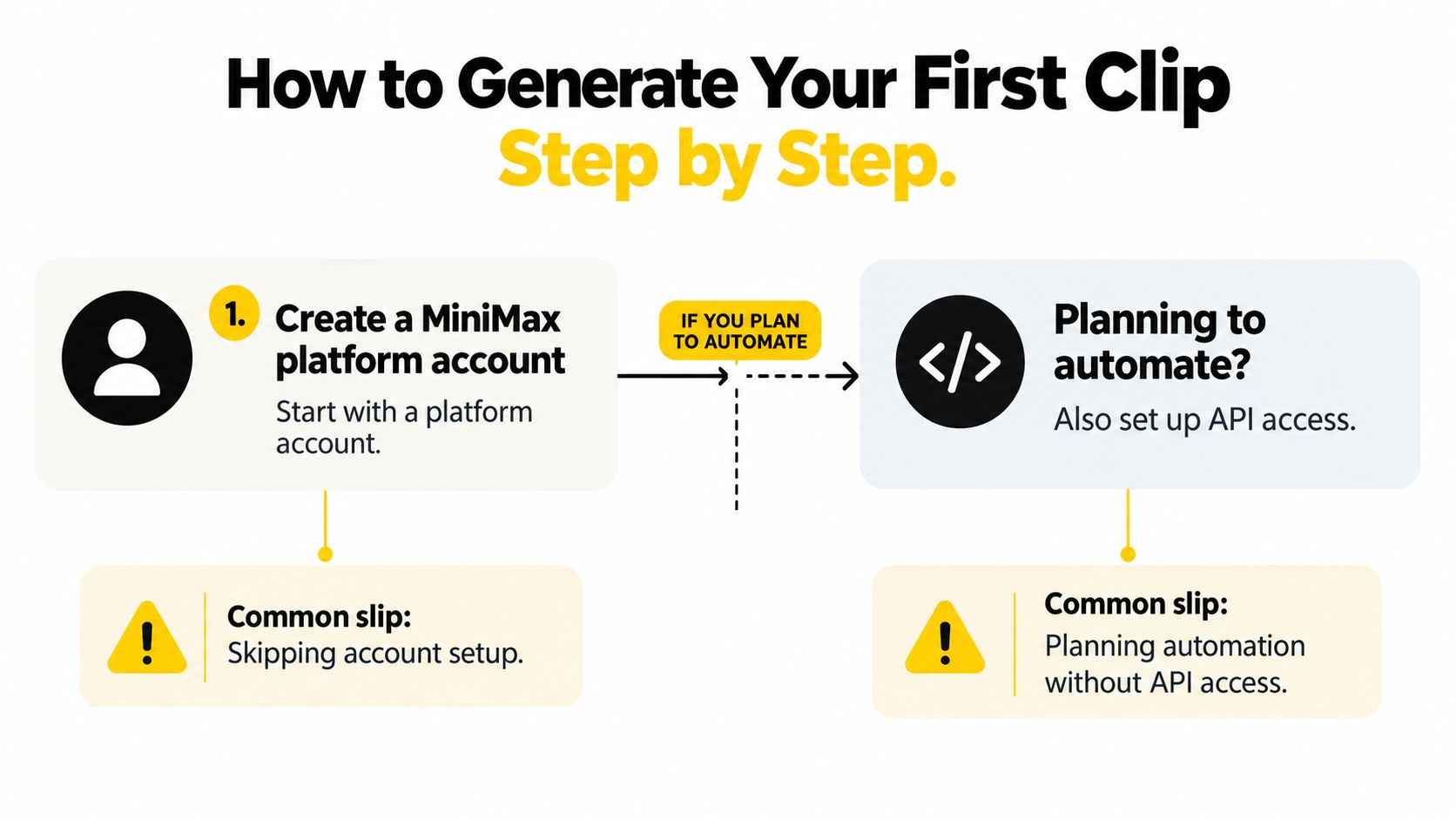
For browser generation, sign in to the MiniMax platform and open its video-generation workspace. API automation uses a separate setup path:
<a id="set-up-and-submit"></a>
Set up and submit
-
Open the video-generation workspace and choose a mode. Select text-to-video for a concept test, or image-to-video when a product photograph should define the subject. For an automated workflow, configure API access and keep the key out of shared prompts, screenshots, and project files.
-
Enter one observable action. For example, ask for a product to rotate slowly on a table while the camera moves closer. Specify the subject, movement, camera behavior, visual style, and audio atmosphere. MiniMax's H3 model introduction documents the model's capabilities. Avoid mood-only prompts; the action needs to be clear enough to judge in the finished clip.
-
Set the duration and resolution. Choose a whole-second duration from 4 to 15 seconds. For a first test, use a short duration and a simple action that can finish within it. Choose the base resolution before submitting, then use the same setup for a comparison render.
-
Submit the generation. In the browser, start the generation from the workspace. With the API, save the returned job identifier so the request can be matched to its result. Don't submit a duplicate just because the first response is delayed.
<a id="review-the-first-result"></a>
Review the first result
-
Check the job's completion status, then download the video. A successful submission only confirms that the request was accepted. Wait until the interface marks the generation complete before downloading or moving the file into an edit.
-
Inspect the action, subject, and audio before spending on a final render. Check whether the motion finishes naturally, the product remains recognizable, and the sound fits the image. A strong opening frame is not enough if the action breaks halfway through or the audio distracts.
Reference consistency and sound often decide whether a clip is usable. Render the same prompt again to compare variation, and change one instruction at a time if the result misses the target.
<a id="text-image-and-reference-modes-compared"></a>
Text, Image and Reference Modes Compared
Which H3 mode fits which goal
| Mode | Inputs | Best For | Watch Out For |
|---|---|---|---|
| Text-to-video | Prompt only | Concept tests and mood clips | Characters and products can drift between runs |
| Image-to-video | One image plus prompt | Animating a product photo or portrait | Source image must stay under the image upload cap |
| First-and-last-frame | Two images plus prompt | Controlled start and end states | Both frames should share compatible framing and lighting |
| Reference inputs | Image, video, or audio references | Guiding a recurring character, product, or sound | References still need upload validation |
| Video-to-video editing | Source video plus prompt | Motion transfer and restyling | Source video must stay under the video upload cap |
The important distinction is what you're asking H3 to preserve. A reference is useful only when its role is clear. Tell the model whether an input supplies appearance, motion, sound, or an endpoint rather than expecting it to infer your production priorities.
<a id="choose-according-to-the-fixed-element"></a>
Choose according to the fixed element
- If you're exploring a look, choose text-to-video.
- If an existing photograph defines the subject, choose image-to-video.
- If the opening and closing states are fixed, choose first-and-last-frame.
- If identity or sound must carry across shots, use reference inputs.
- If existing footage defines the movement, choose video-to-video.
H3 also has a preprocessing stage called H3-Context-IR, which interprets multimodal instructions and converts them into a structured representation. H3-Base generates 768P audio and video from that representation; H3-Regenerate-2K then uses the base result and original context to produce the higher-resolution version, according to the official H3 pipeline README.
MiniMax identifies Context-IR as critical to output quality and recommends using it, or following its prompting guidance, in custom pipelines. A local setup that bypasses that preparation shouldn't be assumed equivalent to the complete workflow.
For a model comparison, keep the subject, reference assets, and acceptance criteria unchanged when testing Veo 3.1. Choose the mode according to what must stay fixed, not according to the button you tried first.
<a id="writing-prompts-that-produce-usable-clips"></a>
Writing Prompts That Produce Usable Clips
A usable prompt describes something you can inspect afterward. Follow this order: subject, movement, camera behavior, duration, visual style, audio atmosphere.
| Weak prompt | Usable prompt |
|---|---|
| “A cool coffee commercial.” | “A ceramic mug rotates slowly on a walnut table. Soft morning light comes from the left. The camera makes a slow dolly-in. Warm film look. Quiet café ambience with a single soft spoon clink.” |
Set the duration in the generation controls, then ensure the described action fits it. The stronger prompt fixes the object, movement, lighting direction, camera move, look, and sound instead of leaving every choice open.
Keep one scene per prompt when reliability matters. A rotating mug and a restrained push-in are easy to evaluate; a café entrance, pouring sequence, customer reaction, and closing product shot introduce several independent failure points.
Describe the shot you need in the edit, not the entire advertisement you have in mind.
The MiniMax H3 prompt guide is useful for organizing reference roles, camera direction, sound design, and ending-frame instructions. Use those controls selectively rather than treating a longer prompt as automatically better.
<a id="verify-japanese-and-korean-separately"></a>
Verify Japanese and Korean separately
Language availability isn't a guarantee of finished localization. MiniMax's official release information lists stable dialogue support for 11 languages, including Japanese and Korean, but doesn't establish pronunciation or typography error rates.
- Keep dialogue short. Test a brief utterance such as “Your order is ready” in Japanese or “Thank you” in Korean before attempting denser speech.
- Test proper nouns, honorifics, and product names separately. Listen for the intended pronunciation rather than accepting speech because it sounds fluent.
- Inspect on-screen text frame by frame. Readable subtitles, accurate speech, and believable lip synchronization are separate checks.
- Replace failed elements in post-production. Add clean titles in the editor, or replace the generated voice when precise narration matters.
Can H3 produce a publishable localized ad in a single pass? Test it, don't assume it. Native audio suits integrated ambience and simple effects; a separate voiceover gives you a more deliberate route to exact wording, pronunciation, and delivery.
<a id="building-multi-shot-videos-longer-than-15-seconds"></a>
Building Multi-Shot Videos Longer Than 15 Seconds
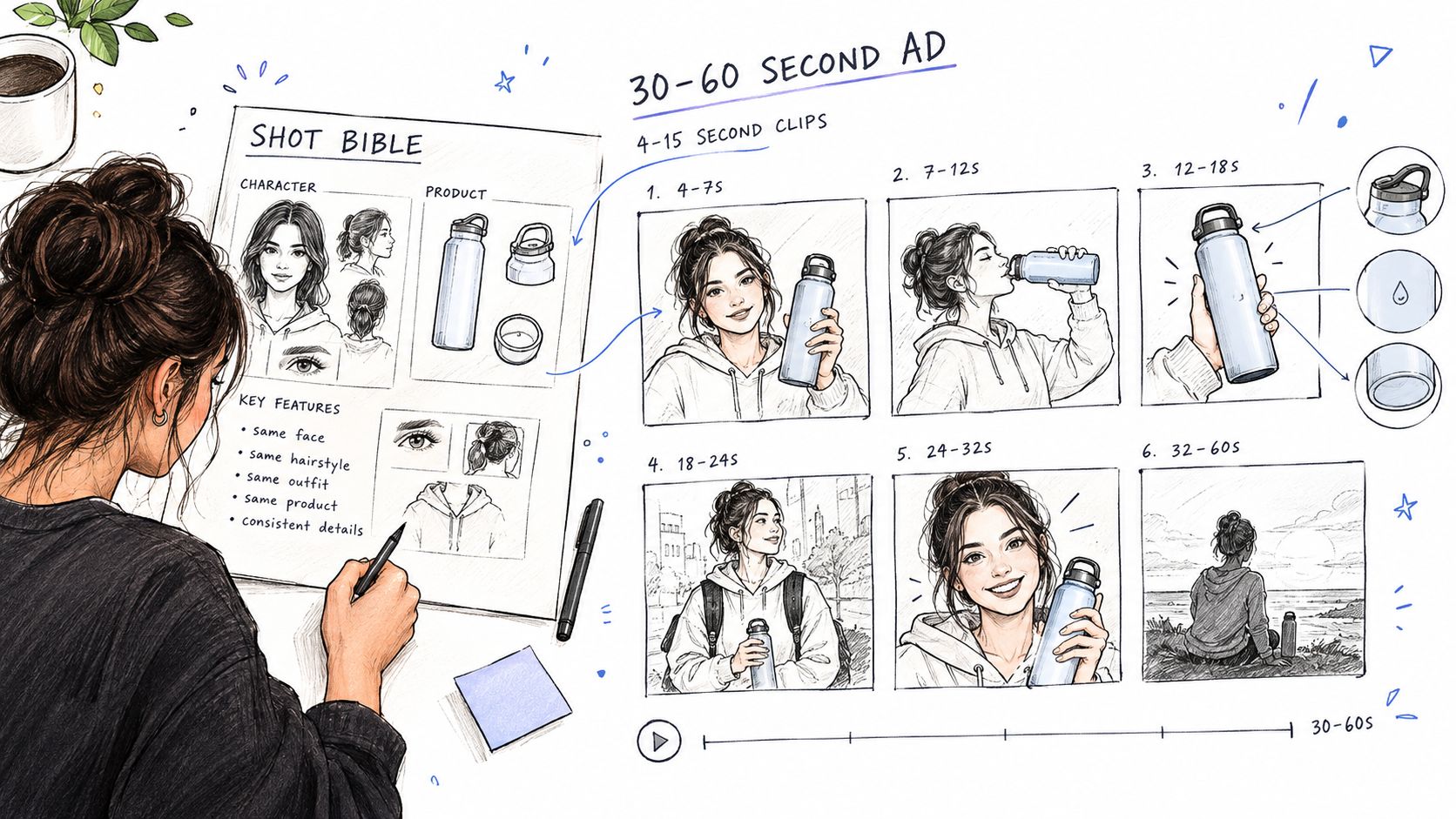
Build the sequence around a shot bible: a compact document describing the product or character, color palette, lighting, camera language, and audio tone. H3's multimodal generation workflow supports reference-based creation, but references don't remove the need for continuity checks.
Put the intended sequence on paper before generating individual shots.
<a id="generate-against-a-shared-production-plan"></a>
Generate against a shared production plan
- Write the bible and rough cut first. Decide what each shot contributes: introduction, detail, action, benefit, or closing image. Give each shot a purpose rather than generating attractive footage and hoping it connects.
- Create fixed reference images, such as a product front view or character sheet. Reuse the original files rather than progressively altered generations.
- Generate shots independently with those references. Change the action and framing while keeping identity instructions stable.
- Run a continuity check. Inspect face or product shape, label legibility, color, camera direction, and loudness.
- Regenerate failed shots selectively. Preserve approved takes instead of reopening every decision.
- Assemble the timeline, cut on movement where appropriate, and match ambience and loudness.
For an illustrative 45-second skincare ad, plan seven shots: six lasting 6 seconds and a closing shot lasting 9 seconds. Those example durations fit the documented API duration range, and the arithmetic produces the intended runtime before transitions or trimming.
Use the same bottle reference throughout: an establishing view, label detail, cap movement, texture, application context, product return, and closing hero image. This is a planning example, not a claim about a completed campaign.
The following video can accompany a review of shot construction and visual sequencing.
<iframe width="100%" style="aspect-ratio: 16 / 9;" src="https://www.youtube.com/embed/rwkWaCtn3sk" frameborder="0" allow="autoplay; encrypted-media" allowfullscreen></iframe>
Native stereo audio doesn't guarantee continuity between independent generations. Keep useful effects, but consider a continuous ambience bed and separately controlled narration across the edit.
For developers connecting generation to assembly and publishing, PostPulse's end-to-end Shorts automation for developers provides a broader workflow reference. Keep editorial approval between rendering and publication.
Stop regenerating when the weak moment isn't necessary to the message. Trim an unstable ending, use an approved detail shot, or remove a redundant action instead of paying repeatedly for footage the edit doesn't need.
<a id="common-problems-and-how-to-fix-them"></a>
Common Problems and How to Fix Them
A generation can be running normally even when the submission returns no video. The API first returns a task_id, so your integration needs to handle queued, processing, failed, and completed states before downloading content.url.
Save the identifier before polling. Use exponential backoff instead of a tight loop, and retrieve the asset only after the task completes. This keeps a slow job from being mistaken for a failed one.
H3 problems, causes and fixes
| Symptom | Likely Cause | Fix |
|---|---|---|
| No video after submitting | The request returns a task identifier, not an MP4 | Poll until completed, then download content.url |
| Upload rejected | File exceeds its modality's upload cap | Compress or trim the file before submitting |
| Clip length wrong | Unsupported duration or fractional value | Choose a supported whole-second duration |
| Character or product drifts | Reference changes between shots | Reuse the same reference images |
| Japanese or Korean text garbled | Generated typography needs correction | Keep text short, then replace it in post-production |
| Name or honorific mispronounced | Proper nouns weren't tested separately | Generate a standalone utterance and check it |
| Duplicate jobs after a network error | Task IDs weren't saved | Persist each task_id before polling |
| Local run runs out of memory | Configuration exceeds available GPU memory | Offload components or use a smaller canvas, as described in MiniMax's official local deployment guidance |
<a id="separate-input-failures-from-output-failures"></a>
Separate input failures from output failures
Validate inputs before submission: check file size, MIME type, duration, and requested resolution. A filename extension alone doesn't confirm that a file meets the requirements. Retrying an invalid input won't fix it.
For continuity issues, simplify the action before adding more prompt detail. If the subject changes shape during a complex movement, test a restrained movement with the same reference. Reference reuse and audio checks across shots often matter more than another round of prompt edits.
Debugging discipline: Change one variable per test render. Otherwise, an improved result won't show which change helped.
Save the prompt, references, settings, task identifier, and review notes together. This record makes retries deliberate rather than repetitive.
<a id="choosing-hosted-access-or-self-hosting-before-you-pay"></a>
Choosing Hosted Access or Self-Hosting Before You Pay
Hosted access is the sensible starting point for most creators. Self-hosting makes sense when you have the hardware and someone who can maintain the inference pipeline, not just because local weights are available.
Use this comparison before deciding where to spend.

Per-clip output cost at MiniMax's listed API rates
The following calculations use MiniMax's listed rates of $0.08 per output second for 768P and $0.13 for 2K, excluding input and other applicable charges, from the official API pricing overview.
| Output | Clip Length | Output Cost | Typical Use |
|---|---|---|---|
| 768P | 5 seconds | $0.40 | Test renders |
| 768P | 8 seconds | $0.64 | Shot-length drafts |
| 768P | 15 seconds | $1.20 | Longest single clip |
| 2K | 5 seconds | $0.65 | Final short shot |
| 2K | 8 seconds | $1.04 | Final mid-length shot |
| 2K | 15 seconds | $1.95 | Final longest shot |
The first 5 image inputs per task are free, with additional images listed at $0.04 each in the image-input pricing documentation. Video input charges are separate.
<a id="local-execution-has-separate-costs"></a>
Local execution has separate costs
The deployment guidance cited earlier describes 24–32 GB consumer GPUs using int8 loading and offloading, 12–16 GB configurations requiring further offloading and a smaller canvas, and two 80 GB cards for entirely bfloat16 execution. Being able to load the pipeline isn't the same as having comfortable production capacity.
Commercial licensing also needs a separate check. ComfyUI's H3 documentation lists a professional commercial license from $5,000 per month for up to 10 licensed users, a studio-scale consideration rather than a casual testing expense.
Before committing, use a simple sequence:
- Render real briefs, not showcase prompts, at the base setting.
- Compare the same shots through the Veo 3 AI video generator, using identical acceptance criteria.
- Check the current plan details against your expected testing and final-render needs.
Our platform brings multiple models, including Sora 2, Veo 3.1, Google Veo 3, Gemini Omni, Kling, Hailuo, Seedance, and image-generation options, into one place for comparing creative approaches. We also offer a Tutorial Guide and a free trial, so visit Veo3 AI with a product reference and a short shot brief, then judge the result on identity, motion, and sound before building the full sequence.
Related Articles
Continue with more blog posts in the same locale.

How to Remove the Google Flow Watermark (2026 Guide)
Why Google Flow videos carry a Veo watermark, which plans skip it, how to fix an Ultra account that still shows it, what editing can and can't remove, and how to get a clean video.
Read article
MiniMax H3 Video to Video Explained for Creators
Learn how MiniMax H3 video to video works, what it preserves, how it compares with Veo 3.1, and how to prompt and tune clips safely.
Read article
MiniMax H3 Max vs Turbo: Which Model Should You Pick
MiniMax H3 Max vs Turbo compared on speed, quality, and cost. See real benchmark numbers and a clear recommendation for video creators.
Read article