
MiniMax H3 Video to Video Explained for Creators
Learn how MiniMax H3 video to video works, what it preserves, how it compares with Veo 3.1, and how to prompt and tune clips safely.
Veo3 AI · 13 min read · Oct 23, 2026
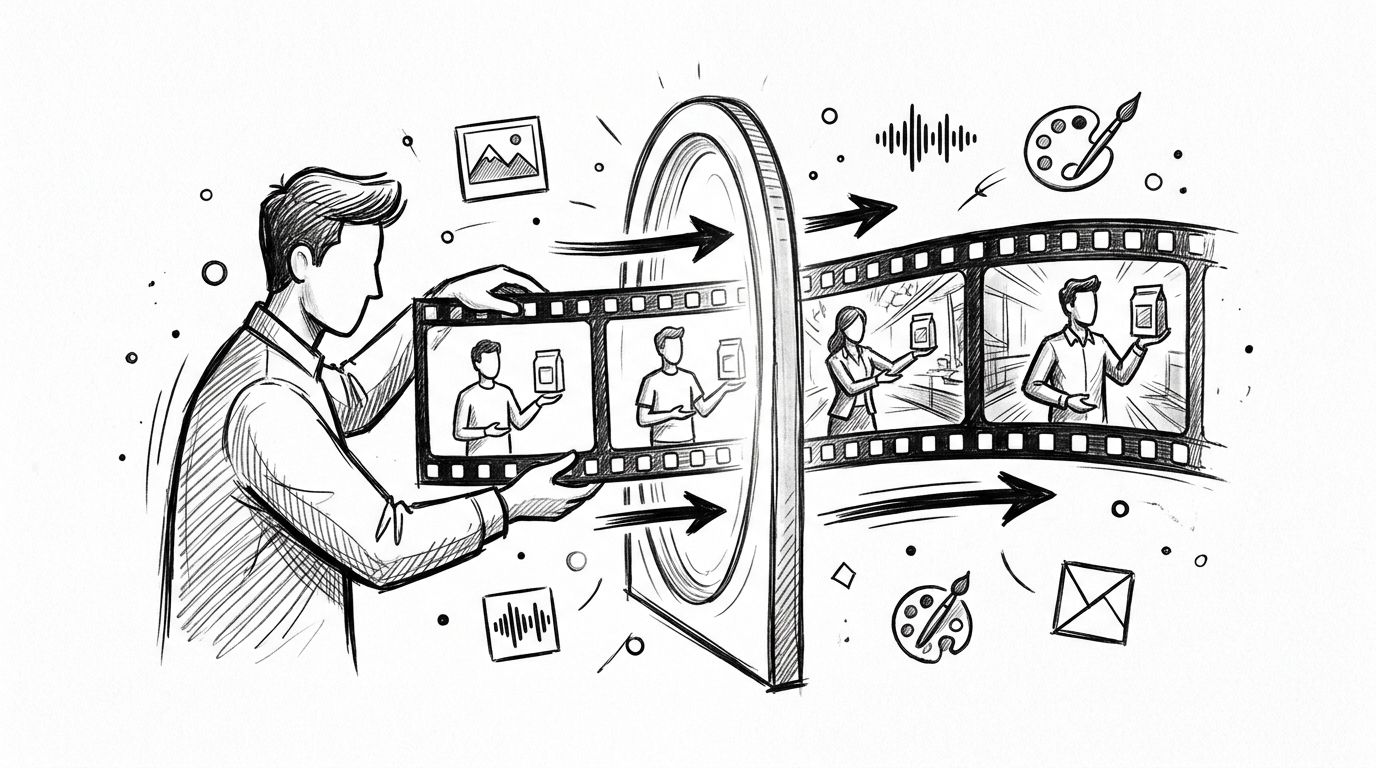
“Video-to-video” sounds like you can drop in a finished clip, change its look, and keep every face, gesture, and beat untouched. With MiniMax H3, that's the wrong expectation: it's more useful to think of the source as a reference for generating a new clip, not a layer that locks the original in place.
That distinction matters when you're making marketing variants, short-form videos, or lesson visuals. The practical choice is whether to guide the new result with a source video, still images, first and last frames, or a deliberate mix. Match the reference to what matters most: motion, composition, or a combination where every file has one clear job.
Table of Contents
- Why MiniMax H3 Video to Video Is Not a Simple Restyle
- How the MiniMax H3 Video Pipeline Uses References
- Reference Limits and What the Source Clip Keeps
- Marketing Social and Lesson Clips That Fit H3
- How MiniMax H3 Compares with Veo 3.1
- Prompt Inputs and Quality Choices That Hold Up
- Safe Use and the Next Clip to Test
<a id="why-minimax-h3-video-to-video-is-not-a-simple-restyle"></a>
Why MiniMax H3 Video to Video Is Not a Simple Restyle
A creator uploads a polished social clip expecting the same performer, choreography, camera movement, and timing with a different visual style. The generated result may follow the reference without preserving every detail. That's because MiniMax H3 video to video is reference-guided regeneration, closer to briefing a new shoot with examples than applying a filter that freezes each original frame.
H3 can take video and other media as context, then generate a new result according to the prompt. A source can help communicate movement or composition, but it doesn't guarantee that the model will retain a person's identity, reproduce exact choreography, or keep the audio and timing unchanged. Those are separate things to ask for, and the result still needs review.
This changes how you plan a job. For a marketing variant, decide whether the priority is the product's appearance, the presenter's delivery, or the camera move. For a short-form clip, consider whether each shot has a distinct action worth referencing on its own. For a lesson visual, you may care more about the diagram's opening and ending states than about copying a source performance.
Practical rule: Use one source video when movement is the priority. Choose stills or first and last frames when composition matters more. Mix references only when you can give each one a single, distinct role.
The useful question isn't “How do I make H3 keep my video?” It's “Which parts of the original do I want to guide the new generation, and which parts can change?” The answer will help you choose inputs without treating a reference as a guarantee of exact preservation.
<a id="how-the-minimax-h3-video-pipeline-uses-references"></a>
How the MiniMax H3 Video Pipeline Uses References
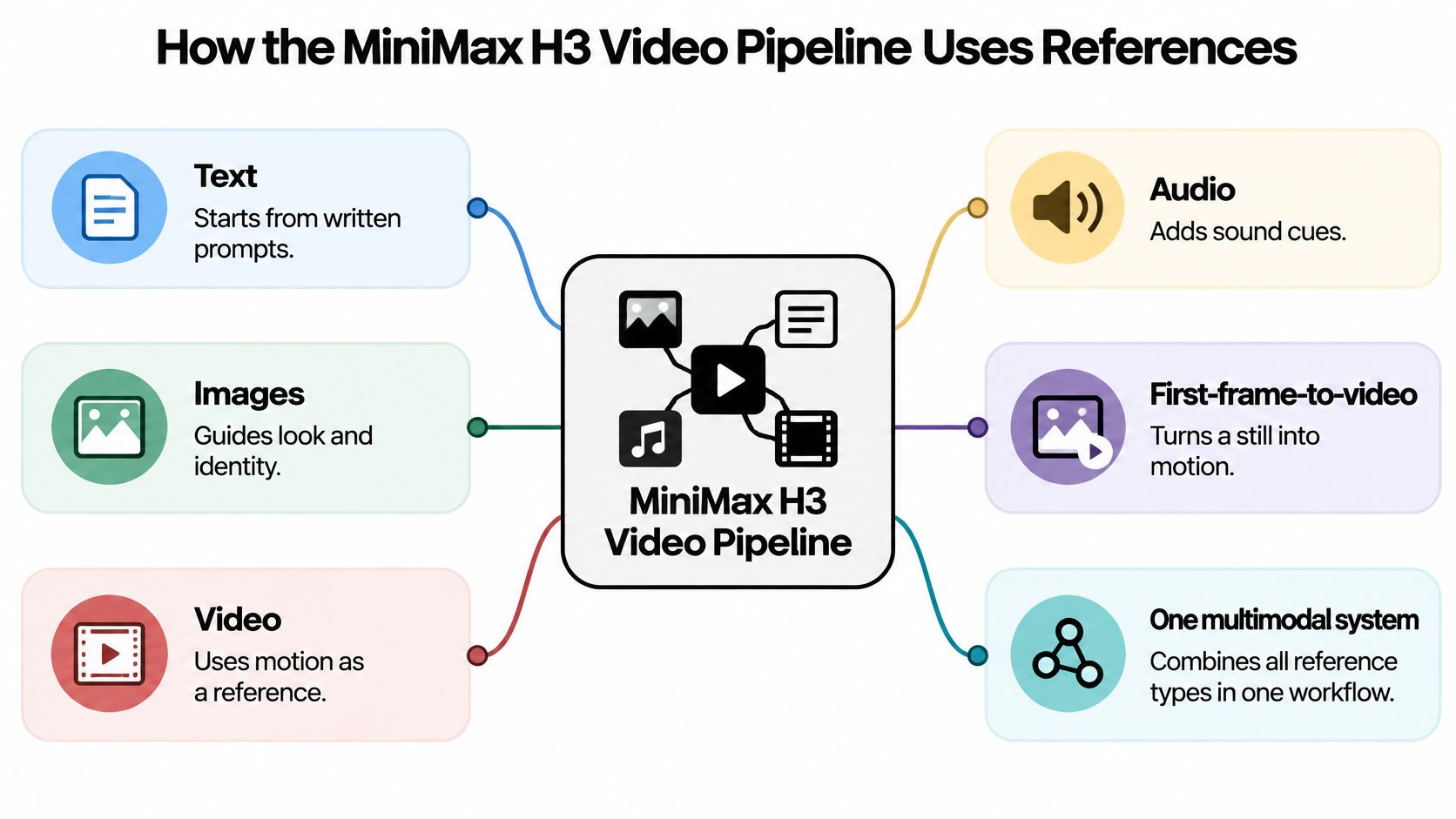
H3 brings text, images, video, and audio into one multimodal generation system. That means you can describe the result in a prompt and provide media that clarifies what your words can't: how a camera moves, what a product looks like, or what sound should accompany the scene. The MiniMax H3 video-generation guide describes these input types and generation modes.
<a id="use-frames-to-set-the-visual-endpoints"></a>
Use frames to set the visual endpoints
First-frame-to-video and last-frame-to-video modes each use one image to guide a clip's opening or ending. First-and-last-frame generation uses two images, giving the model an opening and closing visual state to work between. Your prompt can then describe the motion, subject, camera behavior, style, sound, and pacing that connect those states.
It works like setting the first and last panels of a storyboard. You're showing the model where the scene begins and where it should end, while describing the action between them. This can be useful when the endpoints matter more than reproducing the exact middle of an existing clip.
<a id="combine-media-with-a-clear-purpose"></a>
Combine media with a clear purpose
Multimodal references work like production notes. Extra images can guide the character's look or wardrobe. A short video can demonstrate movement. Audio can provide a sound cue or timing reference. Instruction-based editing can ask for changes to characters, objects, scenes, audio, or timing, rather than starting from a blank text prompt.
A simple analogy helps: frames are the storyboard's opening and final panels, images are casting and wardrobe references, clips are movement notes, and audio is the timing track. Each input gives the model a different kind of direction. If two references pull in opposite directions, the prompt may not resolve the conflict the way you expect.
H3's unified design includes an H3-Omni Transformer alongside specialized visual and audio components. The practical point is that a model family built to handle these inputs can bring together tasks that have often needed separate image-animation, editing, lip-sync, and sound-generation tools.
<a id="reference-limits-and-what-the-source-clip-keeps"></a>
Reference Limits and What the Source Clip Keeps
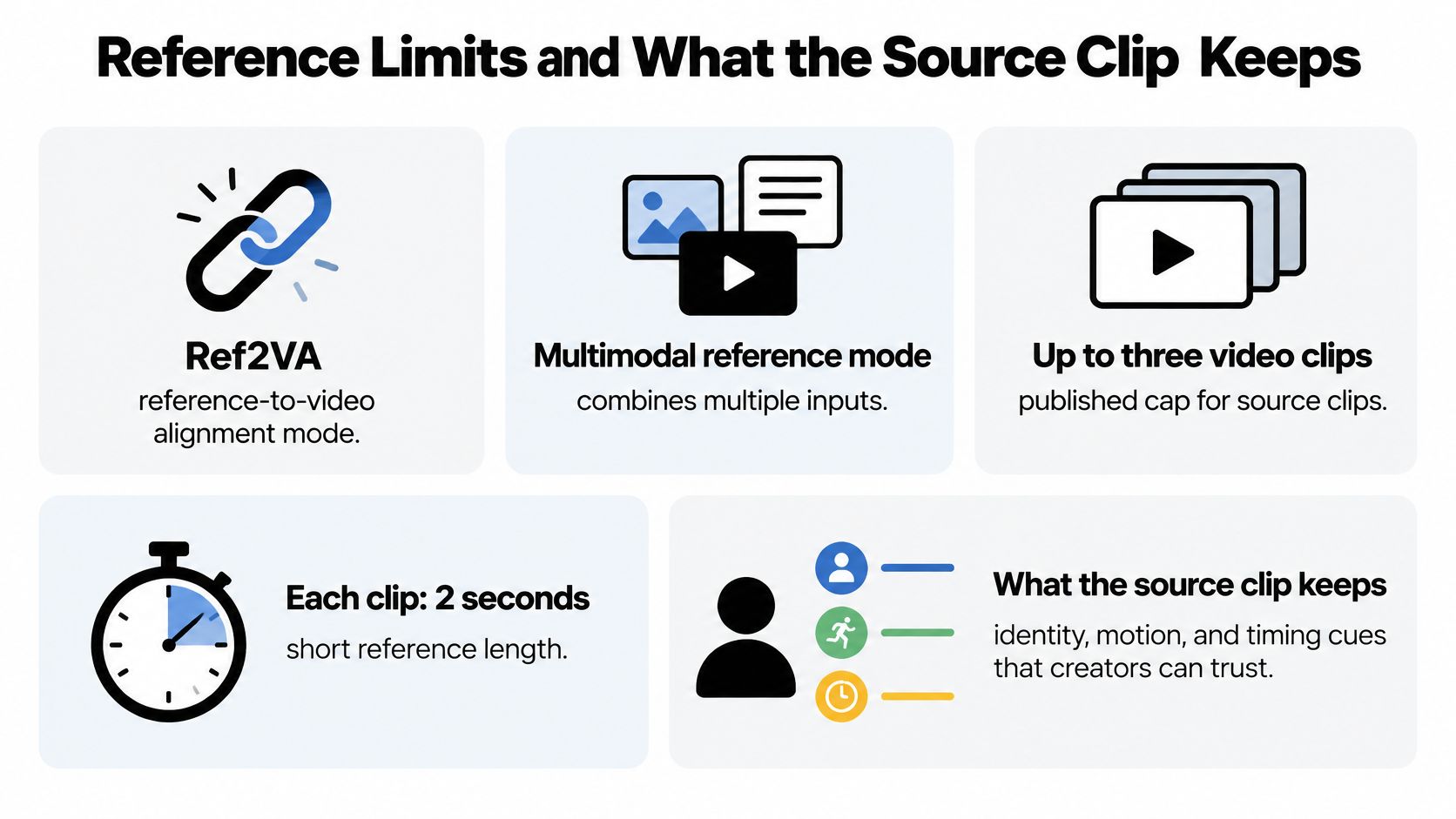
H3's reference workflow gives you several ways to guide a generation, but it also places practical limits on how much source material you can provide. In Ref2VA, or multimodal reference mode, you can use up to three video clips, each 2–15 seconds long, with a combined video-reference duration of no more than 15 seconds. You can also add up to nine images and up to three audio clips, with a maximum of 12 files across all input types. These limits are described in the MiniMax H3 model documentation.
<a id="what-the-limits-mean-in-an-edit"></a>
What the limits mean in an edit
If you have longer footage, don't assume you can use the entire piece as one continuous reference. Break it into short, coherent shots, regenerate each shot with its own clear purpose, then assemble the results in an editor. A shot with one main subject and a readable camera move is easier to brief than footage that combines several actions and scene changes.
The documentation outlines supported inputs and prompting, but it doesn't publish systematic scores for temporal consistency, motion deviation, lip-sync retention, or identity accuracy. So don't treat identity, choreography, camera movement, timing, audio, and style as a package that will all survive together. Extra references can give you more control, but they can also create competing instructions about appearance, motion, and sound.
<a id="choose-references-by-the-element-that-matters-most"></a>
Choose references by the element that matters most
Use one short source clip when movement is the anchor. Choose a still or a first-and-last-frame pair when you care more about where the scene begins and ends than about reproducing the action in between. A mixed set is useful only when each file has one job, such as one clip for motion, one image for product appearance, and an audio reference for sound.
To test what your footage retains, use the same source clip with prompts requesting identity preservation, motion transfer, style transfer, and scene replacement. Compare matching frames and review the outputs by eye. This won't create a universal fidelity score, but it can show you which kinds of instructions work reliably for your own subject and production.
<a id="marketing-social-and-lesson-clips-that-fit-h3"></a>
Marketing Social and Lesson Clips That Fit H3
A product ad often needs a recognizable item, a convincing action, and sound that fits the picture. One short motion reference can guide the hero action, while product stills help define the item's appearance. Add a short audio reference if you want sound to guide the generation, then review the synchronized stereo output with the video. Keep the product's identity central, but expect the surrounding details and performance to be reinterpreted.
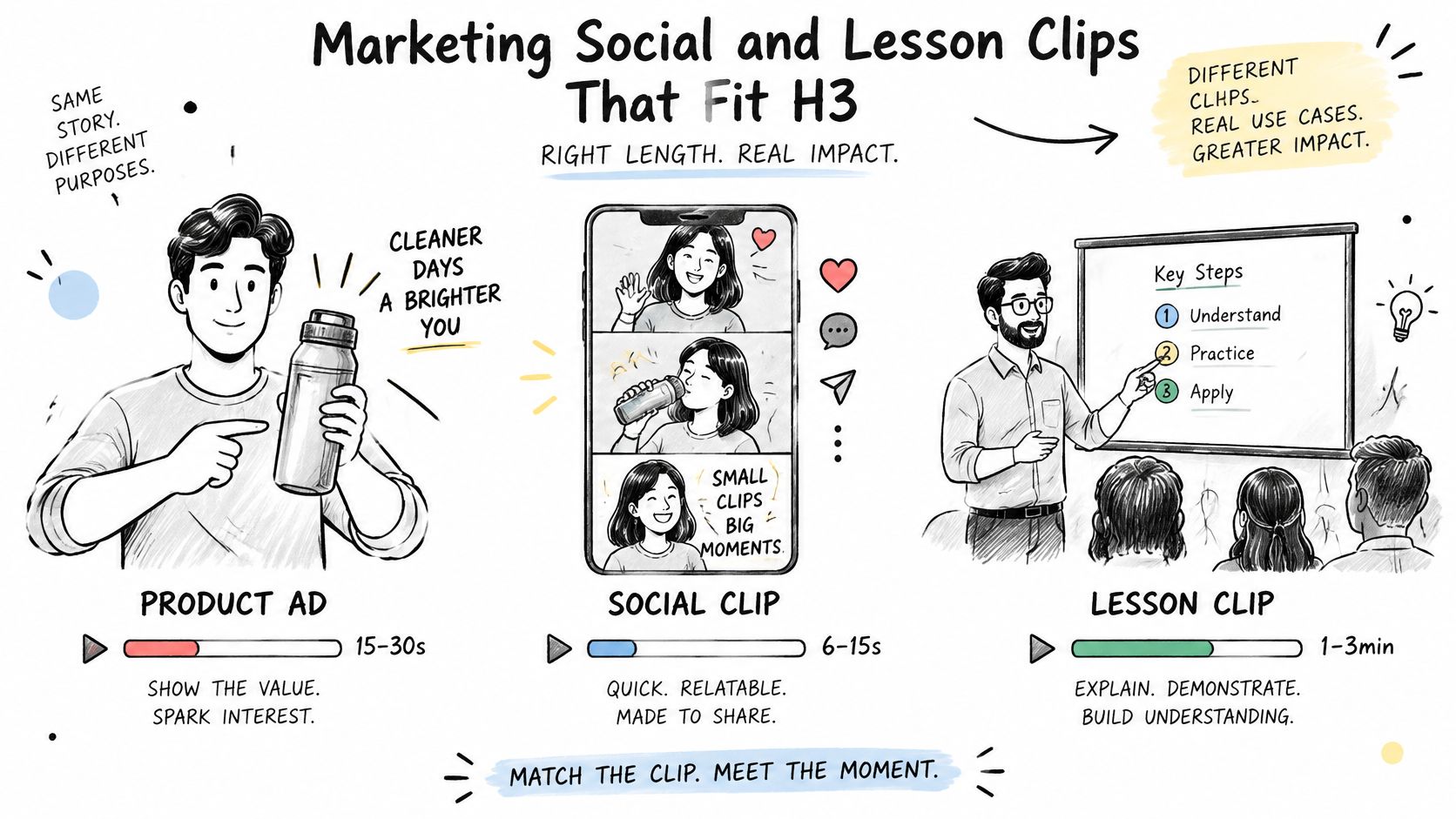
For a TikTok, YouTube Shorts, or Reels sequence, break the edit into individual beats instead of feeding the model a long source. Regenerate each beat as its own shot, keeping each reference visually coherent, then edit the clips together. Keep the key action and subject consistent from shot to shot, but review continuity yourself rather than assuming the model will preserve it.
A classroom animation can use a first frame showing a diagram before a process and a last frame showing its final state. The prompt describes the transition. This helps establish the visual endpoints while leaving the intervening movement to generation. Keep the lesson's key labels and relationships clear, and avoid adding character or movement references unless they directly support the explanation.
Creators who need to coordinate generated clips with live-action filming can also compare video production suppliers as part of planning how the finished video will be produced and edited.
For a visual example of how these choices can shape a short production, watch the clip below.
<iframe width="100%" style="aspect-ratio: 16 / 9;" src="https://www.youtube.com/embed/jsqHFgbjL08" frameborder="0" allow="autoplay; encrypted-media" allowfullscreen></iframe>
<a id="how-minimax-h3-compares-with-veo-31"></a>
How MiniMax H3 Compares with Veo 3.1
The key difference is how each model uses guidance. MiniMax H3 treats references as direction for regeneration, so the result may follow a clip's motion or composition without preserving its exact frames. Veo 3.1 offers distinct workflows for video extension, reference images, and specifying first and last frames. Choose based on what you need the references to control.
MiniMax H3 is open-weight, generates natively at 768p on the short side, and has a documented H3-2K workflow that can reach up to 2K with clips of up to 15 seconds. It can generate synchronized stereo audio in one pass. The ComfyUI H3 workflow guide describes the documented local workflow.
Google's Veo 3.1 generation documentation lists image-to-video, first-and-last-frame generation, video extension, and reference images. Generated clips can be 4, 6, or 8 seconds; reference-image-to-video is limited to 8-second output. The documentation also specifies up to four output videos per prompt, image inputs of up to 20 MB, 9:16 and 16:9 aspect ratios, 720p and 1080p inputs, 720p, 1080p, and 4K outputs, and a frame rate of 24 FPS.
| Constraint | MiniMax H3 | Veo 3.1 |
|---|---|---|
| Clip duration | H3-2K workflow supports clips up to 15 seconds. | Generated clips can be 4, 6, or 8 seconds. Reference-image-to-video supports only 8-second output. |
| Resolution | Native output is 768p on the short side; documented H3-2K workflow can reach up to 2K. | Inputs include 720p and 1080p; outputs include 720p, 1080p, and 4K. |
| References | Text, images, video, and audio, including frame-based generation and multimodal reference workflows. | Image-to-video, first-and-last-frame generation, video extension, and reference images. |
| Audio | Synchronized stereo audio can be generated in one pass. | The cited documentation specifies generation mechanics and formats, not an equivalent audio detail. |
Use H3 when you want a reference-guided new shot, especially if motion, sound, or a longer supported clip matters. Choose Veo 3.1 when the workflow depends on a specific start and end image, extending video, or setting output formats documented for that model. For example, a source clip can guide H3's movement, while a still or a pair of endpoint frames may provide clearer visual boundaries in Veo 3.1.
Creators comparing Google Gemini Omni or Veo 3.1 online with Seedance and Hailuo-class models can use the Veo 3 AI video generator to access multiple models on one platform. The platform says creators retain rights for personal or commercial use and can adjust resolution and format settings. Plan details are available on the Veo3 AI pricing page.
<a id="prompt-inputs-and-quality-choices-that-hold-up"></a>
Prompt Inputs and Quality Choices That Hold Up
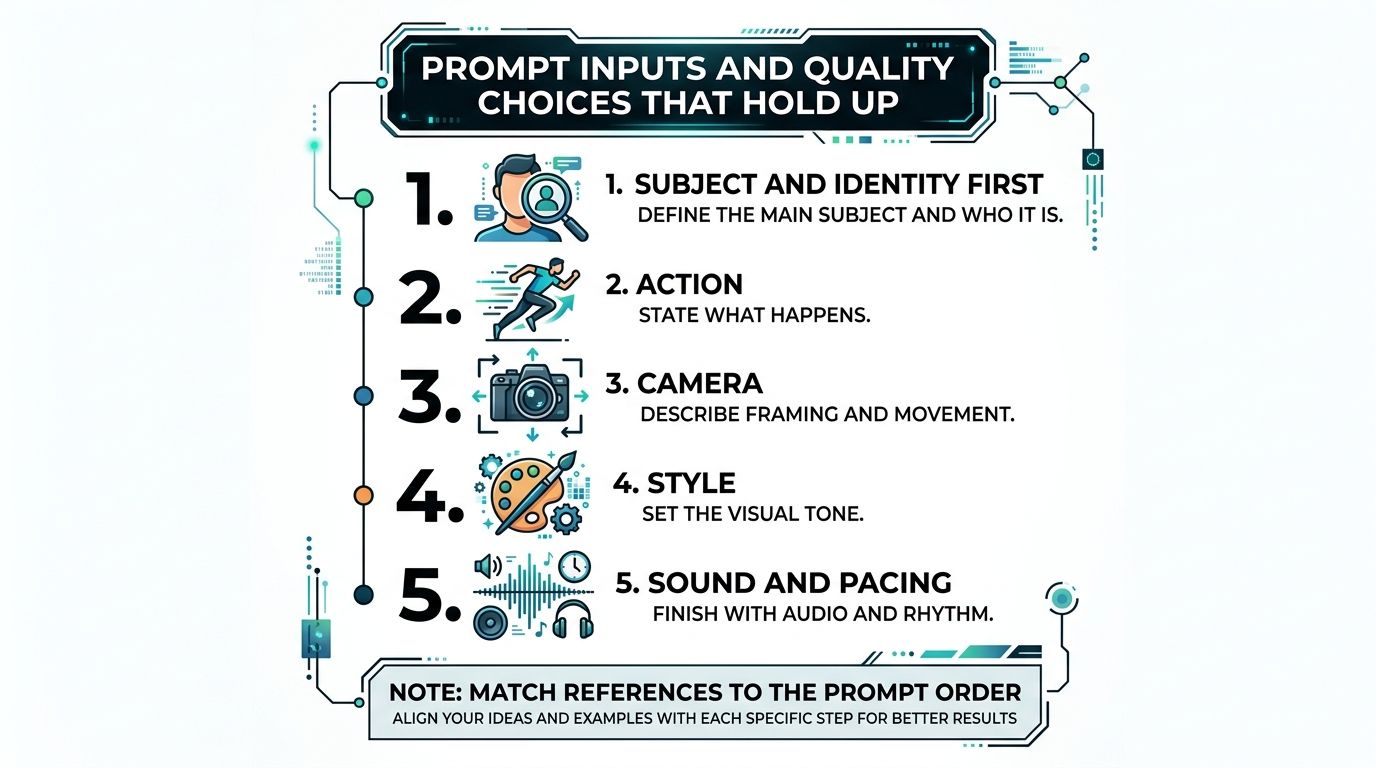
A useful prompt assigns each input a clear role. H3 regenerates a clip guided by references, so the source is not a guarantee that every detail will stay intact. Put the desired subject and identity first, then describe the action, camera, style, sound, and pacing. For example, use a movement clip to guide motion and a still to define a product's appearance. Don't ask one reference to control everything.
<a id="match-the-prompt-to-the-footage"></a>
Match the prompt to the footage
First, note the source clip's main subject, camera movement, and timing. State which cues you want H3 to follow, and keep the requested change focused. If the footage jumps between actions or compositions, separate it into shots. A model asked to reconcile several distinct moments may produce a less coherent result.
Choose references according to what needs to stay clear. Use a source video when its movement or timing matters. Use stills when appearance or a particular visual detail matters. First and last frames can define the intended start and finish, while a mixed set can pair a motion example with images that establish appearance. Each reference should have one job. The MiniMax H3 prompt guide offers examples of organizing these instructions.
<a id="judge-the-whole-deliverable"></a>
Judge the whole deliverable
A high resolution alone does not make a clip ready to publish. Check the picture and synchronized stereo voice, effects, and music together. A sharp result may still be unusable if the face, product label, or fine movement changes in a way the job cannot accept.
Local and hosted workflows involve different tradeoffs. H3 is open-weight, but running it locally can require recent software and model downloads described as tens of gigabytes. Local testing may suit work where privacy and repeated iteration matter. A hosted H3-2K workflow may suit an ad that needs delivery resolution, but inspect faces, on-screen text, and fine motion before relying on the result.
Keep a record of clip length, resolution, retries, and how often an output is usable. These details help show whether the workflow fits your production needs, rather than making the decision by its highest available specification alone.
<a id="safe-use-and-the-next-clip-to-test"></a>
Safe Use and the Next Clip to Test
A generated clip can change more than its look. H3 may reinterpret people, scenes, timing, and audio, so use references you have the right to use and avoid presenting a real person as saying or doing something they didn't. Before publishing, check the picture and sound together, especially when a person appears to speak. Lip movement and voice should match the intended context.
Marketing and classroom work carry different risks. An ad may mislead viewers if the model changes a product action, package, or label. A lesson may confuse students if a generated transition invents movement that changes what a diagram is meant to teach. In both cases, review the result against what you intended to show, rather than relying on the prompt alone.
Public documentation doesn't provide systematic fidelity scores for the details that matter most, including identity and timing. That makes human review part of the workflow, not an optional final polish. Check whether the result communicates the intended action, whether the subject remains acceptable for the purpose, and whether the sound still fits the visuals.
For a practical next test, pick one source clip that's 2 to 15 seconds long and run four prompts: one focused on identity, one on motion, one on style, and one on scene replacement. Compare the outputs before deciding whether H3, Veo 3.1, or a mix of models fits the job. If you need plan details before trying that mix, consult the pricing information linked above.
Use Veo3 AI to explore multiple video-generation models in one online workspace, then compare the results with your H3 reference-led tests. Visit Veo3 AI to try a different generation path for your next clip.
Related Articles
Continue with more blog posts in the same locale.
MiniMax H3 Max vs Turbo: Which Model Should You Pick
MiniMax H3 Max vs Turbo compared on speed, quality, and cost. See real benchmark numbers and a clear recommendation for video creators.
Read article
MiniMax H3 vs Veo 3.1: Which AI Video Model Wins in 2026?
MiniMax H3 vs Veo 3.1 compared on quality, speed, price, and use cases. See which AI video generator actually fits your workflow before you spend a credit.
Read article
10 Video Prompt Ideas for Cinematic AI Videos
Explore 10 practical video prompt ideas for Veo 3 AI, with templates, examples, and tested tips for cinematic results.
Read article