
Short Videos for Social Media: A 2026 Platform Workflow
Learn how to create short videos for social media once, then adapt them for TikTok, Reels and Shorts with the right specs, length and captions.
Veo3 AI · 15 min read · Nov 26, 2026
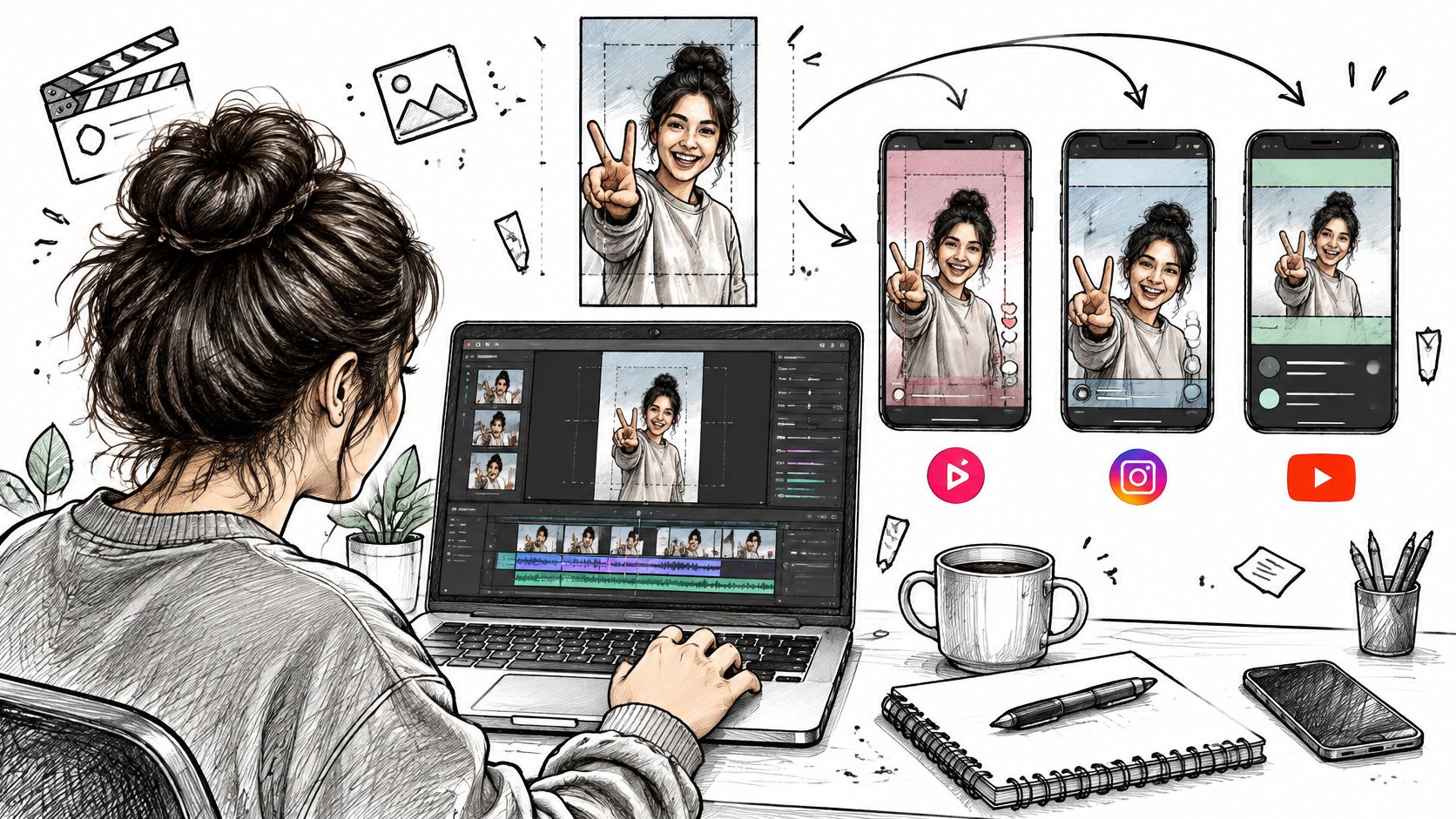
81% of consumers wanted brands to publish more short-form videos during 2024, according to a survey reported by Amplitude Marketing. That's a reason to make useful videos, not just more uploads. Producing effective short videos for social media means matching the idea, edit, captions, and export to the place someone will watch it.
Table of Contents
- Why One Short Video Rarely Fits Every Feed
- Platform Specs for Short Videos at a Glance
- How to Build One Master Video for Every Feed
- Choosing Video Length by Viewer Job
- Adapting One Master for Each Feed
- Captions and Sound for Silent Scrolling
- Fixing Export and Upload Problems Before They Cost Reach
- Publish Your First Platform-Ready Short This Week
<a id="why-one-short-video-rarely-fits-every-feed"></a>
Why One Short Video Rarely Fits Every Feed
95% of 483 consumers regularly watched and enjoyed short-form videos, and 71% watched them at least daily, according to Clutch's October 2025 survey. The audience is habitual. Your production workflow should be repeatable, too.
The visual similarities between feeds have a history: Vine introduced six-second loops in 2013, Instagram added 15-second video sharing that year, and Reels began testing in 2019, as documented in The Platform Post's history of vertical video. But a familiar vertical frame doesn't mean identical publishing rules or viewer expectations.
Say a bakery wants to demonstrate a cake-decoration technique. The footage can serve every feed, but the opening, explanation, caption placement, and final action need separate decisions. A discovery clip might show the finished decoration immediately; a follower-focused version can explain the preparation.
Practical rule: Reuse the footage and production work, not every editorial decision.
For paid distribution, the guide to Reels ads by Boocoo is a useful companion when planning the ad-specific version rather than treating an organic upload as finished advertising creative.
Bring one real idea to the workflow: a demonstration, comparison, joke, or product question. Give it a clear viewer outcome before choosing effects or music.
<a id="platform-specs-for-short-videos-at-a-glance"></a>
Platform Specs for Short Videos at a Glance
Length and aspect-ratio limits by platform
| Platform | Aspect ratio | Upload limit | Recommendation note |
|---|---|---|---|
| TikTok | 9:16 | Up to 10 minutes | Long uploads do not guarantee reach |
| Instagram Reels | 9:16 | Up to 20 minutes recorded or edited | Reels over 3 minutes are not recommended to new audiences |
| YouTube Shorts | 9:16 or 1:1 | Up to 3 minutes combined | Horizontal video of the same length does not qualify as a Short |
Read the aspect-ratio column as a production choice, not a promise of distribution. A vertical canvas makes the master file suitable for phone viewing; it says nothing about whether the edit is compelling or eligible for recommendations. That distinction matters more than any single number in the table.
Instagram makes the sharpest split between production capacity and discovery eligibility. Its Reels help page allows recording and editing up to 20 minutes, but states that Reels longer than 3 minutes won't be recommended to new audiences. Longer material can still serve existing followers, so treat reduced discovery as a distribution decision, not a publishing prohibition. A detailed tutorial for your community and a cold-audience hook are two different cuts of the same master.
YouTube defines Shorts through both shape and duration. Its Shorts classification guidance applies to eligible square or vertical uploads made on or after October 15, 2024, lasting no more than 3 minutes. A horizontal upload doesn't qualify under that rule just because it's brief.
The YouTube Shorts creation guide also sets a 3-minute combined limit for clips recorded with its in-app tools. Recording separate segments doesn't create extra runtime.
One practical consequence: plan your master length around what the viewer needs to accomplish, then confirm the cut fits the strictest feed you target. A 90-second demonstration works as a Short and a long Reel, but only the first seconds decide whether anyone stays for the rest.
<a id="separate-eligibility-from-commercial-usefulness"></a>
Separate eligibility from commercial usefulness
Passing an upload check only means the platform accepts the file. It doesn't mean the audience understands the offer, knows what to do next, or receives an answer when asking a buying question in the comments.
For commercial campaigns, Exerta on comment-driven revenue leaks offers a useful follow-up perspective: plan what happens after viewers respond, not just how the video enters the feed.
Specs shift without warning, so confirm every platform's current requirements on publishing day, especially when scheduling a campaign well ahead of launch.
<a id="how-to-build-one-master-video-for-every-feed"></a>
How to Build One Master Video for Every Feed
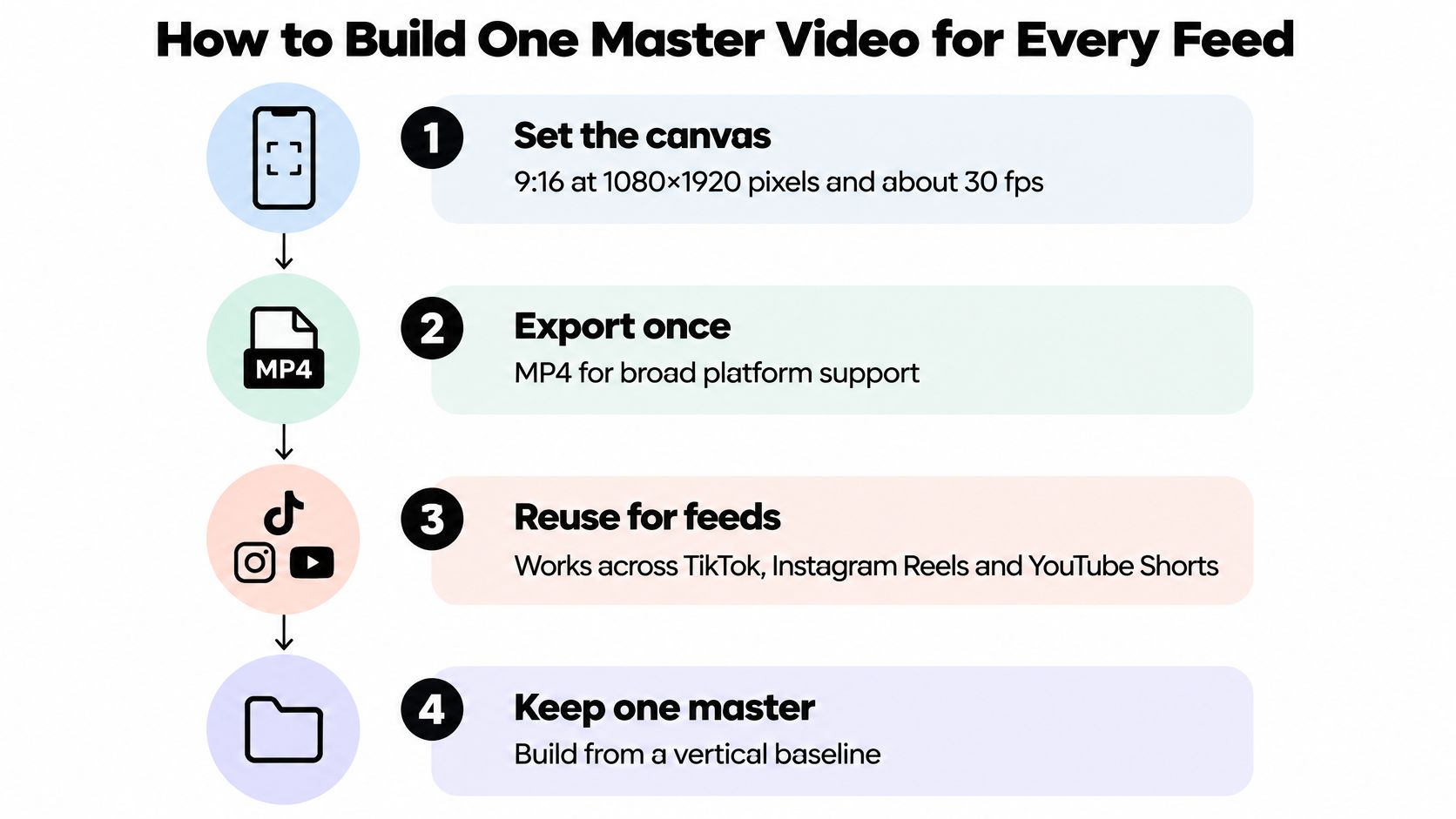
Build the master as a reusable production asset, not a downloaded copy of a published post. This flow keeps the starting point clean.
-
Set the canvas before placing footage. Use vertical 9:16 at 1080×1920 pixels, approximately 30 fps, with an MP4, H.264 video, and AAC audio delivery baseline, following the HypeNest production specifications. Starting with a horizontal timeline and adding borders later wastes usable screen space, so reframe source footage deliberately.
-
Export a clean master once. Keep the project and original media alongside it, because repeatedly exporting already compressed derivatives can degrade detail. Make each platform cut from the project or clean master, not from the last social download.
-
Protect the central safe area. Keep faces, product claims, subtitles, and calls to action away from interface edges because buttons and caption controls can obscure them. The common slip is placing a perfectly readable title exactly where the app displays its controls.
-
Run a viewing check, not just an export check. Watch muted, confirm the first visual identifies the subject, inspect subtitle timing and line breaks, and examine compression full-screen before a private or restricted-audience upload. Tiny subtitles and a vague opening often survive desktop review because the editor already knows the message.
-
Inspect generated footage shot by shot. Check hands, faces, object continuity, lip-sync, and generated lettering because an attractive still frame can conceal errors during motion. Replace the failed shot or add text in the editor instead of accepting distorted details.
<a id="keep-the-master-editable"></a>
Keep the master editable
Maintain separate tracks for voice, music, captions, and the final action. That lets you change a localized line or platform-specific ending without rebuilding the entire sequence.
The embedded video offers an additional viewing reference while you work through the production routine.
<iframe width="100%" style="aspect-ratio: 16 / 9;" src="https://www.youtube.com/embed/Re6vRP6jMEM" frameborder="0" allow="autoplay; encrypted-media" allowfullscreen></iframe>
A healthy master communicates its subject immediately, leaves important information clear of interface zones, and remains readable on a phone. The master is a baseline, not a guarantee of identical quality or reach after each platform processes it.
<a id="choosing-video-length-by-viewer-job"></a>
Choosing Video Length by Viewer Job
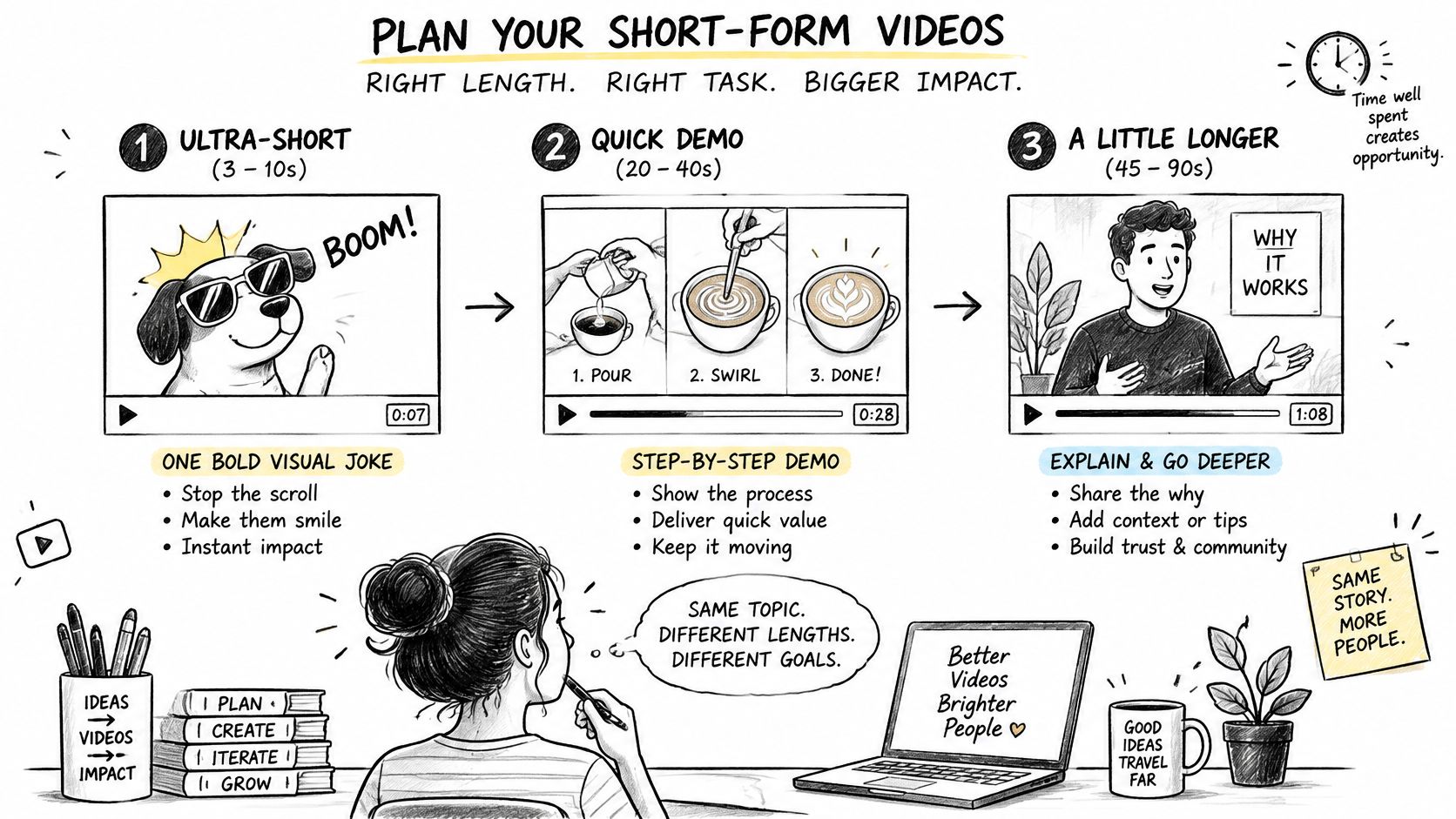
Choose the duration that completes the viewer's task. Don't stretch a visual joke into a tutorial or compress a meaningful comparison until the evidence disappears.
Length classes by viewer job
| Length class | Viewer job | Example format |
|---|---|---|
| Under 15 seconds | One visual novelty or joke | Reaction shot or single striking moment |
| 20 to 40 seconds | One actionable point | Tip, single instruction or product tweak |
| 60 to 90 seconds | Demonstration, setup or comparison | Step-by-step demo or before-and-after |
These are planning classes, not universal performance rules: Revid's analysis describes 176,367 TikToks with at least 1,000 likes, with tested length groups from under 15 seconds through 10 minutes falling within roughly 58,000–76,000 median views, and 61–90-second videos slightly ahead at about 70,000. That sample already excludes videos below its engagement threshold, so it doesn't establish what every new upload should achieve.
Use the content-planning visual to separate the idea from the amount of explanation it needs.
<a id="test-the-payoff-rather-than-the-stopwatch"></a>
Test the payoff rather than the stopwatch
For the bakery example, make alternate edits around the same strongest visual beat: a reveal, a single technique, and a fuller demonstration. Write different openings and endings, then publish within a comparable testing window.
Views alone won't identify the useful version. A dramatic reveal can attract attention without helping anyone repeat the technique or consider the product.
Compare completion rate, average watch time, shares, saves, and profile actions. A longer demonstration may earn fewer completions but more saves; judge that trade-off against its intended job.
Cut repetition before cutting evidence. A comparison without enough information to support the conclusion isn't a better video just because it's shorter.
Connect the winning edit to a broader short-form video marketing workflow, and keep discovery-focused Reels within recommendation eligibility rather than using the upload ceiling as a target.
<a id="adapting-one-master-for-each-feed"></a>
Adapting One Master for Each Feed
Start with a separate timeline for each destination. Keep the core demonstration intact, then change the opening, caption layout, and final action only where the viewing context calls for it.
<a id="tiktok-and-instagram-reels"></a>
TikTok and Instagram Reels
For TikTok, put the strongest visual beat at the start. A close-up of the decorating tool making the pattern establishes the subject more clearly than a logo animation followed by a wide kitchen shot.
Choose a caption treatment that looks deliberate on the phone, but don't imitate every in-app effect. A product demonstration needs clear evidence more than decorative movement. Keep the ending aligned with the objective, such as asking viewers which technique they want demonstrated next.
For Instagram Reels, separate prospect-facing edits from deeper follower material. Use the finished result as the cover candidate, check the crop, and make the discovery cut self-contained.
A save-focused ending suits a repeatable technique. A product ad needs a clear next step instead, so don't ask for a comment, follow, save, and purchase in the same closing breath.
<a id="youtube-shorts-and-facebook"></a>
YouTube Shorts and Facebook
For YouTube Shorts, confirm the export is square or vertical and inspect the combined runtime. Give the viewer enough context to understand the demonstration without needing an earlier episode.
Try an opening that names the problem while showing it. The bakery could show uneven piping beside the corrected result, then demonstrate the adjustment. That's a concrete editorial choice to test, not a claim that all Shorts viewers prefer tutorials.
For Facebook, inspect the actual destination before finalizing the crop. Preview the post with its surrounding interface rather than assuming the Reels version will display identically.
Use this acceptance checklist for every platform:
- Length: Does the cut satisfy the destination's current eligibility rules?
- Opening frame: Can a new viewer identify the subject without reading the description?
- Caption placement: Does the text remain clear of controls and the demonstration?
- Next action: Is there one relevant response the viewer can take?
Different cuts need different success criteria. Compare a discovery edit against its reach objective and a tutorial against its usefulness signals, rather than expecting every destination to produce the same result.
<a id="captions-and-sound-for-silent-scrolling"></a>
Captions and Sound for Silent Scrolling
A large share of social video plays with the sound off, so captions carry meaning that the audio never reaches. Viewers are 80% more likely to watch an entire video when captions are present, according to a systematic review covering 36 peer-reviewed studies from 2015–2025. That supports caption-first production, though it is a research finding, not a guaranteed uplift for your account.
Captions are accessibility work first. Deaf and hard-of-hearing viewers need accurate meaning, not animated fragments that merely resemble speech.
<a id="make-the-transcript-trustworthy"></a>
Make the transcript trustworthy
Transcribe the final voice track, then listen while correcting names, numbers, specialist terms, and pronunciation errors. If the spoken line itself is wrong, fix the audio rather than making the caption disagree with it.
Preserve speaker changes and meaningful sound cues. Synchronize phrases to speech, break lines at natural language boundaries, and use strong contrast against moving backgrounds. Burn captions in when platform rendering is unreliable, but retain an editable transcript for revisions and localization.
Multilingual production needs another review pass. The same review identifies recurring captioning challenges: accents, code-switching, names, and Japanese and Korean honorifics. Verify the transcript against the audio, then localize the hook, cultural references, on-screen instructions, and final action rather than translating words in isolation.
<a id="test-comprehension-alongside-engagement"></a>
Test comprehension alongside engagement
Run captioned and uncaptioned variants with the same hook, duration, thumbnail, audience, and posting window. Use a seven-day evaluation window to compare completion, average watch time, opening retention, shares, and comments.
Treat this as an editorial test, not permission to strip accessibility support from routine publishing. Organic distribution never produces perfectly matched audiences, so interpret small differences cautiously. A captioned cut that wins on completion confirms the format earns its place; one that loses narrowly still serves viewers who cannot hear the track at all.
Before publishing, check the captioned frame on a phone at arm's length. If you cannot read a line in the time it stays on screen, shorten it.
Avoid these common failures:
- Uncorrected automation: A wrong product name or instruction changes the meaning.
- Obstructed evidence: Captions cover the tool, hands, or result viewers need to see.
- Dense frames: Full paragraphs compete with the demonstration.
- Sound-only meaning: Music or effects communicate something the image and captions never explain.
That last failure is the quietest one. Watch your cut on mute with fresh eyes and note every moment where the story depends on audio. Each one needs a caption, a visual, or an edit.
<a id="fixing-export-and-upload-problems-before-they-cost-reach"></a>
Fixing Export and Upload Problems Before They Cost Reach
Match the visible symptom to its likely cause before changing export settings at random. A sharper file won't fix a hidden instruction, and a different codec won't repair a generated face.
Export and upload symptoms, causes and fixes
| Symptom | Likely cause | Fix |
|---|---|---|
| Black bars on both sides | Horizontal source footage fitted incorrectly | Re-export at 9:16 and reframe the subject |
| Text hidden behind captions or interface | Elements placed in the edge zones | Move text and calls to action into the central safe area |
| Subtitles hard to read on a phone | Font too small or lines too long | Enlarge the text and shorten each line |
| Blurry or blocky frames | Repeated re-encoding of a compressed file | Export once from the master file |
| Lip-sync drift in an AI clip | Generation error on speech timing | Regenerate the shot or trim to the clean section |
| Warped hands or faces | Temporal artifacts in generated footage | Choose a different take or cut away from the frame |
| Generated text illegible | Text rendering error in the model output | Overlay the text in the editor instead |
Black bars require diagnosis, not an automatic crop. Horizontal footage fitted into a vertical frame commonly leaves unused space above and below; bars at the sides can indicate narrower footage or a nested sequence. Inspect both the source dimensions and timeline settings before reframing.
<a id="fix-the-message-before-the-polish"></a>
Fix the message before the polish
First repair anything that hides the subject or changes the meaning. If the decorating nozzle leaves the frame during the important movement, reposition the shot or replace it. No amount of color grading restores missing evidence.
Next address readability, then compression, then cosmetic details. Check a compression failure against the original footage: if the source is already damaged, another export can't restore information that isn't there.
Final acceptance check: Watch the uploaded version on the phone, not just the file in your editing software.
Use a private upload where available, or a restricted test audience. Check the processed version with platform controls visible, sound off, and normal playback speed.
For generated footage, inspect transitions into and out of each shot. A hand can look acceptable in the middle but deform as it enters the frame. Replace that short section rather than regenerating an otherwise usable sequence.
<a id="publish-your-first-platform-ready-short-this-week"></a>
Publish Your First Platform-Ready Short This Week
Choose a project small enough to finish and clear enough to evaluate. A useful first test answers a specific viewer question, such as how to make a product adjustment or reproduce a visual result.
-
Write the viewer job. State what someone should understand or be able to do after watching. Pick the duration class that gives you enough room to deliver that outcome.
-
Build the production asset. If you're using Veo 3.1, review generated speech for lip-sync and caption timing before export; the Veo 3 AI video generator can provide footage for your first master. Our product ads export in 16:9 or 9:16 at up to 1080p, ready for TikTok, Reels, Shorts, Facebook, and product pages, and customers can use generated videos commercially. Confirm the actual output dimensions before assembling the vertical master.
-
Prepare destination-specific cuts. Preview each opening, cover crop, caption layout, and final action. MyKaraoke Video's guidance to optimize vertical videos for reach is a useful additional production reference during this pass.
-
Verify accessibility and publish the test. Check captions against the audio and keep the variants otherwise comparable. Record which edit, opening, and caption treatment each upload uses.
-
Make the next decision from results. Review completion, watch time, shares, saves, and relevant profile actions. Note whether viewers understood the intended takeaway, not whether they watched.
Publish the first test this week, record seven days of results, and repeat the format that best completes the viewer's job.
Veo3 AI offers text-to-video, image-to-video, and product-ad tools for creating footage you can shape into platform-ready shorts. Visit Veo3 AI to turn a prompt or product image into your starting footage, then assemble, caption, and test a focused vertical edit before expanding the campaign.
Related Articles
Continue with more blog posts in the same locale.
Short Videos for Instagram: A 2026 Step-by-Step Guide
Learn how to make short videos for Instagram in 2026: exact Reel specs, length benchmarks, a step-by-step production workflow, music rights and fixes.
Read article
Short Form Video Ads: Formats, Principles and Metrics
Short form video ads explained: platform specs for TikTok, Reels and Shorts, creative rules that hold attention, and the metrics that show what works.
Read article
10 Cinematic Techniques Examples for AI Video Creators
Explore 10 cinematic techniques examples from classic films, with visual effects explained and prompt tips for creating each shot in AI-generated video.
Read article