
Veo 3.1 Resolution Explained: How to Get 1080p and 4K Video in 2026
Veo 3.1 supports 720p, 1080p, and 4K — but 1080p and 4K require 8-second clips. Learn how to set resolution in Flow and the Gemini API, which tier to pick, and how to get the sharpest output.
Emma Chen · 15 min read · Jun 29, 2026
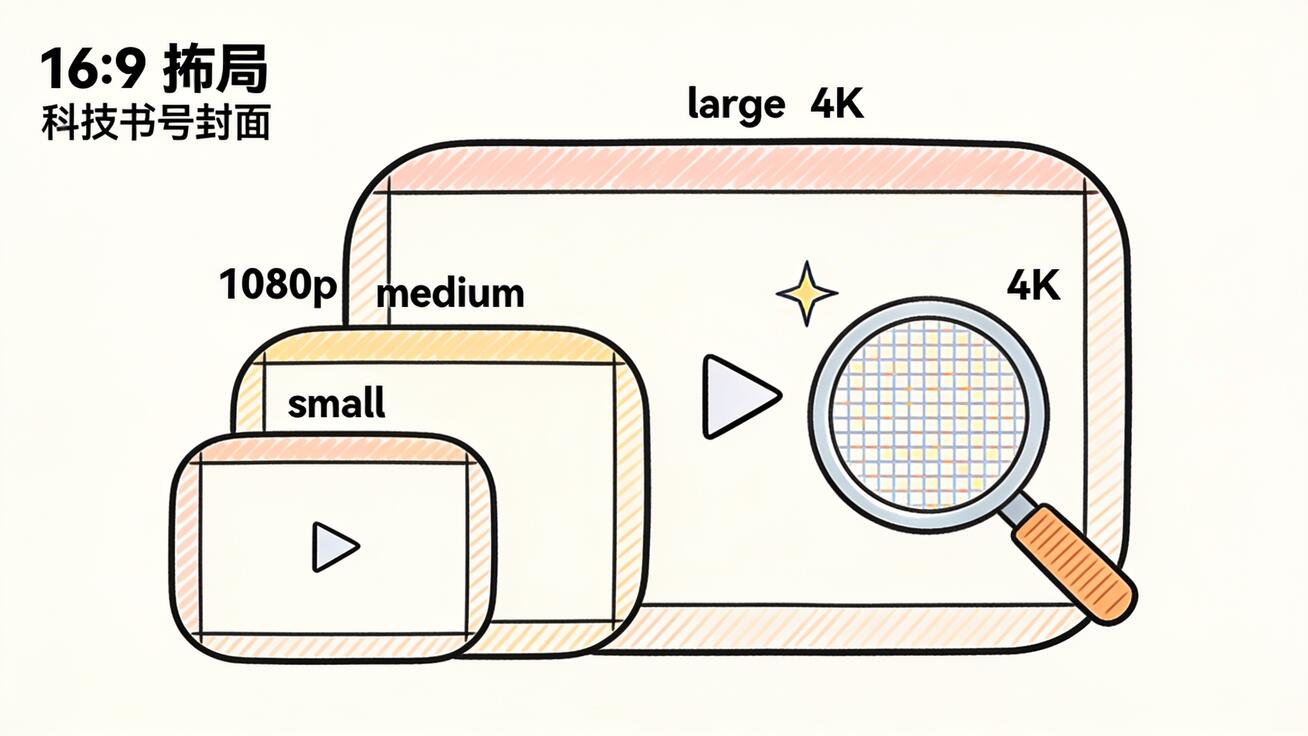
If you've generated a clip with Veo 3.1 and wondered why it looked soft, or why the 4K toggle was greyed out, you're running into the model's resolution rules. Veo 3.1 resolution options are simple once you know them — 720p, 1080p, and 4K — but each tier comes with a duration constraint that catches most creators off guard the first time. This guide breaks down exactly what resolutions Veo 3.1 supports, how to unlock 1080p and 4K, where the 8-second rule comes from, and how to set the right output for social, YouTube, and big-screen delivery.
Everything below is based on the live Veo 3.1 specs in the Google Gemini API documentation, so you can plan a shoot without guessing.
Quick Answer: What Resolutions Does Veo 3.1 Support?
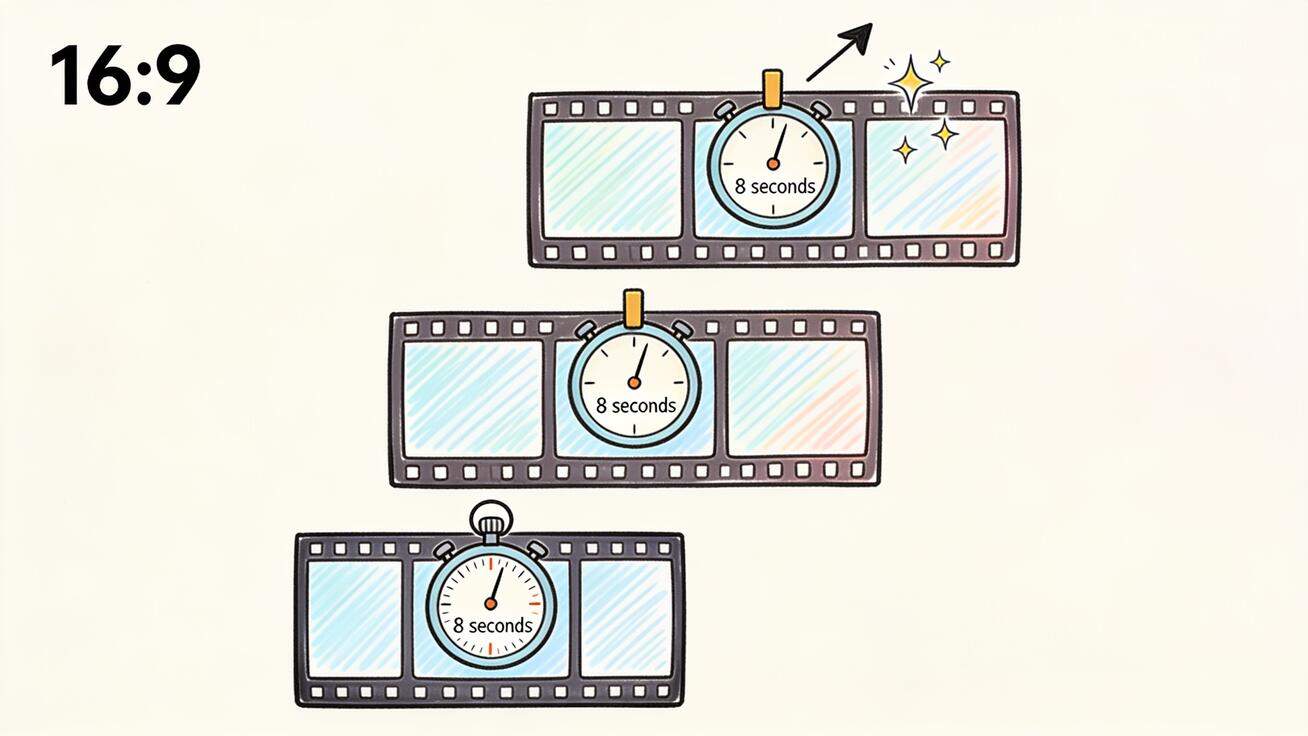
Veo 3.1 outputs video at three resolutions: 720p (default), 1080p, and 4K. The catch is duration. 720p clips can be 4, 6, or 8 seconds long. But 1080p and 4K are locked to 8-second clips only. If you try to generate a 5-second clip at 1080p, the request will fail or silently fall back — the model only renders high resolution at full 8-second length.
So the short version:
- Need a quick 4- or 6-second clip? You get 720p.
- Want 1080p or 4K? You must generate the full 8 seconds.
- Native audio is always on, at every resolution.
- Frame rate is fixed at 24fps across all tiers.
That single rule — high resolution requires 8 seconds — explains most of the "why can't I select 1080p" confusion. Let's go deeper.
Veo 3.1 Resolution Options at a Glance
Here is the full resolution matrix for the standard Veo 3.1 model:
| Resolution | Max clip length | Aspect ratios | Frame rate | Audio |
|---|---|---|---|---|
| 720p | 4s / 6s / 8s | 16:9, 9:16 | 24fps | Yes |
| 1080p | 8s only | 16:9, 9:16 | 24fps | Yes |
| 4K | 8s only | 16:9, 9:16 | 24fps | Yes |
A few things worth pinning down before you start a project:
- 720p is the default. If you don't set a resolution, Veo 3.1 renders 720p. That's fine for drafts, social-first content, and fast iteration, but it is not the model's best output.
- 1080p is the sweet spot for most published work — crisp enough for YouTube, landing-page hero loops, and ads, without the heavier render time and cost of 4K.
- 4K is built for the big screen. Google positions it for cinema-grade delivery, presentations, and anything that will be projected or viewed on a large display. It's overkill for a TikTok.
- Extension is 720p only. If you chain clips together using Veo 3.1's extend feature, those extended segments render at 720p, not 1080p or 4K. Plan your hero shots as standalone 8-second 1080p/4K generations, not as extensions.
Why 1080p and 4K Force an 8-Second Clip
This is the rule that trips people up, so it's worth understanding rather than just memorizing. In the Gemini API, the duration parameter must be 8 whenever you request 1080p, 4K, reference images, or the extend feature. There is no 4-second 4K option.
The reason is practical: high-resolution generation is computationally expensive, and Google standardizes the heavy renders at a single, predictable length. It keeps render times and pricing consistent and avoids partial high-res outputs.
What this means for your workflow:
- Storyboard in 8-second beats. If a shot needs to be 1080p or 4K, design it to fill the full 8 seconds. Don't plan a 5-second high-res cutaway — it doesn't exist.
- Use 720p for quick tests, then re-render at 1080p. Iterate fast and cheap at 720p with short clips, lock your prompt, then do the final pass at 1080p/8s.
- Reference images also force 8 seconds. If you're using the ingredients-to-video or reference-image workflow, you're already on an 8-second clip — so you may as well request 1080p and get the better output for free in terms of length. For the full reference workflow, see our Veo 3.1 ingredients-to-video guide.
If you want the complete breakdown of how long Veo 3.1 clips can run — including how extension stacks multiple 8-second generations into longer sequences — read our Veo 3.1 video length limit guide. Resolution and duration are tightly linked, and knowing both saves a lot of failed renders.
How to Set Veo 3.1 Resolution
There are two ways most creators reach Veo 3.1: through Google Flow (the visual interface) and through the Gemini API (for developers and batch workflows). On veo3ai.io you can run the same Veo 3.1 model without managing API keys yourself, which is the fastest path if you just want output.
Setting resolution in Google Flow
In Flow, resolution lives in the generation settings panel next to aspect ratio and duration:
- Open a new project and write or paste your prompt.
- Set your aspect ratio (16:9 for YouTube and landscape, 9:16 for Shorts/Reels/TikTok).
- Choose duration. To unlock 1080p or 4K, set it to 8 seconds.
- Select your resolution tier. If 1080p/4K is greyed out, your duration is set below 8 seconds — bump it up.
- Generate, then inspect the result before exporting.
Setting resolution in the Gemini API
For developers, resolution is a single field in the config object. Here's the shape of a 1080p request:
operation = client.models.generate_videos(
    model="veo-3.1-generate-preview",
    prompt="A slow dolly-in on a vintage espresso machine, steam rising, warm morning light, shallow depth of field",
    config=types.GenerateVideosConfig(
        resolution="1080p",      # "720p", "1080p", or "4k"
        aspect_ratio="16:9",     # "16:9" or "9:16"
        duration_seconds=8,      # must be 8 for 1080p/4k
    ),
)
Key API notes:
- The model ID is
veo-3.1-generate-preview(standard) orveo-3.1-fast-generate-preview(the faster, cheaper variant). - The
resolutionvalue is a string:"720p","1080p", or"4k". duration_secondsmust be8for any 1080p or 4K request, or the call will reject.- Audio is always generated — you don't need to enable it.
If you're scripting a batch of social clips, a common pattern is: generate 720p/4s drafts to lock prompts cheaply, then re-run the winners at 1080p/8s for the final cut.
720p vs 1080p vs 4K: Which Should You Choose?
Resolution isn't just "bigger is better." Each tier fits a different output goal. Here's how to decide quickly.
Choose 720p when
- You're testing prompts and iterating fast.
- The clip is destined for a feed where compression flattens quality anyway (Stories, quick Reels).
- You need a 4- or 6-second beat and length matters more than sharpness.
- You're budget- or speed-constrained and rendering in volume.
Choose 1080p when
- You're publishing finished content to YouTube, a website, or paid ads.
- You want crisp detail on faces, text, and product surfaces.
- The clip will be viewed on phones, laptops, and TVs at normal sizes.
- This is the default recommendation for most creators and marketers.
Choose 4K when
- The video will be projected, shown on a large display, or used in a presentation.
- You're producing cinematic or premium brand content where every pixel counts.
- You plan to crop or reframe in post and want resolution headroom.
- You can accept the longer render and higher cost per second.
A practical rule: 1080p is your workhorse, 4K is for hero shots and the big screen, 720p is for drafts and disposable social. Most projects never need 4K, and rendering everything at 4K just burns time and budget.
Veo 3.1 Fast vs Standard: Does Resolution Change?
Veo 3.1 ships in two variants, and creators often ask whether the cheaper, faster model caps resolution. It does not change the available tiers — both the standard veo-3.1-generate-preview and the veo-3.1-fast-generate-preview models can output 720p, 1080p, and 4K under the same 8-second rule for high resolution.
What changes between them is render time, cost, and fine detail. The Fast variant trades a little quality and prompt adherence for speed and a lower price per second, which makes it ideal for the iteration phase: run dozens of 720p Fast drafts to find the prompt and motion you want. Then switch to the standard model for the final 1080p or 4K render, where the extra detail and tighter prompt following actually show up on screen.
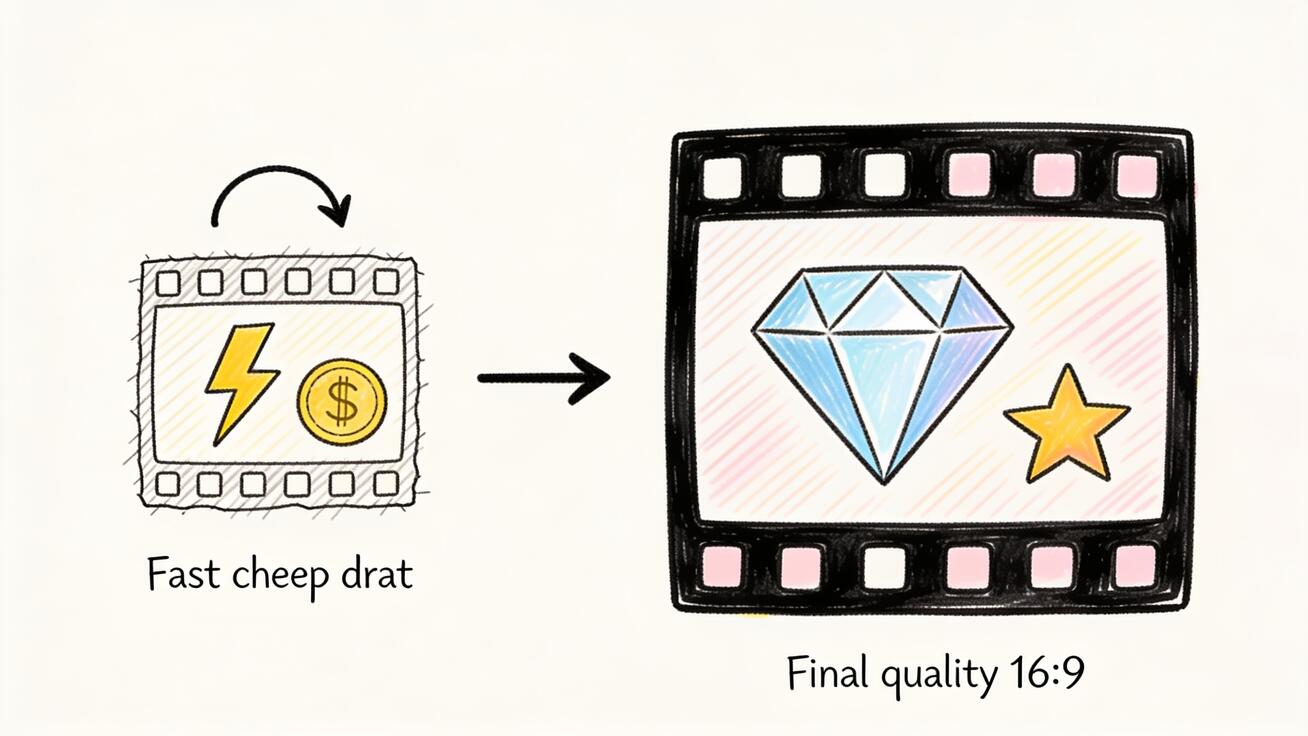
A reliable two-pass pipeline looks like this:
- Draft pass — Fast model, 720p, 4-second clips. Cheap, quick, disposable. Lock the prompt and camera move.
- Final pass — Standard model, 1080p (or 4K for hero shots), 8-second clips. This is the output you publish.
Mixing the two stages is how heavy users keep cost down without shipping soft footage. Rendering every test at 4K on the standard model wastes both time and budget, and rendering your final hero shot on the Fast model at 720p undersells the work.
Aspect Ratio and Frame Rate Still Matter
Resolution is only one axis of "looks good." Veo 3.1 also gives you aspect ratio control, and it's locked to two options:
- 16:9 — landscape, the default. Use it for YouTube, websites, ads, and anything horizontal.
- 9:16 — vertical portrait. Use it for TikTok, Reels, and YouTube Shorts.
There is no native 1:1 or 4:5 output, so if you need a square or 4:5 crop for Instagram feed, generate 9:16 and crop, or generate 16:9 and reframe. For a full walkthrough of vertical generation and platform specs, see our Veo 3 vertical video 9:16 guide.
Frame rate is fixed at 24fps across every resolution. That's a deliberate cinematic choice — 24fps reads as "film," not "phone video." You can't request 30 or 60fps from Veo 3.1, so if you need a higher frame rate for slow-motion conform or broadcast, you'll handle that in post.
Prompt Examples That Hold Up at High Resolution
Higher resolution exposes weak prompts. At 720p, soft backgrounds and vague detail hide; at 1080p and 4K, the model renders everything you described — and everything you didn't. The fix is to be specific about texture, light, and depth. Here are copy-ready prompts built to look good at 1080p/4K.
Product hero (1080p/4K, 16:9):
Macro dolly-in on a matte black wireless earbud resting on brushed concrete, soft directional key light from the left, subtle rim light, fine surface texture visible, shallow depth of field, 24fps cinematic, no text overlay.
Cinematic landscape (4K, 16:9):
Slow aerial push over a misty pine forest at dawn, volumetric god rays through the trees, crisp needle detail in the foreground, layered atmospheric depth, natural color grade, gentle ambient forest audio.
Portrait talking shot (1080p, 9:16):
Medium close-up of a chef plating a dish, warm kitchen light, sharp focus on hands and food texture, soft bokeh background of stainless steel, natural ambient kitchen sound, eye-level framing.
Vertical social loop (1080p, 9:16):
Top-down shot of coffee being poured into a glass over ice, droplets and crema texture in sharp detail, bright daylight, clean white background, satisfying pour sound, seamless loop-friendly motion.
Notice the pattern: name the subject, the camera move, the light, the texture, and the audio. At high resolution, "texture" and "light" prompts are what separate a clip that looks rendered from one that looks shot. For more on building precise prompts, our frames-to-video guide covers how to control the first and last frame for tighter results.
How to Get Sharper Output (Beyond the Resolution Setting)
Picking 1080p or 4K is step one, but a few habits squeeze more clarity out of every generation:
- Match resolution to delivery. Don't render 4K for a 9:16 Reel that the platform will recompress to ~1080p anyway. You'll wait longer for output the viewer never sees.
- Generate 8 seconds and trim. Since 1080p/4K require 8 seconds, generate the full clip and cut to your needed length in an editor. You get high resolution and the exact duration you want.
- Avoid tiny on-screen text. Generated text can wobble. If you need clean captions or logos, add them in post on top of the high-res footage rather than asking the model to render fine type.
- Use reference images for consistency. Because reference images force 8 seconds anyway, they pair naturally with 1080p — and they keep characters and products consistent across shots.
- Upscale only if you started lower. If you generated 720p drafts you later need at higher resolution, a dedicated upscaler can help, though re-rendering at native 1080p almost always looks better. See our roundup of the best video upscaler tools for when native re-rendering isn't an option.
- Light your scene in the prompt. Resolution reveals detail, but light creates it. A clip described with a clear key light, rim light, and a believable light direction reads as photographed; a flatly lit prompt reads as rendered no matter the pixel count. Spend a clause on lighting in every high-resolution prompt.
- Keep motion deliberate. Fast, chaotic motion smears even at 4K. Slow, intentional camera moves — a measured dolly, a gentle push, a slow orbit — hold detail far better and are where high resolution actually pays off.
Put together, these habits matter more than the resolution slider itself. A well-lit, well-prompted 1080p clip with deliberate motion will out-perform a rushed 4K render every time. Resolution sets the ceiling; your prompt decides how close to that ceiling the output lands.
Common Veo 3.1 Resolution Mistakes to Avoid
A handful of mistakes account for most of the wasted renders and "why does my clip look bad" complaints. Knowing them up front saves credits and re-shoots.
Generating the final cut at 720p by accident. Because 720p is the default, it's easy to forget to bump resolution before the final render — especially if you've been iterating quickly. Build a habit: before any keeper render, confirm the resolution is set to 1080p and the duration is 8 seconds. A quick checklist prevents shipping a draft-quality clip.
Expecting 4K to fix a soft prompt. Resolution is not sharpness. If your prompt is vague about light, focus, and texture, 4K simply renders a vague image in more pixels. The fix is prompt detail, not a higher tier. Describe the key light, the focal point, and the surface texture, and even 1080p will look crisp.
Rendering everything at 4K. 4K takes longer and costs more, and most delivery platforms recompress it down anyway. Unless the clip is going to a large screen or you need crop headroom, 1080p is the smarter default. Reserve 4K for the shots that truly earn it.
Forgetting that extends drop to 720p. If you build a longer sequence by extending clips, those extended segments are 720p. A common surprise is a 1080p opening shot followed by visibly softer 720p extensions. For consistent quality across a longer piece, generate separate 8-second 1080p shots and edit them together instead of relying on extend.
Trying to render fine text at high resolution. Higher resolution makes wobbly generated text more obvious, not less. Keep logos, lower-thirds, and captions out of the prompt and add them in your editor on top of the clean footage.
Best Use Cases by Resolution
To make this concrete, here's how the three tiers map to real output goals:
- 720p: prompt testing, throwaway social drafts, internal review clips, high-volume A/B variations where you'll only finalize the winner.
- 1080p: YouTube videos, landing-page hero loops, paid social ads, product demos, app preview videos, client deliverables. This is where most published Veo 3.1 work should live.
- 4K: event screens and projection, cinematic brand films, pitch decks shown on large displays, footage you'll crop/reframe in post, premium portfolio pieces.
If you're producing at scale — say, dozens of product clips a week — a smart pipeline is 720p for the test pass, then a batch re-render of approved prompts at 1080p/8s. You keep iteration cheap and reserve high-resolution render time for shots that earned it.
Frequently Asked Questions
What is the maximum resolution of Veo 3.1? Veo 3.1 supports up to 4K. The available tiers are 720p, 1080p, and 4K, with 1080p and 4K limited to 8-second clips.
Why can't I select 1080p or 4K in Veo 3.1? Almost always because your duration is set below 8 seconds. 1080p and 4K require an 8-second clip. Set duration to 8 and the higher resolutions unlock.
Does Veo 3.1 support 60fps? No. Veo 3.1 renders at a fixed 24fps at every resolution. For higher frame rates you'd conform or interpolate in post.
Can I generate a 4-second 4K clip? No. 4- and 6-second clips are 720p only. Any 1080p or 4K generation is 8 seconds.
Is audio available at 720p? Yes. Native audio is generated at every resolution — 720p, 1080p, and 4K all include synchronized audio.
What resolution do extended clips render at? Extensions render at 720p. If you need 1080p or 4K, generate standalone 8-second clips rather than extending.
Which resolution should I use for YouTube? 1080p is the practical choice for most YouTube content. Use 4K only if you specifically need it for large-screen display or post-production cropping.
Conclusion
Veo 3.1 resolution comes down to three tiers and one rule: 720p is flexible across 4-, 6-, and 8-second clips, while 1080p and 4K deliver crisp, big-screen output but require the full 8 seconds. For the vast majority of published work — YouTube, ads, landing pages, product demos — 1080p at 8 seconds is the right default. Reserve 4K for projection and cinematic delivery, and lean on 720p for fast, cheap iteration before your final render.
The workflow that works: test cheap at 720p, lock your prompt, then re-render the winners at 1080p or 4K. Ready to try it? Generate your first 1080p Veo 3.1 clip and see the difference detail makes — then trim it to the exact length your platform needs.
Related Articles
Continue with more blog posts in the same locale.

How to Make Sports Highlight Videos with Veo 3 AI (2026)
Create stunning sports highlight videos with Veo 3 AI. Generate dynamic action shots, slow-motion sequences, and dramatic replays using AI prompts.
Read article
How to Make a Short Film with Veo 3 AI (2026 Guide)
Learn how to create professional short films using Veo 3 AI. Step-by-step guide with prompts, workflow tips, and cinematic techniques.
Read article
How to Make Documentary Videos with Veo 3 AI (2026 Guide)
Create compelling documentary videos with Veo 3 AI. Learn prompting techniques, narrative structure, realistic footage generation, and post-production tips.
Read article