
How to Make AI Baby Videos with Veo 3 (Talking & Babbling, 2026)
Step-by-step guide to making wholesome AI baby videos with Veo 3, using its native synchronized audio for talking and babbling babies. Prompt templates included.
Emma Chen · 18 min read · Jun 24, 2026
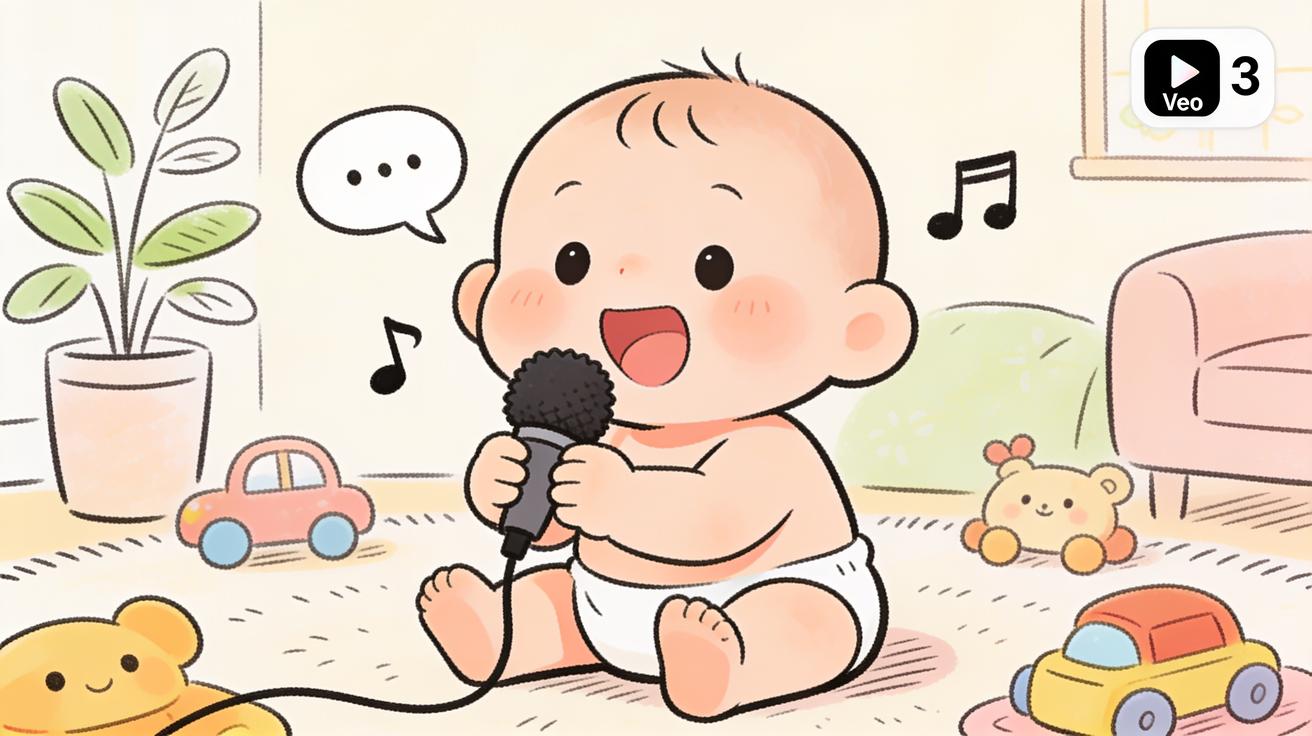
<p>The wholesome "AI baby" trend is everywhere right now: chubby cartoon-style infants babbling into tiny microphones, talking babies hosting their own "podcasts," and giggling toddlers narrating their day in impossibly cute voices. What makes these clips work is not just the visuals — it's the <strong>sound</strong>. A baby video without baby giggles, coos, and babble falls flat. That is exactly why creators making the best <strong>AI baby video</strong> content are reaching for Veo 3: it generates the picture and the synchronized audio in a single pass, so the talking and babbling line up with the mouth movements automatically.</p>
<p>This guide is a complete, step-by-step walkthrough for making wholesome AI baby videos with Veo 3 — from your first text prompt to a polished, ready-to-share clip. We'll cover the prompt structure that gets you a believable talking baby, how to use Veo 3's native audio for babble and voice, copy-ready prompt templates, the family-friendly content rules you must follow, and a QA checklist so your final video looks and sounds right. If you've been searching for a reliable <strong>baby AI video generator</strong> workflow, this is the one to bookmark.</p>
<h2>Quick Answer: How to Make an AI Baby Video with Veo 3</h2>
<p>To make an AI baby video with Veo 3, open the Veo 3 text-to-video tool, write a prompt that describes the baby, the setting, the action, and the audio you want (babbling, laughing, or a short spoken line), then generate. Because Veo 3 produces native synchronized audio alongside the video, the baby's voice and ambient sound come out matched to the picture — no separate audio editing or lip-sync step required. Generate two or three variations, pick the best take, and export for TikTok, Reels, YouTube Shorts, or a family group chat.</p>
<p>Here is the short version of the workflow:</p>
<ol> <li><strong>Open Veo 3</strong> and choose text-to-video (or image-to-video if you have a starting frame).</li> <li><strong>Write a structured prompt</strong>: subject + setting + action + camera + audio.</li> <li><strong>Specify the audio</strong> explicitly — "soft baby babbling," "happy giggle," or a short, clear spoken phrase.</li> <li><strong>Generate 2–3 variations</strong> from the same prompt.</li> <li><strong>Review with sound on</strong> and pick the take where audio and mouth movement match best.</li> <li><strong>Export</strong> in your platform's aspect ratio and add captions if needed.</li> </ol>
<h2>Why Veo 3 Is Built for Baby Videos: Native Audio</h2>
<p>Most AI video tools generate silent footage. You get a moving picture, and then you have to find a sound effect, record a voice, or hire someone to lip-sync audio onto the clip. For a talking baby, that's a real problem: the entire charm depends on the voice matching the mouth. Bolt-on audio almost always looks slightly off, and viewers feel it even if they can't explain why.</p>
<p>Veo 3's defining capability is <strong>native, synchronized audio</strong>. When you generate a clip, Veo 3 creates the visuals and a matching soundtrack — dialogue, vocalizations, ambient room tone, and simple sound effects — together, as one output. For baby content this is the difference-maker:</p>
<ul> <li><strong>Babbling and coos</strong> are produced in sync with the baby's mouth and breathing, so it reads as a real vocalization rather than a dubbed sound effect.</li> <li><strong>Short spoken lines</strong> (the "talking baby" gag) land with believable timing, because the audio is generated for that exact motion.</li> <li><strong>Ambient sound</strong> — a quiet living room, the soft rustle of a blanket, a gentle giggle in the background — adds the warmth that makes wholesome content feel real.</li> </ul>
<p>This is the honest, real edge of Veo 3 for this use case. It isn't a made-up spec or a marketing number — it's a workflow advantage. You describe the sound you want, and you get a single clip where picture and audio already belong together. That removes the most painful, fiddly step in the entire baby-video pipeline.</p>
<h2>The Prompt Structure That Works</h2>
<p>A good Veo 3 baby prompt is specific in five areas. If you only describe "a cute baby," you'll get something generic and the audio will be unpredictable. Use this structure every time:</p>
<ol> <li><strong>Subject</strong> — Who is the baby? Describe age impression (e.g., "a chubby-cheeked baby around one year old"), expression, and a couple of distinguishing details (curly hair, a tiny striped onesie). Keep it warm and wholesome.</li> <li><strong>Setting</strong> — Where are they? "Sitting in a cozy, sunlit living room," "in a soft high chair at the kitchen table," "on a fluffy play mat surrounded by stuffed animals."</li> <li><strong>Action</strong> — What are they doing? "Babbling excitedly and waving a tiny hand," "leaning toward a small microphone like a podcast host," "clapping and laughing."</li> <li><strong>Camera</strong> — How is it shot? "Close-up, eye-level, shallow depth of field," "slow push-in," "static cozy medium shot." This controls the framing and mood.</li> <li><strong>Audio</strong> — This is the part most people skip, and it's the most important for Veo 3. Spell out the vocalization: "soft, happy baby babbling," "one clear giggle, then a coo," or an exact short line for a talking-baby clip.</li> </ol>
<p>Putting it together, a basic prompt looks like this:</p>
<blockquote> <p><em>"Close-up, eye-level shot of a chubby-cheeked baby around one year old with soft curls, sitting in a sunlit cozy living room on a fluffy blanket. The baby leans toward a small foam podcast microphone and babbles happily, then breaks into a delighted giggle. Warm natural lighting, shallow depth of field, gentle slow push-in. Audio: soft, joyful baby babbling and one clear happy giggle, quiet cozy room tone in the background."</em></p> </blockquote>
<p>Notice that the audio line is explicit and separate. Veo 3 reads it and generates the matching sound. The more clearly you describe the vocalization, the more reliable the synchronized audio will be.</p>
<h2>Step-by-Step: Make Your First Talking Baby Video</h2>
<h3>Step 1 — Decide on the concept</h3>
<p>Pick one simple, wholesome idea before you write anything. The trend works best when the concept is instantly readable in three seconds:</p>
<ul> <li><strong>Baby podcast host</strong> — baby leans into a mic and "talks."</li> <li><strong>Narrator baby</strong> — baby narrates a tiny everyday moment ("It's snack time and I have OPINIONS").</li> <li><strong>Babbling reaction</strong> — baby reacts to something with pure babble and giggles.</li> <li><strong>Sweet milestone</strong> — first claps, peekaboo, a giggle fit.</li> </ul>
<p>Keep it family-friendly and gentle. The whole appeal of this trend is wholesomeness; that's also what keeps your content safe and shareable.</p>
<h3>Step 2 — Open Veo 3 and choose your input</h3>
<p>In Veo 3, you can start from <strong>text-to-video</strong> (describe everything in words) or <strong>image-to-video</strong> (upload a starting frame, like an illustrated baby character, and let Veo 3 animate it with audio). For a first attempt, text-to-video is the simplest path and gives Veo 3 the freedom to compose the scene. If you want a consistent recurring character, image-to-video from a fixed reference frame is the better choice.</p>
<h3>Step 3 — Write the structured prompt</h3>
<p>Use the five-part structure above. Be concrete about the setting and the audio. If you want a spoken line, keep it short — a single sentence is far more reliable than a paragraph of dialogue, and short lines read as cuter anyway.</p>
<h3>Step 4 — Set the audio expectation explicitly</h3>
<p>Always include an "Audio:" clause. Examples:</p>
<ul> <li><em>Audio: soft baby babbling, no words, gentle and happy, quiet room tone.</em></li> <li><em>Audio: the baby says "good morning, everyone" in a sweet babyish voice, then giggles.</em></li> <li><em>Audio: delighted baby laughter building into a giggle fit, light playful background.</em></li> </ul>
<p>Because Veo 3 generates this audio in sync with the visuals, this clause is doing the heavy lifting. Don't leave it to chance.</p>
<h3>Step 5 — Generate variations</h3>
<p>Generate two or three takes from the same prompt. AI video is probabilistic: one take might have perfect babble timing, another might have a cuter expression. Variations are cheap insurance for getting one great clip.</p>
<h3>Step 6 — Review with sound on</h3>
<p>This sounds obvious, but it's the step people skip. Watch each take <strong>with audio</strong> and judge two things: does the picture look right (natural baby proportions, no distorted hands or eyes), and does the sound match the mouth? Pick the take where both are strongest.</p>
<h3>Step 7 — Export and finish</h3>
<p>Export in the aspect ratio your platform wants — 9:16 for TikTok, Reels, and Shorts; 16:9 for YouTube landscape. Add captions if the baby "speaks," since many viewers watch on mute first and captions pull them in. Keep the clip short; 5–10 seconds of adorable babble outperforms a long, meandering take.</p>
<h2>Copy-Ready Prompt Templates</h2>
<p>Here are five templates you can paste into Veo 3 and adapt. Each one already includes a structured audio clause, which is the key to good talking-baby results.</p>
<h3>1. Baby Podcast Host</h3>
<blockquote> <p><em>"Cozy medium close-up of a smiling baby in a tiny knit sweater sitting at a small table with a foam podcast microphone, warm studio-style lighting, soft bokeh background with fairy lights. The baby leans toward the mic confidently and babbles like a host introducing a show, then pauses and grins. Slow gentle push-in. Audio: enthusiastic baby babbling in a 'talking' rhythm, like a podcast intro, ending with a happy little coo; warm quiet room tone."</em></p> </blockquote>
<h3>2. Talking Baby (Spoken Line)</h3>
<blockquote> <p><em>"Eye-level close-up of a cheerful baby with chubby cheeks in a high chair, bright cozy kitchen in the background, soft morning light. The baby looks at the camera and speaks a short clear line, then smiles. Static cozy framing, shallow depth of field. Audio: the baby says 'okay, snack time now' in a sweet babyish voice with clear timing, followed by a small giggle; gentle kitchen ambience."</em></p> </blockquote>
<h3>3. Babbling Reaction</h3>
<blockquote> <p><em>"Close-up of a baby on a fluffy play mat surrounded by soft stuffed animals, warm natural light from a window. The baby reacts with wide-eyed excitement, waving both hands and babbling rapidly, then bursts into a giggle. Handheld-feel slight movement, shallow depth of field. Audio: fast happy baby babbling building into delighted laughter, cozy background room tone."</em></p> </blockquote>
<h3>4. Sweet Milestone (First Claps)</h3>
<blockquote> <p><em>"Medium shot of a baby sitting upright on a soft rug in a sunlit nursery, pastel decor and a few toys around. The baby claps tiny hands together for the first time and looks thrilled, glancing up for approval. Warm soft lighting, gentle slow push-in. Audio: small clapping sounds, a proud baby coo and a happy squeal, soft nursery ambience."</em></p> </blockquote>
<h3>5. Bedtime Coo</h3>
<blockquote> <p><em>"Soft, dim close-up of a sleepy baby in cozy pajamas nestled in a blanket, warm low lighting, calm nursery at night. The baby yawns, rubs one eye, and coos softly. Very gentle, still framing, shallow depth of field. Audio: a soft baby yawn and gentle contented cooing, quiet soothing room tone, faint lullaby hum in the far background."</em></p> </blockquote>
<h2>Image-to-Video: Keeping a Consistent Baby Character</h2>
<p>If you want a recurring character — say, the same illustrated "podcast baby" across a whole series — text-to-video alone will give you a slightly different baby each time. The fix is <strong>image-to-video</strong>. Create or choose a single reference frame of your baby character (an illustration works great for stylized series and sidesteps any concern about real children), then feed that frame to Veo 3 and describe the motion and audio you want.</p>
<p>Veo 3 animates the starting frame and adds synchronized audio, so your character keeps a consistent look while gaining the babble or spoken line. This is the most reliable way to build a branded, repeatable baby series. Workflow:</p>
<ol> <li>Lock your character design in one clean reference frame.</li> <li>Upload it to Veo 3's image-to-video mode.</li> <li>Prompt only the action and audio ("the baby leans into the mic and babbles a cheerful intro; Audio: enthusiastic baby babble, podcast-intro rhythm").</li> <li>Generate, review with sound, and keep the same reference frame for every episode so the character stays consistent.</li> </ol>
<h2>Wholesome-Only: The Content Rules You Must Follow</h2>
<p>This trend lives or dies on being <strong>wholesome and family-friendly</strong>. That's not just good taste — it's a hard line for keeping your content safe, platform-compliant, and shareable. Follow these rules:</p>
<ul> <li><strong>Keep it gentle and positive.</strong> Babbling, giggles, claps, sweet milestones, cozy settings. Nothing distressing, nothing that depicts a baby in danger or discomfort for "shock" value.</li> <li><strong>Don't impersonate real children.</strong> Don't try to recreate a specific real child's likeness without the right permissions. Stylized or clearly synthetic baby characters are the safest, friendliest choice.</li> <li><strong>No misleading "real baby" claims.</strong> If your content is AI-generated, don't pass it off as a real recorded child. Audiences increasingly appreciate the honesty, and it keeps you out of trouble.</li> <li><strong>Avoid putting words in a baby's mouth that you wouldn't want associated with a child.</strong> Keep spoken lines innocent, funny, and kind.</li> <li><strong>Respect platform policies.</strong> Each platform has rules around synthetic media and content involving minors; label AI content where required.</li> </ul>
<p>Stay inside these lines and the wholesome baby trend is one of the safest, most universally loved formats you can make. Step outside them and you risk takedowns, reputational damage, and policy strikes. Veo 3's content safeguards also steer generation toward appropriate output — lean into that, don't fight it.</p>
<h2>QA Checklist Before You Post</h2>
<p>AI video needs a quick quality pass before it goes live. Run through this every time:</p>
<ul> <li><strong>Audio sync</strong> — Watch with sound on. Does the babble or speech match the mouth movement? If it drifts, regenerate.</li> <li><strong>Anatomy check</strong> — Look at hands, fingers, eyes, and teeth. AI sometimes distorts small details. A baby with seven fingers breaks the spell instantly.</li> <li><strong>Expression</strong> — Is the emotion genuinely cute and warm? Discard any take that looks vacant or unsettling.</li> <li><strong>Audio quality</strong> — Is the babble clean, or is there a weird artifact or robotic tone? Pick the cleanest take.</li> <li><strong>Length and pacing</strong> — Trim to the cutest 5–10 seconds. Cut dead air at the start and end.</li> <li><strong>Aspect ratio</strong> — 9:16 for vertical platforms, 16:9 for YouTube landscape.</li> <li><strong>Captions</strong> — Add captions for spoken lines so muted viewers still get the joke.</li> <li><strong>Honesty label</strong> — Mark it as AI-generated where the platform requires it.</li> </ul>
<h2>Common Problems and How to Fix Them</h2>
<h3>The audio doesn't match the mouth</h3>
<p>Make your audio clause shorter and more specific. Long, complex spoken lines are harder to sync than a single short sentence or pure babble. Regenerate two or three takes and choose the best — sync quality varies between generations.</p>
<h3>The baby looks slightly off or uncanny</h3>
<p>Add warmth and softness to the visual description: "soft natural lighting," "gentle rounded features," "warm cozy tones." Avoid harsh lighting and extreme close-ups on the mouth, which expose AI artifacts. A slightly wider framing often reads as cuter and more natural.</p>
<h3>The babble sounds robotic</h3>
<p>Describe the vocalization with emotional words — "joyful," "soft," "delighted" — rather than technical terms. Emotional descriptors tend to produce more natural baby sounds than neutral ones.</p>
<h3>Every clip looks like a different baby</h3>
<p>Switch to image-to-video with a fixed reference frame, as described above. Text-to-video re-rolls the character each time; a locked reference frame keeps your baby consistent across a series.</p>
<h3>The clip is too long and loses energy</h3>
<p>Cut it down. The strongest baby clips are short bursts of cuteness. Generate a slightly longer take, then trim to the single best moment of babble or giggle.</p>
<h2>Best Use Cases for AI Baby Videos</h2>
<ul> <li><strong>Short-form social content</strong> — TikTok, Reels, and YouTube Shorts reward high-emotion, instantly readable clips. A wholesome talking baby is exactly that.</li> <li><strong>Series and characters</strong> — Build a recurring "podcast baby" or "narrator baby" character with image-to-video for consistency, and post episodes on a schedule.</li> <li><strong>Greeting and milestone-style clips</strong> — Sweet, gentle "good morning" or celebration clips that are fun to share (clearly labeled as AI, never impersonating a real child).</li> <li><strong>Creative and illustrative projects</strong> — Animated storybook-style babies, gentle educational characters, and other family-friendly creative work where a talking, babbling character adds charm.</li> </ul>
<p>Across all of these, Veo 3's native audio is the throughline: the format only works because the sound and picture are generated together, so the talking and babbling feel real.</p>
<h2>FAQ</h2>
<h3>What is the best AI tool for making talking baby videos?</h3>
<p>For talking and babbling baby videos, Veo 3 is the strongest choice because it generates synchronized native audio together with the video. The talking-baby format depends entirely on the voice matching the mouth, and Veo 3 handles that in a single generation instead of requiring a separate lip-sync or dubbing step.</p>
<h3>Do I need any video editing skills?</h3>
<p>No. Veo 3 produces the picture and the audio together, so for a basic baby clip you can go from prompt to finished video with no editing. Light trimming and adding captions are optional polish, not requirements.</p>
<h3>How do I get the baby to "talk" with a specific line?</h3>
<p>Include an explicit audio clause with a short, clear line, for example: <em>Audio: the baby says "okay, snack time now" in a sweet babyish voice.</em> Keep spoken lines to one short sentence for the best sync, and generate a couple of takes to pick the cleanest one.</p>
<h3>Can I keep the same baby character across multiple videos?</h3>
<p>Yes. Use image-to-video: lock a single reference frame of your baby character and feed it to Veo 3 for each clip, prompting only the action and audio. This keeps the character's look consistent across an entire series.</p>
<h3>Is it safe and allowed to make AI baby videos?</h3>
<p>Yes, as long as you keep the content wholesome and family-friendly, don't impersonate a specific real child without permission, don't pass AI content off as real, and label synthetic media where the platform requires it. Stay inside those rules and the format is one of the safest, most widely loved trends you can make.</p>
<h3>How long should an AI baby video be?</h3>
<p>Short. The strongest clips are 5–10 seconds of a single adorable moment — a giggle, a babble, or one short spoken line. Generate a slightly longer take if you like, then trim to the cutest beat for maximum impact on short-form platforms.</p>
<h2>Conclusion</h2>
<p>The wholesome AI baby trend works because of sound, and that's precisely where Veo 3 shines. By generating native, synchronized audio alongside the video, Veo 3 turns the hardest part of the talking-baby format — matching the voice to the mouth — into a single, reliable step. Write a structured prompt with a clear audio clause, generate a few variations, review with sound on, and keep everything gentle and family-friendly, and you can produce a polished <strong>AI baby video</strong> in minutes.</p>
<p>Start with one of the copy-ready templates above, pick a wholesome concept, and let Veo 3 handle the babble and the picture together. Once you've nailed a single clip, switch to image-to-video to lock in a consistent character and build a whole series. The best <strong>baby AI video generator</strong> workflow isn't about chasing tricks — it's about using Veo 3's real strength, native audio, to make something genuinely cute that people want to share. Open Veo 3, write your first baby prompt, and make something adorable today.</p>
Related Articles
Continue with more blog posts in the same locale.
Veo 3 Talking Head Video: How to Create AI Presenter Videos (2026)
Create AI presenter videos with Veo 3: character prompts, lip sync, platform formats, brand spokesperson, social persona, and training video host — with ready-to-use templates.
Read article
Veo 3 Drone Shot Prompts: How to Create Aerial Camera Moves (2026)
Veo 3 drone shot prompts: aerial camera vocabulary, pull-back reveal, orbit, tracking shots, environment examples for real estate, travel, sports, and documentary.
Read article
Veo 3 for E-Commerce: AI-Generated Product Videos That Convert (2026)
Learn how to use Veo 3 for e-commerce product video: I2V packshot prompts, platform specs, category playbooks for fashion, food, cosmetics, and home goods, plus QA checklists.
Read article