
Veo 3 Talking Head Video: Cómo crear videos de presentador con IA (2026)
Crea videos de presentador con IA con Veo 3: prompts de personajes, sincronización de labios, formatos de plataforma, portavoz de marca, persona social y anfitrión de videos de capacitación, con plantillas listas para usar.
Emma Chen · 17 min read · Jul 7, 2026
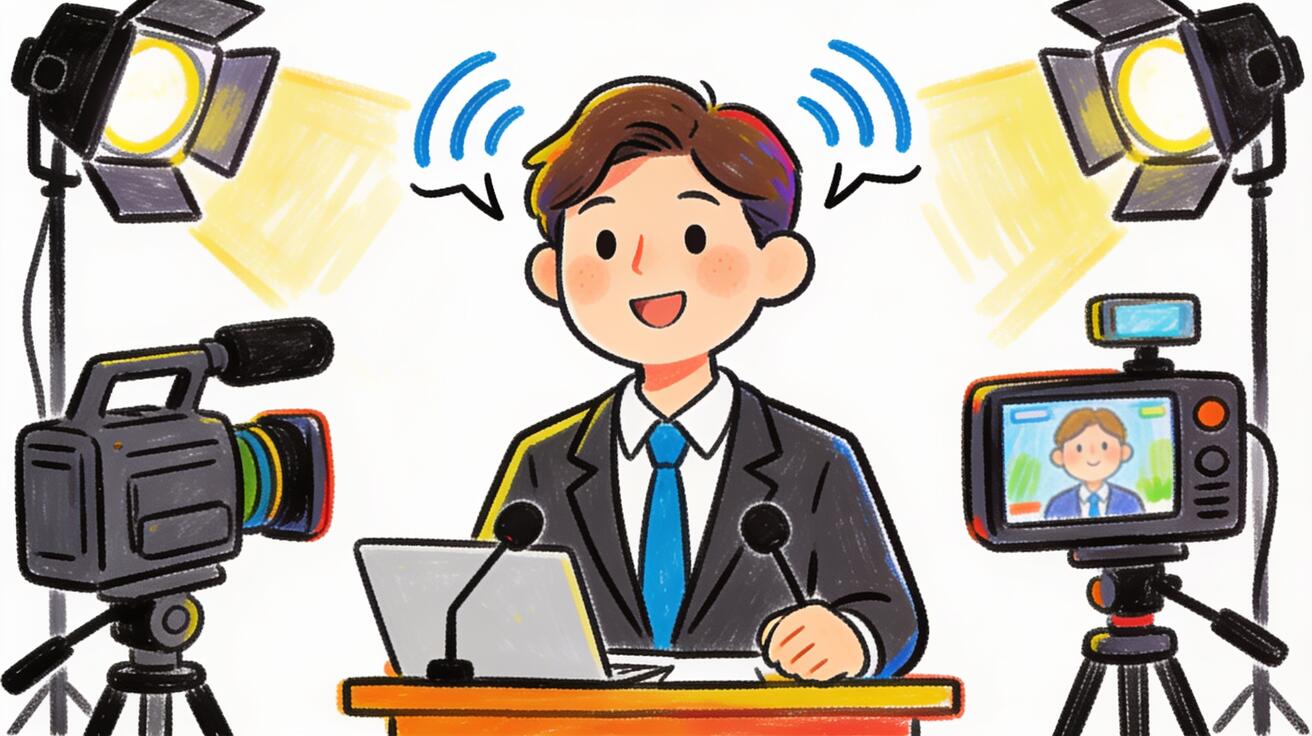
El video de Veo 3 de tipo talking head genera un personaje en cámara que habla directamente al espectador — un presentador, portavoz o personaje ficticio con movimiento de labios sincronizado, voz y expresión facial — todo a partir de un texto de prompt. Sin contratar a un actor ni reservar un estudio, puedes generar un clip en 1080p de un presentador profesional que entrega tu mensaje en 8 segundos de metraje. Esta guía cubre el enfoque de prompting que funciona, casos de uso donde el video de presentador con IA está listo para producción, y cómo Veo 3 se compara con otras herramientas de presentadores con IA.
Qué produce el video de Veo 3 Talking Head
Un prompt de talking head de Veo 3 genera:
- Un personaje que coincide con tu descripción (edad, apariencia, estilo, expresión)
- Movimiento de labios sincronizado con el habla generada
- Expresión facial y movimiento ocular durante la entrega
- Fondo y entorno según lo especificado
- Audio nativo: la voz del personaje más sonido ambiente
El clip tiene un máximo de 8 segundos a 1080p. Esto cubre la mayoría de los formatos de presentadores en redes sociales y sirve como un bloque de construcción para videos más largos cuando se ensamblan múltiples clips en un editor.
El modelo genera un personaje plausible a partir de tu descripción — no clona la cara de una persona real. Para la semejanza de una persona real específica, la filmación convencional sigue siendo el enfoque correcto. Para un portavoz ficticio, personaje de marca o persona de IA, Veo 3 te da una salida lista para producción.
Estructura del prompt de Talking Head para Veo 3
Un prompt confiable de talking head para Veo 3 cubre cuatro áreas:
[Personaje: edad, apariencia, expresión, vestimenta] +
[Acción: qué dice/cómo lo entrega] +
[Cámara: tamaño de plano, ángulo, movimiento] +
[Fondo + iluminación + audio]
Ejemplo de portavoz corporativo:
Un hombre profesional de poco más de cuarenta años, con cabello oscuro, camisa blanca impecable y chaqueta azul marino, habla directamente a la cámara con una entrega clara y segura — presentando una iniciativa de la empresa. La cámara se mantiene en un plano medio corto, a la altura de los ojos. Fondo de oficina corporativa limpio, desenfocado. Iluminación artificial cálida. Voz de locutor profesional, ritmo pausado, acento neutro.
Ejemplo de presentador de marca de estilo de vida:
Una mujer de veintitantos años con un look casual pero pulido — una chaqueta ligera sobre una camiseta lisa — habla a cámara con un tono alegre y acogedor, sonriendo mientras habla. La cámara se mantiene en un plano medio corto con un ligero movimiento natural de la cabeza. Estudio casero luminoso y aireado, con plantas visibles al fondo. Luz natural matutina. Voz cálida y amigable.
Presentador IA ficticio:
Un personaje de IA futurista con rasgos definidos, textura de piel de color plateado y ojos suaves y brillantes que habla a cámara con una dicción medida y precisa, presentando un producto tecnológico. La cámara se mantiene estática a la altura de los ojos. Fondo tecnológico oscuro con degradado y líneas de cuadrícula sutiles. Voz clara, tranquila, sintética pero humana.
Formatos listos para plataformas
Instagram Reels / TikTok (9:16 vertical): Añade "relación de aspecto vertical 9:16, presentador ocupando los dos tercios superiores del encuadre" a tu prompt. Mantén los clips en 8 segundos. La entrega del presentador debe ser rápida e inmediatamente atractiva: engancha en el primer segundo.
Video de LinkedIn (16:9): Usa la relación de aspecto estándar 16:9. Entorno profesional, ritmo pausado, contacto visual directo. La audiencia del feed de LinkedIn responde a la comunicación empresarial segura. Plano medio corto o plano medio abierto.
YouTube (16:9): YouTube permite formatos más largos. Para un video de 1 minuto, genera múltiples clips de Veo 3 de 8 segundos del presentador con descripción y entorno consistentes, y móntalos en un editor. Añade una voz en off en postproducción para una locución precisa del guion.
Cabecera de campaña de correo electrónico: Genera un bucle de 6 a 8 segundos del presentador con un gesto de bienvenida. Exporta como GIF o MP4 corto para el correo electrónico. Mantenlo amigable y apto para modo silencioso (el mensaje debe funcionar incluso sin sonido).
Casos de uso donde Veo 3 Talking Head está listo para producción
Anuncio de portavoz de marca
Genera un personaje de portavoz de marca para el lanzamiento de un producto o el anuncio de una campaña. No se necesita actor. El personaje puede ser coherente en múltiples clips si se utiliza un prompt cuidadoso y una imagen de referencia.
Prompt:
Una portavoz de marca pulida — una mujer de unos treinta y cinco años, estilo profesional con blazer en los colores de la marca — se dirige directamente a la cámara, anunciando un nuevo producto con entusiasmo controlado. La cámara se mantiene en un plano medio cerrado, a la altura de los ojos. Fondo limpio y minimalista con colores de la marca. Iluminación profesional de eventos. Voz clara y segura.
Persona de IA para Redes Sociales
El contenido de personas IA se ha convertido en un formato establecido en TikTok e Instagram. Un personaje de IA ficticio con una apariencia y personalidad distintivas que presenta contenido en un formato de serie reconocible.
Prompt:
Una personalidad IA audaz — rasgos marcados, color de cabello metálico poco convencional, porte seguro — mira directamente a la cámara y comienza un comentario con energía e ingenio. La cámara se mantiene en un plano medio cerrado con un ligero ángulo holandés. Fondo urbano iluminado con neón. Voz dinámica, rápida y con opiniones.
Presentador para Capacitación y Videos Explicativos
El contenido de capacitación corporativa, incorporación y explicación de productos utiliza un presentador consistente para el rol de anfitrión. Veo 3 puede generar el personaje del presentador para los segmentos del anfitrión; la entrega precisa del guion proviene de una voz en off en postproducción.
Prompt:
Un presentador de capacitación amigable y accesible — un hombre de unos treinta años, vestimenta informal elegante, contacto visual seguro con una ligera sonrisa cálida — mira a la cámara e introduce un tema del módulo, girando para señalar un gráfico fuera de pantalla. La cámara se mantiene en un plano medio abierto. Entorno de estudio de capacitación profesional limpio. Voz clara y atractiva del narrador.
Presentador Multilingüe
Para contenido de mercados regionales, genera la misma descripción del presentador en diferentes clips con direcciones de audio específicas del idioma. La apariencia del personaje se mantiene constante; el audio y la interpretación coinciden con el idioma de destino.
Prompt (mercado hispanohablante):
[Misma descripción del personaje que en el mercado angloparlante] se dirige directamente a la cámara con una entrega clara y natural en español — acento neutro latinoamericano. Cámara, fondo e iluminación idénticos a otras variantes regionales.
Veo 3 frente a Herramientas Dedicadas de Avatares IA
| Característica | Veo 3 | HeyGen / Synthesia |
|---|---|---|
| Creación de personaje | Basado en indicaciones (sin biblioteca) | Biblioteca de avatares + carga personalizada |
| Clon de persona real | No | Sí (consentimiento requerido) |
| Precisión guión-labio | Buena | Alta (texto a voz) |
| Flexibilidad de estilo | Muy alta | Media |
| Audio nativo | Sí | Sí (TTS) |
| Duración del clip | 8 segundos máximo | Hasta varios minutos |
| Audio multilingüe | Sí (describir en la indicación) | Sí (impulsado por TTS) |
Usa Veo 3 cuando: Necesites un personaje presentador flexible en estilo, estés produciendo contenido corto para redes sociales, o quieras control estético total sobre el aspecto del personaje, el entorno y el estilo de presentación.
Usa herramientas de avatar dedicadas cuando: Necesites la apariencia de una persona real (con consentimiento), necesites una entrega precisa palabra por palabra del guion para contenido formativo de larga duración, o necesites sincronización multilingüe impulsada por TTS a escala.
Consejos para la consistencia del personaje en múltiples clips
Veo 3 genera una interpretación de personaje nueva en cada generación a menos que se ancle con una referencia. Para series de presentadores con múltiples clips:
Descripción detallada como ancla: Escribe una descripción completa y específica del personaje (5–8 frases de descripción física que incluyan cabello, rasgos faciales, detalles de vestimenta, expresión base) y úsala exactamente en cada indicación. La especificidad ancla el personaje mejor que una descripción genérica.
Imagen de referencia (image-to-video): Genera un fotograma limpio y con expresión neutral del personaje, extrae el mejor fotograma y súbelo como imagen de origen para generaciones posteriores usando el modo I2V. Escribe la entrega/acción en la indicación; la apariencia del personaje proviene de la imagen.
Entorno coherente: Usa la misma descripción de fondo en cada clip. La apariencia del personaje combinada con un entorno coherente produce una identidad de serie más estable que solo la descripción del personaje.
Iluminación de tu presentador de IA
La iluminación en la indicación afecta significativamente lo profesional que se ve el presentador:
Corporativo limpio: «Iluminación artificial cálida desde la derecha con relleno suave desde la izquierda, sin sombras marcadas» — la configuración profesional de talking head más común.
Luz natural: "Luz natural de tarde desde una ventana fuera del encuadre izquierdo, suave y ligeramente cálida": moderna, accesible, ideal para marcas de estilo de vida y consumo.
Iluminación de tres puntos en estudio: "Iluminación clásica de estudio de tres puntos: luz principal frontal izquierda, relleno frontal derecha, luz de contorno desde atrás": el aspecto de mayor producción, funciona para contenido mediático formal.
Oscuro y dramático: "Entorno oscuro, una sola luz principal desde la parte superior derecha, sombras profundas en el lado opuesto": contenido premium, de lujo o cinematográfico para anuncios.
Especificar la iluminación requiere 5 palabras extra en tu indicación y mejora notablemente la calidad del resultado. Dejarlo sin especificar a menudo produce una iluminación plana o inconsistente.
Errores comunes en las indicaciones de Veo 3 para Talking Heads
Subespecificar al personaje. "Un hombre" genera un personaje aleatorio. "Un hombre de principios de los cuarenta con barba corta, cabello gris oscuro en las sienes y una chaqueta azul carbón profesional" genera algo más cercano a lo que necesitas. El modelo debe tomar decisiones a partir de una subespecificación; dale menos decisiones que tomar siendo más preciso.
Escribir el diálogo del personaje textualmente. No necesitas escribir lo que el personaje dice. Describe el estilo y el contenido de la presentación: "habla con confianza sobre el beneficio clave del producto" funciona mejor que escribir un guion. Si necesitas palabras precisas, usa una locución real en postproducción.
Desajustar la energía con el entorno. Un presentador casual de alta energía en un entorno formal de sala de juntas, o un presentador corporativo rígido en un entorno casual de estilo de vida, ambos generan contenido incómodo. Adapta el estilo de presentación del personaje al entorno.
Sin dirección de audio. La calidad de la voz afecta toda la sensación de un clip de talking head. Nombra lo que quieres: "voz profesional clara y segura" frente a "tono conversacional cálido y accesible" produce resultados significativamente diferentes.
Preguntas frecuentes (FAQ)
¿Puede Veo 3 generar un video de talking head en otros idiomas además del inglés? Sí. Describe el idioma y el acento en tu dirección de audio: "francés claro y natural con acento parisino" o "español profesional, acento neutro latinoamericano". El modelo genera audio en el idioma especificado.
¿Puedo usar el mismo personaje presentador en varias generaciones de Veo 3? Con una descripción detallada del personaje y una indicación consistente, puedes obtener personajes de apariencia similar. Para una mejor consistencia, usa imagen a video con un fotograma de referencia del personaje.
¿Cuánto tiempo puede durar un clip de cabeza parlante de Veo 3? Veo 3 genera hasta 8 segundos por clip. Para videos de presentador más largos, genera múltiples clips de 8 segundos y móntalos en un editor de video.
¿El movimiento de la boca del personaje se sincroniza con el audio? Sí. Veo 3 genera movimiento de labios sincronizado con el audio de voz generado. La precisión es buena para una entrega conversacional a un ritmo de habla normal.
Construcción de una Serie de Presentador con Múltiples Clips de Veo 3
Para contenido que necesita más de 8 segundos — un video explicativo completo, un segmento semanal de marca, una serie de LinkedIn — múltiples clips de Veo 3 del mismo presentador deben sentirse como un video consistente.
Paso 1: Referencia del personaje. Genera tu personaje presentador en una pose estática neutral (primer plano medio, expresión neutral, mirando directamente a la cámara, fondo limpio). Extrae el mejor fotograma y guárdalo como tu imagen de referencia. Usa esta imagen como fuente en el modo de imagen a video para todos los clips posteriores.
Paso 2: Indicación de plantilla. Escribe una indicación base que se mantenga constante en todos los clips: la descripción física del personaje, el entorno, la iluminación y la calidad de la voz. Luego agrega la acción específica para cada clip individual (el gesto, el tema que están abordando, el ritmo emocional).
Paso 3: Biblioteca de clips. Genera una biblioteca de segmentos de presentador: introducción (primera mirada, saludo), punto medio (explicación, gesto de demostración, respuesta de preguntas y respuestas) y cierre (resumen, entrega de CTA, saludo de despedida). A partir de estos, puedes ensamblar múltiples combinaciones de video sin generar nuevos clips para cada una.
Paso 4: Ensamblaje. En cualquier editor de video (CapCut, Adobe Premiere, DaVinci Resolve), ensambla los clips en secuencia. Haz fundidos cruzados o cortes entre ellos para mantener el flujo visual. Agrega voz en off, superposiciones de texto y música según sea necesario.
Video de Cabeza Parlante para Marketing de Producto
Los equipos de marketing de producto utilizan videos con presentadores para anuncios de lanzamiento, explicaciones de funciones y comunicaciones dirigidas a clientes. Veo 3 cubre esto sin necesidad de presupuesto de producción:
Presentador de anuncio de lanzamiento: Un portavoz entrega el titular de un lanzamiento de producto con una comunicación clara y contundente. 8 segundos, contacto visual directo, fondo corporativo limpio. El estilo comunica autoridad y emoción.
Anfitrión de demostración de funciones: Un presentador introduce una función del producto antes de una grabación de pantalla de demostración. El presentador aparece durante los primeros 8 segundos (clip de Veo 3), luego el video corta a la demostración del producto. El clip de Veo 3 actúa como la "cara" del video — la introducción humana antes de que el producto tome el control.
Anfitrión de introducción de historia de cliente: Un presentador de IA introduce un caso de estudio de cliente o un montaje de reseñas: "Esto es lo que uno de nuestros clientes tenía que decir." Este encuadre crea una estructura profesional alrededor del contenido generado por el usuario o el texto de testimonios.
Presentador de CTA al final del video: Un presentador aparece al final de un video de producto más largo para dar un llamado a la acción. Un clip de 8 segundos de Veo 3 que dice "Comienza gratis hoy" con contacto visual directo y una expresión acogedora es más persuasivo que solo texto.
Dirección de Voz para Industrias Específicas
La calidad de voz adecuada para un presentador de talking head varía significativamente según el contexto de la industria. Nombrar la industria en tu dirección de audio puede ayudar a fijar el registro adecuado:
Salud: "Voz clara y mesurada de profesional médico — tranquilizadora, precisa, sin urgencia" — la calma y la autoridad son críticas para la comunicación en salud.
Finanzas: "Voz de asesor financiero profesional, mesurada y segura, conversacional pero autoritaria" — lo suficientemente formal para comunicar competencia, lo suficientemente accesible para no alienar al público minorista.
Tecnología de consumo: "Presentador de producto entusiasta, rápido pero claro, energía moderna de marca tecnológica" — emocionado, accesible, contemporáneo.
Educación: "Voz cálida y paciente de educador, dicción clara, tono acogedor" — el registro educativo clásico que señala experiencia y seguridad.
Lujo y premium: "Voz refinada, pausada, con autoridad cálida" — el público de lujo responde al ritmo y la confianza, no a la alta energía.
Startup/fundador: "Voz auténtica, ligeramente informal, conversacional pero enfocada" — el registro de video del fundador: real, lo suficientemente sin pulir para parecer genuino.
Agregar una de estas descripciones a tu dirección de audio en el prompt orienta la voz generada hacia el registro de la industria adecuado.
Lista de Verificación de QA para Video de Talking Head de Veo 3
Antes de publicar un clip de talking head:
- [ ] El movimiento de los labios aparece sincronizado con el audio (sin retraso o desajuste obvio)
- [ ] La apariencia del personaje es consistente durante todo el clip de 8 segundos
- [ ] El contacto visual se percibe como natural — el personaje parece mirar a la cámara
- [ ] El fondo es apropiado y lo suficientemente desenfocado para no competir con el presentador
- [ ] La iluminación es consistente en todo momento (sin cambios bruscos)
- [ ] La calidad de la voz coincide con el estilo de presentación previsto del personaje
- [ ] No hay artefactos visuales obvios en la cara o las manos
Solución de Problemas Comunes
El sincronismo de labios se ve mal. Si el movimiento de la boca del personaje no coincide con el audio, la solución más fiable es describir un estilo de habla más lento y deliberado: "habla a un ritmo mesurado y pausado con una enunciación clara". El habla rápida es más difícil de sincronizar con precisión para el modelo en 8 segundos. Una entrega más lenta le da al modelo más espacio temporal para alinear el audio y lo visual.
El personaje cambia a mitad del clip. Si la apariencia del presentador cambia notablemente entre el principio y el final del clip, agrega explícitamente "apariencia del personaje consistente durante los 8 segundos completos" a tu prompt. Este es un problema conocido con la generación de video por IA en los límites del clip.
Los ojos se ven mal. Los ojos en un personaje generado por IA son uno de los elementos más difíciles de lograr que sean consistentemente naturales. Si los ojos se ven vidriosos, evita descripciones directas del color de ojos o el modelo podría fijarse en ellos. En su lugar, describe la expresión general: "expresión natural y comprometida con contacto visual cálido".
El fondo es demasiado distractivo. Un fondo ocupado desvía la atención del presentador. Agrega "fondo borroso" o especifica una profundidad de campo estilo bokeh: "presentador en foco nítido, fondo desenfocado con poca profundidad de campo." Para máxima claridad del presentador, describe un fondo limpio y minimalista: "fondo de estudio azul oscuro suave, textura mínima."
La voz no suena adecuada para el personaje. Si la voz generada no coincide con la presentación visual del personaje, sé más específico en ambas direcciones. Empareja la descripción vocal con el personaje: una "voz cálida y casual" para un personaje casual; "voz precisa y profesional" para un personaje corporativo. Si el personaje parece joven, describe una voz juvenil; si es un ejecutivo senior, describe una voz autoritaria con experiencia.
Conclusión
El video de cabeza parlante de Veo 3 es un formato listo para producción para contenido de presentador de formato corto: personajes de redes sociales, portavoces de marca, presentadores explicativos y segmentos de video de capacitación. La duración del clip de 8 segundos cubre el formato de presentador de redes sociales más común, y el audio nativo con voz y sonido ambiental significa que la salida está inmediatamente lista para su publicación en redes sociales.
Escribe una descripción precisa del personaje, especifica tu fondo e iluminación, nombra el estilo de entrega que deseas y genera 2 a 3 tomas para seleccionar la mejor. Pruébalo en veo3ai.io. Para contenido de presentador de formato más largo, consulta la comparación entre Veo 3 y HeyGen para entender cuándo encaja cada herramienta en tu flujo de trabajo, o el tutorial de Veo 3 para principiantes para el recorrido completo de la plataforma.
Related Articles
Continue with more blog posts in the same locale.
Veo 3 para E-Commerce: Videos de productos generados por IA que convierten (2026)
Aprende a usar Veo 3 para videos de productos de e-commerce: prompts de packshot I2V, especificaciones de plataforma, guías por categoría para moda, alimentos, cosméticos y artículos para el hogar, además de listas de verificación de control de calidad.
Read article
Indicaciones de tomas con dron en Veo 3: cómo crear movimientos aéreos de cámara (2026)
Indicaciones de tomas con dron para Veo 3: vocabulario de cámara aérea, revelación con alejamiento, órbita, tomas de seguimiento y ejemplos de entornos para bienes raíces, viajes, deportes y documentales.
Read article
Generador de videos demo SaaS con Veo 3 2026: recorridos de producto y clips de lanzamiento de funciones
Usa Veo 3 para recorridos de producto SaaS, clips de lanzamiento de funciones, vistas previas de onboarding y videos demo B2B sin perder precisión del producto.
Read article