
Veo 3 세로 영상(9:16): TikTok, Reels, Shorts용 세로형 AI 클립 만드는 법
Veo 3 세로 영상은 휴대폰 화면을 가장자리까지 가득 채우도록 생성된 9:16 세로형 클립으로, TikTok과 Instagram Reels, YouTube Shorts가 바로 이 포맷을 위해 만들어졌습니다. Veo 3가 출시된 이후 대부분의 기간 동안 이것은 모델이 요청 즉시 해낼 수 없던 단 하나의 작업이었습
Emma Chen · 11 min read · Jun 25, 2026
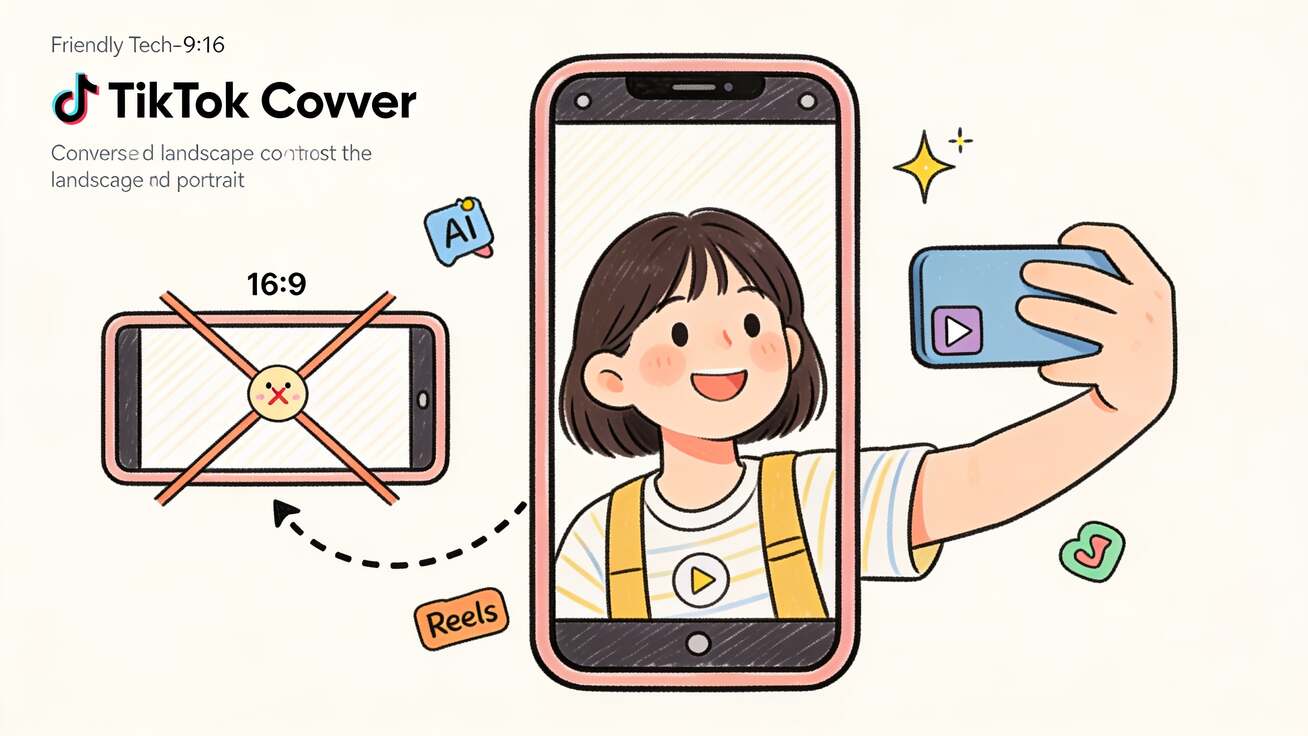
Veo 3 세로 영상은 휴대폰 화면을 가장자리까지 가득 채우도록 생성된 9:16 세로형 클립으로, TikTok과 Instagram Reels, YouTube Shorts가 바로 이 포맷을 위해 만들어졌습니다. Veo 3가 출시된 이후 대부분의 기간 동안 이것은 모델이 요청 즉시 해낼 수 없던 단 하나의 작업이었습니다. 모델은 기본값으로 16:9 가로 화면을 생성했고, 크리에이터들은 영화 같은 와이드스크린 영상을 세로 프레임에 맞춰 잘라내며 화면 절반을 잃을 수밖에 없었습니다. 이제 상황이 바뀌었습니다. Veo 3와 Veo 3 Fast는 9:16 종횡비 설정을 받아들이고, Veo 3.1은 Flow, Gemini 앱, YouTube Shorts, Google Vids, Gemini API, Vertex AI 전반에서 네이티브 세로 영상을 생성합니다.
이 가이드는 깔끔한 9:16 Veo 3 세로 영상을 얻는 모든 신뢰할 만한 방법을 보여줍니다. 네이티브 생성, API의 종횡비 파라미터, 여전히 가로를 기본값으로 두는 도구를 위한 프롬프트 기반 프레이밍, 그리고 최후의 수단인 크롭 대안까지 다룹니다. 또한 바로 복사해 쓸 수 있는 세로 프롬프트, 단계별 워크플로, 그리고 세로 클립을 늘어지지 않고 선명하게 유지해 주는 QA 점검 항목도 함께 제공합니다.
빠른 답변: 네, Veo 3는 세로 9:16 영상을 만들 수 있습니다. 가장 깔끔한 방법은 생성하기 전에 종횡비를 9:16으로 설정하는 것입니다. Flow나 Gemini 앱에서는 출력 설정에서 고르고, Gemini API나 Vertex AI에서는
aspectRatio: "9:16"을 전달합니다. Veo 3.1은 최대 1080p로 네이티브 9:16 세로 영상을 생성합니다. 16:9만 출력하는 환경에 발이 묶였다면, 프롬프트 안에 세로 프레이밍을 묘사하고("세로 모드로 촬영, 수직 9:16 구도"), 편집기에서의 재프레이밍은 오직 최후의 수단으로만 사용하세요.
Veo 3가 16:9를 기본값으로 둔 이유(그리고 그것이 크리에이터에게 끼친 피해)
Veo 3는 영화적인 모델로 학습되고 출시되었습니다. 그 강점은 와이드한 영화 스타일 숏, 즉 광활한 풍경, 달리 무빙, 넓은 설정 숏이었고, 이 모두는 16:9 가로 화면에 자연스럽게 어울립니다. 첫 번째 크리에이터 물결이 이것으로 TikTok 콘텐츠를 만들려 했을 때, 그들은 똑같은 벽에 부딪혔습니다. 멋진 와이드스크린 클립이 세로 피드에 올라가는 순간 끔찍해 보였던 것이죠. 선택지는 두 가지, 둘 다 나빴습니다.
- 레터박스 처리. 16:9 영상을 9:16 캔버스에 넣고 위아래 두꺼운 검은 띠를 감수합니다. 실제 화면은 가운데 3분의 1만 채우게 되는데, 이는 모바일 우선 플랫폼에서 참여도를 죽입니다.
- 크롭 처리. 가로 프레임의 가운데를 확대해 9:16을 채웁니다. 가로 이미지의 약 44%를 잃게 되고, 피사체가 프레임 밖으로 밀려나며, Veo 3가 정성껏 만든 구도는 사라집니다.
9:16 세로 영상이 TikTok, Reels, Shorts에서 시청 시간의 대부분을 견인하는 상황에서 두 방법 모두 충분하지 않습니다. 해결책은 애초에 세로로 생성하는 데서 와야 했고, Google이 정확히 그것을 내놓았습니다. 생성 시점에 프레임을 세로로 설정한다는 것은 Veo 3가 세로 화면을 위해 숏을 구성한다는 뜻입니다. 피사체는 세로에 맞춰 가운데에 놓이고, 머리 위 여백은 정확하며, 모션은 잘라냈을 영역에 중요한 것이 자리하지 않도록 배치됩니다.
Veo 3가 지금 지원하는 것: 9:16, 1080p, 네이티브 세로
Veo 3 세로 지원의 현재 상태는 다음과 같습니다. 답은 어떤 모델과 환경을 쓰느냐에 따라 달라지기 때문입니다.
- Veo 3와 Veo 3 Fast는 기존 16:9와 함께 9:16 종횡비 설정을 받아들이고, 1080p HD 출력도 지원합니다. 후반 작업에서 고정하는 대신 생성 시점에 비율을 고릅니다.
- Veo 3.1은 네이티브 9:16 세로 영상을 생성하며 Gemini 앱, YouTube Shorts, YouTube Create, Google Vids, Flow, Gemini API, Vertex AI에서 사용할 수 있습니다. 네이티브란 모델이 장면 전체를 세로용으로 배치한다는 뜻입니다. 가로 렌더를 세로 박스에 욱여넣은 것이 아닙니다.
- Ingredients to Video(여러 참조 이미지로 클립을 만드는 Veo 3.1 기능)도 이제 네이티브 9:16을 지원하며, 지원되는 환경에서는 최대 4K까지 고해상도 출력도 가능합니다.
실용적인 결론은 이렇습니다. 세로가 목표라면 Veo 3.1을 선택하고 생성 버튼을 누르기 전에 9:16을 설정하세요. 어떤 크롭으로도 만들 수 없는, 더 선명하고 구도가 좋은 세로 클립을 얻게 됩니다. 최신 모델이 무엇을 바꿨는지 더 자세히 보려면 Veo 3.1 새 기능 가이드를 참고하세요.
방법 1: Flow나 Gemini 앱에서 네이티브 9:16 생성하기
코드가 필요 없으므로 대부분의 크리에이터에게 권장하는 경로입니다.
- Flow나 Gemini 앱을 열고 새로운 Veo 3 / Veo 3.1 생성을 시작합니다.
- 출력 또는 생성 설정에서 종횡비 컨트롤을 찾습니다. 16:9에서 9:16으로 전환합니다.
- 세로용으로 구성한 프롬프트를 작성합니다. 세로 프레임에 어울리는 피사체를 묘사하세요. 허리 위까지 보이는 인물, 손에 든 제품, 휴대폰 화면 시점 같은 것들입니다. 세로 프레임과 충돌하는 "넓은 설정 숏" 같은 표현은 피하세요.
- 생성한 뒤 검토합니다. 피사체가 가운데에 있는지, 머리 위 여백이 적절한지, 핵심 동작이 극단적인 좌우 가장자리에서 일어나지 않는지 확인하세요(9:16에는 좌우 여유가 없습니다).
- TikTok, Reels, Shorts에 가장 깔끔하게 업로드하려면 1080p로 내보냅니다.
Veo 3.1은 9:16용으로 네이티브하게 구성하므로 클로즈업, 토킹 헤드 프레이밍, 손에 든 셀피 앵글 같은 숏폼 피드에서 성과를 내는 바로 그 룩을 마음껏 활용할 수 있습니다. 단일 클립 길이를 넘어 더 늘리고 싶다면 이를 Veo 3 영상 8초 이상으로 늘리기 가이드와 함께 사용하세요.
방법 2: Gemini API나 Vertex AI에서 aspectRatio: "9:16" 설정하기
Veo 3 영상을 프로그래밍 방식으로 생성한다면(대량 UGC, 자동화된 광고 변형, 또는 앱을 위해) 종횡비는 단일 설정 필드입니다.
Gemini API나 Vertex AI를 통해 Veo 모델을 호출할 때, 생성 설정에 종횡비를 포함하세요.
{
  "prompt": "Handheld vertical selfie video, a young woman in a kitchen...",
  "config": {
    "aspectRatio": "9:16",
    "resolution": "1080p"
  }
}
API 경로에서 기억해 둘 몇 가지가 있습니다.
aspectRatio는"16:9"또는"9:16"을 받습니다. 세로에는"9:16"을 전달하세요. 생략하면 가로 기본값이 나옵니다.- 세로 출력이 큰 휴대폰 화면에서 흐릿하지 않도록 1080p(또는 지원되는 곳에서는 4K)를 고정하려면 resolution 필드와 함께 쓰세요.
- API를 통한 네이티브 세로를 위해 노려야 할 모델은 Veo 3.1입니다. 프로덕션에 연결하기 전에 정확한 모델 문자열과 할당량을 Veo 3 API 가이드에서 확인하세요.
프로그래밍 방식의 9:16은 대량 세로 워크플로를 가능하게 합니다. 편집기를 건드리지 않고도 하룻밤에 각각 네이티브 세로인 50개의 TikTok 변형을 생성할 수 있습니다. 배치 패턴 자체에 관해서는 대량 AI 영상 워크플로를 참고하세요.
방법 3: 프롬프트 기반 세로 프레이밍(도구가 16:9만 출력할 때)
일부 서드파티 프런트엔드와 오래된 워크플로는 여전히 Veo 3에 기본 16:9 요청을 넘깁니다. 종횡비를 도저히 전환할 수 없을 때, 프롬프트 자체로 모델을 세로 구도 쪽으로 살짝 밀 수 있습니다. 이는 진짜 9:16 설정을 대체하는 것이 아니라 대안이지만, 나중에 숏이 크롭되는 방식을 의미 있게 개선합니다.
지배적인 아이디어를 프레이밍하도록 프롬프트의 시작과 끝에 명시적인 세로 표현을 추가하세요.
- "세로 모드로 촬영, 모바일용 수직 9:16 구도."
- "스마트폰으로 세로 촬영, 피사체 가운데 배치, 세로 프레임."
- "세로형 숏폼 영상, 풀 하이트 프레이밍, 소셜 미디어 포맷."
그리고 모델을 다시 와이드스크린 쪽으로 끌어당기는 표현은 피하세요.
- 세로로 구성되었음을 곧바로 명확히 하지 않는 한 "시네마틱 와이드 숏", "파노라마", "아나모픽", "설정 숏" 같은 표현은 빼세요.
- 나중에 9:16으로 센터 크롭해도 중요한 픽셀이 남도록 피사체와 모든 텍스트나 제품을 가운데에 두세요.
프롬프트 프레이밍이 16:9 전용 환경에서 출력 치수를 실제로 바꾸지는 못하지만, 피사체를 안전한 세로 영역에 유지시켜 나중의 재프레이밍을 훨씬 덜 파괴적으로 만듭니다. 구도를 이끄는 표현을 더 깊이 파고들려면 Veo 3 프롬프트 가이드와 Veo 3 카메라 컨트롤 프롬프트가 모두 도움이 됩니다.
방법 4: 16:9로 생성한 뒤 9:16으로 재프레이밍(최후의 수단)
가끔은 이미 훌륭한 가로 클립이 있는데 어쨌든 세로로 만들어야 할 때가 있습니다. 재프레이밍은 효과가 있지만, 모든 방식이 화면을 희생시키기 때문에 최후의 수단으로 다뤄야 합니다.
- 센터 크롭. 16:9 프레임의 가운데를 잘라 9:16을 채웁니다. 빠르지만 양옆을 버리게 됩니다. 타이트한 클로즈업에는 괜찮지만 두 사람이 나오는 숏에는 치명적입니다.
- 스마트 재프레이밍 / 자동 추적. CapCut과 Premiere 같은 편집기는 피사체를 추적하고 크롭을 따라 패닝할 수 있습니다. 정적인 크롭보다 낫지만 빠른 움직임에서는 흔들릴 수 있습니다.
- 블러 배경 채우기. 16:9 클립을 9:16 캔버스에 올리고 뒤에 흐리게 처리해 확대한 자기 복사본을 둡니다. 전체 숏을 보이게 유지하지만, 가로 영상을 재활용한 것으로 읽히고 숏폼 시청자는 이를 즉시 알아챕니다.
솔직한 규칙은 이렇습니다. 세로가 목표라면 세로로 생성하세요. 재프레이밍은 이미 존재하는 영상이거나 특정 클립을 살릴 가치가 있을 때만 손대세요. 이 단계를 위해 편집기를 비교하고 있다면, 소셜 미디어용 최고의 영상 편집 앱 모음에서 각 도구의 재프레이밍 기능을 다룹니다.
바로 복사해 쓰는 Veo 3 세로 프롬프트
아래 각 프롬프트는 9:16 프레임용으로 작성되었습니다. 피사체는 가운데에 두고, 동작은 너비가 아닌 높이를 위해 배치했습니다. 종횡비를 9:16으로 설정한 다음 붙여넣고 수정하세요.
1. 토킹 헤드 크리에이터 인트로(TikTok / Reels)
9:16 세로 셀피 영상, 곱슬머리의 25세 여성이 밝은 침실에 앉아 카메라를 정면으로 바라보는, 허리 위까지 잡은 구도. 핸드헬드, 자연스럽게 살짝 흔들림. 그녀가 미소 지으며 말한다, "있잖아, 이거 진짜 꼭 해봐야 해." 부드러운 창가 빛, 따뜻한 톤, 편안하면서도 활기찬 분위기. 숏폼 소셜용으로 portrait 모드로 촬영.
2. 손에 든 제품 데모(UGC 광고)
9:16 세로 클로즈업, 한 손이 깔끔한 주방을 배경으로 작은 스킨케어 병을 들고 있고, 프레임 가운데에 배치. 병이 천천히 회전하며 라벨을 보여준다. 밝고 고른 조명, 또렷한 초점, 테이블 위 ASMR 느낌. portrait 구도, TikTok용 풀 하이트 프레이밍.
3. 스트리트 스타일 b-roll(Shorts)
9:16 세로 핸드헬드 워킹 숏, 해질 무렵 번화한 도쿄 거리를 걸어 내려가며, 네온사인이 빛나고, 얕은 피사계 심도, 피사체의 시점. 길게 솟은 세로 프레이밍, 거리가 프레임 위쪽으로 뻗어 올라간다. 시네마틱하지만 portrait용으로 구성, 스마트폰 룩.
4. 음식 클로즈업(Reels)
9:16 세로, 머리 위에서 눈높이로 내려오는 숏, 포크가 녹아내리는 초콜릿 케이크 한 조각을 들어 올리고, 김이 피어오르며, 가운데에 배치. 풍부하고 따뜻한 조명, 윤기 나는 질감, 슬로 모션. portrait 모드, 소셜 피드용 풀 하이트 세로 구도.
5. 피트니스 동기 부여(TikTok)
9:16 세로 미디엄 숏, 탄탄한 체격의 남성이 콘크리트 체육관에서 케틀벨 스윙을 하고, 머리부터 무릎까지 잡아 가운데에 배치. 극적인 측면 조명, 땀의 디테일, 핸드헬드 에너지. 숏폼용으로 세로로 촬영, 피사체가 길게 솟은 프레임을 가득 채운다.
대규모 UGC 스타일 광고 프롬프트를 위해서는 이를 Veo 3 UGC 광고 생성기 가이드와 함께 사용하고, 대사가 입 모양과 동기화된 카메라를 향해 말하는 클립을 위해서는 Veo 3 네이티브 오디오 프롬프트 가이드에서 목소리를 입술에 고정하는 방법을 보여줍니다.
veo3ai.io에서의 단계별 세로 워크플로
여러 Google 환경을 오가지 않고도 전체 세로 파이프라인을 실행할 수 있습니다. veo3ai.io에서 Veo 3가 엔진이고, 종횡비는 생성하기 전에 직접 제어하는 설정입니다.
- 생성기를 엽니다. veo3ai.io 텍스트-투-비디오 생성기로 가서 모델로 Veo 3(또는 네이티브 세로를 위한 Veo 3.1)를 선택합니다.
- 종횡비를 9:16으로 설정합니다. 이것이 가장 중요한 단일 단계입니다. 미리 세로를 선택한다는 것은 숏이 세로 화면용으로 구성된다는 뜻이며, 세로로 크롭되는 것이 아닙니다.
- 위 라이브러리에서 세로 프롬프트를 붙여넣고 피사체, 장소, 동작을 자신의 아이디어에 맞게 수정합니다.
- 같은 프롬프트에서 두세 가지 버전을 생성하고 프레이밍, 모션, 그리고 피사체가 세로 안전 영역에 얼마나 잘 자리하는지 비교합니다.
- 대신 제품 사진이나 셀피를 움직이게 하고 싶나요? 이미지-투-비디오 워크플로를 사용해 정지 이미지를 업로드하고, 모션이 세로로 유지되도록 9:16 설정을 유지하세요.
- 1080p로 검토한 뒤 내보냅니다. 피사체가 가운데에 있는지, 머리 위 여백이 적절한지, 위나 아래에서 중요한 것이 잘리지 않았는지 확인하세요.
- 30~60초짜리 작품을 원한다면 편집기에서 이어 붙이고 자막을 넣은 다음 TikTok, Reels, Shorts에 바로 업로드하세요.
세로 프레임이 처음부터 고정되어 있으므로, 내보낸 클립은 레터박스도 파괴적인 크롭도 없이 숏폼 피드에 곧바로 들어맞습니다.
Veo 3 세로 영상의 최적 활용 사례
네이티브 9:16은 숏폼 플랫폼에서 실제로 성과를 내는 포맷을 열어 줍니다.
- UGC 스타일 제품 광고. 세로로 생성한 크리에이터 느낌의 토킹 헤드나 손에 든 제품 데모는 TikTok과 Reels에서 가장 전환율이 높은 광고 형태입니다. Veo 3 제품 광고 영상 생성기 가이드를 참고하세요.
- Instagram Reels. 훅, 비포/애프터, 튜토리얼은 세로에서 빛납니다. Veo 3 Instagram Reels 생성기 가이드가 전체 Reels 파이프라인을 다룹니다.
- YouTube Shorts. 세로 b-roll, 설명 스니펫, 리액션 스타일 클립. 이 포맷을 Veo 3 YouTube Shorts 가이드 및 YouTube Shorts 아이디어 모음과 함께 사용하세요.
- TikTok 광고 및 오가닉. 네이티브 플랫폼 프레이밍은 AI 클립이 "광고"라고 소리치는 대신 피드에 자연스럽게 녹아드는 이유 중 하나입니다. Veo 3 TikTok 광고 영상 가이드가 효과적인 포맷을 분석합니다.
QA 체크리스트와 흔한 실수
게시하기 전에 다음 점검을 실행하세요. "나쁜" 세로 AI 클립 대부분은 이 중 하나에서 실패합니다.
- 피사체가 가운데에 풀 하이트로 있나요? 9:16에는 가로 여유가 없습니다. 피사체가 좌우 가장자리에 붙어 있다면 프롬프트에 "centered, full-height framing"을 넣어 다시 생성하세요.
- 올바른 종횡비가 실제로 설정되었나요? 가장 흔한 실수는 16:9에서 전환하는 것을 잊는 것입니다. 내보낸 결과가 레터박스 처리되어 있다면 가로로 생성한 것입니다. 9:16으로 설정해 다시 생성하세요. 크롭하지 마세요.
- 극단적인 위/아래에 중요한 동작이 없나요? 자막과 플랫폼 UI는 위아래 띠와 겹칩니다. 얼굴과 핵심 모션은 가운데 70%에 두세요.
- 해상도가 1080p인가요? 흐릿한 세로 클립은 작은 가로 화면보다 큰 세로 화면에서 더 나빠 보입니다. 1080p(또는 가능한 곳에서는 4K)를 고정하세요.
- 모션이 세로용으로 배치되었나요? 좌우 패닝은 이 포맷을 낭비합니다. 푸시인, 수직 리빌, 그리고 세로 프레임에 어울리는 핸드헬드 에너지를 선호하세요.
- AI 콘텐츠를 공개하세요. 많은 플랫폼이 합성 미디어 라벨링을 요구하며, Veo 3는 모든 클립에 Google의 보이지 않는 SynthID 워터마크를 새겨 넣습니다. "AI 생성"으로 라벨링하고 워터마크를 무력화하려 하지 마세요. 이는 규정을 준수하게 하고 신뢰를 쌓아 줍니다.
자주 묻는 질문
Veo 3는 세로 9:16 영상을 만들 수 있나요? 네. Veo 3와 Veo 3 Fast는 9:16 종횡비 설정을 받아들이고, Veo 3.1은 최대 1080p로 네이티브 9:16 세로 영상을 생성합니다. 나중에 16:9 클립을 크롭하는 대신 생성하기 전에 비율을 9:16으로 설정하세요.
Veo 3는 어떤 종횡비를 지원하나요? Veo 3는 16:9 가로와 9:16 세로를 모두 지원합니다. 가로는 YouTube와 영화적 작업에 어울리고, 9:16은 TikTok, Reels, Shorts를 위해 만들어졌습니다. 생성마다 선택할 수 있습니다.
Gemini API에서 종횡비는 어떻게 설정하나요?
생성 설정에 aspectRatio: "9:16"을 전달하되, 이상적으로는 resolution 필드를 1080p로 설정해 함께 쓰세요. 이 파라미터가 없으면 모델은 16:9 기본값을 반환합니다.
네이티브 세로가 가로 영상을 크롭하는 것보다 나은가요? 거의 항상 그렇습니다. 네이티브 9:16은 장면 전체를 세로 프레임용으로 구성하므로 피사체, 머리 위 여백, 모션이 모두 정확합니다. 16:9 클립을 크롭하면 이미지의 약 44%를 버리고 구도가 깨집니다.
어떤 Veo 모델이 가장 좋은 세로 결과를 주나요? Veo 3.1입니다. 가로 렌더를 변형하는 대신 네이티브 9:16 세로를 생성하기 때문입니다. Gemini 앱, Flow, YouTube Shorts, Google Vids, Gemini API, Vertex AI에서 사용할 수 있습니다.
Veo 3로 사진에서 세로 영상을 만들 수 있나요? 네. 이미지-투-비디오 워크플로를 사용해 정지 이미지를 업로드하고, 생성된 모션이 세로로 유지되도록 종횡비를 9:16으로 설정해 두세요. Veo 3 이미지-투-비디오 가이드를 참고하세요.
세로 클립은 어떤 해상도로 내보내야 하나요? 거의 모든 경우에 1080p, 그리고 환경이 지원하는 곳에서는 4K입니다. 숏폼 플랫폼은 업로드를 강하게 압축하므로 더 높게 시작하면 최종 피드의 선명도를 지킬 수 있습니다.
결론
영화 같은 와이드스크린을 휴대폰 프레임에 크롭해 넣던 시대는 끝났습니다. 깔끔한 Veo 3 세로 영상은 단 하나의 결정에서 시작합니다. 생성하기 전에 종횡비를 9:16으로 설정하면 나머지는 모델이 해내며, 피사체와 머리 위 여백과 모션을 세로 화면용으로 구성합니다. 네이티브 세로에는 Veo 3.1을 쓰고, 1080p를 고정하고, 피사체를 가운데에 풀 하이트로 유지하는 프롬프트를 작성하고, 크롭은 다시 생성할 수 없는 영상에만 남겨 두세요. 그렇게 하면 여러분의 TikTok, Reels, Shorts 클립은 마치 그 포맷을 위해 촬영된 것처럼 피드에 들어맞습니다. 실제로 그러하기 때문이죠. veo3ai.io 생성기를 열고 Veo 3를 선택하고 9:16을 설정해 오늘 첫 세로 클립을 출시하세요.
Related Articles
Continue with more blog posts in the same locale.
Veo 3 토킹 헤드 비디오: AI 프레젠터 영상 제작 방법 (2026)
Veo 3로 AI 프리젠터 비디오 제작: 캐릭터 프롬프트, 립싱크, 플랫폼 형식, 브랜드 대변인, 소셜 페르소나, 교육 비디오 호스트 — 바로 사용 가능한 템플릿 제공.
Read article
Veo 3 드론 샷 프롬프트: 공중 카메라 무브 만드는 방법 (2026)
Veo 3 드론 샷 프롬프트: 항공 카메라 용어, 풀백 리빌, 오빗, 트래킹 샷, 부동산, 여행, 스포츠, 다큐멘터리를 위한 환경 예시.
Read article
Veo 3 for 이커머스: 전환율을 높이는 AI 생성 제품 영상 (2026)
Veo 3를 전자상거래 제품 비디오에 사용하는 방법을 알아보세요: I2V 팩샷 프롬프트, 플랫폼 사양, 패션, 식품, 화장품, 가정용품을 위한 카테고리 플레이북, 그리고 QA 체크리스트.
Read article