
Veo 3 Image to Video: Complete Guide (2026) — Animate Any Photo
Learn how to use Veo 3's image-to-video feature to animate any photo. Step-by-step guide with prompts, tips, and use cases for stunning results.
Emma Chen · 16 min read · Apr 1, 2026
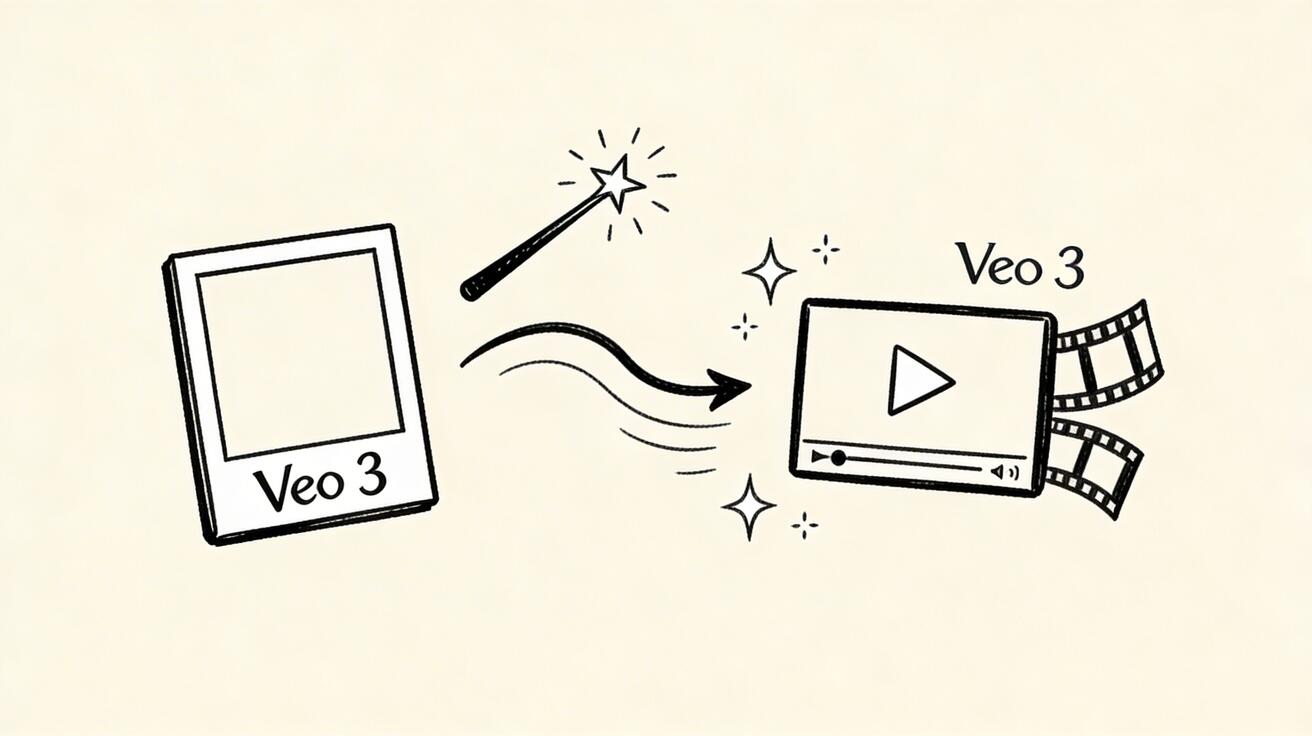
Google Veo 3's image-to-video feature lets you take any still photo and transform it into a dynamic video clip. Upload a portrait and watch the person blink and smile. Upload a landscape and see the clouds drift and trees sway. Uploa
Quick Answer: Veo 3 Image to Video: Complete Guide (2026) — Animate Any Photo by following a straightforward process: set up your account, input your prompt or media, configure settings, and export your finished video in minutes using AI automation.
d a product shot and create a professional animated product video.
This guide covers everything you need to know to get the best results from Veo 3's image animation capabilities.
What is Veo 3 Image-to-Video?
Veo 3's image-to-video (also called image animation) uses Google's deep learning model to:
- Analyze the structure, depth, and content of your input image
- Understand the implied physics and natural motion of elements in the scene
- Generate realistic motion that matches the scene's context
- Produce a 5-8 second video clip maintaining the visual quality of the original
The result looks like the photographer continued recording after taking the still shot.
How to Use Veo 3 Image-to-Video
Step 1: Access the Feature
Go to veo3ai.io and navigate to the Image-to-Video section. You'll need a free account for full access.
Step 2: Upload Your Image
Supported formats: JPG, PNG, WebP Recommended resolution: 1024x1024 minimum (higher = better) Orientation: Any — Veo 3 adapts to portrait, landscape, or square
Image quality tips:
- Well-lit images produce better animation
- Sharp focus throughout the frame
- High-contrast subjects against backgrounds work best
- Avoid heavy filters or noise — they can confuse the model
Step 3: Write a Motion Prompt (Optional but Recommended)
The motion prompt guides Veo 3 on HOW to animate your image. Without a prompt, Veo 3 will apply "natural" motion based on scene context. With a prompt, you control the animation.
Motion Prompt Formats:
Camera movement prompts:
- "Slow dolly zoom in toward the subject"
- "Gentle pan from left to right"
- "Smooth crane shot pulling back to reveal more of the scene"
- "Slight handheld drift — natural documentary feel"
Subject motion prompts:
- "Hair gently blowing in a light breeze"
- "Leaves on trees rustling softly"
- "Water rippling in the breeze"
- "Smoke rising slowly"
- "Person turns head slightly and smiles"
Atmospheric prompts:
- "Light rays moving through mist"
- "Clouds drifting slowly across the sky"
- "Bokeh lights twinkling gently"
- "Subtle lens flare moving slowly"
Step 4: Generate and Download
- Click Generate
- Wait 30-60 seconds
- Preview the result
- Download if satisfied, or generate again with adjusted prompt
Image Types and What Works Best
Portraits and People
What works:
- Clear face visibility
- Natural expression
- Good lighting on face
Best motion prompts:
- "Slight smile, natural blink, gentle hair movement"
- "Head turns slightly, natural breathing movement"
- "Eyes track to the side, authentic expression"
Limitations: Veo 3 sometimes struggles with complex hand gestures or full-body poses with multiple people.
Landscapes and Nature
Landscapes are where Veo 3 excels. The model has an excellent understanding of natural physics.
Best motion prompts:
- "Clouds drifting across sky, trees swaying gently in breeze"
- "Water flowing over rocks, mist rising from surface"
- "Grass rippling in wind, birds flying in distance"
- "Light rays moving through forest canopy"
Pro tip: Landscape animations are so natural-looking they can be mistaken for real video footage.
Architecture and Urban Scenes
What works:
- Day shots with moving elements (traffic, people, clouds)
- Night shots with dynamic lighting (neon signs, traffic lights)
Best motion prompts:
- "Time-lapse clouds moving, slight light change through day"
- "People walking in distance, leaves on trees moving"
- "Neon signs flickering slightly, light reflections shimmering"
Product Photography
What works:
- Clean product shots on solid or simple backgrounds
- Single product as main subject
Best motion prompts:
- "Slow elegant rotation showing all sides"
- "Soft light gliding across the surface"
- "Subtle zoom in toward key feature, depth of field shift"
- "Particles or sparkles floating around the product"
Abstract and Artwork
AI-generated art and digital illustrations animate beautifully.
Best motion prompts:
- "Colors gently flowing and shifting"
- "Elements morphing and transforming slowly"
- "Floating and weightless movement"
Advanced Techniques
Combining Multiple Animated Images
Generate 3-5 images with consistent aesthetic, animate each with Veo 3, then combine in CapCut for a rich, varied video.
Controlling Animation Intensity
Light animation: "Very subtle movement, minimal motion, nearly still" Medium animation: Let Veo 3 decide based on image context Dynamic animation: "Energetic movement, dynamic motion throughout"
Style Preservation
If your image has a specific art style (watercolor, sketch, photography), add to your prompt: "preserve the original artistic style throughout the animation"
Loop Creation
For seamless looping content: "Smooth looping motion, beginning and end frames match"
Common Issues and Fixes
Problem: Face looks distorted or changes shape Fix: Use a high-resolution, well-lit portrait. Avoid profiles or extreme angles. Try a gentler motion prompt.
Problem: Background looks artificial Fix: Add "realistic physics" or "natural movement" to your prompt. Ensure background has clear visual context.
Problem: Motion is too subtle Fix: Add specific movement descriptions. "Visible movement throughout" helps signal desired intensity.
Problem: Motion is too extreme or exaggerated Fix: Add "subtle," "gentle," or "minimal" to your motion prompt.
Problem: Output doesn't match expected motion Fix: Be more specific in your prompt. Vague prompts give unpredictable results.
Use Cases by Industry
E-commerce
- Animate product photos for Amazon listings and social media
- Create "product in lifestyle" context without a photo shoot
- Show fabric texture, material quality through motion
Real Estate
- Animate property exterior photos into video walkthroughs
- Create neighborhood highlight videos from single shots
- Show day-to-night transitions of properties
Art and Design
- Bring illustrations and artwork to life
- Create animated portfolio pieces
- Generate moving backgrounds for other content
Social Media
- Transform your best photos into engaging video content
- Create Stories and Reels from still images
- Produce animated profile pictures and headers
Marketing
- Animate brand imagery for digital ads
- Create moving hero images for landing pages
- Produce animated testimonial visuals
Comparison: Veo 3 vs Competitors for Image Animation
| Feature | Veo 3 | Seedance 2.0 | Kling 3.0 | Runway Gen-4 |
|---|---|---|---|---|
| Nature/landscape | ⭐⭐⭐⭐⭐ | ⭐⭐⭐⭐ | ⭐⭐⭐ | ⭐⭐⭐⭐ |
| Portrait/face | ⭐⭐⭐⭐ | ⭐⭐⭐⭐ | ⭐⭐⭐⭐⭐ | ⭐⭐⭐⭐ |
| Product shots | ⭐⭐⭐⭐ | ⭐⭐⭐⭐⭐ | ⭐⭐⭐ | ⭐⭐⭐⭐⭐ |
| Speed | ⭐⭐⭐⭐ | ⭐⭐⭐⭐⭐ | ⭐⭐⭐ | ⭐⭐⭐ |
| Free tier | ⭐⭐⭐⭐⭐ | ⭐⭐⭐⭐ | ⭐⭐⭐⭐ | ❌ |
FAQ
What image resolution gives the best Veo 3 image-to-video results?
Minimum 1024x1024 pixels. Optimal: 2048x2048 or higher. The model scales internally, but higher input quality consistently produces better animation detail.
Can I animate AI-generated images?
Yes! AI-generated images (from DALL-E, Midjourney, Stable Diffusion, etc.) animate very well with Veo 3. The model works with any image regardless of source.
How long is the output video clip?
Veo 3 generates 5-8 second clips from images. For longer videos, generate multiple clips from different images and combine in editing.
Can I use Veo 3 image-to-video commercially?
Yes, on paid plans. Check veo3ai.io's current terms of service for specific commercial licensing details.
Does the animated video maintain the exact visual style of my photo?
Mostly, yes. Veo 3 preserves the lighting, color grade, and aesthetic of your input image. You can reinforce this by adding "preserve original image style" to your motion prompt.
Can I specify the duration of animation?
Not directly. Veo 3 generates a standard clip length (5-8 seconds). You can extend duration by generating multiple variations and combining them.
Start Animating Your Photos Today
Veo 3's image-to-video transforms any photograph or artwork into dynamic video content in under a minute. It's one of the most immediate and impressive demonstrations of what AI video generation can do.
The best way to learn is to try it — upload a landscape photo, add a simple motion prompt like "clouds drifting, trees swaying," and see what Veo 3 creates.
Try Veo 3 Image-to-Video Free →
Advanced Image-to-Video Techniques
Motion Direction Prompting
While Veo 3 infers natural motion from your image, you can guide it with explicit motion instructions:
Camera movement prompts:
- "Slow push in toward the center of the image"
- "Gentle pan from left to right, revealing more of the scene"
- "Subtle zoom out to reveal the wider environment"
- "Drone-like slow rotation around the subject"
Subject motion prompts:
- "Gentle swaying, as if in a light breeze"
- "Eyes blinking slowly, natural breathing movement"
- "Rippling water surface, reflecting light"
- "Clouds drifting slowly across the sky"
Combined motion: "Slow dolly shot while the leaves rustle gently in the wind"
The more specific your motion prompt, the more control you have over the output. Veo 3's language understanding for motion is exceptional — it understands the difference between "subtle" and "dramatic" motion, and between physical phenomena (water, wind, fire) and subject actions (walking, gesturing).
Image Quality Optimization
Your input image quality directly impacts output video quality. Best practices:
Resolution: Minimum 1024px on the shortest side. For 16:9 output, use 1920x1080 or higher source images.
Clarity: Sharp, well-focused images produce better videos. Blurry or heavily compressed source images result in softer video output.
Lighting: Natural, well-lit images perform better than heavily filtered or processed photos. Extreme underexposure or overexposure limits what the model can work with.
Composition: Leave some "breathing room" in your composition. Veo 3 may add subtle environmental motion around your subject — a sky, background, or environment with empty space gives it room to add natural movement.
Style-Preserving Animation
For illustrations, artwork, and stylized images, Veo 3 preserves the visual style of the input:
Photographs → Photorealistic animation (the default and best case) Illustrations → Illustrated animation that maintains the art style Watercolor/paintings → Painterly animation with appropriate visual texture 3D renders → Animated 3D that maintains render quality
Style preservation is automatic — you don't need to specify it. Veo 3 detects the visual style of your input and generates motion that's consistent with it.
Use Cases: What Image-to-Video Excels At
Product Photography → Product Videos
E-commerce brands are using Veo 3 image-to-video to transform product photos into video ads without re-shooting:
Before: Static product image After: Animated product with subtle rotation, lighting shifts, or environmental context
This workflow has transformed e-commerce video production. A product catalog of 100 images can be converted to 100 video variants in hours, versus weeks with traditional video production.
Best practices for product animation:
- Use clean white or studio-background product shots
- Prompt for "subtle camera movement, product stays centered"
- Add "professional product showcase lighting" to maintain commercial quality
- Request 16:9 format for social ads, 9:16 for Stories/Reels
Portrait Photography → Dynamic Portraits
Portrait photographers and social media creators use image-to-video to add life to still photos:
- Animate fashion shots with subtle fabric movement
- Add natural blinking and breathing to portrait photos
- Create "living photo" effects for profile pictures and stories
- Transform event photography into video highlights
Portrait animation tips:
- Use high-resolution, sharp portraits (facial detail is critical)
- Prompt for "subtle, natural movement — gentle breathing and blinking"
- Avoid requesting large head movements which can look unnatural
- For fashion: "fabric rippling gently, hair moving in a light breeze"
Landscape Photography → Cinematic Scenes
Travel and landscape photographers can add motion to their best shots:
- Clouds moving across mountain scenes
- Water flowing in previously static river shots
- City skylines with moving traffic light trails
- Forest scenes with swaying trees and rustling leaves
Landscape animation tips:
- Water and sky elements animate most naturally
- Prompt specifically for the dominant environmental motion: "waves crashing on rocks" vs "gentle water ripple"
- Use "slow time-lapse feel" for dramatic cloud and sky animation
- "Cinematic" in the prompt consistently improves output quality
Historical Photos → Animated History
Historians, educators, and content creators are using image-to-video to bring historical photographs to life. Old black-and-white or sepia images can be animated to create engaging educational content.
Note: This use case requires careful ethical consideration when animating photographs of real people. Always consider privacy, consent, and historical sensitivity.
Technical Specifications
Understanding what Veo 3 image-to-video can and cannot do:
| Specification | Details |
|---|---|
| Input formats | JPG, PNG, WebP |
| Input resolution | 512px minimum, 4096px maximum |
| Output duration | 5-8 seconds |
| Output format | MP4 (H.264) |
| Output resolution | Up to 1080p |
| Aspect ratios | Preserves input aspect ratio or custom |
| Processing time | 60-180 seconds |
| Free generations | Varies by plan |
What the model handles well:
- Natural environments (landscape, weather, water)
- Human portraits (gentle natural motion)
- Products (subtle camera/lighting animation)
- Urban scenes (traffic, people)
What requires more careful prompting:
- Animals in complex motion
- Text in images (may distort during animation)
- Very small or detailed elements
- Multiple fast-moving subjects
Comparing Image-to-Video Tools
Veo 3 isn't the only image-to-video option. Here's how it compares:
| Tool | Quality | Speed | Free Tier | Speciality |
|---|---|---|---|---|
| Veo 3 | ⭐⭐⭐⭐⭐ | ⭐⭐⭐⭐ | Limited | Photorealism |
| Seedance 2.0 | ⭐⭐⭐⭐ | ⭐⭐⭐⭐⭐ | ✅ Generous | Social formats |
| Kling 2.0 | ⭐⭐⭐⭐ | ⭐⭐⭐ | Limited | Human subjects |
| Runway Gen-4 | ⭐⭐⭐⭐ | ⭐⭐⭐ | 125 credits | Video editing |
| Pika 2.2 | ⭐⭐⭐ | ⭐⭐⭐⭐ | ✅ Available | Creative effects |
| Luma Dream | ⭐⭐⭐⭐ | ⭐⭐⭐ | 30/month | 3D & objects |
Recommendation: For highest quality image animation, Veo 3 leads. For volume production with a generous free tier, Seedance is the practical choice — it handles image-to-video with fast speeds and multiple daily free generations.
Frequently Asked Questions
How do I access Veo 3 image-to-video for free?
Through Google AI Studio (limited daily quota) or Gemini Advanced free trial. For ongoing free access, Seedance offers a generous free tier for image-to-video generation.
Can Veo 3 animate any type of image?
Veo 3 handles photographs, illustrations, 3D renders, and artistic images. Results vary by image type — photographs tend to produce the most photorealistic animation.
How long are Veo 3 image-to-video outputs?
5-8 seconds per generation. You can chain generations (using the last frame as the next input) to create longer sequences.
Does image-to-video preserve the original image quality?
Yes — Veo 3 maintains the visual quality and style of the source image. A high-quality source produces higher quality video output.
Can I control which parts of the image move?
Indirectly — through motion prompts specifying what should and shouldn't move. Full per-element control (masking) is available in some configurations but not universally in the consumer interface.
Is there a file size limit for input images?
Typically 10-20MB per image. Images above this should be compressed before uploading.
Conclusion
Veo 3's image-to-video capability is one of the most practical AI video features available in 2026. The ability to animate any photograph into a realistic video clip opens up workflows that simply didn't exist before: instant product videos from catalog images, animated portraits for social media, cinematic travel content from static photography.
Whether you're an e-commerce brand, content creator, photographer, or developer, image-to-video is a workflow worth integrating. Start with your best, highest-resolution images, prompt specifically for the motion you want, and iterate from there.
Ready to animate your photos? Try it on veo3ai.io — free access available.
Last updated: April 2026 | Author: Emma Chen
Getting the Most from Veo 3 Image to Video
Pro Tips for Best Results
Choose high-quality source images: Veo 3's image-to-video performs best with sharp, well-lit source images. Images with strong composition and clear subjects produce more predictable and controllable animation.
Specify motion direction explicitly: Rather than letting the AI decide movement, specify: "camera zooms slowly toward subject", "subject moves from left to right", "gentle sway animation". Explicit direction gives you far more creative control.
Use portrait orientation for vertical content: If your output is destined for TikTok or Instagram Reels, upload a vertically-composed source image and specify 9:16 aspect ratio. The AI will produce vertical video that fits the platform natively.
Batch generate for selection: Generate 3-5 versions of every animation and select the best result. Animation quality varies between generations — batch generation ensures you always have the optimal output.
Related: Veo 3 vs Kling 3.0 | How to Use Veo 3 Free
Advanced Techniques for Veo 3 Image-to-Video
Once you've mastered the basics, these advanced techniques will significantly elevate your Veo 3 image-to-video output quality.
Controlled motion direction: Rather than letting Veo 3 decide how to animate your image, explicitly specify motion direction and speed in your prompt. "Slow upward camera drift" versus "rapid zoom into the center of frame" produce dramatically different results from the same source image. Building a personal library of motion direction prompts that work reliably for your content type accelerates production significantly.
Lighting transition prompts: Veo 3 handles lighting changes within a clip with particular sophistication. Prompts that describe gradual lighting transitions — "gradually brightening from dim interior to warm sunlit afternoon" — leverage one of the model's strongest capabilities and produce highly cinematic results.
Layered subject motion: For complex scenes with multiple subjects, specify motion for each element separately: "background crowd moves naturally, foreground subject walks slowly toward camera, middle-distance tree branches move in wind." This specificity helps the model maintain coherent spatial relationships throughout the generated clip.
Reference frame anchoring: When consistency across multiple generations matters, use your first successful Veo 3 output as a reference image for subsequent generations. While not a perfect solution for the subject-consistency problem, it provides more continuity than generating from scratch each time.
These techniques require practice to execute consistently, but the quality improvement justifies the learning investment for creators producing professional-grade content with Veo 3.
Related Articles
Continue with more blog posts in the same locale.
Veo 3 Talking Head Video: How to Create AI Presenter Videos (2026)
Create AI presenter videos with Veo 3: character prompts, lip sync, platform formats, brand spokesperson, social persona, and training video host — with ready-to-use templates.
Read article
Veo 3 Drone Shot Prompts: How to Create Aerial Camera Moves (2026)
Veo 3 drone shot prompts: aerial camera vocabulary, pull-back reveal, orbit, tracking shots, environment examples for real estate, travel, sports, and documentary.
Read article
Veo 3 for E-Commerce: AI-Generated Product Videos That Convert (2026)
Learn how to use Veo 3 for e-commerce product video: I2V packshot prompts, platform specs, category playbooks for fashion, food, cosmetics, and home goods, plus QA checklists.
Read article