
Veo 3 LinkedIn Video Generator 2026: B2B Thought Leadership Clips
A practical Veo 3 LinkedIn video generator workflow for B2B thought leadership clips, founder posts, product demos, prompts, editing checks, and LinkedIn-safe QA.
Emma Chen · 16 min read · May 2, 2026
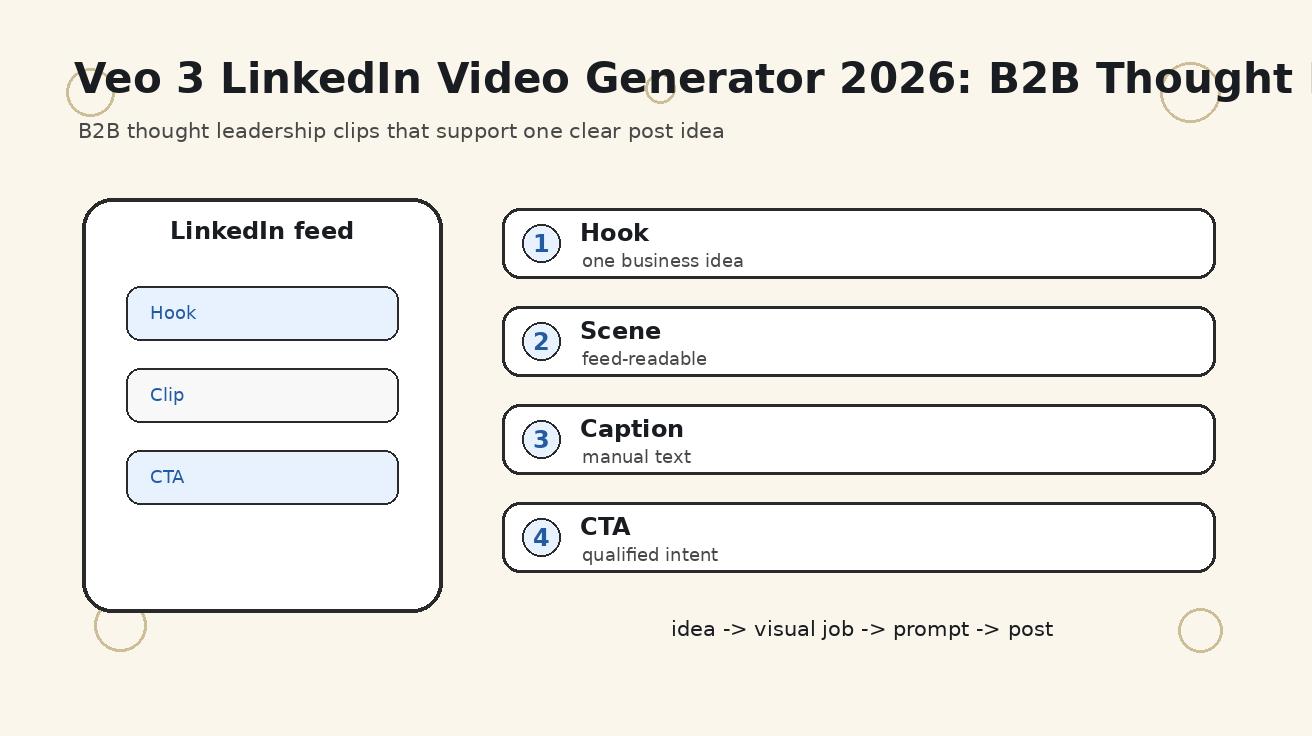
A Veo 3 LinkedIn video generator workflow is useful when a B2B team needs consistent short-form clips but does not want every post to look like generic stock footage. LinkedIn rewards clarity, point of view, and usefulness. The video should help a founder, marketer, product lead, or sales team explain one idea faster. It should not replace the idea itself.
This guide explains how to use Veo 3 for LinkedIn thought leadership, founder posts, product education clips, event recap inserts, hiring stories, and B2B campaign visuals in 2026. The practical goal is to turn one post idea into a controlled visual asset that supports the hook, respects product truth, and survives LinkedIn feed conditions where many users watch silently and scroll quickly.
The search intent behind this topic is commercial and operational. People searching for LinkedIn video generator, B2B video generator, AI LinkedIn video, thought leadership video, or Veo 3 LinkedIn video generator usually need a repeatable production workflow. They are not only asking whether AI can make a clip. They want to know what to prompt, what to avoid, how to edit, and how to keep the final post professional enough for a business audience.
Quick answer
Use Veo 3 to generate short LinkedIn support clips: visual metaphors, product-adjacent scenes, workflow examples, event transitions, founder POV backgrounds, and B-roll for captions. Keep generated clips short, usually three to six seconds inside a 20 to 60 second final edit. Add exact claims, captions, UI labels, and CTAs in editing. Do not ask the model to invent real customer proof, executive likenesses, dashboards, logos, or product details.
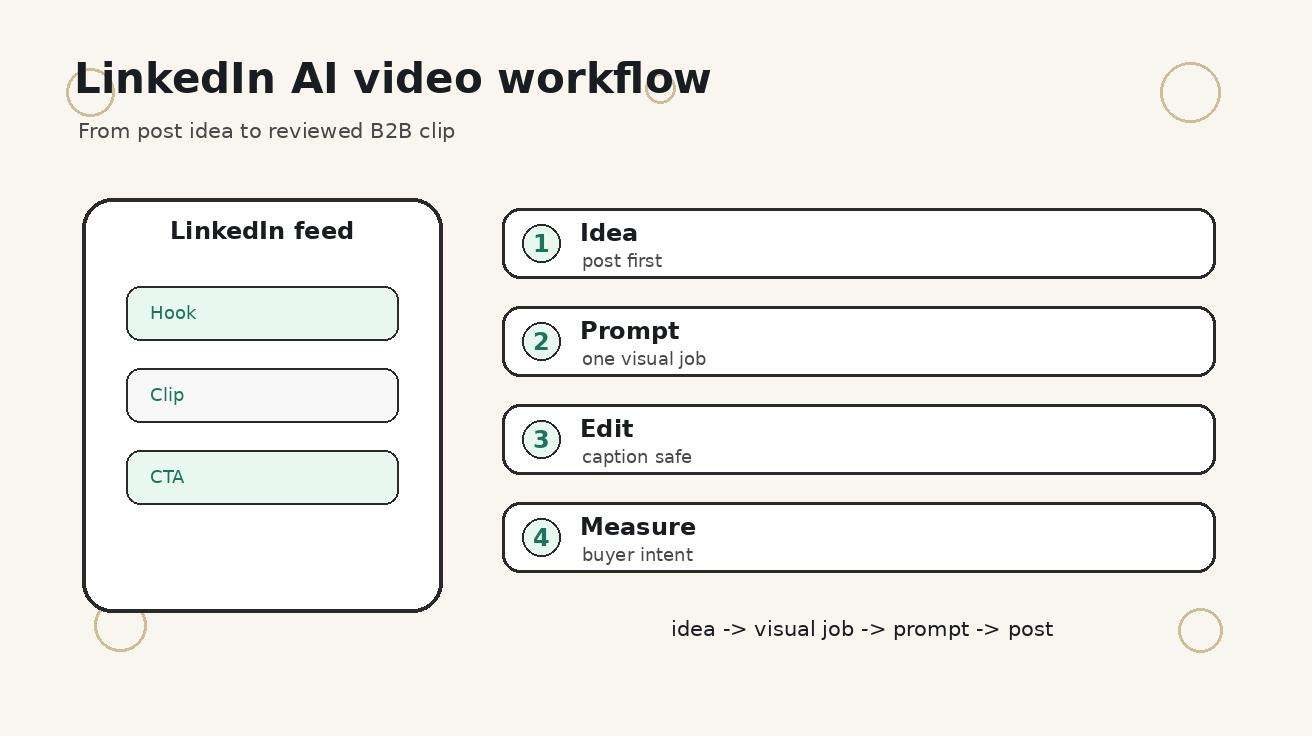
The safest system is simple: write the post idea first, decide what visual would make the idea easier to understand, generate one clip for that visual job, score the clip for accuracy and feed readability, then edit it with captions and a clear LinkedIn hook. If the post is weak, a generated video will not save it. If the post has a strong insight, the right clip can make it easier to notice and remember.
What Veo 3 should and should not do for LinkedIn
| LinkedIn post type | Use Veo 3 for | Human/editorial layer |
|---|---|---|
| Founder POV | Visual metaphor, office workflow, market context, or opening hook | The actual opinion, examples, and caption |
| Product education | Demo-adjacent clips, workflow scenes, interface context, transitions | Exact product UI, claims, pricing, and CTA |
| Event recap | Establishing shots, transition cards, audience energy, booth context | Real event footage, attendee quotes, and names |
| Hiring / culture | Workplace atmosphere, team mission context, role story visuals | Real role details, compensation, and team voice |
| Customer story | Problem and outcome context without exposing private data | Approved customer proof, quotes, logos, and results |
The table matters because LinkedIn is a trust channel. A flashy generated clip that overstates a product, invents a customer, or looks disconnected from the caption can reduce credibility. Good B2B video is not just motion. It is a visual proof aid for a specific business point.
Start with the LinkedIn post, not the model
Before opening Veo 3, write the LinkedIn post in one sentence. For example: “Most SaaS onboarding videos fail because they show features before the user understands the job.” That sentence becomes the creative brief. The generated clip should make that sentence more concrete. It might show a user lost in a cluttered dashboard, then a cleaner guided workflow. It should not become a random futuristic office montage.
A good brief contains five fields: audience, business tension, visual scene, claim boundary, and CTA. Audience defines who should care. Business tension defines why the post exists. Visual scene defines what the clip should show. Claim boundary defines what the clip must not imply. CTA defines where the post should send attention: comment, product page, demo, newsletter, or profile visit.
The one-idea LinkedIn video workflow
- Write the post hook and decide the single idea the video must support.
- Choose the clip type: problem scene, product context, metaphor, transition, recap, or customer journey context.
- Collect source assets such as screenshots, product images, approved brand colors, and forbidden claims.
- Write a constrained Veo 3 prompt with audience, scene, action, tone, camera, and exclusions.
- Generate a small batch, then pick the clip that best supports the post rather than the clip that looks most cinematic.
- Edit with captions, safe text overlays, aspect-ratio versions, and a static fallback frame.
- Publish and track hook rate, watch time, saves, comments, profile clicks, and downstream demo intent.
This workflow protects the team from the most common AI content problem: generating before thinking. LinkedIn audiences can sense vague content quickly. A precise point of view plus a simple clip usually beats a cinematic but generic video that could belong to any company.
Prompt templates for B2B LinkedIn clips
Template 1:
Create a short LinkedIn B2B thought leadership clip for [audience] who struggle with [business problem]. Show a realistic workplace scene where the old workflow creates friction. Professional but not glossy stock footage, stable camera, no fake logos, no readable invented text.
Template 2:
Create a product education insert for a LinkedIn post about [feature]. Use an approved product reference, preserve layout and colors, show one user action, no invented UI text, clean SaaS marketing style, captions will be added later.
Template 3:
Create a founder POV visual metaphor for the idea: [contrarian point]. Show [scene] that makes the tension obvious, mature B2B tone, subtle motion, no exaggerated claims, no celebrity likeness, no fake customer names.
Template 4:
Create a LinkedIn event recap support clip for [event type]. Show professional networking energy, branded but generic booth environment, natural camera motion, no unauthorized logos, no fake attendee quotes, no readable badges.
These templates are intentionally narrow. Replace the bracketed fields with a real audience, pain, category, product action, or event. Then remove any instruction that is not needed. The best Veo 3 LinkedIn prompt reads like a creative brief, not like a wish list. It should make the output easier to review because every part of the prompt has a business reason.
Feed readability rules
LinkedIn feed conditions are harsh. Autoplay may be muted. The video may appear small on mobile. The viewer may be between meetings. The first frame therefore needs to be understandable without sound. Avoid tiny UI, fast camera moves, complex multi-character scenes, and long visual buildup. The first two seconds should match the post hook directly.
Use captions for the business point. Do not rely on generated readable text inside the scene. If the post says “Your onboarding video should answer one job, not list ten features,” the overlay can say One job first. Keep text overlays short enough to read while scrolling. Place important text in safe zones so it is not covered by LinkedIn UI or cropped in reposts.
Safer alternatives to synthetic executives
Many teams are tempted to generate a synthetic founder, executive, or customer. That can create avoidable trust problems. A safer approach is to use real recorded voice or real talking-head footage when identity matters, then use Veo 3 for supporting visuals. For example, record a founder explaining the POV, then cut to generated workflow scenes that illustrate the problem. This keeps the human trust signal real while still reducing production cost.
If a company does use synthetic spokesperson footage, it should have explicit consent, clear internal policy, and a review process. For most B2B LinkedIn work, that complexity is unnecessary. Product-context clips, metaphors, animated processes, and scene-setting B-roll are usually enough.
Product demo clips without product drift
For product education, use approved screenshots or references. Ask Veo 3 to preserve layout, colors, and shape. Do not ask it to invent your interface. Add precise labels, product names, pricing, and claims in editing. This prevents the common problem where an AI-generated dashboard looks polished but shows features or numbers that do not exist.
A good LinkedIn product clip should answer one question: what action or outcome is this post explaining? If the clip is about onboarding, show one user completing one onboarding step. If the clip is about analytics, show a business context around the report rather than fake metric details. For deeper consistency work, pair this article with Veo 3 Image Reference Workflow 2026 and Veo 3 Camera Control Prompts 2026.
Editing checklist before publishing
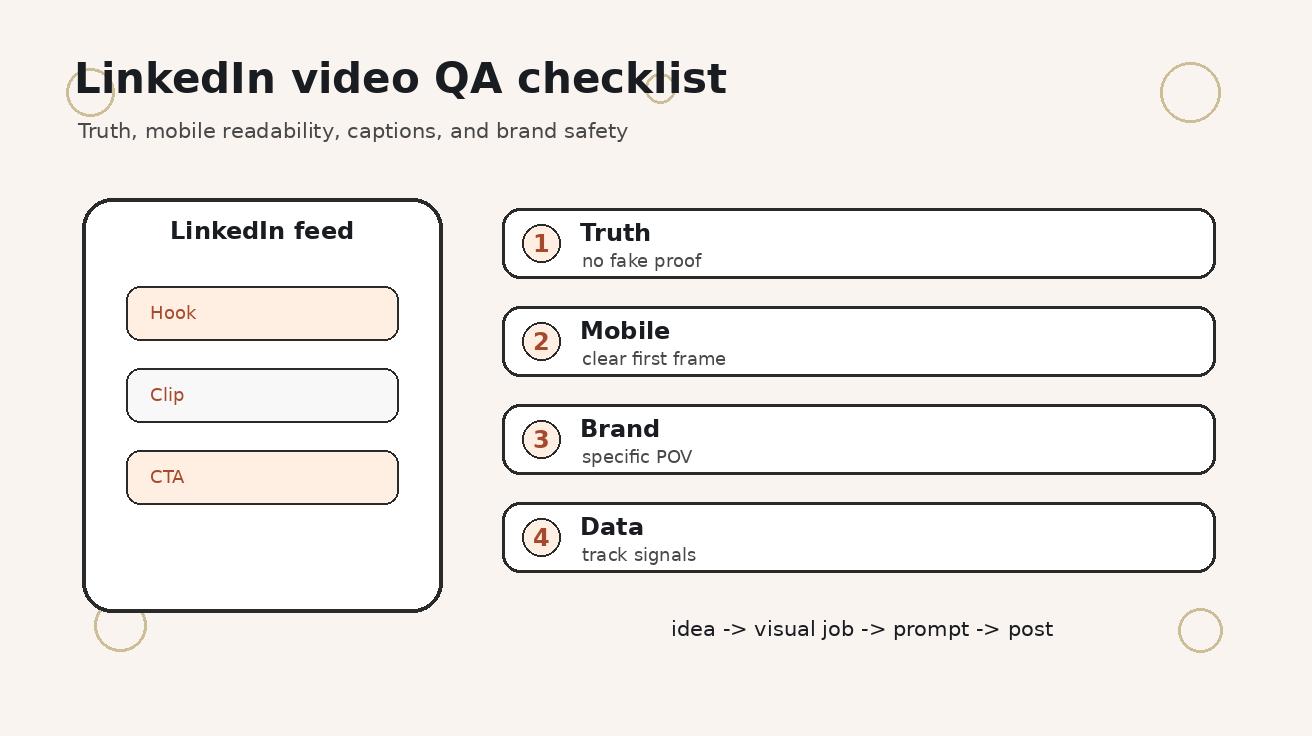
- One post owns one idea
- The first frame works without autoplay
- Captions explain the point without relying on generated text
- No fake customer logos or unsupported metrics
- The scene matches the caption and CTA
- The clip is cropped for LinkedIn feed readability
- A human reviews tone, claim accuracy, and brand safety
- The published post tracks hook rate, retention, comments, and profile clicks
Run this checklist before every LinkedIn post that uses generated video. If the clip cannot pass the claim review, remove it. If the caption works only when the viewer already understands your product, simplify the post. If the first frame does not match the hook, pick another frame or generate a more direct opening.
Measurement after posting
Do not judge the video only by views. LinkedIn views can be shallow. Track whether the clip increases meaningful behavior: saves, comments from target buyers, profile visits, newsletter clicks, demo page clicks, or replies from prospects. If a video gets views but the comments are generic, the hook may be too broad. If a lower-view post gets qualified questions, that format may be more valuable.
Create a simple testing log. Record the hook, clip type, prompt angle, length, caption style, thumbnail frame, and result. After ten posts, patterns become visible. You may learn that founder POV clips need real talking-head intros, while generated product-context B-roll works well after the first sentence. This learning loop is more useful than chasing one viral post.
Example weekly content system
A B2B team can run a simple weekly cadence. Monday: founder POV with a visual metaphor. Tuesday: product education clip using approved reference assets. Wednesday: customer problem scene without naming a customer. Thursday: event, webinar, or community recap insert. Friday: hiring, culture, or category vision clip. Each post uses one generated visual job, one caption hook, and one measurable CTA.
This cadence keeps production manageable. It also prevents the brand from posting five videos that all look the same. The creative range comes from different business ideas, not from asking the model to make everything dramatic. The goal is to make the company more useful and memorable in the feed.
Common mistakes
- Starting with a vague prompt like professional LinkedIn video instead of a real post idea.
- Generating fake dashboards, fake customer outcomes, or fake testimonials.
- Using too much motion for a serious B2B topic.
- Letting the video repeat the caption instead of adding context.
- Forgetting silent playback and mobile cropping.
- Publishing stock-looking scenes that do not reflect the company point of view.
- Judging success by views instead of qualified engagement and downstream intent.
Avoiding these mistakes will make Veo 3 more useful for LinkedIn. The model can create motion quickly, but it cannot decide what your company should believe, what your buyer needs to learn, or which claims are safe. Those decisions remain editorial decisions.
FAQ
Can Veo 3 create LinkedIn videos for B2B marketing?
Yes. Veo 3 can help create short LinkedIn clips for founder POVs, product explainers, event recaps, hiring stories, and B2B thought leadership when prompts stay specific and claims are reviewed.
What LinkedIn video length works best for B2B clips?
Most B2B LinkedIn clips should be short enough to communicate one idea quickly. A practical range is 20 to 60 seconds, with generated inserts often lasting only three to six seconds inside the edit.
Should I generate talking-head executives with AI?
Use caution. Synthetic talking heads can create trust and likeness issues. Safer workflows use B-roll, product context, animated concepts, captions, and approved real spokesperson footage.
Can I use Veo 3 for LinkedIn product demos?
Yes, but exact UI should come from approved screenshots or references. Use generated motion for context and transitions, then add precise UI text and captions in editing.
What makes a good LinkedIn AI video prompt?
A good prompt defines the audience, business problem, scene, action, camera style, tone, and forbidden claims. It should support one post idea instead of trying to explain the entire company.
How do I avoid generic AI-looking LinkedIn clips?
Use a real point of view, specific audience context, brand constraints, and practical scenes. Avoid vague prompts like “professional business video” because they usually produce stock-looking content.
Brand voice and visual consistency
A LinkedIn video system should feel like it belongs to the same company every week. That does not mean every clip should use the same scene. It means the tone, pacing, visual density, color treatment, caption style, and level of specificity should be recognizable. Create a short brand video note for Veo 3 prompts: preferred environments, camera style, lighting, forbidden clichés, preferred color range, and how serious or playful the brand should feel.
For B2B teams, the safest default is practical, calm, and specific. Avoid overdramatic cinematic language unless the brand has earned that tone. Phrases like epic transformation, viral business montage, or futuristic CEO speech often produce content that feels detached from a real LinkedIn feed. Better prompts use concrete business contexts: procurement review, sales handoff, onboarding call, compliance checklist, product launch war room, or quarterly planning session.
Consistency also applies to captions. Decide whether posts use sentence-case overlays, short labels, numbered steps, or question-based hooks. If every video uses a different caption style, the feed starts to feel random. A repeatable caption system lets the creative team move faster and helps audiences recognize the company point of view before they read the full post.
Team workflow for agencies and in-house marketers
If more than one person touches LinkedIn content, define ownership. The strategist owns the idea and audience. The prompt writer owns the Veo 3 brief. The editor owns captions, crop, pacing, and export. The product or legal reviewer owns factual safety. The social manager owns the final post, tags, timing, and measurement. This separation prevents the common problem where a beautiful AI clip ships with an unsupported claim because nobody was clearly responsible for review.
Store the winning prompts and rejected prompts in the same place as post analytics. A rejected prompt is still useful if it explains what failed: too generic, UI drift, wrong audience, weak first frame, excessive motion, or off-brand tone. After a month, the team will have a private LinkedIn prompt library that reflects actual performance rather than generic AI-video advice.
Agencies can use the same system for clients, but they need stricter source control. Every client should have a folder with approved claims, disallowed claims, brand assets, screenshot references, industry compliance notes, and final sign-off rules. Veo 3 can speed production, but client trust depends on showing that generated content is reviewed like any other public business communication.
Repurposing one Veo 3 clip across LinkedIn formats
One strong generated clip can support multiple LinkedIn formats if it is planned correctly. A problem scene can become a founder POV video, a carousel opening frame, a newsletter header, a sales follow-up GIF, or a webinar promo background. The key is to keep the source scene simple and leave room for manual captions. Avoid baking too much meaning into the clip itself.
For a founder post, pair the clip with a contrarian text hook. For a company page post, pair it with a practical checklist. For a sales rep post, pair it with a customer problem question. For an event post, use it as a transition into the real takeaway. This repurposing only works if the visual is specific enough to feel relevant but not so narrow that it can only support one sentence.
Always create three exports: a square feed version, a vertical mobile-first version, and a static fallback frame. Even if the team publishes only one version today, the extra exports make future repurposing easier. The incremental cost is low after the clip already exists, and it gives the social team more flexibility when performance data suggests a different format.
Governance for regulated or enterprise topics
Enterprise B2B content often touches security, finance, healthcare, legal, HR, procurement, or compliance. In those categories, treat generated video as illustrative material only. Do not show protected data, patient-like records, financial dashboards, employee records, government forms, or legal claims unless they are approved mockups. The more regulated the buyer, the more conservative the visual system should be.
A useful rule is to ask: would this clip create a diligence question if a buyer, investor, partner, or compliance reviewer saw it out of context? If yes, simplify it. Replace fake dashboards with abstract workflow scenes. Replace fake customer stories with generic role-based scenarios. Replace specific outcomes with process clarity. LinkedIn content can still be persuasive without pretending to be proof.
Governance may sound slow, but it improves creative speed over time. Once the team has approved prompt patterns, forbidden-claim lists, caption rules, and review owners, Veo 3 production becomes faster because creators know the boundaries before they generate. Clear boundaries are not anti-creative; they keep the creative process publishable.
Final recommendation
Use a Veo 3 LinkedIn video generator workflow when a short clip can make a B2B idea easier to understand in the feed. Start with the post, define one visual job, constrain the prompt, edit captions manually, and review claims before publishing. The best LinkedIn AI videos do not look like generic AI videos. They look like a useful business idea made easier to notice, understand, and discuss.
If you need a practical next step, take one LinkedIn post draft and write a one-line visual job for it. Generate only that clip. If it improves the hook without adding factual risk, publish it and record the result. Then build a repeatable prompt library from evidence instead of from generic inspiration.
Related Articles
Continue with more blog posts in the same locale.

How to Make Sports Highlight Videos with Veo 3 AI (2026)
Create stunning sports highlight videos with Veo 3 AI. Generate dynamic action shots, slow-motion sequences, and dramatic replays using AI prompts.
Read article
How to Make a Short Film with Veo 3 AI (2026 Guide)
Learn how to create professional short films using Veo 3 AI. Step-by-step guide with prompts, workflow tips, and cinematic techniques.
Read article
How to Make Documentary Videos with Veo 3 AI (2026 Guide)
Create compelling documentary videos with Veo 3 AI. Learn prompting techniques, narrative structure, realistic footage generation, and post-production tips.
Read article