
Veo 3 Safety Filters 2026: Real Faces, Logos, Audio, and Prompt Rewrites
A practical Veo 3 safety filters guide for real faces, logos, audio, blocked prompts, and policy-safe prompt rewrites in 2026.
Emma Chen · 18 min read · May 5, 2026
<script type="application/ld+json"> {"@context":"https://schema.org","@type":"FAQPage","mainEntity":[{"@type":"Question","name":"Why does Veo 3 block or rewrite some prompts?","acceptedAnswer":{"@type":"Answer","text":"Veo 3 safety filters are designed to reduce risky requests involving identity misuse, unauthorized real faces, trademark confusion, unsafe audio, deception, sexual content, violence, and other policy-sensitive outputs. A blocked or rewritten prompt is a signal to make the request clearer, safer, and more rights-aware rather than to bypass the system."}},{"@type":"Question","name":"Can I use real faces in Veo 3 prompts?","acceptedAnswer":{"@type":"Answer","text":"Use real faces only when you have clear permission, appropriate rights, and a safe context. For public figures, private people, minors, impersonation, political persuasion, or sensitive claims, use fictional characters, actors, silhouettes, or consent-based reference material instead."}},{"@type":"Question","name":"How should I rewrite blocked Veo 3 prompts safely?","acceptedAnswer":{"@type":"Answer","text":"Rewrite blocked Veo 3 prompts by removing identity misuse, unauthorized logos, risky claims, deceptive framing, and unlicensed audio. Replace them with fictional subjects, generic brands, consent language, factual context, licensed assets, and clear creative intent."}},{"@type":"Question","name":"Are brand logos safe to include in Veo 3 videos?","acceptedAnswer":{"@type":"Answer","text":"Logos are safest when they belong to your own product, your client, or an asset you are authorized to use. If you do not have rights, use a generic storefront, fictional app mark, unlabeled packaging, or descriptive category cue instead of a recognizable brand logo."}},{"@type":"Question","name":"Can Veo 3 generate videos with copyrighted music or celebrity voices?","acceptedAnswer":{"@type":"Answer","text":"Do not ask Veo 3 to imitate a real singer, celebrity voice, or copyrighted track. Use licensed music, your own recorded audio, royalty-free sound design, or neutral voice direction that describes tone without copying a specific person."}},{"@type":"Question","name":"What is the safest workflow for Veo 3 prompt approval?","acceptedAnswer":{"@type":"Answer","text":"Use a preflight checklist: confirm rights, consent, factual claims, logo permissions, audio source, audience sensitivity, and final review. Keep a record of the approved prompt, source assets, generated output, and any edits before publishing."}}]} </script>
Veo 3 Safety Filters 2026: Real Faces, Logos, Audio, and Prompt Rewrites
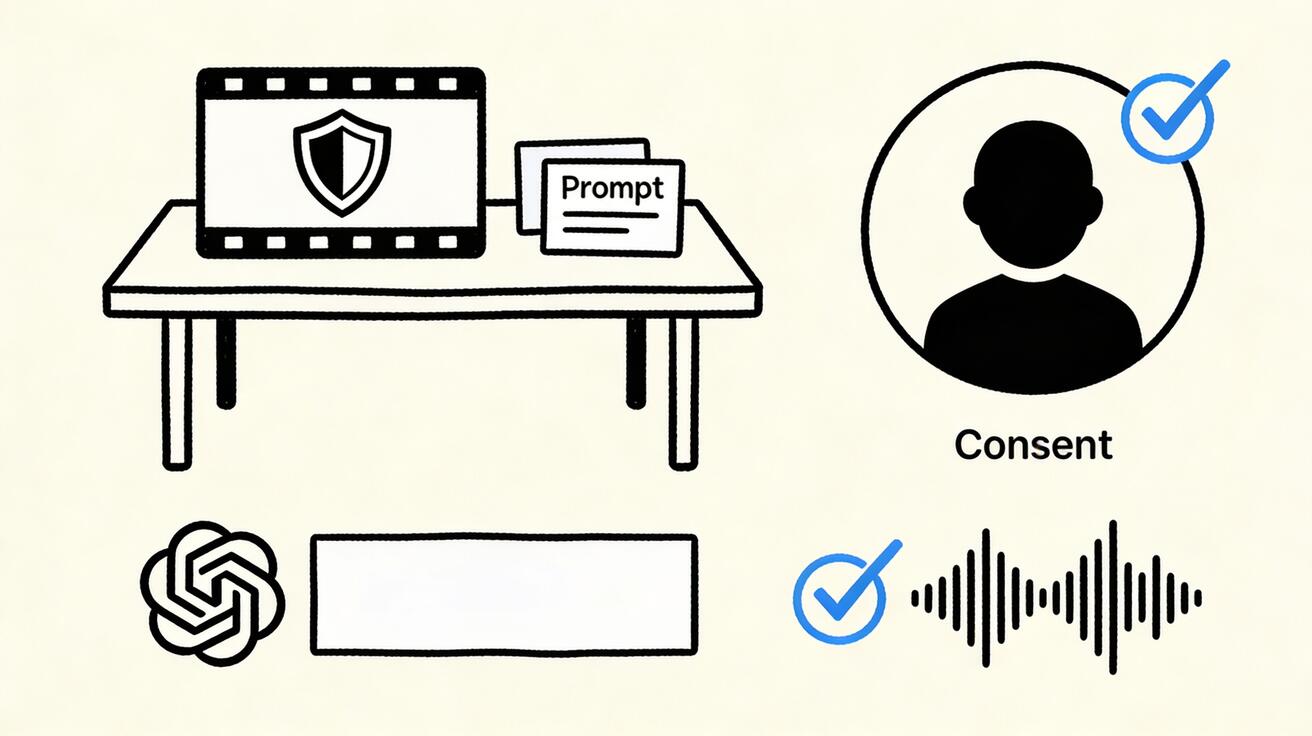
If a Veo 3 prompt gets blocked, softened, or unexpectedly rewritten, the best response is not to fight the filter. The best response is to understand what the request is asking the model to do, remove the risky part, and rebuild the prompt around rights, consent, clarity, and a safer creative goal. That is the practical purpose of this guide to Veo 3 safety filters in 2026.
Creators usually meet safety filters when they are working fast. A marketer wants a launch ad with a famous-looking founder. A social team wants a parody scene in front of a recognizable store. A filmmaker wants an intense news-style clip with realistic audio. A growth team wants to animate a customer testimonial with a real face. None of those ideas are automatically impossible, but they contain questions that Veo 3 has to treat carefully: Who is being depicted? Do you have permission? Is a logo being used in a misleading way? Is the audio copying a real person or copyrighted song? Could the output deceive viewers?
This article is a safety-compliant, practical workflow for Veo 3 prompt rewrites. It focuses on real faces, logos, audio, and blocked prompt fixes without teaching ways to bypass policy systems. The goal is simple: help you turn risky prompts into usable, rights-aware Veo 3 prompts that still produce strong creative results.
What Veo 3 Safety Filters Are Trying to Prevent
Veo 3 is built for realistic video generation, which means prompts can quickly move from harmless creative direction into identity, rights, or deception issues. Safety filters exist because a realistic video can look like evidence, endorsement, documentation, or a real recording even when it is fully synthetic.
A blocked prompt is usually not a judgment on your whole idea. It is often a warning that the prompt is too ambiguous, too close to a protected identity, too dependent on a trademark, or too likely to create a misleading output. That is why many fixes are editorial rather than technical. You can often keep the creative goal by changing the subject, asset, context, or claim.
Common filter triggers include:
- Real people and identity misuse: prompts that depict a specific private person, public figure, celebrity, politician, child, employee, customer, or identifiable individual without a clearly permitted context.
- Deepfake-like framing: requests that make a person appear to say, endorse, confess, perform, or participate in something they did not actually do.
- Logos and brand confusion: prompts that use recognizable marks, storefronts, packaging, uniforms, or product designs in a way that could imply endorsement, affiliation, criticism, or counterfeit use.
- Copyrighted audio and voice cloning: requests to imitate a singer, actor, influencer, narrator, brand jingle, famous speech, or commercial track.
- News, emergency, and deception risk: scenes that look like real reporting, surveillance footage, political content, disaster footage, medical claims, financial advice, or law enforcement evidence.
- Unsafe or sensitive content: sexualized imagery, graphic violence, self-harm, extremist material, harassment, illegal activity, or exploitation.
The safest mindset is to treat Veo 3 like a production partner. You would not ask a human video editor to fake a celebrity endorsement, misuse a competitor logo, copy a song, or fabricate a testimonial. Use the same standard for prompts.
The Difference Between a Blocked Prompt and a Prompt Rewrite
A block usually means the request cannot be fulfilled as written. A rewrite or softened output usually means the model is steering away from risky details while preserving part of the scene. Both are signals that your prompt needs clearer boundaries.
For example, a prompt that says, “Make a realistic video of a famous CEO praising our product in their office” combines identity misuse, endorsement risk, and a realistic setting. A compliant rewrite is not “make it less detectable.” A compliant rewrite is: “Create a fictional technology founder in a modern office explaining why teams need faster video prototyping. Do not resemble any real person. Use a fictional company name and avoid real logos.”
The second prompt keeps the marketing concept: expert-style explanation, modern office, product relevance. It removes the risky elements: real identity, false endorsement, and trademark confusion.
That is the pattern for Veo 3 blocked prompt fixes. Keep the legitimate creative intent. Remove the unsafe anchor.
A Safe Rewrite Framework for Veo 3 Prompts
Use this four-step framework before you resubmit a blocked prompt.
1. Identify the Risky Anchor
Ask what part of the prompt creates the most risk. Is it a real person? A recognizable face? A brand logo? A song? A political event? A medical claim? A news format? A customer quote? A minor? A scene that could be mistaken for real evidence?
Write the risky anchor down plainly. If you cannot name it, the prompt is probably too broad. Veo 3 safety filters often respond to ambiguity, so naming the risk helps you remove it cleanly.
2. Replace the Anchor With a Safe Creative Equivalent
A safe equivalent should serve the same storytelling purpose without the same rights or deception problem. Replace:
- a real celebrity with a fictional presenter;
- a private person with an actor you have permission to use;
- a famous logo with a generic category sign;
- a copyrighted song with licensed ambient music;
- a real news network frame with a fictional documentary style;
- a customer face with a consent-based testimonial shot or anonymous silhouette;
- a competitor product with a neutral comparison chart you create yourself.
This is not watering down the idea. It is professional production hygiene.
3. Add Positive Safety Instructions
Many people only add negative prompts. For safety-sensitive topics, positive instructions are more useful. Tell Veo 3 what you do want:
- “fictional adult character, not resembling any real person”;
- “generic storefront sign, no real brand logo”;
- “licensed instrumental music bed, no imitation of a known song”;
- “documentary-inspired lighting, clearly fictional brand world”;
- “consent-based product testimonial style with an actor, not a real customer”;
- “visual metaphor for the issue, not a depiction of real harm.”
Positive instructions make the safe path easier for the model to follow.
4. Keep Factual Claims Outside the Generated Video
If the video needs a claim like “reduces editing time by 40%,” “approved by doctors,” “used by 10,000 teams,” or “cheaper than competitor X,” do not ask Veo 3 to invent it. Put verified copy in your editor after generation, and only use claims your team can substantiate.
This matters because realistic video can make claims feel more credible than a static ad. Keep proof under human editorial control.
Real Face Prompts: Consent, Fictional Characters, and Safer Alternatives
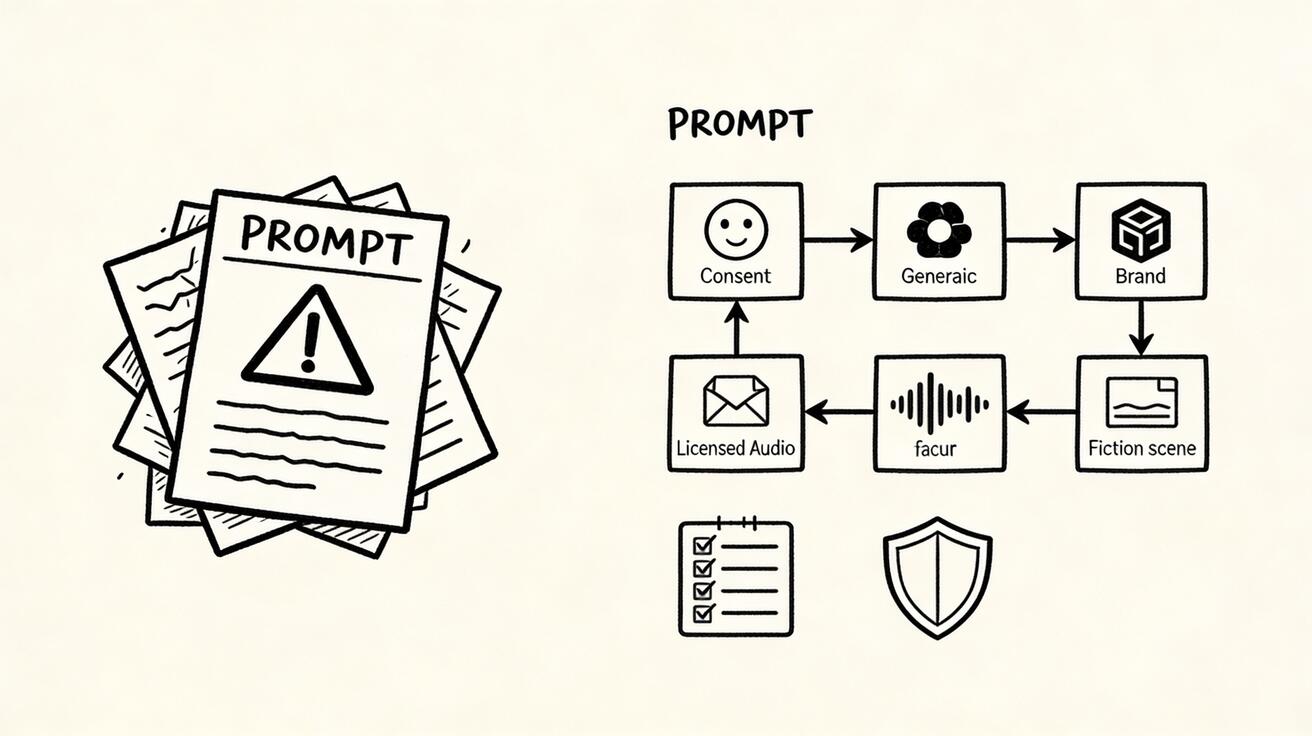
Veo 3 real face prompts are one of the most sensitive areas because faces create identity. A realistic face can imply participation, endorsement, consent, emotion, age, nationality, health status, or personal behavior. That is why real-face prompts need a higher standard than landscape, product, or abstract motion prompts.
Use this simple rule: if the viewer could reasonably identify the person or believe the person participated, you need permission and context.
Safer Real Face Use Cases
Safer use cases include:
- an actor or model who has granted permission for the project;
- your own likeness, if the platform and workflow allow it and the context is non-deceptive;
- an employee spokesperson who has approved the exact use;
- a fictional adult character with no resemblance to a real person;
- a stylized or non-photoreal character for education, onboarding, or brand storytelling;
- a silhouette, over-the-shoulder shot, or hands-only scene where identity is not central.
Even with permission, avoid sensitive claims unless they are true and approved. A consent-based face in a medical, political, financial, or legal context still requires extra review.
Risky Real Face Requests to Rewrite
Prompts become risky when they ask Veo 3 to show a recognizable person doing something they did not do. That includes endorsements, apologies, confessions, romantic scenes, violent scenes, political persuasion, workplace misconduct, medical conditions, or “caught on camera” content.
A risky prompt might be:
Create a realistic Veo 3 video of [real person] announcing that they switched to our app and telling viewers to buy it.
A compliant rewrite would be:
Create a realistic Veo 3 video of a fictional adult startup founder in a modern studio explaining a common workflow problem and introducing a fictional productivity app. The character must not resemble any real person. Do not imply endorsement by any real person or company. Use a calm, educational tone and leave space for verified product copy added later.
Another risky prompt might be:
Animate this customer photo so the customer says our service saved their business.
A safer rewrite is:
Create a testimonial-style Veo 3 video using a fictional adult actor in a neutral office setting. Do not use or resemble a real customer. Show the actor speaking generally about a common business challenge. Keep all specific claims out of the generated audio so verified testimonial copy can be added only after approval.
The safe rewrite protects identity and proof while keeping the format useful.
Logo and Trademark Prompts: Use Rights, Not Guesswork
Logos are not just decoration. A logo can imply endorsement, partnership, criticism, location, sale, counterfeit goods, or brand affiliation. Veo 3 safety filters may respond when a prompt asks for a recognizable logo, storefront, product package, or interface that belongs to a brand you do not control.
The safest cases are straightforward:
- your own company logo;
- a client logo you are authorized to use;
- a partner logo used according to brand guidelines;
- a fictional logo created for the project;
- a generic category marker such as “coffee shop,” “sports store,” or “delivery app” without a real brand mark.
If you do have rights, say so clearly in the prompt. For example:
Create a 12-second Veo 3 product launch video for our own brand. Use the provided authorized logo exactly as supplied. Do not alter the logo shape, colors, or wordmark. Show the logo only on approved packaging and the final end card. Avoid any other real brand logos or confusing marks.
If you do not have rights, remove the real mark:
Create a 12-second Veo 3 city street scene outside a generic coffee shop with a fictional round sign and no readable real-world brand logo. The mood is warm morning lifestyle footage. Avoid recognizable storefronts, uniforms, packaging, or product designs from existing brands.
For competitor comparison content, avoid fake footage that appears to show the competitor’s real product failing. Use diagrams, abstract metaphors, neutral tables, or screenshots you are licensed to use. A fair comparison page can be useful for SEO and conversion, but fabricated brand scenes can create legal and trust risk.
Audio Prompts: Voices, Music, and Sound Design
Veo 3 audio direction is powerful, which makes it sensitive. A voice can be as identifiable as a face. A melody can be copyrighted. A soundalike request can create confusion even when the words are fictional.
Avoid prompts like:
- “in the voice of [celebrity]”;
- “like the exact hook from [famous song]”;
- “a narrator that sounds like [known actor]”;
- “a political candidate saying…”;
- “a real customer voice testimonial from this transcript” without permission;
- “copy the jingle from [brand].”
Use safer audio direction instead:
Use a warm, neutral adult narrator with a clear studio tone. Do not imitate any real person, celebrity, influencer, or known character. Add light licensed-style ambient music and subtle interface sound design. Avoid recognizable melodies, brand jingles, or copyrighted song references.
For product videos, I usually recommend keeping generated audio simple. Use Veo 3 for atmosphere, pacing, and natural room tone; then add licensed music, captions, and final voiceover in a controlled editing workflow. This gives you more quality control and cleaner rights management.
Policy-Safe Examples of Veo 3 Blocked Prompt Fixes
The examples below show how to preserve the creative goal without trying to bypass Veo 3 safety filters.
| Risky direction | Safer Veo 3 prompt rewrite | Why it works |
|---|---|---|
| “Make a celebrity endorse our AI tool.” | “Show a fictional adult creator explaining how AI tools help organize a video workflow. Do not resemble any real person or imply endorsement.” | Keeps authority and education, removes false identity and endorsement. |
| “Put our app on a famous phone brand ad set.” | “Create a premium smartphone-style product scene with a fictional device shape and no real logos.” | Keeps polished tech aesthetic, removes trademark confusion. |
| “Use the exact song from a viral ad.” | “Use upbeat licensed-style electronic music with no recognizable melody or artist imitation.” | Keeps mood, avoids copying protected audio. |
| “Animate a customer photo saying our product changed their life.” | “Use a fictional actor in testimonial format; add verified quote text later after approval.” | Keeps testimonial structure, removes unauthorized face and claim risk. |
| “Show breaking news footage of our competitor failing.” | “Create an abstract comparison scene with neutral charts and fictional interface cards.” | Keeps comparison idea, avoids deceptive news-like footage. |
| “Make a politician explain our product.” | “Use a fictional public-sector analyst character in a neutral educational setting.” | Keeps topic context, removes political identity misuse. |
Notice that none of these fixes depends on hidden wording or filter tricks. They work because the request itself becomes safer.
A Reusable Veo 3 Safety Rewrite Template
Use this template when a prompt is blocked or rewritten:
Create a [duration] Veo 3 video about [safe topic or product category]. Use [fictional / authorized / generic] subjects only. Do not depict or resemble any real person unless explicitly authorized. Do not use real brand logos, copyrighted characters, protected product designs, or recognizable music unless provided as authorized assets.

Scene: [describe the visual concept].
Character: [fictional adult / actor with consent / no identifiable person].
Branding: [our authorized logo / fictional mark / no logo].
Audio: [neutral narrator / licensed-style music / sound design], with no imitation of any real person, artist, song, or brand jingle.
Claims: avoid unverified statistics, medical, financial, legal, political, or competitor claims. Leave space for approved copy added later.
Style: [cinematic / product demo / educational / documentary-inspired], clearly fictional and non-deceptive.
Negative constraints: no real public figures, no private person resemblance, no false endorsement, no real logos, no copyrighted music, no news broadcast framing, no sensitive or graphic content.
This template is deliberately explicit. It tells Veo 3 what to make, what not to make, and why the scene should be interpreted as fictional or authorized. If a prompt still gets blocked after this kind of rewrite, simplify the concept further. Remove the face. Remove the logo. Remove the audio imitation. Remove any realistic event framing.
Practical Prompt Patterns for Common Creator Jobs
Product Launch Video With Your Own Brand
Create a 15-second Veo 3 product launch video for our authorized AI video product. Use the provided brand colors and approved logo only on the final end card. Show abstract creator workflow scenes: prompt cards, storyboard frames, timeline clips, and preview screens. Do not show real customer faces, competitor logos, or unverified performance claims. Audio: clean modern sound design with licensed-style ambient music, no recognizable song. End with a neutral space for approved headline copy.
This works because it uses owned assets and abstract workflow visuals.
Founder-Style Explainer Without a Real Founder
Create a 12-second Veo 3 founder-style explainer with a fictional adult technology founder in a studio. The character must not resemble any real entrepreneur, celebrity, or employee. The scene explains a general problem: teams need faster ways to turn ideas into video concepts. No endorsement, no real company claims, no real logos except a fictional app mark. Keep the tone calm, professional, and educational.
This keeps the “founder energy” while avoiding impersonation.
Generic Storefront Ad Without Trademark Risk
Create a 10-second Veo 3 lifestyle ad outside a generic neighborhood coffee shop. Use a fictional sign, unreadable generic packaging, and no recognizable brand colors or logos. Show friends reviewing a short AI-generated menu video on a phone. Warm morning light, natural movement, no real storefront identity, no copyrighted music, no public figure resemblance.
This keeps the local business story without borrowing a real brand.
Consent-Based Actor Testimonial
Create a 15-second Veo 3 testimonial-style video with an adult actor who has consented to this use. Show the actor in a neutral office speaking generally about simplifying video production. Do not include specific numerical claims, medical claims, financial claims, or competitor comparisons. Use neutral studio audio and leave final quote text to be added in editing after approval.
This is useful when a team has permission but still wants to avoid accidental overclaiming.
Educational Safety Explainer
Create a 15-second Veo 3 educational explainer about responsible AI video prompting. Use abstract icons: shield, storyboard, prompt card, audio waveform, consent checkmark, and generic logo placeholder. No real people, no real brands, no political content, no copyrighted music. Clean whiteboard illustration style with gentle motion.
This is the safest path when the subject itself is sensitive.
The Preflight Checklist Before You Generate
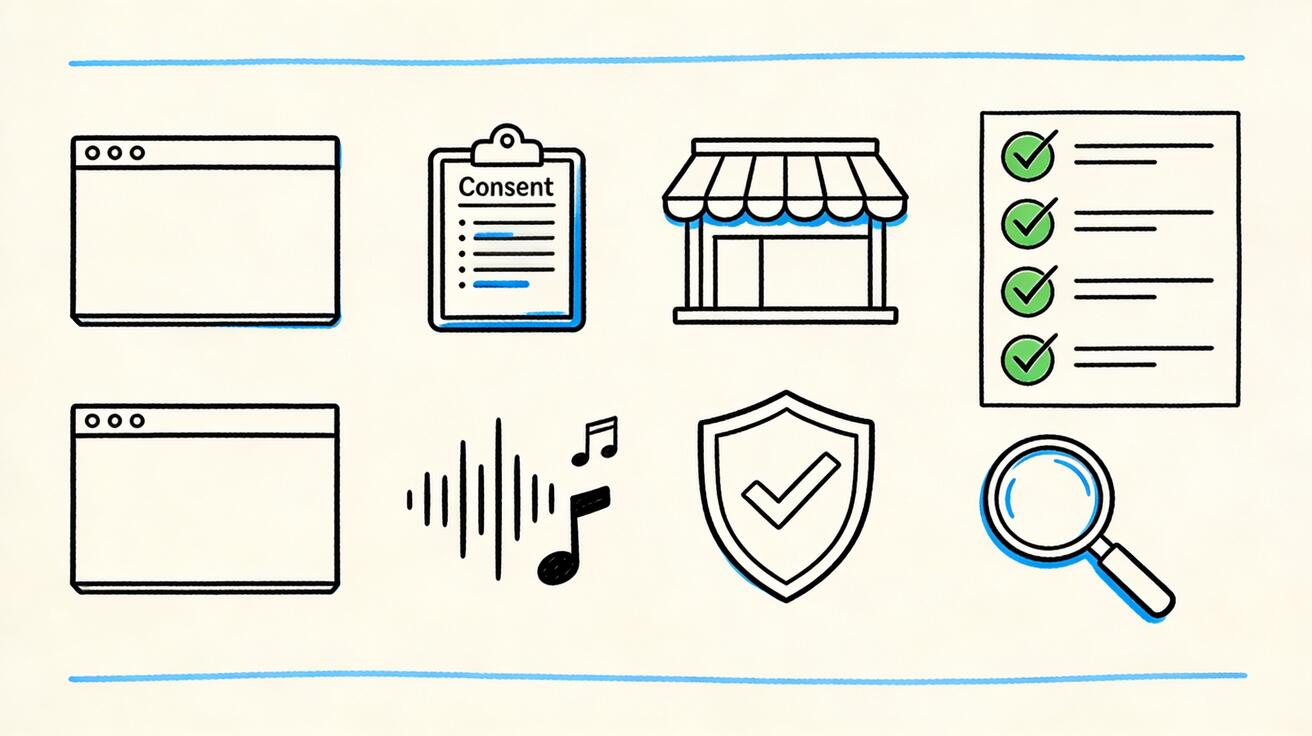
Before sending a sensitive prompt to Veo 3, run this checklist:
- Identity: Does the prompt depict or resemble a real person? If yes, do you have permission and a safe context?
- Consent: Could the person appear to say, endorse, confess, or do something they did not approve?
- Age: Could any subject appear to be a minor? If yes, simplify and avoid sensitive contexts.
- Branding: Are logos, packaging, storefronts, uniforms, or product interfaces authorized?
- Audio: Does the prompt imitate a real voice, song, artist, jingle, or copyrighted track?
- Claims: Are statistics, testimonials, health claims, financial claims, or legal claims verified?
- Deception: Could viewers mistake the video for real news, surveillance, evidence, or official communication?
- Distribution: Is the output going into an ad, landing page, sales deck, social post, or internal concept review?
- Review: Who signs off on the final video before publication?
- Records: Can you save the prompt, source assets, rights notes, and final approved output?
For SEO and content marketing teams, this checklist is not bureaucracy. It protects trust. A single realistic but misleading clip can damage a campaign more than a slightly less dramatic but rights-safe video.
How to Diagnose Why a Veo 3 Prompt Was Blocked
When a prompt fails, do not immediately add more instructions. First, simplify.
Start by removing named people, real brands, and specific audio references. If the prompt works after that, reintroduce only authorized assets one at a time. If a logo is necessary, use your own authorized logo. If a face is necessary, use a consent-based actor. If audio is necessary, describe tone rather than copying a real song or voice.
A useful troubleshooting sequence is:
- Generate the scene with no real people, no real brands, and no specific audio.
- Add the product category and storyboard timing.
- Add authorized brand elements if needed.
- Add generic audio direction.
- Add approved copy after generation in an editor.
This sequence makes it easier to see whether the block came from identity, trademark, audio, claims, or sensitive context.
Why “Bypass” Thinking Produces Worse Videos
Trying to bypass a safety system usually leads to unclear prompts, unstable outputs, and higher publication risk. It also wastes production time. If the model is resisting a request because it looks like impersonation, fake evidence, or rights misuse, a hidden-word workaround does not solve the underlying business problem. The clip may still be unusable after legal, brand, or editorial review.
Policy-safe rewrites are faster because they align the creative idea with publishable assets. A fictional spokesperson is easier to approve than a celebrity lookalike. A generic storefront is easier to use than a protected logo. Licensed-style music is easier to ship than a famous song imitation. Abstract comparison visuals are easier to defend than fake competitor footage.
In other words, safe prompts are not just ethical. They are operationally efficient.
Where Veo 3 Fits in a Safer AI Video Workflow
Veo 3 is strongest when it is part of a controlled workflow rather than the only step. A practical workflow looks like this:
- Draft the creative brief and identify sensitive elements.
- Replace unauthorized faces, logos, and audio references before prompting.
- Generate several safe visual directions in Veo 3.
- Review paused frames for identity, branding, factual claims, and artifacts.
- Add verified text overlays, captions, product claims, and licensed audio in editing.
- Keep the final approved prompt and asset record with the campaign.
- Publish on the right page, ad account, or social channel with human review.
If you are building marketing pages, you can pair Veo 3 concepts with practical product workflows such as text-to-video generation or image-to-video production. The safest page-level strategy is to show what the tool can do without implying false identity, false endorsement, or unauthorized brand association.
Final Takeaway
Veo 3 safety filters are not an obstacle to good creative work. They are a reminder that realistic AI video needs production discipline. When a prompt touches real faces, logos, audio, endorsements, news-like scenes, or sensitive claims, slow down and rewrite the request around permission, fictionalization, generic assets, licensed sound, and verified copy.
The best Veo 3 prompt rewrites keep the original marketing or storytelling purpose while removing the risky anchor. Instead of a celebrity, use a fictional expert. Instead of a competitor logo, use a neutral product category. Instead of a copyrighted track, use licensed-style sound design. Instead of a real customer face, use consent-based production or an anonymous visual metaphor.
That approach gives you stronger outputs, faster approvals, and safer campaigns. More importantly, it keeps Veo 3 useful for professional teams that need publishable video, not just impressive demos.
FAQ
Why does Veo 3 block or rewrite some prompts?
Veo 3 safety filters are designed to reduce risky requests involving identity misuse, unauthorized real faces, trademark confusion, unsafe audio, deception, sexual content, violence, and other policy-sensitive outputs. A blocked or rewritten prompt is a signal to make the request clearer, safer, and more rights-aware rather than to bypass the system.
Can I use real faces in Veo 3 prompts?
Use real faces only when you have clear permission, appropriate rights, and a safe context. For public figures, private people, minors, impersonation, political persuasion, or sensitive claims, use fictional characters, actors, silhouettes, or consent-based reference material instead.
How should I rewrite blocked Veo 3 prompts safely?
Rewrite blocked Veo 3 prompts by removing identity misuse, unauthorized logos, risky claims, deceptive framing, and unlicensed audio. Replace them with fictional subjects, generic brands, consent language, factual context, licensed assets, and clear creative intent.
Are brand logos safe to include in Veo 3 videos?
Logos are safest when they belong to your own product, your client, or an asset you are authorized to use. If you do not have rights, use a generic storefront, fictional app mark, unlabeled packaging, or descriptive category cue instead of a recognizable brand logo.
Can Veo 3 generate videos with copyrighted music or celebrity voices?
Do not ask Veo 3 to imitate a real singer, celebrity voice, or copyrighted track. Use licensed music, your own recorded audio, royalty-free sound design, or neutral voice direction that describes tone without copying a specific person.
What is the safest workflow for Veo 3 prompt approval?
Use a preflight checklist: confirm rights, consent, factual claims, logo permissions, audio source, audience sensitivity, and final review. Keep a record of the approved prompt, source assets, generated output, and any edits before publishing.
Related Articles
Continue with more blog posts in the same locale.
Veo 3 Talking Head Video: How to Create AI Presenter Videos (2026)
Create AI presenter videos with Veo 3: character prompts, lip sync, platform formats, brand spokesperson, social persona, and training video host — with ready-to-use templates.
Read article
Veo 3 Drone Shot Prompts: How to Create Aerial Camera Moves (2026)
Veo 3 drone shot prompts: aerial camera vocabulary, pull-back reveal, orbit, tracking shots, environment examples for real estate, travel, sports, and documentary.
Read article
Veo 3 for E-Commerce: AI-Generated Product Videos That Convert (2026)
Learn how to use Veo 3 for e-commerce product video: I2V packshot prompts, platform specs, category playbooks for fashion, food, cosmetics, and home goods, plus QA checklists.
Read article