
Veo 3 Slow Motion Video Prompts (2026): Cinematic Slow-Mo, Speed Ramps & Settings
Master slow motion in Veo 3 with the exact prompt vocabulary, 7 ready-to-use slow-mo prompts, speed-ramp tricks, audio tips, and the mistakes that ruin a shot.
Emma Chen · 12 min read · Jun 28, 2026
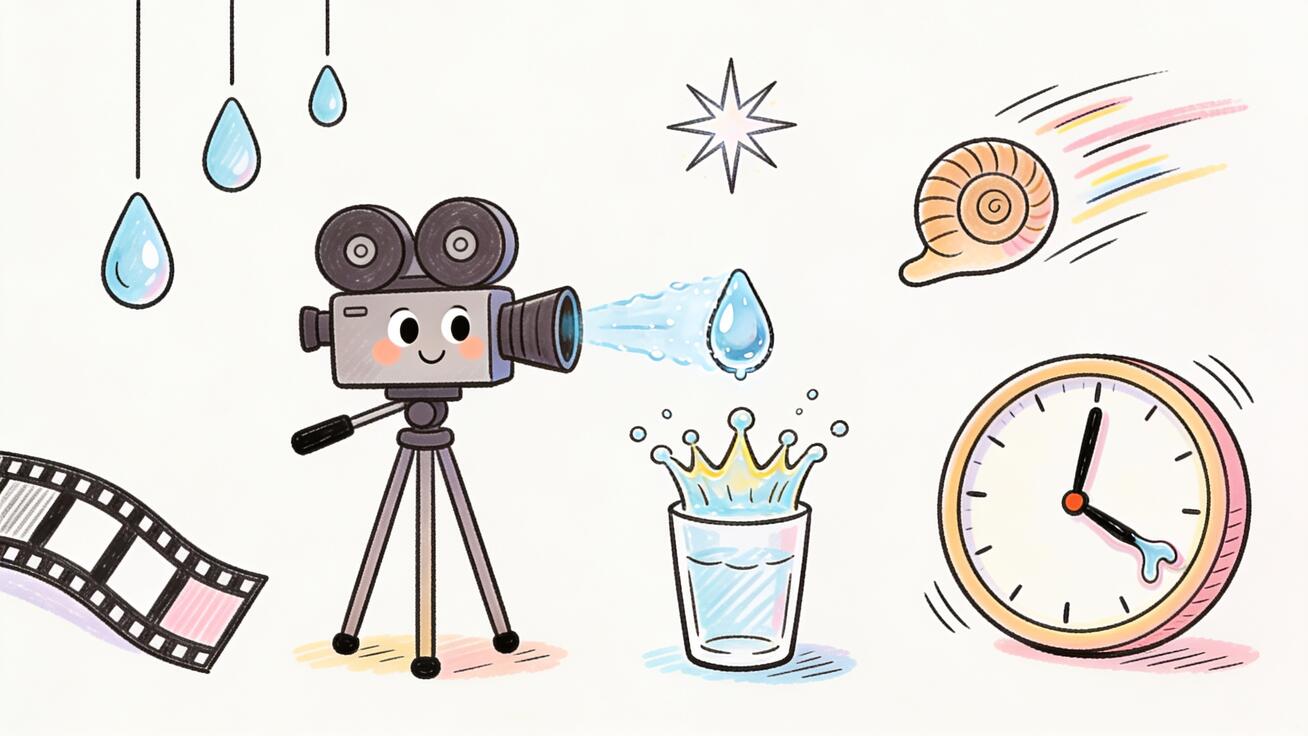
Slow motion is one of the most reliable ways to make an AI video feel premium. A normal-speed clip of a coffee pour looks like stock footage. The same pour rendered in slow motion, with droplets suspended in the air and steam curling upward, looks like a commercial. Veo 3 is genuinely good at this kind of shot, but only if you prompt for it the right way.
This is the part most people miss. Veo 3 does not have a frame-rate slider or a "slow motion" toggle. It is a prompt-driven model. Slow motion is something you describe in language, not something you dial in with a setting. Get the language right and Veo 3 will hold detail, stretch time, and add the floaty, weighty physics that makes slow-mo look expensive. Get it vague and you get a clip that is merely slow and a little blurry.
This guide covers how slow motion actually works in Veo 3, the exact prompt vocabulary that triggers it, ready-to-use prompts for the subjects that slow-mo flatters most, how to handle audio in slow-motion clips, how to fake speed ramps, and the common mistakes that ruin an otherwise great shot.
How Slow Motion Works in Veo 3
It helps to understand what you are actually asking the model to do. Real-world slow motion is captured by filming at a high frame rate (say 120, 240, or 1000 frames per second) and then playing it back at a normal 24 or 30 fps. More frames per second of real time means more samples of motion, so when you slow it down, the movement stays smooth instead of stuttering.
Veo 3 does not literally film at a high frame rate. Instead, when you describe a slow-motion shot, it generates frames that depict motion as if time has been stretched: slower travel, exaggerated physics, longer trails of motion blur, and suspended particles. The output is a clip where the action unfolds at a deliberately reduced pace.
A few practical consequences fall out of this:
- Slow motion is a description, not a parameter. You trigger it with words like "slow motion," "high-speed camera," "filmed at high frame rate," or "time stretched." There is no numeric input for it inside the prompt.
- Veo 3 clips are short. Native generations run up to about eight seconds. Because slow motion compresses how much real-world action fits into those seconds, you should pick a single, small moment, not a whole sequence. A drop falling, a head turning, a ball being kicked — one beat, not a story.
- Physics-rich subjects win. The model has the most to show off when there is something moving in a complex way: water, fire, dust, fabric, hair, glass, smoke. A static person standing still in "slow motion" barely reads as slow-mo at all.
- Detail and lighting matter more, not less. Slow motion gives the viewer time to stare. Any softness, mushy texture, or flat lighting becomes obvious. The best slow-mo prompts double down on sharp detail and strong, directional light.
The Slow-Motion Prompt Vocabulary
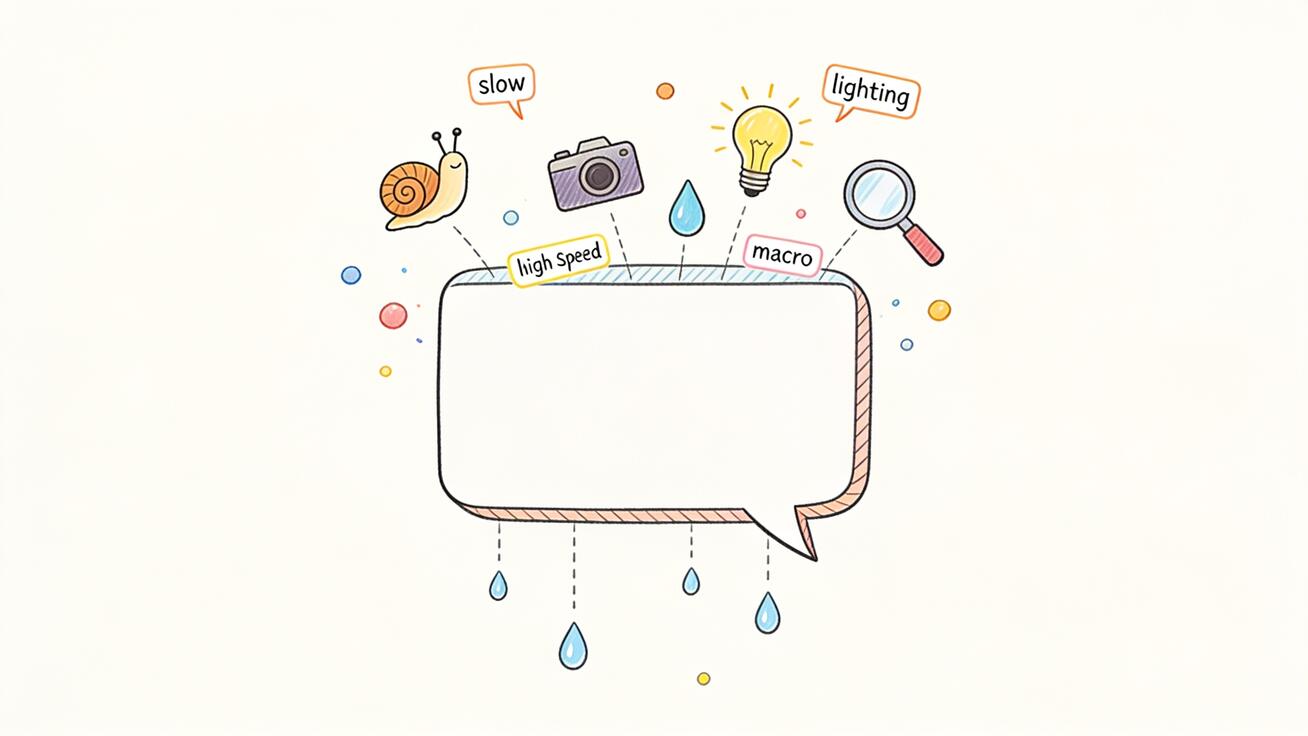
Veo 3 responds to specific trigger phrases. The more cinematically literate your wording, the closer the result gets to what a real high-speed camera operator would capture. Here is the vocabulary worth keeping in your back pocket.
Core speed triggers:
slow motion— the baseline phrase, always include it.extreme slow motion/ultra slow motion— pushes the effect further, good for tiny moments like a single droplet.high-speed camera capturing...— frames the shot as if shot on specialist gear; tends to add crispness.filmed at a high frame rate/shot at 240fps— cues the smooth, sample-dense look (you are describing the intended feel, not setting a real value).time appears to stretch/time dilation— useful for dramatic, weighty moments.
Physics and detail amplifiers:
every droplet suspended in mid-airparticles floating slowlyfabric rippling in slow waveshair drifting weightlesslydust catching the lightmotion blur on the fastest-moving parts, crisp detail elsewhere
Lighting and look:
backlit so the spray glowshard rim light separating the subject from a dark backgroundgolden hour side lighthigh contrast, deep shadows, cinematic color
Camera framing for slow-mo:
macro close-up— slow motion plus macro is the single most reliable "wow" combination.locked-off tripod shot— keeps the camera calm so the slow movement is the star.slow push-in— a gentle dolly forward adds production value without fighting the slow-mo.
A strong slow-motion prompt usually layers one item from each group: a speed trigger, a physics amplifier, a lighting cue, and a framing choice.
Ready-to-Use Veo 3 Slow Motion Prompts
These are built to copy, paste, and tweak. Each one targets a subject that slow motion genuinely flatters.
1. Water splash (the classic)
Extreme slow motion macro shot of a single red strawberry dropping into a glass
of sparkling water. Every bubble and droplet suspended in mid-air, crown splash
rising upward, water crystal clear. Hard backlight makes the spray glow against
a dark background. Crisp detail, shallow depth of field, cinematic color.
2. Coffee or liquid pour
Slow motion close-up of espresso pouring into a white ceramic cup, rich crema
swirling, steam curling slowly upward. Warm morning side light from a window,
soft shadows, shot as if on a high-speed camera. Locked-off tripod, shallow
focus on the surface of the coffee.
3. Fire and sparks
Ultra slow motion of a match igniting in the dark, sparks flying outward in slow
arcs, the flame blooming to life. Embers drift weightlessly, glowing orange
against pure black. High contrast, macro detail on the matchstick tip, smoke
rising in slow ribbons.
4. Athlete in motion
Slow motion shot of a sprinter exploding out of the starting blocks on a track,
muscles tensed, dust and small rubber particles kicking up behind the spikes.
Side-on tracking, golden hour backlight, sweat catching the light. Crisp detail
on the face and shoes, cinematic, high frame rate look.
5. Fabric and hair
Slow motion portrait of a woman turning her head, long hair drifting weightlessly
through the air in slow waves, a silk scarf rippling around her shoulders. Soft
rim light, dark studio background, shallow depth of field. Elegant, dreamy,
filmed at a high frame rate.
6. Nature and weather
Extreme slow motion of a single raindrop falling and hitting a green leaf, the
impact sending a tiny crown of water upward, the leaf bending and springing back.
Macro lens, soft overcast light, fresh green tones, every micro-droplet visible.
7. Product reveal
Slow motion product shot of a luxury perfume bottle as a swirl of golden powder
and light particles drifts around it. Slow rotating camera, dark gradient
background, dramatic rim lighting, glass catching reflections. Premium commercial
aesthetic, ultra-clean detail.
Notice the pattern across all seven: a clear speed trigger, one physics-heavy element, a deliberate lighting decision, and a calm framing. That four-part recipe is what separates a convincing slow-mo from a clip that just plays slowly.
Handling Audio in Slow-Motion Clips
Veo 3 generates native, synchronized audio along with the picture, which is a genuine advantage over models that produce silent video. But slow motion complicates audio in ways worth planning for.
When time is stretched, real-world audio would normally drop in pitch and stretch out too — think of the deep, drawn-out "whoooosh" you hear in slow-motion sports replays. Veo 3's audio in slow-mo can be unpredictable: sometimes it produces that satisfying stretched ambience, sometimes it adds full-speed sound that fights the slowed picture.
Two reliable approaches:
-
Prompt for minimal, atmospheric audio. Add a line like
ambient sound only, a low slow whoosh, no dialogue, no music. This nudges the model away from busy or mismatched audio and toward something that supports the dreamy slow-mo feel. -
Describe the audio you want explicitly. For a water splash you might add
deep slow-motion water impact sound, low and stretched. For a fire shot,soft crackle and a slow low rumble. Being specific gives Veo 3 a target rather than letting it guess.
If the audio still does not match, the practical fallback is to mute the generated track in your editor and lay down your own sound design. Many creators do exactly this for hero slow-motion shots, because slow-mo is so often used as a B-roll layer under music anyway.
Faking Speed Ramps in Veo 3
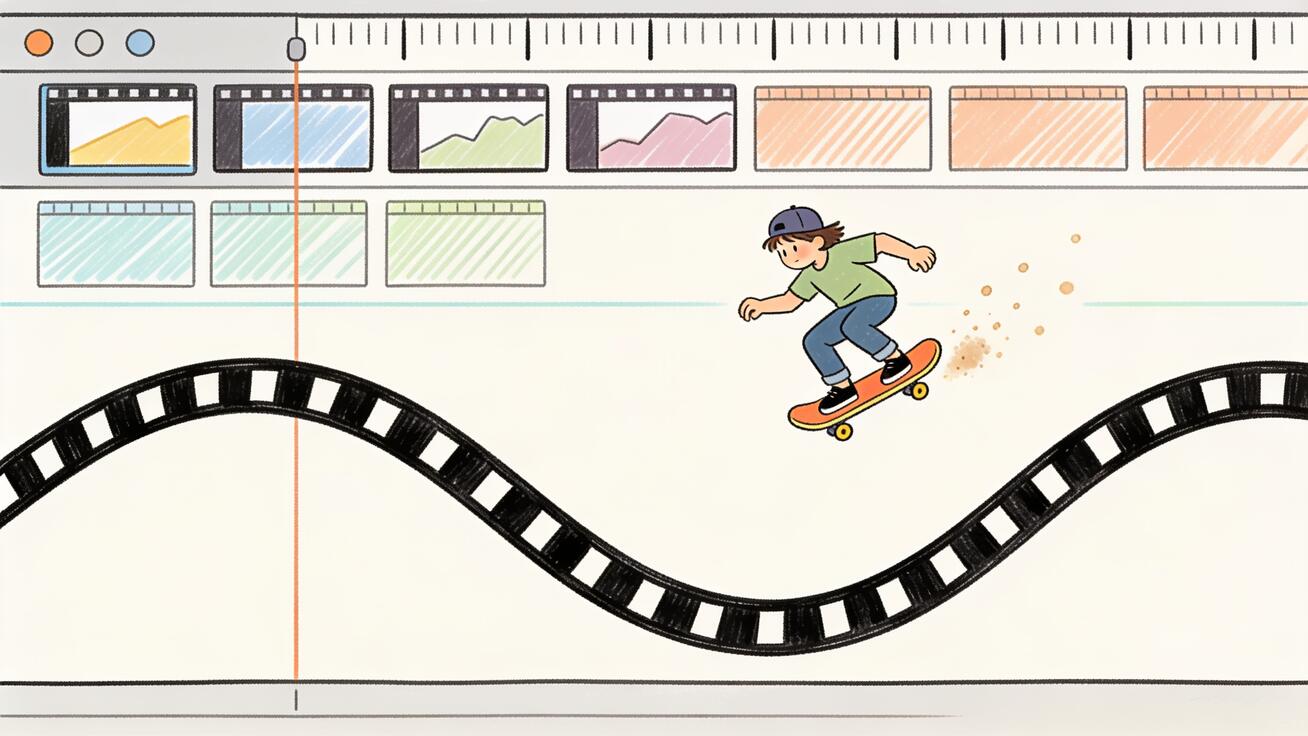
A speed ramp is when a clip starts at normal speed, dramatically slows down at the key moment, then speeds back up. It is everywhere in modern action and sports edits. Veo 3 cannot perform a true post-production speed ramp inside a single generation, but you can get close in two ways.
Approach 1 — prompt the transition. Describe the change in pace directly:
A skateboarder launches off a ramp at normal speed, then time slows dramatically
at the peak of the jump with the board and rider suspended in mid-air, dust and
debris floating, before speeding back up as they land. Dynamic tracking camera,
late afternoon light.
Veo 3 will often interpret this as a pace shift within the clip. Results vary, but when it works the effect is striking.
Approach 2 — generate, then ramp in your editor. Generate the clip at a consistent slow motion, then apply the actual speed ramp in your video editor (Premiere, CapCut, DaVinci Resolve, Final Cut). This is the more controllable route and the one professionals use. Veo 3 gives you clean, detailed slow-mo source footage; the editor gives you the precise ramp curve. For repeatable, polished results, treat Veo 3 as the camera and your editor as the finishing suite.
When to Use Slow Motion (and When Not To)
Slow motion is powerful precisely because it is restrained. If every shot in your edit is slowed down, none of them feel special and the whole piece drags. Treat slow-mo as a punctuation mark, not the whole sentence.
It earns its place in a few specific situations. The first is the hero moment — the single beat you want the audience to feel, like the splash as a product hits water or the instant a runner leaves the blocks. The second is texture and detail B-roll, where slowing down a pour, a sizzle, or hands at work makes craft feel deliberate and premium. The third is transitions, where a slowed action can bridge two scenes and give an edit rhythm. The fourth is emotion, where a slow turn of the head or drifting hair adds weight to a portrait.
It works against you when the content is information-dense. A tutorial, an explainer, or a talking-head segment needs to move at the pace of speech; slowing it down just wastes the viewer's time. It also fails when the subject is static — slowing nothing down produces nothing. And it can feel gimmicky if overused in a short clip, where two or three slow beats in eight seconds is plenty.
A good rule of thumb: generate your slow-motion clips as standalone assets, then drop them into a faster-paced edit as accents. The contrast between normal-speed storytelling and a single slowed hero shot is what makes the slow motion land. A wall of slow motion just feels sleepy.
Settings and Workflow Tips
A few workflow decisions make slow motion noticeably better.
- Resolution. Render at the highest resolution available to you. Slow motion invites scrutiny, and 1080p holds up far better than 720p when the viewer is staring at a single suspended droplet.
- Aspect ratio to platform. Vertical 9:16 for Reels, Shorts, and TikTok; 16:9 for YouTube and web. Slow-motion B-roll cuts beautifully into both, so generate to the destination rather than cropping later.
- Keep the camera calm. Slow motion plus an aggressive moving camera often reads as chaotic. A locked-off shot or a gentle slow push lets the slowed action breathe.
- One moment per clip. Because slow motion eats your eight-second budget quickly, design each generation around a single beat. Stitch multiple slow-mo clips together in your editor for a sequence.
- Iterate on the physics word. If a splash looks weak, the fix is usually a stronger physics amplifier ("crown splash rising," "droplets suspended in mid-air") rather than a stronger speed word.
- Use slow-mo as B-roll. Some of the highest-value use of Veo 3 slow motion is as cutaway B-roll inside a larger edit — product details, food, hands at work, nature textures. It instantly raises the perceived production value of an otherwise ordinary video.
Common Mistakes to Avoid
Only writing "slow motion" and nothing else. The phrase alone gives you a slow clip, but without a physics-rich subject and good lighting it looks cheap. Always pair the speed trigger with something worth slowing down.
Choosing a static subject. "A person standing in slow motion" barely registers. Slow motion needs movement — falling, splashing, flying, rippling. If nothing moves, the effect is invisible.
Cramming in a whole scene. Trying to fit a multi-action sequence into one slow-motion clip produces a rushed, muddy result. Pick one moment.
Flat, even lighting. Slow-mo lives on contrast and specular highlights — the glint on a droplet, the glow of a backlit spray. Soft, flat light wastes the effect. Add a directional or rim light to almost every slow-motion prompt.
Fighting the camera against the action. Big camera moves plus slow action equals visual noise. Let the camera be still or move slowly so the slowed subject stays the hero.
Ignoring the audio. Letting Veo 3 guess the audio on a slow-mo clip often produces a mismatch. Either prompt the audio explicitly or plan to replace it in your edit.
Frequently Asked Questions
Does Veo 3 have a slow-motion button or frame-rate setting? No. Veo 3 is prompt-driven. You create slow motion by describing it in the prompt with phrases like "slow motion," "extreme slow motion," or "high-speed camera," not by adjusting a numeric frame-rate control.
What subjects look best in Veo 3 slow motion? Anything with rich physics: water splashes, liquid pours, fire and sparks, dust and particles, fabric, hair, smoke, and athletes in motion. Static subjects barely show the effect.
How long can a Veo 3 slow-motion clip be? Native generations run up to around eight seconds. Because slow motion stretches time, plan each clip around a single moment and stitch several together in an editor for longer sequences.
Can Veo 3 do a speed ramp from normal to slow motion? Partially. You can prompt for a pace change within a clip, and it sometimes works well. For precise, repeatable speed ramps, generate clean slow-motion footage and apply the ramp in your video editor.
Why does my slow-motion clip look blurry instead of smooth? Usually the subject is too static or the lighting is flat, so there is no crisp detail to anchor the eye. Add a physics amplifier and a directional light, and render at the highest resolution available.
Does the audio slow down too? Veo 3 generates native audio, but its behavior in slow motion is inconsistent. Prompt for minimal or explicitly stretched audio, or mute the track and add your own sound design in editing.
Final Thoughts
Slow motion is one of the highest-return effects you can get out of Veo 3, because it turns ordinary subjects into footage that feels expensive. The key is to stop thinking of it as a setting and start thinking of it as a description. Name the speed, choose a subject with real physics, light it hard, keep the camera calm, and design around a single moment. Do that and Veo 3 will hand you slow-motion B-roll that slots straight into commercials, social edits, and product videos — no high-speed camera required.
Start with one of the prompts above, change the subject to fit your project, and iterate on the physics and lighting words until the droplets hang in the air exactly the way you want.
Related Articles
Continue with more blog posts in the same locale.

How to Make Sports Highlight Videos with Veo 3 AI (2026)
Create stunning sports highlight videos with Veo 3 AI. Generate dynamic action shots, slow-motion sequences, and dramatic replays using AI prompts.
Read article
How to Make a Short Film with Veo 3 AI (2026 Guide)
Learn how to create professional short films using Veo 3 AI. Step-by-step guide with prompts, workflow tips, and cinematic techniques.
Read article
How to Make Documentary Videos with Veo 3 AI (2026 Guide)
Create compelling documentary videos with Veo 3 AI. Learn prompting techniques, narrative structure, realistic footage generation, and post-production tips.
Read article