
Veo 3 Text to Video: Complete Guide (2026) — From Prompt to Final Video
Master Veo 3 text-to-video generation. This complete 2026 guide covers writing prompts, understanding output, advanced techniques, and getting the best results.
Emma Chen · 10 min read · Apr 1, 2026
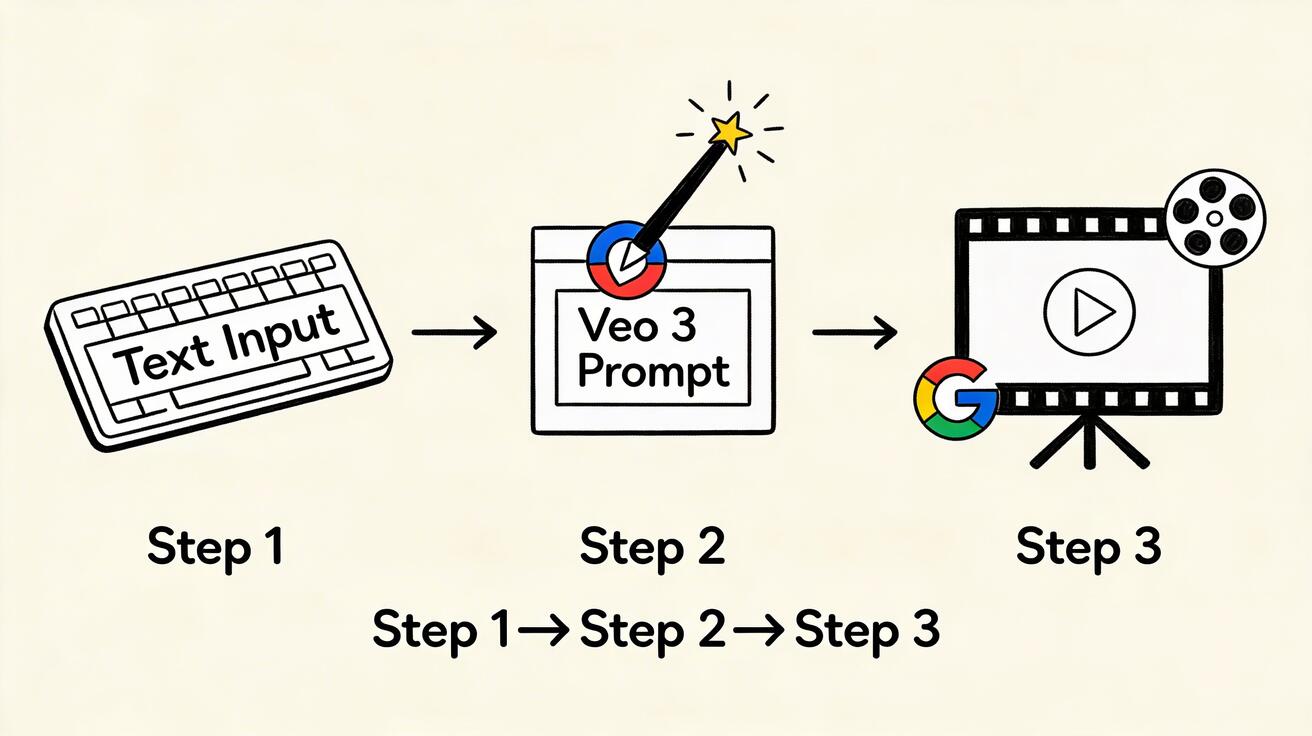
Google Veo 3's text-to-video capability lets you generate any video scene by describing it in words. Type a description, click generate, and watch your words become a realistic video clip. No camera. No crew. No equipment.
Quick Answer: Text-to-video AI tools convert written descriptions into fully rendered video clips using generative AI models. Top platforms in 2025 include Google Veo 3, Runway Gen-4, Kling AI, and Pika—offering cinematic quality, controllable camera motion, and outputs up to 4K resolution.
This comprehensive guide covers everything from your first generation to advanced techniques used by professional creators.
What is Text-to-Video?
Text-to-video AI generation creates video clips from natural language descriptions (called "prompts"). You describe what you want to see — the subject, setting, movement, lighting, style — and the model synthesizes a realistic video matching your description.
Veo 3 specifically is trained on massive datasets of real video footage, giving it an understanding of:
- Physical laws (how water flows, how fire moves, how objects fall)
- Camera behavior (how different lenses look, how different shots are composed)
- Lighting physics (how shadows fall, how light refracts, how atmospheres form)
- Human and animal movement patterns
This is why Veo 3 output looks physically convincing rather than artificial — it's learned from real-world motion.
Accessing Veo 3 Text-to-Video
Go to veo3ai.io and navigate to the Text-to-Video section. Free tier includes daily generation credits — enough to start experimenting immediately.
Your First Generation: Step by Step
Step 1: Start Simple
Your first generation, keep it simple. Single subject, clear action, basic setting:
Example first prompt: "Ocean waves gently rolling onto a sandy beach at sunset, golden light"
Click Generate. Wait 30-60 seconds. You'll get a 5-8 second video clip.
This establishes your baseline — what "good" looks like. Now we'll improve from here.
Step 2: Add Specificity
The same scene with more detail:
"Ocean waves gently rolling onto a sandy tropical beach at golden hour sunset, warm orange light reflecting on wet sand, slight mist in the air, peaceful and cinematic"
Notice the additions:
- "tropical" → specifies beach type
- "golden hour sunset" → specific time of day
- "warm orange light reflecting on wet sand" → explicit lighting detail
- "slight mist in the air" → atmospheric depth
- "peaceful and cinematic" → mood and style direction
Step 3: Add Camera Direction
"Ocean waves gently rolling onto a sandy tropical beach at golden hour sunset, warm orange light reflecting on wet sand, slight mist in the air, peaceful and cinematic, slow dolly zoom toward the waterline, shallow depth of field"
Now you have camera movement ("slow dolly zoom") and depth direction ("shallow depth of field"), which creates more intentional, professional-looking output.
The 6 Components of a Great Veo 3 Prompt
Component 1: Subject
The main focus of your video. Be specific:
❌ "A person" ✅ "A professional female athlete in blue athletic wear"
❌ "A car" ✅ "A vintage red Ferrari 348 from the 1990s"
❌ "A building" ✅ "A glass-facade modern skyscraper reflecting clouds"
Component 2: Action
What is happening? What movement, state, or activity?
❌ "Standing" ✅ "Standing confidently with arms crossed, slight wind moving hair"
❌ "Moving" ✅ "Sprinting at full speed, powerful stride, arms pumping"
❌ "In water" ✅ "Swimming underwater in slow motion, bubbles trailing behind"
Component 3: Environment
Where is this happening? What surrounds the subject?
Simple: "in a forest" Detailed: "in a misty old-growth redwood forest at dawn, ferns covering the forest floor, massive tree trunks surrounding"
Component 4: Lighting
Lighting determines the mood more than any other element:
| Lighting Type | Effect | Best For |
|---|---|---|
| "golden hour" | Warm, romantic, beautiful | Nature, lifestyle, fashion |
| "dramatic side lighting" | Cinematic depth, strong shadows | Portraits, products, drama |
| "soft window light" | Natural, clean, authentic | Interviews, tutorials |
| "neon glow" | Urban night, edgy, modern | Nightlife, tech, music |
| "overcast natural" | Realistic, muted, journalistic | Documentary, news-style |
| "volumetric fog lighting" | Atmospheric, mysterious, epic | Fantasy, thriller, cinematic |
Component 5: Camera
Specify how you want the viewer to "see" this scene:
Movement options:
- "static locked-off shot" — no movement, stable, clean
- "slow dolly in" — gradually moving closer to subject
- "smooth pan left to right" — horizontal sweep
- "gentle crane shot up" — rising to reveal more
- "handheld slight drift" — natural documentary feel
- "aerial pullback" — drone-style reveal
- "tracking shot following subject" — stays with moving subject
Framing options:
- "extreme close-up" / "close-up" / "medium shot" / "wide shot" / "extreme wide"
- "low angle looking up" — makes subjects feel powerful
- "high angle looking down" — overview, vulnerable
- "eye level" — natural, neutral perspective
Component 6: Style
The visual language and aesthetic:
- "cinematic" — film quality, often slightly desaturated
- "documentary" — realistic, handheld, authentic
- "commercial" — clean, bright, polished
- "editorial" — magazine aesthetic, sophisticated
- "music video aesthetic" — dynamic, stylized
- "vintage film grain" — nostalgic, textured
- "4K ultra realistic" — maximum detail, photorealistic
Advanced Techniques
Technique 1: Reference Real Cinematography
Reference a film style or cinematographer when you have a specific look in mind:
"Urban night scene, rain-slicked streets, neon reflections, moody atmosphere — Blade Runner visual style"
"Mountain landscape, dramatic natural lighting, sweeping vistas — Planet Earth documentary cinematography"
"Intimate portrait, shallow focus, warm golden light — Barry Jenkins film aesthetic"
Technique 2: Build Scenes in Layers
For complex scenes, break your prompt into clearly delineated layers:
"[Background: dramatic storm clouds building over ocean] [Midground: lighthouse standing tall on rocky cliff] [Foreground: waves crashing against rocks] warm sunset light fighting through dark clouds, cinematic wide establishing shot"
Technique 3: Temporal Prompting
Describe how the scene changes over time to get dynamic evolution in the clip:
"Starts on dark pre-dawn sky, gradually sun begins to rise over mountain peaks, light slowly illuminating the valley below, cinematic sunrise time-lapse feeling"
"Begins with still desert landscape, a single tumbleweed enters frame and rolls through, dust swirling, continues off-screen"
Technique 4: Physics-Forward Language
Veo 3 excels at physical simulation. Use language that implies specific physics:
"Thick honey being poured in extreme slow motion, viscous flow, golden color, macro close-up" → Veo 3 will render convincing fluid dynamics
"Heavy rain hitting a puddle surface, hundreds of water rings expanding and overlapping, overhead shot" → Veo 3 understands ripple physics
"Candle flame flickering in a slight breeze, warm light casting dancing shadows on wall behind" → Veo 3 understands combustion behavior
Technique 5: Iterative Refinement
Don't expect perfection on the first generation. Use a refinement loop:
- Generate initial version
- Identify what's wrong or missing
- Add specific corrections to your next prompt
- Generate again
- Compare and select
Example refinement:
Gen 1 prompt: "Luxury hotel lobby interior" → Result: Generic, missing detail
Gen 2 prompt: "Grand luxury hotel lobby, marble floors with subtle reflections, soaring ceiling with crystal chandelier, warm amber lighting, smooth camera drift through the space, architectural photography style" → Result: Much more specific and impressive
Technique 6: Seed Prompts for Series
When creating multiple related videos (for a series or campaign), establish a "seed prompt" that keeps visual elements consistent:
Seed: "Professional female CEO in black business suit, modern glass office building, natural window light, cinematic editorial style"
Video 1: "[SEED] — walking confidently toward camera, city skyline visible behind" Video 2: "[SEED] — sitting at desk reviewing documents, focused expression" Video 3: "[SEED] — on phone at window, thoughtful expression, city view"
This creates a consistent visual world across multiple clips.
Generation Settings Guide
Duration
Veo 3 generates 5-8 second clips by default. This is optimal for:
- Social media posts
- B-roll cutaways
- Intro/outro sequences
For longer content, generate multiple clips and edit them together.
Aspect Ratio Considerations
While Veo 3 defaults to widescreen, specify orientation needs in your prompt:
"vertical format, portrait orientation, 9:16 aspect ratio" — for TikTok/Reels Standard widescreen — for YouTube, presentations, web
Quality vs. Speed
Veo 3 prioritizes quality in its generations. Generation time (30-90 seconds) reflects the model running comprehensive physics and lighting simulation. Don't interrupt — let it complete.
Common Mistakes and How to Fix Them
Mistake: Contradictory Elements
❌ "A sunny beach scene in a blizzard" — contradictory conditions
✅ Choose one: "A sunny beach scene with perfect blue skies" OR "A dramatic winter beach scene with dark stormy skies and snow"
Mistake: Over-Specifying Everything
❌ 300-word prompts that contradict themselves — too many competing instructions
✅ Focus on 5-7 key elements: subject + action + environment + lighting + camera + style
Mistake: Vague Action Descriptions
❌ "Doing stuff" / "Moving around" / "Things happening"
✅ Be specific: "Leaping across rooftops" / "Slowly turning to face camera" / "Swirling in a whirlpool"
Mistake: Ignoring Lighting
Lighting is the single most impactful element you can specify. Don't skip it.
❌ "A person in a park"
✅ "A person in a park at golden hour, warm backlit sunlight creating a beautiful rim light effect"
Use Cases by Industry
Advertising and Marketing
Generate custom ad footage without expensive production. Test multiple visual concepts quickly.
Film and Video Production
Pre-visualization, concept testing, B-roll supplementation, low-budget production support.
Social Media Content
Unique, custom footage that stands out from stock video everyone else uses.
Education
Visualize abstract concepts, historical events, scientific processes.
Gaming and Entertainment
Concept art brought to life, cinematic sequences, promotional content.
Journalism and Media
B-roll for stories where filming isn't possible (historical, dangerous, restricted locations).
FAQ
How realistic is Veo 3 text-to-video output?
For landscape, nature, abstract, and architectural scenes: near-photorealistic, difficult to distinguish from real footage. For human subjects in complex social situations: generally convincing but may show occasional artifacts. For very specific real-world locations (your exact office, specific landmarks): less reliable.
Can I specify exact durations?
Not directly. Veo 3 determines clip length (typically 5-8 seconds) based on scene complexity. For longer content, combine multiple clips in editing.
Does Veo 3 generate audio with video?
Yes — Veo 3 3.0 generates contextual audio (ambient sound, effects) alongside video. You can use this audio or replace it in editing.
Can I use text-to-video commercially?
Yes on paid tiers. Free tier is for personal/non-commercial use. Check current terms at veo3ai.io.
How many generations should I make before committing to one?
Generate 3-5 versions of important shots and select the best. The variability between generations is a feature — you'll get meaningfully different results from the same prompt.
Start Generating
Text-to-video is the most creative tool in AI video generation — unlimited scenes, locations, lighting conditions, and styles, all from your imagination.
The best way to learn is by generating. Start with one of the example prompts above, see what Veo 3 creates, and iterate from there.
Try Veo 3 Text-to-Video Free →
Our Verdict
After reviewing the available options and capabilities for veo 3 text to video complete guide 2026, we recommend taking a hands-on approach: start with a free trial of the leading platforms, test with your actual use cases, and upgrade to the plan that best matches your volume and quality requirements. The AI tools in this space are advancing rapidly, making now an excellent time to integrate them into your content creation workflow.
Related Articles
Continue with more blog posts in the same locale.
Veo 3 Talking Head Video: How to Create AI Presenter Videos (2026)
Create AI presenter videos with Veo 3: character prompts, lip sync, platform formats, brand spokesperson, social persona, and training video host — with ready-to-use templates.
Read article
Veo 3 Drone Shot Prompts: How to Create Aerial Camera Moves (2026)
Veo 3 drone shot prompts: aerial camera vocabulary, pull-back reveal, orbit, tracking shots, environment examples for real estate, travel, sports, and documentary.
Read article
Veo 3 for E-Commerce: AI-Generated Product Videos That Convert (2026)
Learn how to use Veo 3 for e-commerce product video: I2V packshot prompts, platform specs, category playbooks for fashion, food, cosmetics, and home goods, plus QA checklists.
Read article