
Best AI B Roll Generator Tools Compared for 2026
Find the best AI B Roll Generator tools for short-form video. Compare Veo 3 prompts, strengths, limits, and tips for adding B-roll to Reels and Shorts.
Veo3 AI · 19 min read · Nov 8, 2026
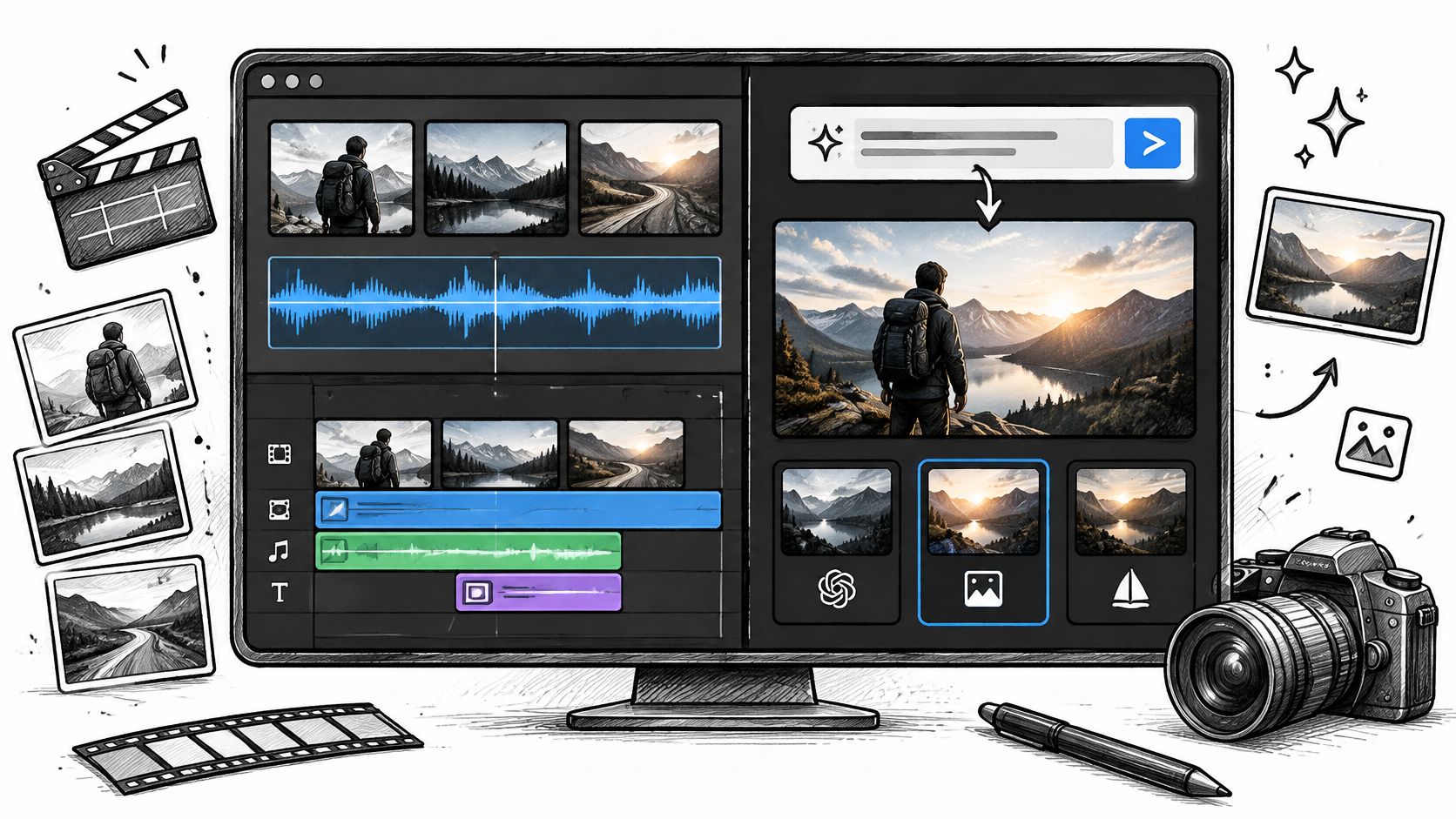
Most AI B-roll tools place footage instead of making it. That's why the usual advice to choose whichever tool produces the most cinematic demo misses the point. A beautiful standalone shot won't help much if your real problem is covering awkward cuts in a recorded interview.
There are two distinct workflows. Transcript-driven tools analyze narration, find visual opportunities, and place stock footage or generated shots against the spoken words. Prompt-driven generators create new footage from a description or reference image, leaving you to choose the shot and place it in the edit.
Some products combine both approaches. Still, the distinction determines where you'll spend your time: correcting automated selections or directing individual generations.
The Veo 3 AI video generator belongs primarily in the custom-shot workflow, with models including Veo 3.1. Tools such as VEED and Moonshot start closer to the narration. Neither approach is automatically better.
Choose by the missing task: If you already know what the shot should show, generate it. If you don't know where supporting visuals belong, start with transcript matching.
Keep real capture in the mix, too. A simple setup from these best budget creator kits for 2026 can provide authentic product handling, faces, and location footage that generated inserts shouldn't replace.
The comparisons below prioritize usable edits, not impressive previews.
Table of Contents
- 1. Veo3 AI
- 2. InVideo Editor
- 3. OpusClip
- 4. VEED
- 5. Moonshot
- 6. Compledio
- 7. Adobe Firefly
- 8. Runway
- 9. Google Flow
- 10. Pika
- How the 10 AI B-Roll Generator tools differ by approach, best use, free access, and footage generation
- Choosing the Right AI B-Roll Workflow for Your Next Edit
<a id="1-veo3-ai"></a>
1. Veo3 AI
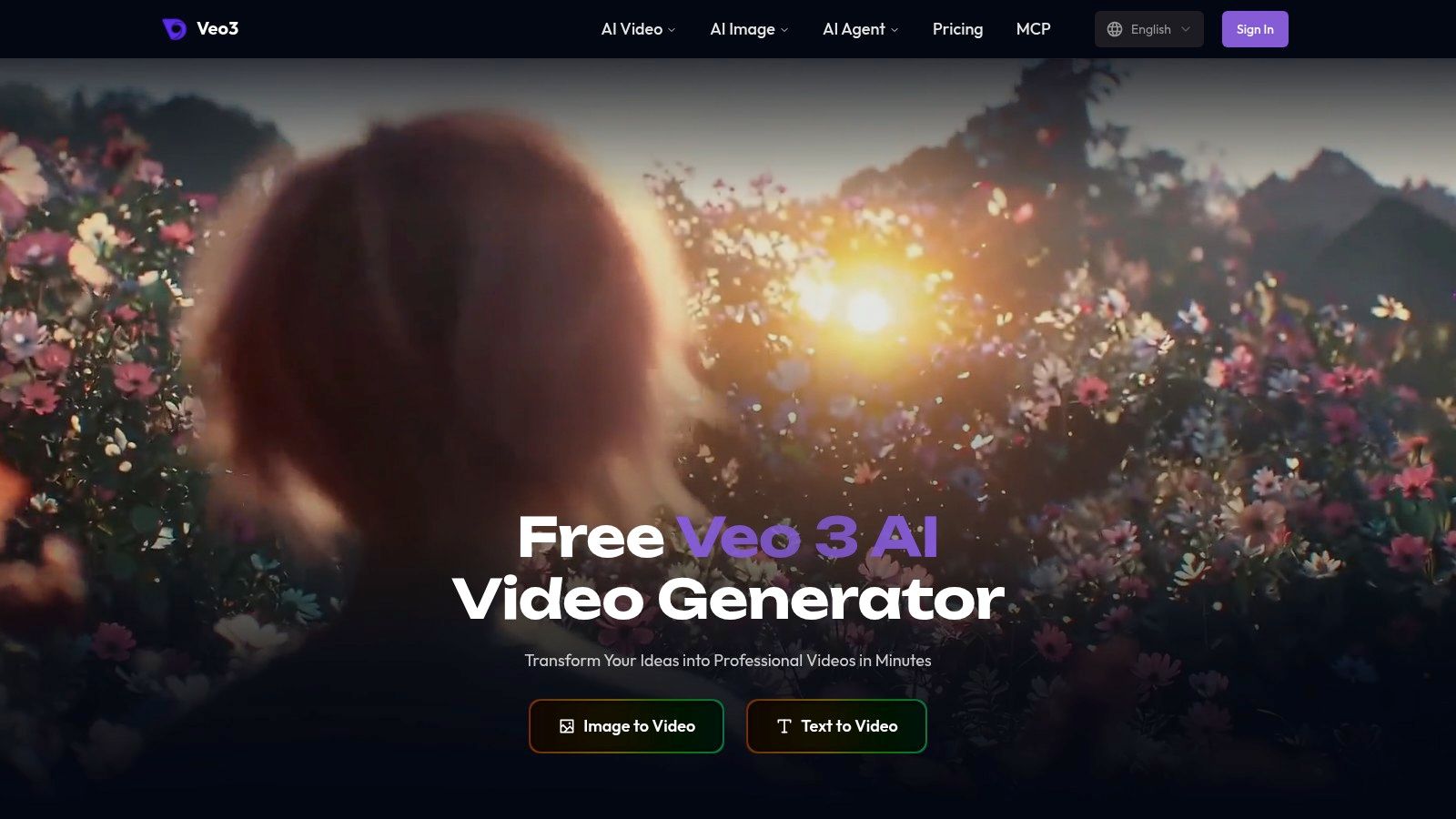
Best for creating a specific missing shot and comparing generation models. Veo3 AI brings text-to-video and image-to-video workflows together in one browser workspace, with access to models including Veo3, Seedance, MiniMax, Kling, and Omni Flash. It generates shots from a prompt or reference image rather than listening to your narration and choosing where coverage belongs.
That distinction matters for product ads. You can start with an approved product image, describe the motion and setting, and generate an insert without rebuilding the concept across separate services. Supporting tools cover text-to-image, photo animation, and music generation, so a still, its animated version, and a soundtrack can come from the same account. Videos run up to 8 seconds on all plans, which suits a cutaway or close-up but not a full sequence.
<a id="direct-the-shot-not-the-whole-edit"></a>
Direct the shot, not the whole edit
I'd use this workflow for a product close-up, atmospheric cutaway, or establishing shot that stock libraries can't match closely enough. Keep the request narrow: one subject, one action, one restrained camera move. The Veo 3 B-roll workflow guide is a practical starting point for planning those inserts.
Sample Veo 3 prompt
Animate the uploaded coffee-bag image on a warm wooden counter. Slow lateral camera slide, soft window light from camera left, subtle steam behind the bag. Preserve the packaging shape and label. No added text, no hands, no music.
The strength is flexibility. The trade-off is that model selection, shot approval, and timeline placement remain editorial work. Controls also vary by model, so don't assume every option applies across the suite.
- What works: Comparing interpretations of the same shot across models and animating a supplied image.
- Where it falls short: Deciding which sentence of narration needs coverage and assembling a finished timeline.
- Before publishing: Inspect labels, product proportions, reflections, and frame-to-frame drift. Veo3 AI states that creators retain rights for personal and commercial use, which still leaves third-party logos and likenesses as your problem.
Treat each generation as material to approve, not a finished insert by default.
<a id="2-invideo-editor"></a>
2. InVideo Editor
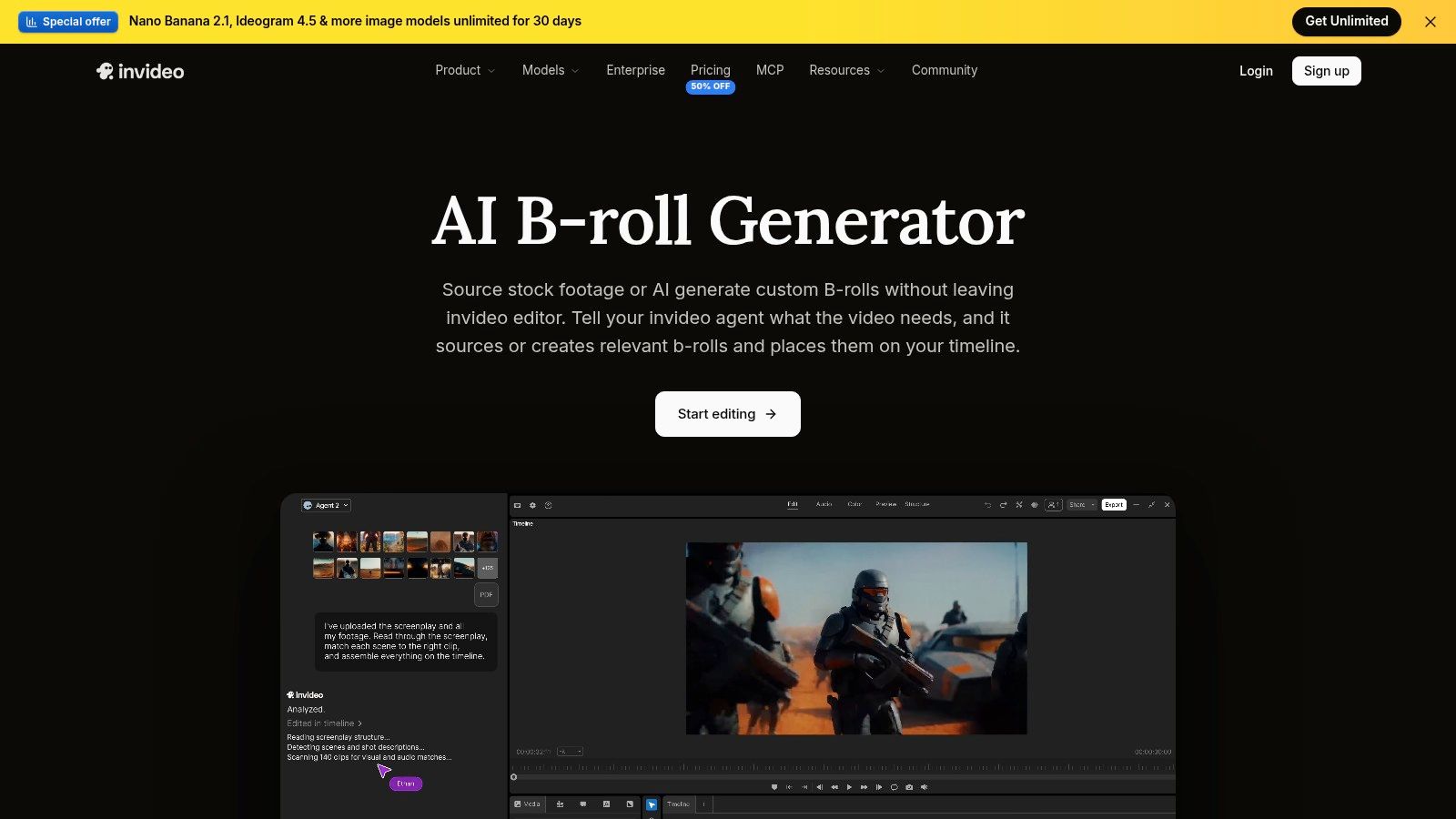
A recorded explainer often needs both ordinary stock footage and a custom insert. InVideo Editor fits that mixed workflow: it can analyze dialogue or a script, source footage or generate B-roll, and place the results on an editable timeline.
Its main advantage isn't just generation. It's the ability to correct the assembly without starting over. You can refine timing, replace a literal stock match, and use image or video references to guide a custom shot.
For a talking-head ad, that means keeping authentic customer footage where credibility matters and generating an illustrative background where filming would add little. The multitrack timeline gives you room to adjust those decisions.
<a id="use-automation-for-the-rough-assembly"></a>
Use automation for the rough assembly
The common failure is semantic rather than visual. A narration about business growth might receive a plant-growing cutaway when the speaker means a crowded production floor. The selected footage can match a word while missing the argument.
- Best fit: Explainers, video essays, talking-head ads, and other narration-led projects.
- Main trade-off: AI-agent work uses credits even though manual editing tools are free.
- Publishing check: Review both the subject and the timing of each insert. A relevant image can still arrive before the speaker has established its meaning.
I'd choose InVideo when sourcing, generation, and editing all need to happen together. I wouldn't choose it solely to direct a distinctive cinematic shot. Approve the narrative first, then spend generation credits on the gaps stock footage can't fill convincingly.
<a id="3-opusclip"></a>
3. OpusClip
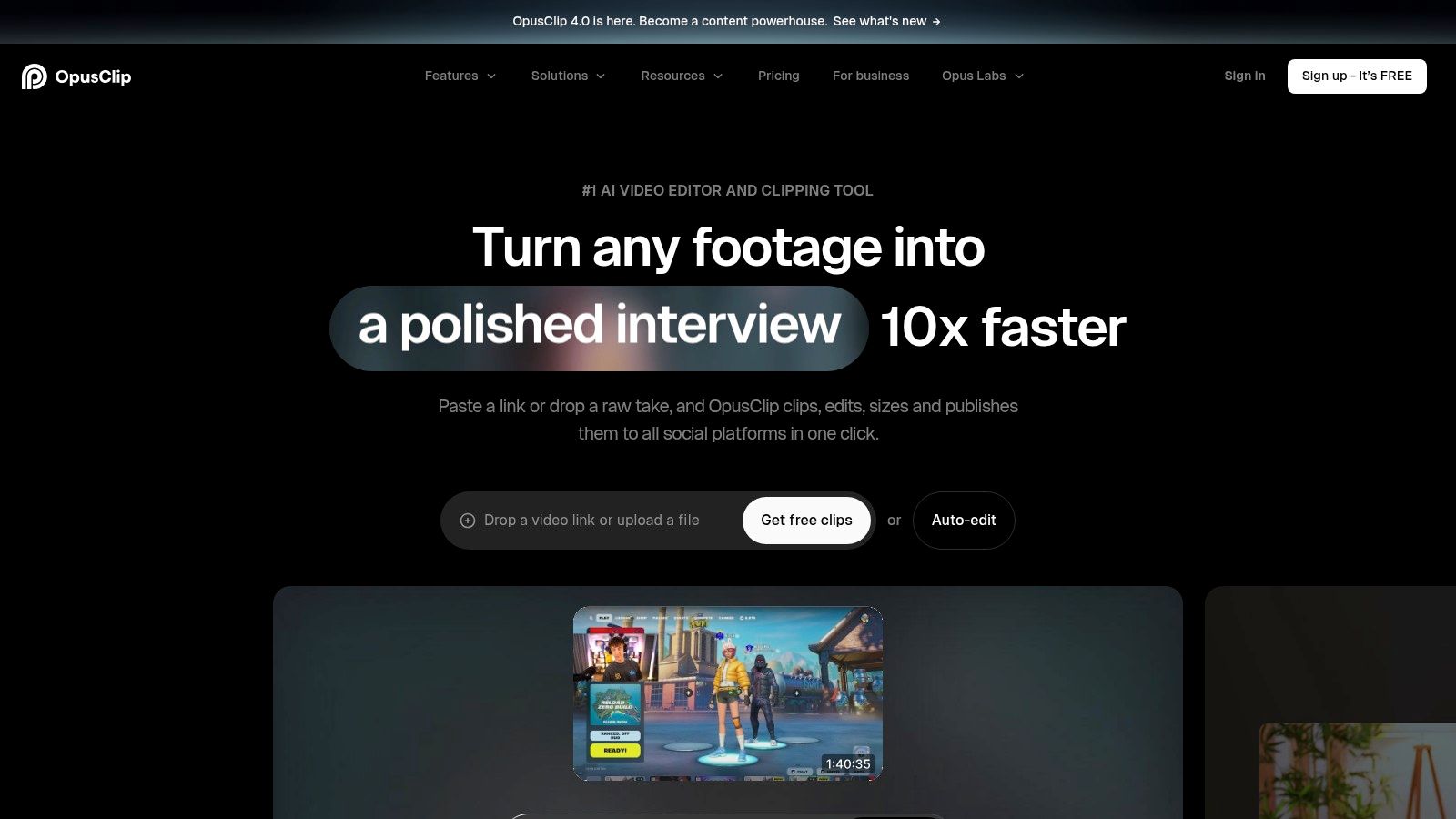
Repurposing is a different job from shot creation. OpusClip makes sense when the starting material is a webinar, podcast, interview, or other long recording that needs to become social clips.
Its B-roll options include generated footage, stock, and images alongside clipping, captions, reframing, and publishing tools. That combination matters because supporting visuals are only part of a usable Short or Reel. You also need a coherent excerpt, readable captions, and framing that keeps the speaker visible.
The failure mode is over-decoration. When every phrase receives a cutaway, viewers lose the speaker's expression and the clip starts to feel assembled from keywords.
Keep the speaker on screen when their reaction carries the point. Add B-roll when it explains something the audience can't see.
<a id="preserve-an-editable-route"></a>
Preserve an editable route
OpusClip's Pro plan supports exports to Premiere Pro and DaVinci Resolve. That's useful when the automated version is close, but the final pacing needs a proper timeline pass.
Before publishing, check the relationship between captions, reframing, and B-roll. A cutaway can hide an important gesture; a generated background can compete with subtitles; a vertical crop can remove the object being discussed.
B-roll availability and usage depend on the plan and credits. I'd prioritize OpusClip for repurposing existing recordings, not for producing a standalone package of cinematic inserts. Start by approving the excerpt itself, then judge whether each supporting visual makes that excerpt clearer.
<a id="4-veed"></a>
4. VEED
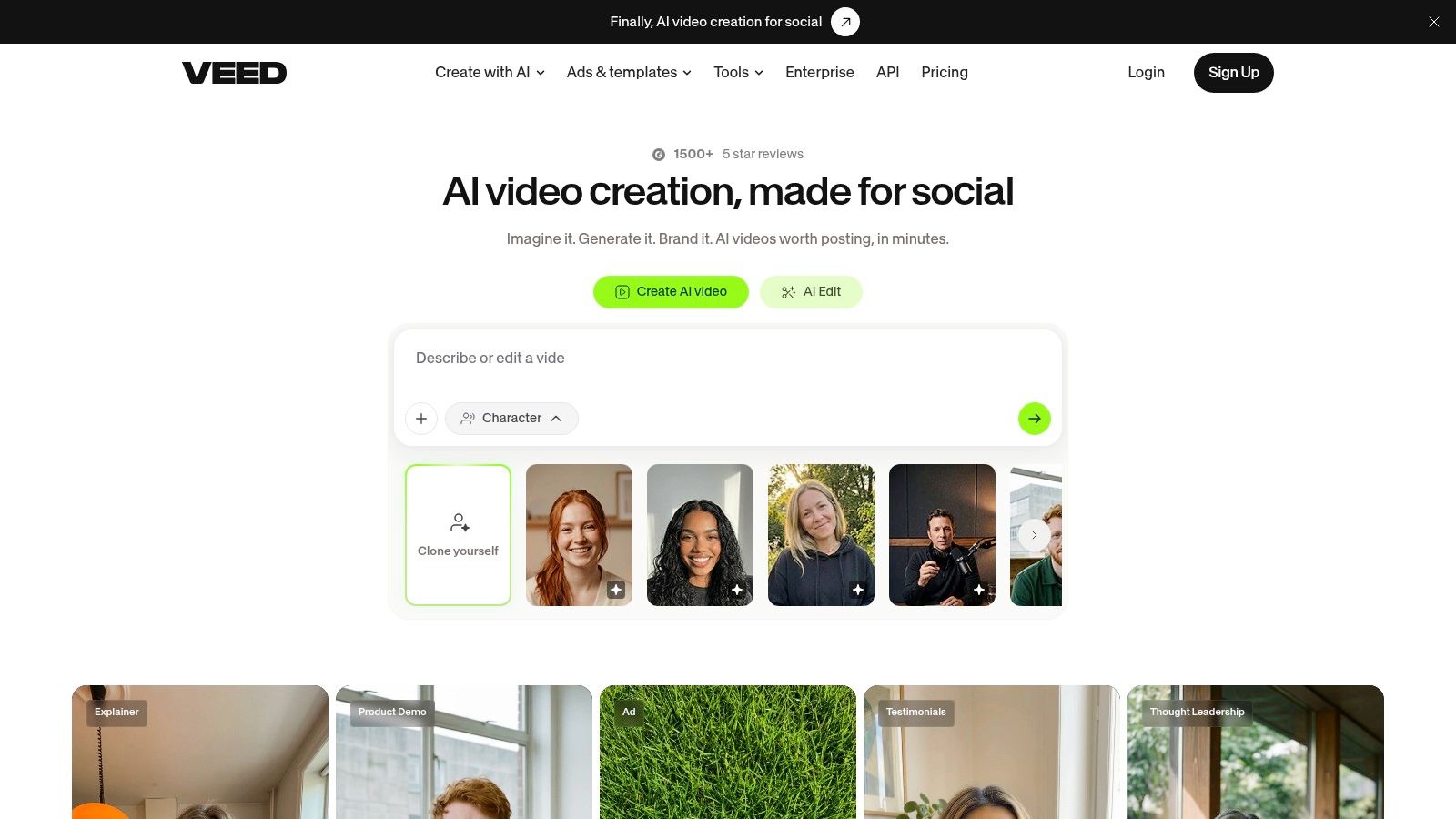
If the spoken video is already edited, VEED offers a direct route to adding coverage. Its Magic B-Roll feature transcribes the upload, identifies points in the narration, and creates a synchronized B-roll track.
The useful detail is individual replacement. You can regenerate a selection or replace it with your own media or stock footage instead of accepting the entire automated pass.
That makes VEED suitable for a straightforward talking-head workflow. Upload the approved speech, review the suggested coverage, and retain only the inserts that clarify or conceal an edit.
<a id="fix-meaning-before-appearance"></a>
Fix meaning before appearance
Say a founder describes removing friction from onboarding. A literal visual of machinery rubbing together might illustrate the words but undermine the tone. Replacing it with an actual onboarding screen would communicate more clearly.
- What works: Adding and revising supporting visuals around existing speech.
- What doesn't: Treating it as a prompt-first system for directing a complete collection of original shots.
- Access consideration: Free and Lite access is trial-limited; ongoing Magic B-Roll use requires Pro.
Before publishing, watch the sequence with the narration muted, then listen without watching. The visuals should make sense as supporting material, while the audio should still carry the argument independently.
I'd choose VEED when the main need is an approachable online editor with speech-aligned coverage. It's less compelling when precise product continuity or a carefully controlled camera move is the central requirement.
<a id="5-moonshot"></a>
5. Moonshot
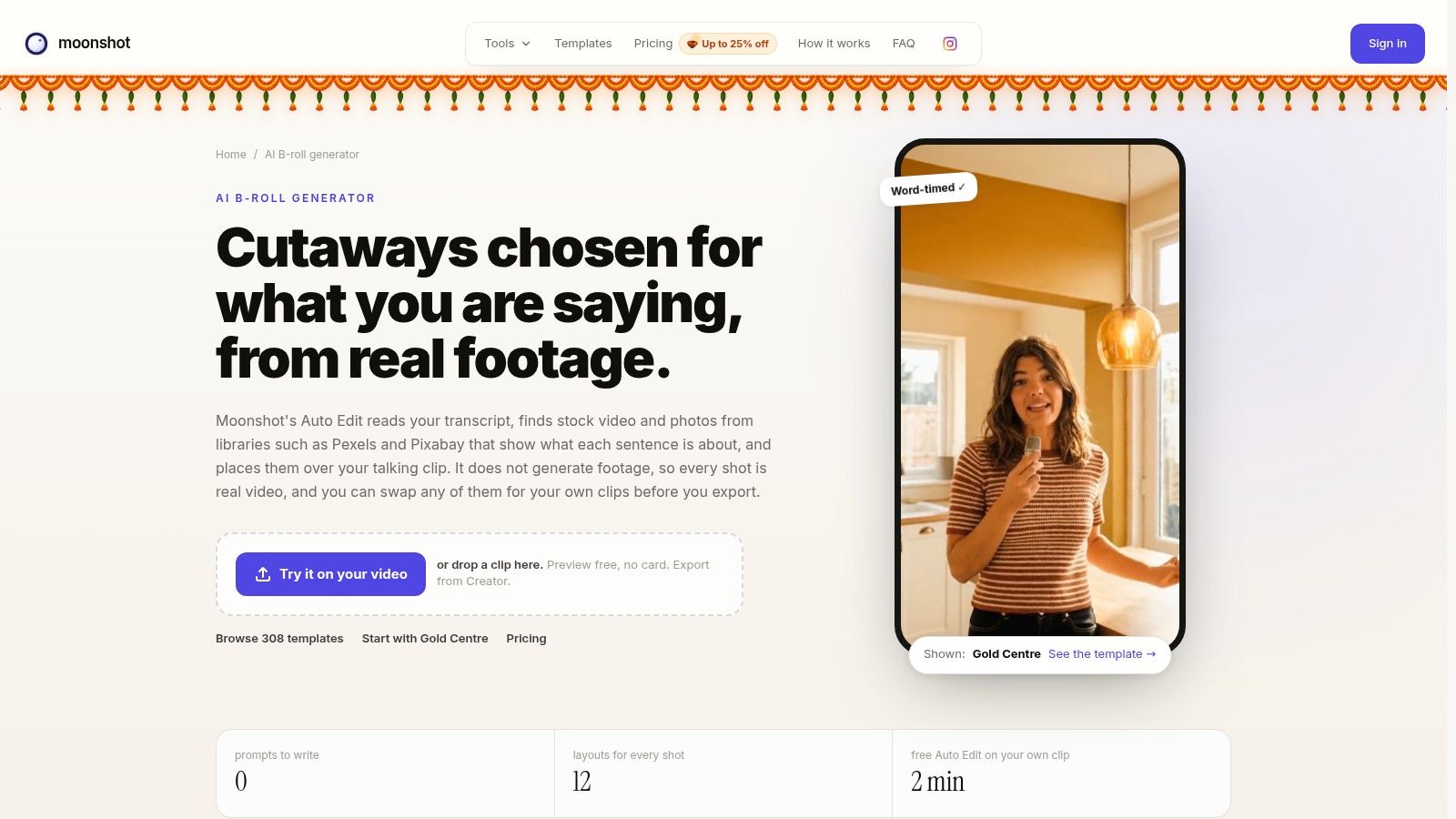
Moonshot doesn't generate new video footage. That's a limitation if you need an impossible camera move, but an advantage if you specifically want real stock cutaways instead of synthetic imagery.
Moonshot's Auto Edit workflow analyzes the transcript and word timings, then places stock footage or photos from sources such as Pexels and Pixabay. You can change the coverage level and swap, move, or remove suggestions.
For an educational video about working from home, ordinary footage of desks, commuting, and video calls may be enough. Generating those scenes from scratch would add review work without necessarily improving the explanation.
<a id="use-stock-as-illustration-not-evidence"></a>
Use stock as illustration, not evidence
The biggest weakness is specificity. Generic footage can show someone packing a parcel, but it can't establish how your business packs orders. Don't let the narration imply that an unrelated stock scene documents your team, premises, or process.
What to check before publishing
- Context: Does the cutaway illustrate the topic without pretending to document it?
- Selection: Are repeated office or lifestyle clichés weakening the message?
- Rights: Keep the asset information and review the applicable stock terms.
- Access: Confirm that the plan supports the B-roll and export workflow you need.
I'd choose Moonshot when speed of stock selection matters more than visual originality. It saves search-and-place work, but it doesn't remove the editor's responsibility to reject misleading or overly generic footage.
<a id="6-compledio"></a>
6. Compledio
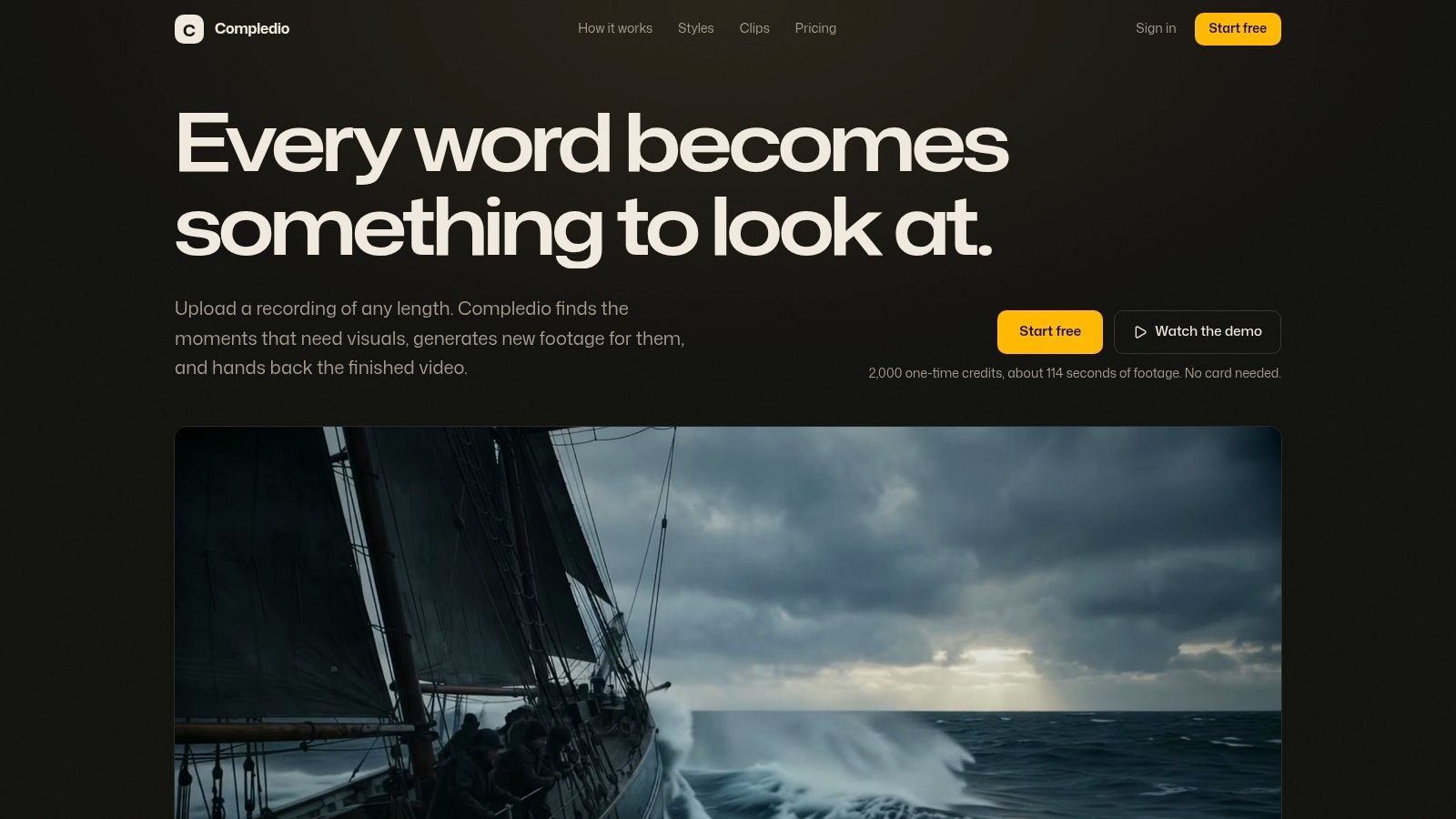
A voice track can be a better starting point than a prompt box. Compledio identifies visual moments in an audio or video recording, creates storyboard frames for review, generates moving shots, and places them along a timeline.
That makes it a hybrid: transcript-driven planning with newly generated footage. It's particularly relevant to podcasters, educators, and YouTubers who already have the explanation recorded.
The storyboard stage is its most useful distinction. Rejecting the wrong concept before generating motion is better than discovering that a polished clip illustrates the wrong idea.
Credit-saving habit: Approve the subject, composition, and narrative purpose in the storyboard before paying for motion.
<a id="expect-an-assembly-not-a-documentary-record"></a>
Expect an assembly, not a documentary record
Compledio offers a studio editor and a Premiere Pro plugin. Those routes suit different finishing habits, but neither removes the need to review what the generated imagery implies.
An educator explaining a historical event should label illustrative reconstructions appropriately. A business explaining a manufacturing process shouldn't substitute plausible-looking machinery for the actual mechanism when accuracy matters.
The practical limitations are short generated shots, finite credits, and greater credit use for higher resolutions. Trial credits let you assess the workflow, but the useful test is whether approved shots survive the final edit.
Before publishing, compare adjacent generations for recurring objects, clothing, lighting, and environment. Narration alignment isn't visual continuity. Compledio is strongest when the story already exists in speech and you need help planning its visual coverage.
<a id="7-adobe-firefly"></a>
7. Adobe Firefly
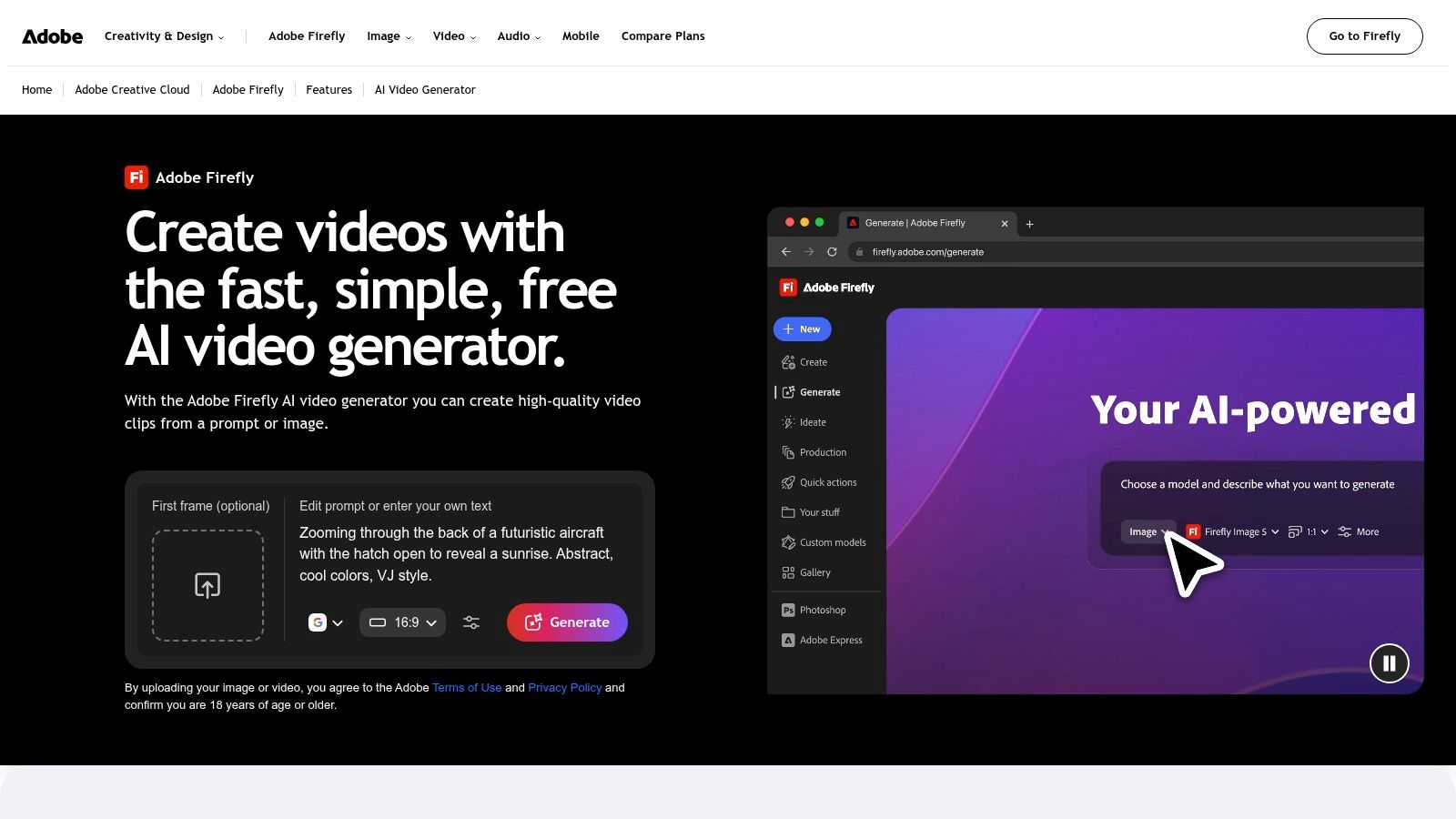
An approved still image often provides a stronger starting point than a broad text description. Adobe Firefly supports both text-to-video and image-to-video generation, making it useful for custom product inserts, atmosphere, and other B-roll-style clips.
Its workspace also supports arranging clips, adding audio, and refining or extending footage. For an Adobe-oriented creator, that makes it a practical candidate for generating material that will receive further editing rather than immediate publication.
The trade-off is matching. A polished generated shot can look conspicuously different from handheld interview footage. Match the light direction, contrast, camera height, and movement before worrying about decorative style.
<a id="separate-commercial-positioning-from-clearance"></a>
Separate commercial positioning from clearance
Adobe describes Firefly-model outputs as safe for commercial use. Treat that as the model's commercial positioning, not a substitute for reviewing your uploaded references or the final image.
- Good use: A controlled atmospheric insert or product scene that's difficult to source from stock.
- Weak use: An exact demonstration of a product function that the generation might alter.
- Publishing check: Inspect labels, geometry, people, and any unintended brands or text.
Generation access and volume depend on the plan and generative-credit allowance. I'd test Firefly with an actual reference frame from the project, not an unrelated cinematic prompt. The important question is whether the result cuts naturally with your material, not whether it looks impressive alone.
<a id="8-runway"></a>
8. Runway
Runway is better approached as a shot-development environment than an automatic narration-covering tool. It supports text-to-video, image-to-video, video-to-video, and AI editing, with access to Runway and partner models.
That flexibility suits a creator who wants to develop a particular visual idea. You can guide a clip with a reference image, explore motion, and refine short sequences. You still need to decide where those shots belong.
<a id="judge-motion-separately-from-beauty"></a>
Judge motion separately from beauty
A strong opening frame doesn't prove that a clip will survive playback. The VBench evaluation framework distinguishes dimensions including subject consistency, motion smoothness, spatial relationships, and video-text alignment, a useful way to avoid judging generation by appearance alone.
For a product insert, review whether the object keeps its shape throughout the camera move. For a human action, inspect the contact between hands and objects. For an environment, look for background elements that drift or transform.
- Best fit: Custom cinematic inserts, visual experiments, and reference-led shot development.
- Main friction: Short generations require selection and assembly for longer sequences.
- Budget consideration: Credit use varies by model and generation settings; the free plan offers selected tools to try.
I'd choose Runway when shot control matters more than automatic placement. Before publishing, watch the full clip at normal speed and inspect suspicious moments frame by frame. A beautiful thumbnail isn't evidence of an editable shot.
<a id="9-google-flow"></a>
9. Google Flow
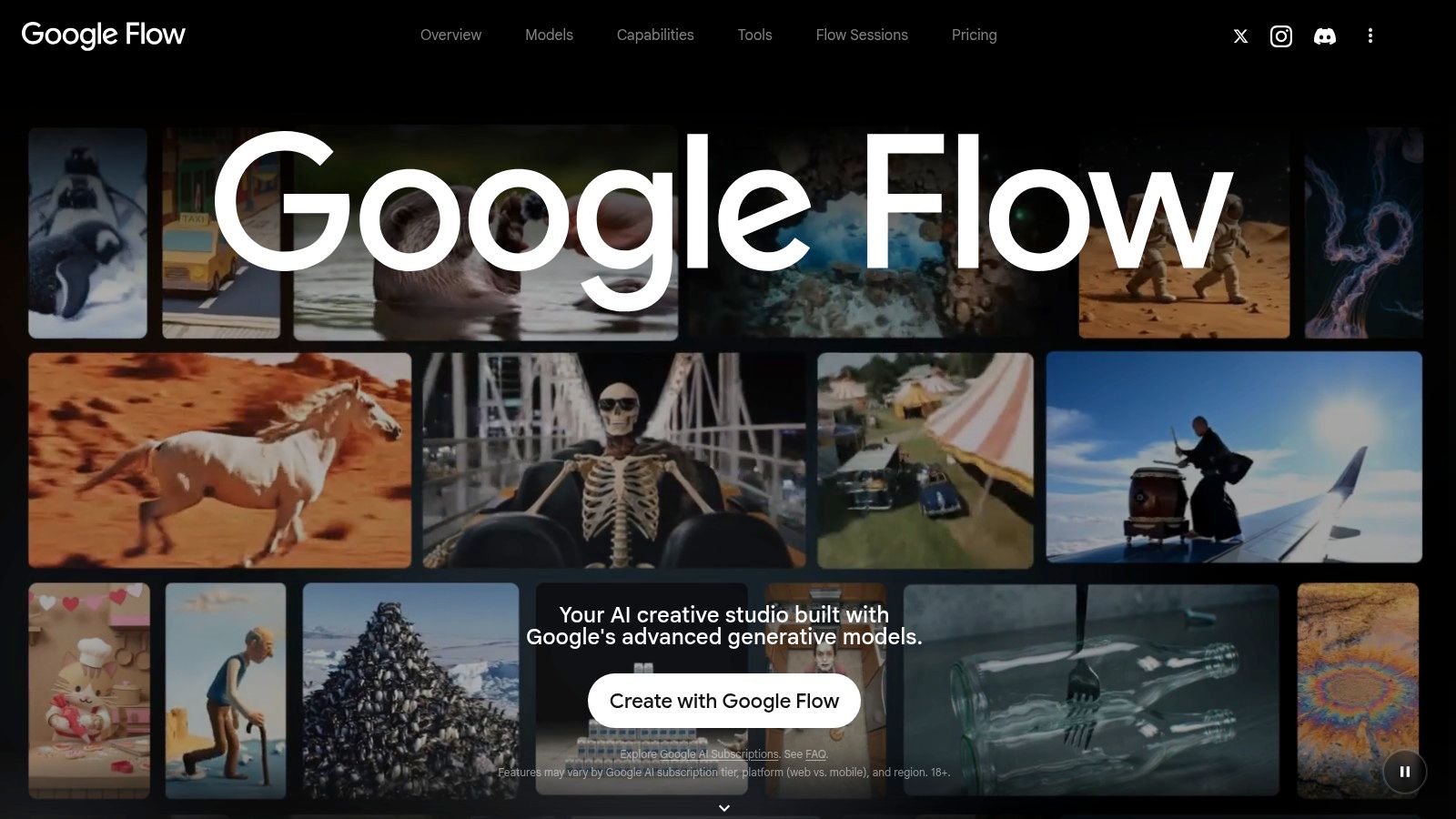
Google Flow is for creating scenes, not automatically covering your transcript. Flow uses Google's generative models, including Veo, to develop cinematic clips from prompts and images.
Choose it when you want to shape an establishing shot, environmental cutaway, or related sequence. Don't expect it to identify a jump cut in an existing interview and place the correct insert over it.
<a id="plan-around-the-selected-model"></a>
Plan around the selected model
Google's Veo model documentation lists supported clip durations of 4, 6, or 8 seconds and 9:16 and 16:9 aspect ratios, although availability depends on the version and workflow. Those model specifications shouldn't be treated as a guarantee that every Flow setting exposes every option.
Sample Veo 3 prompt
Wide establishing view of a fictional neighborhood bakery before opening. Gentle forward camera movement, cool morning exterior light, warm interior windows, restrained natural colors. No readable signs, no people, no dramatic lens effects.
Keep location claims honest. A generated bakery can establish a mood, but it shouldn't masquerade as footage of the actual business being discussed.
Flow offers basic generation access subject to current limits. Its practical weakness is the same as other prompt-first tools: the editor still selects, trims, matches, and places the output. Before publishing, inspect architecture, background movement, and continuity with the following shot, especially if viewers might interpret the scene as a real location.
<a id="10-pika"></a>
10. Pika
For a stylized transition or brief visual idea, Pika is a more natural starting point than a transcript editor. It generates short clips from text or images and includes effects and scene-oriented tools.
The distinction is useful for social editing. A deliberately stylized transformation can signal a change of topic without pretending to be documentary footage. A product close-up can add texture, provided the generation doesn't change the product itself.
Pika won't automatically match those ideas to a narration track. You supply the concept, then perform the editorial placement.
<a id="keep-the-effect-subordinate-to-the-message"></a>
Keep the effect subordinate to the message
The failure mode is choosing a transformation because it looks entertaining, then forcing it into an otherwise restrained video. Effects work best when their visual logic supports the cut.
- Use it for: Atmospheric cutaways, stylized transitions, and image-led motion experiments.
- Avoid relying on it for: Exact product demonstrations or automatic transcript coverage.
- Check before export: Object shape, transition endpoints, and whether the effect obscures the information viewers need.
Pika offers a free plan with monthly credits. Resolution, duration, and generation mode affect credit use, so test the intended workflow rather than assuming every mode has the same cost.
I'd use a reference image when visual identity matters and reserve broader text prompts for less literal inserts. Before publishing, watch the transition with the surrounding shots. A clip can work perfectly in isolation and still interrupt the rhythm or tone of the edit.
<a id="how-the-10-ai-b-roll-generator-tools-differ-by-approach-best-use-free-access-and-footage-generation"></a>
How the 10 AI B-Roll Generator tools differ by approach, best use, free access, and footage generation
| Item | Approach | Best for | Free option | Generates new footage |
|---|---|---|---|---|
| Veo3 AI | Multi-model text-to-video and image-to-video suite | Comparing models and creating custom clips | Advertised free generator; limits unspecified | Yes |
| InVideo Editor | Matches narration to stock or AI-generated B-roll on an editable timeline | Talking-head videos, explainers, and ads | Manual editing is free; AI uses credits | Yes |
| OpusClip | Adds B-roll while repurposing long videos into social clips | Shorts, Reels, and TikToks | Not specified | Yes |
| VEED | Transcribes speech and adds an editable B-roll track | Adding visuals to talking-head videos | One-time try for Free and Lite users | Yes |
| Moonshot | Matches stock footage and photos to narration | Narration-led videos using real footage | Plan-dependent | No |
| Compledio | Generates B-roll from audio or video recordings | Podcasts, educational videos, and voice-led content | One-time free credits | Yes |
| Adobe Firefly | Generates and edits video clips from prompts or images | Custom inserts in Adobe-oriented workflows | Plan-dependent; details unspecified | Yes |
| Runway | Generates and refines short video shots | Cinematic inserts and visual concepts | Free plan for selected tools | Yes |
| Google Flow | Creates cinematic clips and sequences with Google models | Custom establishing shots and cutaways | Basic access without a subscription, subject to limits | Yes |
| Pika | Generates short clips from text or images | Stylized cutaways and visual concepts | Free plan with monthly credits | Yes |
<a id="choosing-the-right-ai-b-roll-workflow-for-your-next-edit"></a>
Choosing the Right AI B-Roll Workflow for Your Next Edit
Choose an AI B-roll generator by the task you need to remove, not by the most attractive demo. If narration already exists, InVideo, OpusClip, VEED, Moonshot, and Compledio can help identify or cover visual moments. If the missing shot must be invented, use a prompt-driven workflow such as Firefly, Runway, Flow, or Pika.
The strongest approach is often mixed. Keep authentic footage for product operation, people, and factual claims. Use stock for ordinary illustrative coverage, then generate the specific atmosphere or insert you can't capture or source.
<a id="write-prompts-that-leave-room-for-editing"></a>
Write prompts that leave room for editing
Check shot length against the selected tool's limits before generating. Leave a calm opening and ending, avoid requesting several actions in the same clip, and choose the delivery aspect ratio before composing the scene.
Establishing-shot Veo 3 prompt
Exterior of a fictional independent workshop at dawn. Locked-off wide composition, soft overcast light, subtle movement in nearby leaves. Clear central building silhouette, no people, no readable signage. Quiet environmental ambience, no dialogue.
Product-insert Veo 3 prompt
Animate the uploaded product photograph with a gentle camera push toward the object. Preserve its silhouette, material, color, and label placement. Soft side lighting, neutral background, no hands, no added text, no music.
Google describes native synchronized audio, including ambience and effects, in its Veo generation documentation. Still, listen critically and remove generated sound if it competes with narration or implies an action that didn't occur.
<a id="approve-the-sequence-not-just-the-clip"></a>
Approve the sequence, not just the clip
Compare generated footage with live material for light direction, color, camera movement, and subject continuity. For Japanese- or Korean-language versions, add approved text and captions in the editor rather than depending on generated signage. Change the visual pacing when translated narration needs more time.
Keep generation records and confirm commercial-use terms for the model, uploaded assets, music, and recognizable people. YouTube's synthetic-content disclosure guidance requires disclosure for realistic content that's meaningfully altered or generated, so don't assume supporting B-roll is exempt.
Publishing rule: An illustrative generated shot must never quietly become evidence of a real event.
Our free Veo 3 AI video generator offers an entry point for testing this workflow; review the current pricing and plan details before planning ongoing production. For broader alternatives, the AI video software picks from Mojolin can help extend your shortlist.
Test candidates against the same real edit. Judge how much usable footage remains after review, how naturally it cuts with the narration, and how much correction it needs. That's a more useful comparison than generation speed alone.
Veo3 AI brings text-to-video, image-to-video, and multiple generation models together for creating custom B-roll inserts. Visit Veo3 AI, start with a missing shot from your current edit, and compare the result against your actual footage before building a larger sequence.
Related Articles
Continue with more blog posts in the same locale.
AI Movie Generator Compared: Models, Rights and Costs
Compare AI movie generator models on quality, speed, customization, rights and pricing, with scoring and use cases for creators and marketers in 2026.
Read article
Sora 2 Pricing: What It Cost, Why It Ended and What to Use Now
Looking up Sora 2 pricing? The Sora 2 API was removed on September 24, 2026. See what it cost and what the main alternatives cost today.
Read article
AI Reels Generator: 7 Tools to Make Vertical Video Fast
Compare the 7 best AI reels generator tools for 2026, with workflows, 9:16 presets, quick production recipes and tips for Japanese and Korean creators.
Read article