
Veo 3 B-Roll Generator: How to Create Cinematic Stock Footage with AI (2026)
Use Veo 3 as a b-roll generator: write prompts for cinematic cutaways, match AI footage to real clips, batch a full b-roll pack, and QA before publishing.
Emma Chen · 14 min read · Jun 25, 2026
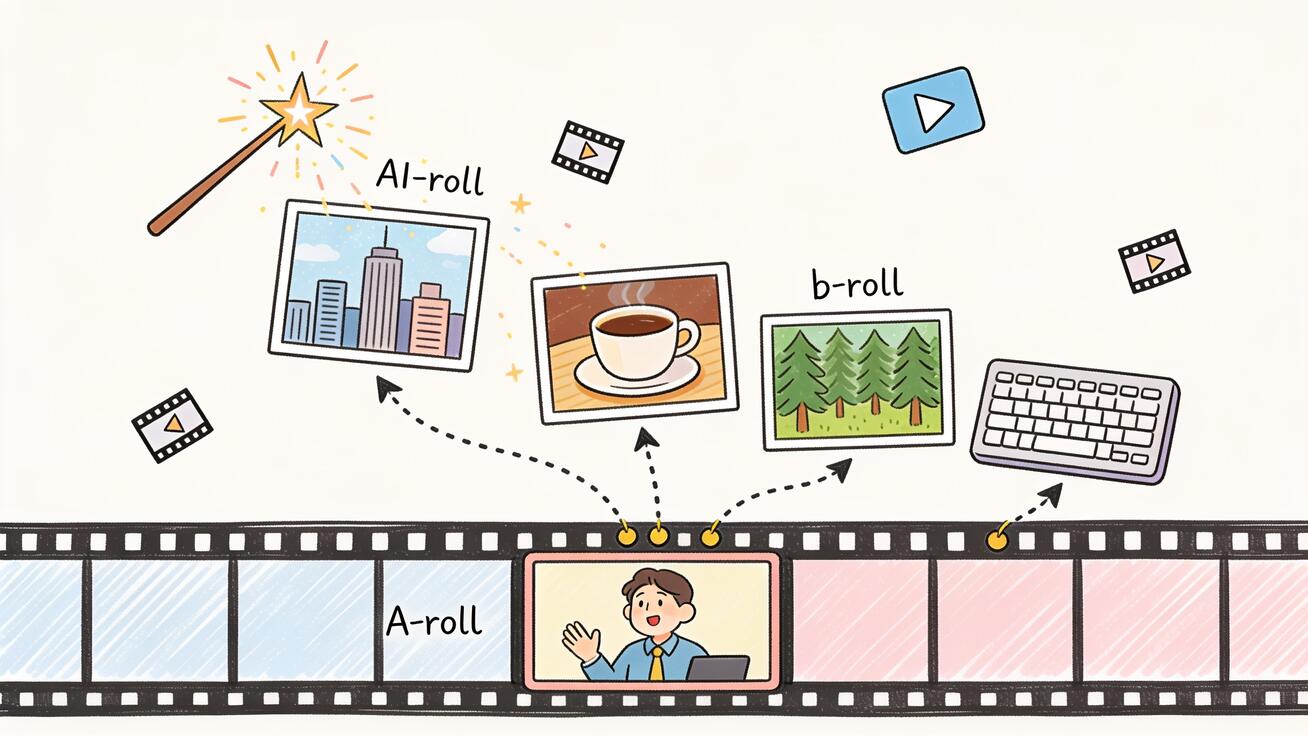
B-roll is the secret weapon of every watchable video. It is the cutaway footage that covers your edits, illustrates what you are talking about, and keeps a viewer's eyes moving so they never reach for the skip button. The problem has always been getting it: filming b-roll is slow, stock libraries look generic, and the exact shot you need rarely exists. Veo 3 changes that. With a single prompt you can generate cinematic, story-specific b-roll in seconds — complete with synchronized ambient audio that older AI video models simply cannot produce.
This guide shows you how to use Veo 3 as a b-roll generator: how to write prompts that produce usable cutaways, how to match generated clips to your real footage, how to batch-create a whole b-roll pack for one project, and how to QA the results before they hit your timeline. Whether you edit YouTube videos, short-form social content, ads, or client work, you will leave with a repeatable workflow.
What B-Roll Is (And Why AI Changes the Math)
A-roll is your main footage — the talking head, the interview, the product demo, the narration. B-roll is everything you cut away to: the close-up of hands typing, the city skyline at dusk, the coffee being poured, the drone shot over a forest. Editors use b-roll for three reasons:
- Hiding cuts. When you trim a sentence out of an interview, a b-roll cutaway covers the jump so the edit feels seamless.
- Illustrating ideas. When the narrator says "imagine a busy newsroom," a two-second shot of a busy newsroom makes the point instantly.
- Controlling pace. Cutting to fresh visuals every few seconds keeps retention high, which is exactly what every platform's algorithm rewards.
Traditionally you got b-roll by filming extra footage on set or buying clips from a stock library. Both have real drawbacks. Filming is expensive and you can never anticipate every cutaway you will want in the edit. Stock footage is fast but generic — the same overused clips appear in thousands of videos, and the shot is almost never exactly what your script needs.
Veo 3 removes both constraints. You describe the precise shot you want and the model generates it. Because Veo 3 produces native, synchronized audio, the clips arrive with believable ambient sound — wind, traffic, room tone, footsteps — so you often do not even need to layer in a separate sound bed. That audio layer is the single biggest difference between Veo 3 b-roll and clips from earlier silent video models, and it is why a Veo 3 cutaway can feel like real footage instead of an AI render. If you are new to the model, start with our complete Veo 3 tutorial and then come back here for the b-roll-specific workflow.
The Veo 3 B-Roll Workflow, Step by Step
A reliable b-roll pipeline has five stages. Skipping any of them is how editors end up with clips that look great in isolation but refuse to cut together.
Step 1 — Build a shot list from your edit, not your imagination
Open your A-roll or your script first. Mark every moment where you will cut away and write down the literal shot you need: "0:42 — close-up of hands sketching in a notebook," "1:15 — wide aerial of a coastal town at sunrise." A shot list keeps you from generating pretty-but-useless clips. It also makes the next steps faster because you are prompting against a concrete target.
Step 2 — Write the prompt around subject, motion, framing, and audio
Veo 3 responds best to prompts that specify four things in order: subject (what is in frame), camera framing and motion, lighting and mood, and ambient audio. A vague prompt like "coffee shop" gives you a random interior. A structured prompt gives you the cutaway you actually planned. We cover the full grammar in the Veo 3 prompt engineering guide; the b-roll-specific shortcut is below.
Step 3 — Generate a test frame, then the clip
Because Veo 3 builds motion from a strong starting image, generating a single still first dramatically raises your hit rate. If the frame is wrong, fix the prompt before you spend a generation on eight seconds of motion. For shots where the framing is critical, use the image reference workflow to lock the look before animating.
Step 4 — Keep clips short and motion subtle
B-roll is support, not spectacle. Five seconds is the sweet spot — long enough to cut to the beat, short enough to generate consistently. Prefer static shots or slow, single-direction camera moves (a slow push-in, a gentle pan) over complex choreography. Subtle motion cuts cleanly under narration; chaotic motion fights your A-roll for attention.
Step 5 — Import, trim, and color match
Drop the clip onto your timeline above the A-roll at the cutaway point, trim it to your pacing, and color match it to the surrounding footage so the AI b-roll and your real footage share the same look. This last step is what separates a polished edit from an obvious AI patchwork.
Copy-Paste Veo 3 B-Roll Prompt Templates
Here are prompt templates by category. Each one is structured the way Veo 3 likes — subject, framing, motion, lighting, and audio — and each is ready to paste and adapt.
Urban / establishing shot:
"Wide cinematic establishing shot of a downtown skyline at golden hour, slow forward drone push toward the buildings, warm low sun flaring between towers, light haze. Ambient audio: distant city traffic hum, faint wind. Shot on a cinema camera, shallow atmosphere, 24fps film look."
Product / commercial cutaway:
"Close-up macro shot of a steel watch on a dark slate surface, slow 180-degree orbit around the watch face, soft key light from the left, reflections moving across the glass. Ambient audio: quiet room tone, faint mechanical tick. Crisp commercial product look, shallow depth of field."
Nature / atmospheric b-roll:
"Medium shot of rain falling on broad green leaves in a dense forest, static camera, soft overcast light, water droplets sliding off the edges. Ambient audio: steady rainfall, distant birdsong. Naturalistic color, cinematic depth of field."
Lifestyle / hands-on detail:
"Top-down close-up of hands kneading dough on a floured wooden table, gentle slow push-in, warm kitchen window light from the side. Ambient audio: soft kneading sounds, faint kitchen room tone. Cozy, natural color grade, shallow focus."
Tech / workspace cutaway:
"Close-up of fingers typing on a backlit mechanical keyboard in a dim office, shallow rack focus shifting from keys to a glowing monitor in the background, cool blue lighting. Ambient audio: soft keystroke clicks, low room hum. Modern, moody, cinematic."
Transport / motion b-roll:
"Side tracking shot of a cyclist riding along an empty coastal road at sunrise, camera moving parallel at matching speed, long shadows, warm light. Ambient audio: tire hum on asphalt, wind, distant waves. Smooth gimbal feel, filmic color."
Notice the pattern: every prompt names the subject, the camera framing and a single clear motion, the lighting and mood, and an explicit ambient audio line. The audio line is what makes Veo 3 b-roll feel real, so never leave it out. For deeper control of the soundscape, see the native audio prompt guide, and for richer camera language use the camera control prompts guide.
Matched Cuts: Making AI B-Roll Blend with Real Footage
The fastest way to make AI b-roll look intentional is to match it to a frame from your real footage. Veo 3's frames-to-video capability lets you feed a starting (and ending) frame so the generated clip begins exactly where your A-roll left off. If your interview ends on a person looking out a window, you can use that window view as the first frame and let Veo 3 extend it into a cinematic exterior — a true matched cut that feels filmed, not pasted. The full technique is in the Veo 3 frames-to-video guide.
For sequences that need the same location or character to recur across multiple cutaways — say a recurring shot of the same office or the same person — pair this with the character consistency workflow so your b-roll subject does not change face or wardrobe between clips. Consistency is what turns a pile of random cutaways into a coherent visual story.
Building a Whole B-Roll Pack at Once
For a real project you do not want one cutaway — you want ten. The efficient move is to batch. Take your shot list from Step 1, write a master prompt that captures the look you want (lighting, color grade, camera feel), then create variations by swapping only the subject line for each shot. This keeps every clip in the same visual family so they cut together cleanly.
A simple batch table looks like this:
| Shot | Subject swap | Reuse from master |
|---|---|---|
| 1 | downtown skyline, golden hour | drone push, warm light, film look |
| 2 | quiet office interior | drone push, warm light, film look |
| 3 | hands on keyboard, close-up | drone push, warm light, film look |
| 4 | coffee being poured | drone push, warm light, film look |
Keeping the "reuse from master" column identical means all four clips share lighting and grade, so they feel like one shoot. For larger volumes — a dozen or more cutaways per project — structure each prompt as JSON so you can change one field at a time without rewriting the whole thing; the Veo 3 JSON prompt guide shows the exact schema. If you are producing b-roll at scale across many projects, the batch video workflow covers how to run a production line without quality drift.
Real Use Cases
YouTube creators. A talking-head explainer with no b-roll loses viewers fast. Generate ten topical cutaways from your script and your retention curve flattens out. This pairs naturally with the Veo 3 for YouTube creators workflow, where b-roll density is one of the biggest levers on watch time.
Short-form social. TikTok, Reels, and Shorts live and die on visual variety in the first three seconds. A burst of fresh AI b-roll lets a single creator post daily without filming daily. Generate vertical-native cutaways and you skip the awkward crop.
Ads and product marketing. When you need a clean macro shot of a product detail or an aspirational lifestyle cutaway, Veo 3 produces commercial-grade b-roll without a studio booking. Drop it between your hero shots to add polish on a startup budget.
Documentary and explainer work. Historical or conceptual topics rarely have available footage. Veo 3 lets you visualize "a quiet 1950s diner" or "a server room humming at night" — atmospheric cutaways that would otherwise be impossible or expensive to source.
Agency and client edits. When a client asks for "just a bit more b-roll" the night before delivery, you no longer schedule a reshoot. You generate the missing cutaways, color match them, and ship on time.
Color Matching and Finishing
Even great AI b-roll needs finishing to disappear into your edit. Three quick passes handle most of it:
- Match exposure and white balance to the shot before and after it so the brightness and color temperature do not jump at the cut.
- Apply your project LUT or grade to the AI clip so it shares the same look as your real footage.
- Add a touch of grain or matching motion blur if your A-roll has it, so the textures line up.
For ambient audio, Veo 3 usually gives you a usable bed, but check the level: duck it under your narration so the cutaway supports the voice instead of competing with it. If you want to layer additional sound design, keep the generated ambience as a base and mix on top.
B-Roll QA Checklist
Before any AI b-roll clip goes into a published video, run it through this checklist:
- Does it actually match the script moment? A beautiful clip that illustrates the wrong idea is worse than no b-roll.
- Is the motion subtle enough to cut under narration? Reject clips where the camera move pulls focus from your voice.
- Are there artifacts on close inspection? Watch hands, faces, text, and reflections — the usual failure points — at full screen.
- Does the audio fit? Mute or duck any ambient sound that clashes with your A-roll.
- Does it color match after grading? If it still looks foreign next to your footage, regrade before publishing.
- Is it the right aspect ratio? Generate in the orientation of your final video so you are not cropping away detail.
- Is the length right? Trim to the beat; b-roll that overstays its welcome breaks pace.
Clips that pass all seven are ready. Clips that fail one or two are usually fixable with a quick regenerate or a grade. Clips that fail several should be reprompted from scratch — it is faster than fighting a bad generation.
A useful habit is to keep a small library of your best-performing b-roll prompts. Once a template reliably produces clean cutaways for a given look — a warm kitchen scene, a moody tech workspace, a bright outdoor lifestyle shot — save it and reuse it across projects. Over time you build a personal prompt kit that turns b-roll from a per-project scramble into a few minutes of swapping subjects into proven templates. That compounding library is where AI b-roll stops being a novelty and becomes a genuine speed advantage in your editing workflow.
Where Veo 3 B-Roll Fits in a Bigger Edit
B-roll is one piece of a complete Veo 3 production workflow. Once you are comfortable generating cutaways, the natural next steps are stitching clips into longer sequences with the longform storyboard workflow, and learning the cinematic prompt language that makes every shot — A-roll and b-roll alike — look filmed rather than generated, covered in the Veo 3 cinematic prompts guide. For an overview of how all the model's editing features fit together, the Google Flow and Veo 3 guide is the best map.
You can start generating b-roll right now — try Veo 3 on veo3ai.io and run your first shot list through the workflow above.
Frequently Asked Questions
Can Veo 3 really replace stock footage for b-roll? For most cutaways, yes. The advantage of Veo 3 is specificity — you generate the exact shot your script needs instead of settling for the closest stock clip. For very long continuous sequences you may still combine multiple generations, but for the 2–8 second cutaways that make up most b-roll, Veo 3 is faster and more on-target than browsing a stock library.
How long can a single Veo 3 b-roll clip be? Veo 3 generates clips up to about eight seconds. That is ideal for b-roll, which works best in short bursts. For a longer continuous shot, generate several clips and join them on your timeline, or use the frames-to-video technique to extend a shot seamlessly.
Do I need to add my own sound to Veo 3 b-roll? Often no. Veo 3 produces synchronized ambient audio with each clip, so a rain shot arrives with rainfall and a city shot with traffic hum. You will usually just duck that audio under your narration. Layer extra sound design only when you want a richer mix.
What is the best aspect ratio for b-roll? Generate in the same orientation as your final video — horizontal for YouTube, vertical for Shorts, Reels, and TikTok. Generating in the right ratio from the start avoids cropping away important detail later.
How do I keep a batch of b-roll clips looking consistent? Write one master prompt that fixes lighting, color, and camera feel, then change only the subject for each shot. Keeping every other element identical means all your cutaways share the same look and cut together as if shot in one session.
Is AI b-roll allowed on YouTube and in ads? Yes, AI-generated footage is permitted on the major platforms as long as you follow their disclosure rules where required. Used as cutaways inside a normal edit, Veo 3 b-roll is treated like any other footage in your project.
Related Articles
Continue with more blog posts in the same locale.

How to Make Sports Highlight Videos with Veo 3 AI (2026)
Create stunning sports highlight videos with Veo 3 AI. Generate dynamic action shots, slow-motion sequences, and dramatic replays using AI prompts.
Read article
How to Make a Short Film with Veo 3 AI (2026 Guide)
Learn how to create professional short films using Veo 3 AI. Step-by-step guide with prompts, workflow tips, and cinematic techniques.
Read article
How to Make Documentary Videos with Veo 3 AI (2026 Guide)
Create compelling documentary videos with Veo 3 AI. Learn prompting techniques, narrative structure, realistic footage generation, and post-production tips.
Read article