
How to Make Videos with AI: Quick Guide 2026
Learn how to make videos with AI using Veo3, a free platform. Turn text or images into professional videos in minutes with this step-by-step guide.
Veo3 AI · 16 min read · Jun 23, 2026

A 60-second marketing video now takes about 27 minutes with AI tools instead of roughly 13 days with traditional production, according to AI video statistics compiled for 2026. That shift changes the question from “Can we afford video?” to “What should we publish next?”
That's why learning how to make videos with AI matters now. The barrier isn't camera gear, editing software, or agency timelines anymore. The key skill is knowing which workflow to use, how to prompt with intent, and how to fix the output before the flaws become obvious.
A common approach to AI video is like a slot machine. They type a vague sentence, regenerate until something looks passable, then wonder why the clip feels unstable or off-brand. A better workflow is more deliberate. Start with the right generation method, control the shot structure, and treat refinement as part of production, not cleanup.
The New Reality of Video Production with AI
AI changed video production by collapsing steps that used to live in separate tools and separate roles. One workflow can now cover ideation, visual exploration, shot generation, revision, and final polish. That shift matters less because it is faster, and more because it removes the handoff points where creative quality usually slips.

What changed for working creators
The practical difference is control.
In a traditional pipeline, each revision passes through script notes, design interpretation, editing choices, and export constraints. In Veo3 AI, a creator can test a concept, adjust the framing, swap the motion style, and regenerate the shot without rebuilding the project from scratch in three or four different apps. For teams producing recurring content, that compression changes how ideas get approved and shipped.
It also raises the standard. Faster generation does not fix weak direction. Vague prompts still produce generic footage. Poor reference images still lead to drift. Bad shot sequencing still makes a video feel synthetic, even when individual clips look strong.
The creators getting reliable results usually focus on a few upstream decisions:
- Prompt clarity: Shot type, subject action, setting, lighting, and camera movement need to be specified with intent.
- Reference quality: A clean source image gives the model more stable visual guidance than a loose text prompt alone.
- Review discipline: It is usually faster to trim, regenerate, or replace a weak shot than to keep forcing one flawed clip to work.
Practical rule: Treat generation as production, not as a slot machine.
Why all-in-one workflows matter
Tool switching is where a lot of AI video projects fall apart. The problem is not only time. It is consistency. A scene that looked right in an image tool can drift once it moves into animation. A color palette can change between apps. Character details can soften. Brand elements can disappear because each tool interprets the brief a little differently.
Veo3 AI works best when the whole job stays in one environment. You can start with a concept, build the prompt, test variations, keep approved references close to the project, and refine the final output without losing visual continuity between steps. That makes brand control easier, especially for repeatable formats such as product demos, explainer clips, and social ad variations.
I have found that this is also the cleanest way to troubleshoot artifacts. If hands deform, motion stutters, or backgrounds warp, the fix is usually specific. Shorten the action, simplify the frame, anchor the subject with a better reference, or split one ambitious shot into two controlled generations. Those corrections are easier to make when the ideation, generation, and revision process all live in the same place.
For a broader Veo workflow, the team also published a practical guide on how to create AI videos inside Veo3 AI.
The creators who get polished results are rarely the ones generating the most clips. They are the ones who keep the workflow tight, lock the visual direction early, and use the platform as a full production system instead of a prompt toy.
Your Creative Starting Point in Veo3 AI
Most AI video projects begin with a simple fork. You either start from text or from an image. Choosing correctly upfront saves a lot of wasted generations.
The category itself is no longer niche. The global AI video market was valued at about USD 11.2 billion in 2024 and is projected to reach approximately USD 246 billion by 2034, with a projected 36.2% CAGR, while AI video platforms reached more than 124 million monthly active users by 2026, according to AI video market research. That scale explains why interfaces are getting simpler while expectations are getting higher.

Start with text when speed matters most
Text-to-video is the fast path for ideation. Use it when you're exploring a concept, testing mood, or roughing out a visual before committing to a more controlled version.
It works well for:
- Concept validation: You want to see whether an idea has visual potential.
- Social clips: Quick atmospheric shots, simple visual loops, or mood-based posts.
- Creative discovery: You don't yet know the exact framing, motion, or styling.
A good first session in the dashboard is to create several short variations of the same concept with small changes in camera direction, setting, or subject detail. That gives you a feel for what the model handles well and where it starts to drift.
If you want more background on this entry path, the guide to create AI videos is a useful companion.
Start with an image when control matters more than speed
Image-to-video is the better route when consistency matters. If you already have a product photo, character design, branded illustration, or a strong AI-generated still, animate that instead of asking the model to invent everything from scratch.
That route is better for work like this:
| Use case | Better starting point | Why |
|---|---|---|
| Early concept tests | Text | Faster exploration |
| Product animation | Image | Preserves form and layout |
| Character-led clips | Image | Better identity consistency |
| Branded campaign assets | Image | Easier to keep visuals aligned |
A simple dashboard decision test
Before generating anything, answer three questions:
-
Do I need exploration or control?
Exploration points to text. Control points to image. -
Is the subject specific?
A recognizable face, product, or mascot usually benefits from an image reference. -
Will this clip connect to other clips later?
If yes, start building from assets you can reuse.
When a clip has to match future clips, don't let the model improvise the visual identity from scratch.
That choice sounds small, but it shapes everything that follows. Most weak AI videos fail before prompting gets blamed. The creator picked the wrong starting method for the job.
Mastering Text-to-Video with Structured Prompts
Most bad AI video prompts fail for the same reason. They ask for too much, too vaguely, in one sentence.
A stronger method is a six-line shot descriptor. Teams using this structure report that first-generation clips need 30–50% fewer iterations than ad-hoc prompts, and the 5S rule helps avoid temporal artifacts by keeping subject, scene, style, shot, and motion coherent, according to this prompting guide for AI video creation.

The six-line prompt that actually works
Write prompts in this order:
-
Camera movement and lens
Example: slow handheld push-in, medium lens -
Framing and focus
Example: waist-up framing, shallow depth of field, subject centered -
Subject and character DNA
Example: woman with short black hair, cream trench coat, sharp jawline, minimal makeup -
Environment and lighting
Example: rainy city sidewalk at night, reflections on pavement, soft neon side light -
Style constraints
Example: cinematic realism, no lens flares, no distortion, no extra people -
Motion constraints
Example: single continuous move, subject turns slightly and blinks, no cuts
Weak prompt versus usable prompt
A weak prompt looks like this:
stylish woman walking in the city at night, cinematic, realistic
That gives the model a theme, not a shot.
A usable version looks like this:
slow handheld push-in with a medium lens
waist-up framing, shallow depth of field, subject centered
stylish woman with short black hair, cream trench coat, sharp jawline, natural skin texture
rainy city sidewalk at night, neon reflections, cool blue and pink lighting
cinematic realism, restrained color grade, no lens flares, no warped background
single continuous camera move, subject walks slowly then glances toward camera, no cuts
The second version tells the model what to preserve and what to avoid. That's the difference between “generate something cool” and “produce a shot.”
Use the 5S rule before you hit render
The 5S rule is simple. Check whether the subject, scene, style, shot, and motion belong together.
If one part contradicts another, the clip often falls apart. A cartoon environment with photoreal skin. A dramatic crane shot in a tiny room. Hyperactive action with delicate framing. Those conflicts show up as flicker, morphing, or weird body motion.
Here's a quick pre-render check:
- Subject: Is there one clear focal subject?
- Scene: Does the environment support the action?
- Style: Does the visual treatment fit the scene?
- Shot: Is the camera language realistic for the setup?
- Motion: Can the model animate this cleanly?
A lot of prompting gets easier when you understand how language maps to visual prediction. If you're interested in the language side, NLP insights from Voice Control Pro give useful context for how structured input improves machine interpretation.
A practical demo helps here:
<iframe width="100%" style="aspect-ratio: 16 / 9;" src="https://www.youtube.com/embed/vRNHNNliDVM" frameborder="0" allow="autoplay; encrypted-media" allowfullscreen></iframe>
What usually works and what usually doesn't
Usually works
- Single subject
- One main action
- Clear camera instruction
- Specific style exclusions
- Short, visually readable movement
Usually fails
- Multiple characters interacting at once
- Long chains of actions
- Contradictory style language
- Vague “make it epic” requests
- Unstated camera logic
If you want to go deeper into this workflow, the text-based AI video generator guide is worth reviewing alongside your own prompt tests.
Breathing Life into Images with Image-to-Video
When a clip needs to feel stable, image-to-video is usually the safer workflow. Instead of asking the model to invent the subject, composition, and motion all at once, you lock the frame first and animate from that anchor.
Creators who generate high-fidelity keyframes first and animate them afterward report a 30–40% improvement in visual consistency compared with text-only generation. This method works best for 4–8 second clips with a single main character, and it reduces undesired distortion in roughly 60–70% of test scenes, based on expert guidance on AI video workflows.
The two-stage workflow
This method is straightforward.
First, create or upload the strongest still image you can. That can be a product shot, a portrait, a branded illustration, or a generated frame you want to preserve.
Then animate that image with a short motion instruction. Keep the motion modest and readable. Good examples are a slight push-in, hair moving in wind, a subtle head turn, blinking, fabric movement, or a product rotation.
A stable first frame does more for video quality than a longer prompt full of adjectives.
What to do in practice
Use this sequence:
- Choose one clean keyframe: Pick the frame with the clearest silhouette and least background clutter.
- Keep one dominant subject: This method holds up best when the composition isn't crowded.
- Write a short motion descriptor: Tell the model how the shot should move, not how the whole story unfolds.
- Stay short: Short clips are easier to control and easier to stitch later.
A concise prompt might look like this:
gentle camera push-in, subject blinks naturally, slight hair movement from soft breeze, background remains stable, no sudden motion
That kind of instruction gives the model enough to animate without inviting it to redesign the frame.
Best use cases for image-led video
This workflow shines in a few specific scenarios:
| Project type | Why image-to-video fits |
|---|---|
| Product promos | Product shape stays more consistent |
| Character intros | Identity holds across the clip |
| Talking-head style visuals | Facial structure is easier to preserve |
| Branded campaign assets | Reusable references keep the look aligned |
If you want a more focused walkthrough, the image-to-video AI generation guide is a good reference.
Common mistake
The most common mistake is treating image-to-video like text-to-video with an attached picture. Don't overload it with big scene changes, multiple actions, or new characters entering the frame. The image already solved composition. Let the motion layer do less.
That restraint is what makes the output look more professional.
Advanced Techniques for Polished and Consistent Videos
Short, controlled clips still outperform ambitious one-shot generations. Runway's guidance on realistic AI video points to the same practical pattern creators see in production: fewer moving parts, tighter durations, and targeted regeneration produce cleaner results than trying to force everything into one pass in guidance on making AI videos more realistic.

Veo3 AI is strongest when you treat it like a single production workspace, not a prompt box. The win is speed, but the bigger win is control. References, prompt patterns, approved outputs, and revision passes can live in one system, which makes it much easier to keep campaigns visually aligned without exporting assets across three or four tools.
Build a style system inside the platform
Consistency starts before the first polished render. Set up a reusable style library for every recurring campaign, brand, or series.
Keep these assets close at hand:
- Character references: Front, profile, and three-quarter views when identity matters
- Environment references: Rooms, sets, product surfaces, or branded backdrops
- Lighting presets: Clear definitions such as soft window light, studio key light, or neon practicals
- Prompt building blocks: Reusable lines for camera behavior, motion limits, visual style, and exclusions
- Approved frames and clips: Outputs worth reusing as visual anchors for later generations
This is the part many teams skip, then pay for later with inconsistent batches. If a product changes shape between ads or a spokesperson looks different from clip to clip, the problem usually started with weak references and no saved system.
Lock the variables viewers notice first
Viewers forgive a changed background faster than a changed face, package, or color signature. In Veo3 AI, lock the identity cues first and let secondary details flex only if the shot needs variety.
Prioritize these in order:
- face shape or product silhouette
- outfit, logo placement, or packaging
- color palette
- lens feel and camera motion
- lighting style
That order matters. If the first two drift, the clip stops feeling like the same campaign. If the fifth shifts a little, many viewers will still accept it.
For search and distribution teams, consistency matters after production too. If discoverability is part of the content plan, Rank on AI Overview is a useful reference alongside your publishing workflow.
Fix artifacts by diagnosing the actual failure
Random prompt rewrites waste time. Diagnose the artifact first, then change the smallest possible input.
Flicker
Flicker usually comes from unstable light, busy textures, reflective surfaces, or too much movement happening at once. Reduce background complexity, make lighting more specific, and regenerate only the affected segment. In Veo3 AI, this is faster than rebuilding a full sequence from scratch and usually preserves the parts that already work.
Shape drift
Shape drift shows up in faces, hands, product edges, and text-like details. The strongest fix is a better anchor. Use a stronger reference frame, reduce body motion, and keep the camera move simpler. If the clip still wanders, split the idea into two shots instead of asking one generation to carry the whole action.
Motion jank
Motion jank often comes from stacked actions that compete with each other. A subject walking, turning, pointing, smiling, and interacting with an object can break quickly. Keep one primary action per shot, then create variation in editing.
A practical triage table
| Problem | Likely cause | Better fix |
|---|---|---|
| Flickering background | Too much texture change | Simplify environment, shorten shot |
| Face morphing | Weak identity anchor | Use reference image or keyframe |
| Warped limbs or hands | Motion too complex | Reduce gesture complexity |
| Inconsistent lighting | Contradictory scene cues | Rewrite lighting as one clear setup |
| Shot feels fake | Camera and action conflict | Make movement simpler and more physical |
Segment-level editing saves more good footage
Professional results usually come from selective repair. Keep the first half of a clip if it works. Replace the broken ending. Reuse the strongest frame if identity is right but the motion fails.
This is one of the biggest advantages of an all-in-one workflow in Veo3 AI. You can evaluate the shot, isolate the failure, adjust the prompt or reference, and regenerate with continuity in mind instead of rebuilding the entire asset chain elsewhere.
Keep the model inside a believable range
Polish usually comes from restraint.
Shots hold together better when you ask for clear physical motion, clean compositions, and transitions that make editorial sense. The model can produce impressive moments, but it still performs best when each clip has one clear job. Build the sequence from controlled shots, preserve the winners, and use your saved style system to keep every new generation on-brand.
From Generation to Impact Your AI Video Workflow
The strongest AI video workflow is simple. Choose the right starting mode. Write the shot clearly. Keep the action manageable. Fix only the broken part. Save what works so the next clip starts from a stronger place.
That's how to make videos with AI without turning the process into endless regeneration. Text-to-video is useful when you need speed and exploration. Image-to-video is better when you need control and consistency. The significant upgrade comes from treating both as production tools, not novelty features.
For marketers, that means faster campaign output. For educators, it means clearer visual explanations. For short-form creators, it means more publishable ideas from the same amount of time. And for anyone trying to get discovered in search and AI-driven surfaces, distribution still matters after creation. If visibility is part of your workflow, Rank on AI Overview is a relevant resource to study alongside your content process.
What changes next isn't creativity. It's a strategic advantage. The people who do well with AI video won't be the ones who type the fanciest prompts. They'll be the ones who can turn a rough idea into a repeatable visual system, then ship consistently.
If you're ready to put this workflow into practice, start your first project with Veo3 AI. Use text when you need fast concepting, use an image when you need tighter control, and build from short, stable shots you can refine into finished videos.
Related Articles
Continue with more blog posts in the same locale.
Karaoke Video Creator Guide to Pro Sing-Along Videos
Learn how a karaoke video creator turns audio and lyrics into pro karaoke videos with Veo3 AI backgrounds, sync tips and export settings.
Read article
AI Advertising Video Generator Guide to High Converting Ads
Learn how to use an AI advertising video generator to plan, prompt, render and publish high-converting ads for TikTok, YouTube and Instagram.
Read article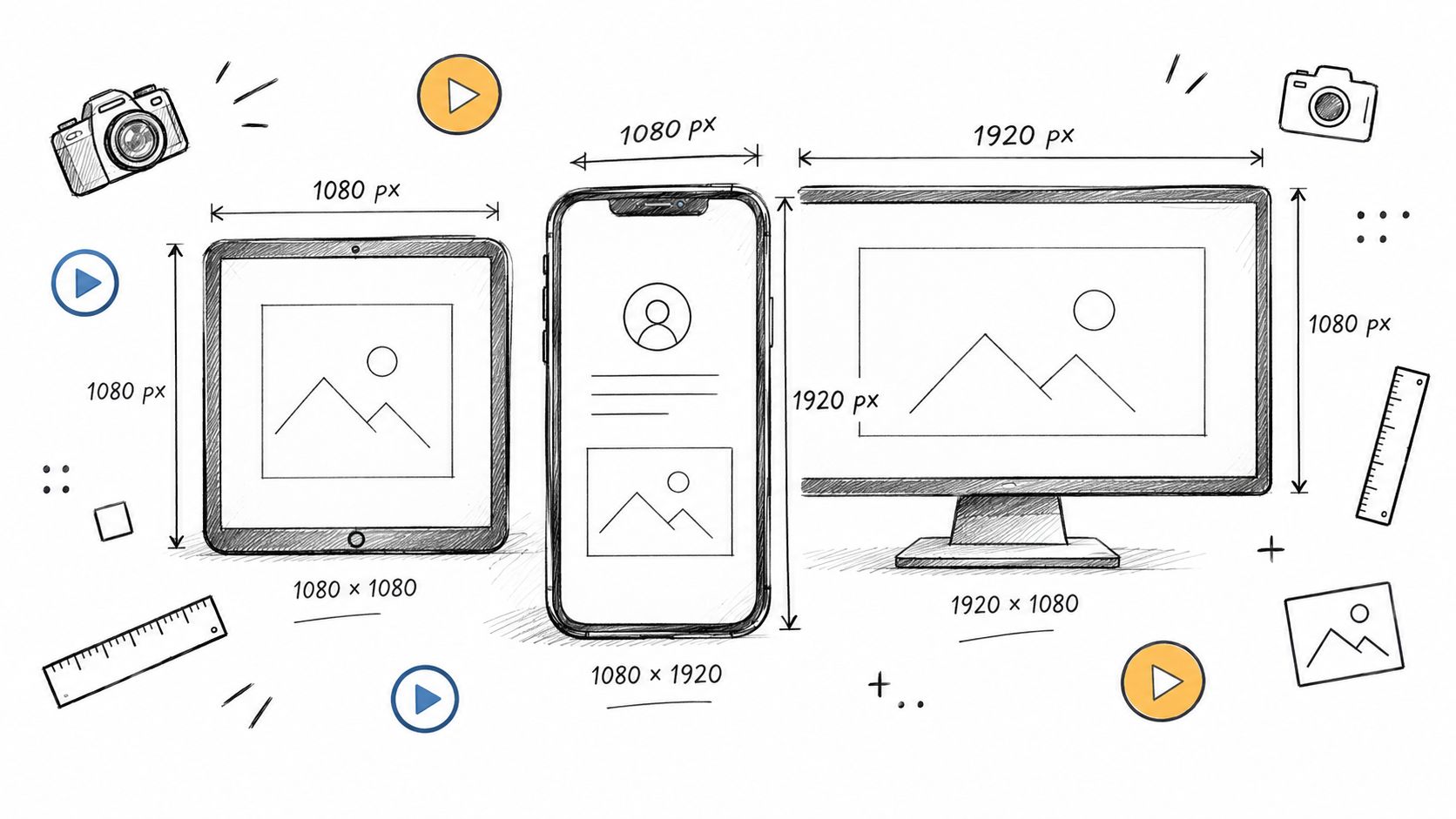
Social Media Video Sizes: The 2026 Spec Sheet
Master social media video sizes in 2026 with platform-by-platform specs, aspect ratios, export presets, and safe-area tips for every major network.
Read article