
Karaoke Video Creator Guide to Pro Sing-Along Videos
Learn how a karaoke video creator turns audio and lyrics into pro karaoke videos with Veo3 AI backgrounds, sync tips and export settings.
Veo3 AI · 16 min read · Sep 21, 2026
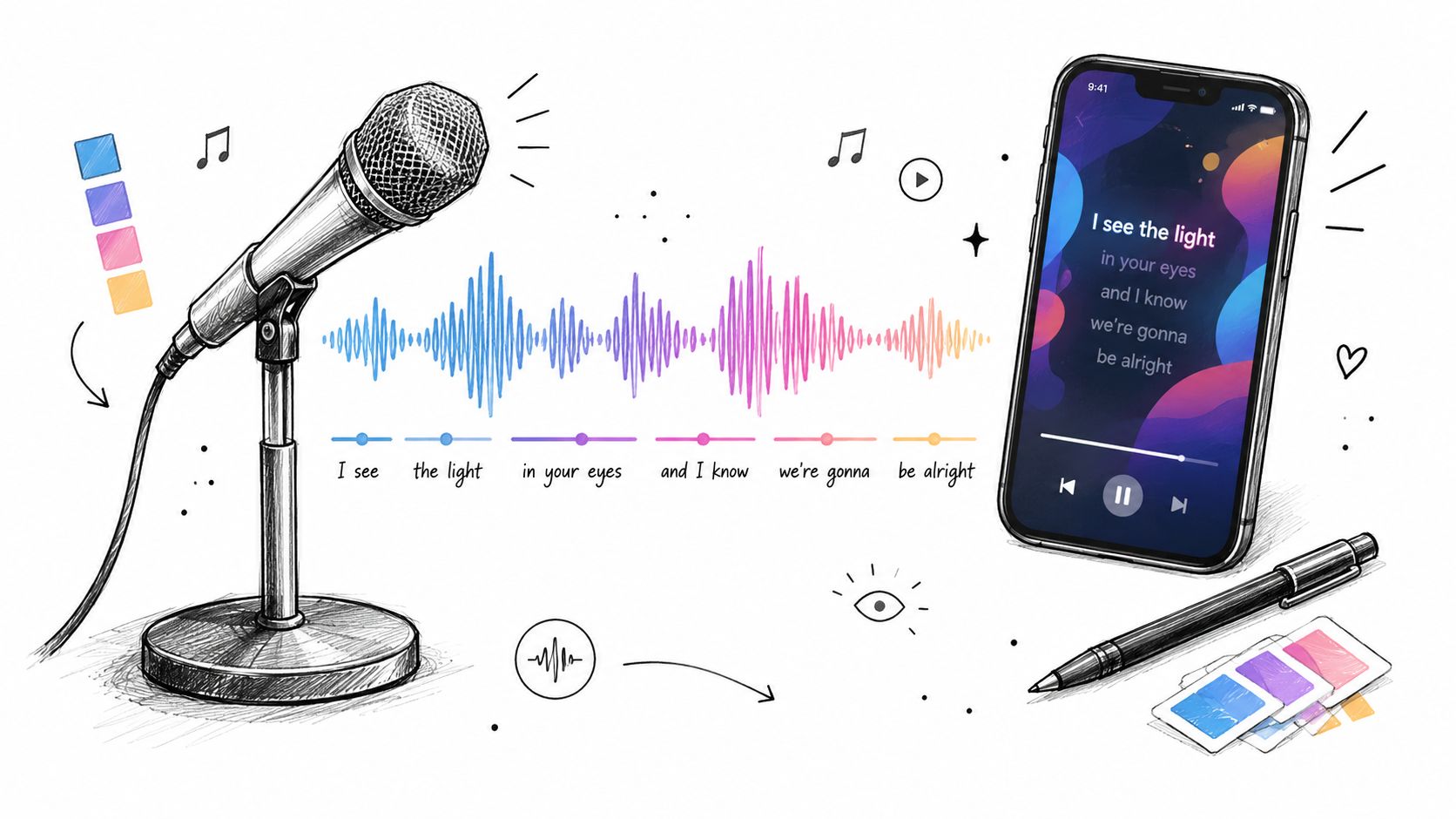
You've got a song, a deadline, and a rough idea of what the final video should feel like. What usually slows the job down isn't the first upload. It's the mess that comes after: muddy source audio, lyrics that don't quite match the performance, text that looks fine in the editor but turns unreadable after platform compression, and the bigger problem many ignore, whether you have the right to publish the thing.
That's why a good karaoke video creator workflow isn't just about removing vocals and dropping words on screen. The work is getting a singable result that still looks polished on TikTok, YouTube, classroom displays, and client channels. If the lyrics lag, people stop singing. If the background fights the text, watch time drops. If the rights are shaky, none of the visual polish matters.
Why Karaoke Videos Win Attention Right Now
A lot of readers are in the same spot right now. You need a sing-along video for a campaign, a lesson, a live event screen, or a short-form post, and you need it fast enough that “good enough” starts sounding tempting. That's where most karaoke videos go wrong. They get finished, but they don't get published with confidence.
Karaoke has always been visual, but the format didn't start with modern creator tools. A real milestone came with Max Fleischer's Ko-Ko Song Car-Tunes from 1924 to 1927, which used the “bouncing ball” sing-along technique and is widely described as an early forerunner of modern karaoke videos. The format then moved into dedicated karaoke machines in Japan, with Daisuke Inoue credited with inventing and renting the first karaoke machines in Kobe in 1971, and karaoke boxes spreading across Japan by 1975. By 1996, karaoke software for personal computers using CD+G had already pushed karaoke creation closer to the home setup creators now take for granted, as summarized in this history of karaoke milestones.
From venue format to creator format
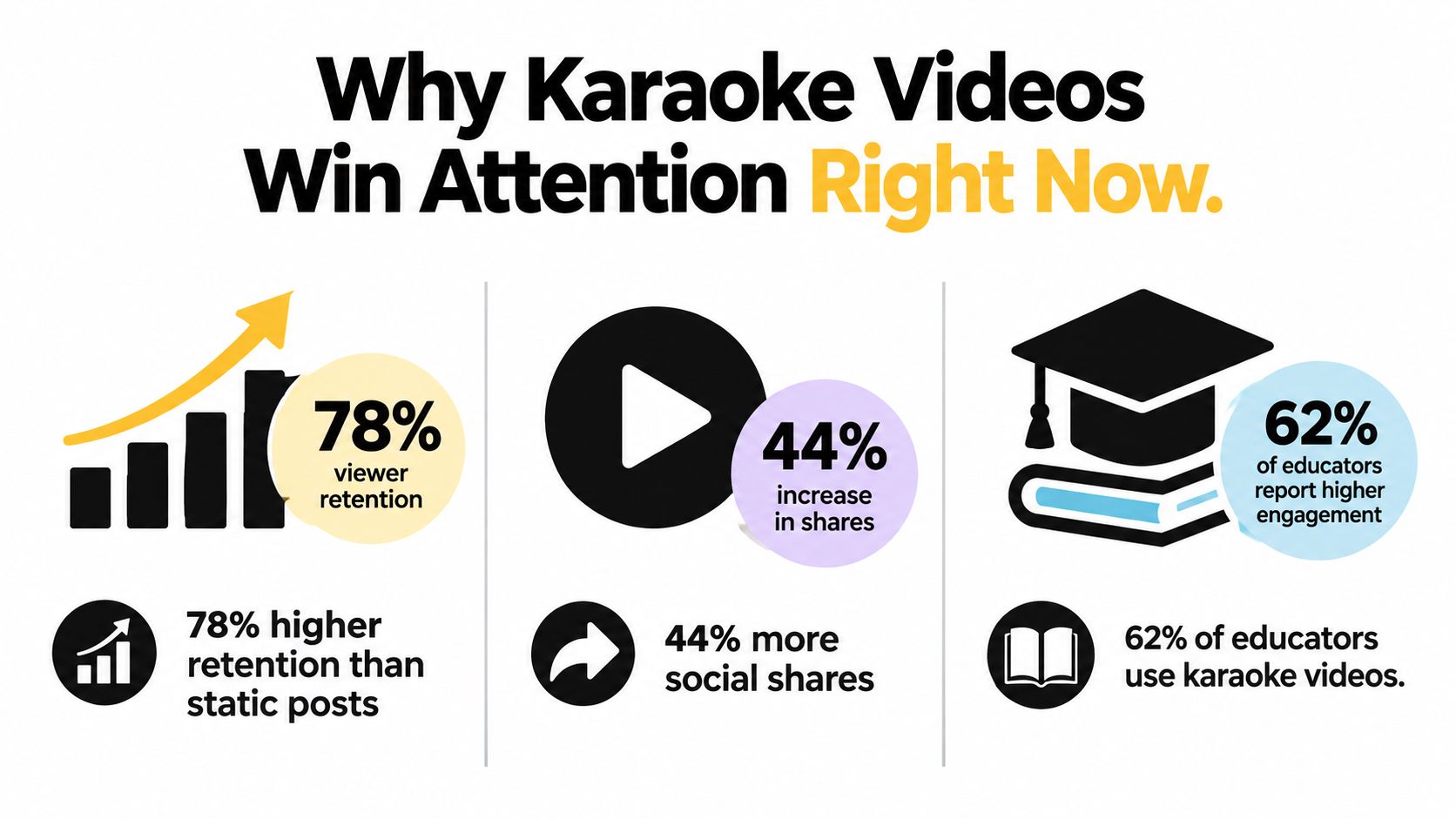
What changed is distribution. Karaoke isn't locked to bars or party rooms anymore. One industry roundup says karaoke videos on YouTube receive about 10 billion views per year, another reports roughly 2.5 billion karaoke videos uploaded to TikTok annually in 2023, and the same reporting ecosystem notes that 37.6% of global karaoke users have shared karaoke videos on social media. Those figures come from this karaoke industry statistics roundup. Even allowing for the usual caution around industry summaries, the direction is obvious: karaoke is now a social video behavior.
That shift matters because a karaoke video now has to do two jobs at once. It has to guide singing clearly, and it has to compete visually in a feed.
What makes one look professional
The amateur version is easy to spot:
- Late lyric reveals: the word appears after the singer needed it.
- Overworked text motion: every syllable bounces, glows, spins, and becomes harder to follow.
- Busy backgrounds: nice art, bad singability.
- Wrong framing: a horizontal layout pushed into a vertical platform with tiny text.
The professional version usually feels simpler. Clean contrast. Predictable timing. Enough motion to feel alive, not enough to distract. People often assume sync is the hard part. In practice, the bottleneck is usually a combination of visual restraint and safe publishing choices.
Practical rule: If a viewer can't sing the chorus confidently on first watch, the video isn't done yet.
A strong workflow fixes this in order: source audio, lyric prep, timing, visual system, export, then rights and publishing. That order saves rework. It also keeps you from wasting an afternoon polishing a video you shouldn't upload in the first place.
Preparing Audio and Lyrics for a Clean Build
Most timing problems start before you touch the timeline. If the source audio is sloppy or the lyric sheet is still changing, the edit drags on and the final sync never feels locked.
Choose the source track before you choose the visual style
There are three common starting points:
- Official instrumental
- Vocal-removed track
- Original song file with vocals kept for a lyric-video style version
If your goal is a true sing-along, official backing tracks usually save the most cleanup. They're more predictable at vocal entrances, and you won't spend time hiding vocal artifacts in quiet sections. Vocal-removed tracks can work well, but they often leave ghosting around lead lines and reverb tails. That becomes a timing problem because singers hear remnants of the original vocal and hesitate.
If you're combining music with visuals in a quick editor before the karaoke treatment, a simple add audio to video workflow can help you rough in the structure before you commit to lyric timing. It's useful when you need to test pacing or client approval on the basic cut first.
Build a lyric sheet that won't move later
Bad lyric prep creates fake editing work. You think you're doing sync corrections, but really you're fixing spelling, punctuation, repeated choruses, and line breaks that should've been solved at the document stage.
Use a plain text lyric sheet with:
- Confirmed wording: match the performed version, not a random internet transcription.
- Intentional line breaks: break where singers breathe or where the phrase resolves musically.
- Section labels: verse, pre-chorus, chorus, bridge, outro.
- Repeated section handling: if the chorus repeats with tiny changes, mark them clearly now.
A lot of creators skip this and paste raw lyrics straight into the editor. That usually leads to one chorus being styled differently from another, which makes the whole video feel less stable.
Lock the transcript before styling
A practical workflow that reduces sync errors is to create a timestamped lyric sheet before animation, then lock the lyric transcript and timing markers before styling. Guidance on lyric-video production also recommends aligning lyrics to the waveform first, placing anchor phrases at vocal entry, and refining only where needed. It also warns that over-animating every syllable slows production, and notes that the typography and timing phase alone can take 30 to 60 minutes for a polished lyric video in one professional estimate, which makes front-loading timing decisions a major time saver in this lyric video workflow guide.
Don't open the font menu until the words and structure are final. Styling unstable lyrics is how simple jobs turn into long nights.
My pre-flight check before timing
I keep this part blunt. If any of these are unresolved, I don't start syncing:
- Audio clarity: no obvious clipping, distortion, or volume swings that hide cue points.
- Final song version: no “we might swap in another mix later.”
- Approved lyrics: spelling, repeats, ad-libs, and censored versions settled.
- Section map: intro, verse, hook, break, outro already labeled.
- Target platform known: vertical, horizontal, or both.
That prep work isn't glamorous, but it's what makes the actual karaoke video creator phase fast instead of frustrating.
Syncing and Styling Lyrics So Singers Stay on Beat
Timing is where karaoke videos either become effortless or irritating. A singer doesn't need perfect technical precision on every consonant. They need confidence. That comes from stable anchor points, readable pacing, and text that arrives slightly ahead of the vocal instinct, not behind it.
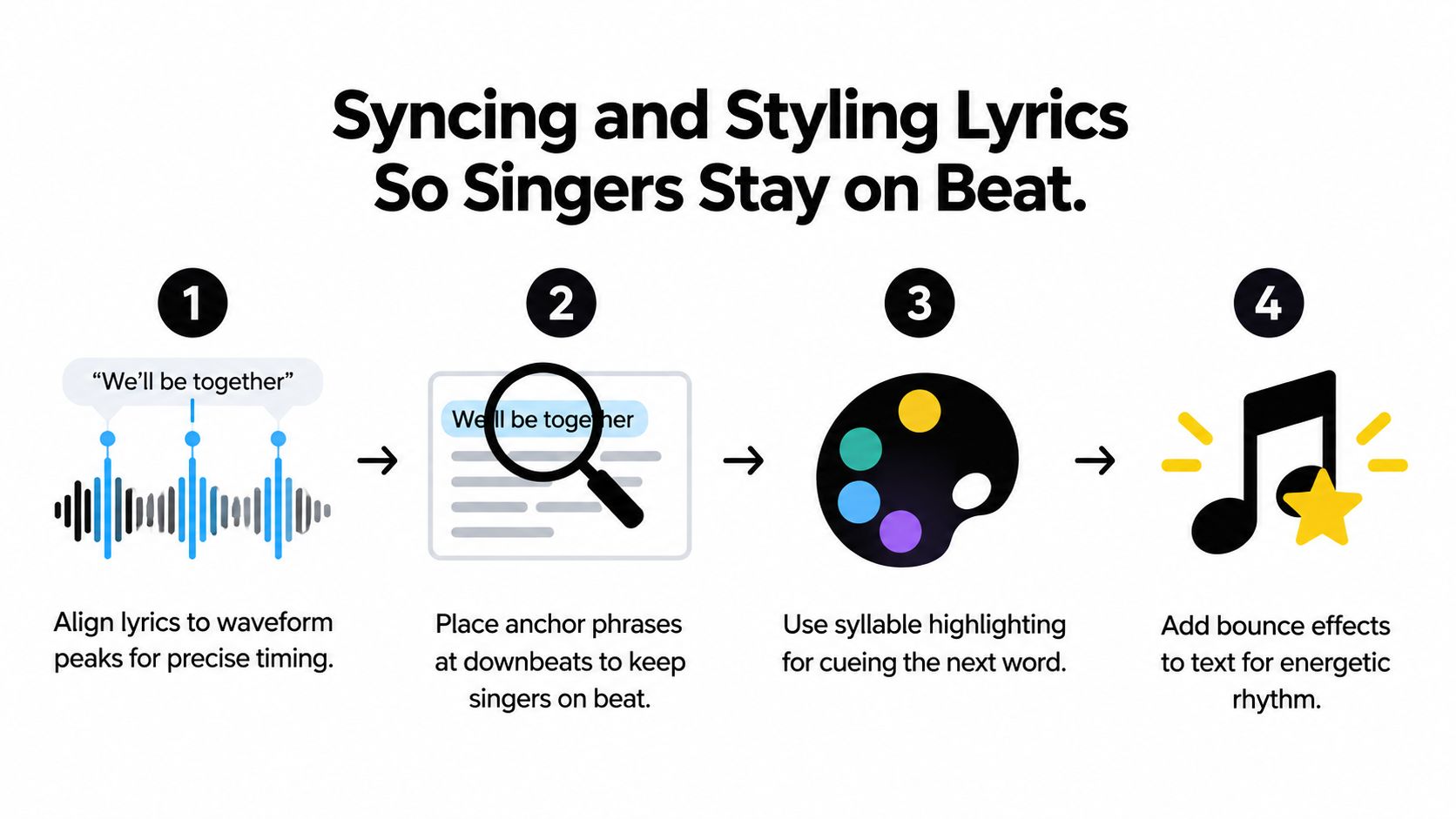
A useful visual reference for the workflow sits below.
Sync to the waveform first
Start with full lines, not syllables. Put the line on the timeline, listen for the first hard entry, and set an anchor there. The anchor phrase is the part a singer uses to orient themselves. Usually that's the first accented word, not the pickup breath.
A good timing pass looks like this:
- Set line-level timing first: get each line entering and clearing at the right moment.
- Anchor the downbeat phrase: if the line starts before the beat, anchor where the phrase lands.
- Refine only drift points: long held words, fast rap sections, or syncopated hooks may need extra detail.
This is also why I prefer a waveform-visible editor whenever possible. If you want a dedicated walkthrough on that part of the workflow, this guide on how to sync audio to video is a useful companion for lining visuals and sound up cleanly.
Don't animate every syllable
The common mistake is thinking more motion equals better guidance. It usually does the opposite.
If every syllable changes color, jumps, or pulses, singers stop reading whole phrases. They begin decoding effects. Chorus lines suffer most because the eye should glide through them. The best karaoke videos often reserve syllable-level treatment for tricky lines, then keep the rest at phrase or word level.
“If the chorus looks busy on mute, it'll feel worse with music.”
Here's a simple decision rule:
| Lyric situation | Best timing treatment |
|---|---|
| Straight pop verse | Line or word-level highlight |
| Repeated chorus | Consistent phrase-level sweep |
| Fast spoken passage | Tighter word grouping |
| Long held note | Extend highlight duration visibly |
Typography choices that actually help
Readable typography beats stylish typography almost every time. The singer is usually watching on a phone, a TV across a room, or a projector with mediocre contrast.
Use:
- Heavy or semi-bold fonts: thin fonts disappear after compression.
- High contrast pairs: light text on dark overlay, or dark text on bright overlay.
- Predictable highlight color: one active state, one inactive state.
- Generous line spacing: stacked lines need breathing room.
Avoid decorative scripts, low-contrast gradients, and hyper-tight tracking. They may look premium in a still frame and fail the moment the platform re-encodes the file.
This demo helps illustrate the pacing and on-screen rhythm choices involved in lyric timing:
<iframe width="100%" style="aspect-ratio: 16 / 9;" src="https://www.youtube.com/embed/q4vsqDewoJM" frameborder="0" allow="autoplay; encrypted-media" allowfullscreen></iframe>
Test singability, not just appearance
The final test isn't whether the timeline looks tidy. It's whether someone can sing along without friction. I test choruses first because that's where timing issues become obvious fastest.
Run three checks:
- Mute your editor view and watch only the lyric motion. If it feels chaotic, simplify.
- Play the chorus and sing one beat ahead in your head. If the text appears too late, pull it forward.
- Watch on a phone at normal brightness. If you squint, your audience will too.
A karaoke video creator tool can automate parts of timing, but it still takes judgment to decide what the singer needs to see early, what can stay simple, and what motion is helping versus showing off.
Creating Animated Backgrounds and Lyric Overlays With Veo3 AI
The background should support the song, not compete with it. That sounds obvious, but a lot of AI-generated karaoke visuals fail because the motion is too active, the contrast shifts too much, or the camera movement creates a constant fight with the text layer.
The better approach is to treat animated backgrounds like stage lighting. They set mood, they add motion, and they stay in service of the lyrics.
Prompt for atmosphere, not chaos
When using AI visuals, the strongest prompts are usually specific about mood and restrained about movement. “Neon city with pulsing lights and dramatic camera rushes” sounds exciting, but it can wreck readability. “Slow drifting neon reflections, dark negative space in center frame, soft motion, performance backdrop” is much more useful for karaoke.
Prompt ingredients that tend to work well:
- Mood: dreamy, cinematic, upbeat, retro, classroom-friendly
- Motion level: subtle drift, slow zoom, light particles, gentle parallax
- Composition: negative space center, lower-third clear zone, portrait framing
- Color behavior: stable contrast, limited flash, no rapid luminance swings
If you're generating motion from a still image, this walkthrough on Veo 3 image to video is helpful for thinking through source-image quality, camera movement, and iteration strategy.
Match the visual system to the use case
A TikTok sing-along, a YouTube karaoke upload, and a classroom pronunciation aid should not share the same background logic.
For short-form social:
- Keep motion visible in the first seconds.
- Leave safe text space in the center or lower-middle frame.
- Use bolder lyric contrast because mobile compression is harsh.
For YouTube:
- You can afford slower backgrounds and wider compositions.
- Repetition matters more than novelty. Viewers may stay with the full track.
- Chorus layout consistency matters a lot.
For classrooms and training:
- Favor clean, calm backgrounds.
- Reduce visual noise behind text.
- Keep word progression obvious for learners.
Build overlays after the background, not during it
One thing that saves time is separating the visual decisions. Generate or choose the moving background first. Then place the lyric system on top. When people try to design both at once, they overreact to every motion change and end up tweaking fonts forever.
My preferred overlay approach is simple:
- Background clip with stable motion.
- A subtle dark or light text container if needed.
- One inactive lyric color.
- One active highlight style.
- Optional secondary cue for upcoming line.
Field note: A polished karaoke video doesn't need constant visual invention. It needs a background that stays cooperative for the entire song.
Keep ownership and revisions in mind
For client work and branded posts, speed isn't the only concern. You need assets you can revise cleanly. That means keeping project versions organized by aspect ratio, lyric treatment, and visual mood. If the client wants “same karaoke timing, warmer look, vertical crop,” you shouldn't have to rebuild from zero.
AI-generated backgrounds help most when they replace tool-switching, not when they create another stack of exports to manage. Name versions clearly. Keep the final lyric transcript attached to the project. Export clean visual plates when possible so you can repurpose the same song for different channels without redoing every element.
The visual polish bottleneck usually isn't a lack of effects. It's poor restraint. Good karaoke backgrounds leave room for the song to lead.
Exporting and Optimizing for TikTok YouTube and More
A karaoke video can look great in the editor and fall apart after upload. Platforms re-encode aggressively, and karaoke content suffers fast because legibility is fragile. Tiny text, thin outlines, and low-contrast highlights get hit first.
Export decisions should follow the platform goal, not your editing timeline default. If the video is mainly for vertical discovery, build and export vertical first. If it's meant for full-song YouTube playback, prioritize horizontal readability and slower motion.
Export settings that hold up after upload
I keep exports conservative. Clean edges and readable text matter more than squeezing every effect out of the render.
| Platform | Aspect Ratio | Resolution | Best Use Case |
|---|---|---|---|
| TikTok | 9:16 | 1080 x 1920 | Short sing-alongs, hooks, promo clips |
| YouTube Shorts | 9:16 | 1080 x 1920 | Vertical discovery and repurposed chorus clips |
| YouTube standard | 16:9 | 1920 x 1080 | Full karaoke tracks and lyric-led playback |
| Classroom display | 16:9 | 1920 x 1080 | Projected lessons and guided group singing |
That platform sizing guide changes often enough that it's worth checking a current reference like this overview of social media video sizes before a final batch export.
What I watch before hitting render
These are the failure points I catch most often:
- Text too close to edge: platform UI will sit on top of it.
- Thin outlines: they vanish after compression.
- Background too bright in chorus sections: highlight state gets lost.
- Mixed frame rates across assets: motion can feel uneven after export.
- No thumbnail plan: karaoke videos still need a clickable first impression.
A simple export pass should also include a mobile review. Watch it inside the phone gallery first, then after platform upload. Some artifacts only appear once the platform has processed the file.
A practical format split
If I'm shipping for multiple channels, I usually create:
- one master horizontal file
- one vertical platform cut
- one clean archive
- one caption or lyric reference file for future revisions
That archive habit pays off later. If the chorus clip performs well, you can cut a shorter version without rebuilding the timing system.
Export is where readable work becomes publishable work. Don't treat it like an afterthought.
Publishing Safely and Getting More Views Over Time
Most karaoke video creator advice stops at export. That's the easy part. The harder question is whether you can safely post what you made, especially if the source started as a commercial song file, a vocal removal, or a clip pulled from another platform.
That's the bottleneck people underestimate. Creation keeps getting easier. Distribution risk doesn't.
Rights come before reach
Neutral how-to guidance on modern karaoke creation emphasizes that users should work with music they own, created, licensed, or have permission to use, and that this matters even more when the source comes from a song file or a YouTube video. It also points out a gap in most karaoke-tool coverage: the tools are often presented like simple converters, while real users need answers about commercial posting, brand use, platform exposure, and permission records. That broader rights-and-distribution framing is laid out well in this analysis of AI karaoke and music content creation.
If you're making a private practice track at home, your risk profile is different from a brand using a familiar chart song in public marketing. Same tool. Very different publishing consequences.
A safer way to decide what you can post
Use the use case, not the software, to judge safety:
- Personal offline use: lower public distribution risk, but still separate from ownership.
- Public social posting: you need to think about the underlying music rights and platform rules.
- Commercial brand content: document permissions, licenses, and client approvals.
- Educational use: still check what's being distributed and where it will live.
Don't assume that because a karaoke video was easy to generate, it's ready for public release. It may only be easy to make.
Better publishing habits create longer life
Once the rights side is clean, growth becomes a packaging game. Titles should be searchable. Descriptions should say what version people are getting. Thumbnails should make the song mood and lyric format obvious. If you're posting to TikTok, understanding feed behavior helps more than chasing random trends, and this breakdown of how TikTok's algorithm works is useful for thinking about completion, replay, and audience matching.
A few habits help karaoke videos keep working over time:
- Reuse strong choruses: clip standout sections into vertical posts.
- Keep naming consistent: people browse karaoke like a library.
- Version by audience: one cut for singers, another for promo.
- Track permission records: especially for client and small business work.
The wrong song choice can kill distribution faster than bad typography ever will.
Publishing confidently means asking a boring question early: “Can this go live where we want it to go?” The teams that ask that before editing usually move faster in the end.
If you want a faster way to create polished karaoke-style visuals without juggling separate background and motion tools, Veo3 AI gives you a practical path from text prompt or still image to clean, usable video assets. It's especially useful when you need animated backdrops that leave room for readable lyrics and can be adapted for vertical or horizontal delivery.
Related Articles
Continue with more blog posts in the same locale.

Is GPT Image 2.6 Free? Every Way to Try GPT 2.6
Is GPT Image 2.6 free? See how GPT 2.6 access works in ChatGPT, the API and third-party sites, what it costs per image, and what no subscription really means.
Read article
GPT Image 2.6 Flare vs Sunburst: Which Should You Use?
GPT Image 2.6 Flare vs Sunburst compared: speed, cost, quality, complexity and API model names, plus a simple way to choose for drafts and final images.
Read article
AI Video Extender Guide: When to Extend vs Regenerate
Learn what an AI video extender does, how it continues a clip, and when to extend footage or regenerate it with Veo 3.1.
Read article