
Veo 3 Negative Prompts: How to Remove Unwanted Elements and Artifacts (2026)
Use Veo 3 negative prompts to remove watermarks, text, artifacts, and CGI drift. The phrasing rule that makes them work, where to put them, and a copy-paste exclusion library.
Emma Chen · 14 min read · Jun 26, 2026
You wrote a clean prompt, hit generate, and Veo 3 handed you back a clip that is almost right — except there is a stray watermark in the corner, a sixth finger on the subject's hand, garbled text on a sign you never asked for, or a wall cutting through a shot that was supposed to feel open. That gap between "almost" and "usable" is exactly where Veo 3 negative prompts earn their place in your workflow. A negative prompt tells the model what you do not want in the frame, and used correctly it is the fastest way to clean up artifacts without rewriting your whole scene.
The catch: most creators use negative prompts the wrong way. They type "no walls, no text, no blur" and wonder why the wall, text, and blur are still there — sometimes more of them. Veo reads language literally, and the word "no" attached to a noun often does the opposite of what you intend. This guide shows you how negative prompts actually work in Veo 3, the one phrasing rule that decides whether they help or hurt, where to put them depending on how you access the model, and a copy-paste library of negative prompts organized by the exact problem you are trying to fix.
Quick answer: do Veo 3 negative prompts work, and how do you use one?
Yes — negative prompts work in Veo 3, with one important distinction depending on how you generate.
- On the Vertex AI / Gemini Enterprise API, Veo has a dedicated
negativePromptfield. You pass your main prompt in one parameter and your exclusions in another. This is the cleanest method because the model treats the two separately. - In the Gemini app, in Flow, and on most web front-ends (including veo3ai.io), there is no separate field. You append the exclusions to the end of your normal prompt instead.
In both cases the rule that matters most is the same: describe what you don't want as plain nouns and descriptions, not as commands. Write wall, picture frame, text overlay — not no walls, don't show frames, avoid text. Veo's prompt guidance is explicit on this point, because instruction words like "no" and "don't" can pull the very thing you named back into the generation.
So the shortest correct answer is: name the unwanted elements as a comma-separated list of nouns, put that list in the negativePrompt field if you have one, otherwise append it to your prompt, and keep it specific.
What a negative prompt actually does
A positive prompt steers the model toward a scene: a description, a subject, a camera move, a mood. A negative prompt steers it away from specific elements during the same generation. It does not edit a finished video and it does not run as a second pass — it is guidance the model weighs while it builds every frame.
Think of it as a fence rather than an eraser. You are not removing something after the fact; you are telling Veo "while you render this, keep these things out of the lot." That is why negative prompts are most reliable for objects, styles, and qualities — a watermark, a logo, cartoon shading, motion blur, a crowd — and least reliable for fine anatomical control, where the model's understanding of "six fingers" is fuzzy to begin with.
This also explains a common surprise: a negative prompt can subtly change parts of the frame you did not mention. Push the model away from "harsh lighting" and the whole color grade may warm up. That is normal. Negative prompts nudge the overall distribution of the image, not just one pixel region. Generate two or three versions and compare, rather than assuming one negative term will surgically remove one thing and leave everything else untouched.
If you want the bigger picture of how Veo reads structured instructions, our Veo 3 JSON prompt generator guide breaks down how subject, action, style, and camera fields are parsed — negative prompts sit alongside those as the "exclusion" layer.
The golden rule: describe nouns, never write "no" or "don't"
This is the single most important thing on the page, so it gets its own section.
Google's own Veo prompting guidance gives a direct instruction: do not use instructive language or words like "no" or "don't" in a negative prompt. Instead, describe the thing you want gone.
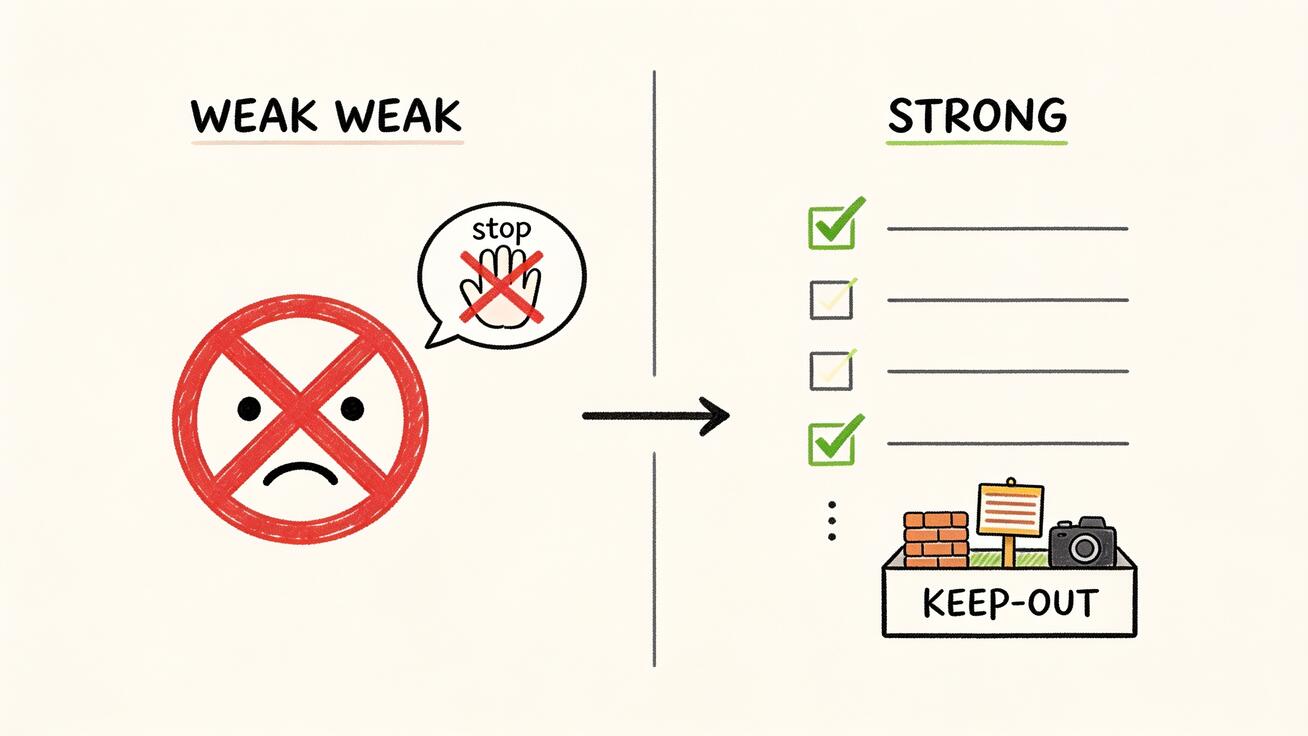
Compare the two styles:
| You want gone | ❌ Weak (instructive) | ✅ Strong (descriptive nouns) |
|---|---|---|
| Walls in an open shot | "no walls, don't show walls" | wall, brick wall, interior wall |
| On-screen text | "no text please" | text, captions, subtitles, watermark, logo |
| A cartoon look | "not cartoonish" | cartoon, anime, illustration, 3D render |
| Camera shake | "avoid shaky camera" | camera shake, handheld jitter, motion blur |
| Extra people | "no other people" | crowd, bystanders, background people |
Why does this matter so much? Language models — and Veo is steered by one — bind the strongest signal to the noun. When you write "no walls," the token the model latches onto is still "walls." The negation is weak; the noun is loud. By dropping the command word and listing the noun directly in the exclusion channel, you give the model a clean signal: this concept belongs on the keep-out list.
There is a second technique that pairs with this, and it lives in your positive prompt: describe absence through presence. Instead of fighting "no buildings" in the negatives, write a positive line that makes structures impossible — "a barren salt flat stretching to the horizon, untouched by roads or buildings." You have described a world where the unwanted thing simply cannot exist, which is often stronger than any negative term.
How to use negative prompts in Veo 3, step by step
Method 1: The dedicated field (API / Vertex AI)
If you generate through the Veo API on Vertex AI or Gemini Enterprise, you have a real negativePrompt parameter.
- Write your main prompt as usual in the
promptfield — subject, action, setting, style, camera, audio. - In the separate
negativePromptfield, add a comma-separated list of nouns and descriptions you want excluded. - Generate. Because the two are separate parameters, the model never reads your exclusions as part of the scene description.
Example pairing:
prompt: "A lone hiker reaching a mountain summit at golden hour, slow cinematic push-in, warm natural light, photorealistic, 4K."
negativePrompt: "text, watermark, logo, other people, lens flare, motion blur, cartoon, oversaturation."
Method 2: Appended exclusions (Gemini app, Flow, web tools)
Most people use Veo 3 through a single prompt box with no separate field — the Gemini app, Flow, or a web front-end like veo3ai.io. Here you append the exclusions to the end of your prompt.
- Write the full positive prompt first.
- Add a short, clearly separated exclusion clause at the end. A label helps the model parse it:
Avoid: ...orExclude from frame: ...followed by your nouns. - Keep it to the few elements you actually expect to go wrong. A 30-item negative wall dilutes the signal.
Example, single box:
"A lone hiker reaching a mountain summit at golden hour, slow cinematic push-in, warm natural light, photorealistic, 4K. Exclude from frame: text, watermark, logo, other people, lens flare, motion blur, cartoon look."
To try either method, open the generator on the Veo 3 video tool, paste your positive prompt, append the exclusion clause, choose Veo 3, and generate two versions so you can compare how strongly the negatives bit.
Method 3: Fix it in the positive prompt (the absence technique)
Sometimes the strongest "negative" is not a negative at all. If a negative term keeps failing, rewrite the positive prompt so the unwanted element has no room to appear. Want no crowd? Specify "a completely empty street at 5 a.m., not a single person in sight." Want no modern objects in a period piece? Describe the era richly enough that the scene fills with correct props.
A worked before/after example
Here is the difference phrasing makes on a real scene. Say you are generating a product shot and Veo keeps adding a fake brand label to the bottle and a stray reflection.
First attempt (weak):
"A glass water bottle on a marble counter, soft studio light, slow rotating shot, photorealistic. No labels, don't add text, no reflections."
Result: the label often stays — sometimes it gets more prominent — because "labels," "text," and "reflections" are the loudest tokens in that closing line.
Second attempt (strong):
"A plain unlabeled glass water bottle on a marble counter, soft diffused studio light, slow rotating shot, photorealistic, 4K. Exclude from frame: label, brand text, logo, sticker, reflection, glare, watermark."
Two things changed. The positive prompt now describes the bottle as "plain unlabeled," using the absence technique so a clean bottle is the default. The exclusions are plain nouns in a labeled clause, not commands. In practice this pairing clears the invented label far more reliably than the first version — and it is the same two moves you will use on almost every cleanup: fix the positive prompt first, then add a tight noun-only exclusion list.
Copy-paste negative prompt library, organized by problem
Use these as starting points and trim to what your specific clip actually needs. Each block is the exclusion list only — pair it with your own positive prompt.
Remove on-screen text, captions, and watermarks
text, captions, subtitles, watermark, logo, brand name, signage, written words, timestamp, UI overlay
Veo loves to invent signs and labels, especially in city and product scenes. This is the most common cleanup list. If you also want a clean voiceover, the Veo 3 text to speech and voiceover guide shows how to add spoken audio without on-screen captions sneaking in.
Fix anatomy and hands
extra fingers, deformed hands, fused fingers, missing fingers, distorted face, asymmetrical eyes, extra limbs, duplicated body parts
Anatomy is the least reliable category — negatives reduce the rate of errors but do not guarantee clean hands. Favor wider shots, hands at rest, or framing that keeps hands partly out of view. For multi-shot consistency of a character's face and body, combine this with the techniques in our Veo 3 character consistency guide.
Kill artifacts, warping, and morphing
warping, morphing, flickering, melting, distortion, jittering, duplicated objects, floating objects, background shifting, compression artifacts, low resolution
Best for clips with fast motion or many moving objects, where frame-to-frame instability shows up as warping.
Remove camera and motion problems
camera shake, handheld jitter, motion blur, rolling shutter, sudden cuts, zoom jumps, unstable framing
Use when you asked for a smooth move and got a nervous one. Pair with a positive camera instruction like "locked-off tripod shot" or "smooth gimbal glide."
Control lighting and color
harsh lighting, blown highlights, oversaturation, neon color cast, flat lighting, heavy shadows, lens flare, color banding
Negatives here shift the grade. Generate variants — the effect on overall color is stronger than for object removal.
Clear out unwanted people and objects
crowd, bystanders, background people, pedestrians, cars, traffic, clutter, props, furniture
Combine with the absence technique in the positive prompt ("an empty plaza, deserted") for the strongest effect.
Remove the wrong style
cartoon, anime, illustration, painting, 3D render, video game graphics, plastic skin, CGI look
Essential when you want photorealism and Veo drifts toward a rendered or animated look.
Clean up audio
background music, muffled audio, distorted speech, lip-sync errors, echo, static, crowd noise
Negative prompts can steer Veo's native audio too. If you specifically want silence or a single clean voice, name the competing sounds you want gone.
Best use cases for Veo 3 negative prompts
Negative prompts are not for every clip. Reach for them when:
- Product and ad video. You need a clean frame with no invented logos, no garbled signage, no stray watermark. This is the highest-value use — an ad with hallucinated text is unusable.
- Photorealistic scenes drifting to CGI. A short style-negative (
cartoon, 3D render, CGI) snaps the model back to realism. - Empty or minimal environments. Architecture, landscape, and "calm" b-roll where Veo wants to add people, cars, or clutter you did not ask for.
- Cleaning a near-miss. The composition is right but one element is wrong. Add the single offending noun to the negatives and regenerate, rather than rebuilding the whole prompt.
- Multi-clip projects in Flow. When you extend or stitch clips, consistent negatives across shots keep artifacts from creeping in on one shot and breaking the sequence. If you are chaining shots from a still, see the Veo 3 frames-to-video guide for how exclusions carry through a frame sequence.
Where negatives are weakest: precise anatomy, exact text spelling (better solved by adding the text in an editor), and anything requiring pixel-level placement. Set expectations accordingly.
Common mistakes that make negative prompts backfire
Using "no" and "don't." Covered above, but it is the number-one error. no blur reinforces blur. Write motion blur as a noun in the exclusion list.
Overloading the list. Thirty negative terms dilute every signal. The model spreads its attention thin and respects none of them strongly. List only the three to eight things you genuinely expect to go wrong for this clip.
Negating things that were never going to appear. Adding no dragons to a corporate office scene wastes signal and can, oddly, introduce fantasy elements by raising the concept. Only exclude what is actually at risk.
Contradicting your positive prompt. If your positive prompt says "neon-lit cyberpunk alley" and your negatives say "no neon, no bright colors," you have handed Veo a conflict. It will pick one, usually unpredictably. Keep the two halves aligned.
Expecting surgical removal. Negatives shift the whole frame's probability, not one object in isolation. Always generate two or three versions and pick the cleanest, especially for lighting and color negatives.
Trying to fix spelling with negatives. You cannot reliably make Veo render a specific brand name correctly by negating wrong spellings. For exact, legible text, add it in post.
QA checklist before you publish
Run every generated clip through this quick pass:
- [ ] Frame is clean — no invented text, watermark, logo, or signage in any frame (scrub the whole clip, not just frame one).
- [ ] Anatomy holds — hands, faces, and limbs survive motion without extra fingers or warping.
- [ ] No morphing — objects keep their shape across all 8 seconds; nothing melts or duplicates.
- [ ] Camera matches intent — the move is as smooth or as dynamic as you specified, no unwanted shake.
- [ ] Style is correct — photorealism stayed photoreal, or your chosen style held without drifting to CGI.
- [ ] Lighting and color — no blown highlights, no oversaturation introduced by aggressive negatives.
- [ ] Audio is clean — if you used native audio, no echo, static, or competing background sound.
- [ ] Negatives didn't break the scene — confirm the exclusions removed the problem without stripping something you wanted.
If a clip fails one item, add that specific noun to your negative list (or fix it in the positive prompt) and regenerate — do not ship the near-miss.
FAQ
Does Veo 3 have a dedicated negative prompt field?
On the Vertex AI / Gemini Enterprise API, yes — there is a negativePrompt parameter separate from the main prompt. In the Gemini app, Flow, and most web tools, there is no separate field, so you append exclusions to the end of your prompt instead.
Why do my negative prompts make the problem worse?
Almost always because you used "no" or "don't." Veo binds to the noun, so "no walls" reinforces "walls." List the unwanted element as a plain noun — wall — and it works far better.
How many negative terms should I use? Three to eight for a typical clip. Long lists dilute the signal and the model respects none of them strongly. Only exclude what is actually at risk of appearing in your specific scene.
Can negative prompts fix bad hands or faces? They reduce the error rate but do not guarantee clean anatomy. Combine negatives with wider framing, hands at rest, and version comparison. Anatomy is the least reliable category for any AI video model.
Can I use negative prompts to remove audio?
Yes. Veo 3 generates native audio, and you can steer it away from unwanted sounds — background music, echo, crowd noise — the same way you steer visuals.
What's the difference between a negative prompt and the "absence" technique? A negative prompt lists unwanted elements in the exclusion channel. The absence technique rewrites your positive prompt so the unwanted thing has no room to appear ("a deserted street, not a soul in sight"). For stubborn cases, use both together.
Conclusion
Veo 3 negative prompts are one of the highest-leverage, lowest-effort tools in your workflow — but only when you phrase them as the model reads them. List unwanted elements as plain nouns, drop every "no" and "don't," put them in the negativePrompt field if you have one or append them as an Exclude from frame: clause if you don't, and keep the list short and specific to what is actually at risk. For the stubborn cases, rewrite the positive prompt so the unwanted element has no room to exist, then generate two or three versions and QA every frame before you publish.
Master that loop and you stop fighting watermarks, garbled text, warping, and CGI drift one clip at a time. Open the Veo 3 generator, paste a positive prompt, add a tight exclusion list, and watch how much cleaner the first usable take comes out. That is the whole point of Veo 3 negative prompts: fewer regenerations, cleaner frames, finished video faster.
Related Articles
Continue with more blog posts in the same locale.

How to Make Sports Highlight Videos with Veo 3 AI (2026)
Create stunning sports highlight videos with Veo 3 AI. Generate dynamic action shots, slow-motion sequences, and dramatic replays using AI prompts.
Read article
How to Make a Short Film with Veo 3 AI (2026 Guide)
Learn how to create professional short films using Veo 3 AI. Step-by-step guide with prompts, workflow tips, and cinematic techniques.
Read article
How to Make Documentary Videos with Veo 3 AI (2026 Guide)
Create compelling documentary videos with Veo 3 AI. Learn prompting techniques, narrative structure, realistic footage generation, and post-production tips.
Read article