
Veo 3 Text to Speech: How to Add Voiceover and Narration to Your Videos (2026)
Add spoken voiceover and narration to Veo 3 videos with text to speech: prompt structure, copy-paste examples, timing math, voice control, and a QA checklist.
Emma Chen · 15 min read · Jun 26, 2026
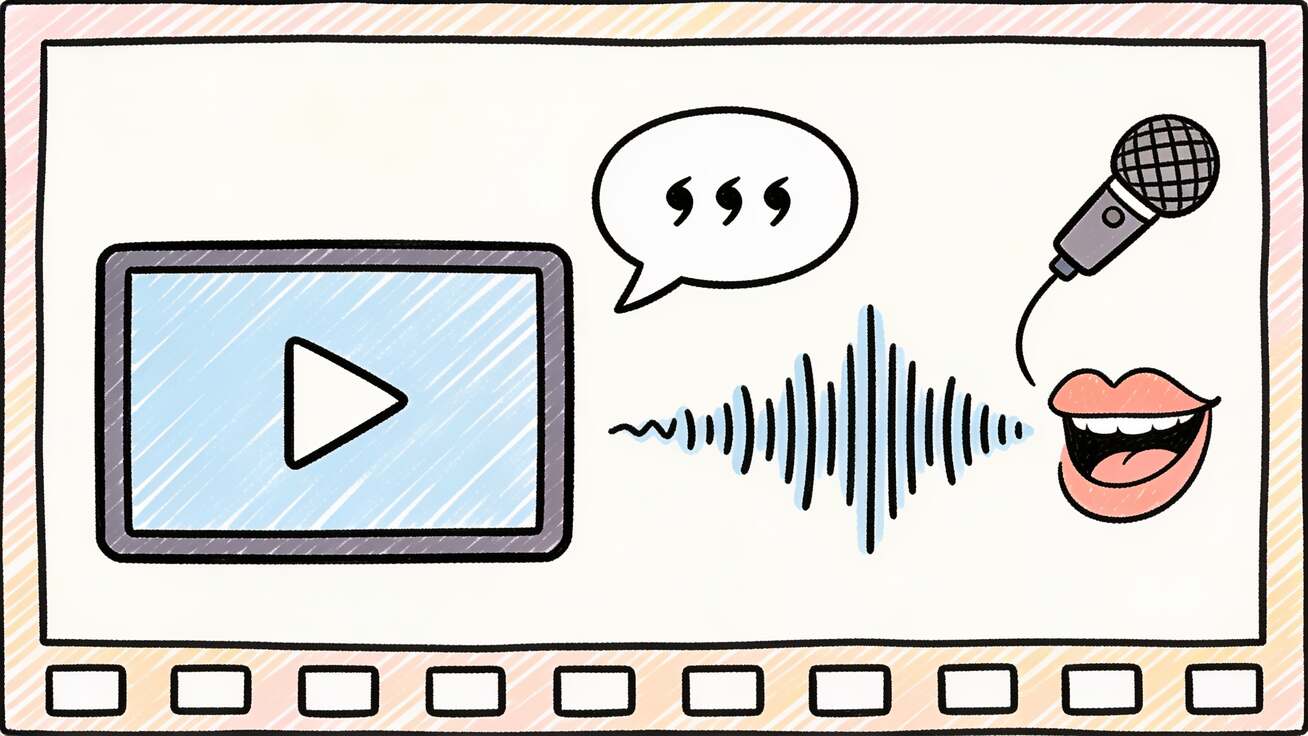
Most people meet Veo 3 as a text-to-video model: you describe a scene, and you get moving pictures. But the feature that quietly changed the workflow is text to speech. Veo 3 can generate a spoken voiceover or on-screen narration directly inside the same clip that renders the visuals, with the words timed to the action and the mouth movement matched to the line. No separate voice tool, no manual sync pass, no stitching audio over silent footage in an editor.
That changes how you should plan a video. Instead of writing a visual prompt and bolting audio on afterward, you write the spoken line, the visuals, and the delivery as one instruction. Done well, the result feels like a finished piece — an explainer, an ad, a product demo, a documentary beat — straight out of the model. Done carelessly, the voice drifts, the timing slips, or the words come out flat.
This guide shows you exactly how to add voiceover and narration to Veo 3 videos: the two delivery modes, the prompt structure that works, copy-paste examples for the most common use cases, the timing math that keeps speech inside an 8-second clip, and a QA checklist so you catch problems before you publish. If you want the broader audio picture first, our Veo 3 native audio prompt guide covers dialogue, sound effects, and music together; this article zooms in on the single most requested case — getting a clean spoken voice over your footage.
Narration vs. dialogue vs. voiceover: get the terms right first
Veo 3 handles spoken audio in a few distinct ways, and choosing the wrong one is the most common reason a prompt fails.
- On-screen narration (lip-synced): a visible character speaks the words to camera. The model animates the mouth to match. Use this for talking-head explainers, presenter intros, UGC-style testimonials, and street-interview clips.
- Voiceover (off-screen): a narrator's voice plays over visuals where no one is speaking on camera — product shots, b-roll, landscapes, screen recordings recreated as scenes. The voice is disembodied; there is no mouth to sync.
- Dialogue: two or more characters talk to each other. This is its own discipline — attribution, voice contrast, reaction beats — and we cover it fully in the two-character dialogue guide. If your script has back-and-forth lines, start there.
Text to speech in the sense most creators mean — "I have a script, I want a voice reading it over my video" — maps to voiceover or on-screen narration. The rest of this guide focuses on those two, because they are what people search for when they type "veo 3 text to speech" or "veo 3 voiceover."
The practical rule: if the audience should see a mouth forming the words, you want lip-synced narration and you must describe the speaker on camera. If the audience should only hear the words, you want voiceover and you describe the voice without putting a talking face in frame.
How Veo 3 generates speech from your prompt
Veo 3 does not have a separate "voice" field. The spoken line lives inside the same natural-language prompt as everything else. The model reads your prompt, decides who is speaking (or whether the voice is off-screen), generates a voice that fits the description, and renders the audio in lockstep with the video. For a deeper look at the underlying mechanics, see how Veo 3 audio generation works.
Three things follow from that design, and they drive every technique below:
- The exact words you want spoken go in quotation marks. Anything you put inside quotes, Veo 3 treats as the literal line to speak. Anything outside quotes is direction — tone, pace, accent, who is talking. Keeping these separated is the single highest-leverage habit.
- Voice identity comes from description, not from a preset. You get the voice you describe: age range, gender, accent, warmth, energy, profession. Vague descriptions ("a nice voice") produce inconsistent results across renders. Specific descriptions ("a calm woman in her 30s, warm mid-range, unhurried") reproduce far more reliably.
- Speech competes with the clip length. An 8-second clip can only hold so many spoken words. If you over-write the line, Veo 3 either rushes the delivery or clips the end. The fix is counting words before you render, which we cover in the timing section.
The voiceover prompt structure that works
After hundreds of generations, the structure that produces clean speech most consistently is five ordered parts. You do not need every part in every prompt, but this order keeps the model from confusing direction with dialogue.
- Scene / visual — what we see.
- Speaker definition — who is speaking, on or off camera, described concretely.
- The spoken line, in quotes — the literal words.
- Delivery direction — tone, pace, emotion, accent, emphasis.
- Audio environment — background ambience or "clean voiceover, no background music" so the voice stays clear.
Here is the skeleton:
[Visual scene]. [Speaker: on-screen or off-screen narrator, described].
The narrator says: "[exact spoken line]."
Delivery: [tone, pace, accent, emphasis].
Audio: [clean voiceover / light ambience], voice clear and forward in the mix.
A concrete fill-in for an off-screen product voiceover:
Slow push-in on a matte-black wireless earbud rotating on a soft-lit pedestal,
shallow depth of field, premium product lighting.
Off-screen narrator, calm man in his late 30s, warm mid-range voice, American accent.
The narrator says: "Twelve hours of playback. One charge. No compromises."
Delivery: confident, unhurried, slight pause before "No compromises."
Audio: clean voiceover, no music, voice forward and intimate.
And an on-screen lip-synced version, where the speaker is visible:
Medium close-up of a friendly female barista, late 20s, behind a cafe counter,
morning light, soft background bustle.
She looks at the camera and speaks, mouth synced to her words.
She says: "Honestly? This is the smoothest cold brew we've ever made."
Delivery: warm, casual, genuine smile, conversational pace.
Audio: light cafe ambience under a clear lead voice.
Notice the difference: the off-screen example never puts a talking face in the shot, so there is nothing to lip-sync and the voice reads as narration. The on-screen example explicitly says "mouth synced to her words," which tells Veo 3 to animate the lips. Getting this distinction right is what separates a clean result from a video where a voice floats over a person whose lips never move — or worse, a product shot where a phantom mouth seems to be talking.
Eight real use cases, with copy-paste prompts
These are the highest-intent voiceover and narration jobs people actually bring to Veo 3. Each prompt is ready to adapt — swap the subject, keep the structure.
1. Product ad voiceover (off-screen)
Cinematic close-ups of a stainless steel water bottle on a wet rock by a stream,
sunrise rim light, slow dolly moves.
Off-screen narrator, woman in her 30s, warm and grounded, neutral American accent.
The narrator says: "Built for the trail. Made for every day."
Delivery: aspirational, calm, even pacing.
Audio: clean voiceover, faint stream ambience, no music.
2. Explainer / how-it-works narration
Clean animated-style scene of a glowing data packet traveling along a network line
between two stylized servers, soft blue palette.
Off-screen narrator, man in his 40s, clear and instructional, neutral accent.
The narrator says: "When you hit send, your message is split into packets and routed
across the fastest available path."
Delivery: clear, measured, teacherly, no rush.
Audio: clean voiceover, subtle ambient hum, voice forward.
3. Talking-head presenter intro (on-screen, lip-synced)
Medium shot of a confident male presenter, early 30s, in a modern studio with soft
key light and a blurred bokeh background. He looks directly at camera, lips synced.
He says: "Welcome back. Today we're breaking down three things nobody tells you
about your first year freelancing."
Delivery: upbeat, friendly, clear diction, natural hand energy.
Audio: clean studio sound, lead voice crisp.
4. UGC-style testimonial (on-screen)
Handheld vertical selfie shot of a woman in her late 20s walking down a sunny city
street, casual outfit, natural light, lips synced to her speech.
She says: "I was skeptical too, but three weeks in and my sleep is genuinely better."
Delivery: candid, slightly excited, conversational, authentic.
Audio: light street ambience under a clear close-mic voice.
5. Documentary / cinematic narration
Sweeping aerial over a misty mountain range at dawn, slow drift, muted cold colors.
Off-screen narrator, older man, late 50s, deep resonant voice, refined British accent.
The narrator says: "For ten thousand years, these peaks have kept their silence."
Delivery: slow, weighty, reverent, long pauses.
Audio: clean voiceover, faint wind, cinematic space around the voice.
6. App / SaaS screen-style demo voiceover
Stylized recreation of a clean dashboard UI animating into view, cursor gliding,
cards sliding in, bright modern interface.
Off-screen narrator, woman in her 30s, friendly and efficient, neutral accent.
The narrator says: "Drag any task to reschedule it. Your whole week updates instantly."
Delivery: helpful, brisk but clear, light enthusiasm.
Audio: clean voiceover, soft UI click accents, no music bed.
7. Social hook / short-form opener (on-screen)
Punchy close-up of a young man in a bright kitchen holding up a coffee mug, fast
energy, lips synced, vertical framing.
He says: "Stop buying expensive cold brew. Here's how to make it for pennies."
Delivery: high energy, fast, attention-grabbing, strong emphasis on "stop."
Audio: clean lead voice, tight room sound.
8. Multilingual / accented narration
Elegant slow pan across a Parisian patisserie display, warm window light,
golden pastries.
Off-screen narrator, woman in her 30s, soft French-accented English, intimate tone.
The narrator says: "Every morning, the butter, the flour, the patience — it begins again."
Delivery: gentle, sensory, unhurried.
Audio: clean voiceover, faint cafe ambience.
For multilingual work, name the accent explicitly ("soft French-accented English," "neutral American," "refined British") rather than just "foreign." If you want the line spoken in another language entirely, write the line in that language inside the quotes and state the language in the direction — but always read the result back, because non-English speech quality varies more than English.
Timing: fit the words inside the clip
This is where most voiceovers break. Veo 3 clips are short, and natural narration runs at roughly 2 to 3 words per second for clear delivery — slower for cinematic, faster for hype. That gives you a usable budget:
- 8-second clip: about 16–22 spoken words for comfortable pacing, up to ~26 if delivery is quick.
- 6 seconds of speech (leaving room to breathe): about 12–18 words.
Count the words in your quoted line before you render. If you are over budget, you have three options: cut words, split the script across multiple clips, or accept faster delivery. The product-ad example above ("Built for the trail. Made for every day.") is seven words — it lands with room for a beat of silence, which is exactly what a premium ad wants.
When your script genuinely needs more than one clip's worth of speech, generate each line as its own clip and stitch them, or use clip extension to continue a scene. Our guide on extending Veo 3 video beyond 8 seconds walks through keeping the voice and scene consistent across cuts. Plan the script as a sequence of short, self-contained lines rather than one long paragraph, and the multi-clip approach feels intentional rather than chopped.
A simple worked example. Say your full narration is: "Meet the new Aurora speaker. Room-filling sound. All-day battery. And it disappears into any room." That is 18 words — borderline for one 8-second clip at a calm pace. Either trim to two clips (line one: the first two sentences; line two: the last two), or speed the delivery slightly and keep it as one. Counting first turns a guessing game into a decision.
Controlling the voice: tone, accent, pace, and emphasis
The quoted line decides what is said. Everything else in the prompt decides how. These levers move the result the most:
- Age and gender anchor the timbre. "Man in his late 50s" sounds nothing like "man in his 20s." Always include both.
- Accent is a strong, reliable control. "Neutral American," "refined British," "soft Australian," "warm Southern US" all produce distinct, repeatable results. Vague terms get vague voices.
- Energy and tone — calm, confident, excited, reverent, brisk, intimate — set the emotional read. Match it to the use case: ads want aspiration, explainers want clarity, documentaries want weight.
- Pace — unhurried, measured, fast, punchy. This interacts directly with your word budget. A fast pace buys you a few more words; a slow cinematic pace costs you several.
- Emphasis and pauses — call out specific moments: "slight pause before the last line," "stress the word 'free,'" "let the final word land." These micro-directions are what make a voiceover sound directed rather than read.
If you want the same narrator across several clips — a series, a multi-part ad, an episodic explainer — keep the voice description identical, word for word, in every prompt. Voice consistency works on the same principle as visual character consistency: the model reproduces what you repeat. The techniques in our character consistency guide apply to voice as much as to faces. Save your narrator description as a reusable block and paste it unchanged.
Keeping the voice clean in the mix
A common complaint is that the voice gets buried under generated music or ambience. Two prompt habits prevent it:
- State the mix explicitly. Add "voice forward and clear," "clean voiceover, no music," or "lead voice on top of the ambience." Without this, Veo 3 sometimes generates a music bed that competes with the narration.
- Be deliberate about ambience. A little room tone or location ambience makes a voiceover feel real. Too much buries it. For pure narration, "clean voiceover, no background music" is the safest default; add ambience only when the scene calls for it, and keep it "faint" or "light."
If you plan to add your own music or sound design in post, prompt for a dry, clean voice with minimal ambience so you have a clean stem to work with. If you want the clip to be final out of the model, let Veo 3 generate light ambience but keep the voice forward.
QA checklist before you publish
Run every voiceover clip through this list. It catches the failures that are obvious once you know to look for them.
- Words match the script. Listen to the full line. Veo 3 occasionally drops or alters a word, especially near the end of a tight clip. If it does, trim the line or re-render.
- Lip sync (on-screen only). Watch the mouth. If lips and words drift, your prompt may not have stated "lips synced," or the line may be too long for the clip. Off-screen voiceover has no mouth to check — confirm there is no accidental talking face in frame.
- Voice matches the brief. Right age, gender, accent, energy? If it drifts, make the description more specific and concrete.
- Pacing fits. No rushed ending, no awkward dead air. Adjust word count or pace direction.
- Mix is clean. Voice sits clearly above ambience. No competing music unless intended.
- No artifacts. Listen for robotic warble, clipped consonants, or odd breaths. Re-rolling the same prompt often fixes a one-off bad take.
- Accent didn't slip. Across multiple clips in a series, confirm the narrator's accent and timbre stayed consistent.
If a clip fails on words or sync, the fastest fix is almost always shortening the quoted line. Length is the root cause of most speech problems in Veo 3.
Common mistakes and how to fix them
- Putting the line outside quotes. If the words aren't in quotation marks, Veo 3 may treat them as description and not speak them at all, or speak something paraphrased. Always quote the literal line.
- Mixing direction into the quotes. Writing
"say excitedly: buy now"can cause the model to speak the words "say excitedly." Keep direction outside the quotes; keep only the spoken words inside. - Over-writing the line. The number one failure. Count words against the clip budget every time.
- Vague voice description. "A good voice" gives you a different voice on every render. Pin it down with age, gender, accent, and tone.
- Forgetting the mix instruction. Leads to music burying the narration. Add "voice forward, clean voiceover."
- Expecting a talking face you didn't describe. Off-screen voiceover has no speaker on camera by design. If you want lip sync, you must put a described speaker in frame and say the lips are synced.
How Veo 3 voiceover compares to a separate TTS tool
You can always generate visuals in Veo 3 and add a voice in a dedicated text-to-speech tool afterward. Sometimes that is the right call — for very long scripts, for a specific licensed voice, or when you need precise editorial control over every syllable.
But native generation wins on three fronts that matter for most short-form and ad work. First, timing and sync are handled for you — the voice is already matched to the action and, for on-screen speakers, to the lips. Second, the voice belongs to the scene — its acoustics, room tone, and energy match the visuals, instead of sounding pasted on. Third, it is one step — no exporting, no re-importing, no manual alignment. For an 8-second ad or a social hook, the native route is usually faster and more cohesive. For a five-minute narrated documentary, a dedicated TTS pass over assembled b-roll may give you more control. Pick by length and how much editorial precision you need.
Putting it together: a voiceover workflow
A repeatable process for a finished voiceover clip:
- Decide the mode — off-screen voiceover or on-screen lip-synced narration. This drives the entire prompt.
- Write the line first, then count it. Keep it inside the word budget for your clip length. Trim ruthlessly.
- Describe the voice concretely — age, gender, accent, tone — and save that block if you'll reuse the narrator.
- Assemble the prompt in the five-part order: scene, speaker, quoted line, delivery, audio mix.
- Render, then QA against the checklist — words, sync, voice match, pacing, mix.
- Iterate on length first when something breaks; it's the usual culprit.
- For longer scripts, chain clips — one line per clip — and keep the voice description identical across them.
That loop turns "veo 3 text to speech" from a hopeful one-line prompt into a reliable production method. Start from one of the eight use-case templates above, drop in your own line, count the words, and render. For the wider audio toolkit — dialogue, sound effects, and music cues alongside voiceover — keep the native audio prompt guide open in the next tab, and try your first voiceover directly on veo3ai.io.
FAQ
Can Veo 3 actually generate a spoken voiceover, or just sound effects? Yes — Veo 3 generates real spoken speech, not just effects. Put the exact words in quotation marks in your prompt and describe the voice. It can speak as an off-screen narrator or as a visible, lip-synced character.
How do I make the voice off-screen instead of a talking head? Don't put a speaking person in the frame. Describe the visuals (product, b-roll, landscape) and label the voice an "off-screen narrator." With no mouth on camera, Veo 3 reads the voice as narration over the visuals.
Why does Veo 3 cut off the end of my narration? The line is too long for the clip. Natural delivery runs about 2–3 words per second, so an 8-second clip holds roughly 16–22 words. Trim the line or split it across clips.
How do I keep the same narrator voice across several clips? Repeat the voice description word for word in every prompt — same age, gender, accent, and tone. The model reproduces what you keep identical, just like visual character consistency.
Can Veo 3 do voiceover in other languages or accents? Yes. Name the accent explicitly ("soft French-accented English," "neutral American") for accented delivery, or write the quoted line in another language and state that language in the direction. Always read non-English results back to check quality.
Should I use Veo 3's native voice or a separate TTS tool? For short-form, ads, and social clips, native generation is faster and the voice matches the scene and lip movement automatically. For very long scripts or a specific licensed voice, a dedicated TTS pass over assembled footage gives more editorial control.
Related Articles
Continue with more blog posts in the same locale.

How to Make Sports Highlight Videos with Veo 3 AI (2026)
Create stunning sports highlight videos with Veo 3 AI. Generate dynamic action shots, slow-motion sequences, and dramatic replays using AI prompts.
Read article
How to Make a Short Film with Veo 3 AI (2026 Guide)
Learn how to create professional short films using Veo 3 AI. Step-by-step guide with prompts, workflow tips, and cinematic techniques.
Read article
How to Make Documentary Videos with Veo 3 AI (2026 Guide)
Create compelling documentary videos with Veo 3 AI. Learn prompting techniques, narrative structure, realistic footage generation, and post-production tips.
Read article