
Whip Pan Shot Guide: How to Shoot and Recreate One with AI
Learn what a whip pan shot is, how to film it with the right shutter settings, edit it into a seamless cut, and recreate it with AI video prompts.
Veo3 AI · 15 min read · Oct 31, 2026
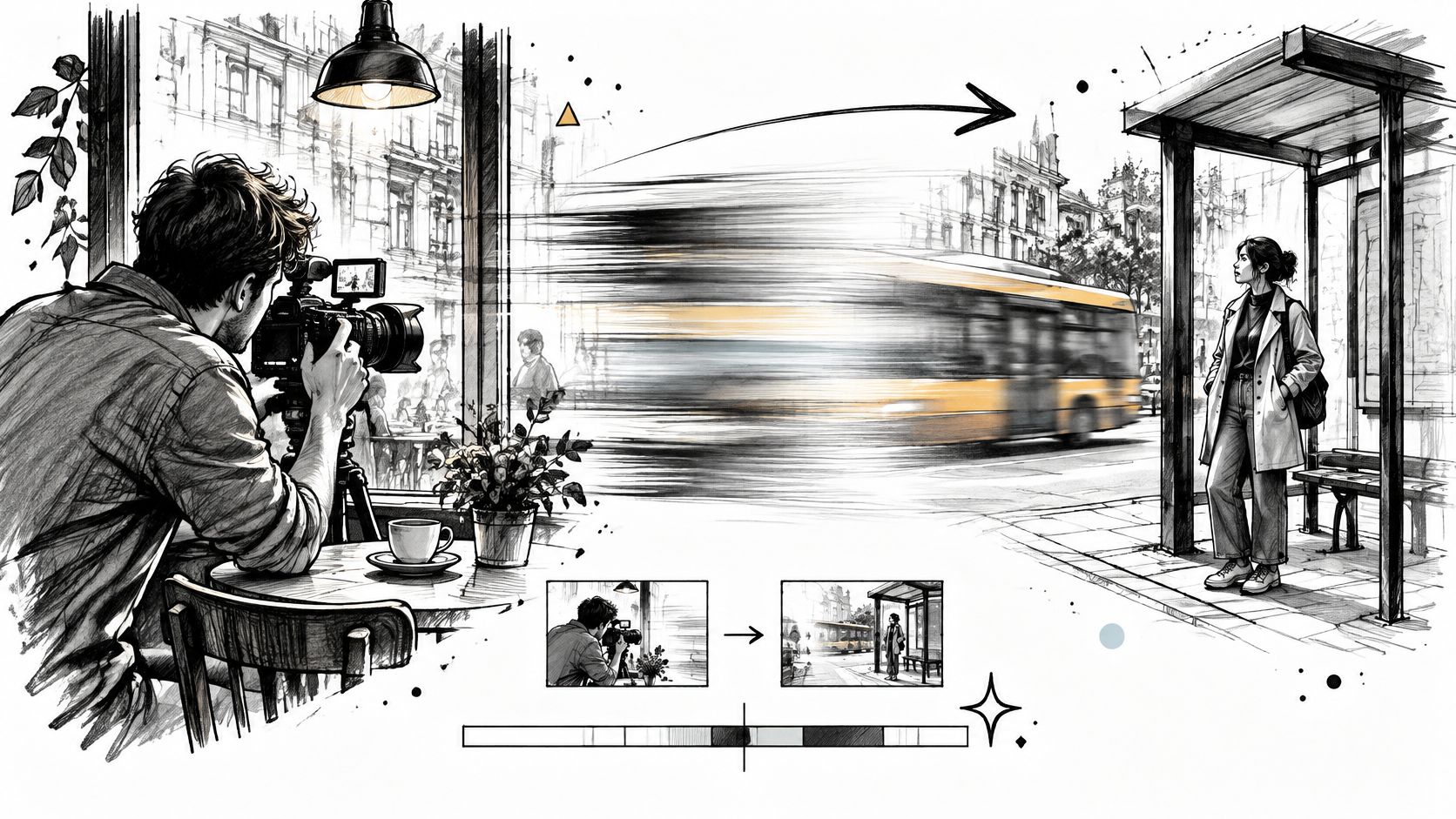
You've filmed a smooth pan, but the scene still feels too leisurely. A character notices something outside a café, and you want the camera to snap toward it, not give viewers a guided tour of the furniture on the way. A whip pan shot can make that change of attention feel immediate, provided the audience can still understand where the camera lands.
The challenge isn't making the middle blurry. It's controlling what viewers can read before and after that blur, especially when they're watching muted on a phone.
Table of Contents
- What a Whip Pan Shot Is and Why Editors Use It
- Frame Rate and Shutter Settings That Control the Blur
- How to Shoot a Whip Pan on Set
- How to Edit Two Whip Pans into One Transition
- Recreating a Whip Pan Shot with AI Video Prompts
- Diagnose and Test Your Whip Pan Before Publishing
<a id="what-a-whip-pan-shot-is-and-why-editors-use-it"></a>
What a Whip Pan Shot Is and Why Editors Use It
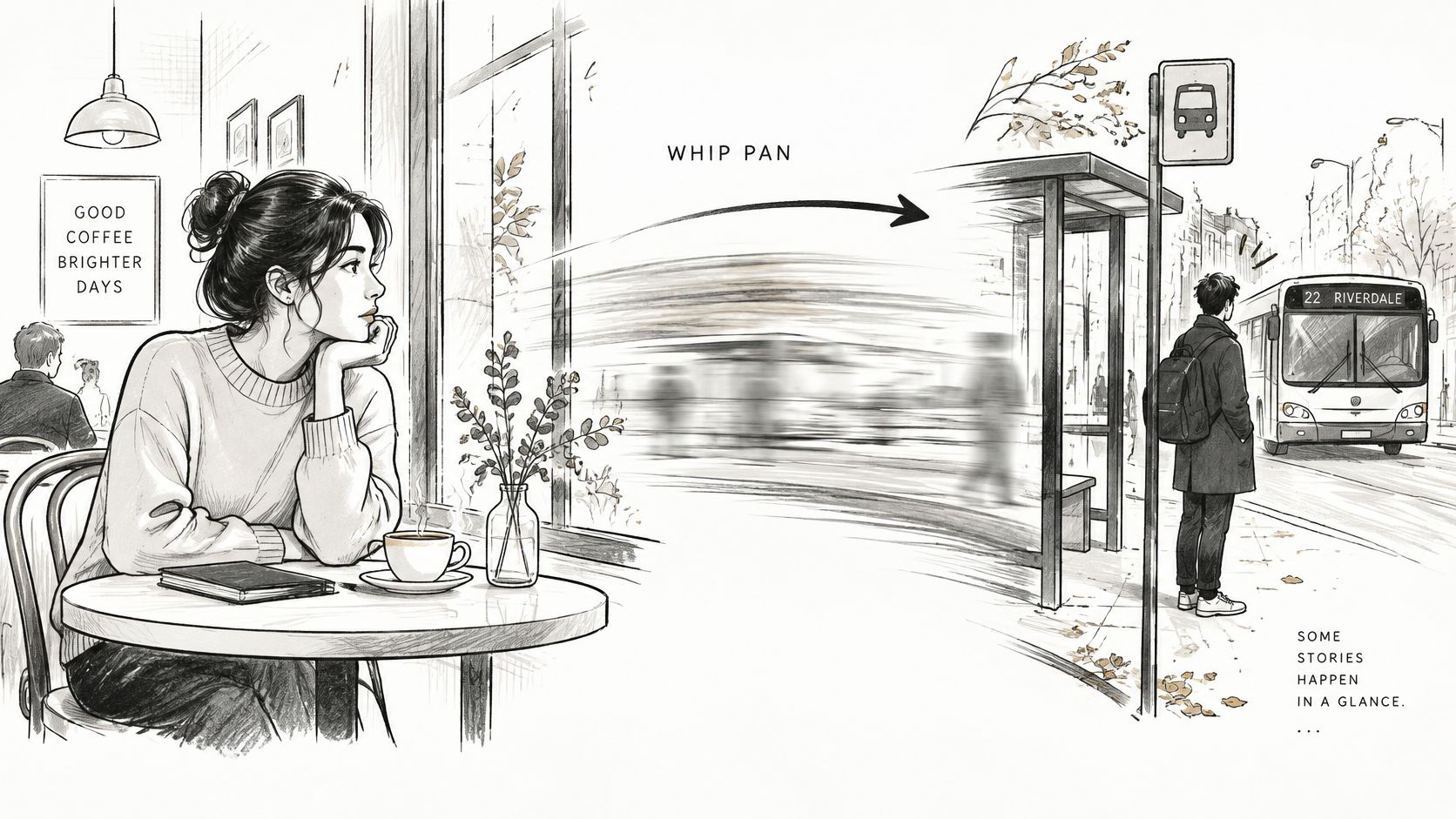
A woman looks up from her coffee toward the café window. The camera snaps sideways and lands on someone waiting at the bus stop. You understand the connection without examining every table, window frame, and passing car between them.
A whip pan, also called a swish pan or flash pan, is an exceptionally rapid horizontal camera rotation that turns intermediate imagery into indistinct streaks, as described in the whip pan overview. Unlike an ordinary pan, it deliberately prevents viewers from reading the scene during the movement.
The café example shows how the start and destination carry the meaning.
<a id="what-the-audience-needs-to-understand"></a>
What the audience needs to understand
Think of the movement as the cinematic equivalent of a quick glance. When someone redirects their attention, the interesting information is usually what prompted the glance and what they discover, not everything between those points.
That's an analogy for how the shot communicates, not a requirement to imitate human vision precisely. As an editor, you're choosing to make the middle less legible so the destination receives more emphasis.
A whip pan can perform several different jobs:
- Hide a transition. Join separately filmed movements inside the blur to create a whip cut between locations or times.
- Redirect attention. Stay within a continuous shot while moving rapidly from a character to something they notice.
- Change the emotional pace. Use the sudden movement to suggest urgency, surprise, frantic activity, or a compressed passage of time.
<a id="choose-the-destination-before-the-effect"></a>
Choose the destination before the effect
In the café scene, landing on the waiting person answers a question: what caught her attention? Landing on an arbitrary patch of pavement gives viewers movement without meaning.
Editorial principle: A whip pan is a controlled loss of image legibility, not an ordinary pan performed carelessly.
Use it when a scene change, sudden discovery, or time jump benefits from a jolt. Be cautious during a quiet emotional exchange or whenever viewers need to study an expression, read text, or understand a complicated space. The effect works best when you can afford to obscure the journey because the destination is unmistakable.
<a id="frame-rate-and-shutter-settings-that-control-the-blur"></a>
Frame Rate and Shutter Settings That Control the Blur
Frame rate and shutter settings for a whip pan
The exposure values below follow the shutter-angle calculation. Flashboards' whip-pan guide describes the natural smear associated with 24 fps and a 180-degree shutter, the heavier streaking from wider angles, and the crisp or strobing effect of 1/500 second.
| Frame rate | Shutter setting | Exposure per frame | Result |
|---|---|---|---|
| 24 fps | 180 degrees | 1/48 second | Natural motion smear, the default starting point |
| 24 fps | 270 degrees | 1/32 second | Longer, heavier streaks |
| 24 fps | 360 degrees | 1/24 second | Maximum smear, can look unnatural |
| 24 fps | 1/500 second | 1/500 second | Crisp or strobing frames, weakens the whip effect |
| 48 fps | 180 degrees | 1/96 second | Pan about twice as fast to match 24 fps streaks |
| 60 fps | 180 degrees | 1/120 second | Pan about two and a half times faster to match 24 fps streaks |
<a id="why-these-controls-interact"></a>
Why these controls interact
Blur comes from pan velocity, frame rate, and exposure duration working together. While the shutter is open, the scene moves across the sensor. A longer exposure records more of that movement within each frame, creating longer streaks rather than isolated, sharp details.
The calculation is straightforward: divide the shutter angle by 360, then multiply by the frame interval. The frame interval is the time between successive frames, found by dividing one second by the frame rate.
A wider shutter angle lets each frame record movement for more of that interval. It doesn't make the camera turn faster. It changes how much of the turn is recorded inside each image.
Higher frame rates shorten the available exposure at the same shutter angle. Nikon's pan-and-tilt guidance supports the higher-frame-rate exposure relationship shown above and gives a practical benchmark exceeding roughly 300 degrees per second for strongly blurred movement, with the visible result affected by focal length, framing, and scene contrast.
<a id="change-the-movement-before-changing-everything-else"></a>
Change the movement before changing everything else
Don't treat that speed benchmark as a pass-or-fail specification. A nearby, high-contrast window frame can produce obvious streaking while a plain distant wall gives you very little visual evidence of the same rotation.
Start with the default combination in the table and rehearse the movement. If the middle remains readable, increase the pan speed before widening the shutter angle.
Practical rule: Adjust one variable at a time. Otherwise, you won't know whether the improvement came from the camera movement or the exposure.
If the image is too bright at your chosen exposure, use an ND filter or adjust lighting rather than automatically shortening the shutter time. A fast shutter may solve brightness while removing the very smear you're trying to capture.
<a id="how-to-shoot-a-whip-pan-on-set"></a>
How to Shoot a Whip Pan on Set
Rehearse the landing before you attempt the full-speed move. You should be able to rotate toward the destination and stop with a useful composition, not merely get the subject somewhere inside the frame.
Adobe's whip-pan guide emphasizes considering shutter speed before filming and recording multiple takes, since convincing blur and a clean stop are difficult to achieve together.
<a id="build-a-repeatable-camera-move"></a>
Build a repeatable camera move
-
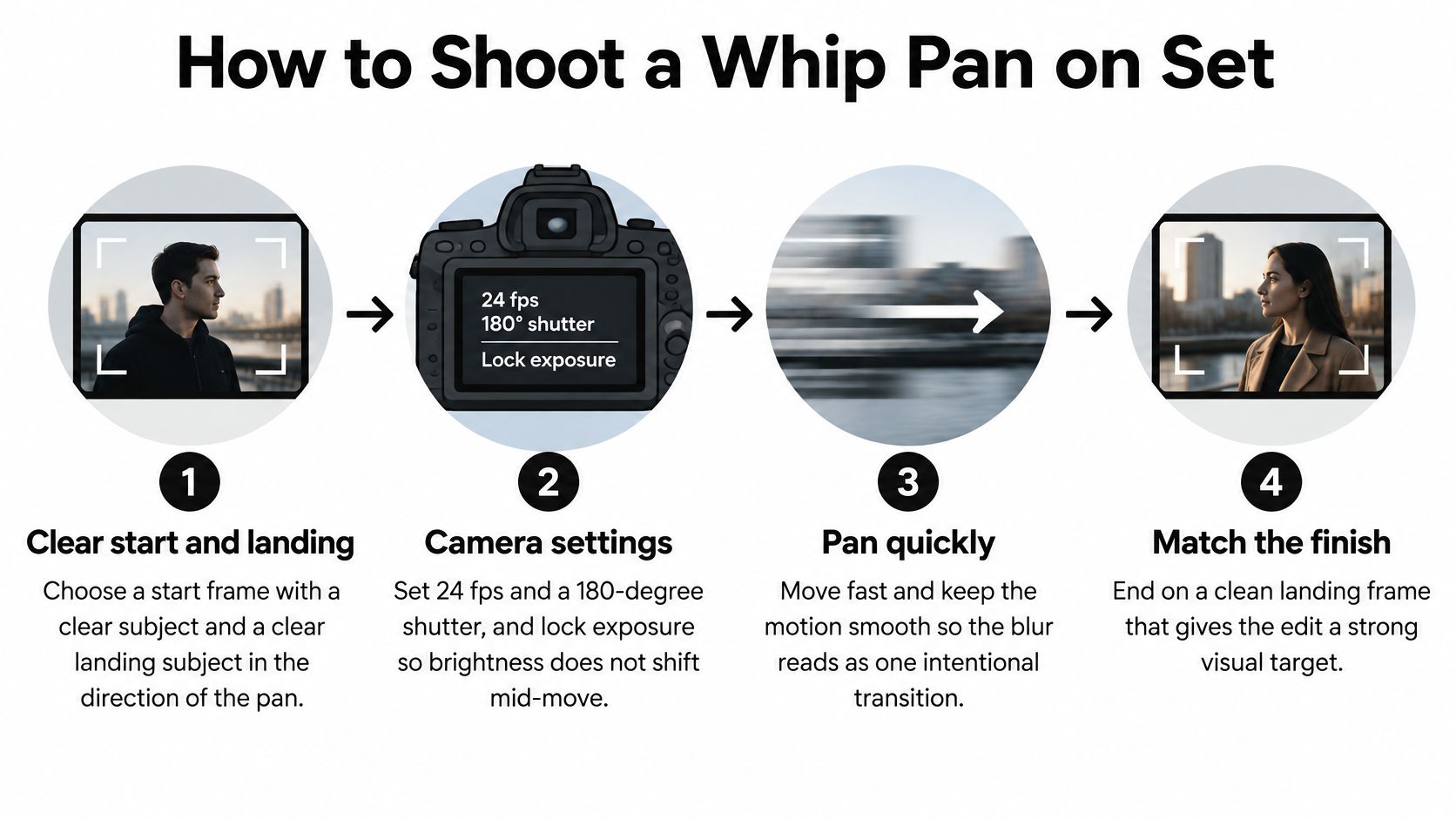
Choose a clear start and landing. In the café setup, establish the woman before rotating toward the bus stop. The common mistake is choosing the movement first, then discovering that the endpoint is cluttered or partially blocked.
-
Set your recording format and lock exposure. Use the default frame-rate and shutter combination from the settings table, then prevent automatic brightness changes during the turn. Leaving exposure on automatic can create a visible brightness pulse as the camera passes a window.
-
Prepare a fluid tripod head or gimbal. Set enough resistance to control the stop without fighting the rotation, and check a gimbal's follow response before recording. A stiff head can judder, while a slow-following gimbal may continue drifting after your hands stop.
-
Hold, then pan decisively. Give viewers a readable starting composition before moving quickly in the chosen direction. A hesitant acceleration can produce an awkward ordinary pan before the streaking begins.
-
Brake on the landing subject. Rehearse your stopping position so the final composition becomes sharp and stable. Overshooting and correcting backward creates a distracting second movement.
-
Match the incoming setup when filming a transition. Record the next shot with the same rotational direction and a comparable pace, allowing it to settle into its destination. Reversing direction between setups makes the eventual edit feel like a sudden recoil.
-
Record several takes and review them. Compare the start, middle, and finish rather than judging only the most dramatic blur. A take with spectacular streaks but an unusable endpoint won't give the editor a clean result.
The filming sequence is easier to remember as a start-to-finish process.
<a id="review-at-playback-speed"></a>
Review at playback speed
Watch without scrubbing first. A good take has a readable start, a directionally streaked middle, and a crisp landing.
Then inspect the stop closely. If the subject stays soft after the camera settles, check focus rather than assuming the remaining softness is motion blur. Set focus for the landing distance when that final composition is the priority.
<a id="how-to-edit-two-whip-pans-into-one-transition"></a>
How to Edit Two Whip Pans into One Transition
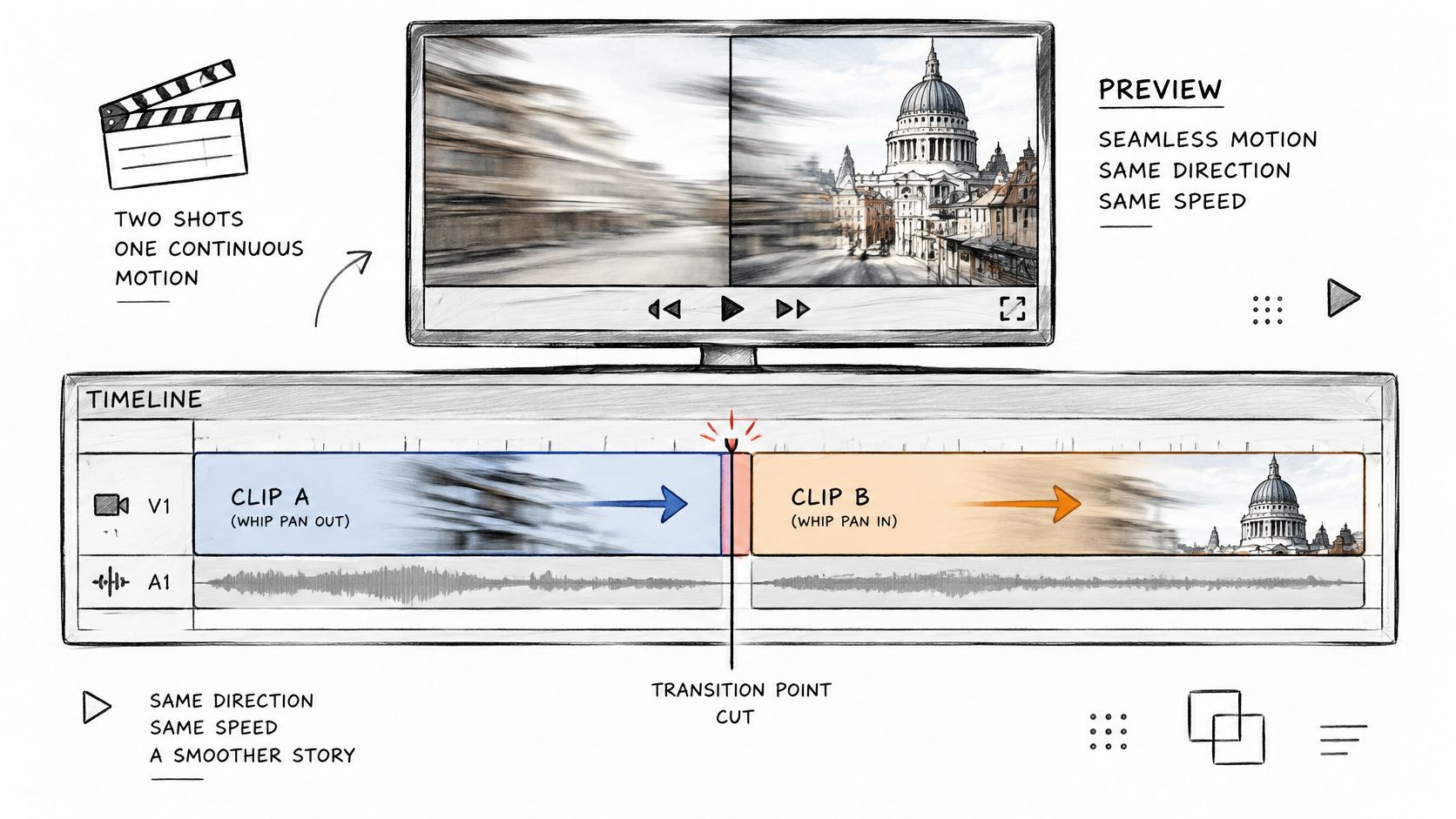
Begin with the movement, not a transition preset. Nikon's editing guide recommends matching direction and speed, cutting at the blur point, and adding a crossfade only if necessary.
The timeline diagram shows the basic relationship between the outgoing and incoming material.
<a id="assemble-the-movement-before-adding-effects"></a>
Assemble the movement before adding effects
- Place the outgoing and incoming clips in sequence. Keep enough movement on both sides of the intended edit to adjust the join.
- Compare direction and apparent speed. A matching camera direction isn't enough if one clip crawls while the other snaps.
- Find each clip's strongest useful blur. Look for directional streaks with little recognizable detail, rather than choosing the middle of the clip.
- Cut where detail is least readable. Align those blurred portions so viewers follow the motion instead of noticing a change of scene.
- Trim premature settling. Remove an outgoing tail that starts becoming clear before the incoming movement begins.
- Try a brief crossfade only if needed. If it creates doubled edges or a cloudy pause, remove it and improve the underlying cut.
<a id="refine-speed-without-disguising-a-bad-match"></a>
Refine speed without disguising a bad match
In Adobe Premiere Pro or DaVinci Resolve, use a speed ramp to shape the outgoing acceleration and the incoming deceleration. Preserve the readable portions rather than accelerating the entire sequence uniformly.
A motion-blur filter can help blend a small mismatch, but it doesn't recover the exact motion recorded during an exposure. Simple directional blur smears the image as a whole, while optical-flow approaches can introduce errors around overlapping subjects.
This demonstration gives you another way to inspect the transition's rhythm.
<iframe width="100%" style="aspect-ratio: 16 / 9;" src="https://www.youtube.com/embed/ZhYvs7rrGnw" frameborder="0" allow="autoplay; encrypted-media" allowfullscreen></iframe>
Compare your result with other video transition techniques if the scene would benefit from a less forceful connection. For a production that needs coordinated shooting and editing support, Pixel Samy Studios' directory can help you find a content agency near you; show prospective collaborators the intended start and landing compositions.
Finally, play the join at full speed and then at half speed. The slower view helps locate a mismatch, but the normal-speed viewing determines whether the cut feels continuous.
<a id="recreating-a-whip-pan-shot-with-ai-video-prompts"></a>
Recreating a Whip Pan Shot with AI Video Prompts
An AI-generated clip can look impressively blurred and still fail as a camera move. A face may change during the sweep, window frames may bend, or the final image may introduce a bus stop that couldn't plausibly occupy the intended space.
A camera-motion evaluation paper identifies camera motion as a weakness in existing text-to-video evaluation and separates foreground tracking from background consistency. For creators, the practical implication is to describe camera movement and subject movement independently, then inspect both.
<a id="separate-the-prompt-into-controllable-parts"></a>
Separate the prompt into controllable parts
Prompt parts for recreating a whip pan shot
| Prompt part | Example wording | What it controls |
|---|---|---|
| Camera direction | rapid 90-degree whip pan to the right | Rotation direction and angle |
| Motion character | heavy horizontal motion streaks | Blur intensity and streak length |
| Start composition | begins on a locked-off wide of a café window | Origin frame of the move |
| Landing composition | sharp settle on the bus stop | Endpoint the viewer reads |
| Continuity | same subject, same clothing, same background | Stable identity across the move |
| Transition type | continuous move, no cut | Whether the result is one move or a hidden cut |
These are example instructions, not guarantees that a generator will follow every constraint. ClipCreator.ai's AI video prompt structure tips are a useful companion when organizing scene description, action, and camera instructions into distinct clauses.
For the café scene, a practical prompt could read:
Begin on a steady wide view of a woman seated beside a café window. She remains seated and turns her gaze toward the street. Perform a rapid 90-degree whip pan to the right, heavy horizontal motion streaks, sharp settle on the subject waiting at the bus stop. Preserve the established street layout, clothing, and identities. Continuous camera rotation, no cut, no morph.
The woman's action is modest and separate from the camera instruction. That makes it easier to diagnose whether a failed result came from character animation, rotation, or destination composition.
Use this checklist to keep those constraints distinct.
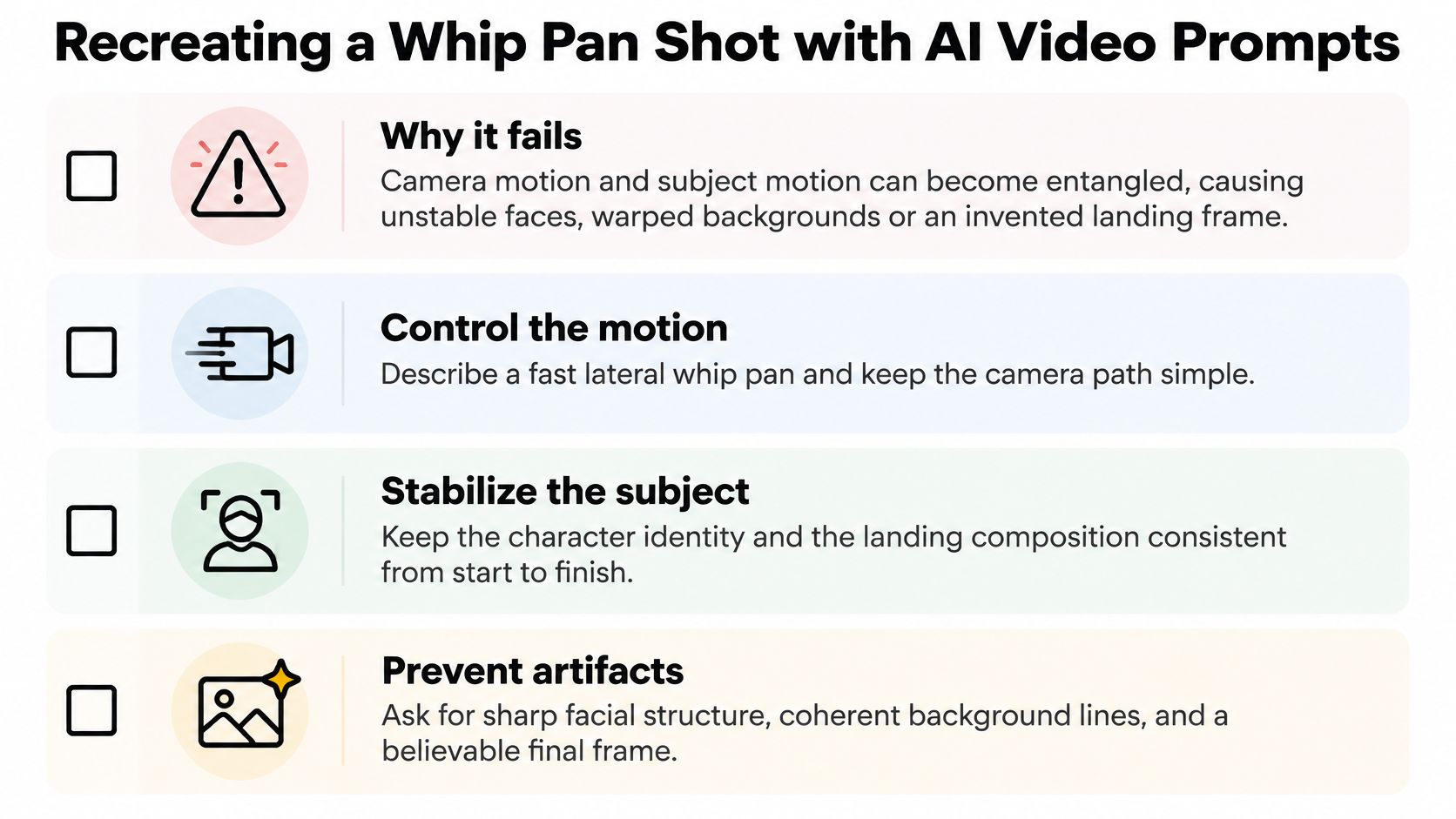
<a id="generate-inspect-and-revise-selectively"></a>
Generate, inspect, and revise selectively
With Veo 3.1, first and last frame control lets you define both ends of the move. Treat those endpoint images as composition constraints, not proof that every intermediate frame will remain spatially coherent.
Generate a short test and inspect the landing before polishing the prompt's style. Check clothing, facial structure, architectural lines, and whether objects enter the frame from a plausible direction.
If the endpoint is wrong, revise the landing description or endpoint image. If the background warps, simplify the character action and camera path; don't rewrite lighting, wardrobe, and motion simultaneously.
<a id="continuous-rotation-or-concealed-edit"></a>
Continuous rotation or concealed edit
A continuous move must preserve a plausible spatial relationship between its endpoints. A hidden cut can connect unrelated locations, but the outgoing and incoming movements still need compatible direction and rhythm.
Choose which result you want before generating. Asking for a continuous shot and a jump to an unrelated location in the same prompt creates competing instructions.
<a id="diagnose-and-test-your-whip-pan-before-publishing"></a>
Diagnose and Test Your Whip Pan Before Publishing
The fastest or blurriest version isn't automatically the clearest. Adobe's pan-shot guide cautions that viewers need time to follow movement and absorb the next scene.
For muted mobile viewing, prioritize destination recognition over spectacle. A viewer shouldn't need a sound effect to understand that the woman looked toward someone outside, and motion-sensitive viewers may benefit from a less aggressive move or a simpler cut.
<a id="diagnose-the-failure-you-can-actually-see"></a>
Diagnose the failure you can actually see
Whip pan problems, causes and fixes
| Symptom | Likely cause | Fix |
|---|---|---|
| Destination unreadable after the move | Blur too long and no hold at the landing | Shorten the blur and test a half-second to one-second hold on the destination |
| Background warps during the move | Camera and subject motion described as one action | Describe the camera move and the subject action in separate prompt parts |
| Landing frame is invented | No endpoint defined in the prompt | Specify the landing composition and subject explicitly |
| Blur looks like a glitch | Shutter too fast or pan too slow for the frame rate | Return to the default settings-table combination and speed up the pan |
| Viewers miss the cut | Cut placed on a readable frame | Move the cut to the blur peak |
The suggested landing hold is a starting experiment, not an accessibility standard. Adjust it until someone unfamiliar with the clip can identify the destination.
The last row needs an important distinction: viewers not noticing a concealed cut is success. Apply that fix when viewers notice a discontinuity or miss the intended connection between scenes, not when the edit is successfully invisible.
<a id="run-a-phone-size-publishing-check"></a>
Run a phone-size publishing check
- Watch muted at normal speed. Confirm that the visual action communicates without music or a whoosh.
- Read both endpoints. Identify the starting subject and destination without pausing.
- Inspect continuity. Check that visible subjects retain their appearance and background structures remain plausible.
- Check the transition join. For a concealed edit, verify that the join falls inside the least legible movement.
- Question the effect. Keep the whip only if it communicates better than a direct cut or gentler pan.
To distinguish a plausible AI camera move from blur hiding errors, compare the endpoint images and inspect the frames immediately before and after the smear. Look for stable object relationships and consistent entry directions, not merely similar colors. A clip alone can't prove how the motion was generated, but it can reveal whether the result behaves coherently.
You can test that workflow with the Veo 3 AI video generator and check the pricing page before choosing a generation budget. Keep the first attempt focused on camera, start, and landing instructions rather than elaborate styling.
We offer Veo 3.1 with first and last frame control and output up to 4K, plus Gemini Omni Flash 1.1 for 4 to 10 second videos at up to 4K. Visit Veo3 AI, write separate camera, start, and landing prompt parts, and generate a short whip-pan test. Review it muted at phone size before committing to the finished sequence.
Related Articles
Continue with more blog posts in the same locale.
First Persons Point of View: How to Film It
Learn first persons point of view for film and AI video, including lenses, movement, audience fit, and comfort.
Read article
YouTube 1000 Subscribers: A Practical Growth Guide
Hit YouTube 1000 subscribers with the real ad gates, a 12-month upload plan, titles that convert, and Shorts rules that protect watch time.
Read article
Add a Moustache to a Photo the Right Way
Add a moustache to a photo with AI, a phone app, or layers. Match the method to the face, blend the hair, and export a still worth sharing.
Read article