
AI Shorts Generator: How Prompts Become Vertical Video
Learn how an AI shorts generator turns text prompts or images into short-form video, which features matter, and how Veo 3.1 fits in.
Veo3 AI · 16 min read · Nov 10, 2026
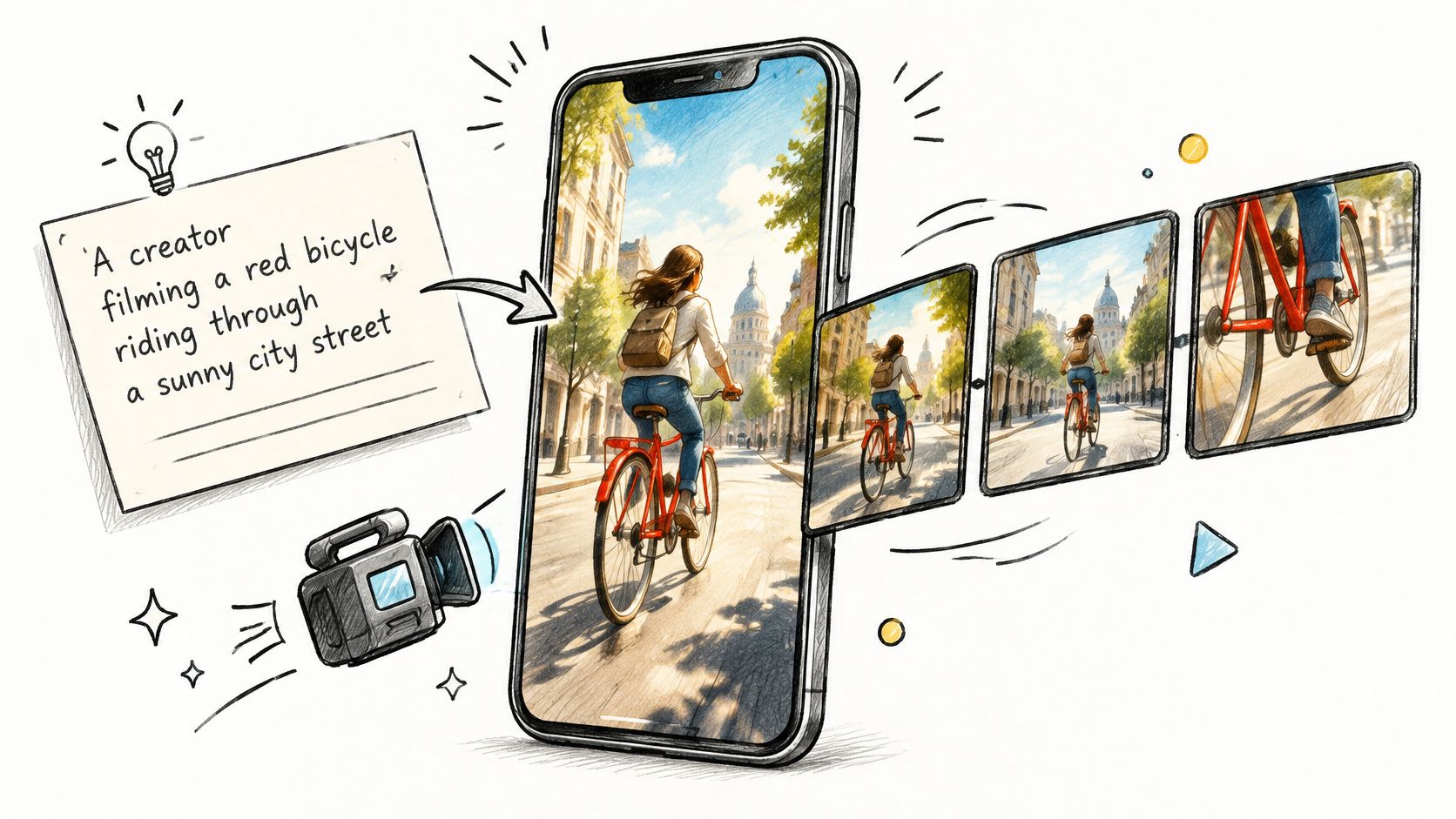
You've got the idea already. A product shot, a hook line, a beat that would work as a seven-second loop. What you don't have is footage, a camera operator, or three hours to build it on a timeline. So you open a generator, type one sentence, and eight seconds later you're staring at a clip that is ninety percent right and ten percent unusable, because a hand morphs at second five or the lettering on the label reads like a bad photocopy.
That gap, between a clip that looks impressive and a clip you can post, is where most short-form AI work happens now. Rendering is the cheap part. Judgement is the scarce skill, and it's the part no tool sells you.
Table of Contents
- What an AI Shorts Generator Does With Your Input
- Generation Modes and Limits Compared
- How to Turn a Prompt Into a Finished Short
- Checks That Separate Usable Clips From Flawed Ones
- Keeping Characters Steady Across a Multi-Shot Short
- Disclosure and Ownership Rules for AI Shorts
- Whether More AI Shorts Grow Reach and How to Test Them
<a id="what-an-ai-shorts-generator-does-with-your-input"></a>
What an AI Shorts Generator Does With Your Input
A bakery has a new sourdough loaf to promote, but no footage of it. An AI shorts generator can turn a written prompt or a still photograph into a vertical clip for TikTok, Instagram Reels or YouTube Shorts. The prompt sets the subject and action; the model supplies details such as movement, lighting and composition.
Short-form video has become a major format on social platforms. Mark Studios' short-form video statistics report that YouTube Shorts averaged more than 200 billion daily views in mid-2025, up from 70 billion at the end of 2023. Separately, Wistia's 2025 State of Video Report, as reported by MarTech, found that 41% of brands used AI for video creation in 2025, compared with 18% in 2024.
A prompt works best when it specifies the subject, action, setting, camera movement and sound. The more the model must invent, the more there is to check: a generated face, product detail or background may change in ways that weaken the clip. AI can reduce the need to source footage, film on location or build every movement by hand, but it does not decide whether the result holds a viewer's attention.
Choose the input based on what needs to stay consistent:
- Text to video: The model creates the scene from your description, including people and products. This gives you room to explore ideas, but appearance and detail can vary.
- Image to video: You provide a still, and the model adds movement. Use this when the actual product or subject needs to remain recognizable.
- Reference images: You provide images to guide the look of a character or product across separate generations. Check each shot for drift before combining them.
Generation is only one part of making a short. You still need to select a usable clip, trim it, add captions where needed, check continuity and judge whether the finished video is worth publishing. Render speed matters less than audience response and whether the shots hold together. Producing more clips without those checks can multiply weak posts rather than improve results.
<a id="generation-modes-and-limits-compared"></a>
Generation Modes and Limits Compared
Every generator gives you more than one door in, and choosing the wrong one wastes credits long before it wastes time. Veo 3.1 is where most of the current short-form work happens, and Google's technical documentation for the model sets the menu. It lists text-to-video, image-to-video, first-and-last-frame generation, video extension, reference images and native sound generation. Clips run 4, 6 or 8 seconds, reference-image-to-video is capped at 8 seconds, one prompt can return up to four candidate videos, inputs can be 720p or 1080p, and exports arrive as MP4 at 24 FPS in 720p, 1080p or 4K, in either 9:16 vertical or 16:9.
| Mode | Input | Output | Limit to plan around |
|---|---|---|---|
| Text-to-video | Written prompt | 4, 6 or 8 second clip with native sound | Prompt must name camera, action and sound |
| Image-to-video | One still image plus motion prompt | 4, 6 or 8 second clip | Motion must suit what the image shows |
| Reference-image video | Reference images of a character or product | 8 second clip | Keep the action simple to hold appearance |
| Frames to video | Starting image and ending image | Generated motion linking both frames | Both frames must be plausible continuations |
| Video extension | Final second of an existing clip | Longer continuous sequence built clip by clip | Each extension inherits the previous shot's errors |
| Export settings | Chosen per generation | 720p, 1080p or 4K MP4 at 24 FPS | Plan a 1080p master for vertical posts |
Match the Mode to Your Starting Material
If you hold a single photograph, go straight to image-to-video. The motion prompt has to respect what the photo implies: a plate of food steams and settles, it doesn't spin. If you already know the opening and closing frame, frames-to-video interpolates the action between them, and the usual failure is a pair of stills that don't belong to the same scene.
When you need runtime, extension builds a longer sequence from the last second of the previous clip, which means a wobble in shot one is baked into shot two. When a character or product has to reappear, reference images keep appearance steadier, but the 8-second ceiling means a longer story is planned as chained shots rather than one long generation.
Before you commit to a workflow, compare video tools with DBotMaker to see how other platforms handle the same six rows, since pricing, clip length and export options differ enough to change which tool suits a weekly cadence.
The rule I apply: match the mode to the footage you already have, not to the mode that sounds most impressive in a demo.
<a id="how-to-turn-a-prompt-into-a-finished-short"></a>
How to Turn a Prompt Into a Finished Short
Here's the loop end to end, in the order that keeps you from re-rendering the same idea six times. The walkthrough video below covers the same flow before the written version.
<iframe width="100%" style="aspect-ratio: 16 / 9;" src="https://www.youtube.com/embed/J-99-6dfFx0" frameborder="0" allow="autoplay; encrypted-media" allowfullscreen></iframe>
-
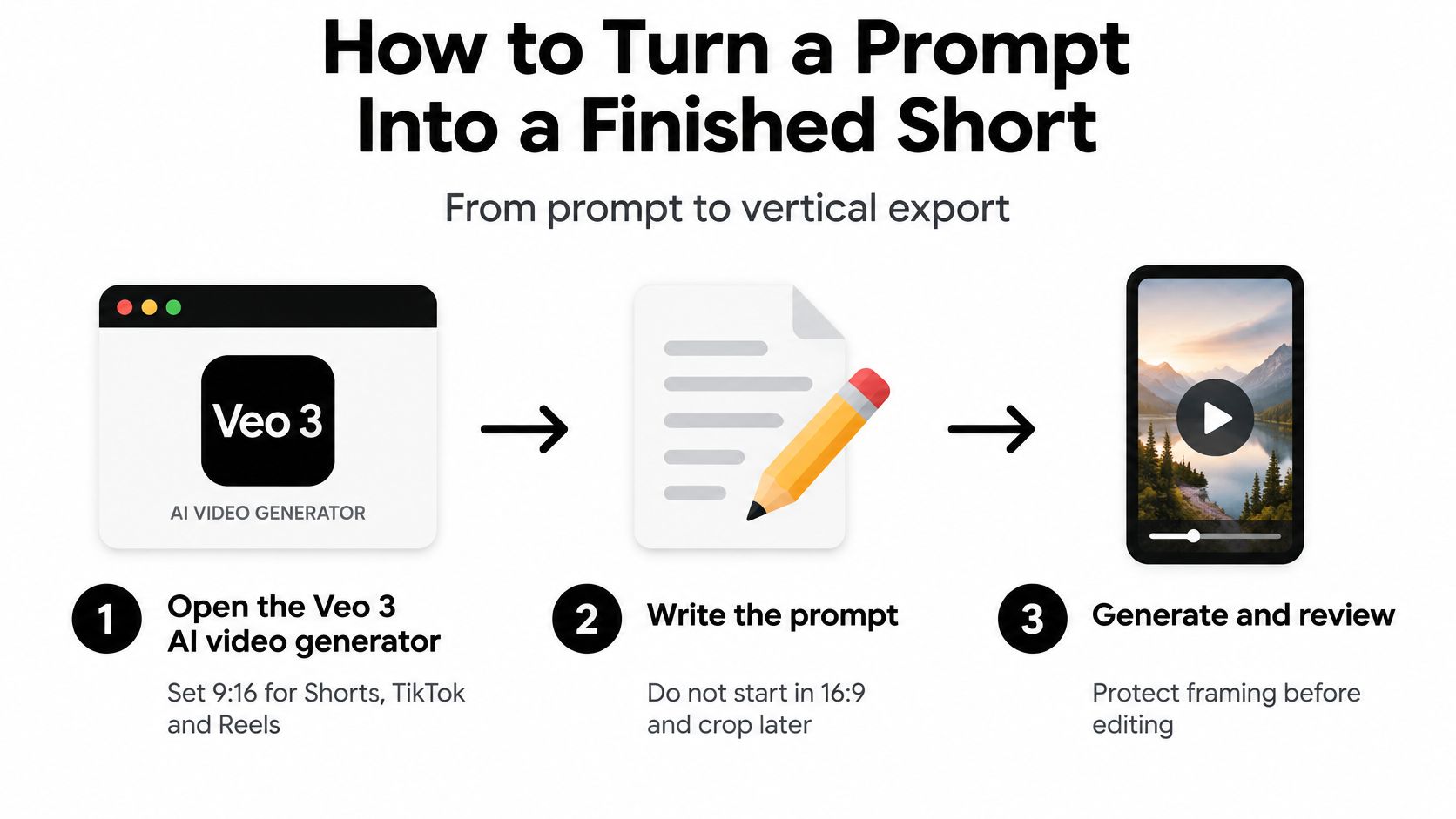
Set the frame before anything else. Open the Veo 3 AI video generator and switch to 9:16. Vertical framing is decided at generation because the model composes for the ratio it renders in. The common slip is generating 16:9 because it looks better on a laptop, then cropping, which slices heads and shoves captions into the edge zones.
-
Write the prompt in five slots. Subject, action, setting, camera, sound. "A woman in a yellow raincoat steps over a puddle on a wet Lisbon street at dusk, slow push in from waist height, rain and distant traffic." Prompts that describe only a mood force the model to invent the motion. The prompt engineering tips cover ordering and phrasing in more detail.
-
Pick the mode from your starting material. If you have a photo, animate the photo. If you have two frames, interpolate. Forcing text-to-video when you already own the product image means re-rolling until something accidentally resembles it.
-
Generate up to four candidates from the same prompt. The first render is rarely the strongest, and batch comparison is the entire point. The slip is falling for the first clip that moves, then spending an hour patching it in the editor.
-
Gate every candidate before it enters the edit. Same face, stable background, smooth motion, the requested action happening, readable on-screen text. Any clip that fails a subject-level gate gets deleted rather than rescued with a cut.
-
Extend the winner or chain frames. One strong eight-second shot becomes twenty seconds by continuing it, or by generating a second shot that begins where the first stopped.
-
Edit outside the generator. Cut into the action inside the first second, add captions, lay music under the generated ambience, and keep spoken lines to a few words. Dialogue is the soft spot: Google DeepMind states that Veo generates sound effects, ambient noise and dialogue, while noting that natural, consistent spoken audio, especially in shorter speech segments, remains an area of active development (DeepMind's Veo model page).
-
Export 1080p and log the job. Store the prompt, the source image, the licence and the export date in the same folder as the MP4. You'll want that trail the first time a client asks how a clip was made.
Approving a batch is half the work. The other half starts after publishing, and social engagement management tools are what keep several live variants from dying of unanswered comments while you move on to the next test.
What a Finished Short Looks Like
A finished vertical short runs 15 to 30 seconds across five or six shots, and every one of them passed the same gate before sequencing. Captions sit inside the safe area, the first frame already contains movement, the generated ambience sits under a music bed, and no shot asks the viewer to forgive a defect at second nine.
<a id="checks-that-separate-usable-clips-from-flawed-ones"></a>
Checks That Separate Usable Clips From Flawed Ones
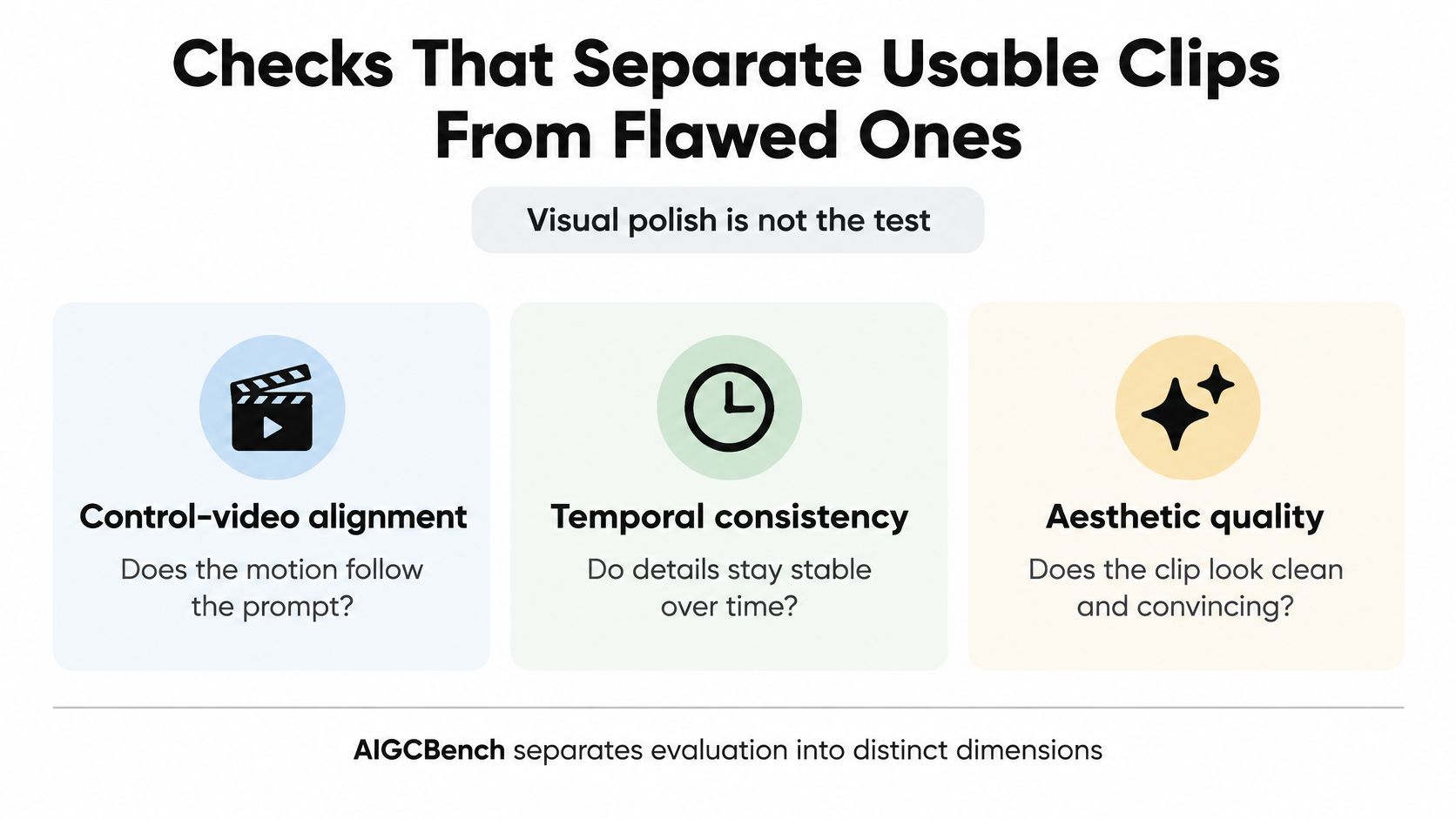
A clip can look like a frame from a car commercial and still fail in motion. An earring vanishes, label text turns to runes, or a tree shifts position between frames. These defects can make a short unusable even when its still frames look attractive.
Video quality needs more than one score. AIGCBench assesses image-to-video output across four dimensions: control-video alignment, motion effects, temporal consistency, and overall video quality, using 11 metrics. VBench, described in the same evaluation literature, uses 16 dimensions covering object and background consistency, motion smoothness, and dynamic range.
<a id="five-gates-every-candidate-has-to-pass"></a>
Five Gates Every Candidate Has to Pass
- Subject consistency: The same face, outfit, and product silhouette should hold from first frame to last. Pause halfway through and compare the subject with frame one.
- Background stability: Check that walls stay fixed, horizons remain level, and furniture does not appear or disappear behind the subject.
- Motion smoothness: Look for flicker, snap-back, and limbs that jump between positions. Watch once at quarter speed, then at full speed.
- Prompt adherence: Confirm that the requested action happens. Beautiful lighting cannot rescue a clip in which the subject never lifts the cup.
- Text and logo accuracy: Read every piece of lettering at 100% zoom on a phone. Model-rendered type is a frequent defect in ad work. A caption cannot correct text baked into the image.
Score candidates against these gates before editing. Inspect faces and logos on a phone screen, too. Small type can look readable in a desktop preview at 50% zoom and fail in a feed.
If a clip fails a gate that affects the subject, delete it. A fast cut or whip-pan may hide identity drift, but it does not fix the defect.
<a id="keeping-characters-steady-across-a-multi-shot-short"></a>
Keeping Characters Steady Across a Multi-Shot Short
A character can look right in the opening shot and feel like a different person by the fourth. In a short built from five generated shots, continuity depends on how each shot connects to the next, not just on whether each looks good alone.
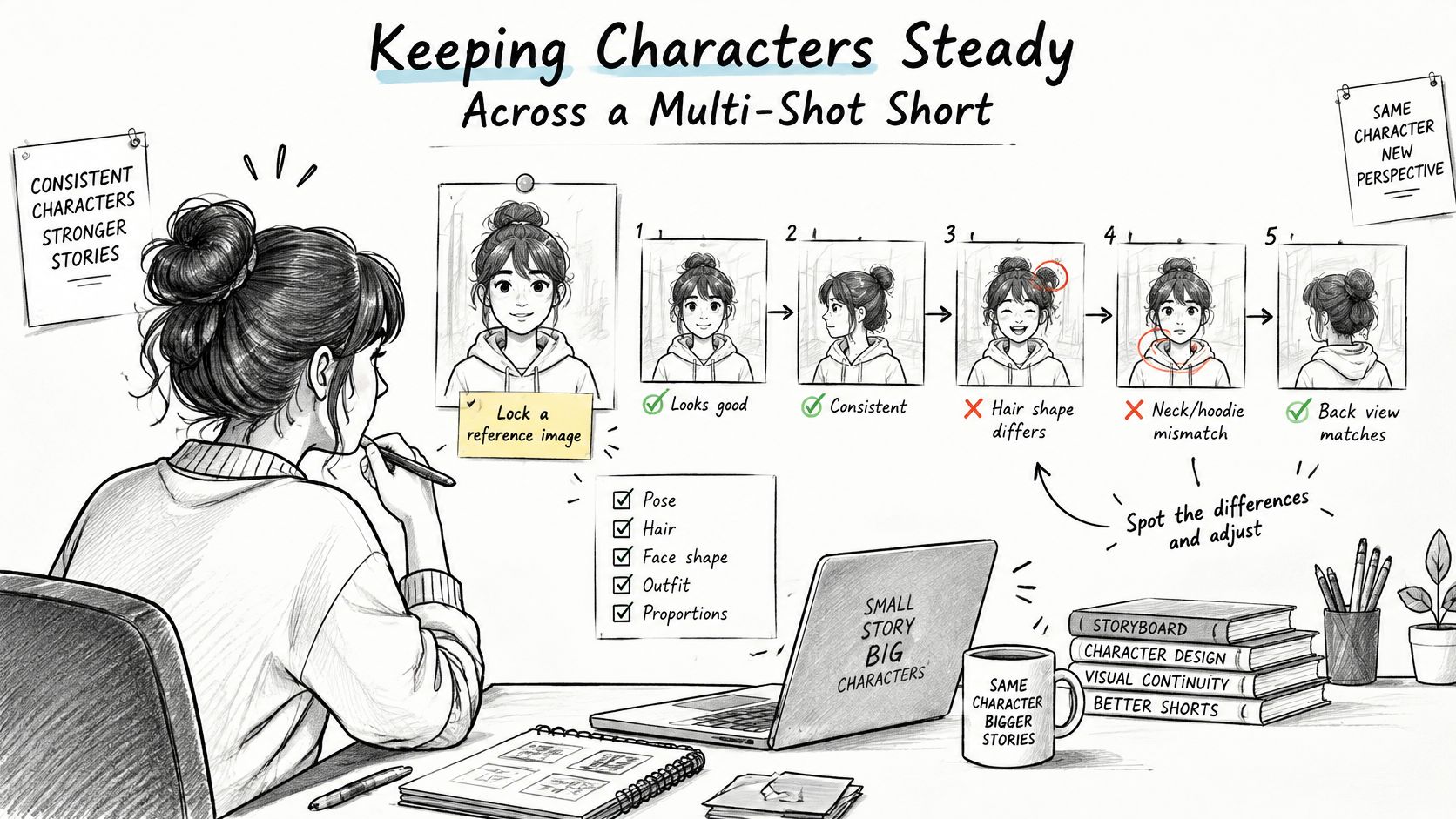
Set continuity constraints before generating, then check them in sequence:
- Choose a reference image. Use one clear frame of the character or product as the visual target for every shot.
- Repeat the identifying details. Include the same hair colour, jacket, glasses, or product-label placement in each prompt. Vague descriptions leave more room for the character to change.
- Keep camera movement simple. Give each shot one camera move. Multiple moves can make it harder to track the subject.
- Limit the action. A character picking up a cup is easier to preserve than one walking through a crowd, turning, and gesturing.
- Check the joins. Compare the last frame of one shot with the first frame of the next. Look for changes in face shape, clothing, object form, or lighting.
- Review the whole sequence before editing. A shot that works on its own can still disrupt the short when placed between two others.
- Use the closing frame as a guide for the next shot. Feeding the end frame into the next generation can help the scene continue, though it does not guarantee a consistent result.
A usable sequence needs more than a convincing first frame. Check later moments too, then judge whether the cuts preserve character and story continuity. Reject unstable shots rather than relying on editing to hide them. More generated clips create more chances for drift; audience response depends on a coherent short, not on how quickly the generator produces footage.
<a id="disclosure-and-ownership-rules-for-ai-shorts"></a>
Disclosure and Ownership Rules for AI Shorts
A realistic AI short can trigger three separate checks before publication: platform disclosure, rights to the generated material, and permission to use the source assets. Treat each one on its own.
<a id="disclosure-is-a-platform-question"></a>
Disclosure Is a Platform Question
YouTube requires disclosure for meaningfully altered or generated content that appears photorealistic, including realistic depictions of real people, events, or places. Non-realistic animation and minor production assistance generally do not require a label (YouTube's AI disclosure guidance). Add the disclosure at upload when a viewer could mistake the clip for real footage.
<a id="ownership-is-a-legal-question"></a>
Ownership Is a Legal Question
Copyright protection for purely machine-generated output is limited, and the rules are still developing. Avoid signing a client contract that promises full rights over every frame you generate. Check the terms of the tool you used and specify what rights you can grant.
<a id="permissions-are-yours-to-clear"></a>
Permissions Are Yours to Clear
An uploaded photo of a person, a cloned voice, a brand logo, and a trademarked product each raise separate consent or licence questions. A platform label does not grant permission to use them.
Keep a folder for each sponsored clip with its prompts, source assets, licences, edit history, and export dates. Generated files may include C2PA Content Credentials, so preserve that metadata during editing and record that the clip was generated rather than shot.
If a clip could pass for real footage, label it and keep records of how it was made.
<a id="whether-more-ai-shorts-grow-reach-and-how-to-test-them"></a>
Whether More AI Shorts Grow Reach and How to Test Them
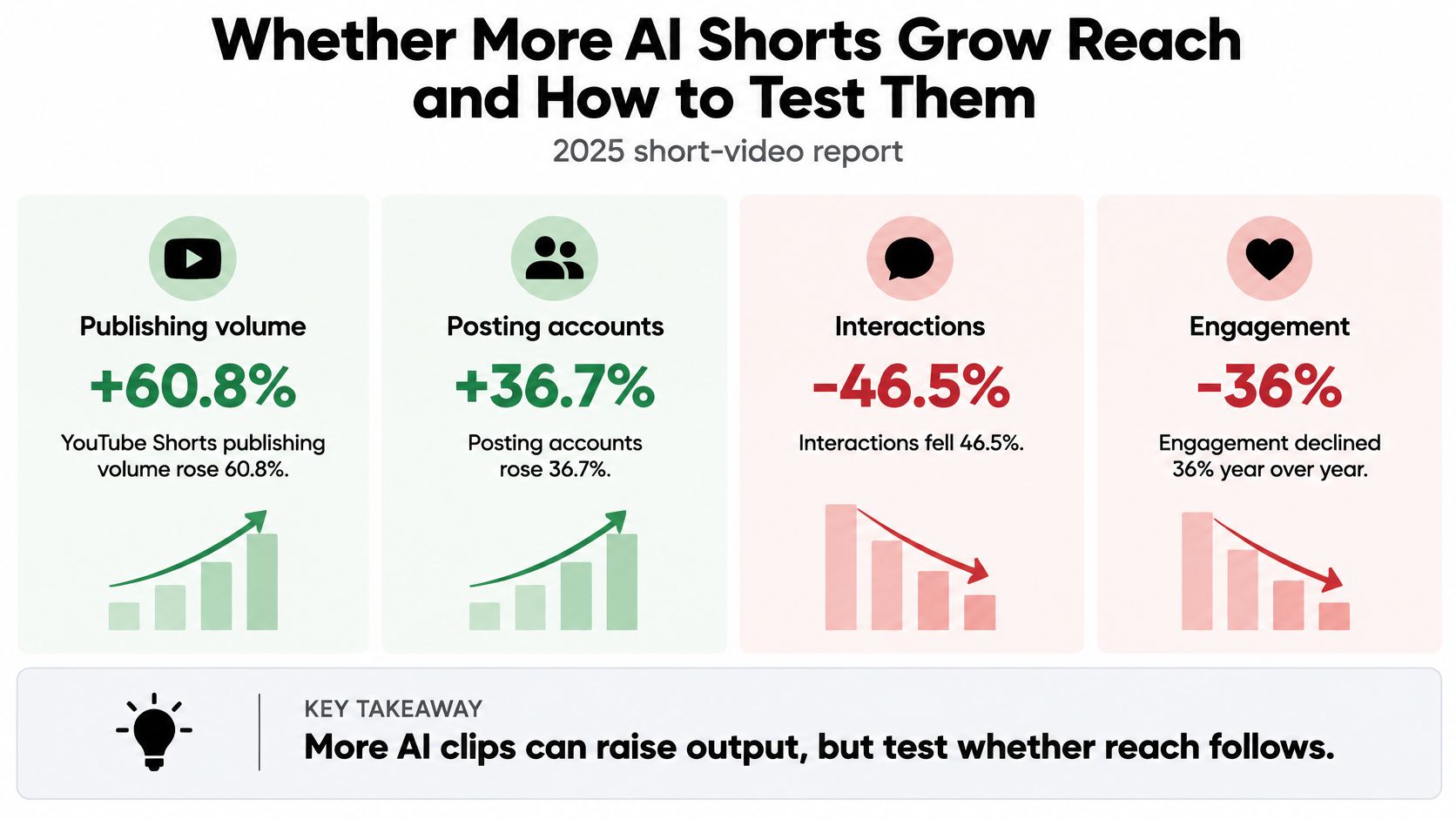
Producing more shorts is the easiest thing AI handed you, and the least valuable on its own. The 2025 short-video report from Metricool found that YouTube Shorts publishing volume rose 60.8% and the number of posting accounts rose 36.7%, while interactions fell 46.5% and engagement declined 36% year over year.
That's what a supply shock looks like. When production gets cheap, output rises faster than attention does, and the same audience splits across a longer feed. The format was already crowded before AI arrived: HubSpot's 2024 Video Marketing Report found 83% of video marketers used short-form video in 2024.
Better rendering doesn't fix any of that. A photoreal clip of a product rotating in fog fails for the same reasons a phone-shot clip fails: nothing gives the viewer a reason to stay past second two, the format has appeared forty times this week, the hook doesn't match the audience, or the text is in the wrong language for the market you're targeting.
<a id="the-test-in-six-decisions"></a>
The Test in Six Decisions
- Pick one concept with a hook you can state in a sentence. If the hook needs explaining, it isn't a hook.
- Generate two or three variants that differ in the opening second, not in the colour grade. The first frame is the only part every viewer sees.
- Gate each variant and label the ones that look real. A test batch that breaks disclosure rules produces data you can't use.
- Publish on one platform at a time, in the same window, with the same caption discipline, so the comparison isn't contaminated by timing.
- Compare four signals after a fixed period and read them against each other rather than in isolation. A 72-hour window is usually enough to see a hook problem.
- Scale only the formats that earn a response. Kill the rest without sentiment, even the one you personally like.
<a id="reading-the-four-signals"></a>
Reading the Four Signals
| Metric | What It Signals | Action When Weak |
|---|---|---|
| First 3-second hold | Whether the opening stops the scroll | Move the key action or subject into the first second |
| Average view duration | Whether attention holds after the hook | Shorten the middle and cut shots that repeat the same action |
| Rewatch rate | Whether viewers want to see the clip again | Keep a strong ending or loop and test a sharper punchline |
| Comments and shares | Whether the story gives people something to react to | Test a relatable scenario or question in the prompt |
Read them as a set. Strong hold plus weak average duration is a middle problem, so cut shots rather than rewrite the hook. Strong rewatch with no comments is a clip that pleases people and gives them nothing to say, which rarely compounds.
Access shapes how fast you can test. Google's announcement of Veo 3 expansion said the AI Ultra plan was available in 73 countries at the time, while Pro subscribers in those countries received limited access to Veo 3 in Flow plus a 10-pack of trial generations in the Gemini app, and support documentation describes the experience as unavailable on Workspace business and education plans. Check what your account includes before building a weekly cadence on it. Veo3 AI runs a free Veo 3 AI video generator, and current plan details sit on the pricing page.
An AI shorts generator helps growth when it shortens the distance between an idea and a test. It hurts when it only adds volume to a feed that was already full.
Veo3 AI brings text-to-video, image-to-video, text-to-image, photo animation, music generation and product advertising into one place, so you can batch a test set and a final cut without switching tools. Generate a concept at 9:16, produce a few variants, then judge them on hold, duration, rewatch and shares before you commit a single credit to scaling. Start with one idea today at Veo3 AI and let the numbers decide what gets made next.
Related Articles
Continue with more blog posts in the same locale.

Veo 3.1 Fast and Quality Leave Google Flow on December 5: What to Use Now
Google Flow retires Veo 3.1 Fast, Veo 3.1 Quality and Omni Flash 1.1 on December 5, 2026. See what Veo 3.1 Lite can do, the credit costs and where to keep using Veo 3.1.
Read article
AI Video Generator Pricing: Plans, Credits and Real Costs
Compare AI video generator pricing across free, subscription and pay-as-you-go plans, and learn what drives the real cost of each usable clip.
Read article
Best AI B Roll Generator Tools Compared for 2026
Find the best AI B Roll Generator tools for short-form video. Compare Veo 3 prompts, strengths, limits, and tips for adding B-roll to Reels and Shorts.
Read article