
Creating Video Loops That Restart Without a Jump
Creating video loops that restart cleanly, with frame matching, export settings for Shorts and backgrounds, and a replay test.
Veo3 AI · 18 min read · Nov 1, 2026
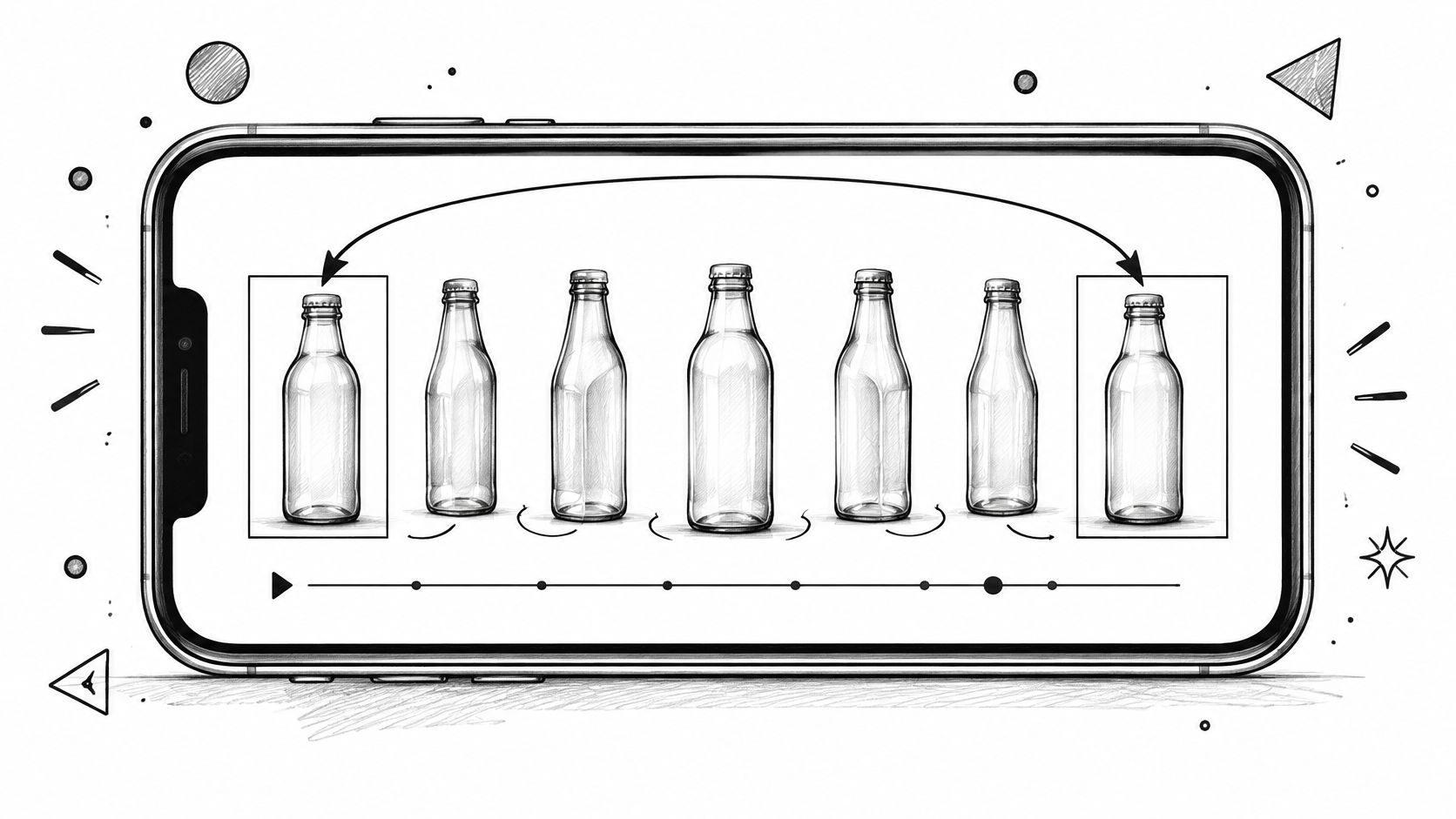
You've rendered a product shot that looks finished. The bottle turns, the light holds, the logo lands clean. Then the platform autoplays it again, the logo jumps a few pixels left, and the music clicks like a bad edit.
That tiny jump is the whole problem with creating video loops that work. A loop isn't finished when the clip looks good once. It's finished when the last moment flows into the first so smoothly that a viewer can't tell where you cut it. Picture, motion direction, captions, and sound all have to survive that restart.
This guide treats the invisible restart as the goal, then adds a second test. Keep the loop only when replays come with better watch time or a real action, not just a higher view count.
Table of Contents
- Which Loop Method Fits the Clip
- Plan Motion That Returns on Its Own
- Build and Repair the Seam
- Export Settings for Social and Background Loops
- Keep the Loop Only When Replays Pay
<a id="which-loop-method-fits-the-clip"></a>
Which Loop Method Fits the Clip
A loop is a short clip whose picture, motion, and sound continue from the last moment into the first without a visible or audible break. If the viewer spots the join, you've made a repeating video, not a loop. Those are different deliverables.
Choose the repair before you render again, because each method fixes a different break. Generating ten more takes won't help if the shot itself never returns to its opening pose.
<a id="start-from-the-failed-replay"></a>
Start From the Failed Replay
Watch the restart three times with sound on. Name what breaks. Is it position, where the subject sits in the frame? Is it direction, where a hand moves up at the end and down at the start? Is it light, a caption, or an audio click?
That diagnosis points to one row in the table. Commit to that row and ignore the rest until it fails.
Five ways to close a video loop
| Method | Use it when | Main failure | Fallback |
|---|---|---|---|
| Closed motion plan | The subject or camera can finish a full cycle | The pose or angle drifts | Regenerate with one named cycle, such as a single full turn |
| First and last frame | A still can open and close the shot | Light or audio still pops at the join | Use the same frame, or a compatible pair, at both ends |
| Hard trim plus flow bridge | Start and end nearly match across a few frames | Ghosting on fast motion or occlusion | Shorten the bridge or regenerate |
| Midpoint reorder | The clip never returns to its start | Wide camera moves, transparency, or occlusion warp | Interpolate only if the motion stays trackable |
| Crossfade | The background is slow and low detail | The dissolve reads as a fade out and fade in | Do not use it on people, text, or a fast camera |
<a id="how-to-read-the-choice"></a>
How to Read the Choice
A closed motion plan suits a full turn, a sway that settles, or a camera orbit that lands on its opening angle. If you started from a still product photo, it can help to bring photos to life with Zemith and think through which single motion that still can complete and return from. One cycle only. Don't ask for a turn, a zoom, and a splash in the same short clip.
First and last frame control suits a shot where one still, or two compatible stills, can do both jobs. A hard trim plus a short optical flow bridge suits footage that already nearly matches. Midpoint reordering rescues a clip that never comes home by moving the original join to the middle, where motion is already continuous.
A crossfade is the weakest option. It can hide a join in drifting fog or slow water. On a face or a logo, viewers read it as a fade, and the loop announces itself.
Pick the method that matches the break you can see, not the method that's fastest to click.
If your clip naturally plays forward and backward, that's a different form, and our guide on how to make a video into a boomerang covers when that ping pong motion beats a true restart.
<a id="plan-motion-that-returns-on-its-own"></a>
Plan Motion That Returns on Its Own
A candle flame flickers in place while the camera stays still. That simple setup gives the loop one job: return the flame's motion to a state that can restart without a visible jump. Plan that return before generating the clip. If the action has no way home, editing has little to work with.
<a id="lock-the-camera-or-close-its-path"></a>
Lock the Camera or Close Its Path
A locked camera is the simplest starting point. If the camera moves, give it a steady pace and a path that ends at its opening angle. A slow orbit can complete a full circle. A push-in that ends closer than it began changes the framing at the restart, like a stage curtain opening onto a slightly different set.
For the candle, keep the frame fixed and let the flame provide the motion. Handheld drift adds another moving element, making any mismatch at the restart harder to diagnose. Keep the speed even, too. If the action rushes through its final frames and restarts slowly, the change in pace can reveal the join even when the subject returns to the same position.
<a id="keep-everything-inside-the-frame"></a>
Keep Everything Inside the Frame
Keep the subject fully inside the frame throughout the cycle. A hand that exits just before the restart, or a passerby missing from the opening, gives the eye a clear before-and-after difference.
- One product turn: The bottle completes a single rotation and returns to its opening position, label facing the camera.
- A pendulum or swing: It crosses the same point in the same direction at both ends.
- Steam or water: Steam rises and thins, or water laps and recedes, without a new splash appearing at the end.
- A breathing cycle: The shoulders rise, then settle into the opening posture.
Avoid flashes, whip pans, and late entrances. A bright final frame followed by ordinary light at the restart reads as a cut, even if the subject stays put.
<a id="protect-captions-audio-and-sensitive-viewers"></a>
Protect Captions, Audio, and Sensitive Viewers
Keep captions in the same safe area for the full cycle. Don't split a word across the restart or change the caption on the opening frame. A sudden text change pulls attention toward the join.
For audio, use a steady bed or a sound that has already decayed. A musical beat at the opening works only if the ending leads into it; otherwise, the loop starts with a fresh accent. A click at the restart can come from the waveform jumping from a quiet ending to a loud opening.
For page backgrounds, choose gentler motion and give viewers a way to pause, stop, or hide automatically moving content that continues for more than a few seconds. This matters for ads and educational clips, where viewers may need time to read or focus. A replay is useful only when it improves watch time or prompts a real action, not when the viewer has no way to stop it.
Before generating again, write down the camera behavior, the single repeating action, what stays in frame, where captions sit, and how the sound ends. If you can't describe how the action returns to its opening state, simplify the prompt.
<a id="build-and-repair-the-seam"></a>
Build and Repair the Seam
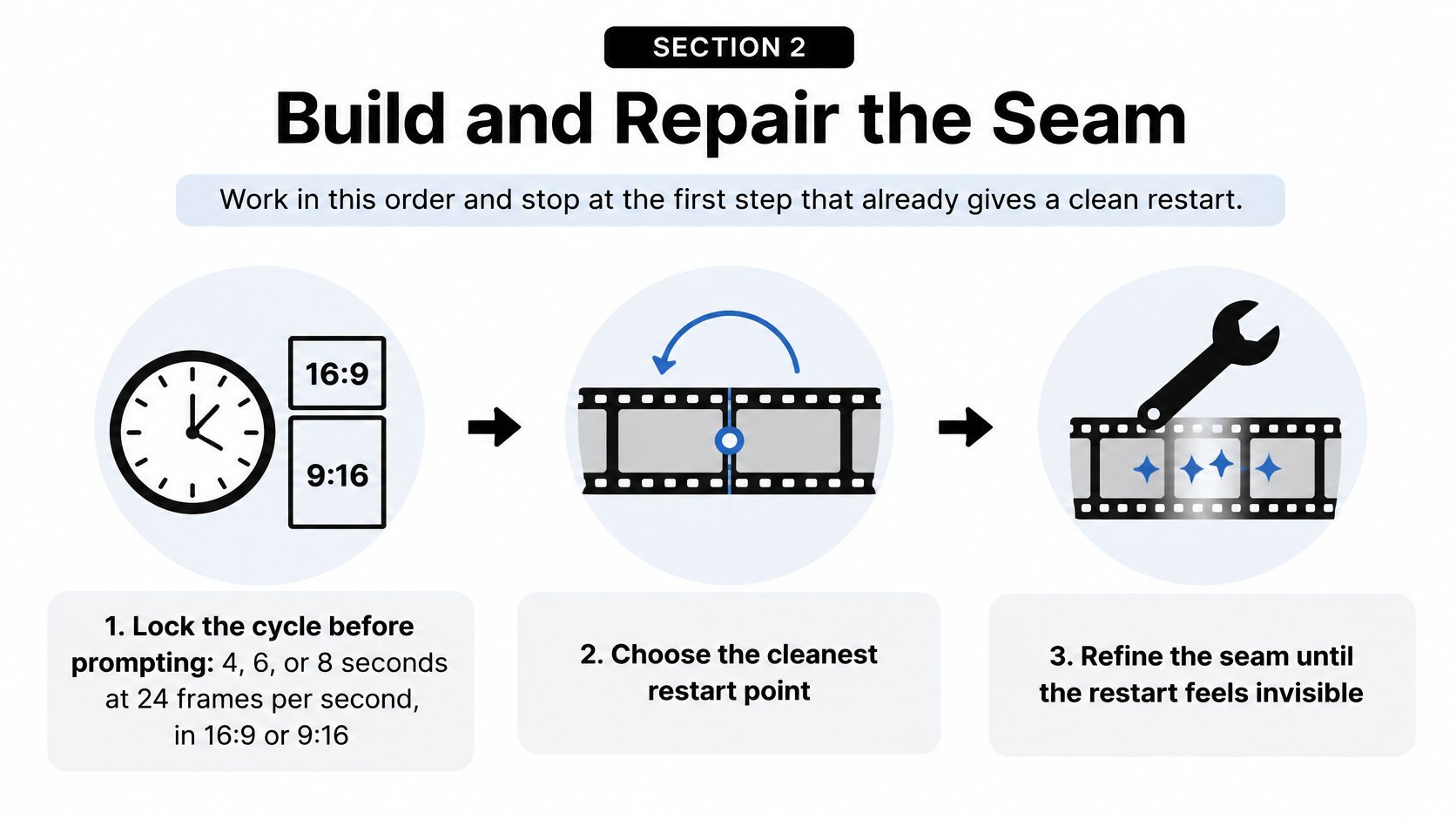
Work in order and stop at the first step that gives you a clean restart. Don't apply every fix you know. Each extra repair adds artifacts, and a simple hard trim often beats a heavily processed bridge.
<a id="set-the-cycle-before-you-prompt"></a>
Set the Cycle Before You Prompt
-
Lock the duration and shape first. Plan a single cycle of 4, 6, or 8 seconds in 16:9 or 9:16, because a longer piece is made by repeating one clean cycle rather than stretching a messy one. Decide orientation now. A later crop can slice a hand, a caption, or the very motion that made the seam work.
-
Name the constants in the prompt. Write down camera height, subject pose at the open, light direction, background elements, and anything that must not enter or leave the frame. For a skincare jar, that might sound like this. Camera stays at jar height, label faces forward, soft light comes from the left, no hands enter, one full turn only. You're not being fussy. You're giving the end of the clip a fixed target.
-
Generate with endpoints when you can. With Veo 3.1, first and last frame control lets you anchor both ends of the shot. Google's Veo updates in Flow describes this as a way to create a smooth bridge between two frames, with accompanying audio generated for the transition. Use the same image at both ends when the subject should return exactly home. Use a visually compatible pair when the pose is close but not identical, for example the same product angle with the same light.
Don't treat endpoint control as magic. If the two frames disagree on light direction, scale, or background, the model has to invent a journey between incompatible pictures. You'll see melting edges or a light shift in the middle. Fix the stills first.
<a id="pick-the-take-by-pose-not-color"></a>
Pick the Take by Pose, Not Color
- Render a small batch and compare openings to endings. Keep the take whose opening and ending share pose and position, not just similar color. Two frames can both be blue and still jump badly. What matters is where edges sit. Check the eyes, hands, logo corners, horizon line, and any straight edge that viewers use as a reference.
A quick test helps. Duplicate the clip on your timeline so it plays twice. Watch only the middle join between the two copies. Don't watch the whole thing, or your eye will forgive the break because it's following the action. Loop that join five times. If you flinch, viewers will too.
- Inspect a short window around the seam. A practical seamless loop workflow on GitHub recommends inspecting frames at reduced resolution and comparing roughly three frames on either side for both positional and motion flow similarity. That's the right instinct. A single matching frame can still fail if the subject arrives moving left and leaves moving right.
Matching a sentence, not just a word, is the goal. You need the approach, the join, and the exit to flow as a single movement. Reduced resolution is fine for this search. You're testing candidates quickly, not judging final sharpness.
<a id="trim-hard-then-bridge-only-the-gap"></a>
Trim Hard, Then Bridge Only the Gap
- Hard trim the forward stretch that already flows. Find the longest section where motion is continuous and cut decisively to it. Many creators keep extra frames out of caution and then try to blend over them. That's backwards. Remove the frames that don't belong first, then look at what's left to repair.
At standard playback speed, a few removed frames are invisible if direction stays consistent. What viewers notice isn't a slightly shorter cycle. It's a pause, a reversal, or a fade.
- Fill only the leftover gap with optical flow. Use neural optical flow interpolation such as RIFE to bridge the remaining end to start discontinuity. Interpolation estimates where pixels were traveling and creates in between motion. A crossfade doesn't do that. It fades the end out and the start in, so the subject goes faint and returns. Viewers read that as an edit, not as movement.
Keep the bridge short. The more frames the tool has to invent, the more chances it has to guess wrong. If you need a long bridge, your trim points are wrong or the take never returned home.
Stop rule: If the bridge has to invent a new pose instead of smoothing a small gap, stop repairing and regenerate.
<a id="test-at-full-speed-and-know-the-failure-looks"></a>
Test at Full Speed and Know the Failure Looks
- Play the bridge at the exact delivery frame rate. Scrubbing slowly hides problems and creates fake ones. At real speed, look for ghosting, where a faint double edge trails a moving hand. Look for duplicated limbs, warped fabric texture, bending straight lines, and backgrounds that wobble near the subject.
Fast limbs, sheer fabric, whipping cameras, and crossing objects are the usual culprits. When one object passes in front of another, interpolation has to guess what's hidden. It often guesses with a smear. Shorten the interpolated span first. If the smear stays, drop the bridge and try a different trim point.
Don't forget sound at this stage. Mute the picture test, then do a separate pass with headphones. Listen for a click, a breath that restarts mid word, or room tone that changes level. Lower a musical hit that lands on frame one, or extend a steady tone across the join so there's nothing to restart.
<a id="when-the-clip-never-comes-home"></a>
When the Clip Never Comes Home
Some clips can't be trimmed into a loop because the action travels one way. A subject walks left to right and ends in a new place. A camera pushes in and never pulls back. For that footage, use midpoint reordering.
Split the clip into two equal halves. Play the second half first, then the first half. The original join, which was the broken end to start point, now sits in the middle where the footage was already continuous. Your new seam is at the outer edges, the old middle frames. Those often sit closer together in pose.
Repair that new outer seam with a short optical flow bridge, but only when motion is trackable. Large displacement, transparency, and occlusion are stop signs. Glass, smoke, hair crossing a face, or a subject passing behind a pole will warp. Regenerate with a closed motion plan instead.
Know when to quit a take. If you've tried two trim points, shortened the bridge once, and the same limb still ghosts, the take is done. Another hour of repair won't beat one clean render with a better prompt. Finish with one candidate file, clearly named, not a folder of twelve unfinished seams. Name it by subject, cycle length, and version so you can find it when you test it against an ordinary ending later.
<a id="export-settings-for-social-and-background-loops"></a>
Export Settings for Social and Background Loops
Export the file the platform will play, not the heaviest file the model can render. A flawless seam at the wrong aspect ratio still fails, because the platform crop will decide what survives.
Loop export settings by destination
| Destination | Cycle length | Aspect | Resolution | Frame rate | File note |
|---|---|---|---|---|---|
| YouTube Shorts, Reels, or TikTok | 4, 6, or 8 seconds, repeat only while it stays interesting | 9:16 | 1080p | 24 fps | MP4, watch the join again after recompression |
| Website or presentation background | 6 or 8 seconds | 16:9 | 1080p or 4K | 24 fps | Silence or a continuous tone |
| Product turn | 4 or 6 seconds for one revolution | 16:9 or 9:16 | 1080p | 24 fps | No musical hit on the first frame |
| Veo 3.1 standard output | 4, 6, or 8 seconds | 16:9 or 9:16 | 720p, 1080p, or 4K | 24 fps | 4K is unavailable on Veo 3.1 Lite |
| Reference image to video | 8 seconds maximum | 16:9 or 9:16 | 720p or 1080p | 24 fps | Join cycles for anything longer |
<a id="work-within-the-generation-limits"></a>
Work Within the Generation Limits
The Veo 3.1 production documentation on Google Cloud lists clip lengths of 4, 6, or 8 seconds, a maximum of four videos per request, and 24 frames per second in 16:9 or 9:16. Reference image to video generation in that documentation is limited to 8 second clips. Choose duration, orientation, and batch size before generation, not after.
Resolution needs the same discipline. Google's Veo documentation in AI Studio specifies 720p, 1080p, or 4K, with 4K unavailable for Veo 3.1 Lite. For a vertical social loop, 1080p is usually the sensible export. Save 4K for a background that will fill a large screen.
<a id="repeat-a-short-cycle-dont-stretch-it"></a>
Repeat a Short Cycle, Don't Stretch It
A longer piece is several joined cycles, not one slow cycle. Munch's report as summarized by Marketing Interactive identified approximately 40 seconds as the optimal short form length for engagement in its 2024 research. Treat that as a length benchmark from one industry report, not a guarantee of watch time.
You reach that range by repeating a flawless 6 or 8 second cycle only while the motion still feels intentional. A candle flame can repeat. A person nodding starts to look mechanical by the fourth pass. Stop repeating as soon as the replay stops feeling like a choice.
Use MP4 with H.264 or HEVC rather than a large GIF. A Vice history of the GIF format notes that GIF used a limited palette of 256 colors for compact transfer over slow connections. Compressed video delivers the same automatic replay pattern in a smaller, sharper file.
<a id="test-after-the-platform-touches-it"></a>
Test After the Platform Touches It
Set the aspect ratio before upload so a crop doesn't slice the seam. Then upload a private test, let the platform recompress it, and watch the join again on a phone. A second encode can shift the first or last frame, soften an edge you matched carefully, or change audio level at the restart.
Prefer silence or a continuous tone over a music edit that clicks. Background loops especially should not demand attention every few seconds. If a viewer notices your background restarting, it isn't a background anymore.
Leave this stage with two files at most. Keep one vertical social file and, if you need it, one wide background file from the same cycle. One clean cycle, two honest exports.
<a id="keep-the-loop-only-when-replays-pay"></a>
Keep the Loop Only When Replays Pay
A smooth restart can increase replays without benefiting you. A viewer who doesn't notice the video ended hasn't chosen to watch again. That accidental replay inflates views and tells you nothing about interest.
<a id="run-a-matched-comparison"></a>
Run a Matched Comparison
Compare two cuts that share the hook and the length. One has an ordinary ending. The other restarts smoothly. Change nothing else, or you won't know what caused the difference.
Read these signals separately instead of chasing views alone.
- Average watch time and completion: Did viewers stay longer, or just get counted twice?
- Replays and swipes away: Did extra plays arrive with fewer quick exits?
- Saves, shares, and comments: Did anyone act like the clip was worth keeping?
- Downstream action: Did the loop produce a profile visit, a follow, a click, or a signup?
Keep the loop when extra replays arrive with longer watch time or a real action. Ship the clean ending if the seam clicks, captions jump, or the motion feels pushy. For ads and educational Shorts, comprehension and trust can beat a higher replay count.
A replay that only inflates the view count is not a win. It's a counting artifact.
Judge that rule against your own numbers before the next render, not against platform benchmarks. A loop that feels satisfying on one platform can feel repetitive on another, and your audience's saves and shares will tell you faster than any generic target.
<a id="build-the-next-cycle-deliberately"></a>
Build the Next Cycle Deliberately
For the next test, open the Veo 3 AI video generator and build a closed motion of 4, 6, or 8 seconds with first and last frame control. We offer Veo 3.1 with up to 4K generation and first and last frame control, so use 4K only where the model offers it and the destination needs it. Check current options on our pricing page rather than relying on any cost quoted elsewhere.
Save the ordinary ending and the loop as separate, clearly named takes. Watch them side by side, publish the comparison fairly, and let watch time plus action decide. That's how creating video loops becomes a craft decision instead of a growth trick. The invisible restart earns its place only when viewers stay, understand, and do something next.
Build your next cycle with first and last frame control, native audio, and text to video, image to video, and reference to video tools in one place. Generate a clean 4, 6, or 8 second loop, test the seam at full speed, and keep it only when replays bring real watch time. Start creating today at Veo3 AI.
Related Articles
Continue with more blog posts in the same locale.
Whip Pan Shot Guide: How to Shoot and Recreate One with AI
Learn what a whip pan shot is, how to film it with the right shutter settings, edit it into a seamless cut, and recreate it with AI video prompts.
Read article
First Persons Point of View: How to Film It
Learn first persons point of view for film and AI video, including lenses, movement, audience fit, and comfort.
Read article
YouTube 1000 Subscribers: A Practical Growth Guide
Hit YouTube 1000 subscribers with the real ad gates, a 12-month upload plan, titles that convert, and Shorts rules that protect watch time.
Read article