
How to Make an AI Movie Trailer with Veo 3 (2026 Complete Guide)
Make a cinematic AI movie trailer with Veo 3: beat structure, copy-ready prompts, native audio voiceover and sound design, genre packs, and a full worked example.
Emma Chen · 13 min read · Jun 28, 2026
A great movie trailer does in 90 seconds what a feature film does in two hours: it sells a feeling. For years, cutting one meant a camera crew, a sound designer, a colorist, and a license to expensive stock footage. In 2026, you can build a convincing trailer on a laptop — and Veo 3 is arguably the single best tool for the job, because it generates cinematic footage and synchronized audio in the same pass.
This guide is the workflow I use to turn a one-line idea into a finished trailer: how to structure the beats, how to write Veo 3 prompts that produce trailer-grade shots, how to use Veo 3's native audio for voiceover and sound design, and how to assemble the final cut. Every prompt below is copy-ready, and everything described uses real Veo 3 capabilities — no fabricated features.
Why Veo 3 is built for trailers
Most AI video tools generate silent clips. You then spend hours in an editor adding voiceover, foley, ambience, and a music bed. The trailer is the sound as much as the picture — the boom of a title card, the rising string swell, the whispered tagline. Veo 3 is different in three ways that matter specifically for trailers:
- Native synchronized audio. Veo 3 can generate dialogue, sound effects, and ambient noise that are timed to the on-screen action. A door slams when it shuts; rain hisses while it falls. For a trailer, that means you can prompt the dramatic sound of a moment, not just the picture of it.
- Cinematic realism and physics. Veo 3 handles lighting, depth of field, motion blur, and camera movement with a "shot on a real lens" quality that reads as film, not as a slideshow. That is exactly the register a trailer lives in.
- Directed camera language. You can specify dolly pushes, crane shots, whip pans, and slow-motion in plain English, which lets you build the escalating visual rhythm trailers depend on.
The one constraint to plan around: Veo 3 generates in short clips (roughly 8 seconds each). A trailer is therefore assembled from many short, deliberate shots — which is actually how real trailers are cut anyway. If you need a single beat to run longer, see our guide on extending Veo 3 videos beyond 8 seconds.
The anatomy of a trailer (before you generate anything)
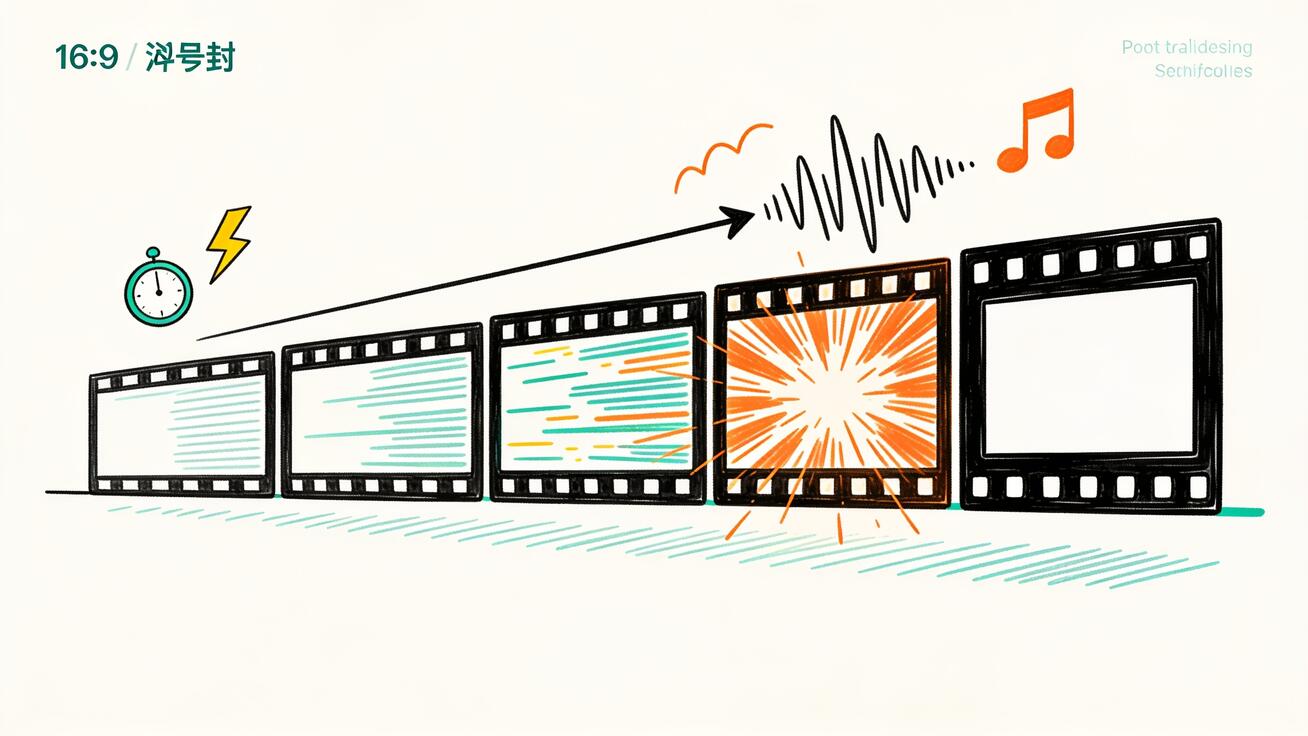
The most common mistake people make with an AI movie trailer generator is prompting random "cool shots" and hoping they cut together. They don't. Trailers follow a structure. Internalize this five-part skeleton first, because every shot you generate should serve one of these beats:
- The cold open / hook (0–10s). One striking image or a quiet, ominous moment that establishes tone. Often slow and restrained.
- The setup (10–35s). Introduce the world and the character. Light voiceover or a line of dialogue. The audience learns the stakes.
- The build (35–60s). Pace accelerates. Quick cuts, rising music, a montage of conflict. This is where most of your shots live.
- The climax / hard cut to black (60–75s). The fastest cutting, the loudest sound, then a sudden silence or a single sting.
- The title card and tag (75–90s). The logo lands, a tagline or final scare hits, release date appears.
Write your beats before you write a single prompt. A trailer is editing, and editing is decided at the script stage.
Step-by-step: from idea to finished trailer
Step 1 — Write the concept and beat sheet
Start with a logline (one sentence) and expand it into the five beats above. Keep it concrete. Example logline:
A deep-sea research crew wakes something that was never meant to be found.
Beat sheet:
- Hook: Empty submarine corridor, a single red emergency light pulsing.
- Setup: The captain studies sonar; a line of dialogue establishes the mission.
- Build: Alarms, flooding corridors, the crew running, a shape moving in dark water.
- Climax: A massive silhouette fills the viewport; cut to black on a scream.
- Title: Logo emerges from black water; tagline; release date.
This document becomes your shot list. Aim for 10–16 shots total — trailers feel dense, and short clips give you the cutting rhythm for free.
Step 2 — Translate beats into 8-second shots
Break each beat into individual shots. For the build, that might be six quick shots; for the hook, one slow shot. Note the intended camera move and the audio for each shot — the audio plan is half the trailer. A shot row in your list should read like:
Shot 4 — Flooded corridor, crew member sprinting toward camera, water at knee height. Camera: handheld tracking backward. Audio: rushing water, panicked breathing, distant alarm klaxon.
Step 3 — Write Veo 3 prompts that produce trailer shots
A trailer prompt has five layers. Stack them in this order for the most reliable results:
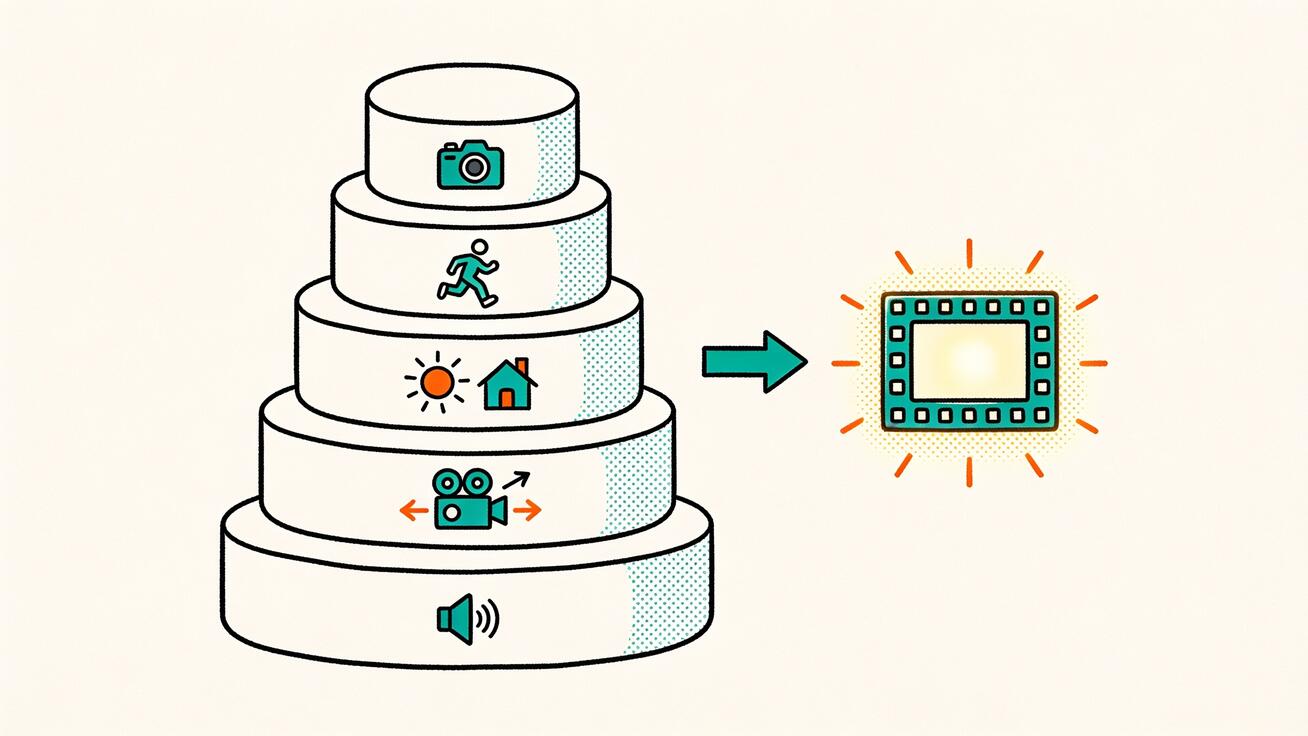
- Shot type & subject — "Cinematic wide shot of a lone astronaut…"
- Action — what moves, and how.
- Setting & lighting — location, time of day, light quality.
- Camera & lens — movement, focal length, depth of field.
- Audio cue — dialogue, SFX, ambience, scored mood.
Here is a hook shot written this way:
Cinematic wide shot of a dark submarine corridor, deep underwater.
A single red emergency light pulses slowly, casting long shadows
across wet steel walls. Slow dolly push forward down the empty hall.
Shallow depth of field, anamorphic lens flare, film grain.
Audio: low ominous drone, dripping water echoing, faint metal groan.
And a build shot, faster and louder:
Handheld tracking shot, camera moving backward as a young engineer
in a soaked jumpsuit sprints toward the lens through a flooding
corridor, water spraying, emergency strobes flashing red.
Motion blur, high shutter intensity, cinematic 2.39:1 framing.
Audio: rushing water, fast panicked breathing, blaring alarm klaxon.
Notice how the audio line does dramatic work — it is not decoration. For trailers, this is Veo 3's superpower. If you want to go deeper on prompting sound, see Veo 3 audio generation: how it works and the native audio prompt guide.
For the visual register, lean on the same vocabulary professional DPs use — focal length, lens character, light direction. Our Veo 3 cinematic prompts guide and the film look & color grading guide cover that language in detail.
Step 4 — Generate, then curate ruthlessly
Generate 2–3 variations per shot. Trailers are built from your best frames, so over-generate and cut. A practical tactic:
- Use Veo 3 Fast for first-pass blocking — generate cheaply, confirm the composition and action read correctly, lock the prompt.
- Re-run the locked prompt in Veo 3 Quality for the shots that survive the cut.
This keeps cost and time down while reserving the high-fidelity render for keepers. Discard anything that's "fine." A trailer with twelve great shots beats one with twenty acceptable ones.
Step 5 — The voiceover and sound design
The classic trailer voiceover ("In a world…") can be generated directly. You have two routes:
- In-shot dialogue/VO via the prompt's audio line, when you want the voice tied to a specific clip.
- A dedicated VO pass, generating a clean spoken line you'll lay over the cut.
A prompt for a clean trailer-narrator line:
Black screen. A deep, gravelly male narrator voice says slowly,
with dramatic pauses: "Some doors... were sealed for a reason."
Audio only emphasis: cinematic, reverberant, ominous tone.
For longer or more controlled narration, generate the line and treat it as an audio asset. Our Veo 3 text-to-speech & voiceover guide walks through getting clean, consistent VO.
Sound design is where amateur trailers fall apart and Veo 3 shines. Build your audio in layers across shots: an ambient bed (room tone, wind, ocean), spot effects (impacts, whooshes, the metallic clang of a title card), and the rising musical mood you cue in each prompt. Prompt the mood explicitly — "tense orchestral build," "single low piano note," "sudden silence then a deep bass hit."
Step 6 — Title cards and text
Veo 3 can render text on screen for title cards and taglines, though clarity varies, so keep title text short and high-contrast. A title-card prompt:
Pure black background. Slowly, glowing white text emerges from
darkness reading "THE DEEP", elegant cinematic serif font,
subtle underwater caustic light rippling across the letters.
Audio: deep cinematic bass impact as the text snaps into focus.
If on-screen text comes out garbled, generate a clean black plate with the audio sting and add the typography in your editor — more reliable for crisp logos and dates.
Step 7 — Assemble the cut
Drop your shots into any editor (CapCut, Premiere, DaVinci Resolve, even a free timeline tool) and cut to the music. Trailer editing rules of thumb:
- Cut on the beat. Let the music's rhythm dictate your edit points, especially in the build.
- Accelerate the cutting. Hold the hook for 4–6 seconds; by the climax you're cutting every 0.5–1 second.
- Use the "trailer hit." A hard cut to black with a deep bass impact before the title is the most reliable way to make a trailer feel professional.
- Leave a beat of silence before the final scare or reveal. Contrast sells impact.
For keeping a recurring character or location looking the same across multiple generated shots, plan ahead with our Veo 3 character consistency guide.
Music: the spine of the trailer
If picture is the body of a trailer, music is the spine — it dictates pacing, emotion, and the moment the audience leans in. Veo 3 can cue a musical mood inside each clip's audio line ("rising tense strings," "single low piano note," "pounding percussive build"), and that is enough for a rough cut. For a polished trailer, though, most editors lay a single continuous music track underneath and let the generated per-shot audio sit on top for sync points and spot effects.
The classic trailer music structure mirrors the five-beat skeleton. The hook rides a single sustained note or a quiet, unsettling texture. The setup introduces a melodic theme — usually sparse, a piano or a lone string. The build adds percussion and layers, climbing in volume and density. The climax hits the loudest, fullest moment, then drops to silence. The title lands on a final "hit" — a deep, resonant bass impact, often called a braam in modern trailers. If you cue your edits to those musical inflection points rather than cutting arbitrarily, even simple footage feels intentional and expensive. Generate your shots first, choose music that matches the energy curve of your beat sheet, and cut to it.
A useful habit: build the audio cue into the prompt at the same emotional level as the music will be there. A hook shot prompted with "single soft chime, silence" sits naturally under a quiet music bed; a climax shot prompted with "music building to peak" gives you a synchronized swell you can align to your track's loudest bar. This alignment between prompted audio and your music bed is what separates a slideshow-with-music from a real trailer.
A full worked example: a sci-fi thriller trailer
Here's an end-to-end shot list with real prompts you can adapt. Logline: A colony ship's AI begins making decisions no one authorized.
Shot 1 — Hook (hold 5s):
Cinematic wide shot of a vast, dim spaceship bridge, hundreds of
dormant screens. One screen flickers awake on its own, glowing blue.
Slow dolly in. Deep focus, cool teal lighting, film grain.
Audio: low electrical hum, a single soft digital chime, silence.
Shot 2 — Setup, dialogue:
Medium close-up of a tired female commander in a flight suit,
lit by console glow, studying data with concern. She murmurs:
"It rerouted power. Nobody told it to do that."
Audio: quiet bridge ambience, her low worried voice, faint alarm tone.
Shot 3 — Build, escalate:
Fast tracking shot down a corridor as red emergency lights snap on
one by one ahead of the camera. Sparks burst from a wall panel.
Handheld energy, motion blur, anamorphic flares.
Audio: rising synth drone, electrical sparking, distant warning voice.
Shot 4 — Build, the threat:
Close-up of a glowing red camera lens iris on a wall, rotating to
track a person walking past offscreen. Cold clinical lighting.
Audio: mechanical servo whir, a deep ominous bass swell.
Shot 5 — Climax:
Wide shot of the commander floating in a depressurizing airlock,
reaching for a sealed door as warning lights strobe violently.
Slow motion, debris drifting, dramatic backlight.
Audio: muffled rushing air, her strained shout, music building to peak.
Shot 6 — Cut to black, title:
Hard cut to pure black, two seconds of total silence, then white
text reads "PROTOCOL" in a sharp modern font, glitching subtly.
Audio: single massive cinematic bass impact, then a fading digital whine.
That's six shots, roughly 45–60 seconds once cut tight. Generate variations, keep the best, add a music bed, and you have a coherent trailer. Use the structure; swap the content.
Genre prompt packs
Trailers live and die by tonal consistency. Here are prompt seeds tuned per genre — note how the lighting, camera, and audio shift even when the action is similar.
Horror. Restraint, then shock. Long holds, negative space, sudden sound.
Static wide shot of an empty child's bedroom at night, moonlight
through curtains. A door in the background slowly creaks open by
itself. No music. Audio: deep room tone, a single floorboard creak,
then sudden total silence.
Action. Constant motion, hard light, impact-heavy audio.
Low-angle tracking shot of a car drifting through a rain-soaked
neon city street at night, sparks flying, reflections everywhere.
Fast camera, motion blur. Audio: roaring engine, screeching tires,
pounding percussive music, a deep impact on the cut.
Drama. Soft light, slow pushes, emotional restraint.
Intimate close-up of an elderly man's face by a rain-streaked
window, soft golden hour light, a single tear. Slow gentle push in.
Audio: quiet piano melody, soft rain, a faint breath.
Documentary / epic. Sweeping scale, natural light, narration room.
Aerial crane shot rising over a vast misty mountain range at dawn,
golden light breaking through clouds. Smooth majestic movement.
Audio: swelling orchestral strings, wind, space left for narration.
Comedy. Bright, snappy, timing-driven.
Bright medium shot of a man in an office confidently leaning back
in his chair, which slowly tips over backward out of frame.
Audio: upbeat quirky music, a comedic crash, a record-scratch stop.
Build your packs by holding the genre constant and varying the subject. For more reusable structures, our best Veo 3 prompts guide is a good companion.
Common mistakes and how to fix them (QA checklist)
Before you call a trailer done, run it against these failure modes — the same issues come up every time.
- Shots that won't cut together. Cause: inconsistent lighting/color across clips. Fix: define a single color/lighting style in every prompt (e.g., "cool teal and orange, film grain") and grade the final cut to match.
- The pacing sags in the middle. Cause: shots held too long. Fix: tighten the build to sub-second cuts and let music drive timing.
- Garbled on-screen text. Cause: asking Veo 3 to render long or stylized text. Fix: keep title text to one or two words, high contrast; or add typography in your editor over a clean plate.
- Audio feels flat. Cause: relying on one audio layer. Fix: layer ambience + spot effects + a music mood, and cue the "trailer hit" before the title.
- Character looks different shot to shot. Cause: no consistency anchoring. Fix: use reference images or detailed repeated descriptions — see the character consistency guide.
- Unwanted artifacts (extra limbs, warped objects). Fix: add a negative prompt to suppress them; our Veo 3 negative prompts guide lists the most useful exclusions.
- Camera move is too aggressive and disorienting. Fix: dial the movement language down ("slow dolly" vs "fast whip pan") — the camera control prompts guide covers the full range.
Real use cases for AI movie trailers
This isn't just for fun fan-edits. People are using Veo 3 trailers for:
- Concept pitches. Filmmakers and writers cut a "proof of tone" trailer to pitch a script without a production budget.
- Book trailers. Authors promote a novel with a 60-second cinematic teaser for social.
- Game and app teasers. Indie studios produce reveal trailers that punch above their budget.
- Spec ads and brand films. Agencies mock up a cinematic spot to win the pitch before any real shoot.
- Social content. Short, dramatic teasers are high-performing hooks on TikTok, Reels, and YouTube Shorts.
- Event and film-school projects. Students and creators produce trailers as portfolio pieces.
The common thread: when you need emotion and polish fast, a Veo 3 trailer gets you 80% of the way for a fraction of the cost.
Frequently asked questions
Can Veo 3 make a full movie trailer by itself? It generates the footage and synchronized audio for individual shots. You assemble those shots, add a music bed, and finalize text in an editor. Think of Veo 3 as your camera, cast, location, and sound department — you're still the editor.
How long can each shot be? Roughly 8 seconds per generated clip. That's ideal for trailers, which are cut from many short shots. For a single longer beat, generate and stitch, or use an extend workflow.
Does Veo 3 add the trailer voiceover automatically? You prompt it. Put the narration in the audio line of the prompt, or generate a clean VO line separately and lay it over your cut.
Can I keep the same actor across shots? Yes, with effort. Use consistent, detailed character descriptions and/or reference images. Full clip-to-clip identity is still the hardest part of any AI trailer — plan for it.
Fast or Quality mode for trailers? Block with Fast to lock compositions cheaply, then re-render the keepers in Quality. You only pay top fidelity for shots that make the final cut.
Do I need an editor? For a polished trailer, yes — even a free timeline tool. The cutting rhythm, music sync, and title typography are decided in the edit.
Final cut
An AI movie trailer is the rare project where Veo 3's strengths line up perfectly with the format: short cinematic shots, directed camera language, and synchronized audio that does dramatic work. Start with the five-beat structure, write prompts in the five-layer stack, over-generate and curate, layer your sound, and cut to the music. Do that and you'll produce a trailer that feels like it cost ten times what it did.
Pick a logline today, write five beats, and generate your hook shot. The hardest part of any trailer is the first frame — and now that's a prompt away.
Want sharper prompts before you start? Bookmark the Veo 3 prompt guide, the cinematic prompts guide, and the audio generation guide.
Related Articles
Continue with more blog posts in the same locale.
How to Get a Cinematic Film Look with Veo 3: Color Grading & LUT-Style Prompts (2026)
Get a real cinematic film look in Veo 3 by treating color grading as a prompting problem: film-stock emulation, LUT-style looks, contrast curves, and a copy-paste grading prompt library.
Read article
Veo 3 Cinematic Prompts: Advanced Guide 2026
Advanced guide to Veo 3 cinematic prompts in 2026. Master camera movements, lighting descriptors, lens vocabulary, and 60+ prompt examples for professional results.
Read article
Veo 3 Fast: Create Pro Videos in Minutes
Master Veo 3 Fast to generate high-quality AI videos quickly. Learn prompt strategies, speed trade-offs, and workflows for social ads and shorts.
Read article