
Best AI Video Generator Apps for 2026 (iOS & Android, Free Options)
The best AI video generator apps for 2026 for iOS and Android, with free options. App roundup, mobile workflow, and prompt tips for TikTok, Reels, and Shorts.
Emma Chen · 14 min read · Jun 23, 2026
Want to make AI video without opening a laptop? This guide ranks the best AI video generator apps for 2026 that run on your phone — iOS and Android — with a focus on free options, on-the-go creation, and social-first vertical video for TikTok, Reels, and Shorts.
This is the mobile-app companion to our full desktop comparison. If you are sitting at a computer and want a complete tool-by-tool breakdown with quality benchmarks and no-watermark notes, read the Best Free AI Video Generators 2026 roundup. Here we stay app-centric: what installs on a phone, what the best free AI video generator app experience actually feels like, and how to get a finished clip from your pocket to a published post.
Quick Pick: Best AI Video Generator Apps at a Glance
If you only have a minute, start here. Each pick is chosen by why you are searching, not by brand name alone.
| You want to… | Best app to try first | Platforms | Free tier |
|---|---|---|---|
| Highest-quality prompt-to-video on a phone | Google Gemini app (Veo) | iOS & Android | Free tier, with limits |
| Fast vertical clips for TikTok/Reels/Shorts | CapCut | iOS & Android | Generous free tier |
| Human motion and action shots | Kling | iOS & Android | Free credits |
| Playful image-to-video and effects | Pika | iOS & Android | Free tier |
| Editor-ready control on mobile | Runway | iOS (app) + mobile web | Free tier |
| Clean text-to-video / image-to-video tests | Seedance (mobile web) | Mobile browser | Free workflow |
| Quick talking-head / captioned clips | Captions / Hailuo AI | iOS & Android | Free tier |
Quick answer: for the best raw quality on a phone, test the Google Gemini app (it now houses Google's Veo model) first. For fast social editing and export, pair it with CapCut. If you want clean text-to-video and image-to-video drafts without a heavy editor, run them through Veo 3 text-to-video or Seedance in your mobile browser, then finish in CapCut. That benchmark-then-edit flow wastes the least free credits.
What Makes a Good Mobile AI Video App in 2026
A desktop tool and a phone app are judged differently. On mobile, the screen is smaller, the thumbs are slower, and you usually want to publish in the same session you created. When testing the best AI video generator apps for 2026, weigh these six things:
- Real free tier on mobile. Some tools advertise a free plan but gate it behind a desktop sign-up or a credit card. A good app lets you generate at least a few test clips from the phone before paying.
- Vertical-first output. TikTok, Reels, and Shorts are 9:16. An app that exports clean 1080×1920 (or lets you choose aspect ratio before generating) saves you a cropping step.
- Speed and queue behavior. On mobile you are often standing in line or on a break. Apps that render in under a minute, or that let you queue and come back, fit real phone use better than ones that demand you keep the screen open.
- Export to camera roll and share sheet. The whole point of an app is finishing on the device. Look for a direct "save to Photos / Gallery" button and a native share sheet to TikTok, Reels, and Shorts.
- Watermark policy. Many free app tiers stamp a watermark. That is fine for drafts, but check whether you can remove it before posting client or brand work.
- Account and data friction. Phone keyboards make long sign-ups painful. Apps with Google/Apple sign-in and a quick onboarding win for mobile.
Keep these criteria in mind as you read the roundup — the "best" app depends on whether you value quality, speed, editing control, or a truly free mobile path.
The Best AI Video Generator Apps for 2026
Below are the apps worth installing this year, what each is best for, the platforms they run on, and the one standout feature that earns the download. Claims about availability and free tiers are kept general on purpose — app store pricing and limits change often, so always confirm the current plan inside the app before you rely on it.
Google Gemini app (Veo) — best overall quality on a phone
- Best for: the highest-quality prompt-to-video you can get on a phone.
- Platforms: iOS and Android.
- Free tier: yes, with usage limits; higher caps on paid Google plans.
- Standout feature: Google's Veo model now lives inside the Gemini app, so text-to-video generation that used to need a desktop browser is available from your pocket.
If your priority is realism — believable motion, coherent scenes, strong prompt following — start here. The Gemini app is the simplest mobile route to Veo-class output, and it handles natural-language prompts well, which matters when you are typing on a phone keyboard. For a deeper look at how this model behaves and how to prompt it, see our guide on what happened to Veo in the Gemini app. When you want to push the same model harder for ads or product clips, the Veo 3 text-to-video workflow is the natural next step.
CapCut — best for social-first editing and export
- Best for: turning AI clips into finished TikTok/Reels/Shorts, fast.
- Platforms: iOS and Android.
- Free tier: generous; many editing and AI features are free.
- Standout feature: it is an editor first, so AI generation, captions, trimming, transitions, and direct social export live in one app.
CapCut is less a pure generator and more the place your clips go to become posts. Its AI video and effects tools are handy, but the real reason it belongs on every creator's phone is the finishing workflow: auto-captions, beat-synced cuts, vertical templates, and one-tap export to the platforms you publish on. A practical mobile habit is to generate the hero clip in a higher-quality app, then assemble and caption it in CapCut. If captions and transitions are your bottleneck, our notes on lip sync AI and video transitions pair well with this step.
Kling — best for human motion and action
- Best for: people moving, action shots, and storyboard-style variants.
- Platforms: iOS and Android.
- Free tier: yes, via daily/credit-based free generations.
- Standout feature: strong body movement and motion realism, plus image-to-video so you can animate a still photo from your camera roll.
Kling has earned a reputation for handling human motion better than many rivals, which is exactly what short-form dance, sports, and lifestyle content needs. On mobile, the image-to-video path is the highlight: snap or pick a photo, add a motion prompt, and get a moving clip without describing an entire scene from scratch. If you are weighing it against Google's model, our Kling 3.0 vs Veo 3.1 comparison breaks down where each wins.
Pika — best for playful image-to-video and effects
- Best for: quick, fun, effect-driven clips and animating images.
- Platforms: iOS and Android.
- Free tier: yes.
- Standout feature: approachable effects and image-to-video that make it easy to get a shareable result on the first try.
Pika leans into creative, lightweight video — the kind of clip you make to react to a trend rather than to storyboard a campaign. The app's effects and templates lower the skill floor, so it is a good first install for someone who has never made AI video before. Treat it as your "idea sketchpad" app: generate fast, see what lands, then recreate the winners at higher quality elsewhere.
Runway — best for editor-style control on the go
- Best for: creators who want more control than a one-tap generator offers.
- Platforms: iOS app, plus a capable mobile web experience.
- Free tier: yes, with limited credits.
- Standout feature: professional-grade controls (motion, camera, and editing tools) packaged for mobile.
Runway is the pick when post-generation control matters more than a generous free tier. Its mobile app brings some of the desktop editing power to the phone, which is useful when a default generation is almost right and you need to nudge motion or framing. Free credits are limited, so use Runway for the shots that deserve precision rather than for bulk drafting.
Seedance (mobile web) — best for clean text-to-video and image-to-video tests
- Best for: clean, watermark-conscious text-to-video and image-to-video drafts.
- Platforms: mobile browser (no install needed).
- Free tier: practical free workflow.
- Standout feature: a straightforward generate-and-export flow that runs fine in a phone browser, with multiple models to compare.
Not every "app" needs an App Store download. Seedance runs in your mobile browser, which is handy when you do not want another icon on your home screen or you are on a device where installs are restricted. It is a solid place to test text-to-video and image-to-video quickly and compare model outputs before committing credits. Add it to your home screen as a web app if you use it often.
Captions / Hailuo AI — best for talking-head and captioned clips
- Best for: talking-head videos, AI avatars, and auto-captioned shorts.
- Platforms: iOS and Android.
- Free tier: yes, with limits.
- Standout feature: speech-driven and avatar features that turn a script or selfie video into a captioned, social-ready clip.
If your content is face-to-camera or script-driven, these apps remove the hardest mobile steps — recording cleanly, captioning accurately, and trimming. Hailuo AI (from MiniMax) is also worth testing for general text-to-video on mobile. Keep expectations realistic: avatar and lip-sync output still has tells, so review every clip before posting.
How to Choose the Right App for Your Phone
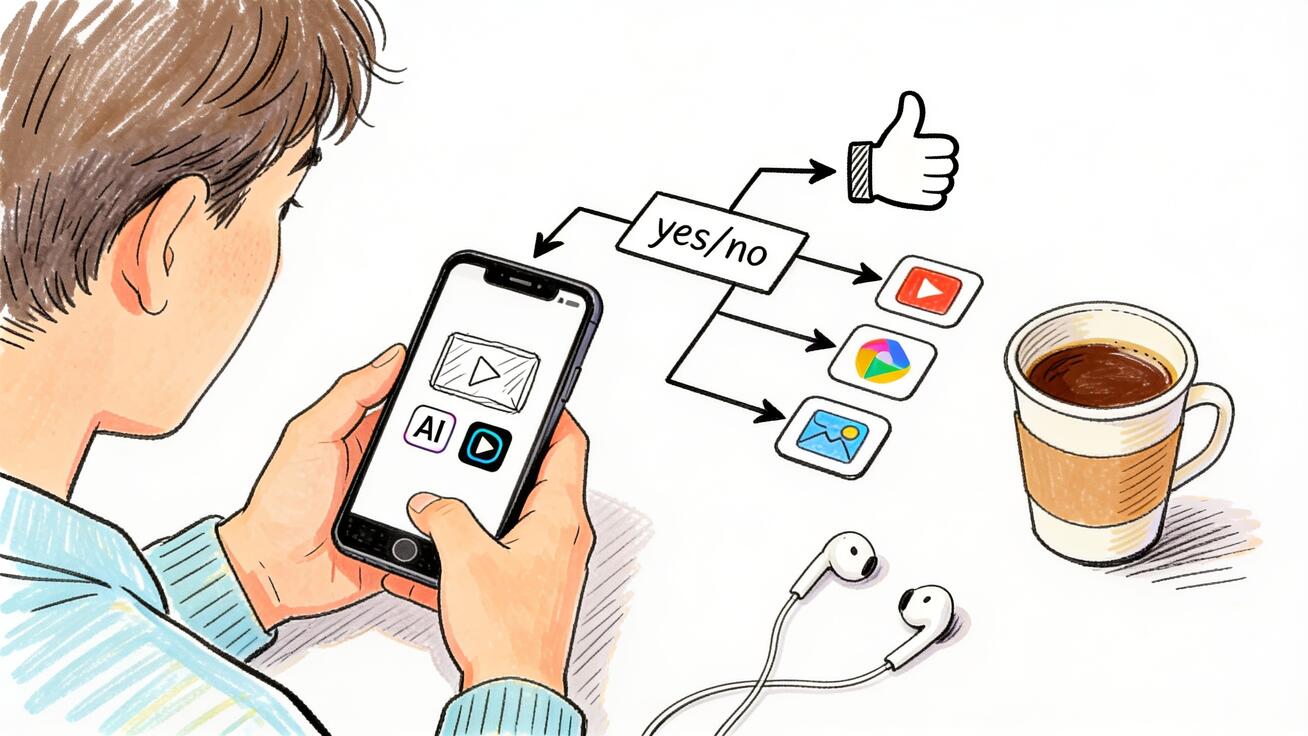
You do not need all of these installed. Most creators do best with two or three: one quality generator, one editor, and one fast sketchpad. Use this decision logic.
- If quality is everything (brand work, portfolio, anything a client sees): start with the Gemini app (Veo) for generation, finish in CapCut.
- If speed and trends matter most (you post daily, chase sounds and formats): live in CapCut, and pull quick clips from Pika or Kling.
- If you animate photos (product shots, travel pics, pet content): make Kling or Pika your first stop for image-to-video.
- If you want control (precise motion, reshoots of a single shot): keep Runway for the hero shot only, to protect free credits.
- If you cannot or do not want to install apps: use Seedance and the Veo 3 text-to-video flow in your mobile browser.
The trap to avoid is installing six generators and burning every free tier on the same test prompt. Pick a quality app, pick an editor, and standardize your workflow. For a fuller side-by-side of the underlying models (including ones better suited to desktop), the Best Free AI Video Generators 2026 comparison is the companion read.
Mobile Video Creation Workflow: From Prompt to Post
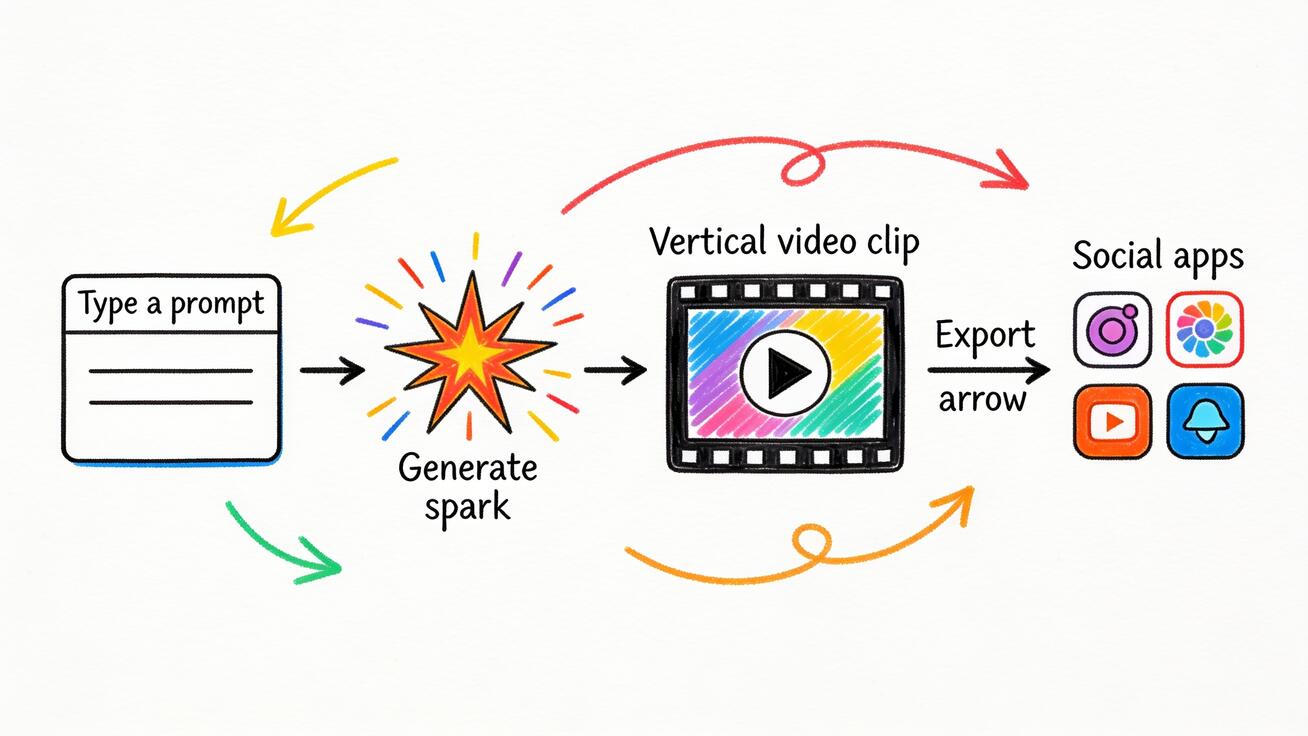
Here is a repeatable phone-only workflow that works across most of the apps above. The goal is to finish in one sitting without ever touching a laptop.
- Pick the platform spec first. Decide where this is going — TikTok, Reels, or Shorts — and set the app to 9:16 vertical (1080×1920) before generating. Generating square or landscape and cropping later loses quality and framing.
- Write a tight prompt. On a phone, shorter, concrete prompts beat long paragraphs. Name the subject, the action, the setting, and one camera move. (Prompt templates below.)
- Generate two or three variants. Most apps let you regenerate. Make a few, then pick the best motion — do not settle for the first clip.
- Save to camera roll. Export the winner to Photos/Gallery at the highest available quality. This is your raw asset.
- Assemble in CapCut. Import the clip, trim to the hook, add auto-captions, a sound, and one transition if you are stitching multiple clips.
- Check the watermark. Before exporting, confirm there is no leftover free-tier watermark if this is brand or client work.
- Export and share. Use CapCut's native share sheet to push straight to TikTok, Reels, or Shorts. Done — all on the phone.
Mobile-friendly prompt examples
Copy these into any text-to-video app and adjust the subject. They are written short on purpose, for phone typing:
- Product on the go:
Close-up of a reusable water bottle on a wooden cafe table, soft morning light, slow push-in camera, steam rising, vertical 9:16. - Lifestyle / travel:
A traveler walking along a coastal path at golden hour, backpack swaying, gentle handheld camera follow, warm tones, vertical 9:16. - Talking-head B-roll:
Overhead shot of hands typing on a laptop in a bright home office, plants in background, smooth slow pan, vertical 9:16. - Image-to-video (from a photo): Upload a still, then prompt
Animate gentle motion: hair and clothing move slightly in the wind, subtle parallax, camera holds steady. - Trend reaction clip:
A small dog wearing tiny sunglasses nods to the beat, studio backdrop, playful bounce, vertical 9:16.
For platform-specific ideas, our guides on Veo 3 Instagram Reels and YouTube Shorts ideas give you formats and hooks to plug into these prompts.
Mobile Tips: Vertical Video, Export, and Battery
A few habits make phone-based AI video far less frustrating:
- Set aspect ratio before, not after. Cropping a 16:9 clip to 9:16 throws away pixels and ruins composition. Choose vertical at generation time whenever the app allows it.
- Generate on Wi‑Fi. Video files are large and so are the uploads for image-to-video. Heavy generation on cellular eats data fast.
- Mind battery and heat. Long render queues and back-to-back generations warm the phone and drain it quickly. Queue jobs, then lock the screen if the app supports background processing.
- Keep an "exports" album. Save every raw generation to one Photos/Gallery album so your editor app can find assets fast and you do not lose a good take.
- Offline editing, online generating. Generation needs a connection (these models run in the cloud, not on-device), but CapCut and most editors let you trim and caption offline. Generate while connected, edit anywhere.
- Respect free-tier limits. Spread test prompts across apps instead of exhausting one tool's daily credits on a single idea. Benchmark in your quality app, draft in your sketchpad app.
FAQ
What is the best free AI video generator app for phones? For pure quality, the Google Gemini app (Veo) is the strongest free starting point on both iOS and Android. For fast social editing and export, pair it with CapCut, whose free tier is generous. The "best" depends on whether you value quality, speed, or editing control.
Can I make AI videos entirely on my phone, no laptop? Yes. With a quality generator (Gemini/Veo, Kling, or Pika) plus an editor like CapCut, you can prompt, generate, caption, and publish to TikTok/Reels/Shorts without a computer. The mobile workflow above walks through every step.
Are these AI video apps really free? Most offer a real free tier, but with limits — daily credits, watermarks, or capped resolution. Free is enough for testing and many social posts; brand or client work usually needs a paid plan to remove watermarks and raise limits. Always confirm the current plan inside the app.
Do AI video apps run offline? Generation does not — these models run in the cloud, so you need a connection to create. But you can edit, trim, and caption offline in most editor apps, then export when you are back online.
Which app is best for vertical TikTok and Reels content? Generate in any app that lets you choose 9:16, then finish in CapCut for captions, sounds, and native social export. Setting vertical aspect ratio before generating is the single biggest quality win for short-form.
Conclusion
The best AI video generator apps for 2026 are not one winner but a small kit: a quality generator like the Gemini app (Veo), an editor like CapCut, and a fast sketchpad like Pika or Kling — most with a usable free tier on iOS and Android. Choose by your goal, set vertical 9:16 before you generate, and finish in one mobile session from prompt to post. When you want the deeper, model-by-model breakdown for desktop or higher-end work, read the Best Free AI Video Generators 2026 comparison, or jump straight into the Veo 3 text-to-video workflow and make your first clip today.
Related Articles
Continue with more blog posts in the same locale.

How to Make Sports Highlight Videos with Veo 3 AI (2026)
Create stunning sports highlight videos with Veo 3 AI. Generate dynamic action shots, slow-motion sequences, and dramatic replays using AI prompts.
Read article
How to Make a Short Film with Veo 3 AI (2026 Guide)
Learn how to create professional short films using Veo 3 AI. Step-by-step guide with prompts, workflow tips, and cinematic techniques.
Read article
How to Make Documentary Videos with Veo 3 AI (2026 Guide)
Create compelling documentary videos with Veo 3 AI. Learn prompting techniques, narrative structure, realistic footage generation, and post-production tips.
Read article